

Reblogged on ecellorscrm.wordpress.com

Power Automate has introduced some exciting new features that have been long-awaited. These are small changes, but will make creating flows much easier.
Turning on the experimental features
First, you need to make sure you turn on these features. This is done by logging into https://flow.microsoft.com. Then click the gear icon in the upper-right corner and select “View all Power Automate settings”.
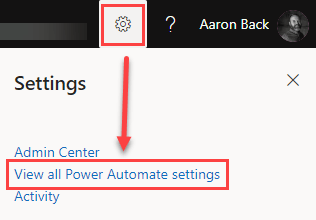
Once you select this option you will see a small Settings window pop up. From here, you need to toggle on the “Experimental Features” and then click “Save”.
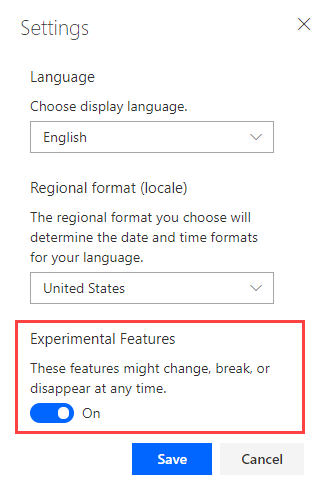
Note: These are experimental features. As noted in the screen shot above, these features could change, break, or disappear. So, there are no guarantees.
What are the new features?
Once you have the experimental features enabled, you will notice a couple of awesome new features.
First, you will notice the labels and field inputs have a different layout…
View original post 326 more words
Discover more from ECELLORS CRM Blog
Subscribe to get the latest posts sent to your email.

 ECELLORS CRM Blog