Invalid subscription key error when connecting Azure cognitive services Face API

saurabh nijhawan's avatarSaurabh nijhawan's weblog

Recently during an integration scenario with D365 Field services in order to identify if the person making a change to the Customer asset is an employee or not we spinned up an Azure Face API service and on trying to connect it from an Azure function we were getting Invalid key exception.

We were using the Face API client library which defaults to west US endpoint of the service but our service was in EastUS.

Default endpoint:https://westus.api.cognitive.microsoft.com/face/v1.0/

The solution is to override the endpoint tohttps://eastus.api.cognitive.microsoft.com/face/v1.0/ which can be done by using another constructor of the FaceServiceClient class

FaceServiceAPIClient = new FaceServiceClient("Face API subscription key", "https://eastus.api.cognitive.microsoft.com/face/v1.0");

View original post

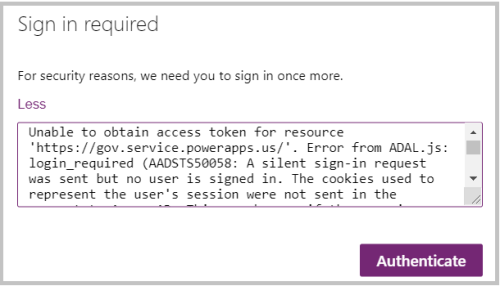
Power Apps – Canvas Apps – Unable to obtain access token for resource ‘https://gov.service.powerapps.us/’. A silent sign-in request was sent but no user is signed in. The cookies used to represent the user’s session were not sent in the request to Azure AD

Sachin Bansal's avatarBansal Blogs - Dynamics 365, PowerApps, Microsoft Flows, Power BI

Access1

Power Apps recently introduced sharing capabilities with Guest Users. Upon sharing users were not able to access app because of error “Unable to obtain access token for resource ‘https://gov.service.powerapps.us/’. A silent sign-in request was sent but no user is signed in. The cookies used to represent the user’s session were not sent in the request to Azure AD”.

As we were investigating this issue and reaching out to Microsoft support team, we came to know this is not just for Guest users and because of browser cookie settings. Make sure third-party cookies are not blocked and enabled. You can refer below steps to enable third party cookies:

Microsoft Edge:

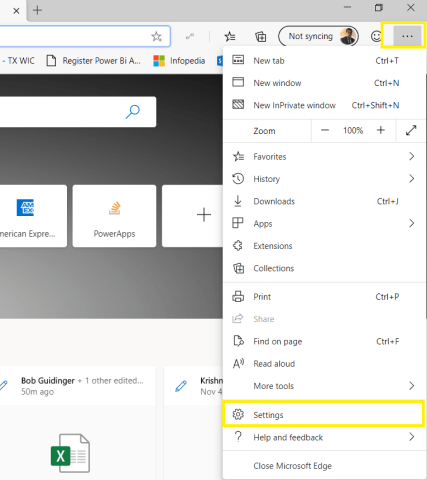
  • Go to Settings from right side navigation

Access2

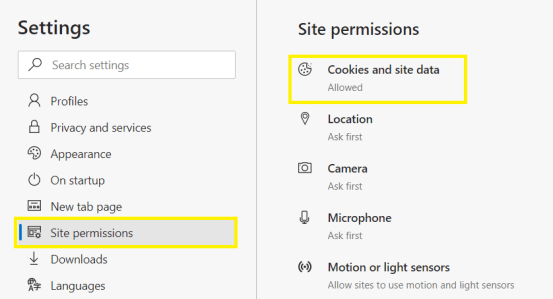
  • Click on Site Permissions in Left side navigation and select Cookies and site data

Access3

  • Make sure options are enabled and disabled as shown below

Access4Chrome:

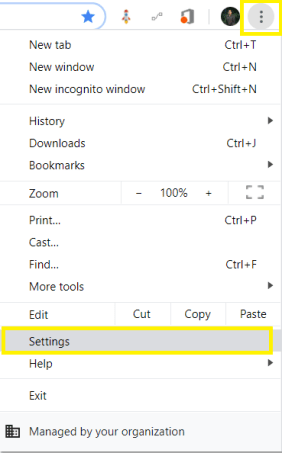
  • Go to Settings from right side navigation

Access5

  • Expand Advanced…

View original post 42 more words