Orphan Flows in Power Automate??

If you are a Dynamics CE Consultant, you should have heard of orphan records. Do you know Orphan flows do exist in Power Automate in a similar way….

A flow is considered to be an Orphaned flow when it don’t have a valid owner anymore. This can possibly happen when the creator or owner of the flow has left the organization and there is no co-owner or the owner for the flow. If the flow uses connections that require authentication, then it may start failing because the user identity is not valid anymore.

Admins can maintain continuity on the business process automated by the flow by adding one or more co-owners to it. Co-owners basically have full control over the flow just like the original owner, and can fix authentication for connections if any and enable the flow if it has been disabled.

Please note that only privileged users can view flows that do not have any valid owners. On the environment page from Flow Admin Center (https://admin.flow.microsoft.com/environments), go to “Resources” tab and then open the “Flow” list. Orphaned flows display “None” as their owner.  Click “Load more” to load the next set of flows so as to ensure you have looked through all flows that might be orphaned.

How will you solve this problem?

  1. Manually you can add the flow a owner which will resolve the issue when the number of flows are in reasonably small in number. But if the number of Orphaned flows are in large number, you should look for next approach presented.
  2. Code way…using Power Automate cmdlets: Make sure you follow the instructions for setting this up.

Reference: How to manage orphan flows when the owner leaves the organization

Cheers,

PMDY

Decompile your .Net Assemblies

Hi Folks,

It is often intimidating and overwhelming when you see your code is not working in Production and you were not sure if some one from your team has modified that which haven’t been checked in to source control.

If you find yourself in a such a tragic condition, this post is for you and it just gives some tools for you…

  1. JustDecompile from Telerik
  2. dotPeeks from JetBrains
  3. Net Reflector from Red Gate

Load your assemblies into the tools and you should be able to view your code inside your class just from Dll. From my personal preference, I suggest you to download the JustDecompile which is much more flexible.

Cheers,

PMDY

JavaScript Arrow Functions

In this tutorial, you will learn about JavaScript arrow function with the help of examples.

Arrow function is one of the features introduced in the ES6 version of JavaScript. It allows you to create functions in a cleaner way compared to regular functions. For example,

This function

// function expression
let x = function(x, y) {
   return x * y;
}

can be written as

// using arrow functions
let x = (x, y) => x * y;

using an arrow function.


Arrow Function Syntax

The syntax of the arrow function is:

let myFunction = (arg1, arg2, ...argN) => {
    statement(s)
}

Here,

  • myFunction is the name of the function
  • arg1, arg2, ...argN are the function arguments
  • statement(s) is the function body

If the body has single statement or expression, you can write arrow function as:

let myFunction = (arg1, arg2, ...argN) => expression

Example 1: Arrow Function with No Argument

If a function doesn’t take any argument, then you should use empty parentheses. For example,

let greet = () => console.log('Hello');
greet(); // Hello

Example 2: Arrow Function with One Argument

If a function has only one argument, you can omit the parentheses. For example,

let greet = x => console.log(x);
greet('Hello'); // Hello 

Example 3: Arrow Function as an Expression

You can also dynamically create a function and use it as an expression. For example,

let age = 5;

let welcome = (age < 18) ?
  () => console.log('Baby') :
  () => console.log('Adult');

welcome(); // Baby

Example 4: Multiline Arrow Functions

If a function body has multiple statements, you need to put them inside curly brackets {}. For example,

let sum = (a, b) => {
    let result = a + b;
    return result;
}

let result1 = sum(5,7);
console.log(result1); // 12

this with Arrow Function

Inside a regular function, this keyword refers to the function where it is called.

However, this is not associated with arrow functions. Arrow function does not have its own this. So whenever you call this, it refers to its parent scope. For example,

Inside a regular function

function Person() {
    this.name = 'Jack',
    this.age = 25,
    this.sayName = function () {

        // this is accessible
        console.log(this.age);

        function innerFunc() {

            // this refers to the global object
            console.log(this.age);
            console.log(this);
        }

        innerFunc();

    }
}

let x = new Person();
x.sayName();

Output

25
undefined
Window {}

Hope this helps in improvising your JavaScript code for your Power Platform Implementations

Happy CRM’ing.

Cheers,

PMDY

Download CRM 365 V9.X Tools using PowerShell

Arun Potti's avatarArun Potti's Power Platform blog

Follow the below steps to download the Tools,

Step 1: Create a folder in D Drive and name it as “Dynamics_365_Development_Tools

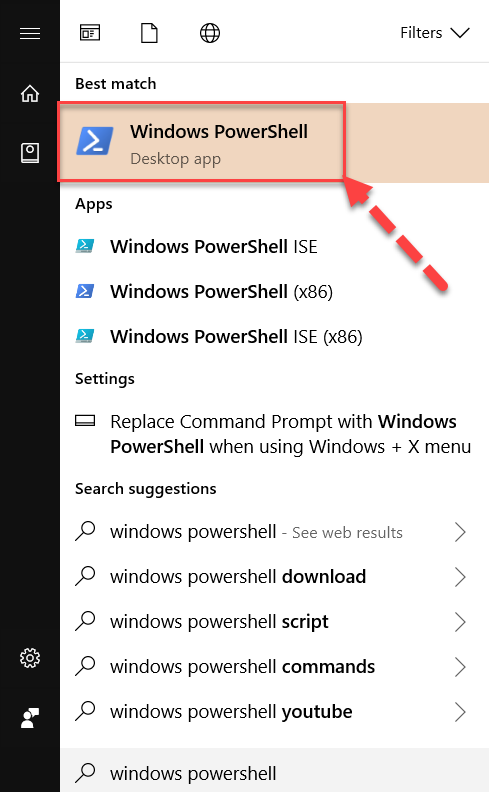
Step 2: Click on Windows, search for Windows PowerShell and open it.

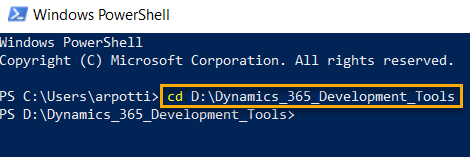
Windows PowershellStep 3: Type the below command to change the directory.

cd D:Dynamics_365_Development_Tools

and press Enter.

Windows Powershell Command to Change DirectoryStep 4: Copy & Paste the below PowerShell script in PowerShell Window to download tools from Nuget.

$sourceNugetExe = "https://dist.nuget.org/win-x86-commandline/latest/nuget.exe" $targetNugetExe = ".nuget.exe" Remove-Item .Tools -Force -Recurse -ErrorAction Ignore Invoke-WebRequest $sourceNugetExe -OutFile $targetNugetExe Set-Alias nuget $targetNugetExe -Scope Global -Verbose ## ##Download Plugin Registration Tool ## ./nuget install Microsoft.CrmSdk.XrmTooling.PluginRegistrationTool -O .Tools md .ToolsPluginRegistration $prtFolder = Get-ChildItem ./Tools | Where-Object {$_.Name -match 'Microsoft.CrmSdk.XrmTooling.PluginRegistrationTool.'} move .Tools$prtFoldertools*.* .ToolsPluginRegistration Remove-Item .Tools$prtFolder -Force -Recurse ## ##Download CoreTools ## ./nuget install Microsoft.CrmSdk.CoreTools -O .Tools md .ToolsCoreTools $coreToolsFolder = Get-ChildItem ./Tools | Where-Object {$_.Name -match 'Microsoft.CrmSdk.CoreTools.'} move .Tools$coreToolsFoldercontentbincoretools*.* .ToolsCoreTools Remove-Item .Tools$coreToolsFolder -Force -Recurse ## ##Download Configuration Migration ##…

View original post 92 more words