DAX Studio – Great tool to debug your DAX Queries for Power BI Projects

Hi Folks,

In this digital era, every Power Platform individual want to make more with their data. So obviously there are gonna using Power BI to provide great insights with their data.

Coming to reporting, every one knows to create their visuals in Power BI Desktop and publish them to Power BI Service to view the Power BI Dashboards in Dataverse. This is common and known by everyone. But if you go a bit deeper and want to build some complex Power BI visuals, you were going to definitely use DAX(Data Analysis Expressions). If you were new to DAX, look at this tutorial to gain more information on how to write them.

Next step is when you were writing the DAX expressions, might be in Measures or Calculated functions(including calculated tables, calculated columns) you can’t just write them out at first shot and publish your reports. Definitely it takes time and effort to write them and make the look syntactically formatted so that every one can understand. So you may need to debug your DAX expressions before you actually use them in your reports. It’s when DAX Studio comes as savior which can be integrated with Power BI Desktop in few simple steps.

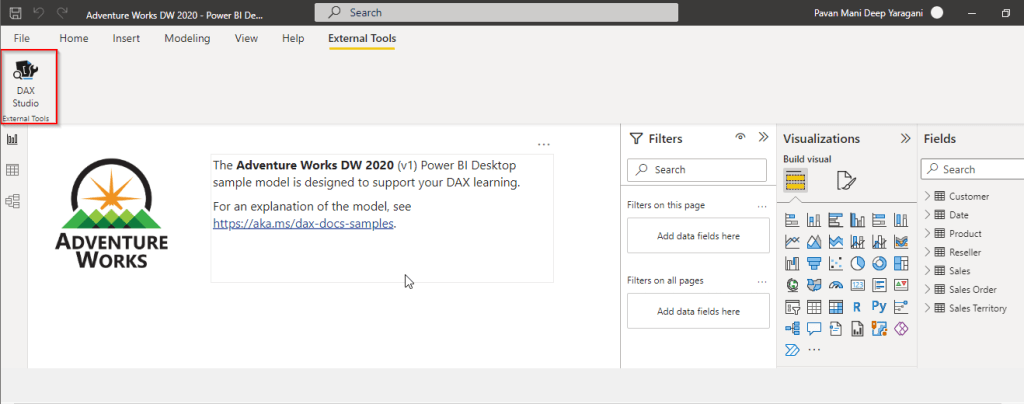
First step is to download DAX Studio and install it. As soon you are done, you should be able to see in external tools tab.

When you open any Power BI report, you can open them directly from DAX Studio.
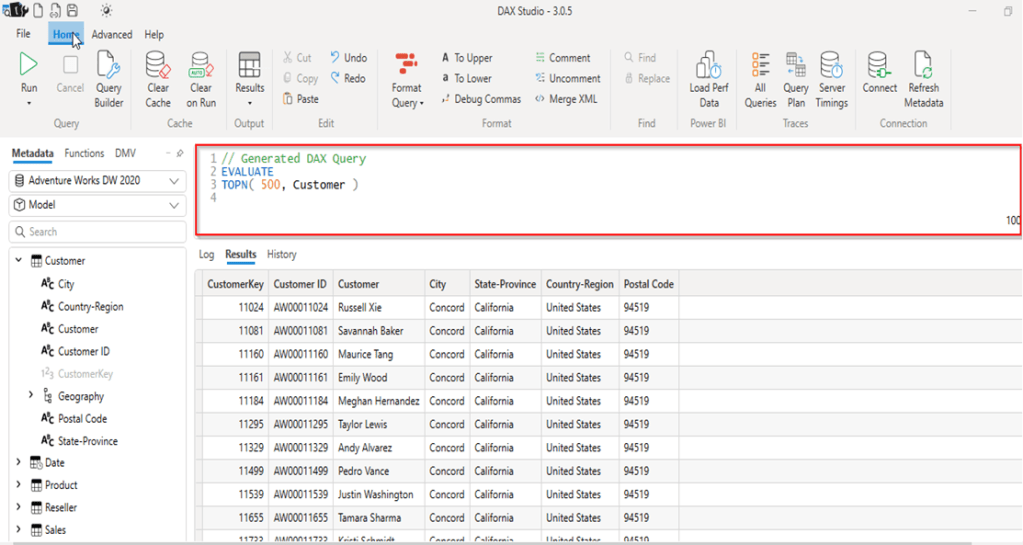
You can then open your DAX queries in your DAX Studio and then run/debug your queries, view the performance statistics etc.
DAX Studio is an open source tool which every BI Developer can leverage to improve your productivity in their projects.

Reference:

Video Reference

Web reference

Hope this helps….

Cheers,

PMDY

Power Fx Fomula Data type – your new companion in addition to Calculated fields in Dataverse [Insight]

Hello Folks,

I believe ever Power Platform professional working on Dataverse had one or other time got a chance to work on calculated fields. Actually it provides an easy way to perform any calculations for the supported data types since it has been introduced with CRM Version 2015 update 1.

Here is a very simple example of simple calculation to get your Fx data type up and running in few seconds….follow along….

Navigate to https://make.powerapps.com/

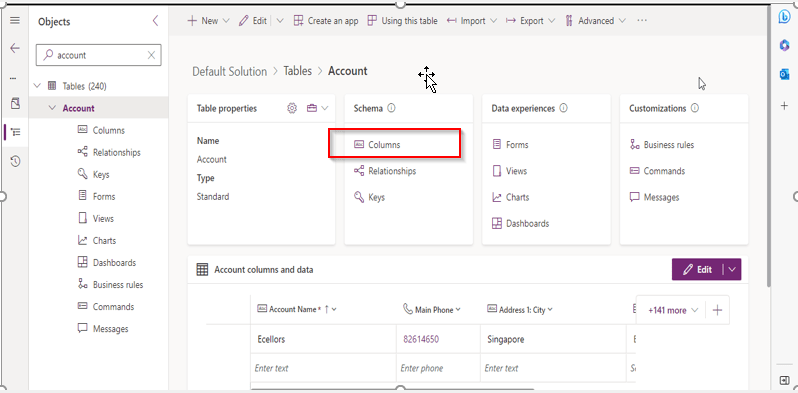
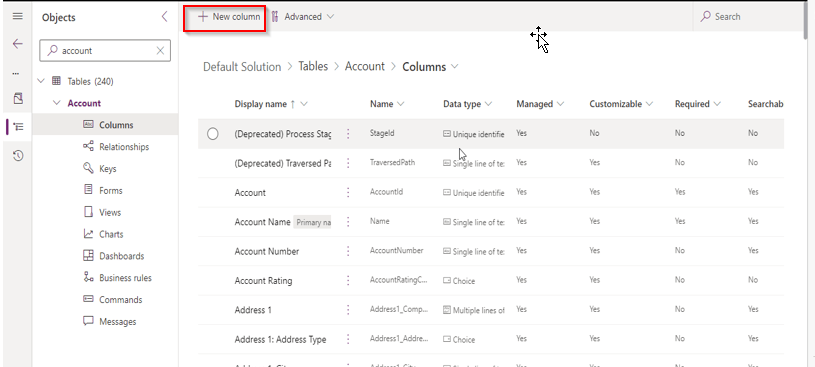
Open your solution, navigate to the columns in any table….for simplicity I am taking example of Accounts table…

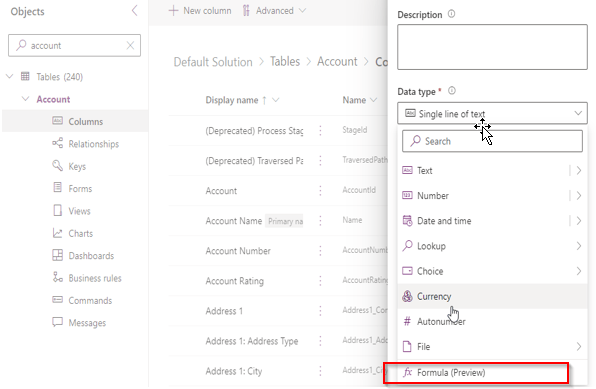
Now create new column as below

Key values for the field, make a note that the data type (Fx) is selected

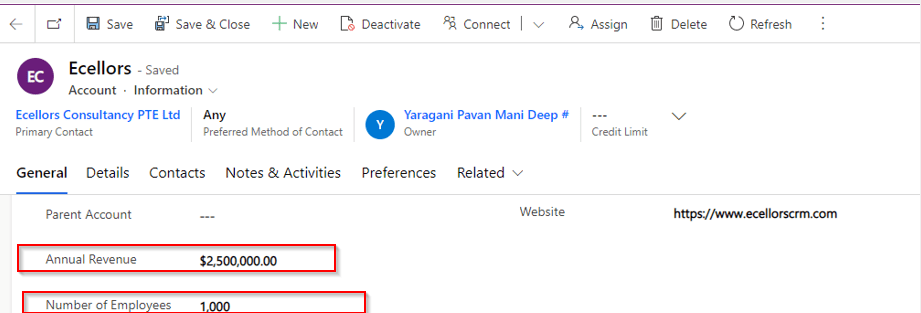
I already have two fields as below already on the form for calculating the Annual revenue per Employee from Annual Revenue of the company…

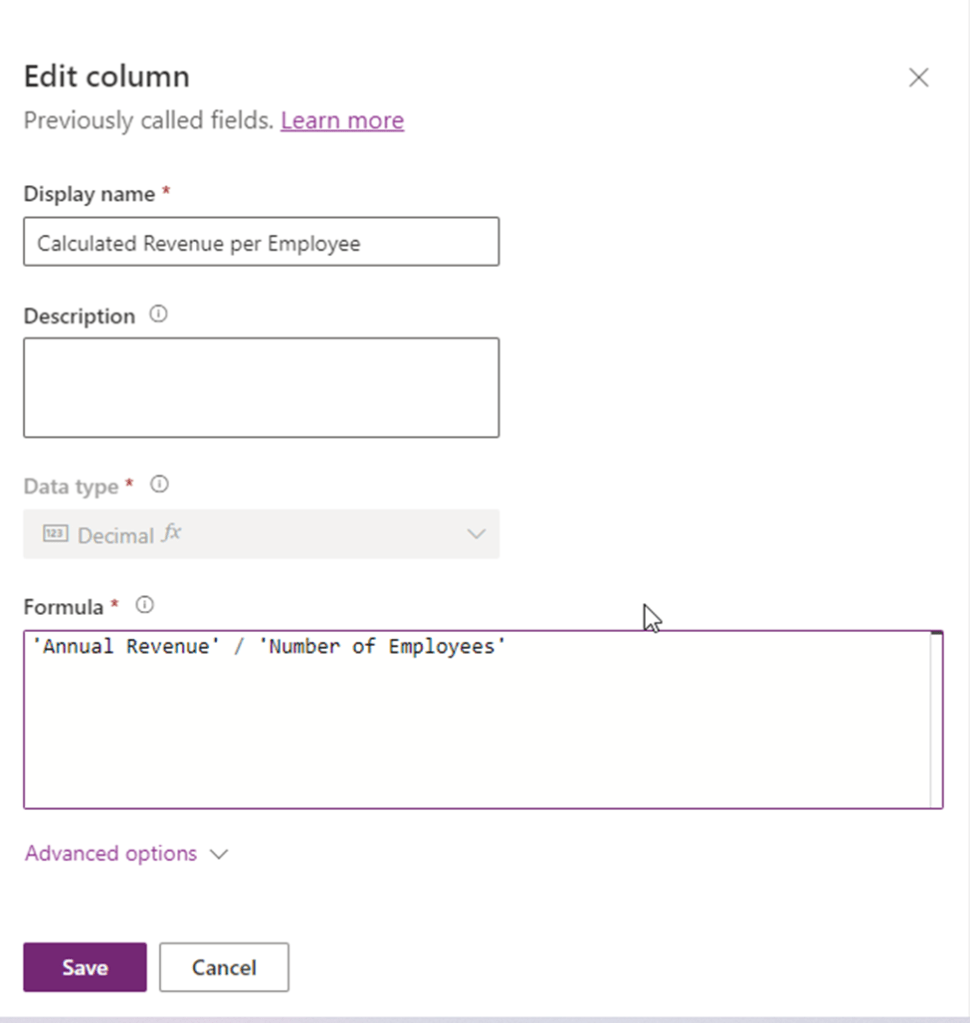
So now let’s write a simple Power Fx formula to calculate the Annual Revenue per Employee…the expression goes as below…

Annual Revenue is a currency field and Number of Employees field is single line of text. As soon as you save, system automatically identifies the data type as Decimal Number as shown above, click on save and publish the form…

Let’s see the actual use in the form…as soon as you enter the values for Annual Revenue and Number of Employees and save, the value for Calculated Revenue for the Employee field value will be calculated by the Power Fx expression.

Hope this will be useful in future for your implementations…

Points to keep in view:

  1. This formula column is in preview right now at the time of writing this blog post.
  2. And currently, formula columns can’t be used in roll-up fields or with plugins.
  3. You can use the following operators in a formula column:
    +, -, *, /, %, ^, in, exactin, &
  4. Microsoft Documentation says that the Currency data type isn’t currently supported but it works actually.
  5. The Text and Value functions only work with whole numbers, where no decimal separator is involved

Ref: Formula Column

Cheers,

PMDY