
Subscribe to continue reading
Subscribe to get access to the rest of this post and other subscriber-only content.

Exploring Power Platform and Beyond: Features, Experiences, Challenges, Solutions all in one place
Subscribe to get access to the rest of this post and other subscriber-only content.
Subscribe to get access to the rest of this post and other subscriber-only content.
Hi Folks,
Yesterday I was working with Azure DevOps repository for my project. My local Develop branch is behind the Main branch by few commits, I want to get the latest commits into my local and include those from the Main branch also in to my Develop branch.
It is then I got to know whether to use GIT Merge Command or GIT Rebase Command. And here you go my findings on the same….
I got to know the details, official Git manual states that rebase “reapplies commits on top of another base branch”, whereas merge “joins two or more development histories together”. In other words, the key difference between merge and rebase is that while merge preserves history as it happened, rebase rewrites it. Let’s start with an illustration…for better understanding…followed by the differences…

| Merge | Rebase |
| Git merge is a command that allows you to merge branches from Git. | Git rebase is a command that allows developers to integrate changes from one branch to another. |
| In Git Merge logs will be showing the complete history of the merging of commits. | Logs are linear in Git rebase as the commits are rebased |
| All the commits on the feature branch will be combined as a single commit in the master branch. | All the commits will be rebased and the same number of commits will be added to the master branch. |
| Git Merge is used when the target branch is shared branch | Git Rebase should be used when the target branch is private branch |
Actually talking both do mean the same purpose and have their own uses, but at the end of the day it is completely up to your ALM strategy/methodology. I preferred to use Merge instead of Rebase just that my branch is shared branch and for simplicity.
Hope this helps…
Cheers,
PMDY
Hi Folks,
While you may have noticed this or not, but it’s real. Now Dynamics 365 CE existing table types have a new companion called Elastic, it is yet to be announced.
However let’s take a quick look of the table types showing up when you were trying to create a new one in Dataverse.
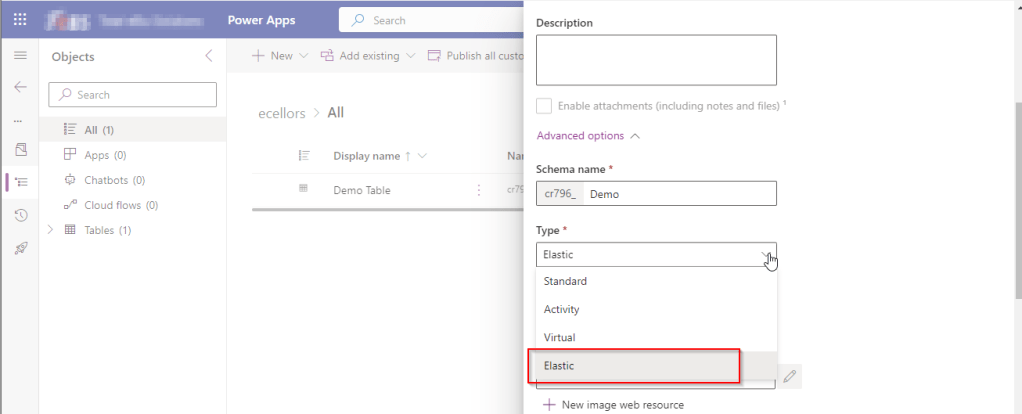
While everyone is aware about Standard, Activity, Virtual types in Model Driven Apps. Elastic tables are new tables which came in to Dataverse and probably it will be announced in the upcoming Microsoft Build 2023.
From my view, Elastic tables were
1. Built similar to the concept of Elastic Queries in Azure which is usually meant for the purposes of Data archiving needs.
2. You can scale out queries to large data tiers and visualize the results in business intelligence (BI) reports.
3. Elastic Query provides a complete T-SQL Database Querying capability on Azure SQL, possibly Dataverse.
Hope we get all the capabilities released with Elastic Queries of Azure SQL be released in Dataverse as well.
References:
Data Types in Model Driven Apps
Cheers,
PMDY
Hi Folks,
Do you know you can change the Data type of an Primary column between Single Line of Text and Autonumber even after creation of your entity specifying a defined Primary Name Column. There is a catch….
So let’s see…
I first created a brand new Table called Demo Table and kept the Primary Column as Single Line of text. Earlier once the table is created, you will not be able to change the Primary name column if you wish to, the only way was to delete the table and re-create it with the correct type. But now you can change the type of the column at least to a unique autonumbering.

I want the Primary Name column to be unique, but when I look at the data in my table captured, I see many duplicates.

So let’s change the data type of the primary column data type to Autonumber.
The primary field look as below initially…
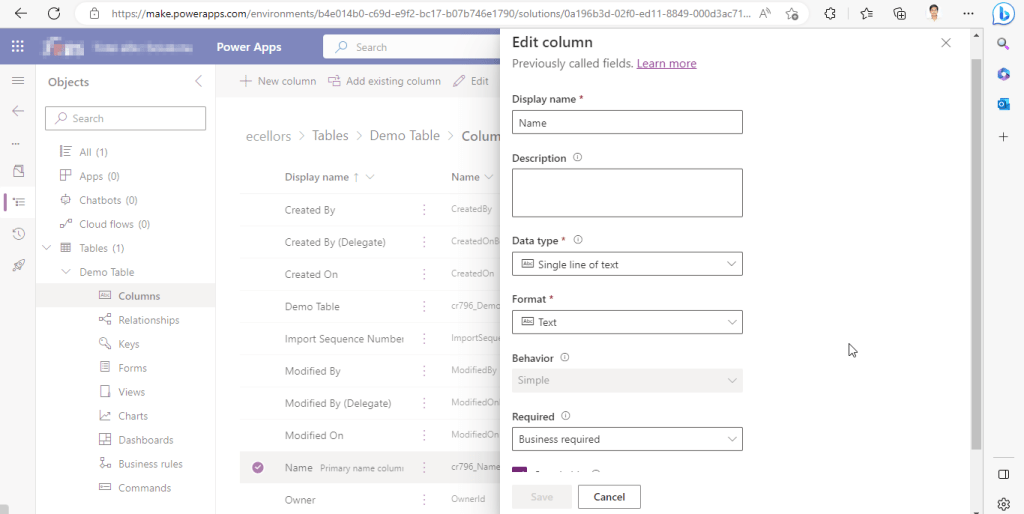
Select the Data Type available…
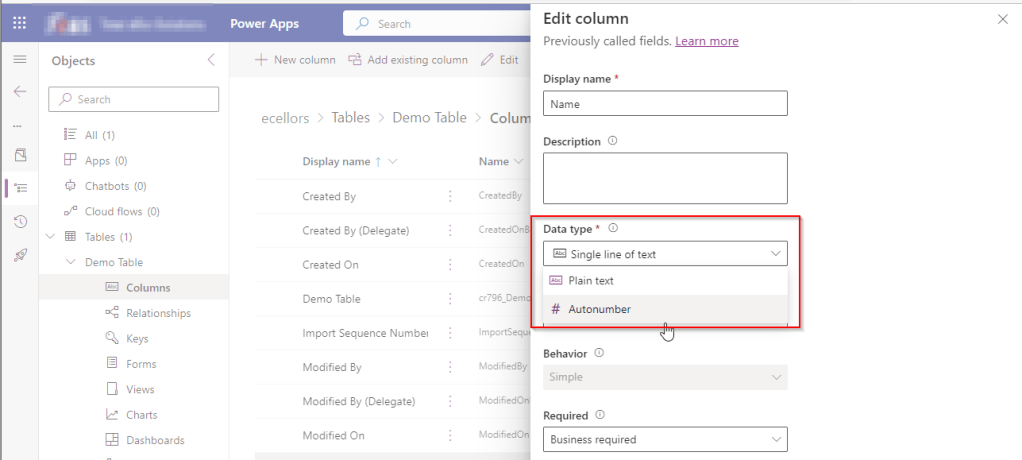
Now Select the Autonumber from the drop down available…you can optionally specify any custom prefix which you want for your Autonumber…and click Save and publish the customizations.

Now go back to your model driven app and then try creating a new record for the respective entity.
Since it was a primary field column, it is by default made mandatory…what’s up…the Autonumber column data type change is not reflecting….this is the same even if you check and publish the solution multiple times. Neither you can’t specify the field value because you already choose this to be an Autonumber and system should create it by itself.
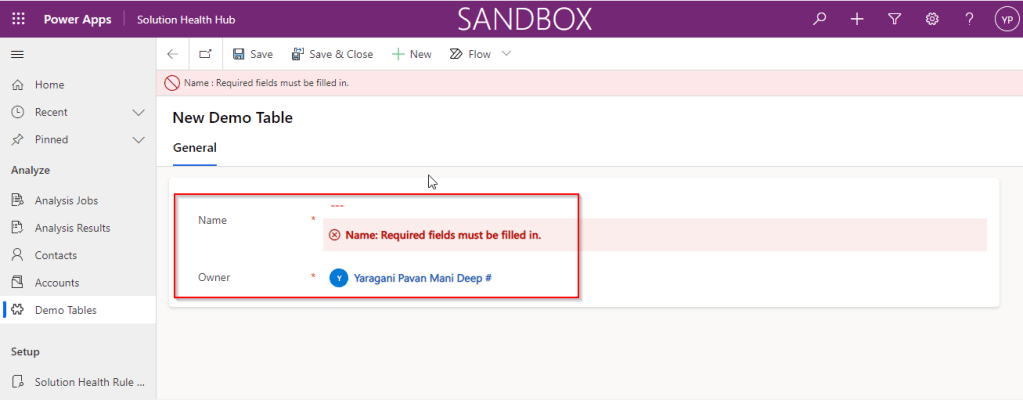
If you were scratching your head, then this simple tip will help…
Just make the field read-only from the form where this field is being referred, so you don’t need to really enter value for it…then publish the customizations.
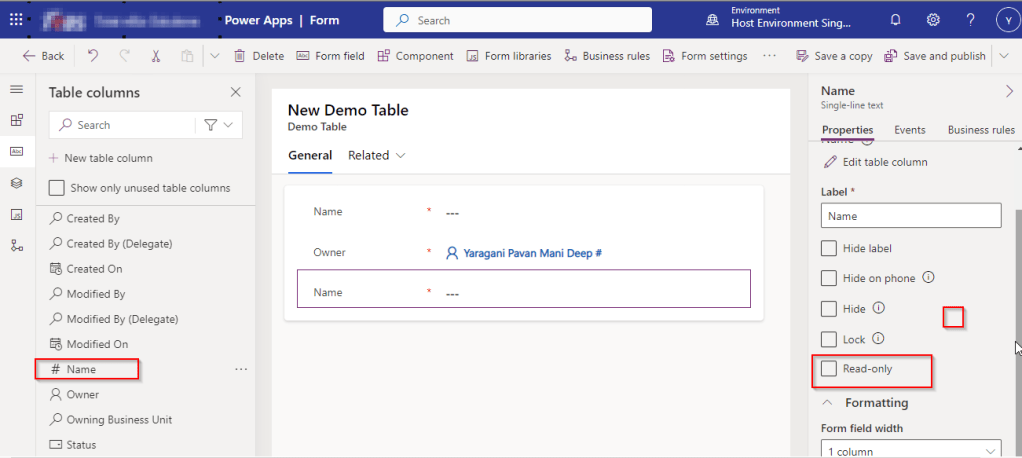
Once you have done…
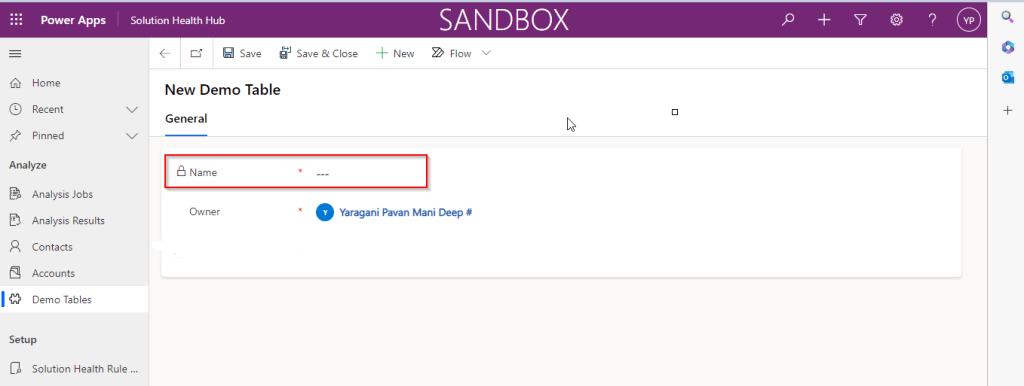
Now try to save the record..

There you go, you can see an Autonumber being populated in the primary field…
Cheers,
PMDY

 ECELLORS CRM Blog