Update your Model Driven App User personal settings in an easier way – Quick Tip

Hi Folks,

Did u ever been asked in your project to update the User Personal Settings….possibly you could have resorted to User Settings Utility in XrmToolBox…may be you could have updated the settings manually for each user in list provided to you…

Do you know you could update them in bulk at one shot in a much easier way, so you don’t need to update it manually one by one. I could see many blog posts talking about updating through this tool, but this was missed in those.

Scenario:

You have newly added users to your Azure Active Directory, now you need to set up the user personal settings for them so see proper time zone in Dynamics.

There were two ways:

  1. Use a view
  2. Choose users from FXB(Fetch XML Builder)

The first approach is easiest of course…

For this, lets create a view Users with Security in user entity as below…you know that you could only update settings for those who were having security role.
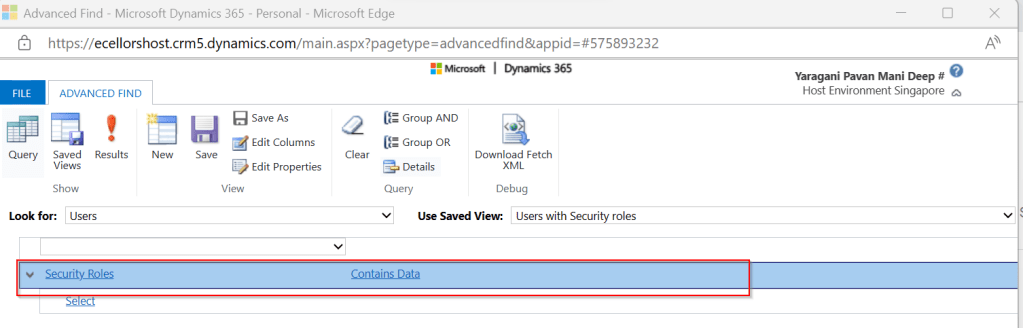
Mainly the user need prvReadUserSettings privilege to update the personal settings, the tool doesn’t allow if not.

Once you have connected to the environment, click on Load Users and settings. Now just select the view which have created before…upon selecting the tool will list down all the active users satisfying the view criteria.
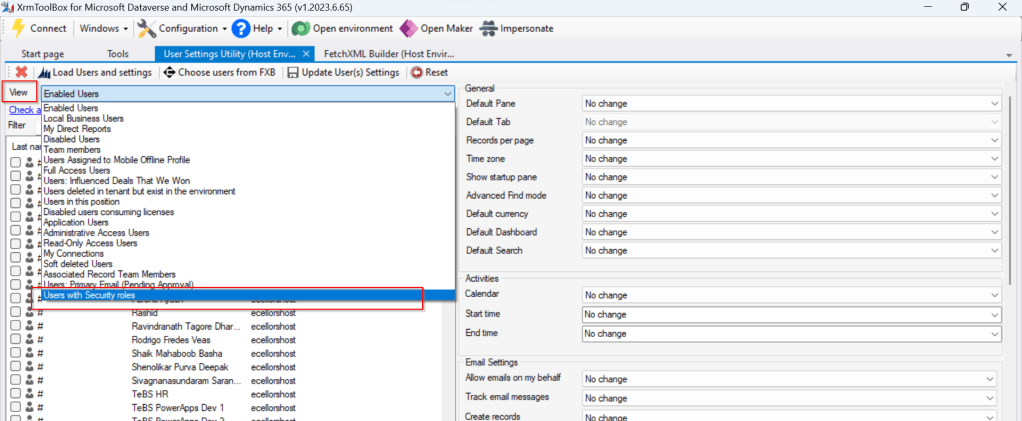
All you need is to click on Check all and there by selecting all the users satisfying your filter criteria, change the settings as per your needs on the right-hand side of the tool and click on Update User(s) Settings in one go.

Here I have 3 users in the view, all were updated in one shot…

Isn’t it easy, this trick will save you a lot of time if your user list grows…

Cheers,

PMDY

Deploying Solutions using Power Platform CLI

In my previous blog post, I have already explained how you can utilize Power Pipelines which is the OOB Dynamics 365 Product capability.

Power Platform have many ways where we can deploy our solutions to higher environments…in this blog post, we will see how we can utilize Power Platform CLI to deploy our solutions.

Prerequisites: Power Platform CLI

If you don’t have installed yet in your machine, you can download Power Platform CLI from this link in either of the ways below

1.Install using Power Platform Tools for Visual Studio Code

2. Install Power Platform CLI for Windows using PowerShell

Once you got this installed, make sure you set your environment variable in your machine as below

Then you can use your favorite IDE or Command line. I personally recommend using Visual Studio Code because of the flexibility it offers and ease of installation, use.

Export and Import can be done very easily with CLI with a few commands once you were authenticated with your instance.

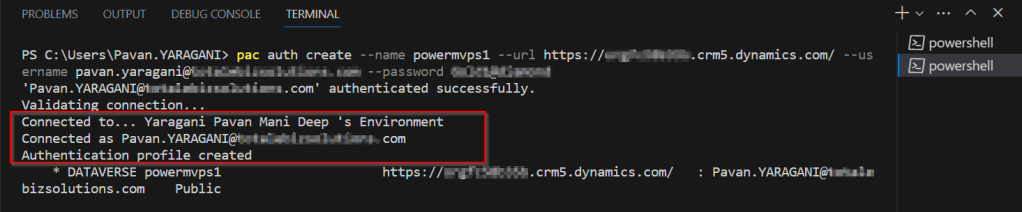
For authentication with your instance. Open a new terminal in visual studio code.

pac auth create –name powermvps1 –url <give your org URL here> –username <give your username here> –password <give your password here>

As below..

Once you have set up correctly, it will show that it is connected.

Now in order to export your solution..use the below commands from Vs Code

pac solution export –path <Path of the Solution Zip file> –name <Solution Name> –managed false –include general

As below..

You should see a Solution zip file got created with the same name as mentioned above…

Similarly, u can import solutions using CLI..

Here I have a solution named ecellorstest in the same folder in my machine..

Let’s try to import using CLI..inorder to import your solution,use the below commands from Vs Code…

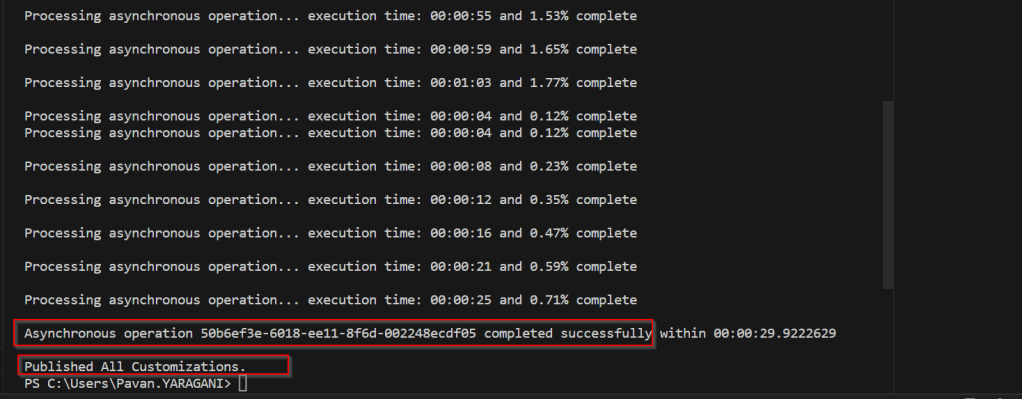
pac solution import –path <Solution Zip file path> –activate-plugins true –publish-changes true –async true

As below..

If we check in our instance, we see the solution is imported…

That’s it, how easy it was…however I have detailed about only a part of full capabilities of Power Platform CLI, its uses are unimaginable.

Reference: Power Platform CLI for Solutions

Cheers,

PMDY