While everything is being automated, we will learn how effective you can handle the errors while you automate the process. Ideally when a failure happens in a Power Automate cloud flow, the default behavior is to stop processing. You might want to handle errors and roll back earlier steps in case of failure. Here are 3 basic first hand rules to consider implementing without second thought.
Run after
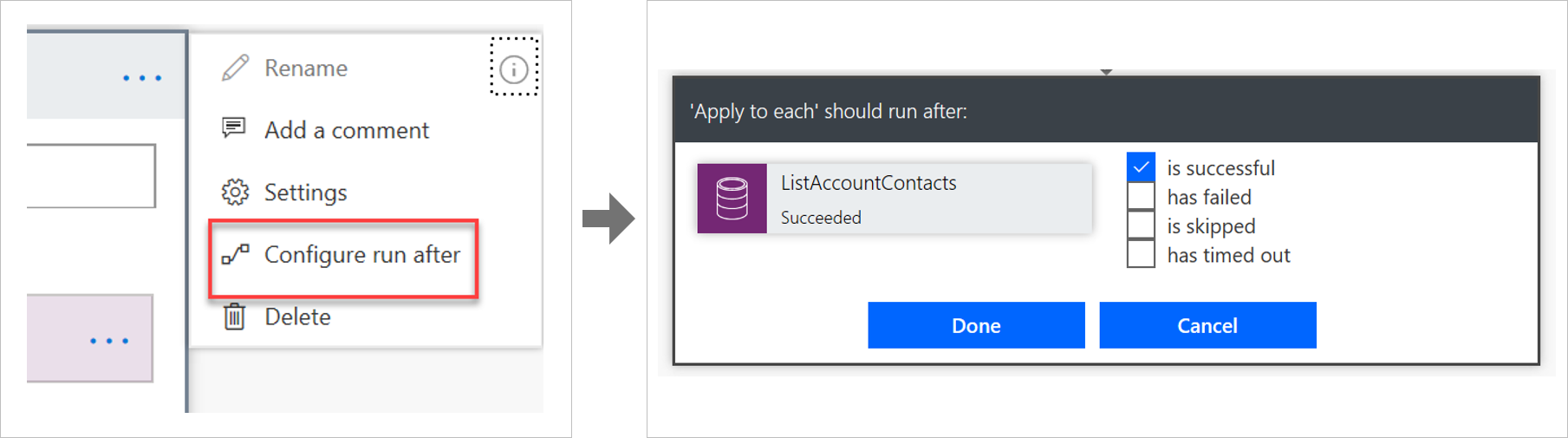
The way that errors are handled is by changing the run after settings in the steps in the flow, as shown in the following image.
Parallel branches
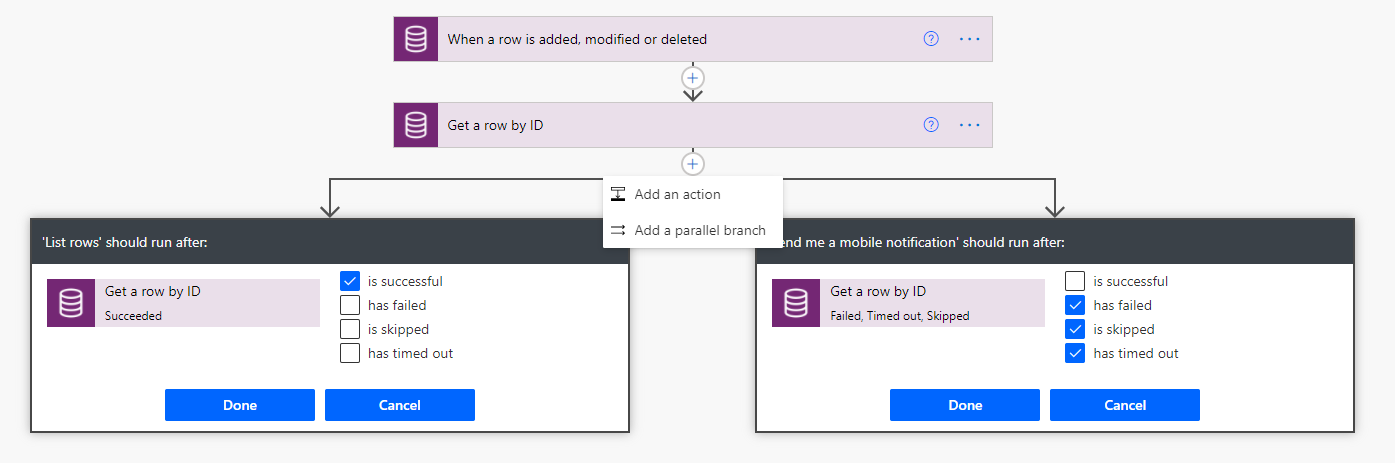
When using the run after settings, you can have different actions for success and failure by using parallel branches.
Changesets
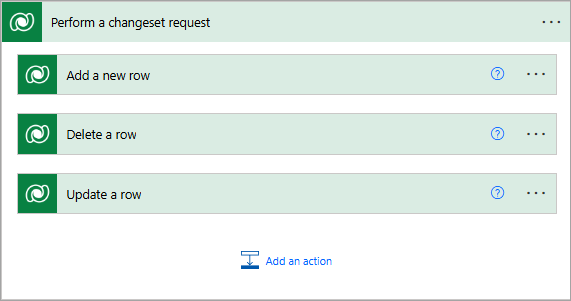
If your flow needs to perform a series of actions on Dataverse data, and you must ensure that all steps work or none of them work, then you should use a changeset.
If you define a changeset, the operations will run in a single transaction. If any of the step’s error, the changes that were made by the prior steps will be rolled back.
Special mentions:
Using Scopes – Try, Catch, Finally
Retry policies – Specify how a request should be handled incase failed.
In today’s no code world and AI, while most of the Apps are developed using low code approach, sometimes we have to go with the traditional way of development to handle any integrations with other systems.
When we give anyone Command Line script and ask them to execute, the other person would immediately open Search bar at the bottom available in Windows and start entering cmd. Immediately command prompt window appears and will be able to execute the same command.
But what if we ask to execute command line Commands from C# code…? So, in this blog post, I will show you how easily you can call command line commands with a simple example. Let’s get started…
Here in order to showcase, I will just use a basic command line command and run it from C#.
Everyone knows how to find the ipconfig command right, which just shows the internet protocol configuration when entered in command line like below.
In order to execute it from Console Application using C#, we would need to utilize the System. Diagnostics. You can utilize the below C# code.
This file contains hidden or bidirectional Unicode text that may be interpreted or compiled differently than what appears below. To review, open the file in an editor that reveals hidden Unicode characters.
Learn more about bidirectional Unicode characters
When we execute this command, it shows exactly same as what we saw above with Command Line.
In the same way we can call any Command Line Commands from C#. I have to use this approach for my Power Platform Implementation integration to decrypt encrypted messages using PGP and I found it to be very helpful and thought of sharing with all of you. If you were looking for a program to decrypt, you can check out for previous blog post here.
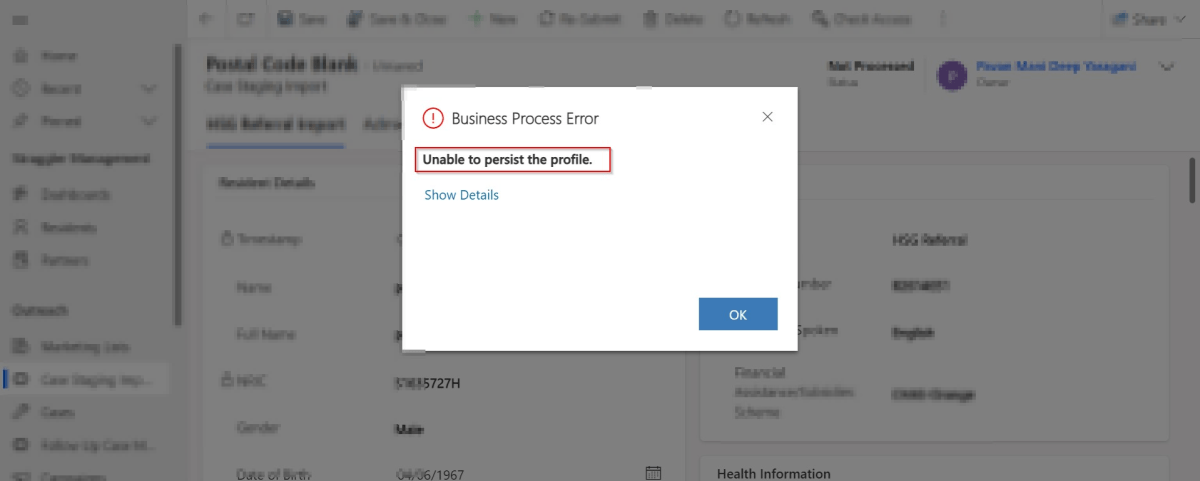
Are you debugging the Dynamics 365 Plugins using Plugin Profiler, did you ever notice this problem that you were unable to persist profile so as to debug your plugin. Did you got frustrated as you couldn’t capture the profile even after lot of tries installing and uninstalling the profiler. Just read on. I am writing this blog post after fixing a similar situation with one of my Plugin.
First of all, I would advise you to check the below.
Plugin trace log under Settings –> Plugin Trace Log.
Check if your Plugin is being called multiple number of times
Check the filtering attributes of your Plugin whether it is causing to go in an infinite loop
Suppose if you have added an image, did you select the respective attributes of the image
Did you add sufficient depth conditions to prevent infinite loop executions.
At what step is your plugin running, is it in PreOperation, PostOperation.? In case you were throwing an error, change it to Prevalidation step and check.
Were you using persist to entity option while debugging, try changing to throw an error and see.
If you note that the system becomes unresponsive and you were not able to download the log file, then definitely your logic is getting called multiple times. Please reverify.
Once you have verified these, you should be able to find out the exact root cause of the issue…I will leave to yourself.
Thank you for visiting my blog today, this is another post talking about SSIS Data Flow Task which I encountered while performing data loading tasks using SSIS and would like to share with everyone.
Did your Visual Studio keeps not responding when you were opening the dataflow tasks for the SSIS Packages you or your team created as shown in image below. And you always try to close the same from task bar since you can’t work and keeps you frustrating, then this tip is absolutely for you.
The problem is actually with your Connection Manager, in your data flow task, you might have OLE DB Connections which the package is using in order to write information if there were any failures in the Data flow. In my case, I was actually writing to a SQL Table using a OLE DB Destination component.
If you cross check that SQL server availability, you should see the SQL Server (Your Instance) is stopped when you check in Start–> Services in the PC. In my case, I was using SQL Server (SQLEXPRESS01) in the SSIS Package as below.
And hence the SQL Server service is in stopped mode, the Visual Studio is not able to acquire the connection to open the package. You were almost there..
Just Start the service which you were using and voila…. your Visual Studio should open normally.
Thank you for visiting my blog today, this post is all about improving the performance of SSIS Data Flow Task which I would like to share with everyone.
Do you know, you can improve your SSIS Data Flow Task easily just by setting AutoAdjustBufferSize Property of your data flow task. If you already know this, you can skip further reading.
I already placed Balanced Data Distributors in my SSIS job, but the performance of Kingswaysoft CDS/CRM Component is not promising and too low.
Thank you for vising my blog today…I believe many of the Consultants or Power Platform professionals out there didn’t know about the HashSet available in .Net since version 3.5.
By the way, what is HashSet..here is a brief about it?
HashSet is a data structure which we mightn’t have come across, neither me until implementing one of my requirements. It offers several benefits compared to other data structures for specific use cases. HashSet is preferred and advantageous, here is a use case where HashSet can be useful than other Data Structures available…followed by Advantages and disadvantages.
Scenario: I have a requirement where I need to send an email to the owners of the record using Custom workflow when record is updated, I see many numbers of records are having same owner and hence same email addresses are being added to the To activity party which I want to prevent, it is then, I searched and found of this HashSet.
This file contains hidden or bidirectional Unicode text that may be interpreted or compiled differently than what appears below. To review, open the file in an editor that reveals hidden Unicode characters.
Learn more about bidirectional Unicode characters
In this way, you can get the owner of the record and add to the HashSet as shown above in the diagram. Also Hash Set can help prevent adding duplicate records making it an ideal way to deal in certain scenarios.
Advantages:
Fast Lookup: It is efficient for tasks that involve frequent lookups, such as membership checks.
Uniqueness: All elements are unique. It automatically handles duplicates and maintains a collection of distinct values. This is useful when you need to eliminate duplicates from a collection.
No Order: It does not maintain any specific order of elements. If the order of elements doesn’t matter for your use case, using a HashSet can be more efficient than other data structures like lists or arrays, which need to maintain a specific order.
Set Operations: It supports set operations like union, intersection, and difference efficiently and beneficial when you need to compare or combine sets of data, as it can help avoid nested loops and improve performance.
Hashing: It relies on hashing to store and retrieve elements. Hashing allows for quick data access and is suitable for applications where fast data retrieval is crucial.
Scalability: It typically scales well with a large number of elements, as long as the hash function is well-distributed, and collisions are minimal.
Limitations include:
Lack of order: It you need to maintain the order of elements, then this is a good candidate for your implementation.
Space usage: It is memory intensive and is not recommended when memory optimization is being considered.
Limited Metadata: It primarily stores keys (or elements), which means you have limited access to associated metadata or values. If you need to associate additional data with keys, you might consider other data structures like HashMap or custom classes.
I hope this gives an overview on using HashSet…however you can’t use Hash Set in all scenarios, it actually depends on your use case, please check the disadvantages too before using it… if you have any questions, don’t hesitate to ask…










 ECELLORS CRM Blog