
Hi Folks,
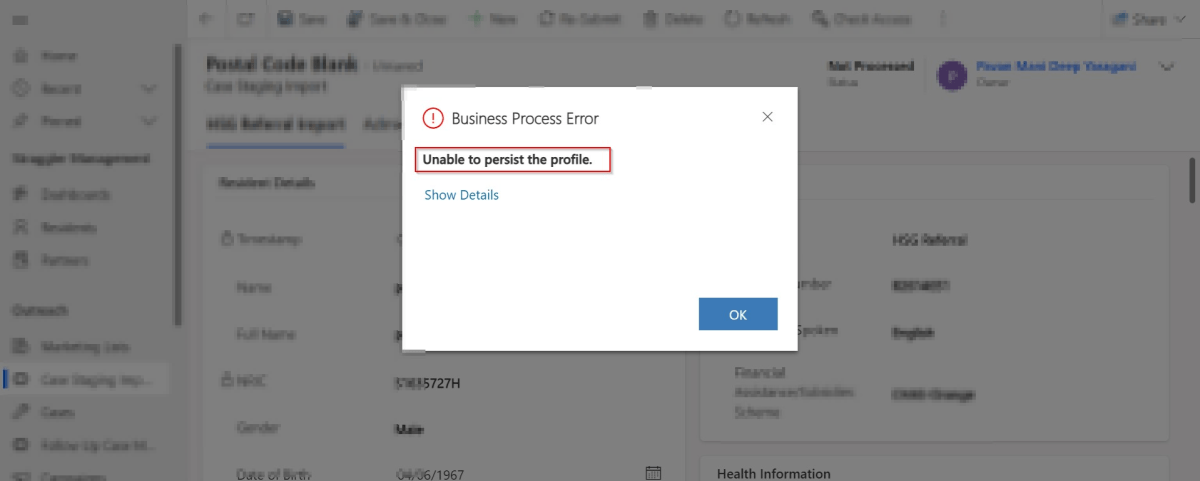
Are you debugging the Dynamics 365 Plugins using Plugin Profiler, did you ever notice this problem that you were unable to persist profile so as to debug your plugin. Did you got frustrated as you couldn’t capture the profile even after lot of tries installing and uninstalling the profiler. Just read on. I am writing this blog post after fixing a similar situation with one of my Plugin.
First of all, I would advise you to check the below.
- Plugin trace log under Settings –> Plugin Trace Log.
- Check if your Plugin is being called multiple number of times
- Check the filtering attributes of your Plugin whether it is causing to go in an infinite loop
- Suppose if you have added an image, did you select the respective attributes of the image
- Did you add sufficient depth conditions to prevent infinite loop executions.
- At what step is your plugin running, is it in PreOperation, PostOperation.? In case you were throwing an error, change it to Prevalidation step and check.
- Were you using persist to entity option while debugging, try changing to throw an error and see.
- If you note that the system becomes unresponsive and you were not able to download the log file, then definitely your logic is getting called multiple times. Please reverify.
Once you have verified these, you should be able to find out the exact root cause of the issue…I will leave to yourself.
Thank you…and enjoy debugging…Power Platform Solutions…
Cheers,
PMDY




 ECELLORS CRM Blog