

Hi Folks,
This is a post related to Power Automate, I will try to keep it short giving a background of this first.
Recently we faced one issue with Power Automate where we had actually created a Power Automate Flow which uses the trigger ‘When a HTTP Request is received’ where for the request the method name is not specified in the trigger.
So, we need to update the existing flow without generating a new one as saving your Power Automate without giving Method name gave error which couldn’t be modified later. There was one way from the code but not the Power Automate editor, so here we would try to update the flow from code. I will show you two approaches after showing the existing flow steps.
Step 1:
Navigate to https://make.powerautomate.com and create an instant Cloud Flow

Next choose the trigger
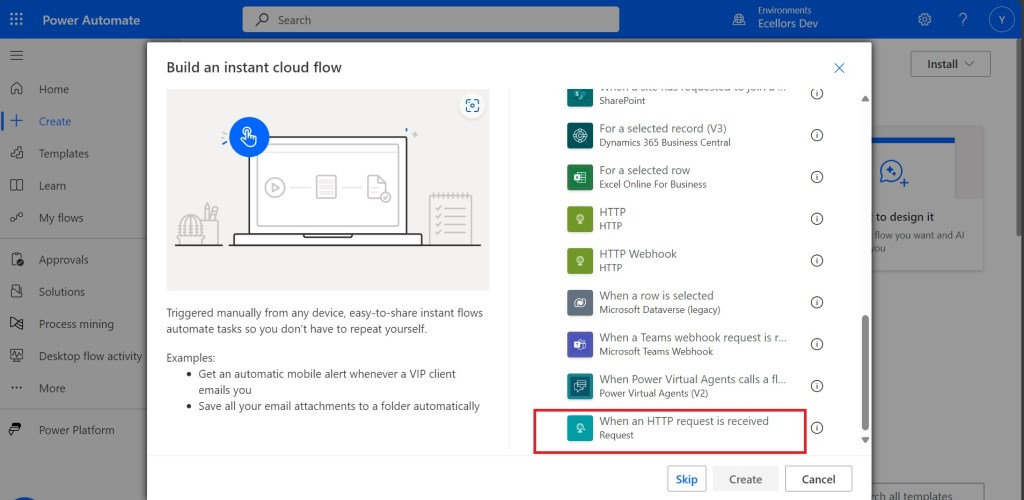
Click create and up next, choose an action
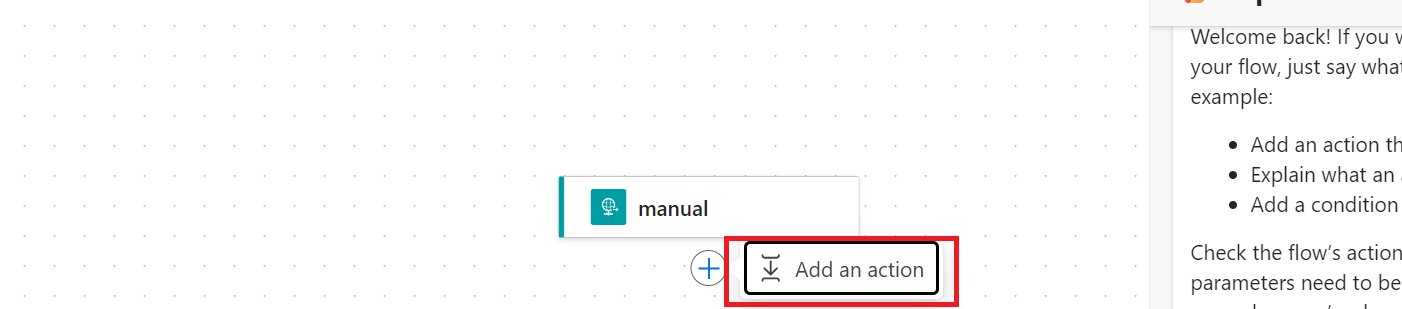
Just to inform you that I haven’t selected any method for this request

I have used a simple JSON as below for the trigger
{
  "name": "John Doe",
  "age": 30,
  "isStudent": false,
  "courses": ["Mathematics", "Physics", "Computer Science"]
}
I have added Parse JSON Step next using the same JSON Schema, so now I can save the flow

Upon saving, I got the flow URL generated as below
You can take a look for the code generated for each step in the Code View as below

It is readonly and you can’t modify it from the https://make.powerautomate.com
Only way is to update the flow from the backend, so here are two approaches
- Using Chrome extension : Power Automate Tools
- Export & Import method
Using Chrome Extension:
Install the tool from https://chromewebstore.google.com/detail/power-automate-tools/jccblbmcghkddifenlocnjfmeemjeacc
Once installed, identify the Power Automate flow which you want to edit, once you were on this page, click on the extension –> Power Automate Tools
You can just modify the code and add the piece of step needed wherever required,

here I would add method name to my HTTP Trigger

I will add Post Method here
"method": "POST",It will look like
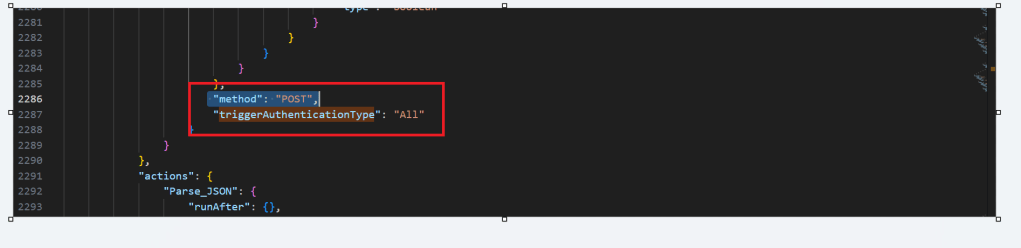
You get a chance to validate and then click on save, even you will the same IntelliSense you would have on https://make.powerautomate.com

Upon saving, your Power Automate flow, an alert will be shown to you, and the flow will be updated.
Just refresh your Power Automate flow and check

That’s it, your flow is now updated.
Well, if your tenant have policies where you can’t use the Power Automate Tools extension, you can then follow this approach is easier as well.
For showing this one, I will remove the Method name Post again from the flow, save it and then update using below method.
Export & Import method
Here you would need to export the flow, here we would use the export via Package (.zip) method.

In the next step of export, you will be prompted to key in details as below, just copy the flow name from Review Package Content and paste it in the Name field. Just enter the flow name, it would be enough.
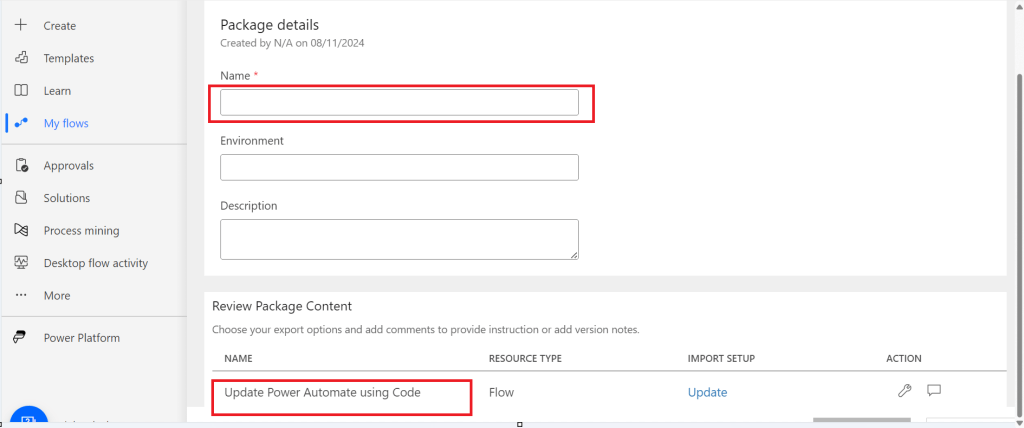
Then click on export
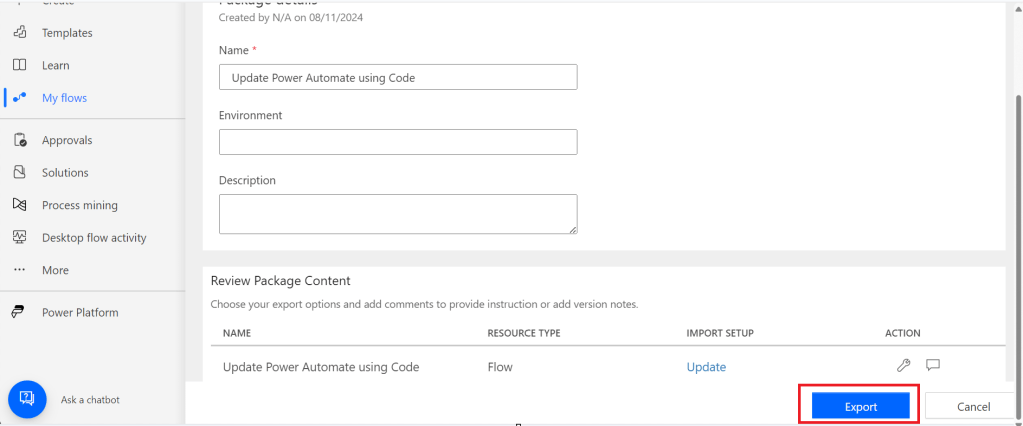
The package will be exported to your local machine
We need to look for definition file, there would be few JSON files in the exported file

You can navigate the last subfolder available
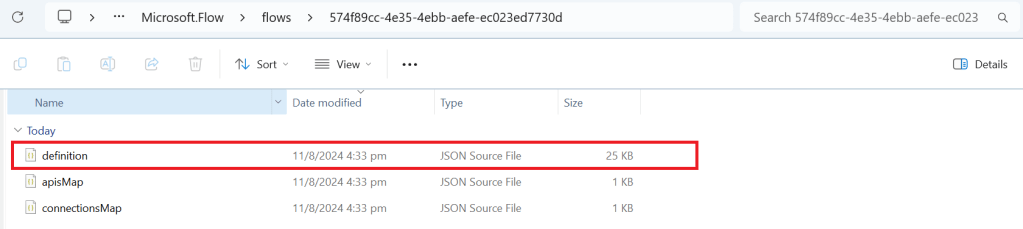
Open the JSON file using your favorite IDE, I prefer using Visual Studio Code, once opened, you will see something like this

Click on Cntrl + A, once all the text is selected, right click and choose Format document, then your text will be properly aligned.
Look for the
triggerAuthenticationType
Now copy paste the code for the method
"method": "POST",Now your code should look like, hit save as and save the file to a different folder, since we cant override the existing zip folder.

Now once again navigate the last subfolder and delete the definition file present. Once deleted, copy the saved file in your folder to the last subfolder, so your subfolder should look exactly same as below

Now navigate to the https://make.powerautomate.com, click on import option available and choose Import Package (Legacy)
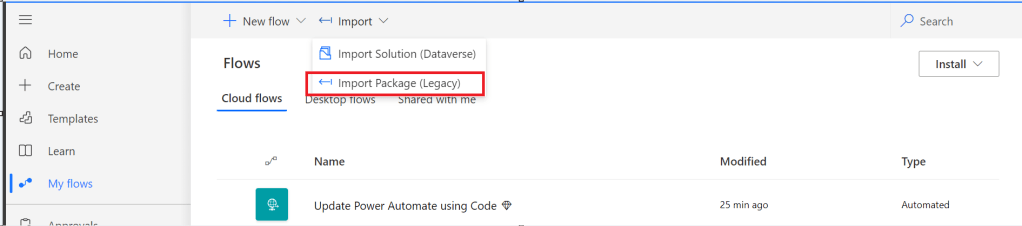
Choose your import package

The package import will be successful
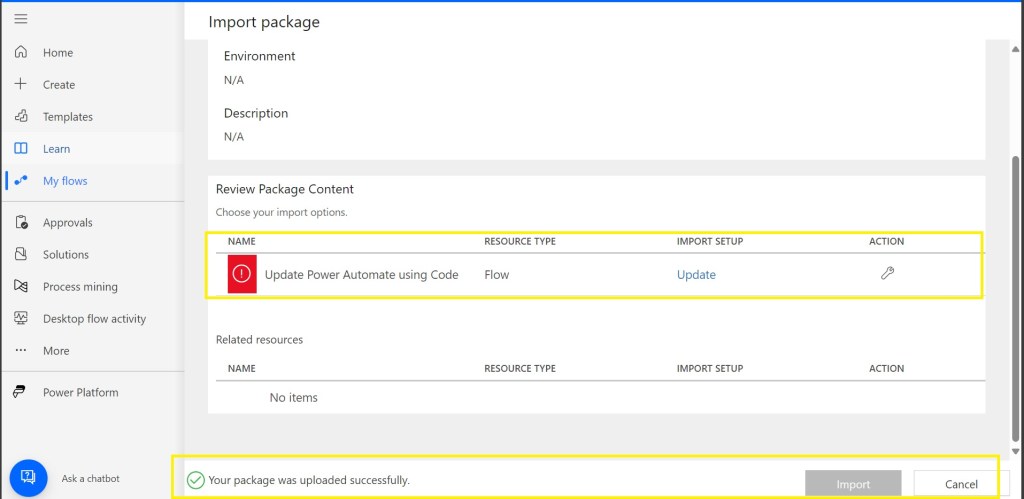
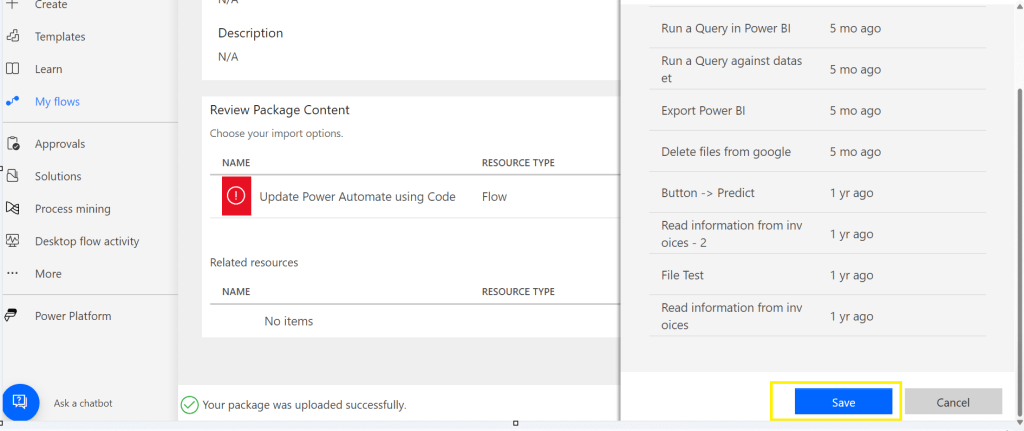
Now click on the package where Red symbol is shown and choose the resource type shown at the right of the page

Scroll down to the bottom and click on save option
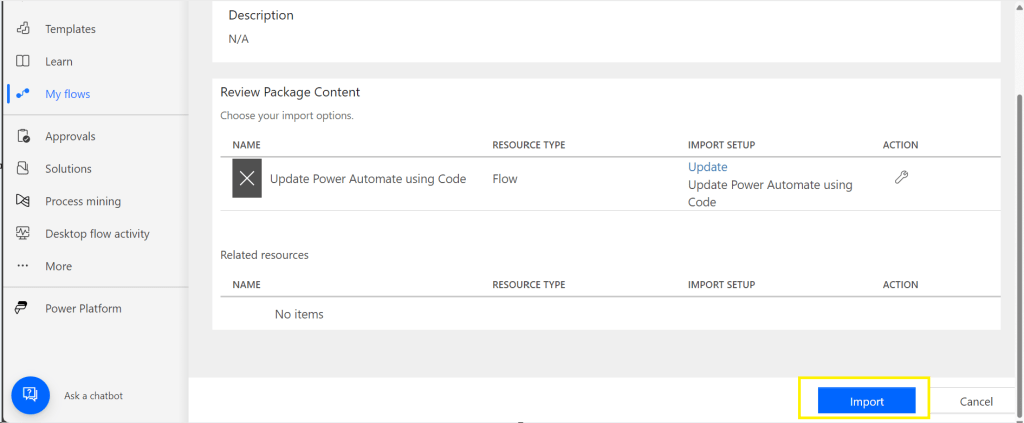
Then click on import option
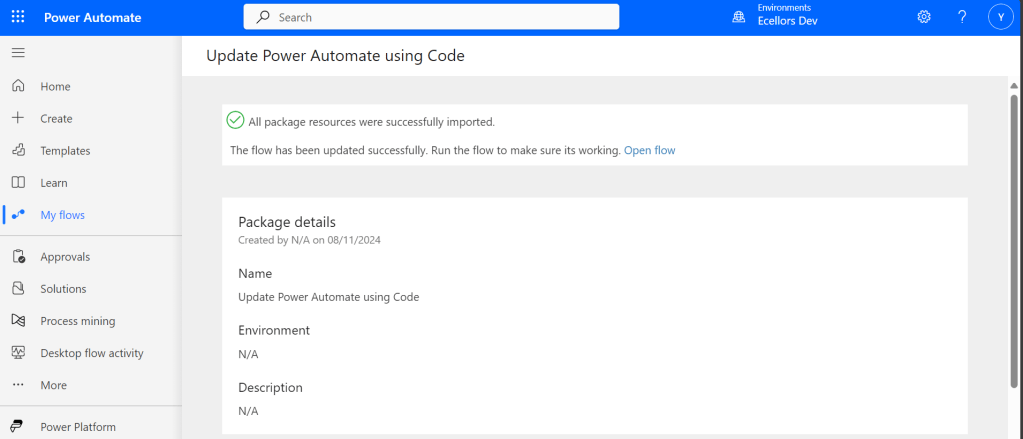
You will be shown a message that import is successful
Refresh your Power Automate and check
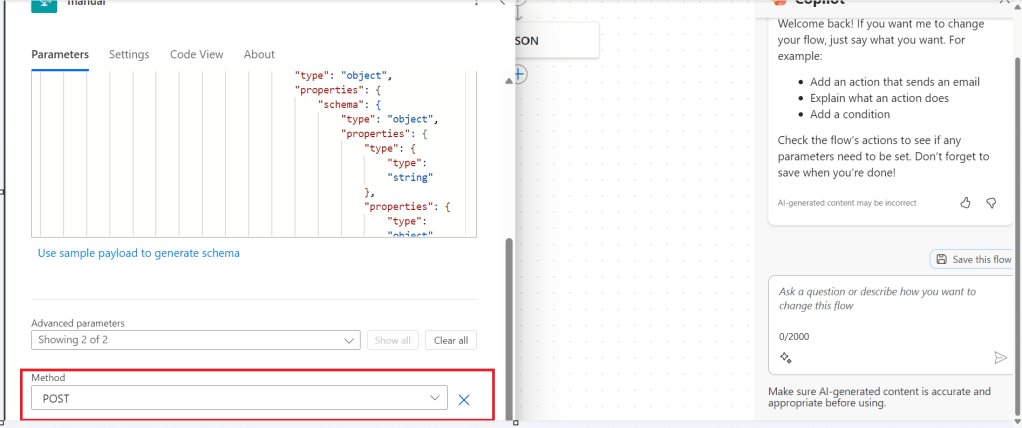
That’s it, your flow is now updated from backend.
Hope that’s it, you were now able to update the flow using code.
That’s it, it’s easier than you think..can save your time when needed.
Cheers,
PMDY



 ECELLORS CRM Blog