

Hi Folks,
Are you a Power Platform or Dynamics 365 CE Developer, you would definitely need to work on Plugin Registration tool at any given point of time and having a local application for Plugin Registration tool greatly helps…in this post, I will show a little different way to install Plugin registration tool and that too very easily.
Well, this approach is especially useful to me when I got a new laptop and need to work on Plugin Registration Tool where the Plugins already build for the implementation.
First 3 ways might have known to everyone through which you can download Plugin registration tool…do you know there is fourth approach as well…
- From XrmToolBox
- From https://xrm.tools/SDK
- Installation from CLI
- See below
Because there were limitations to use these approaches at least in my experience, I found the fourth one very useful.
- XrmToolBox – Not quite convenient to profile and debug your plugins
- https://xrm.tools/SDK – Dlls in the downloaded folder will be blocked and would need to manually unblock the DLL’s for the Tool to work properly
- CLI – People rarely use this.
Just do note that the approach is very easy and works only if you have a Plugin Project already. Please follow the steps below
- Just open the Plugin project.
- Right click on the solution and choose manage Nuget Packages for the solution
- Search for Plugin Registration tool as below
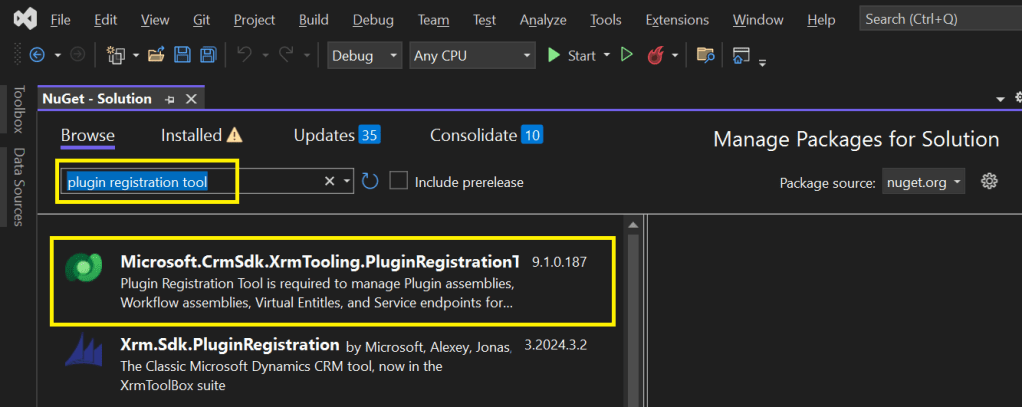
4. Choose the Plugin project and click install, confirm the prompt and agree the license agreement shown
5. Once installed, next go to the Project folder in the local machine.
6. Navigate to Packages folder, you should see a folder for Plugin Registration tool below

7. There you go, you can open the Plugin Registration Application under tools folder. You can undo the changes for the Assembly it is linked to Source control.

That’s it, how easy it was? Hope this would help someone.
Cheers,
PMDY
 ECELLORS CRM Blog