Restoring environments in Power Platform has evolved significantly.
In the past, Dynamics CRM On-Premise users relied on SQL database backups and manual restores. Today, administrators can perform environment restores in online instances with just a few clicks via the Power Platform Admin Center.
This guide outlines the available restore options and key considerations to ensure a smooth and secure process.
🛠️ Restore Options in Power Platform
Option
Description
1. Manual Backup Restore
Restore from a backup you manually created. Ideal before major customizations or version updates.
2. System Backup Restore
Use automated system backups created by Microsoft. Convenient but less flexible than manual backups.
3. Full Copy
Clone the entire environment, including data, customizations, and configurations. Suitable for staging or testing.
4. Partial Copy (Customizations & Schema Only)
Copies only solutions and schema—no data. Best for promoting configurations from Production to SIT/UAT.
✅ Best Practices & Key Considerations
Use Partial Copy for Non-Production: When restoring from Production to SIT/UAT, prefer Partial Copy to avoid data and configuration mismatches. This brings all solutions without the underlying data.
Use Full Copy: In case it is restoring to a same type of environment
Avoid Restoring Production Backups to Non-Prod: Manual or system backups from Production should not be restored to non-production environments. This often leads to configuration conflicts and user access issues.
Update Security Groups: Always update the Security Group when restoring or copying to a different environment type. Otherwise, users may be unable to log in due to mismatched access controls.
Manual Backup Timing: After creating a manual backup, wait 10–15 minutes before initiating a restore. This ensures the backup is fully processed and available.
Regional Restore Limitation: You can only restore an environment to another environment within the same region.
Unlimited Manual Backups: There’s no cap on the number of manual backups you can create—use this flexibility to safeguard key milestones.
Exclude Audit Logs When Possible: Including Audit Logs in copies or restores can significantly increase processing time. Exclude them unless absolutely necessary.
🧠 Technical Note
All backup and restore operations in Power Platform are powered by SQL-based technology under the hood, ensuring consistency and reliability across environments.
After a break, I am back with my next blog post, this is a very short one.
Whenever you were working on any implementation, you could have added entity assets to the solution, many people miss adding metadata for the entity, since they don’t have a way to check properly, folks end up removing and readding the entity with metadata toggle on.
But don’t worry, here is a simple way to check this..
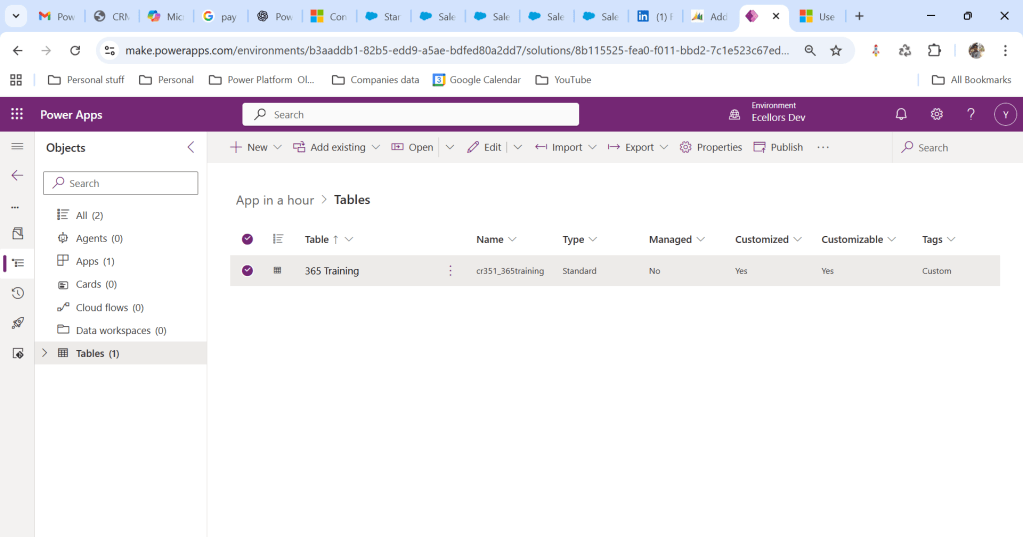
Let’s say you have added a table to the form like below
Now you want to add the metadata for this, click on the table name below
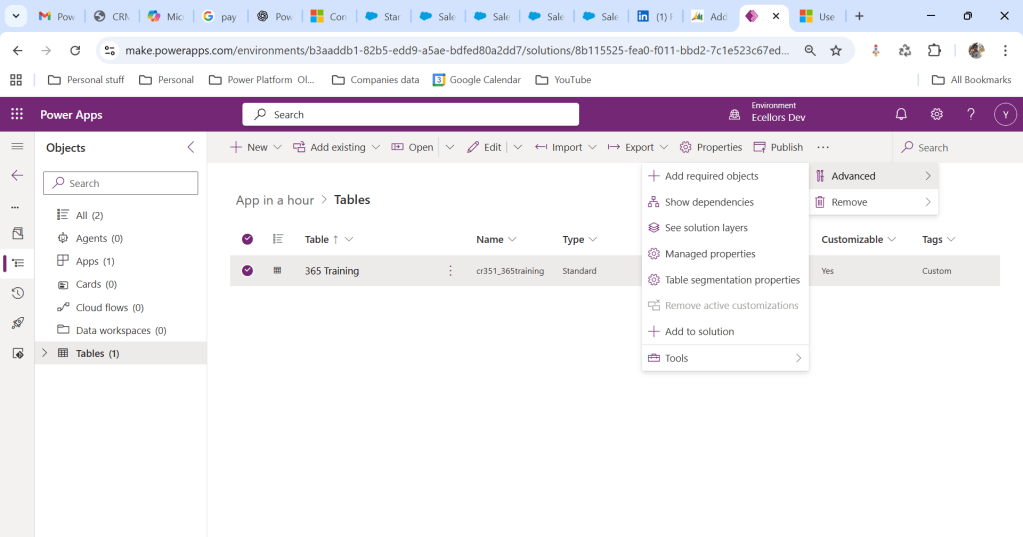
Click on Elipses…
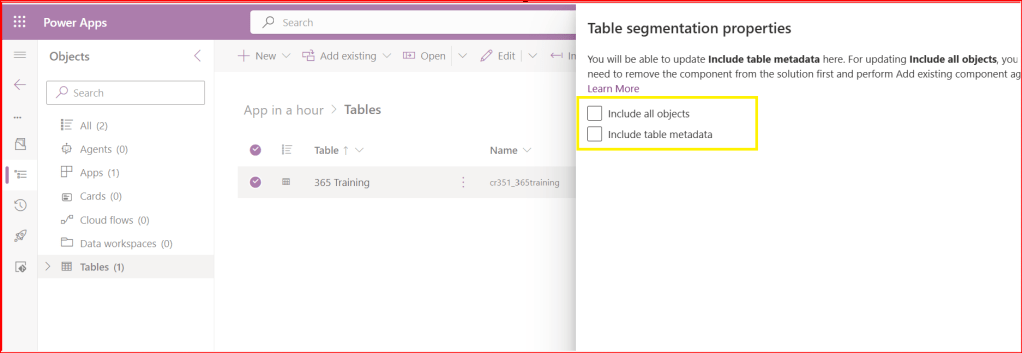
Choose table segmentation as shown above
So as highlighted above, you can include all the objects or include table metadata.
Hope this small tip helps…so even if you miss adding metadata, you can safely add it later at any point of time.
A unique combination to achieve deployment automation of Power Platform Solutions
Hi Folks,
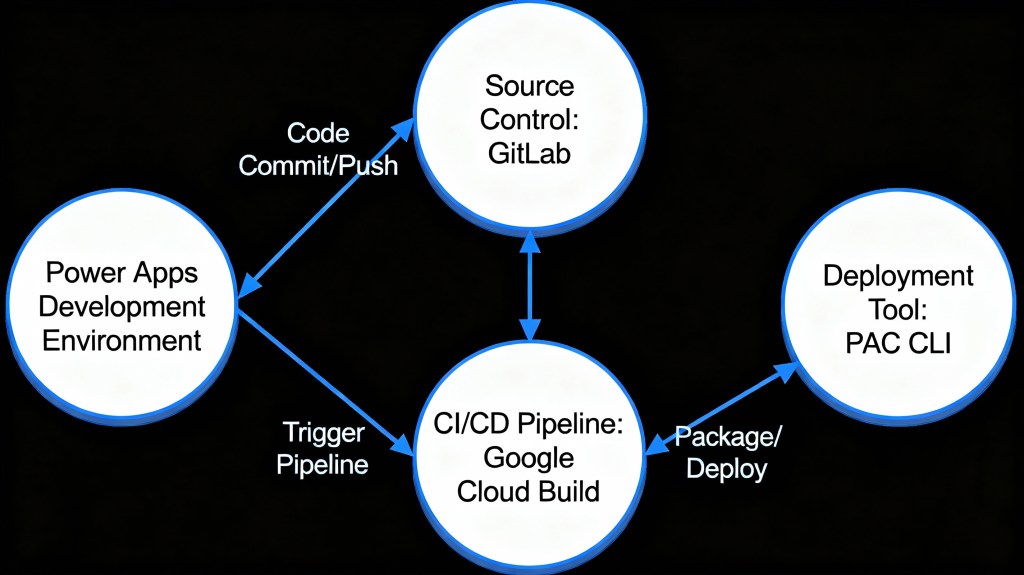
This post is about ALM in Power Platform integrating with a different ecosystem than usual, i.e. using Google Cloud, sounds interesting..? This approach is mainly intended for folks using Google Cloud or GitLab as part of their implementation.
Integrating Google Cloud Build with Power Platform for ALM (Application Lifecycle Management) using GitLab is feasible and beneficial. This integration combines GitLab as a unified DevOps platform with Google Cloud Build for executing CI/CD pipelines, enabling automated build, test, export, and deployment of Power Platform solutions efficiently. This was the core idea for my session on Friday 28 November, at New Zealand Business Applications Summit 2025.
Detailed Steps for this implementation
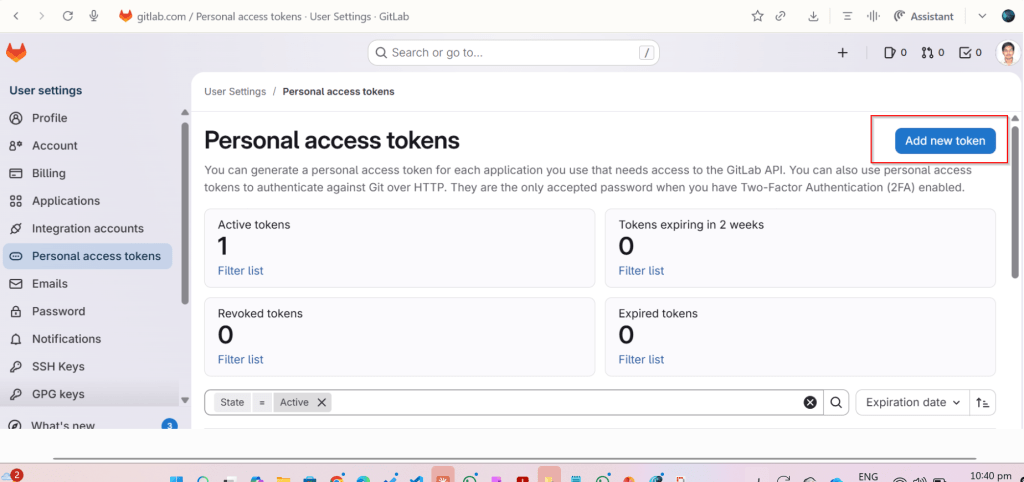
Create an access token in GitLab for API Access and Read Access
Click on Add new token, you can select at the minimum the below scopes while you were working with CI-CD using GitLab
Create a host connection for the repository in GitLab
Specify the personal access token created in the previous step
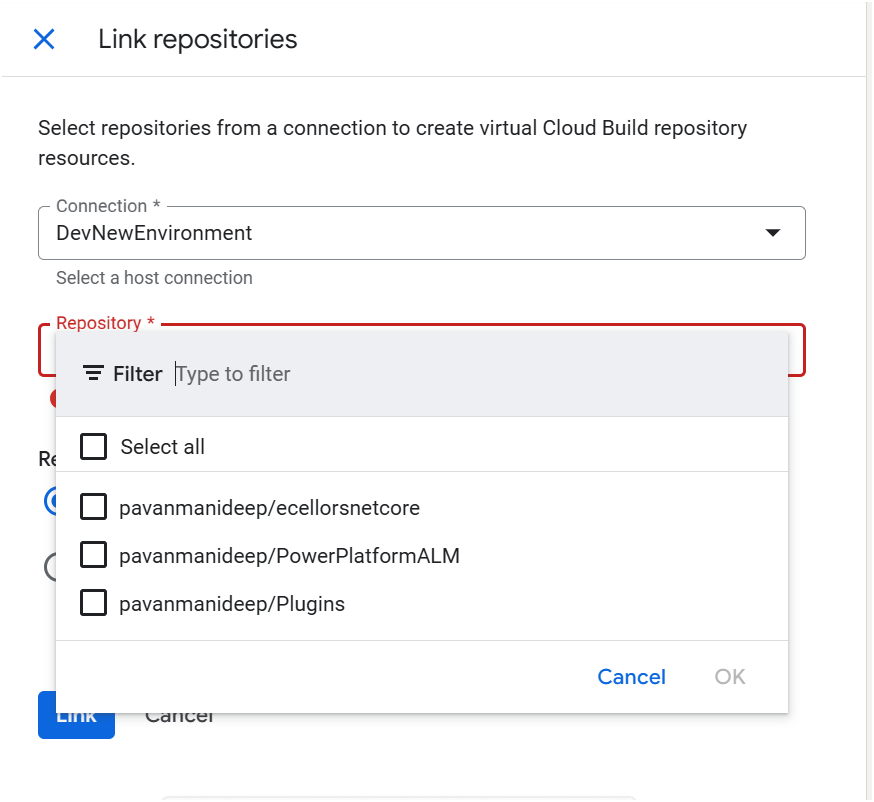
Link your repository
The created host connections in the previous step will be shown under Connec ctions drop down
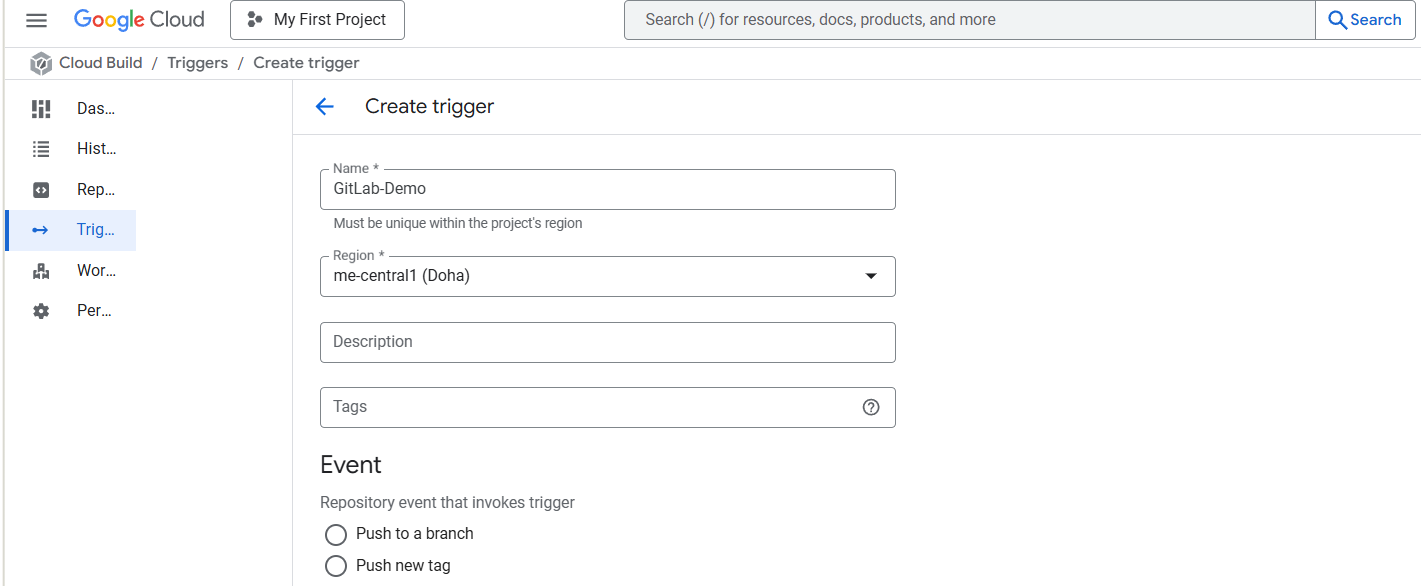
Create Trigger in Google Cloud Build
Click on Create trigger above, provide a name, select a nearest region
Event:
For now, I am choosing Manual invocation for illustration
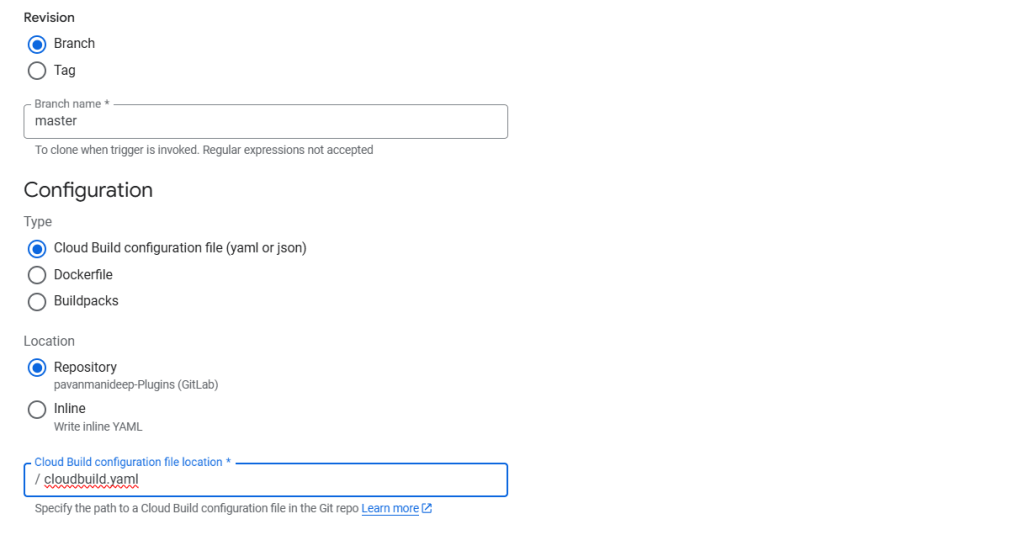
Specify where the name of the Repository where your YAML in GitLab resides
You can optionally specify the substitution variables which are nothing but parameters you can pass to your pipeline from Google Cloud Build Configuration
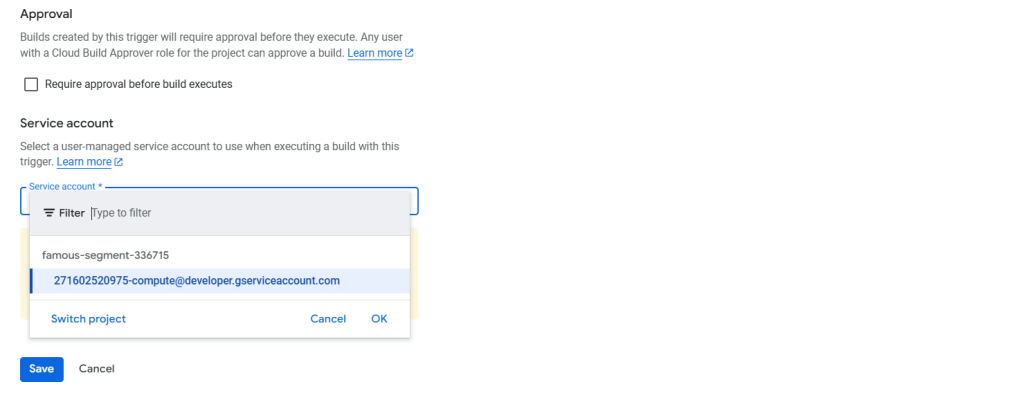
You can optionally give this for any approval and choose the service account tagged to your google account in the drop down.
Click on Save.
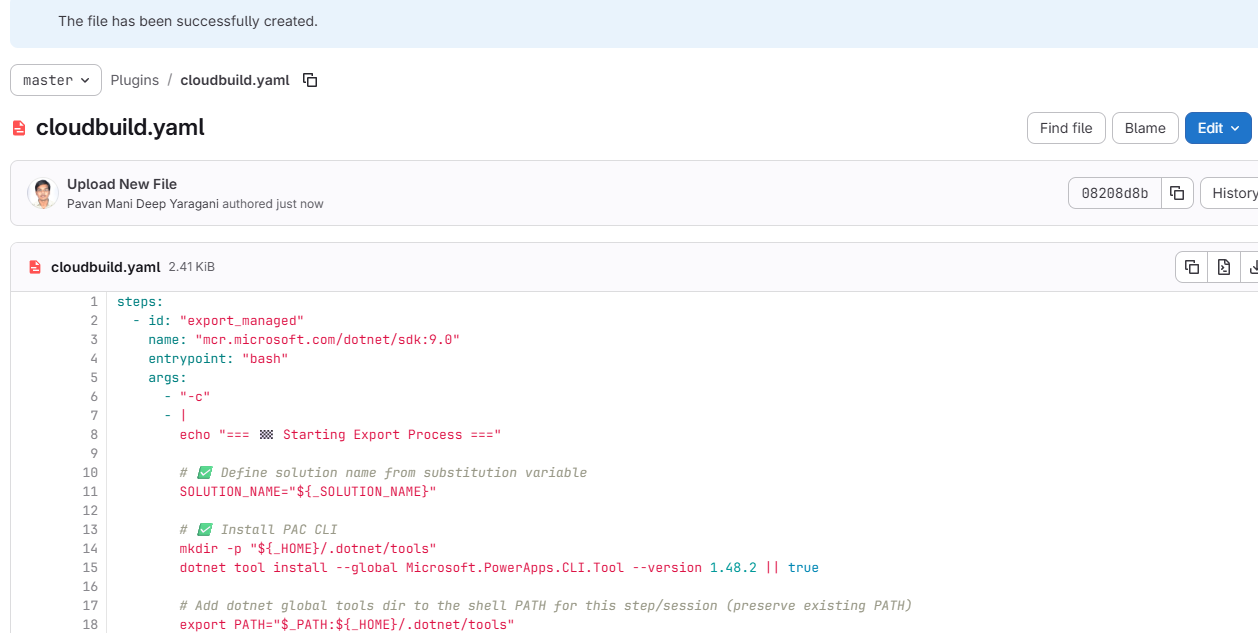
Next proceed to GitLab YAML
You can find the full code below
This file contains hidden or bidirectional Unicode text that may be interpreted or compiled differently than what appears below. To review, open the file in an editor that reveals hidden Unicode characters.
Learn more about bidirectional Unicode characters
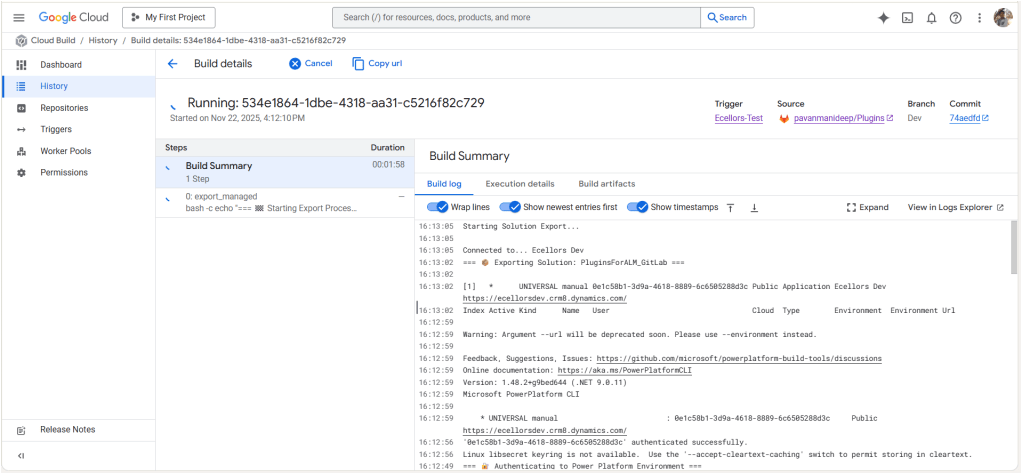
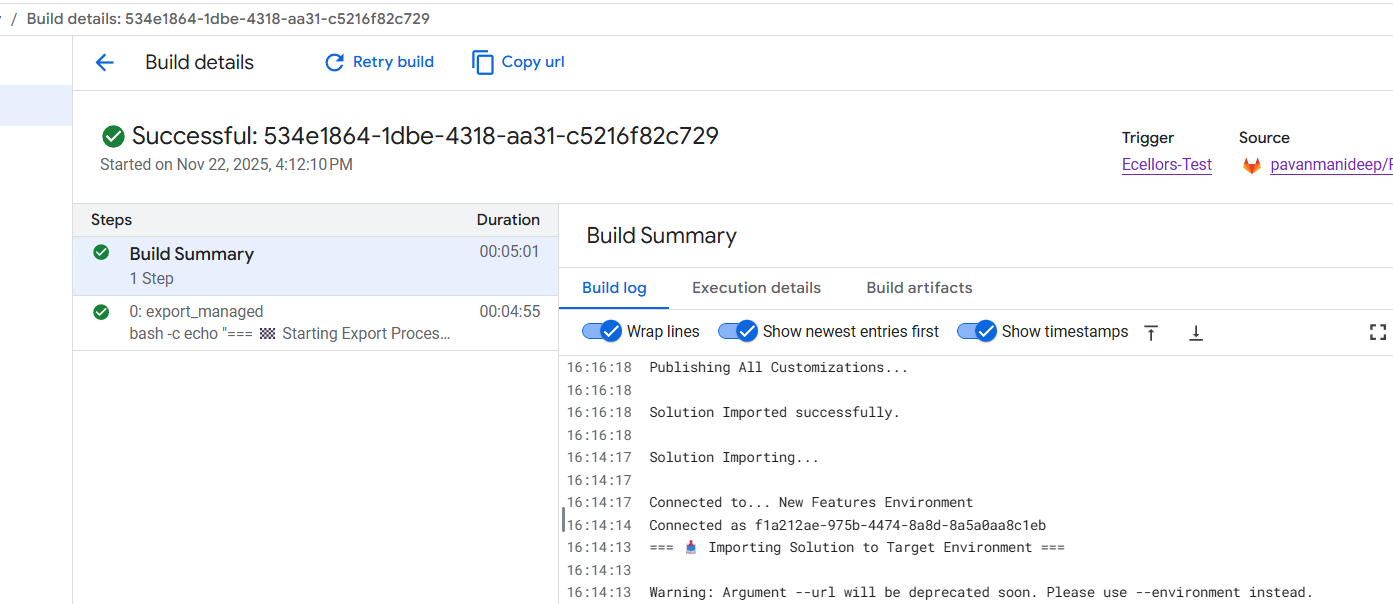
Now lets run the trigger which will export the solution from the source environment and import to the target environment….we have manual trigger, automatic trigger whenever there is an commit to the repo in GitLab etc., you may pick whatever suits your needs best.
Solution imported to the target environment using Google Cloud Build
The below table illustrates key differences between Google Cloud Build and Azure Devops….
Aspect
Google Cloud Build
Azure DevOps Build Pipelines
Pricing Model
Pay-as-you-go with per-second billing
Per-minute billing with tiered pricing
Cost Optimization
Sustained use discounts, preemptible VMs
Reserved capacity and enterprise agreements
Build Environment
Serverless, container-native, managed by Google Cloud
Requires self-hosted or paid hosted agents
Free Tier
Available with build minutes and credits
Available but more limited
Operational Overhead
Low, no need to manage build agents
Higher, managing agents or paying for hosted agents
Ideal For
Variable, short, or containerized workloads
Large Microsoft-centric organizations
Integration Cost Impact
Tightly integrated with Google Cloud serverless infrastructure
Integrated with Microsoft ecosystem but may incur additional licensing costs
Conclusion:
PAC CLI is a powerful command-line tool that automates authentication, environment, and solution management within Power Platform ALM, enabling consistent and repeatable deployment workflows. It integrates smoothly with DevOps tools like GitLab and Google Cloud Build, helping teams scale ALM practices efficiently while maintaining control and visibility over Power Platform environments. Just note, my intention was showcase the power of PAC CLI with wider ecosystem, not only with Microsoft.










 ECELLORS CRM Blog