Understanding Dataverse MCP vs Power Apps MCP – Quick Review

Hi Folks,

Model Context Protocol(MCP) has quickly become one of the hottest topics in today’s AI landscape. The excitement around it is huge—not just within the Microsoft ecosystem, but across the entire industry, because it’s designed to be open and accessible to everyone.

Microsoft Power Platform is also moving fast, releasing its own MCPs. I’ve already been asked several times about the difference between them, so this post breaks down how the Dataverse MCP and the Power Apps MCP differ—and when you should use each one.

We know that Dataverse MCP is generally available last year. Now Microsoft announced the public preview of Power Apps MCP this month. So what’s the difference between the two, this post will help to discern the differences between two.

Although both use the Model Context Protocol (MCP), they serve different purposes and operate at different layers of the Power Platform.

FeatureDataverse MCPPower Apps MCP
Primary RoleExpose Dataverse as an MCP server so AI agents can query tables, records, and metadataAllow Power Apps to use MCP to call external AI models or tools
FocusData access & operationsAI integration inside apps
Who Uses ItDevelopers building AI agents or copilots that need Dataverse dataApp makers building Power Apps that need AI-driven logic

2. Direction of Integration

DirectionDataverse MCPPower Apps MCP
MCP ServerYes — Dataverse acts as an MCP serverNo
MCP ClientNoYes — Power Apps acts as an MCP client
MeaningAI tools connect into DataversePower Apps connects out to AI tools

Dataverse MCP: AI → Dataverse Power Apps MCP: Power Apps → AI

3. What You Can Do

Dataverse MCP

  • Query Dataverse tables
  • Retrieve records
  • Update or create data
  • Use Dataverse as a tool inside Copilot Studio, VS Code GitHub Copilot, Claude Desktop, etc.

Power Apps MCP

  • Call external AI models from inside a Power App
  • Build AI-driven app logic
  • Trigger workflows using AI reasoning

4. Typical Use Cases

Dataverse MCP

  • Build a Copilot that answers questions using Dataverse data
  • Let GitHub Copilot query Dataverse while coding
  • Create AI agents that read/write CRM or ERP data

Power Apps MCP

  • Add AI reasoning to a canvas or model-driven app
  • Use external AI models to classify, summarize, or generate content
  • Build intelligent forms or workflows

5. Relation to Connectors

Dataverse MCP is increasingly seen as a future alternative to connectors for AI-driven scenarios.

Power Apps MCP does not replace connectors — it extends apps with AI capabilities.

Summary

CategoryDataverse MCPPower Apps MCP
Acts asMCP ServerMCP Client
Used forAI agents accessing DataversePower Apps calling AI tools
Primary BenefitIntelligent, standardized Dataverse accessAI-enhanced app logic
Typical ToolsCopilot Studio, GitHub Copilot, ClaudeCanvas apps, model-driven apps

Decision Guide: When to Use Dataverse MCP vs Power Apps MCP

1. If you want AI to access Dataverse → Use Dataverse MCP

Choose Dataverse MCP when:

  • You’re building a Copilot, AI agent, or LLM-powered tool that needs:
    • Dataverse tables
    • Records
    • Metadata
    • CRUD operations
  • You want AI to reason over business data
  • You want a standardized, connector-free way for AI to talk to Dataverse
  • You’re integrating Dataverse with:
    • GitHub Copilot
    • Copilot Studio
    • Claude Desktop
    • Custom LLM agents

Typical scenarios

  • My AI assistant should answer questions using CRM data.
  • I want GitHub Copilot to autocomplete code based on Dataverse schema.
  • I’m building an AI agent that updates Dataverse records.

If the AI is the one doing the work → Dataverse MCP.

2. If you want your Power App to call AI → Use Power Apps MCP

Choose Power Apps MCP when:

  • You’re building a canvas or model-driven app that needs:
    • AI reasoning
    • AI-generated content
    • AI classification or summarization
  • You want your app to call:
    • OpenAI models
    • Azure AI models
    • Custom MCP tools
  • You want AI logic inside the app, not outside it

Typical scenarios

  • My form should summarize customer notes using AI.
  • My app should classify images or text using an external model.
  • I want to call an LLM from a button in a canvas app.

3. If you need both directions → Use both

Some solutions need AI ↔ Dataverse ↔ Power Apps.

Example

  • A Power App collects data
  • AI agent (via Dataverse MCP) analyzes historical records
  • Power App (via Power Apps MCP) calls AI to generate insights for the user

This is becoming a common pattern in enterprise AI.

4. Quick Decision Table

GoalUse Dataverse MCPUse Power Apps MCP
AI needs to read/write Dataverse
Power App needs to call AI
Replace connectors for AI-driven data access
Add AI reasoning inside app UI
Build AI copilots or agents
Build AI-enhanced business apps

Hope you have found this post useful….

Cheers,

PMDY
Python + Dataverse Series – #07: Running a Linear Normalization Algorithm on Dataverse Data Using Python

This is continuation in this series of Dataverse SDK for Python, if you haven’t checked out earlier articles, I would encourage to start from the beginning of this series.

Machine learning often begins with one essential step: data preprocessing. Before models can learn patterns, the raw data must be cleaned, scaled, and transformed into a form suitable for analysis. In this example, let me demonstrate how to retrieve numerical data from Microsoft Dataverse and apply a linear normalization algorithm using Python.

Normalization is a fundamental algorithm in machine learning pipelines. It rescales numeric values into a consistent range—typically between 0 and 1—making them easier for algorithms to interpret and compare.

1. Retrieving Data from Dataverse

Using the DataverseClient and Interactive Browser authentication, we connect to Dataverse and fetch the revenue field from the Account table. This gives us a small dataset to run our algorithm on.

from azure.identity import InteractiveBrowserCredential
from PowerPlatform.Dataverse.client import DataverseClient
credential = InteractiveBrowserCredential()
client = DataverseClient("https://ecellorsdev.crm8.dynamics.com", credential)
account_batches = client.get(
"account",
select=["accountid", "revenue"],
top=10,
)

We then extract the revenue values into a NumPy array.

2. Implementing the Linear Normalization Algorithm

The algorithm used here is min–max normalization, defined mathematically as:normalized=xmin(x)max(x)min(x)This algorithm ensures:

  • the smallest value becomes 0
  • the largest becomes 1
  • all other values fall proportionally in between

Here’s the implementation:

import numpy as np
revenues = np.array(revenues)
min_rev = np.min(revenues)
max_rev = np.max(revenues)
normalized_revenues = (revenues - min_rev) / (max_rev - min_rev)

This is a classic preprocessing algorithm used in machine learning pipelines before feeding data into models such as regression, clustering, or neural networks.

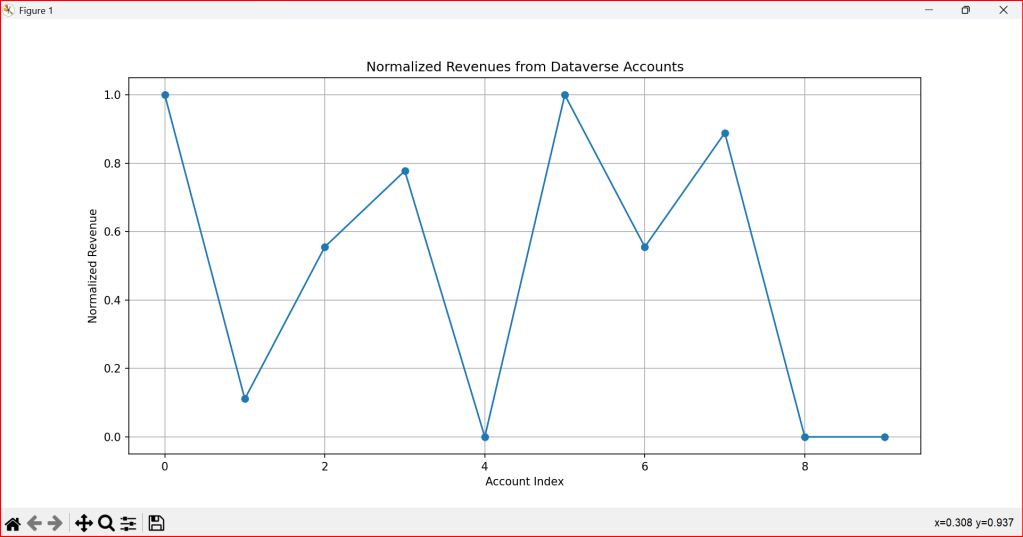
3. Visualizing the Normalized Output

To better understand the effect of the algorithm, we plot the normalized values:

import matplotlib.pyplot as plt
plt.plot(normalized_revenues, marker='o')
plt.title('Normalized Revenues from Dataverse Accounts')
plt.xlabel('Account Index')
plt.ylabel('Normalized Revenue')
plt.grid()
plt.show()

The visualization highlights how the algorithm compresses the original revenue values into a uniform scale.

4. Why Normalization Matters

Normalization is not just a mathematical trick—it’s a crucial algorithmic step that:

  • prevents large values from dominating smaller ones
  • improves convergence in optimization-based models
  • enhances the stability of distance‑based algorithms
  • makes datasets comparable across different ranges
#Running Machine Learning Algorithm on data retrieved from Dataverse to run a linear normalization
from azure.identity import InteractiveBrowserCredential
from PowerPlatform.Dataverse.client import DataverseClient
import numpy as np
# Connect to Dataverse
credential = InteractiveBrowserCredential()
client = DataverseClient("https://ecellorsdev.crm8.dynamics.com", credential)
# Fetch account data as paged batches
account_batches = client.get(
"account",
select=["accountid", "revenue"],
top=10,
)
revenues = []
for batch in account_batches:
for account in batch:
if "revenue" in account and account["revenue"] is not None:
revenues.append(account["revenue"])
revenues = np.array(revenues)
# Apply a simple linear algorithm: Normalize the revenues
if len(revenues) > 0:
min_rev = np.min(revenues)
max_rev = np.max(revenues)
normalized_revenues = (revenues – min_rev) / (max_rev – min_rev)
print("Normalized Revenues:", normalized_revenues)
#visualize the result
import matplotlib.pyplot as plt
plt.plot(normalized_revenues, marker='o')
plt.title('Normalized Revenues from Dataverse Accounts')
plt.xlabel('Account Index')
plt.ylabel('Normalized Revenue')
plt.grid()
plt.show()

The use of this code is to transform raw Dataverse revenue data into normalized, machine‑learning‑ready values that can be analyzed, compared, and visualized effectively.

You can download the Python Notebook below if you want to work with VS Code

https://github.com/pavanmanideep/DataverseSDK_PythonSamples/blob/main/Python-RetrieveData-ApplyLinearAlgorithm.ipynb

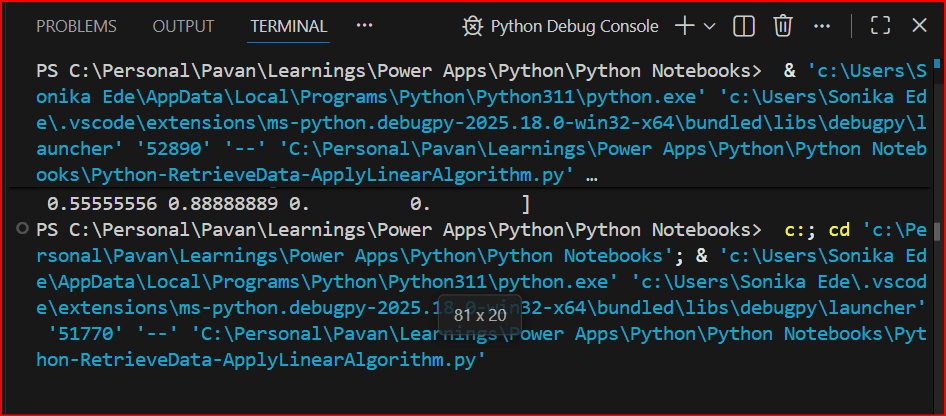
Once you have opened the Python notebook, you can start to run the code as below

You should see something like below

For authentication in another browser tab, once authenticated, you should be able to see the

Hope you found this useful…it’s going to be interesting, stay tuned for upcoming articles.

Cheers,

PMDY

Python + Dataverse Series – #06: Data preprocessing steps before running Machine Learning Algorithms

Hi Folks,

If you were already a Power Platform Consultant and new to working with Python, then I would encourage to start from the beginning of this series.

Now in this series, we entered an interesting part where Machine learning algorithms were run to analyze Dataverse Data and in this post we will understand why feature scaling is a critical preprocessing step for many machine learning algorithms because it ensures that all features contribute equally to the model’s outcome, prevents numerical instability, and helps optimization algorithms converge faster to the optimal solution

Primarily before running any Machine Learning Algorithm, we need to do some data preprocessing like scaling the data, in this case we will use a formula which is used to scale using min–max normalization (feature scaling to the [0, 1] range).

#preprocessing step before running machine learning algorithms
from azure.identity import InteractiveBrowserCredential #using Interactive Login
from PowerPlatform.Dataverse.client import DataverseClient #installing Python SDK for Dataverse
import numpy as np #import Numpy Library to perform calculations
# Connect to Dataverse
credential = InteractiveBrowserCredential()
client = DataverseClient("https://ecellorsdev.crm8.dynamics.com", credential) #Creates Dataverse Client
# Fetch account data as paged batches
account_batches = client.get(
"account",
select=["accountid", "revenue"],
top=10,
) #Fetches top 10 accounts with accountid, revenue columns
revenues = []
for batch in account_batches:
for account in batch:
if "revenue" in account and account["revenue"] is not None:
revenues.append(account["revenue"])
revenues = np.array(revenues)
#Normalize the revenue
if len(revenues) > 0:
min_rev = np.min(revenues)
max_rev = np.max(revenues)
normalized_revenues = (revenues – min_rev) / (max_rev – min_rev)
print("Normalized Revenues:", normalized_revenues)
#visualize the result
import matplotlib.pyplot as plt
plt.plot(normalized_revenues, marker='o')
plt.title('Normalized Revenues from Dataverse Accounts')
plt.xlabel('Account Index')
plt.ylabel('Normalized Revenue')
plt.grid()
plt.show()

You can download the Python Notebook below if you want to work with VS Code

https://github.com/pavanmanideep/DataverseSDK_PythonSamples/blob/main/Python-PreProcessingStepBeforeMachineLearning.ipynb

Hope you found this useful…

Cheers,

PMDY

Python + Dataverse Series – How to run Python Code in Vs Code

Hi Folks,

As you folks know that Python currently is the number #1 programming language with a massive, versatile ecosystem of libraries for data science, AI, and backend web development. This post kicks off a hands‑on series about working with Microsoft Dataverse using Python. We’ll explore how to use the Dataverse SDK for Python to connect with Dataverse, automate data operations, and integrate Python solutions across the broader Power Platform ecosystem. Whether you’re building data-driven apps, automating workflows, or extending Power Platform capabilities with custom logic, this series will help you get started with practical, real‑world examples.

https://www.microsoft.com/en-us/power-platform/blog/2025/12/03/dataverse-sdk-python/

With the release of the Dataverse SDK for Python, building Python-based logic for the Power Platform has become dramatically simpler. In this post, we’ll walk through how to download Python and set it up in Visual Studio Code so you can start building applications that interact with Dataverse using Python. Sounds exciting already. Let’s dive in and get everything set up..

1. Download and install Python from official website below and then install it in your computer.

https://www.python.org/ftp/python/3.14.3/python-3.14.3-amd64.exe

2. Install VS Code

Important: During installation, make sure to check “Add Python to PATH”. This ensures VS Code can detect Python automatically.

3. After installation, open VS Code and install the Python extension (Microsoft’s official one). This extension enables IntelliSense, debugging, and running Python script

4. That’s it, you are now able to run Python logic inside Vs Code

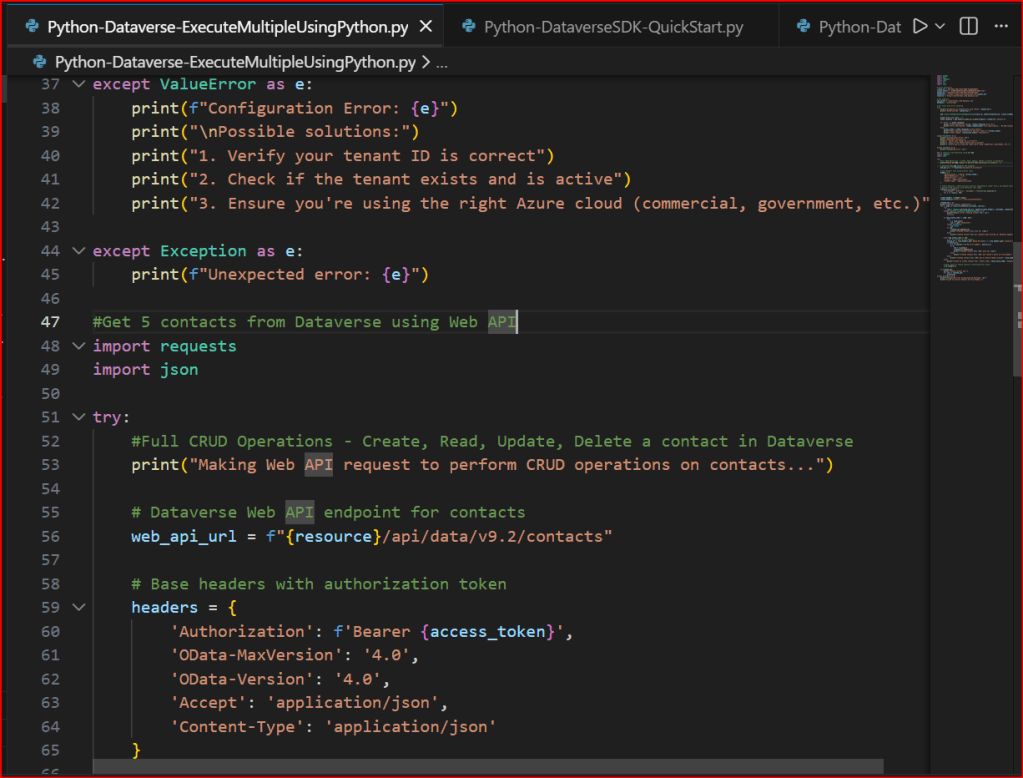
5. Create or Open a Python file in the system, opened a sample file below

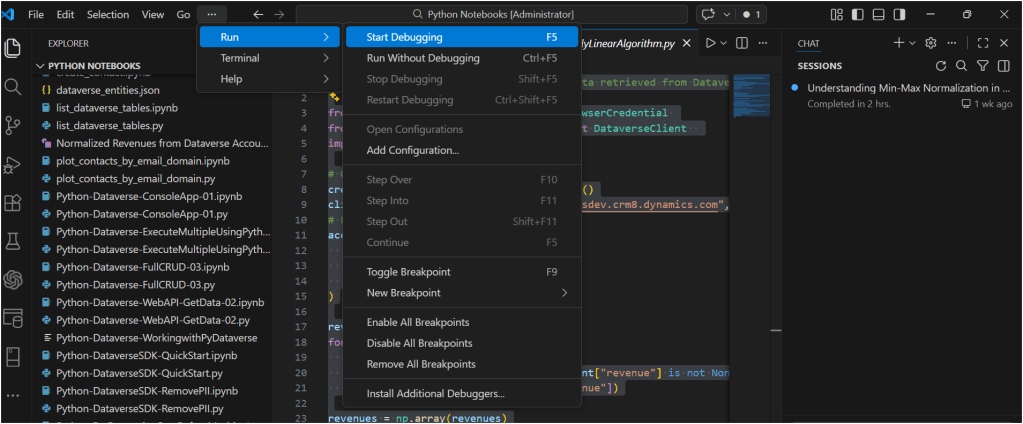
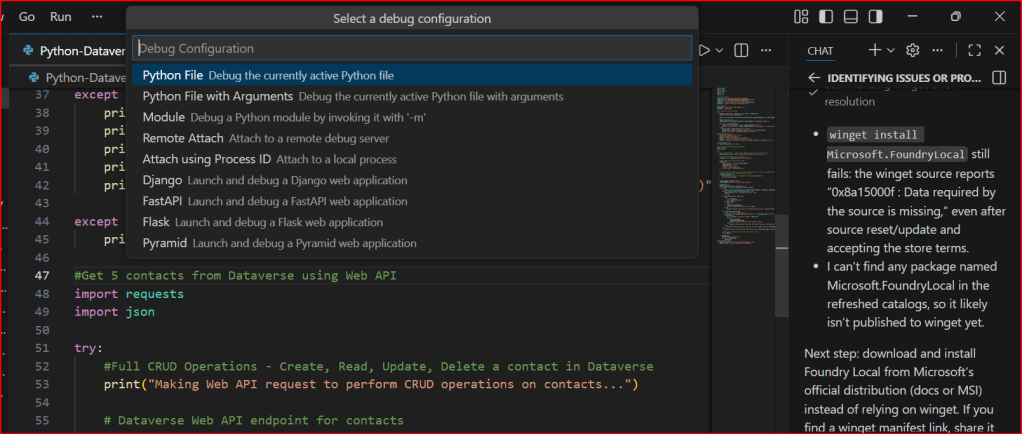
5. If you want to run Python Programmes in your VS Code, follow below options

a. Select Start Debugging

b. You will be prompted a window like below

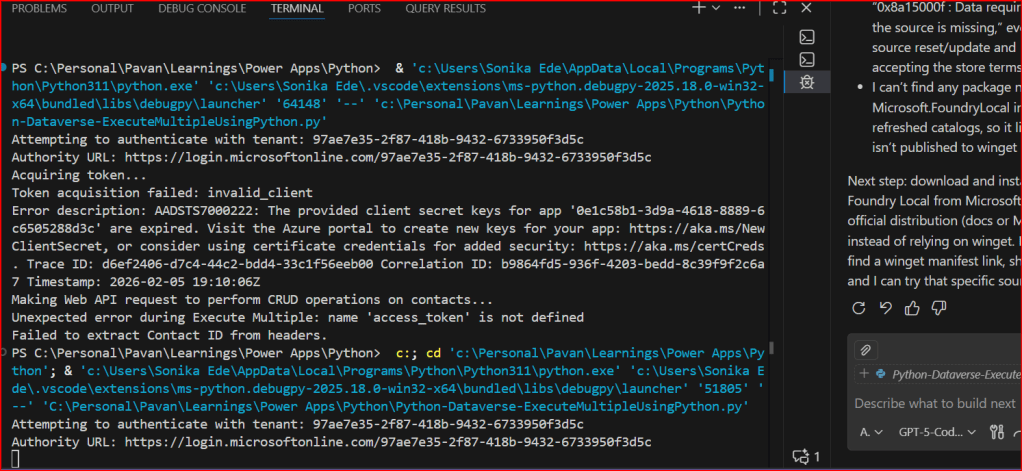
You can select the first option highlighted above, it automatically runs your Python Code

This is very easy to setup…

If you want to continue reading this series, check out the next article.

Hope this helps…

Cheers,

PMDY

Python + Dataverse Series – #05: Remove PII

Hi Folks,

This is in continuation in the Python + Dataverse series, it is worth checking out from the start of this series here.

At times, there will be a need to remove PII(Personally Identifiable Information) present in the Dataverse Environments, for this one time task, you can easily run Python script below, let’s take example of removing PII from Contact fields in the below example.

from azure.identity import InteractiveBrowserCredential
from PowerPlatform.Dataverse.client import DataverseClient
# Connect to Dataverse
credential = InteractiveBrowserCredential()
client = DataverseClient("https://ecellorsdev.crm8.dynamics.com", credential)
#use AI to remove PII data from the dataverse records, let's say contact records
def remove_pii_from_contact(contact):
pii_fields = ['emailaddress1', 'telephone1', 'mobilephone', 'address1_line1', 'address1_city', 'address1_postalcode']
for field in pii_fields:
if field in contact:
contact[field] = '[REDACTED]'
return contact
# Fetch contacts with PII (Dataverse client returns paged batches)
contact_batches = client.get(
"contact",
select=[
"contactid",
"fullname",
"emailaddress1",
"telephone1",
"mobilephone",
"address1_line1",
"address1_city",
"address1_postalcode",
],
top=10,
)
# Remove PII and update contacts
for batch in contact_batches:
for contact in batch:
contact_id = contact.get("contactid")
sanitized_contact = remove_pii_from_contact(contact)
# Prepare update data (exclude contactid)
update_data = {key: value for key, value in sanitized_contact.items() if key != "contactid"}
# Update the contact in Dataverse
client.update("contact", contact_id, update_data)
print(f"Contact {contact_id} updated with sanitized data: {sanitized_contact}")

If you want to work on this, download the Python Notebook to use in VS Code…

https://github.com/pavanmanideep/DataverseSDK_PythonSamples/blob/main/Python-DataverseSDK-RemovePII.ipynb

Cheers,

PMDY

Understanding MIME Types in Power Platform – Quick Review

While many people doesn’t know the significance of MIME Type, this post is to give brief knowledge about the same before moving to understand security concepts in Power Platform in my upcoming articles.

In the Microsoft Power Platform, MIME types (Multipurpose Internet Mail Extensions) are standardized labels used to identify the format of data files. They are critical for ensuring that applications like Power Apps, Power Automate, and Power Pages can correctly process, display, or transmit files. 

Core Functions in Power Platform

  • Dataverse Storage: Tables such as ActivityMimeAttachment and Annotation (Notes) use a dedicated MimeType column to store the format of attached files alongside their Base64-encoded content.
  • Security & Governance: Administrators can use the Power Platform Admin Center to block specific “dangerous” MIME types (e.g., executables) from being uploaded as attachments to protect the environment.
  • Power Automate Approvals: You can configure approval flows to fail if they contain blocked file types, providing an extra layer of security for email notifications.
  • Power Pages (Web Templates): When creating custom web templates, the MIME type field controls how the server responds to a browser. For example, templates generating JSON must be set to application/json to be parsed correctly.
  • Email Operations: When using connectors like Office 365 Outlook, you must specify the MIME type for attachments (e.g., application/pdf for PDFs) so the recipient’s client can open them properly. 

Common MIME Types Used

File Extension MIME Type
.pdfapplication/pdf
.docxapplication/vnd.openxmlformats-officedocument.wordprocessingml.document
.xlsxapplication/vnd.openxmlformats-officedocument.spreadsheetml.sheet
.png / .jpgimage/png / image/jpeg
.jsonapplication/json
Unknownapplication/octet-stream (used for generic binary files)

Implementing MIME type handling and file restrictions ensures your Power Platform solutions are both functional and secure.

1. Programmatically Setting MIME Types in Power Automate 

When working with file content in Power Automate, you often need to define the MIME type within a JSON object so connectors (like Outlook or HTTP) understand how to process the data. 

  • Structure: Use a Compose action to build a file object with the $content-type (MIME type) and $content (Base64 data).json
  • Dynamic Mapping: If you don’t know the file type in advance, you can use an expression to map extensions to MIME types or use connectors like Cloudmersive to automatically detect document type information. 

2. Restricting File Types in Power Apps

The Attachment control in Power Apps does not have a built-in “allowed types” property, so you must use Power Fx formulas to validate files after they are added. 

  • Validation on Add: Use the OnAddFile property of the attachment control to check the extension and notify the user if it’s invalid in PowerApps
  • Submit Button Logic: For added security, set the DisplayMode of your Submit button to Disabled if any attachment in the list doesn’t match your criteria. 

3. Global Restrictions (Admin Center)

To enforce security across the entire environment, administrators can navigate to the Power Platform Admin Center to manage blocked MIME types. Adding an extension to the blocked file extensions list prevents users from uploading those file types to Dataverse tables like Notes or email attachments. 

Hope this helps…in next post, I will be talking about Content Security Policy and how Power Platform can be secured using different sets of configuration.

Cheers,

PMDY