
Hi Folks,
As you folks know that Python currently is the number #1 programming language with a massive, versatile ecosystem of libraries for data science, AI, and backend web development. This post kicks off a hands‑on series about working with Microsoft Dataverse using Python. We’ll explore how to use the Dataverse SDK for Python to connect with Dataverse, automate data operations, and integrate Python solutions across the broader Power Platform ecosystem. Whether you’re building data-driven apps, automating workflows, or extending Power Platform capabilities with custom logic, this series will help you get started with practical, real‑world examples.
https://www.microsoft.com/en-us/power-platform/blog/2025/12/03/dataverse-sdk-python/
With the release of the Dataverse SDK for Python, building Python-based logic for the Power Platform has become dramatically simpler. In this post, we’ll walk through how to download Python and set it up in Visual Studio Code so you can start building applications that interact with Dataverse using Python. Sounds exciting already. Let’s dive in and get everything set up..
1. Download and install Python from official website below and then install it in your computer.
https://www.python.org/ftp/python/3.14.3/python-3.14.3-amd64.exe
2. Install VS Code
Important: During installation, make sure to check “Add Python to PATH”. This ensures VS Code can detect Python automatically.
3. After installation, open VS Code and install the Python extension (Microsoft’s official one). This extension enables IntelliSense, debugging, and running Python script
4. That’s it, you are now able to run Python logic inside Vs Code
5. Create or Open a Python file in the system, opened a sample file below
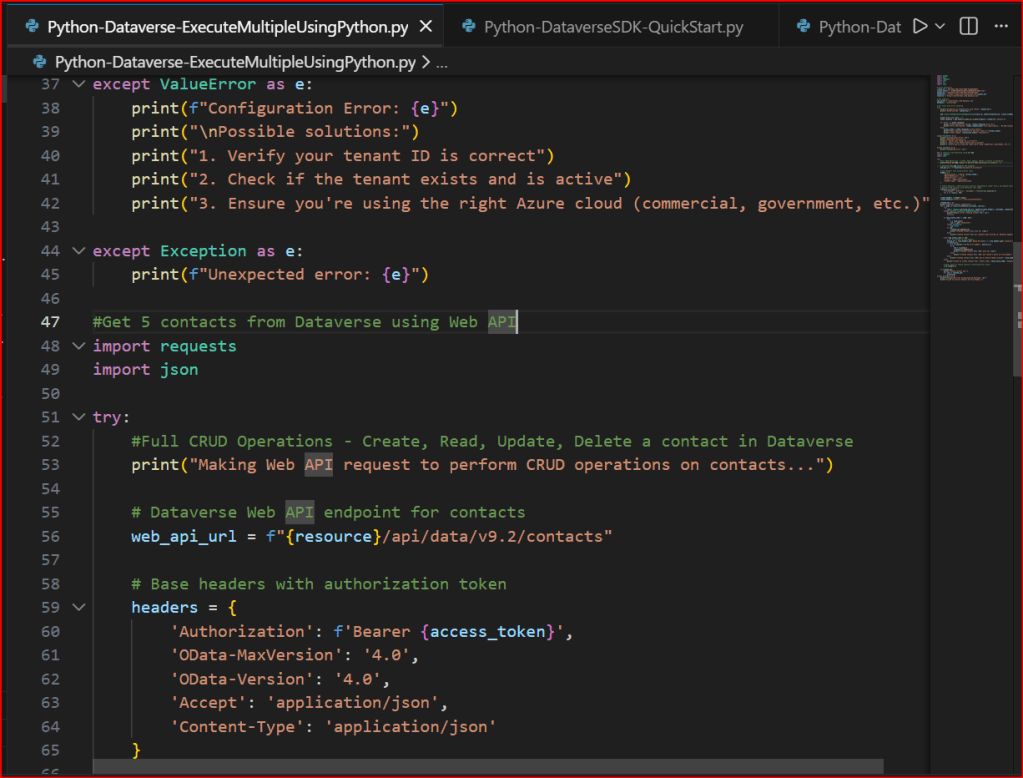
5. If you want to run Python Programmes in your VS Code, follow below options
a. Select Start Debugging
b. You will be prompted a window like below
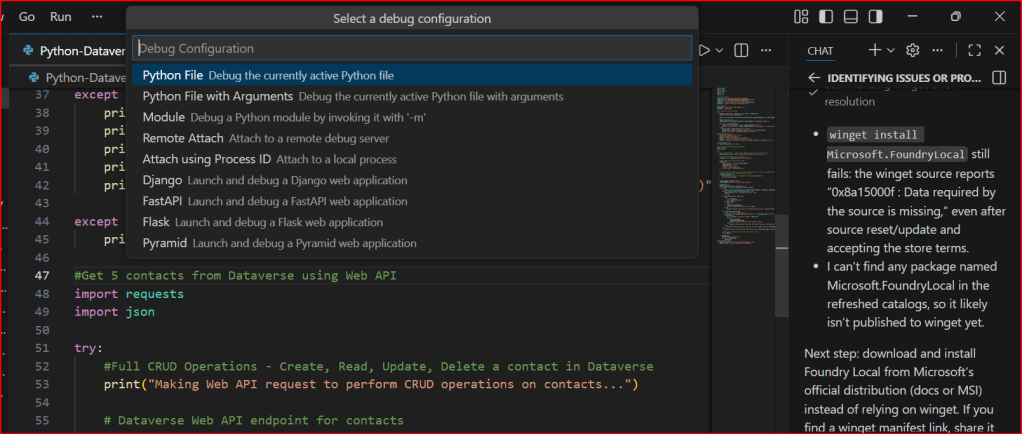
You can select the first option highlighted above, it automatically runs your Python Code
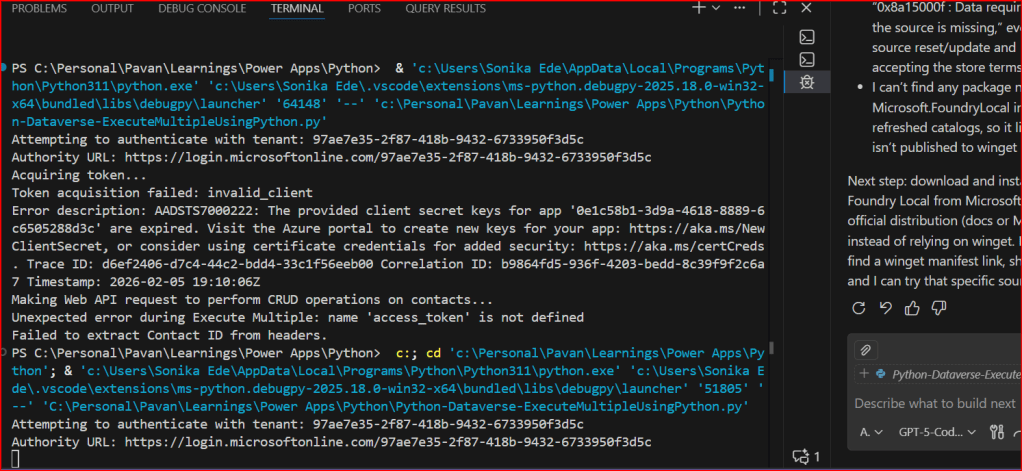
This is very easy to setup…
If you want to continue reading this series, check out the next article.
Hope this helps…
Cheers,
PMDY
Discover more from ECELLORS CRM Blog
Subscribe to get the latest posts sent to your email.

 ECELLORS CRM Blog
One thought on “Python + Dataverse Series – How to run Python Code in Vs Code”