Understanding Dataverse MCP vs Power Apps MCP – Quick Review

Hi Folks,

Model Context Protocol(MCP) has quickly become one of the hottest topics in today’s AI landscape. The excitement around it is huge—not just within the Microsoft ecosystem, but across the entire industry, because it’s designed to be open and accessible to everyone.

Microsoft Power Platform is also moving fast, releasing its own MCPs. I’ve already been asked several times about the difference between them, so this post breaks down how the Dataverse MCP and the Power Apps MCP differ—and when you should use each one.

We know that Dataverse MCP is generally available last year. Now Microsoft announced the public preview of Power Apps MCP this month. So what’s the difference between the two, this post will help to discern the differences between two.

Although both use the Model Context Protocol (MCP), they serve different purposes and operate at different layers of the Power Platform.

FeatureDataverse MCPPower Apps MCP
Primary RoleExpose Dataverse as an MCP server so AI agents can query tables, records, and metadataAllow Power Apps to use MCP to call external AI models or tools
FocusData access & operationsAI integration inside apps
Who Uses ItDevelopers building AI agents or copilots that need Dataverse dataApp makers building Power Apps that need AI-driven logic

2. Direction of Integration

DirectionDataverse MCPPower Apps MCP
MCP ServerYes — Dataverse acts as an MCP serverNo
MCP ClientNoYes — Power Apps acts as an MCP client
MeaningAI tools connect into DataversePower Apps connects out to AI tools

Dataverse MCP: AI → Dataverse Power Apps MCP: Power Apps → AI

3. What You Can Do

Dataverse MCP

  • Query Dataverse tables
  • Retrieve records
  • Update or create data
  • Use Dataverse as a tool inside Copilot Studio, VS Code GitHub Copilot, Claude Desktop, etc.

Power Apps MCP

  • Call external AI models from inside a Power App
  • Build AI-driven app logic
  • Trigger workflows using AI reasoning

4. Typical Use Cases

Dataverse MCP

  • Build a Copilot that answers questions using Dataverse data
  • Let GitHub Copilot query Dataverse while coding
  • Create AI agents that read/write CRM or ERP data

Power Apps MCP

  • Add AI reasoning to a canvas or model-driven app
  • Use external AI models to classify, summarize, or generate content
  • Build intelligent forms or workflows

5. Relation to Connectors

Dataverse MCP is increasingly seen as a future alternative to connectors for AI-driven scenarios.

Power Apps MCP does not replace connectors — it extends apps with AI capabilities.

Summary

CategoryDataverse MCPPower Apps MCP
Acts asMCP ServerMCP Client
Used forAI agents accessing DataversePower Apps calling AI tools
Primary BenefitIntelligent, standardized Dataverse accessAI-enhanced app logic
Typical ToolsCopilot Studio, GitHub Copilot, ClaudeCanvas apps, model-driven apps

Decision Guide: When to Use Dataverse MCP vs Power Apps MCP

1. If you want AI to access Dataverse → Use Dataverse MCP

Choose Dataverse MCP when:

  • You’re building a Copilot, AI agent, or LLM-powered tool that needs:
    • Dataverse tables
    • Records
    • Metadata
    • CRUD operations
  • You want AI to reason over business data
  • You want a standardized, connector-free way for AI to talk to Dataverse
  • You’re integrating Dataverse with:
    • GitHub Copilot
    • Copilot Studio
    • Claude Desktop
    • Custom LLM agents

Typical scenarios

  • My AI assistant should answer questions using CRM data.
  • I want GitHub Copilot to autocomplete code based on Dataverse schema.
  • I’m building an AI agent that updates Dataverse records.

If the AI is the one doing the work → Dataverse MCP.

2. If you want your Power App to call AI → Use Power Apps MCP

Choose Power Apps MCP when:

  • You’re building a canvas or model-driven app that needs:
    • AI reasoning
    • AI-generated content
    • AI classification or summarization
  • You want your app to call:
    • OpenAI models
    • Azure AI models
    • Custom MCP tools
  • You want AI logic inside the app, not outside it

Typical scenarios

  • My form should summarize customer notes using AI.
  • My app should classify images or text using an external model.
  • I want to call an LLM from a button in a canvas app.

3. If you need both directions → Use both

Some solutions need AI ↔ Dataverse ↔ Power Apps.

Example

  • A Power App collects data
  • AI agent (via Dataverse MCP) analyzes historical records
  • Power App (via Power Apps MCP) calls AI to generate insights for the user

This is becoming a common pattern in enterprise AI.

4. Quick Decision Table

GoalUse Dataverse MCPUse Power Apps MCP
AI needs to read/write Dataverse
Power App needs to call AI
Replace connectors for AI-driven data access
Add AI reasoning inside app UI
Build AI copilots or agents
Build AI-enhanced business apps

Hope you have found this post useful….

Cheers,

PMDY

Seatrium Learning Day – 3 Day Event

Hi Folks,

Excited to share about the recently held AI Innovation Day Bootcamp and Hackathon 2 day event organized by Microsoft, Singapore on September at Seatrium, 80 Tuas S Blvd, Singapore, SG, 6265 1766.

🗣️ Business User Feedback & Reflections

Solutions buit by Seatrium employees based on the engagement and the type, thanks to David Choo, Seatrium Microsoft Technical Account Manager for spearheading this Initiative.

Seatrium management officially sent a thank you note to MVPs Pavan Mani Deep Yaragani, Goloknath Mishra, Senthami Selvan for spending 3 valuable days for this event making it a grand success.

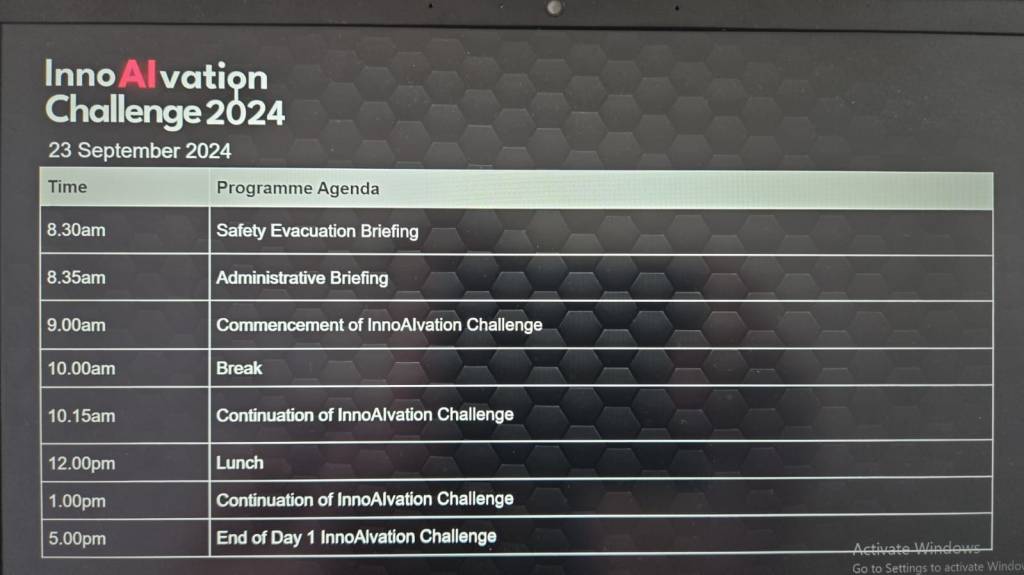
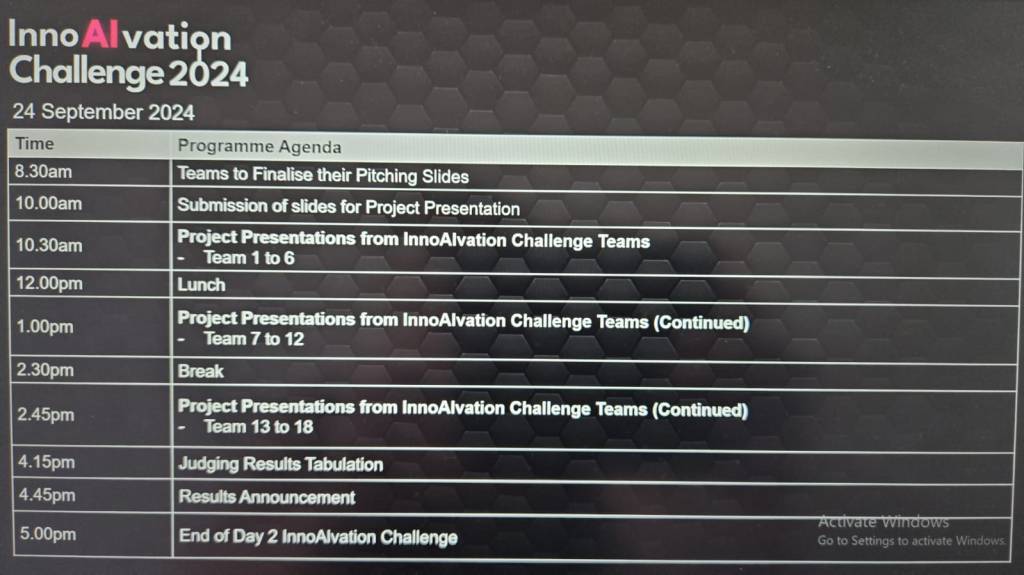
The event took place like below

  1. Day Microsoft Singapore with Seatrium Hackathon Particpants for prepartion on 16 September
  2. AI Innovation Day – 1 – 23 September, 2024.
  3. AI Innovation Day – 2 – 24 September, 2024.
  4. AI Innovation Day – Evaluation and Awards

Below were some the feedback from different business user teams.

🛠️ Operations & Production Team:

“We’ve been struggling with manual job task cards for years—seeing OCR and Copilot Studio digitize it in just two days was mind-blowing!”

“Tracking welder certifications used to take hours each week. Now, with this Power App, we can do it in seconds.”

📦 Supply Chain:

“This predictive maintenance idea using AI was something we thought only big tech could do. I didn’t expect we could prototype it so fast with Azure AI and Power Platform!”

“The Power BI dashboards finally give us a single view of procurement metrics without needing to export Excel sheets all day.”

🏗️ Engineering:

“We’ve been manually cross-checking MTOs and standards forever—having AI do that gives us back our time to actually focus on engineering work.”

“It’s amazing to see a tool extract information from drawings and relate it to VCDs without manual effort.”

💻 Group IT & HR:

“That SharePoint Copilot FAQ bot is going to save us a ton of IT support emails—super impressive.”

“Invoice checking and validation was one of our most time-consuming tasks—now it’s automated and way more reliable.”

📊 Commercial & Planning:

“We finally saw what Microsoft Fabric can do for project-level KPIs and dashboards. We’re excited to explore more.”

“This was one of the most hands-on, practical hackathons we’ve had. It wasn’t just ideas, we actually saw working solutions.”

The teams have worked on the attached use cases:

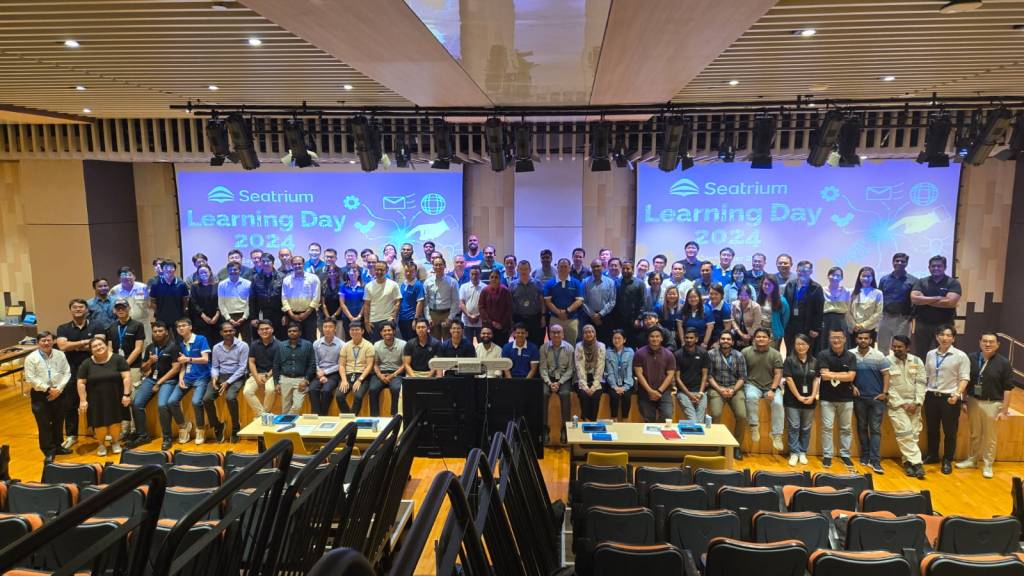
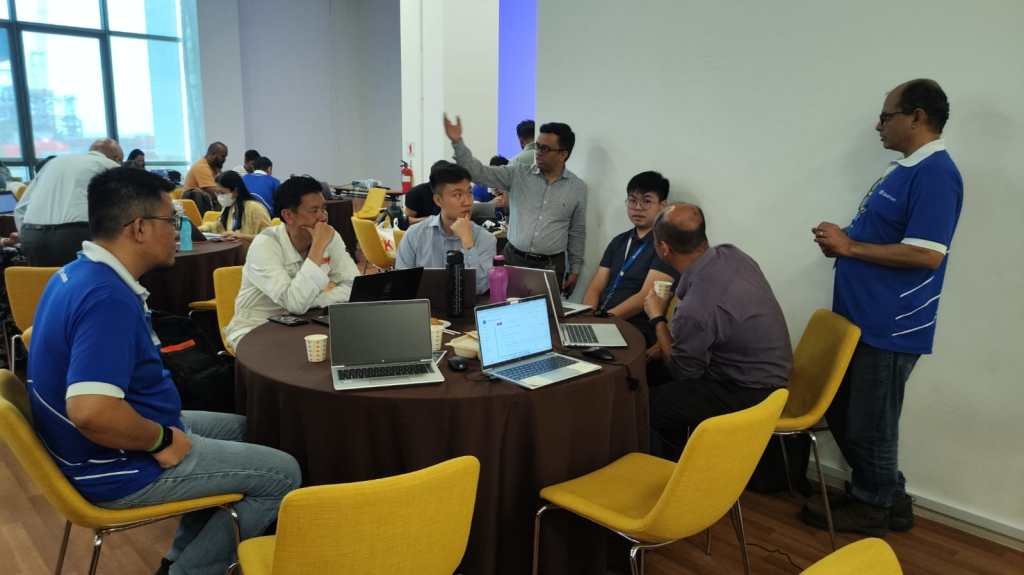
Fantastic event Pics:

Looking forward to more collaborations with Microsoft for organizing such events in Singapore.

Cheers,

PMDY

Polymorphic Lookup in Dynamics 365: Streamlining Your CRM with Flexible Relationships

In Dynamics 365, a Polymorphic Lookup is a powerful feature that allows you to associate a single lookup field with multiple different entities. This feature is particularly useful when you want a field to reference multiple related entities, providing greater flexibility and efficiency in your CRM applications.

What is a Polymorphic Lookup?

A Polymorphic Lookup is a special type of lookup field that can refer to multiple entities rather than just one. For example, a single “Related Entity” field can refer to either a Contact, Account, or Opportunity, making it versatile for various business scenarios. This capability is referred to as “polymorphism” because the lookup field can resolve to different types of entities at runtime.

Example Scenario:

Consider a sales scenario where a “Related Entity” can be a Customer, but the customer could be either an Account or a Contact. Rather than having two separate lookup fields (one for Account and another for Contact), you can create a polymorphic lookup field, which makes your user interface simpler and more streamlined.

How Does Polymorphic Lookup Work in Dynamics 365?

In Dynamics 365, polymorphic lookup fields are implemented as part of the Relationship between entities. The key concept here is the EntityReference, which dynamically resolves to the appropriate entity type (e.g., Account, Contact, etc.) based on the actual value selected by the user.

  1. Field Definition:
    • When defining a lookup field, you define a Relationship where the field can refer to multiple target entities.
    • The system uses the Type and Id to determine the related entity.
  2. Lookup Resolution:
    • At runtime, when a user selects a value in the polymorphic lookup field, the system dynamically resolves which type of entity to link to.
    • The field displays the appropriate name (e.g., Account or Contact) based on the entity that the user selects.

Creating Polymorphic Lookups in Dynamics 365

Polymorphic lookup fields are typically used in the following types of scenarios:

  • Custom Relationships: When you need to create a lookup that can reference multiple different entities.
  • Shared Relationship: For cases where one relationship applies to more than one entity, such as a lookup that could refer to either a Contact or an Account.
Steps to Create a Polymorphic Lookup Field:
  1. Navigate to the Customization Area:
    • Go to the Settings area in Dynamics 365 and select Customizations.
    • Select Customize the System to open the solution where you want to add the polymorphic lookup field.
  2. Create a New Field:
    • In the relevant entity, click on Fields, and then select New.
    • Choose the Lookup data type for the field.
  3. Define the Polymorphic Lookup:
    • Under the Related Entity section, select Custom to define the multiple entities this lookup should support.
    • Select the Entity Relationships where this lookup should point to multiple entities.
  4. Save and Publish:
    • Save the field and publish your customizations to apply the changes.

Example: Setting Up Polymorphic Lookup for Customer

Suppose you’re designing a custom Case entity and you want to add a lookup for the Customer. Instead of creating separate lookups for Contact and Account, you can create a polymorphic lookup that links to either an Account or Contact as the Customer.

Steps:
  • Create a Customer Lookup field in the Case entity.
  • Define the Customer Lookup field to support both Account and Contact entities.
  • After publishing the field, the user will see the lookup field and will be able to choose either an Account or Contact as the Customer.

Use Cases for Polymorphic Lookup

  1. Consolidating Related Data:
    • Polymorphic lookups help streamline user experience by consolidating multiple lookups into a single field, especially when dealing with common relationships across different entities.
  2. Reducing Redundancy:
    • Rather than having separate lookup fields for Account and Contact in every related form, you can reduce redundancy by using polymorphic lookups, which allows referencing both entities in one field.
  3. Improved Reporting and Analytics:
    • When data is related across multiple entities, using a polymorphic lookup can make it easier to pull reports and perform analysis without requiring multiple joins or complex queries.

Considerations and Limitations

While polymorphic lookups are powerful, they come with certain limitations:

  • Limited to Certain Fields: Polymorphic lookups are supported only in certain system fields (like Regarding in activities), but may not be available for every custom scenario.
  • API Handling: When working with the Dynamics 365 Web API, the polymorphic lookup is handled through special attributes that require careful parsing to identify the correct entity type.
  • UI Considerations: Although polymorphic lookups streamline the user interface, they can also confuse users who are unfamiliar with the concept. It’s important to have clear documentation and training for users on how to use these fields.

Conclusion

Polymorphic lookups in Dynamics 365 provide an elegant solution for scenarios where a lookup field needs to refer to multiple entity types. By understanding and using polymorphic lookups effectively, you can streamline your CRM solutions, reduce redundancy, and improve your application’s flexibility. It’s important to consider the limitations and ensure that users are properly guided in utilizing these fields within your system.

You can easily create this Polymorphic Lookup from XrmToolBox as well…

https://pascalcase.com/Home/Blog/understanding-and-using-polymorphic-lookups-in-dynamics-365-with-xrmtoolbox

Hope this helps.

Cheers,

PMDY