Open source tools, Solutions available for Developers and Admins

So today, I would like to give you a list of most useful tools available till now for Dynamics CRM which increases the developer productivity and helps Admins.

Some great tools you should check out to see if they could work in your organization.
  1. Fiddler – web debugging proxy
  2. Task Workflow Tools – custom workflow steps to extend your workflows
  3. Mobile Task Flows – walk users through tasks in the mobile or phone app
  4. Ribbon Workbench – visually edit the ribbon
  5. CRM Bookmarklets – JavaScript saved as bookmarks to “hack” your CRM (edit read only fields, show hidden fields, etc.)
  6. XRM Toolbox – It was shipped with 20 84  plugins as of April 2018 to handle several administration, customization or configuration tasks. Wiki
    • Access Checker
    • Assembly Recovery Tool
    • Attribute Bulk Updater
    • Audit Center
    • FetchXml Tester
    • Bulk Form Attribute Manager
    • FLS Bulk Updater
    • Form Libraries Manager
    • Form Parameter Manager
    • Import/Export NN relationships
    • Iconator
    • Metadata Browser
    • Metadata Document Generator
    • Privileges Discovery
    • Role Updater
    • Script Finder
    • SiteMap Editor
    • Solution Components Mover
    • Solution Import
    • Solution Transfer Tool
    • Sync Filter Manager
    • Synchronous events execution order editor
    • Easy Translator
    • User Roles Manager
    • User Settings Utility
    • View Layout Replicator
    • View Transfer Tool
    • Web Resources Manager
  7. Metablast – visual utility for exporting metadata
  8. CRM Snoop – Plugin Troubleshooting tool
  9. LinqPad – Easily run .NET code
  10. CRM DevTools – Chrome extension visible in the F12 developer area with lots of helpful functions for admins. It is worth it just to remember the debug and diagnostic links
  11. KingswaySoft – SSIS Integration toolkit
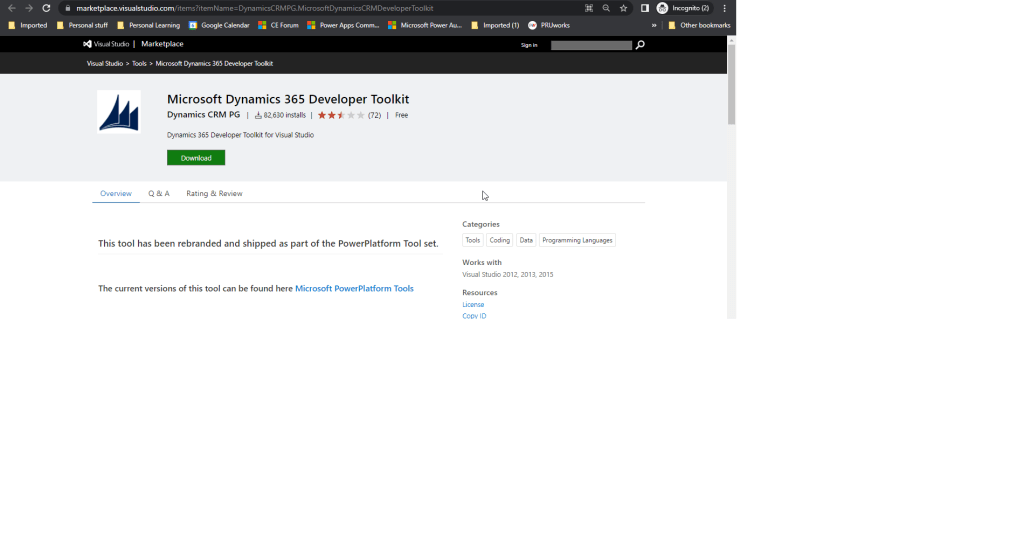
  12. Developer tool kit – New developer tool kit which was officially released
  13. Microsoft Fakes framework to unit test your CRM Code  – Test your undeveloped CRM Custom code using Microsoft Fakes framework
  14. CRM JavaScript Web API Service Utility – Used to write the latest javascript code using Web API
  15. Link Buddy –  It’s useful for converting logging/tracing details from CRM plug-ins, custom apps, etc. into click-able links that open the CRM record for which the GUID represents.
  16. MS CRM Security Roles to Excel Export – A Tool to export CRM Security roles into a Excel workbook.
  17. FetchXML Tester Online – Allows you to test FetchXML queries online without importing any solution or downloading any separate application.
  18. ILMerge – a .NET tool/utility which merges a number of dll’s into one dll, which is useful for creating plugins for online CRM.
  19. Tool to track performance – Check the CRM latency and bandwidth at https://CRMUrl.com/tools/diagnostics/diag.aspx (make sure to replace CRMUrl.com with the actual CRM URL).
  20. Convert FetchXML to SQL query – people find difficulties in converting the fetch xml query created from advanced find to a SQL query to retrieve records from Backend, use this tool to help the same
  21. Convert SQL query to Fetch XML – Two way round, use this to convert your backend queries to fetch XML to use them in your Code to retrieve data and metadata.
  22. Diagnostics Tool for On premise – Helps CRM developers and administrators to enable trace and devErrors on CRM server. Whereas its name only mentions CRM 2011, it is compatible with CRM 2013 and 2015 too (OnPremise only)
  23. Fetch XML Formatter 1, Fetch XML Formatter 2– Two similar tools for the same functionality, use according to your convenience. These were lightweight windows application that tool will be help you when you are extensively working with FetchXML in Javascript / C# code to get desired result. Takes fetchXML from Advance Find as an input and convert that into desired format, which can be used into Javascript / C# for further coding.
  24. Local option set to Global optionset converter – It’s purpose is to automate the task of converting a Local Option Set (an option set that is defined by and specific to a single entity. e.g. a CRM 4.0 Picklist), into a Global Option Set.
  25. Win Merge – A great tool to compare customizations.xml files taken from solutions
  26. CRM Rest Builder – A tool for CRM 2011/2013/2015/2016 Online & On Premise to generate JavaScript code using the 2011 & Web API REST endpoints.
  27. CRM Visual Studio Code JS Snippets – JavaScript code snippets for Dynamics 365/CRM 2011 – 2016 (5.0 – 8.2)
  28. TableTools2 – Add on for only Mozilla firefox to improve the CRM Grids. You can use the addon in grids that don’t display a filter or just in general with any page that displays a table like structure.
  29. CRM Theme Generator – Use this tool to generate the feature and create themes in CRM, supporting latest versions
  30. Advanced Query outer Join – Plugin to enable outer join queries from Advanced Find. This plugin enabled you to do that. The plugin runs on pre-RetrieveMultiple and alter the query that gets sent to the pipeline, with the correct outer join conditions
  31. Easy VS Code in Action – Use this to work with JavaScript file types from your desktop itself and without opening visual studio
  32. Custom code validation tool – Between CRM 2015 and CRM 2016 there are no differences for the checking of unsupported customizations of Js code, so if you get results to fix with the 2015 custom code validation tool means that you need to fix as well for 2016
  33. CRM DevTools – from Sonoma Partners is a Chrome extension which quickly provides CRM record and environment information and makes troubleshooting and testing so much easier. Once it’s installed, you can access the features by going to the Chrome DevTools (F12 key) and clicking the CRM DevTools tab.
  34. Solution to Create “Does Not Have” Queries using Advanced Find – This solution allows you to create “does not have” or “does not exist” queries using the standard Advanced Find interface.
  35. Dynamics 365 developer extensions(tool kit) – Tool to search for CRM related MSDN content, and tooling to assist with managing and deploying web resources, plug-ins, and reports
  36. Network Visualisation tool – Visualize the relationships between accounts, contacts and activities in a network graph, refer to this video to get insights
  37. Level up for dynamics CRM – Works with Edge and Chrome only. Gives form helpers and Navigation helpers, an amazing tool
  38. Personal view to System view – use this to convert created personal view to system view
  39. Beautify your JS, JSON code – improve the readability of your JS code, even minify your code
  40. Ribbon workbench 2016 – Most user friendly and universally accepted tool to customize ribbon, note that this version don’t need Silverlight within your browser
  41. ilspy – Used to decompile your source code from your .NET DLL, helpful to find your source code from plugin DLL’s
  42. Autonumbering solution – free autonumbering solution used to generate a Unique Reference Number for new records so they can easily be tracked, and is also useful for integrations.
  43. ReSharper – on the fly code analysis, identifies problems and provides quick fixes, best addin to visual studio
  44. Integrate Microsoft Dynamics CRM – Find the ETL tools and other key useful integration tools supported from MSDN.
  45. Call workflows and actions using Javascript – Use this tool to call workflows and actions using JavaScript without much hassles without too much taking care of code.
  46. Scribe Insights – Good data migration platform to move data between two systems and create new records in MS CRM. Reasonably the best in terms of performance with such a kind of UI and easy to learn. Comes with one month free trial.
  47. SOAP UI – Most widely used tool for testing web services and other API’s without much hassles.
  48. DLL Extractor – Extract your plugin DLL’s located on your CRM Database, this applies only for On premise applications. Login to your Client network and specify the server and database name with Integrated security or SQL Authentication. Click on List Plugins which shows the assemblies registered and download the                    required ones.
  49. Portal Checker – Troubleshoot your Dynamics 365 portals
  50. Autonumber No Code solution – Autonumbering generation solution.
  51. Commander – is a pre-configured software package that provides you with an awesome terminal emulator, and best shell you’ll ever have on Windows
  52. GuidGen – GuidGen is Microsoft recommended tool which programmatically generates GUID’s.

Hope you found some tool which had increased your productivity developing CRM…

Cheers,

PMDY
All about alternate keys in Dynamics CRM

Retrieving metadata items by name is generally easier because you probably already have some reference to this item name in your code. The following table lists the alternate key properties for retrieving metadata items by name. The primary benefit of this feature is to provide an alternative way to identify a CRM record.

Traditionally we use CRM entity’s primary key field to identify a CRM record, which stores GUID values and this becomes a challenge when we try to integrate CRM data with third-party database or application systems, which might use some natural keys to identify a record. It provides  much easier way to code while integrating with 3rd party systems.

Metadata item Alternate Key Example
Entity LogicalName GET /api/data/v8.2/EntityDefinitions(LogicalName=’account’)
Attribute LogicalName GET /api/data/v8.2/EntityDefinitions(LogicalName=’account’)/Attributes(LogicalName=’emailaddress1′)
Relationship SchemaName GET /api/data/v8.2/RelationshipDefinitions(SchemaName=’Account_Tasks’)
Global Option Set Name GET /api/data/v8.2/GlobalOptionSetDefinitions(Name=’metric_goaltype’)

When creating an alternative key, CRM kicks off a system job that creates a db index at CRM database server side, the purpose of the db index is to enforce the uniqueness of key while offering an optimal query performance. Depending on the number of existing CRM records that you have for the concerned entity in CRM system, it could take a while to create the index. You can see the most recent status of the index creating job. Only the below three fields could be created as keys and over all we can create 5 keys for an entity.

  • String
  • Integer
  • Decimal

Alternate keys could be used in the two scenarios as below

  • Update
  • Upsert (a new capability introduced in CRM 2015 Spring release, which will be further discussed in a following post)

Let us see performing an update operation through code with alternate keys

using (var service = new OrganizationService(crmConnection))

{

// Use alternate key (accountnumber) field to identify an account record

Entity account = new Entity(“account”, “accountnumber”, “ACT-12345”);

// Set new credit limit;

account[“creditlimit”] = new Money(100000);

// Entity reference using alternate key (emailaddress1) on contact entity

account[“primarycontactid”] = new EntityReference(“contact”, “emailaddress1”, “joe@duo.com”);

UpdateRequest request = new UpdateRequest() { Target = account };

UpdateResponse response = (UpdateResponse)service.Execute(request);

}

In the case that a CRM record cannot be found using the provided key value, you will receive the following error exception (where account is the entity name).

References: Alternate keys from MSDN

Cheers,

PMDY

New developer toolkit for CRM 2011/2013/2015/2016/D365

Hi All,

Do you remember, way back in 2013 we had a developer tool kit included in the SDK itself, which was later removed.

We had a good news, the developer toolkit had been made available Jason Lattimer in earlier versions.

With the advent of Dynamics 365, whole world of Microsoft Dynamics Changed and came with  new face which is none other than Power Platform.

You can install the latest Dynamics 365 Developer Toolkit here

Cheers,

PMDY

Things to note when registering a Plugin/custom workflows in Sandbox mode

Sandbox mode can also be referred isolation environment. Lets us see some Pros and Cons when registering the plugins/custom workflow activities in Sandbox mode.

Advantages:

  • Can make use of the full power of the Microsoft Dynamics CRM SDK
  • Have access to external endpoints like Azure Cloud Services.
  • CRM collects run-time statistics and monitors plug-ins and custom workflow activities that execute in the sandbox.
  • If code exceeds CPU Memory or is otherwise unresponsive, it would be killed by the platform
  • More secure, collects run time statistics and reporting
  • Platform collects runtime statistics and were populated after 30 mins to 1 hr
  • Can access the network through HTTP, HTTPS protocols
  • Anonymous authenication is allowed for plugins

Disadvantages:

  • Access to localhost (loopback) is not permitted.
  • IP addresses cannot be used, web address requires DNS name resolution

Service Provider in Plugins explained

When a particular event occurs in Microsoft Dynamics CRM, such as “create of a contact” or “update of an account”, the Execute method is invoked for any plugins registered on the event. This method includes a single serviceProvider parameter which provides useful service information about the execution of the plugin. In this post, we will take a look at the information that is made available by the serviceProvider parameter.

The types of service objects available include the following:

• IPluginExecutionContext
• IOrganizationServiceFactory
• ITracingService

The IPluginExecutionContext service object is the most useful of the three and provides contextual information to the plugin at run-time. It includes details about the user who triggered the plugin event as well as transactional information handled at the platform layer. The following code can be used to obtain the execution context from the service provider:

IPluginExecutionContext context = (IPluginExecutionContext)serviceProvider.GetService(typeof(IPluginExecutionContext));

The IOrganizationServiceFactory service object allows us to create an instance of the organization service which can be used to define and execute various platform requests. The following code can be used to achieve this:

IOrganizationServiceFactory factory = (IOrganizationServiceFactory)serviceProvider.GetService(typeof(IOrganizationServiceFactory));
IOrganizationService sdk = factory.CreateOrganizationService(context.UserId);

In the example above, we pass in the GUID of the user who triggered the plugin event, which is obtained from the IPluginExecutionContext. Alternatively, we can pass in the GUID of another CRM user, or pass in a null value to execute the plugin logic under the system context.

Lastly, the ITracingService allows us to trace the plugin execution flow and any variables for debugging purposes.

There you have it, an introduction to the various service objects that we will be working with in our journey to create plugins for Microsoft Dynamics CRM. In my next post, we will take a closer look at the IPluginExecutionContext.

Cheers,

PMDY

Two major functionalities going to be deprecated from future releases of Dynamics CRM..

As a part of important changes coming in the future releases of Dynamics CRM, two major existing functionalities which had been in place from CRM 2015 version would be deprecated and find their details as below.

  1. Removal of legacy form rendering option
     With Microsoft Dynamics CRM Online 2015 Update 1, introduced a new form rendering engine (sometimes called “turbo forms” ) that provides improved performance. This new rendering engine became available for customers with on-premises deployments with Microsoft Dynamics CRM 2016.

Because such a change can introduce different behaviors in form scripts, CRM 2016  currently provide a Use legacy form rendering option in System Settings so that an organization can opt out if they detect problems. This is intended to be a temporary solution. We hope these kind of issues would be addressed soon.

The Use legacy form rendering option will be removed in the next major release. Legacy form rendering (sometimes called “refresh forms”) is deprecated and will no longer be available. Only the rendering option will be removed; the form definition is still supported. Organizations who have not yet resolved issues with their customizations by using the new form rendering engine should take action immediately so that they will be able to upgrade to the next major version.

If you have turned on legacy form rendering, please turn it off and test your scripts. During testing, if you see breaking changes in forms that use:

  • The supported client API objects and methods documented in MSDN: Client-side programming reference, report this to CRM technical support.
  • Unsupported form objects or methods, remove these customizations or find a different way to achieve the results you want.

So Organizations be aware of this..

2.Microsoft Dynamics Email Router is deprecated

 The Microsoft Dynamics CRM Email Router will become deprecated in the next major release of Microsoft Dynamics CRM. To prepare for this change, we strongly recommend that you migrate all email routing functionality to use the server-side synchronization feature. More information: Migrate settings from the Email Router to server-side synchronization
Cheers,
PMDY

About XMLHTTPRequest

We all know with CRM 2016 we should use Web API instead of oData in JavaScript. So before actually implementing that let us understand XMLHTTPRequest which would be a major part of this code.

Lets take a code example and then analyze each and every component

The following script demonstrates how to create and use the XMLHttpRequest object. For best client-side performance, the XMLHTTP request is asynchronous and uses an onreadystatechange event handler to process the data returned by the call. The script uses the getXMLHttpRequest()function defined above to create the request object.

 X : Integer denoting readystate changes

The full list of readyState values is:

State  Description
0      The request is not initialized
1      The request has been set up
2      The request has been sent
3      The request is in process
4      The request is complete
function handler()
{
    if (oReq.readyState == X /* complete */) {
        if (oReq.status == 200) {/*Click here to check all statuses possible*/
            console.log(oReq.responseText);/*Responsetext property*/
        }
    }
}
var oReq = getXMLHttpRequest();
if (oReq != null) {
    oReq.open("GET", "http://localhost/test.xml", true);
    oReq.onreadystatechange = handler;
    oReq.send();
}
else {
    window.console.log("AJAX (XMLHTTP) not supported.");
}

Sample Workout


Further process to be followed in my next post..


Cheers,

PMDY

Calling Workflows and Dialogs from Javascript

Today we would see calling workflows and dialogs from javascript

Call Workflow

Runs the specified workflow for a particular record asynchronously. Optionally, you can add callback functions which will fire when the workflow has been executed successfully or if it fails.

Parameters: Workflow ID/Guid, Record ID/Guid, Success Callback (function), Error Callback (function), CRM Base URL (not required on forms/views)

Usage:

Process.callWorkflow("4AB26754-3F2F-4B1D-9EC7-F8932331567A", 
    Xrm.Page.data.entity.getId(),
    function () {
        alert("Workflow executed successfully");
    },
    function () {
        alert("Error executing workflow");
    });


Call Dialog

Note: This function has been deprecated. It will remain in the solution, however no future enhancements or fixes will be done. Please check out Alert.js for a better way of showing dialogs.

Opens the specified dialog for a particular record in a CRM light-box, or Modal Dialog if run from Outlook. Once the dialog is closed, a custom callback function can be executed, e.g. to refresh the form with new data set by the dialog.

Parameters: Dialog ID/Guid, Entity Name, Record ID/Guid, Callback function, CRM Base URL (not required on forms/views)

Usage:

Process.callDialog("C50B3473-F346-429F-8AC7-17CCB1CA45BC", "contact", 
    Xrm.Page.data.entity.getId(),         
    function () { 
        Xrm.Page.data.refresh(); 
    });

Cheers,
PMDY

Building SQL Query using Query Expression programmatically

Today we will see how to query the data in ms crm similar to a SQL Query using Query Expression.

// Build the following SQL query using QueryExpression:
// SQL Query:
//		SELECT contact.fullname, contact.address1_telephone1
//		FROM contact
//			LEFT OUTER JOIN account
//				ON contact.parentcustomerid = account.accountid
//				AND
//				account.name = 'Litware, Inc.'
//		WHERE (contact.address1_stateorprovince = 'WA'
//		AND
//			contact.address1_city in ('Redmond', 'Bellevue', 'Kirkland', 'Seattle')
//		AND 
//			contact.address1_telephone1 like '(206)%'
//			OR
//			contact.address1_telephone1 like '(425)%'
//		AND
//			DATEDIFF(DAY, contact.createdon, GETDATE()) > 0
//		AND
//			DATEDIFF(DAY, contact.createdon, GETDATE()) < 30
//		AND
//			contact.emailaddress1 Not NULL
//			   )


Similar Query using QueryExpression:
QueryExpression query = new QueryExpression()
{
    Distinct = false,
    EntityName = Contact.EntityLogicalName,
    ColumnSet = new ColumnSet("fullname", "address1_telephone1"),
    LinkEntities = 
    {
        new LinkEntity 
        {
            JoinOperator = JoinOperator.LeftOuter,
            LinkFromAttributeName = "parentcustomerid",
            LinkFromEntityName = Contact.EntityLogicalName,
            LinkToAttributeName = "accountid",
            LinkToEntityName = Account.EntityLogicalName,
            LinkCriteria = 
            {
                Conditions = 
                {
                    new ConditionExpression("name", ConditionOperator.Equal, "Litware, Inc.")
                }
            }
        }
    },
    Criteria =
    {
        Filters = 
        {
            new FilterExpression
            {
                FilterOperator = LogicalOperator.And,
                Conditions = 
                {
                    new ConditionExpression("address1_stateorprovince", ConditionOperator.Equal, "WA"),
                    new ConditionExpression("address1_city", ConditionOperator.In, new String[] {"Redmond", "Bellevue" , "Kirkland", "Seattle"}),
                    new ConditionExpression("createdon", ConditionOperator.LastXDays, 30),
                    new ConditionExpression("emailaddress1", ConditionOperator.NotNull)
                },
            },
            new FilterExpression
            {
                FilterOperator = LogicalOperator.Or,
                Conditions =
                {
                    new ConditionExpression("address1_telephone1", ConditionOperator.Like, "(206)%"),
                    new ConditionExpression("address1_telephone1", ConditionOperator.Like, "(425)%")
                }
            }
        }
    }
};

DataCollection<Entity> entityCollection = _service.RetrieveMultiple(query).Entities;

// Display the results.
Console.WriteLine("List all contacts matching specified parameters");
Console.WriteLine("===============================================");
foreach (Contact contact in entityCollection)
{
    Console.WriteLine("Contact ID: {0}", contact.Id);
    Console.WriteLine("Contact Name: {0}", contact.FullName);
    Console.WriteLine("Contact Phone: {0}", contact.Address1_Telephone1);
}
Console.WriteLine("<End of Listing>");
Console.WriteLine();
Cheers,
PMDY

Using Pre & Post Entity images in MS CRM

Options we have to access fields that are not included in the context.

  1. Obtain a reference to Organisation Service within your plugin, and then use a Retrieve request to return the fields you need from the plugin. As the context will always contain the GUID for the record that has changed, this is generally the most common way you will see this done.
  2. Utilise either a Pre or Post Entity Image of the record, which contains the attributes that you need to access.

Previously we would be using the First option for any kind of operations.Recently though, I have been evaluating Entity Images more and more, and have begun to actively use them as part of my plugins. Entity Images are, essentially, snapshots of the CRM record that are stored on the platform either before the database operation has completed or straight after – you can decide which one you want to use, depending on what your plugin is doing. They are configured as part of deploying your plugin to your target CRM instance, and the steps involved are actually quite simple – I think it’s generally the case that they are not well-understood or utilised by developers who are learning about CRM for the first time.

So why should you go to the extra effort to use them within your plugins?

As alluded to above, using Pre Entity Images means you can get a snapshot of your CRM data before the data was changed. This may prove to be particularly invaluable in cases where you need to perform a before/after comparison on a particular field, and then execute a specific action either way. The only non-entity image way of doing this within CRM would be via hidden field that stores the current value of your field in question, which is referenced and updated once your business logic has completed. A slightly inelegant solution, and one that is questionable, given that we can utilise Entity Images instead. Having ready access to the attributes which may not necessarily be exposed to the plugin when it is executed is particularly invaluable, given that this avoids a scenario where you would have to go down option 1). Disadvantages of this approach is the potential for unnecessary delays in your plugin completing and problems with your CRM instance as a whole, if your CRM’s web services are already accessed to breaking point.

In these cases, we go with plugin images. That’s all for today.. would be sharing code related stuff about using plugin images in my next blog post..

Cheers,

PMDY