Exploring Power Platform and Beyond: Features, Experiences, Challenges, Solutions all in one place
Author: Pavan Mani Deep Y
Passionate for Power Platform. A technology geek who loves sharing the leanings, quick tips and new features on Dynamics 365 & related tools, technologies. An Azure IOT and Quantum Computing enthusiast...
Well this post talks about pretty basic but an important tip, it is the best way to get the flow Metadata.
Have you every got a requirement to get the Metadata about the flow you were running in…yes, then this post is for you.
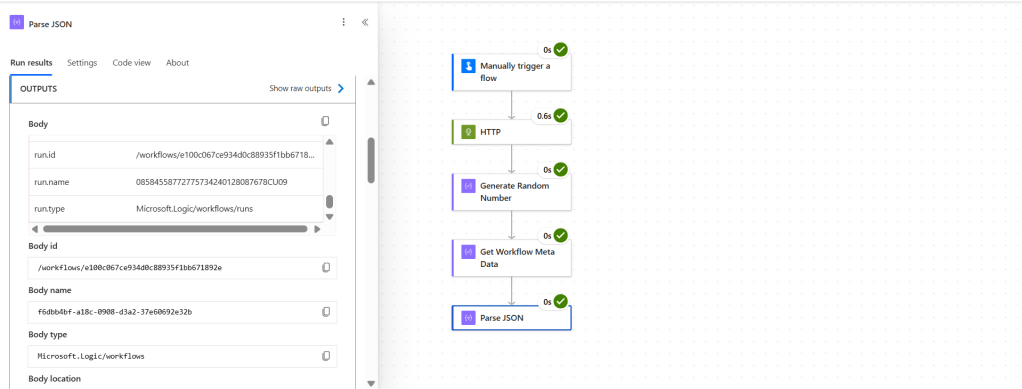
Let’s say you were running a flow, you want to report out from when this flow has been running and Flow Guid etc…then Add the below action to get the details in a Compose step…
Run the flow to see the details retrieved…
If you carefully review the parameters returned..
This file contains hidden or bidirectional Unicode text that may be interpreted or compiled differently than what appears below. To review, open the file in an editor that reveals hidden Unicode characters.
Learn more about bidirectional Unicode characters
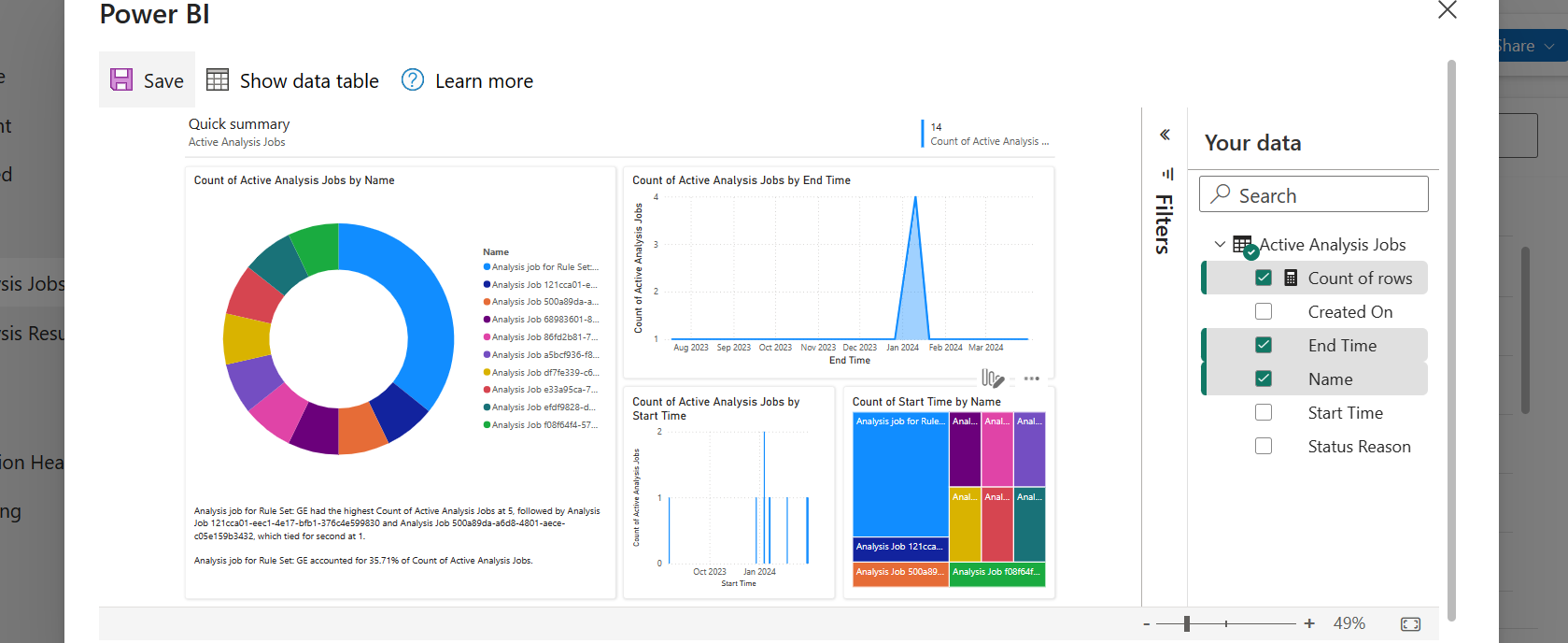
Have you noticed Visualize this view button in in the app bar of any grid view of Dynamics 365?
Here is a dashboard built within couple of minutes. While this can greatly help end users visualize the data present in the system. So, in this post, let’s understand bit more details about this capability and what are the some of the features which are left behind.
Let’s understand the how’s this is generated along with its capabilities and disadvantages compared to traditional Power BI dashboard both from Developer and end user perspective, please note that this is my understanding..
For Developers:
a.Visualize this view uses a PCF Control which calls the Power BI REST API and then generates the embed token for the report embedding that into an Iframe.
b. Then uses Power BI JavaScript API to handle user interactions with the embedded report such as filtering or highlighting data points.
c. When Power BI first generates your report, it takes a look through your data to identify patterns and distributions and pick a couple of fields to use as starting points for creating the initial set of visuals when data is not preselected.
d. Any changes to the data fields calls the UpdateView of the PCF Control and there by passing the updated data fields to REST API and then displays the visuals.
e. Visuals will be created with both selected and non-selected fields which are the related to the selected fields in the data pane.
For End Users & Developers:
Advantages:
Visuals are generated when no data is selected
Cross Highlighting is possible
Click on the Report to see Personalize this visual option
People with Contributor, Member, or Admin role assigned can save the Report to workspace
Users with no access to Power BI cant view this feature, they can request for free Power BI License
Free License users can save the Report to thier personal workspace
Users get build permission when any role above Contributor is assigned and reshare permission is given
The report will be saved as direct query with SSO enabled and honours dataverse settings
Show data table presents a list of tables if the model comprises of multiple tables.
Able to specify the aggregation for each of the field in the model.
Disadvantages:
Only able to export summarized data from Visuals, you will be able to export the data in table from data table.
Only Visual Level, no page level or report level filters
During these reports creation, the model is configured to use Direct Query with Single Sign On.
Embed a report on a Dataverse form requires modifying the XML of the solution
Report published into the workspace are available to download but downloaded reports will not be able to customize further in Power BI Desktop as it would be built using Native Queries.
If the page is kept ideal for long time or the user navigates to other browser window, the session and report will be lost.
Considerations & Limitations:
Power BI Pro license is required to create these reports
While this is wonderful for end users to visualize the data but this is not an alteranative to building reports using Power BI Desktop.
Looking to improve your experience developing code using Power Fx. Then try this feature which was in preview…I want to show you how you can execute them. It is actually quite ideal for prototyping, debugging, testing to see the Power-Fx expression behavior. If you were new to Power-Fx, you can check my introductory post here on this which I wrote way back in 2021.
All you can do this is to execute few commands from VS Code, they directly run on your Dataverse environment.
Install PowerShell Module for VS Code (install from here)
Install Power Platform Tools for VS Code (install from here)
Once you have everything installed you were good to go, few more steps required to set up your VS Code to run successfully.
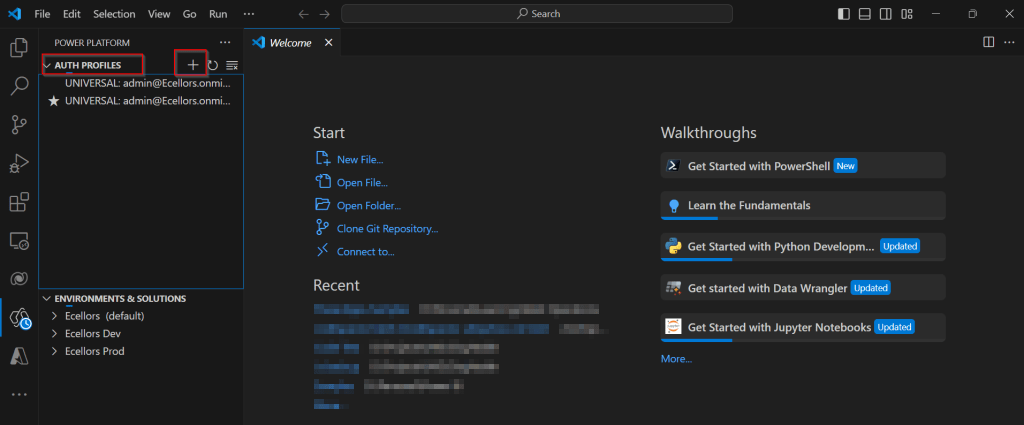
As you have already installed the Power Platform Tools extension above, you should see an icon at the side bar as highlighted below.
Create an authentication profile for your target environment, click on the plus symbol besides the AUTH PROFILES, I have already created few earlier.
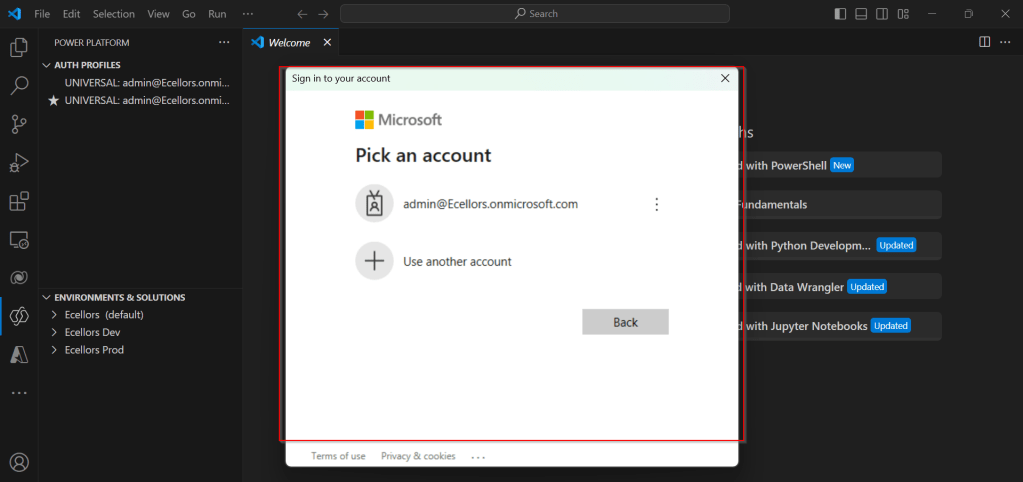
Provide your login credentials using the login prompt.
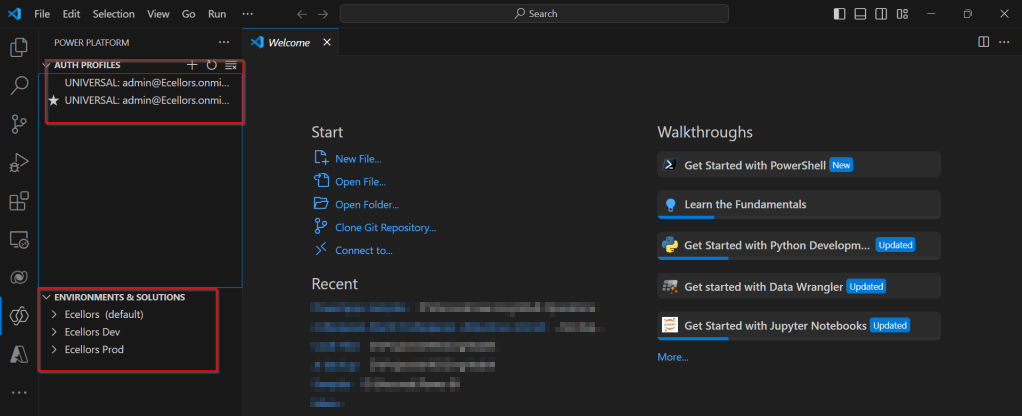
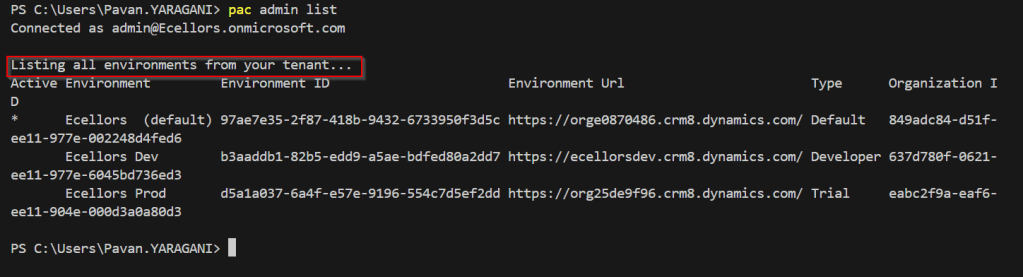
Once authenticated, you should be able to see all your environments in your tenant like below.
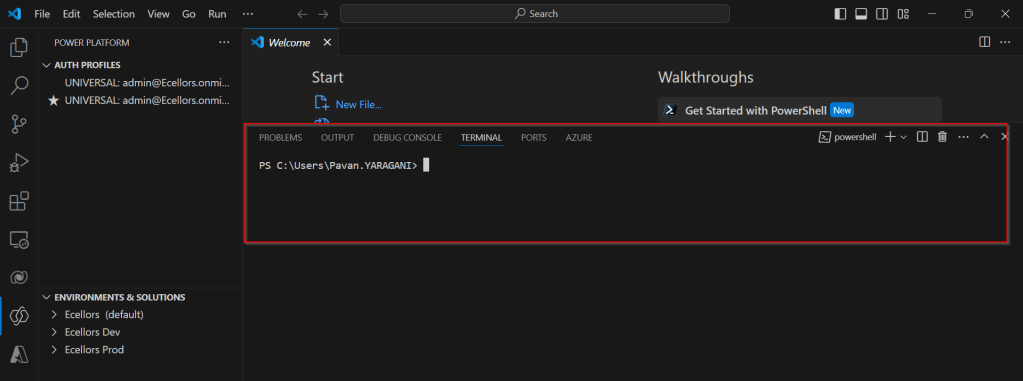
Open a terminal in VS Code
You should see something like below.
Now you were all set to run Power-Fx Commands targeting your envirnment, let’s try it out. In order to interact with Dataverse, use the below commands, thereby reducing the time and complexity of your Dataverse operations by using Power Fx.
1: pac org who: Displays information about your current Dataverse Organization
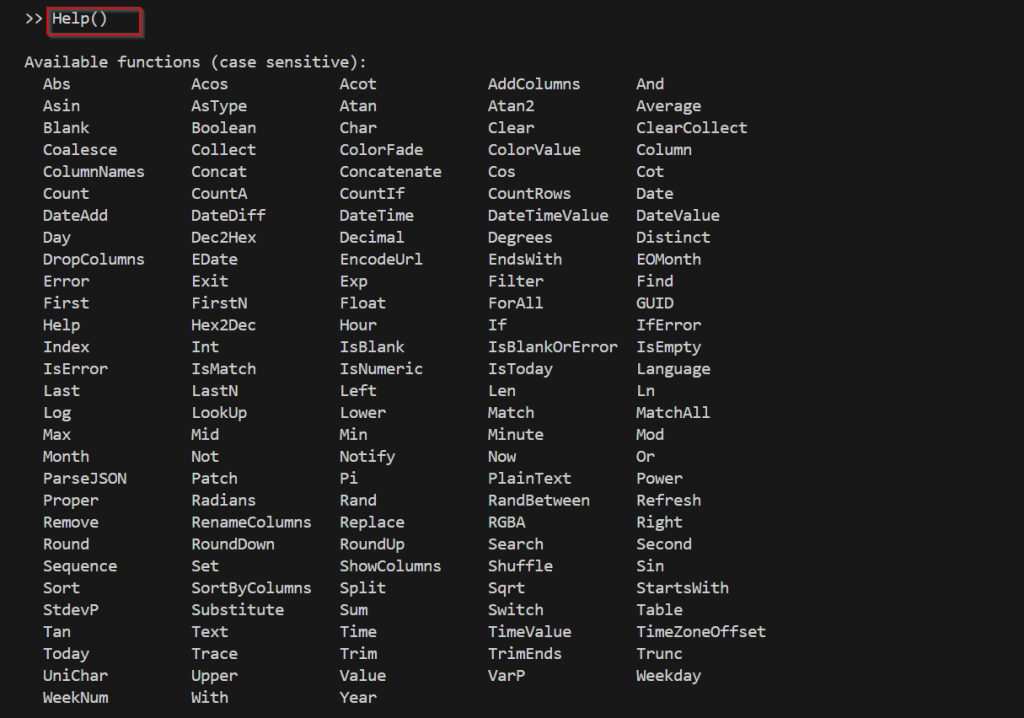
We heard about Read-Eval-Print Loop while working on other languages mainly Python, we now have that included while using Power Fx, to start using if. Enter the below in your Vs Code Terminal, it should show something like below and now you can execute commands and once connected, you can use Dataverse commands.
By the way, we need to use Plural names below.
pac power-fx repl command:
a. Add Rows: Use Collect (Contacts, { firstname: “Pavan”, lastname: “Mani Deep”})
With this command, you can run a file of Power Fx instructions.
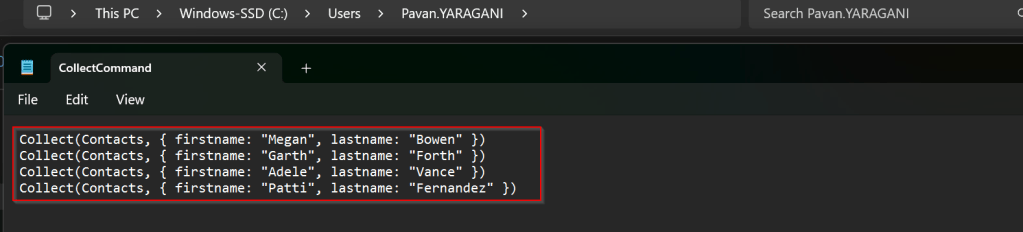
a. Create Dataverse records: By using same Collect Command we used above in a file.
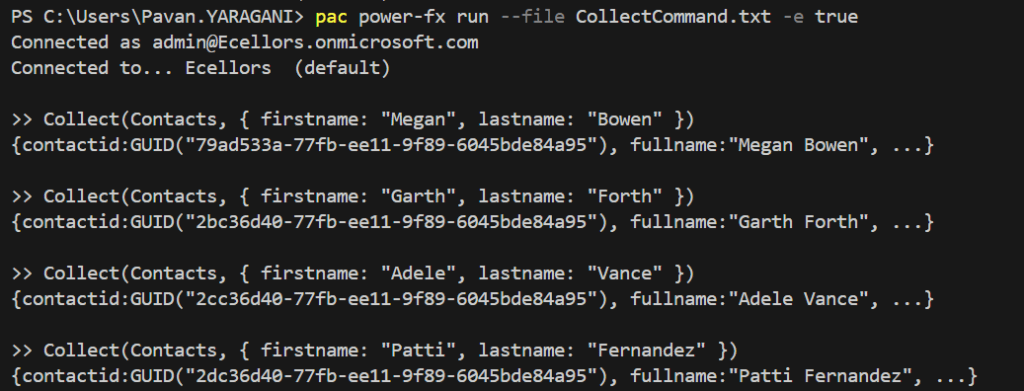
Now execute the command
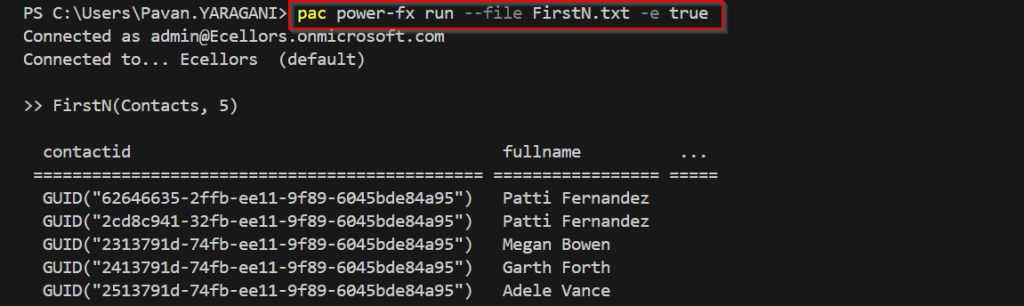
pac power-fx run –file Name of the file -e true
b. Query a Dataverse table: Save the below command in a file located in the folder path.
Now execute the command
c. Filter a Dataverse table: While I used the filter command, I was not able to filter the data, rather I was getting null. I hope Microsoft will be fixing this when these features are out of preview.
I hope this gives you an idea of how you can execute Power-Fx commands within your favorite IDE(Vs Code).
🚀 You’re Invited to the Global AI Bootcamp 2025 – Singapore Edition!
Are you passionate about AI, Power Platform, and Microsoft technologies? Want to learn how AI is transforming businesses and industries? Then this event is for you!
🎯 What to Expect? ✅ Expert-led sessions on AI, Copilot, Power Platform, and more ✅ Hands-on workshops to apply AI in real-world scenarios ✅ Networking opportunities with industry leaders and AI enthusiasts ✅ Absolutely FREE to attend!
Here is how you can quickly call action using Web API, with this method you can execute a single action, function, or CRUD operation. In the below example, let’s see how you can call an action. Here is function…to achieve this..
This file contains hidden or bidirectional Unicode text that may be interpreted or compiled differently than what appears below. To review, open the file in an editor that reveals hidden Unicode characters.
Learn more about bidirectional Unicode characters
This example details with Unbound action, which is not tagged to any entity, however if in case on Bound action, you will specify the entity name for bound parameter instead of null. You need to specify the Metadata accordingly for your Action. Let’s understand it’s syntax first…
Thank you for visiting my blog today…this is post is mainly for Pro developers. Encryption is crucial to maintain the confidentiality in this digital age for the security of our sensitive information. So here is a blog about it. This is in continuation to my previous blog post on encrypting files using GnuPG.
In this blog post, I will give you sample how you can encrypt/decrypt using GnuPG with command line scripts from C# code.
If you didn’t go through my previous article, I strongly recommend you go through that article below first to understand the background.
Next, in order to encrypt/decrypt a given csv file (taken for simplicity), we can use the following C# codes. For illustration purpose, I have just provided you the logic in the form of a Console.
Encryption:
This file contains hidden or bidirectional Unicode text that may be interpreted or compiled differently than what appears below. To review, open the file in an editor that reveals hidden Unicode characters.
Learn more about bidirectional Unicode characters
This file contains hidden or bidirectional Unicode text that may be interpreted or compiled differently than what appears below. To review, open the file in an editor that reveals hidden Unicode characters.
Learn more about bidirectional Unicode characters
string gpgPath = @"D:\Softwares\Kleo patra\GnuPG\bin\gpg.exe";//Once GPG installed, you can look for gpg.exe in the bin folder of the installation
string inputFile = "Input encrypted file";//Replace with your gpg encrypted file location
string outputFile = "Decrypted CSV file"; //give it a name for the decrypted file and location, output file path doesnt exists yet, you may give a sample name
All you need is to copy and replace the file locations in the code. Sit back and enjoy encrypting and decrypting with GnuPG. I should say once known, this is the easiest way to encrypt/decrypt from C# code, no strings attached.
If you need any other information, please do let me know in comments.
This post is continuation to my previous post on COE Starter Kit, if in case you have just landed on this page. I would suggest go here and check out my blog post on introduction to COE Starter Kit.
Important:
Do test out each and every component, rolling out to production without testing as you need to keep in mind that there were many flows which can trigger emails to users which may keep them annoyed.
You need to install the components present in the COE Starter Kit extracted folder in the dedicated environment, preferably Sandbox environment (not in Default environment, so that you can test it out first before moving changes to Production), make sure you have Dataverse installed in the environment. First let’s install the Solutions and later we can proceed to customize them.
Install CenterofExcellenceCoreComponents managed solution from your extracted folder, the exact version may be different and differ as the time goes at the time of installing this, the version was as below CenterofExcellenceCoreComponents_4.24_managed
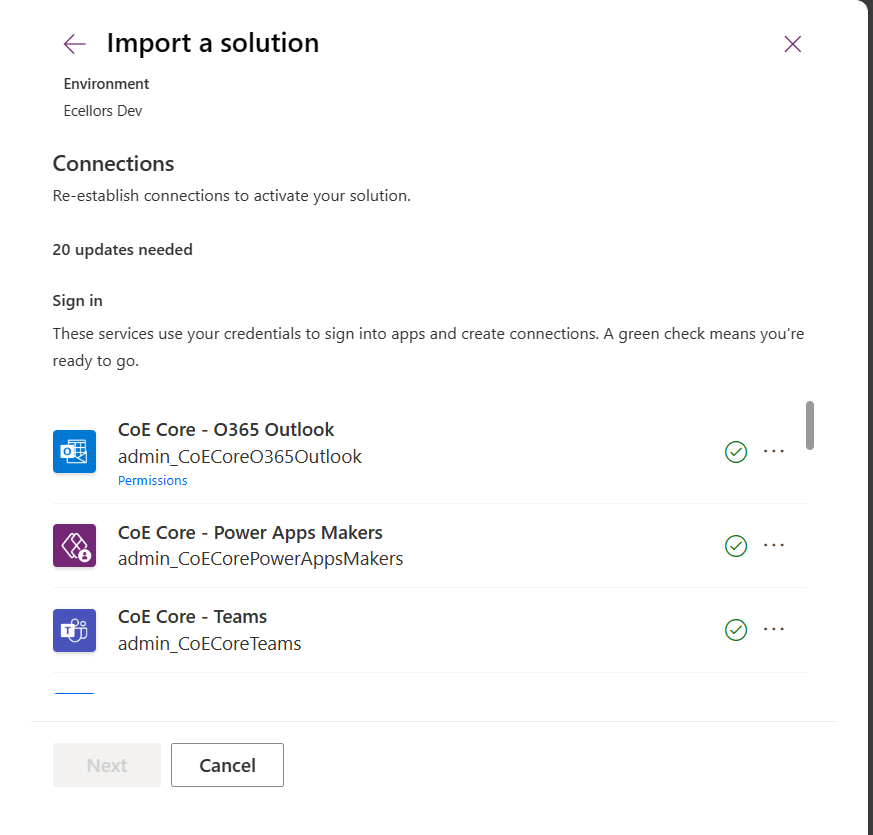
Then proceed to click on Import as we will be configuring these environment variables whenever required later. It takes a couple of seconds to process, it asks to set the connections which I had talked about in previous post, just create new connection if one not available and click next. Make sure you have green checkboxes for each connection, and you are good to click next.
Then you will be presented with the screen to input Environment variables as below, we will configure later so for now, just proceed by clicking on Import button.
The import process may take a while like around 15 minutes, once imported, you should see a notification message on your screen something like below.
Step 1:
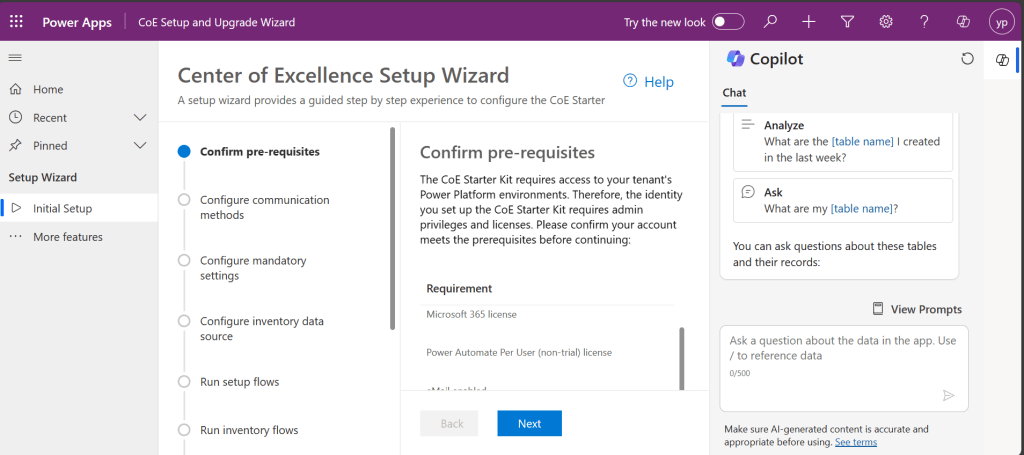
You will have a bunch of Apps, Flows installed in your environment. Configure the COE Settings by opening the Centre of Excellence setup and upgrade wizard from the installed Center of Excellence – Core Components managed solution.
It should look something like below when opened. You will be presented with some prerequisites
Proceed with this step-by-step configuration, you don’t need to change any of the setting, just proceed by clicking on Next.
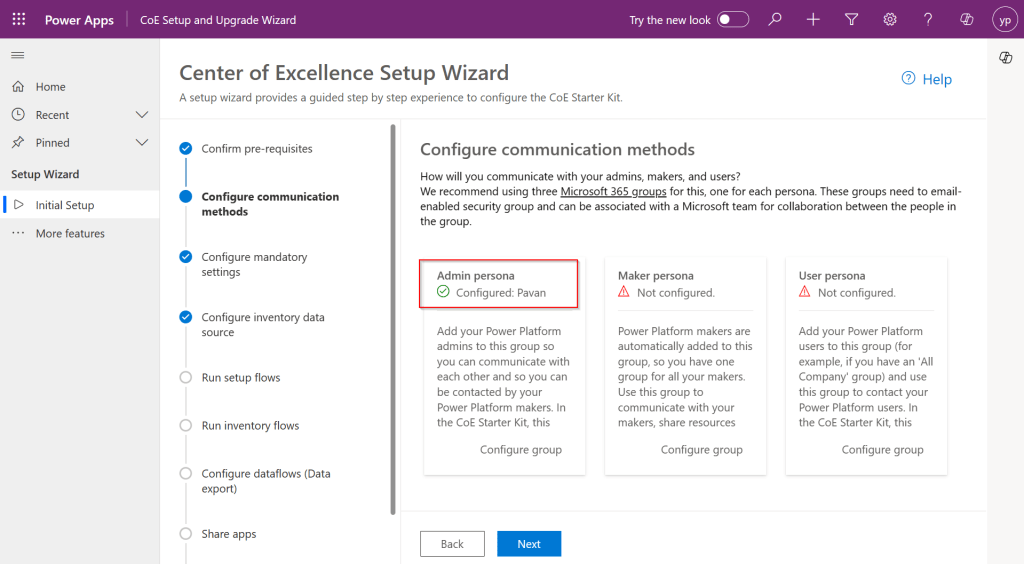
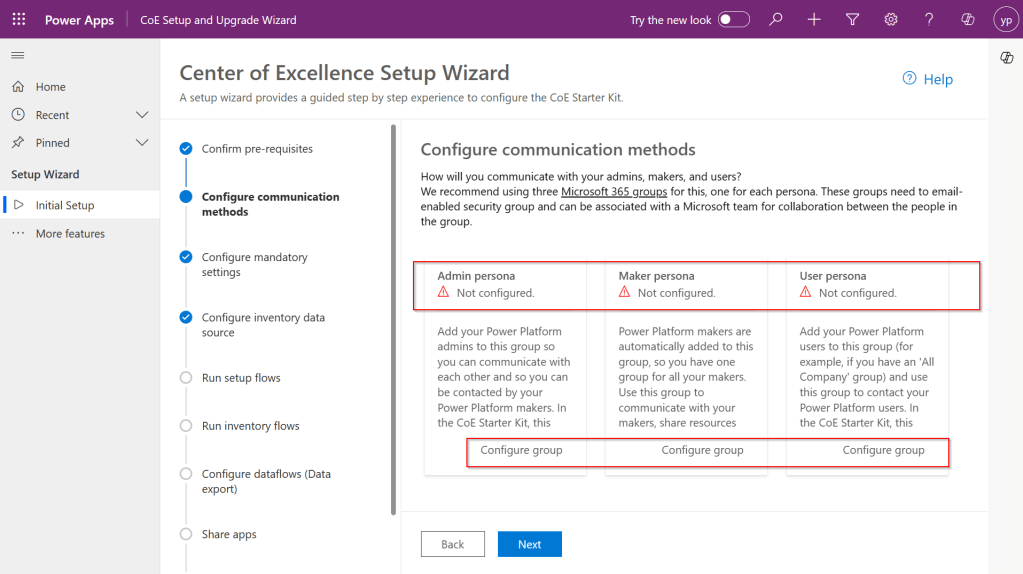
Step 2: In this step, you can configure different communication groups to coordinate by creating different personas
You can click on Configure group, choose the group from the drop down and enter the details and click create a group.
Provide a group name and email address without domain in the next steps and proceed to create a group, these were actually Microsoft 365 groups.
Once you have setup, it should show..
However, this step is optional, but for efficient tracking and maximum benefit of COE, it is recommended to set this up.
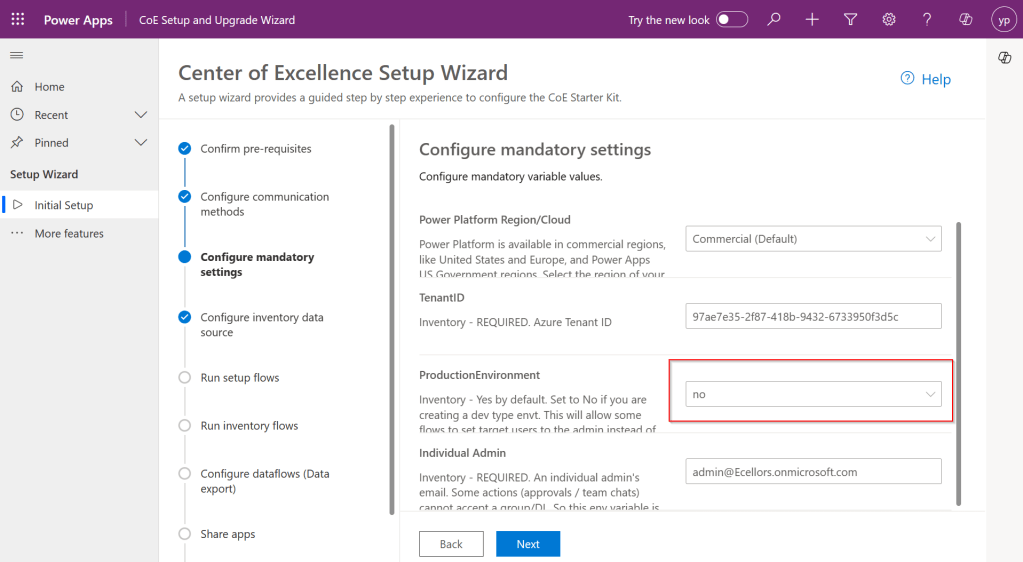
Step 3: While the tenant Id gets populated automatically. Make sure to select no here instead of yes if you were using Sandbox or Production Environment and configure your Admin email and click Next.
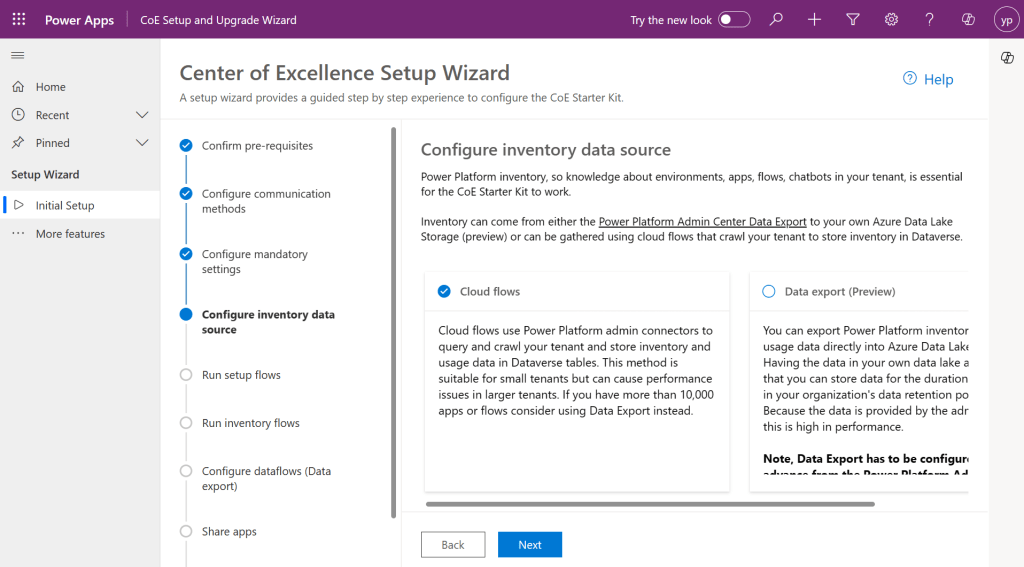
Step 4: Configure the inventory data source.
Tip: In case you were not able to see the entire content in the page, you can minimize the Copilot and press F11 so that entire text in the page would be visible to you.
This is required for the Power Platform Admin Connectors to crawl your tenant data and store them in Dataverse tables. This is similar to how search engines crawl entire internet to show any search results. While Data export is in preview, so we proceed with using Cloud flows.
Click Next.
Step 5:
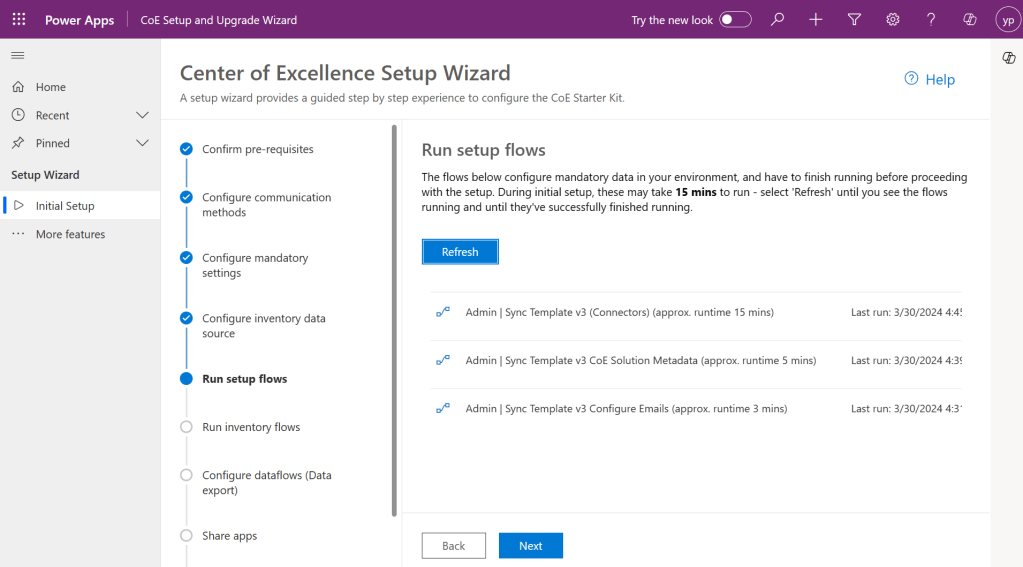
This step is Run the setup flows, click on refresh to start the process. In the background, all the necessary admin flows will be running. Refresh again after 15 minutes to see all the 3 admin flows are running and collecting your tenant data as below and click Next.
Step 6:
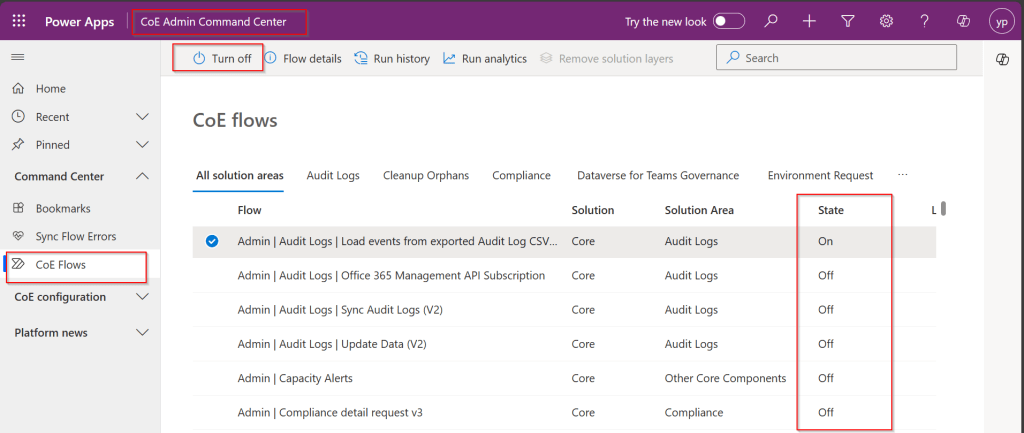
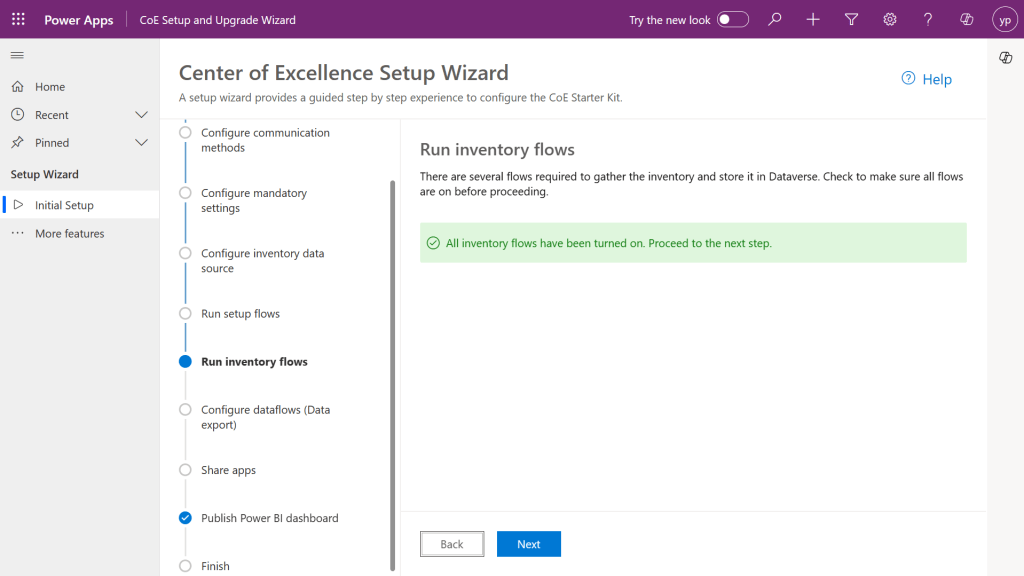
In the next step, make sure you set all the inventory flows to On.
By the way inventory flows are a set of flows that are repeatedly gathering a lot of information about your Power Platform tenant. This includes all Canvas Apps, Model Driven Apps, Power Pages, Cloud Flows, Desktop Flows, Power Virtual Agent Bots, Connectors, Solutions and even more.
To enable them, open the COE Admin Command Center App from Center of Excellence – Core Components Solution. Make sure you turn on all the flows available.
So, after turning on all the flows, come back and check on Center of Excellence Wizard Setup, you should see a message something like below saying all flows have been turned on.
Configure data flows is optional, as we haven’t configured it earlier, this step would be skipped.
Step 7: In the next step, all the Apps came in with Power Platform COE Kit should be shared accordingly based on your actual requirement to different. personas.
Step 8:
This part of the wizard currently consists of a collection of links to resources, helping to configure and use the Power BI Dashboards included in the CoE.
Finish
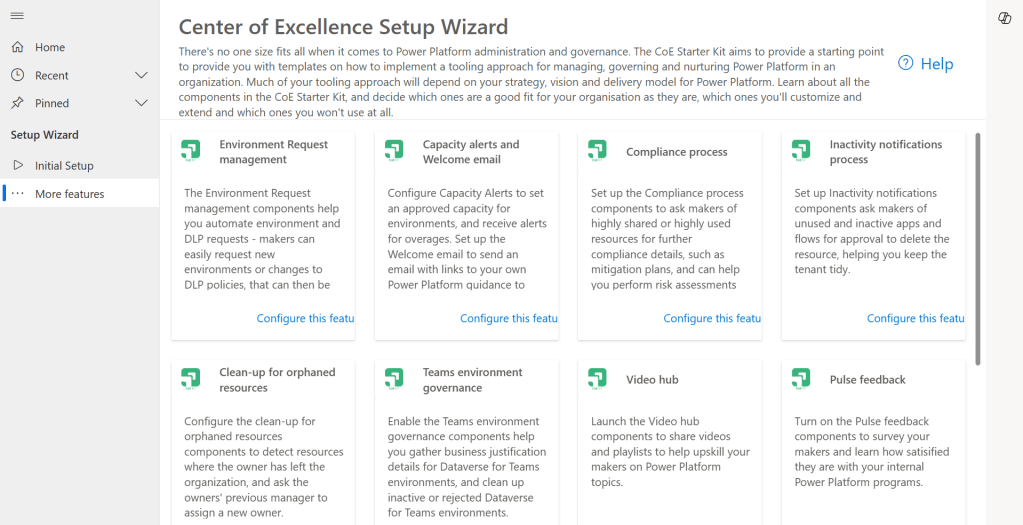
Once you click Done, you will be presented with more features to setup.
These setups have similar structure but varies a bit based on the feature architecture.
As we got started with setting Starter Kit and had set up the Core Components of the Starter Kit which is important one, now you can keep customizing further, in the future posts, we will see how we can set up Center of Excellence – Governance Components, Center of Excellence – Innovation Backlog. These components are required to finally set up the Power BI Dashboard and use effectively to plan your strategy.
Everyone who’s ever installed or updated the CoE knows how time-consuming it can be. Not just the setup procedure, but also the learning process, the evaluation and finally the configuration and adoption of new features. It’s definitely challenging to keep up with all this. Especially since new features are delivered almost every month. This attempt from me is to try my best to keep it concise, yet making you understand the process.
While such setup wizard is clear and handy resource to get an overview of the CoE architecture and a great starting point for finding any documentation. This simplifies administration, operations, maintenance and may be even customizations.
While intelligence with the use of AI is being embedded into each and every part of the Microsoft ecosystem, it is good to know the features coming in the Power Platform space.
In this blog post, let’s see how we can use Dataverse AI Functions, their usage, advantages which can greatly ease summarizing, classifying, extracting, translating, assessing sentiment, or drafting a reply for common business scenarios.
To illustrate it better, I used a different AI Function for Canvas App, Model Driven App and Power Automate, hope you can follow the same for others as well.
What are Dataverse AI Functions?
Think of Dataverse AI Functions as prebuilt AI Functions which will add intelligence in your Apps and Flows without need to collect, build and train the models. They can be used in many places such as AI Builder, Power Automate, Power Apps, Low Code Plugins. Following are the AI Functions available…
AIReply – Drafts a reply to the message you provide.
AISentiment – Detects sentiment for the text you provide
AISummarize – Summarizes the text you provide
AIClassify – Classifies the text into one or more categories, you can use this from custom copilot
AIExtract – Extracts specified entities like Names of people, phone numbers, places etc.
AITranslate – Translate text from another language
Let’s see their usage in our favorite Canvas Apps first as illustration is easy and later in the post, I will mention how you can call the Dataverse AI Functions from Model Driven Apps, Power Automate so that you can get the real essence of it….
Utilizing ‘Dataverse AI Functions’ in a Canvas App
Create a new Canvas App and add ‘Environment’ Datasource as shown below.
All the ‘Dataverse AI functions’ can be accessed by ‘Environment‘ as shown below.
Let’s try the AIReply function in Canvas Apps
Add a textbox for storing the prompt or input string and a button control.
On the ‘OnSelect‘ event of the button, use the following formula to store the response in the AIResponse context variable, make sure you name the variables appropriately in your formula as per your naming defined in canvas apps.
This file contains hidden or bidirectional Unicode text that may be interpreted or compiled differently than what appears below. To review, open the file in an editor that reveals hidden Unicode characters.
Learn more about bidirectional Unicode characters
Now create one more text variable to store the response and change the Default value to AIReplyResponse.PreparedResponse.
Try testing the app by providing inputs as below…
You should get a response from AIReply in the response field, you can try out other functions providing the necessary parameters required.
Utilizing ‘Dataverse AI Functions’ in a Power Automate
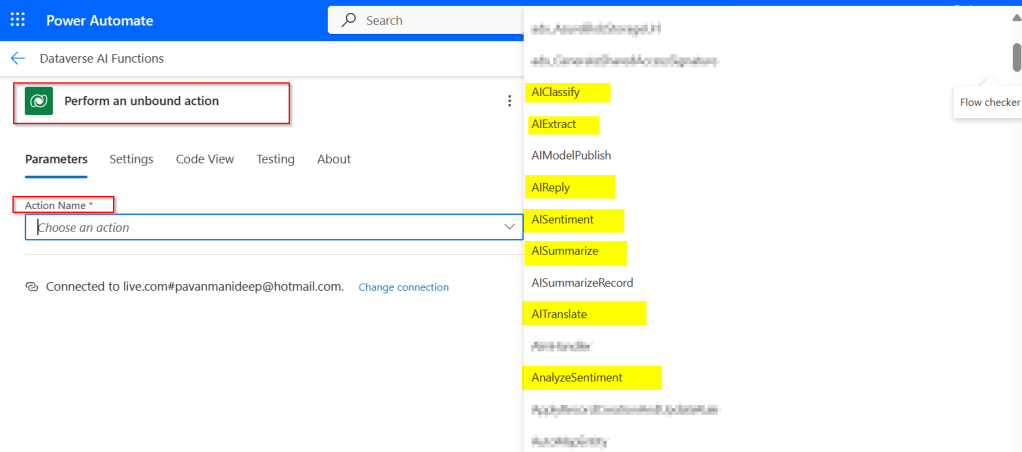
In Power Automate, all you can do to call Dataverse AI Functions is call the Unbound Action as below.
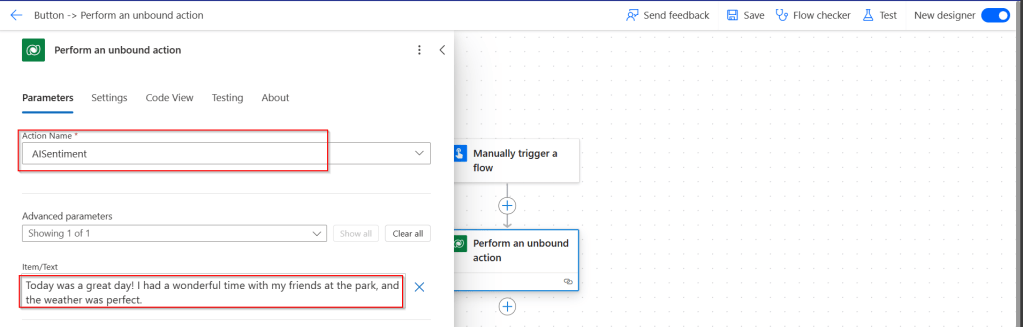
Passing the relevant input parameters is enough to get the output from these functions.
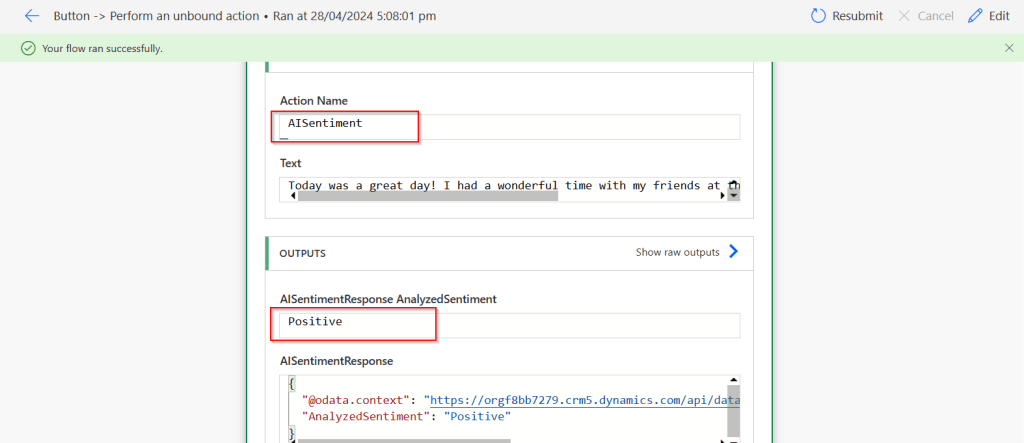
Let’s try AISentiment
Click on test, you should a response from Power Automate with the sentiment
Utilizing ‘Dataverse AI Functions’ in a Model Driven Apps
Do you want to utilize the similar capabilities of Dataverse AI Functions inside your custom code like in Plugins, Actions etc..
Let’s try AIClassify
This file contains hidden or bidirectional Unicode text that may be interpreted or compiled differently than what appears below. To review, open the file in an editor that reveals hidden Unicode characters.
Learn more about bidirectional Unicode characters
Please do note that there are quotas to use these AI Functions at tenant level, else you might get similar error like below, while I didn’t get any information regarding this from Microsoft, so I am unsure about this as of writing this post, I will keep this updated if I get to know.
Using Dataverse AI functions needs a bit of Prompt Engineering knowledge, you were looking to learn more about Prompt engineering, then check it out here.
Well, this post will show you how you can work with multi option sets from Dynamics 365 in Power BI. First of all, you need some basic understanding of Power BI Desktop to follow. However, I made it clear for people with little background to follow and relate to. I scanned through the internet, but I couldn’t find a similar post, hence I am blogging this if it might help someone. I have faced this issue and here is the solution, you don’t need to use XrmToolBox nor Postman nor complex Power Query as many out in internet would suggest.
So, follow with me along, if you were trying show the values in Multi OptionSet from Model Driven Apps in Power BI as below, then this post is absolutely for you.
Practically if we retrieve the value of Multi OptionSet field as shown in the above image. You get something like below in comma separated values.
Now based on use case and the requirement, we need to transform our data, i.e. Split the values into rows or columns using a delimiter, in this case, we use comma as delimiter. Here I am splitting into multiple rows as I need to show the contacts for different option values selected in the record.
Select on the respective field and choose Split Column option available in the ribbon.
Next, you will be presented with Split Column Delimiter Dialog box, you may select the options as below and click on Ok.
Next in the Split Column by Delimiter, choose as below.
Once clicked on Ok, now the Multi OptionSet was changed to Single OptionSet and showing the values in different rows.
We can use Dataverse REST API to get the OptionSet values as below in Power BI, click on Get Data –> Web, enter the below in the URL to get the MultiSelect OptionSet Values –> Load. You can refer here some reference.
So, now click on Close and Apply the transformation to be saved in the model, later create the data model relationships by going to the model view as below between the multiselect OptionSet field in the contact table and string map table.
Once the relationship is established, we can proceed with plotting the visuals in visuals of your choice. For simplicity, used.
Hope this helps someone looking out for such requirement which at least could save couple of seconds.
Power Platform solutions often rely on dynamic configuration data, like Power BI workspace IDs, report URLs, or API endpoints. Environment variables make it easier to manage such configurations, especially in managed solutions, without hard coding values. This blog will walk you through the steps to update a Power BI environment variable in managed solutions, focusing on the task of switching the workspace to the correct one directly within Power BI integration when working on different environments.
What are Environment Variables in Power Platform?
Before we dive into the steps, let’s quickly cover what environment variables are and their role in solutions:
Environment Variables are settings defined at the environment level and can be used across apps, flows, and other resources in Power Platform.
They store values like URLs, credentials, or workspace IDs that can be dynamically referenced.
In managed solutions, these variables allow for configuration across multiple environments (e.g., development, testing, production).
Why Update Power BI Environment Variables in Managed Solutions?
Updating environment variables for Power BI in managed solutions ensures:
Simplified Management: You don’t need to hardcode workspace or report IDs; you can simply update the values as needed.
Better Configuration: The values can be adjusted depending on which environment the solution is deployed in, making it easier to scale and maintain.
Dynamic Reporting: Ensures that Power BI reports or dashboards are correctly linked to the right workspace and data sources.
Best and Recommended: Changing the environment variables and pointing to right workspace is the correct and is best way to point your Power BI Report to respective workspace and recommended by Microsoft.
Prerequisites
Before proceeding with the update, ensure you meet these prerequisites:
You have the necessary permissions to edit environment variables and manage solutions.
The Power BI integration is already set up within your Power Platform environment.
You have a managed solution where the Power BI environment variable is defined.
Steps to Update a Power BI Environment Variable in Managed Solutions
Step 1: Navigate to the Power Platform Admin Center
Choose the target Environment where you want to update the environment variable.
Step 2: Open the Solution in Which the Environment Variable is Defined
Go to Solutions in the left navigation menu.
Select the Managed Solution that contains the Power BI environment variable you need to update.
Step 3: Find the Environment Variable
In the solution, locate Environment Variables under the Components section.
Identify the Power BI environment variable (such as API URL or workspace ID) that you need to modify.
Step 4: Click on Dashboards to Update the Workspace
To update the Power BI environment variable related to the workspace, click on Dashboards.
Find the existing environment variable tied to the workspace and click to edit it.
Here, you’ll see the current workspace configuration for the Power BI resource.
Step 5: Update the Workspace ID
In the environment variable settings, you will now change the workspace to the new one.
Select the appropriate workspace from the list or manually enter the new workspace ID, ensuring it aligns with the target environment (development, production, etc.).
If necessary, update other properties like report or dataset IDs based on your environment needs.
Step 6: Save and Apply Changes
After updating the workspace and any other relevant properties, click Save.
The environment variable will now reflect the new workspace or configuration.
Step 7: Publish the Solution
If you’re using a managed solution, ensure that the updated environment variable is properly published to apply the changes across environments.
You may need to export the solution to other environments (like test or production) if applicable.
Step 8: Test the Changes
After saving and publishing, test the Power BI integration to ensure that the updated workspace is correctly applied.
Check the relevant Power BI reports, dashboards, or flows to confirm that the new workspace is being used.
Best Practices
Document Changes: Always document the updates to environment variables, including what changes were made and why.
Use Descriptive Names: When defining environment variables, use clear and descriptive names to make it easy to understand their purpose.
Cross-Environment Testing: After updating environment variables, test them in different environments (dev, test, prod) to ensure consistency and reliability.
Security Considerations: If the environment variable includes sensitive information (like API keys), make sure it’s properly secured.
Conclusion
Updating Power BI environment variables in managed solutions allows you to maintain flexibility while keeping your configurations centralized and dynamic. By following the steps outlined in this blog post, you can efficiently manage workspace IDs and other key configuration data across multiple environments. This approach reduces the need for hardcoded values and simplifies solution deployment in Power Platform.