Exploring Power Platform and Beyond: Features, Experiences, Challenges, Solutions all in one place
Author: Pavan Mani Deep Y
Passionate for Power Platform. A technology geek who loves sharing the leanings, quick tips and new features on Dynamics 365 & related tools, technologies. An Azure IOT and Quantum Computing enthusiast...
I am a big fan of Power Automate…but this post is not about flows but features about Custom Workflow in Dynamics 365 CE.
Did you ever come across this problem where you were not able to debug custom workflow extension. I had come across this and this blog post is all about it…I successfully registered my Custom workflow, but it is not triggering at all.
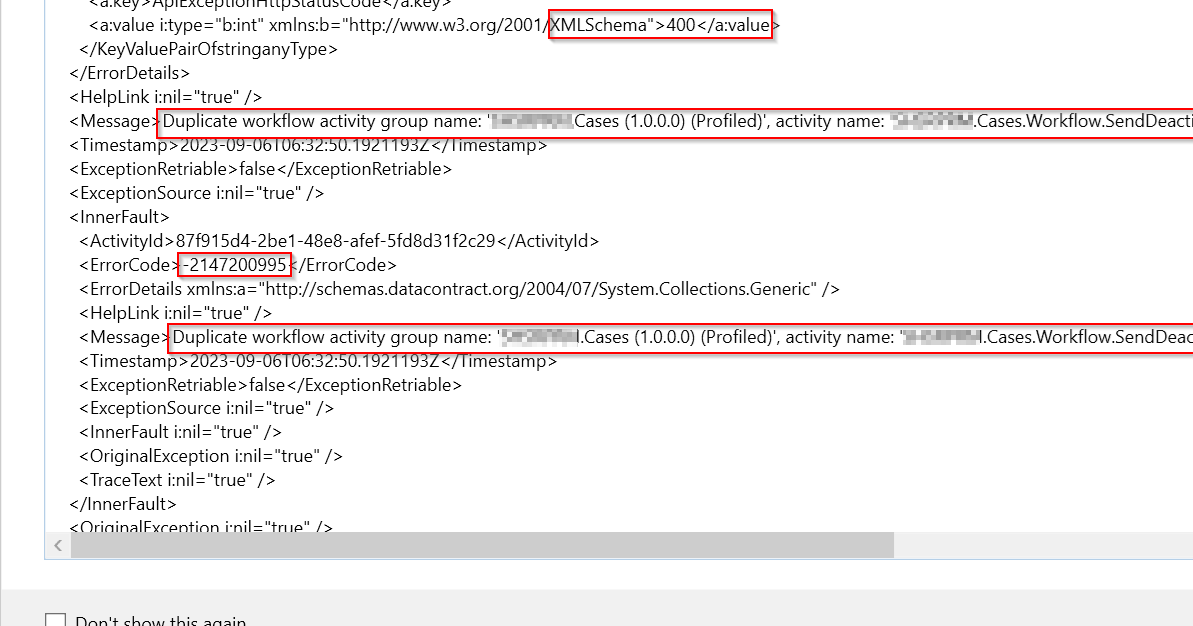
So, I need to debug it to see what the exact issue was…as I am encounter this error.
Error message says Duplicate workflow activity group name: ‘EcellorsDemo.Cases(1.0.0.0) (Profiled)‘. So, I tried to check my code, plugin steps and any activated plugins but couldn’t find any duplicates.
Usually while debugging your custom workflow using profiler, your workflow will go into draft mode and another copy of the same workflow gets created with name of (Profiled) attached to the name. However, in my case, I didn’t see the same behavior and at the same time, I was unable to use Profiler after the first profiling session and it gave me error shown above.
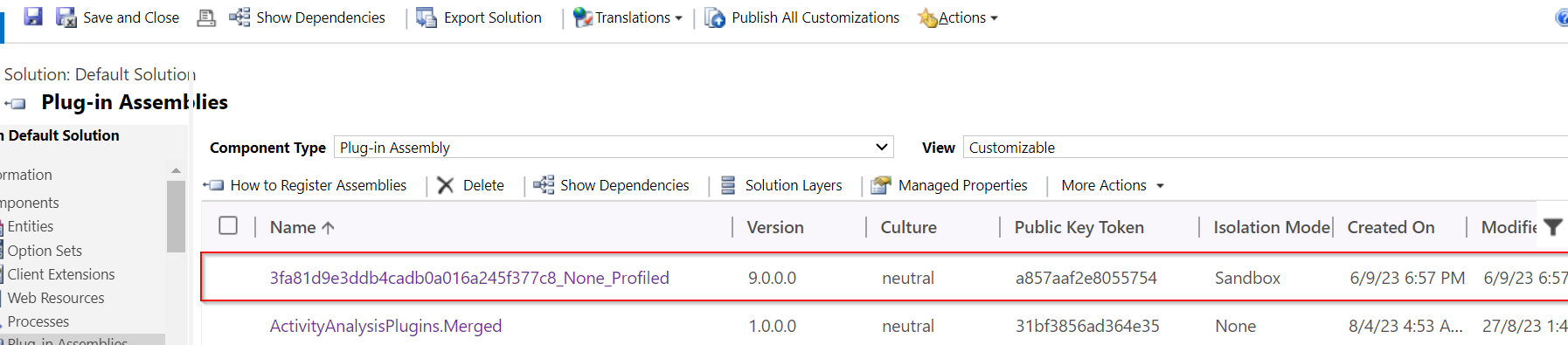
In order to resolve, this just delete the Plugin Assemblies which could find in the default solution like highlighted below…
Once you have deleted this, try to debug the custom workflow and voila!!!
Hope this helps someone troubleshooting Custom workflow…!
In the Dynamics 365 world, it’s all about efficiently handling the user requests. Whenever you add any user to the environment, the system will update the default personal settings for the user. Maybe you could have some processes in your system which is dependent on the user time zone. So, setting the time zone is very important. It is tedious to update the personal settings manually going to the user profile and updating it manually every time.
Of course, you have a wonderful tool in XrmToolBox from which we will be able to set the User Personal Settings in bulk so that we can update to all the users in one go. What if we want to automate this process, i.e. whenever you add a new user to the Dynamics 365 environment, you want to set that person time zone automatically without any manual intervention.
There you go…this post is for you then…you can do it simply using Plugin or Power Automate. In this blog post, we will see how we can utilize the Plugin as it is more effective approach.
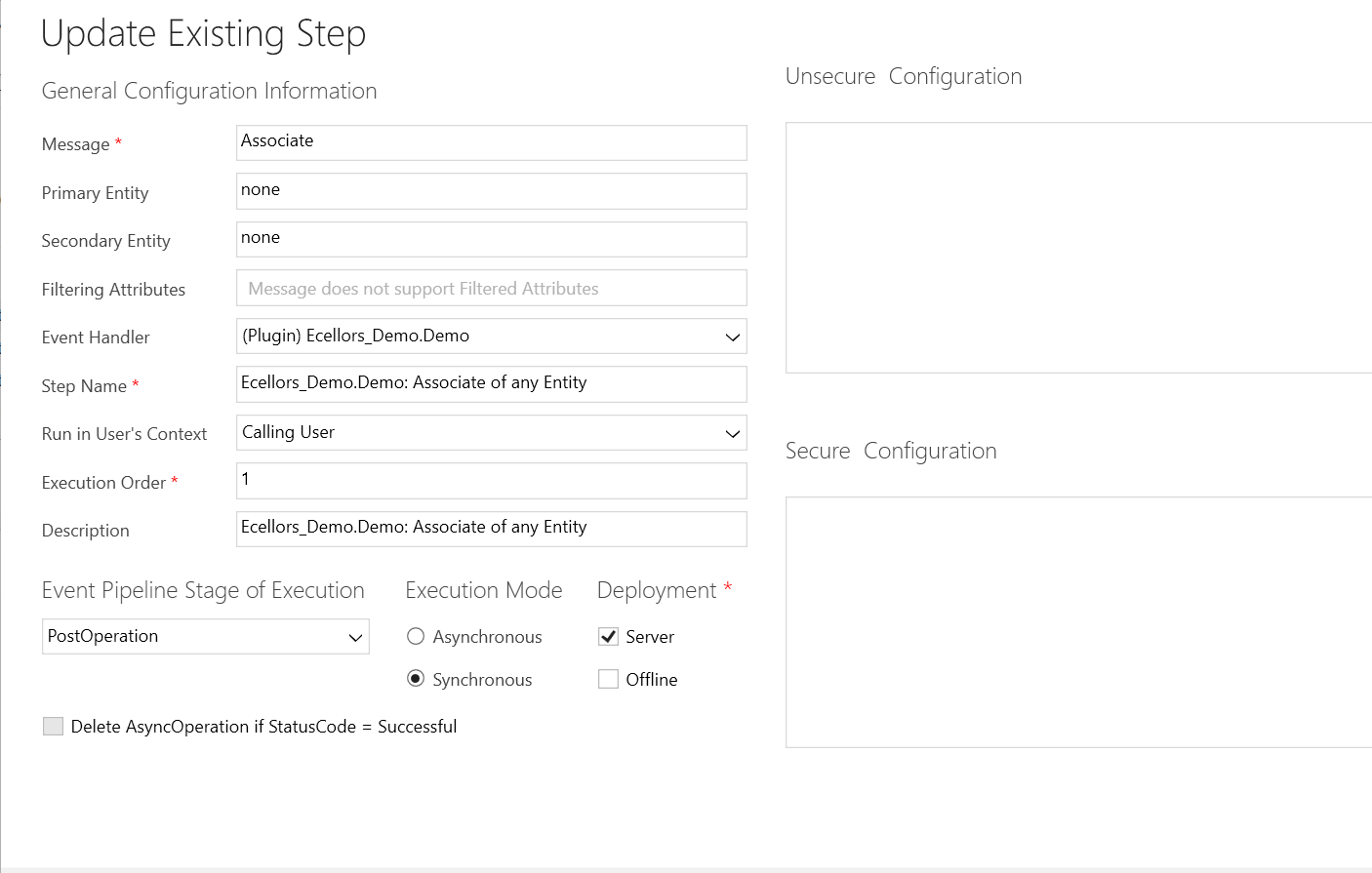
You need to write a Plugin on Associate Message.
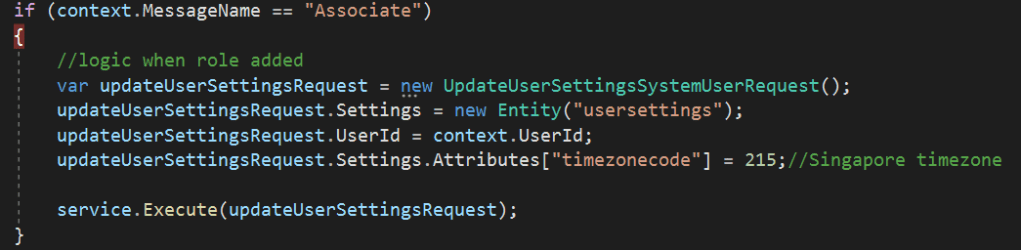
Just use this piece of code to set Personal settings…
This file contains hidden or bidirectional Unicode text that may be interpreted or compiled differently than what appears below. To review, open the file in an editor that reveals hidden Unicode characters.
Learn more about bidirectional Unicode characters
Update the personal settings as per your needs in this request. You can find all the attributes of the user settings table by using Fetch Xml Builder easily.
This post is for all who are working on D365 Model Driven Apps and mainly Plugins.
Yes, you saw it right, in this blog post, we will see how can debug plugin without using our favorite plugin profiler which is very widely used from quite some time by everyone working on Plugins for Dynamics 365. All this is done by a tool called Dataverse Browser, which is not yet on XrmToolBox. Please note that there were some limitations as detailed in limitation section below.
Here are 3 simple steps to follow..
Install Dataverse Browser
Attach the Debugger
Run your actual operation.
Step into your code and debug it.
The tool embeds a web browser based on Chromium. It works by translating the Web API requests to SDK requests. Then it analyzes if plugin steps are registered on the message and it loads them, make them run locally. All other requests are sent to the Dataverse, so that the plugins are interacting with the real database.
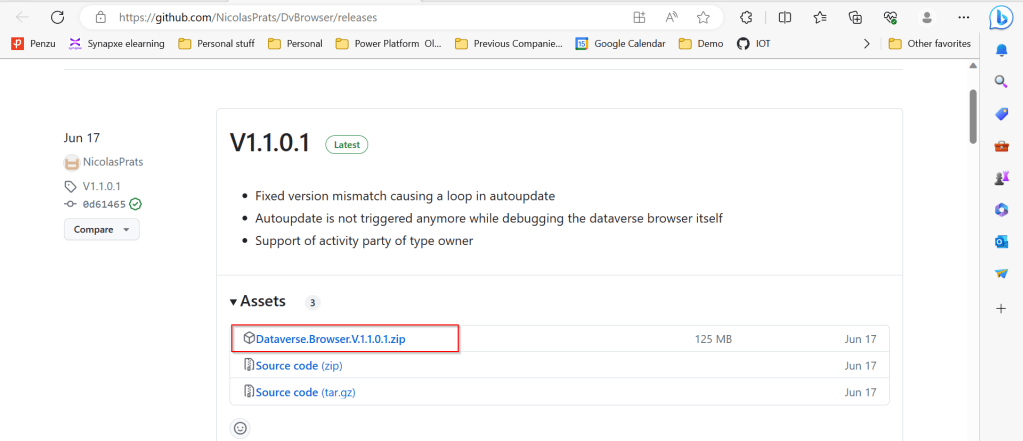
Download the latest source code of Dataverse browser here.
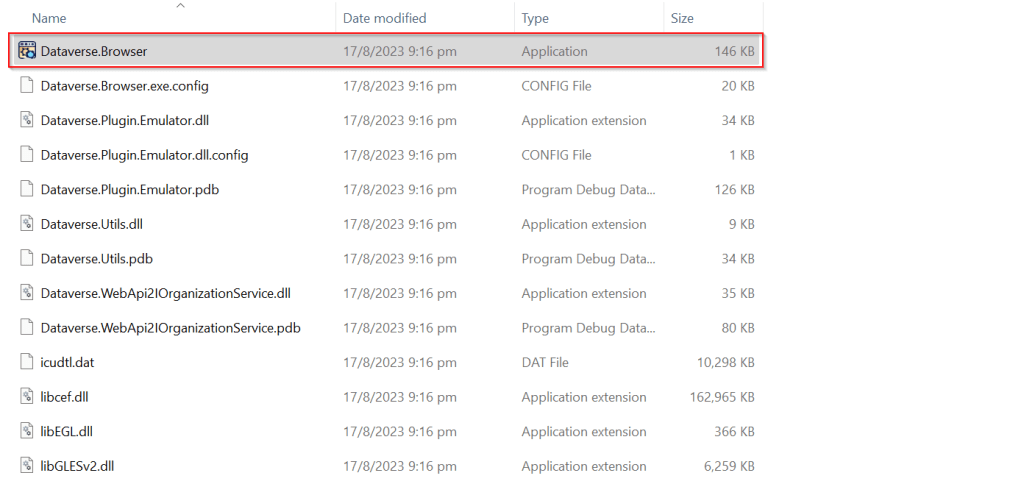
Next extract the zip file downloaded as highlighted below
Extract the zip file downloaded, open Dataverse.Browser Application as highlighted below.
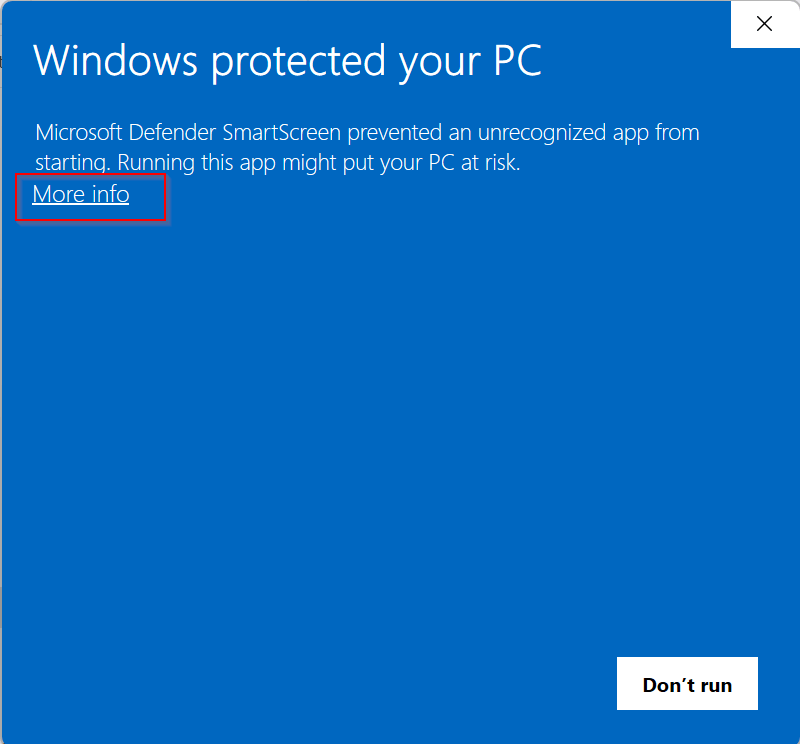
In the popup window, click on More info as highlighted below…
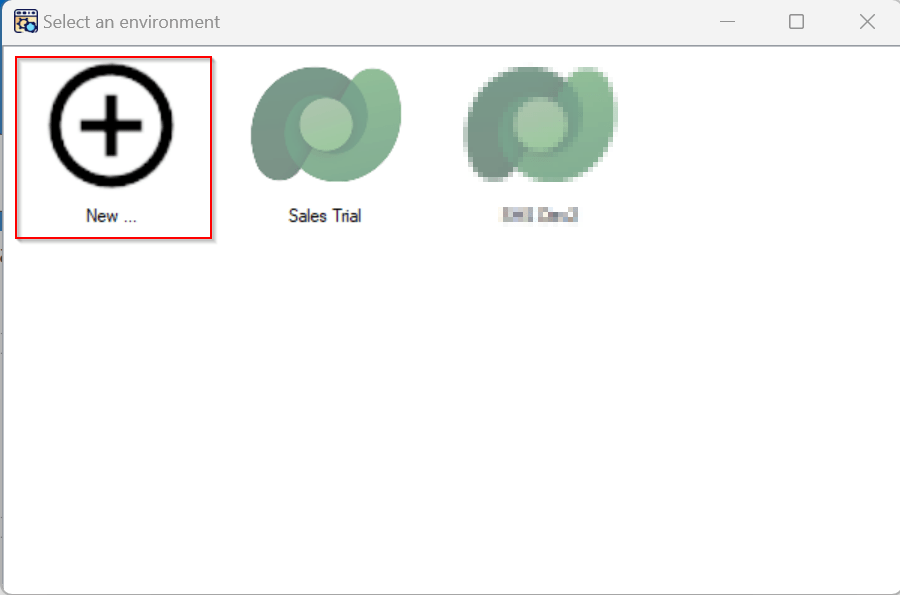
Then run the application anyway…you will be presented with a window where you can select the environment. Going forward, any time you want to open Dataverse browser, just open the Dataverse.Browser.exe and choose the environment as below.
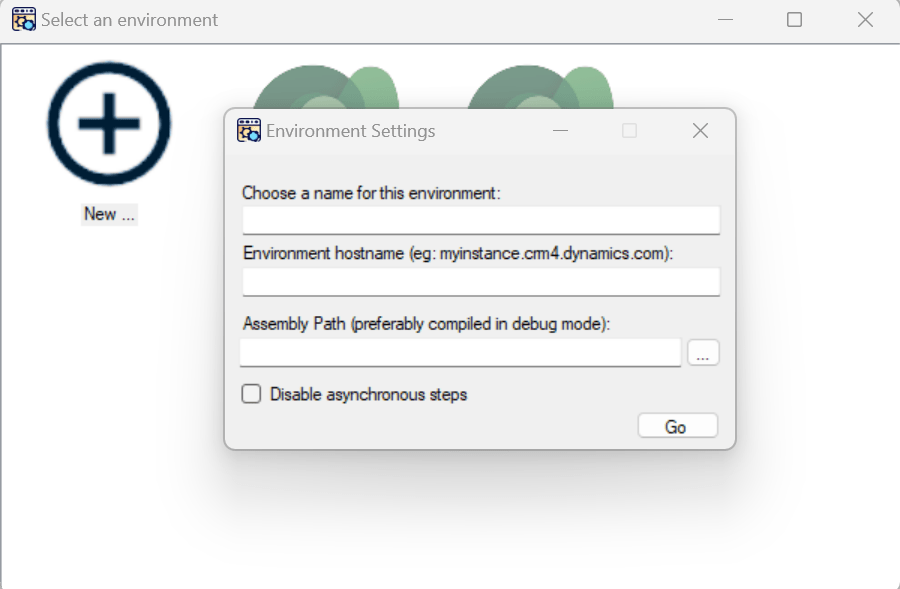
Click on New, enter the details as above and key in the details.
Enter the settings of your environment:
A name meaningful for you
The host name of your instance (without the https://)
The path to the plugins assembly file (the dll). For a better experience, it should be compiled in debug mode with the pdb file generated.
Then click Go.
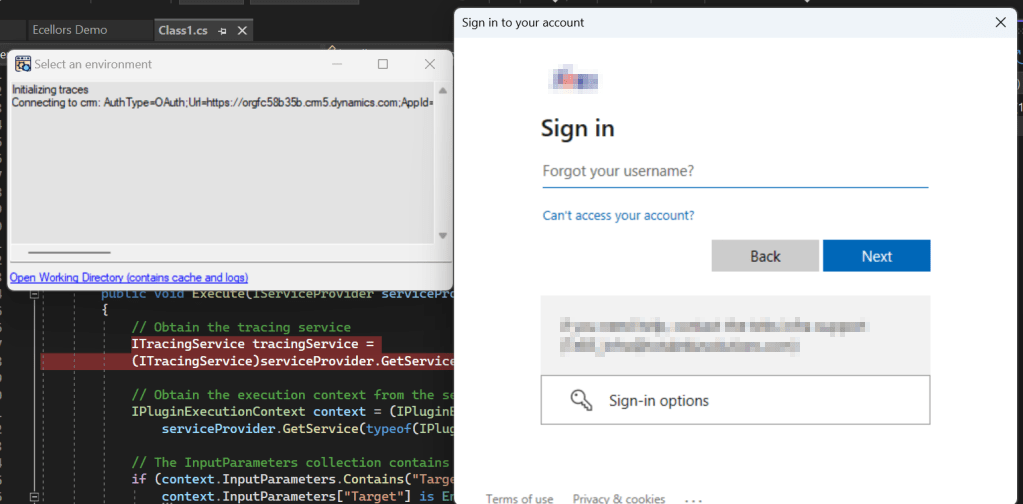
You just need to Authenticate to your instance.
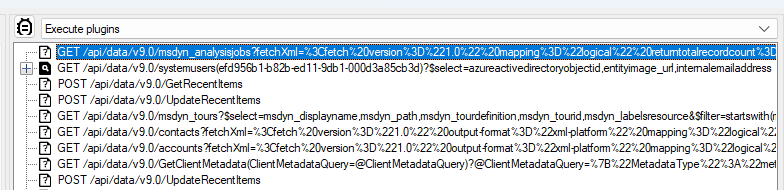
Once Authenticated to the respective model driven apps, all the Web API requests sent to Dataverse will be shown as below.
I have following Plugin Libraries registered.
Next step is to choose the instance and perform the respective operation which triggers the Plugin. So, in here, I will perform an update to the Account entity from the Dataverse Browser which triggers the Plugin.
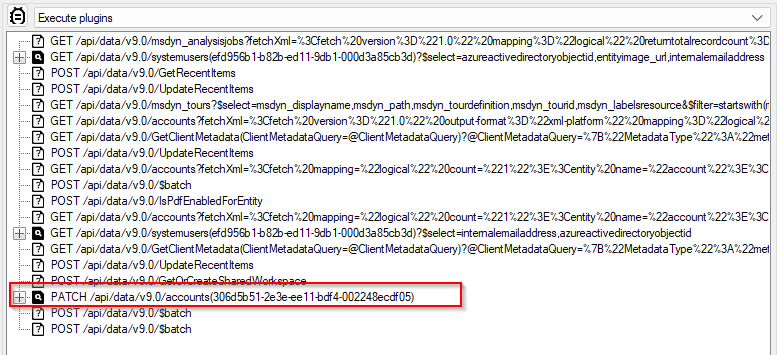
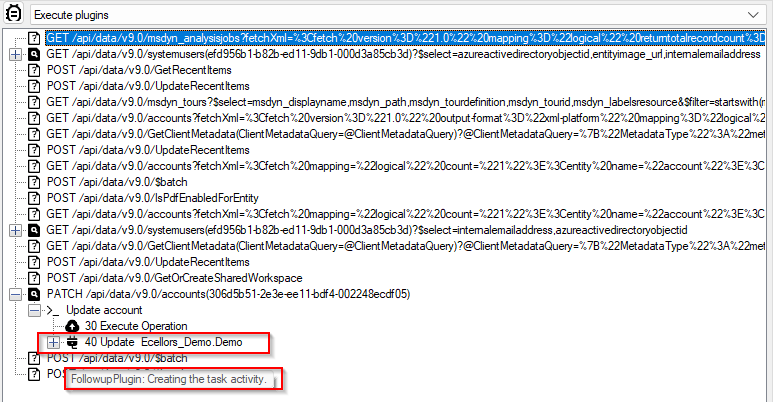
Once an update is performed, a Web API request gets recorded in the Dataverse browser as highlighted below.
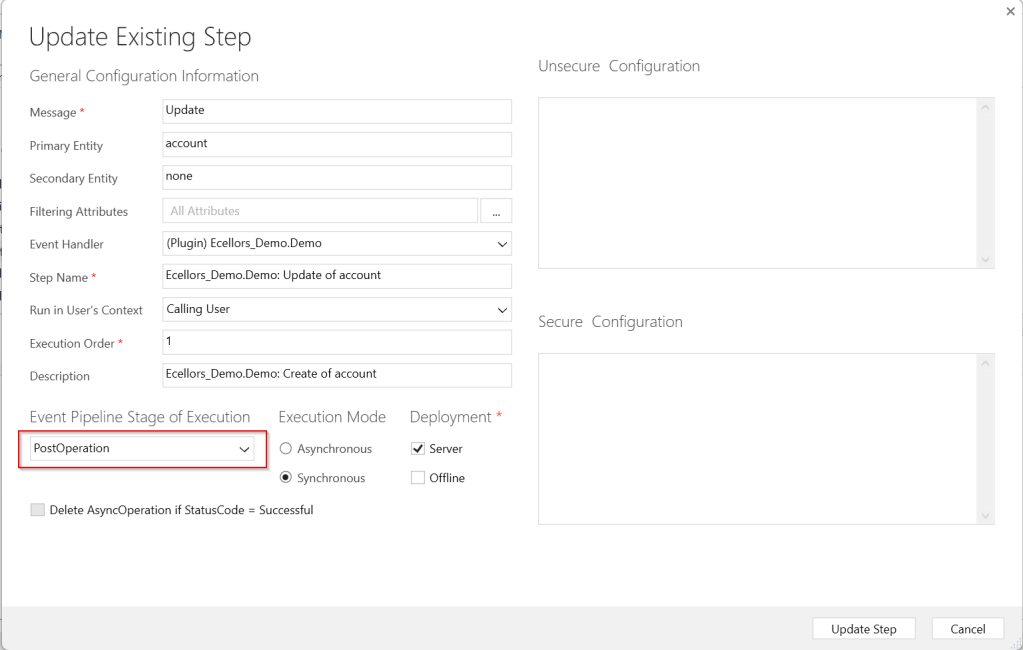
Since the Plugin is in Post Operation, i.e. Stage number is 40
Just expand the Patch Request, you should see two operations on 30, 40, but area of interest here is for the Plugin which was registered on stage 40.
Make sure you open the Visual Studio and perform the below steps from Dataverse Browser.
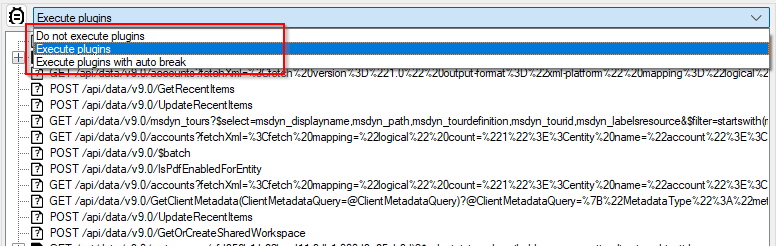
Attach the debugger from Dataverse Browser by clicking on the Plug Symbol as below which will show the list of debugger options available for you to select from. Here I have selected Execute Plugins, plugin will be invoked. You can either select any of the three options as presented below.
1.Do not execute plugins – recommended when you want to debug without actually triggering your plugin logic. i.e. With this approach even you can check the code in Production environment.
2. Execute plugins/Execute plugins with auto break – recommended when you want to debug by triggering your actual plugin, this is recommended in case your plugin code had changed recently and in Development environments.
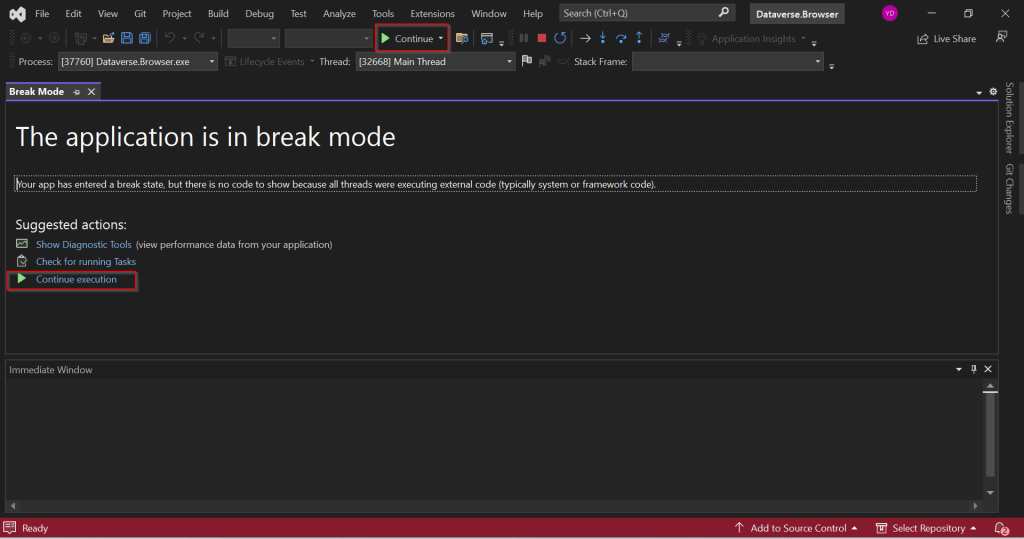
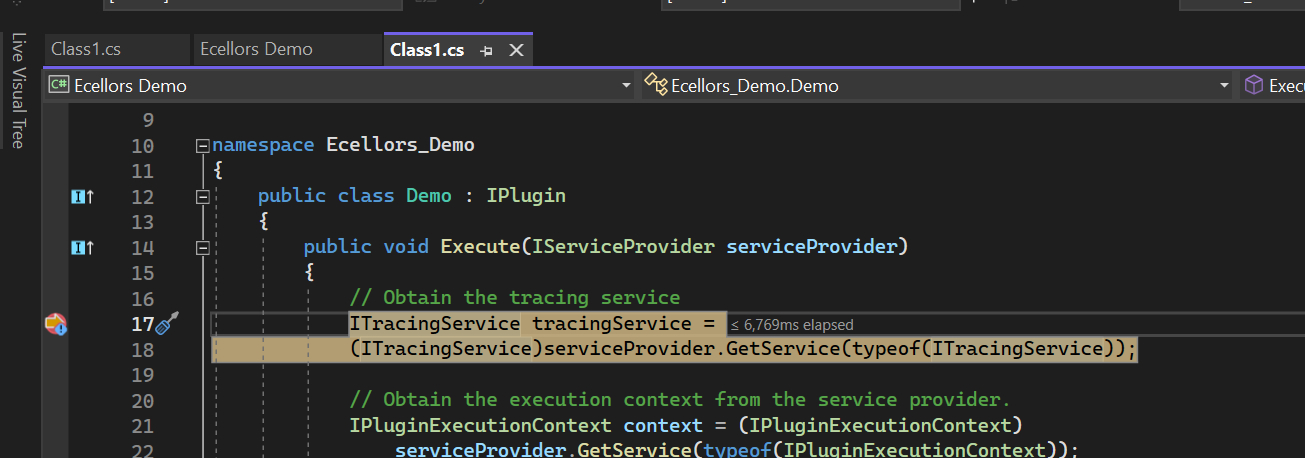
Just select Ecellors Demo – Microsoft Visual Studio: Visual Studio Professional 2022 version which will launch an existing Visual studio 2022 as below in break mode. Next click on Continue as highlighted below or press Click F5 on your keyboard.
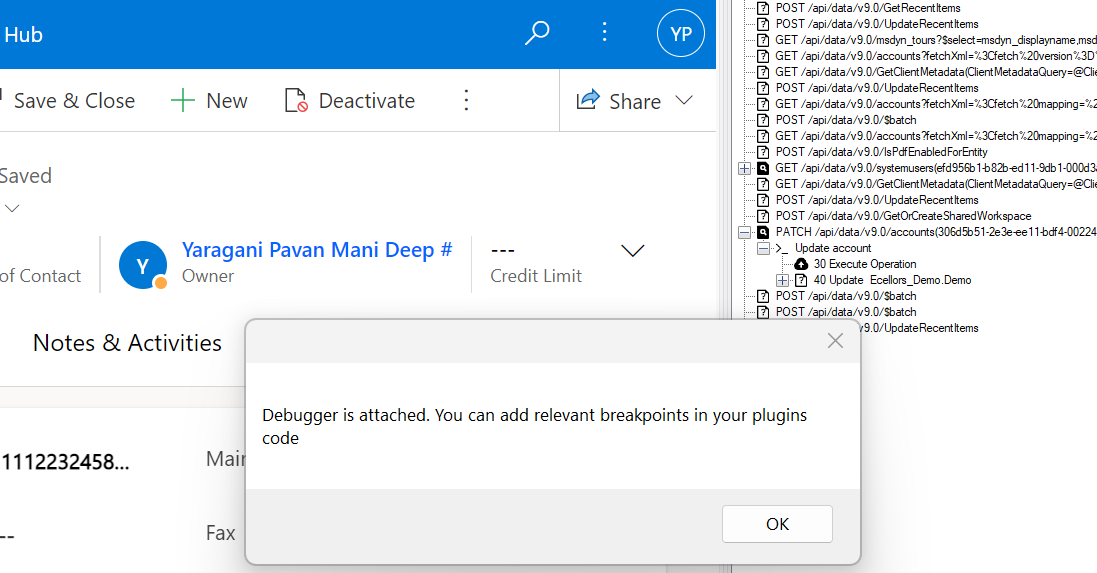
This shows you that the debugger has been attached when you navigate to Dataverse Browser asking you to place your breakpoints.
Now just place breakpoints in your code in Visual Studio. Just go back to Dataverse Browser and click on Ok on the Diaglog box.
Perform the operation which triggers the Plugin from Dataverse Browser itself, this will hit the break point in Visual Studio from where you can debug your plugin.
As you might have observed, your code need not throw exception in order to debug, you could do similarly to the way you would debug using Profiler. But here just that you don’t need to deploy the latest code to the Dataverse just for debugging purpose.
This gives a lot more flexibility eases the way you debug plugins.
Limitions:
There is no support for transactions.
When plugins are triggered because of a server-side operation, they will not be run locally.
For many reasons, behavior will never be perfectly similar to the one when plugins are executed on server side.
Happy debugging, I hope you found this post useful…
Do you know that you can connect to your Dataverse DB right from your old toolbox SSMS, an express version would be more than enough to try out. Possibly we didn’t think of, but yes, we can…so let’s see that in this blog post.
Open SSMS..
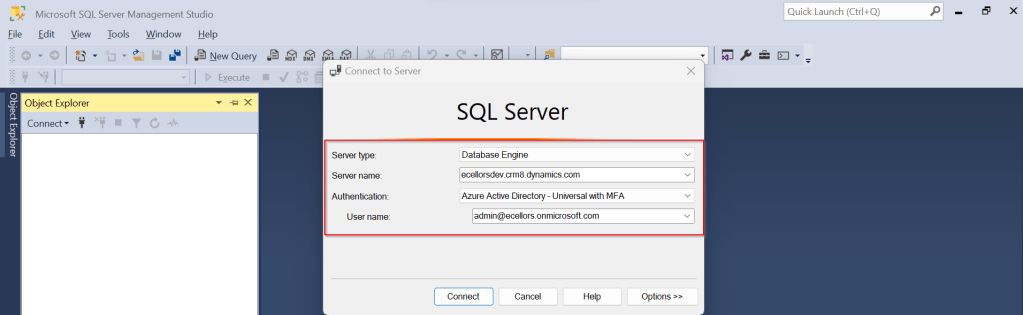
1.Select Server type as Database Engine
2. Server name as the environment URL from your Power Platform Admin Center as below.
3. So key in those details as below, make sure to Select Authentication method as Azure Active Directory – Universal with MFA option.
Once you click on Connect, you will be prompted for authentication via browser.
Once your Sign-In is successful, you will be able to see.
That’s it, how simple it was connecting to your Dataverse instances…
Having said that it’s easy to connect to Dataverse, not all operations performed using normal transact SQL are supported here using Dataverse SQL. You could see it says Read-Only besides the instance name, that means that you don’t have any capabilities to modify from SQL.
Because Dataverse SQL is a subset of Transact-SQL. If you want to see what statements are supported and what not, just go ahead to this link to find out.
This opens a whole lot of opportunities to explore, so don’t forget to check this out.
This blog post is just an observation from my experiences of getting the latest version of code from a remote development feature branch cloned from the main branch. I didn’t observe this my first sight and because of couple of other issues, I had overseen this, spent over a half an hour and I had to giggle after knowing this.
If you were aware, as of my last update in September 2021, Azure DevOps and Visual Studio have been integrated to support seamless code collaboration and version control.
So usually in day-to-day activities of any Developer working Microsoft Technology stack, Pull, Push, Clone, Merge of Azure DevOps repository directly from Visual Studio is quite common.
Usually, to clone a repository from Azure DevOps, you follow the below steps.
Step 1: Open Visual Studio of any version, preferably after VS 2017 Step 2: Click on Clone the repository.
Step 3: Enter the Azure DevOps Repository URL and provide the path in the prompt.
Step 4: Select your respective repository and click on Sign in
Step 5: Once you are done click on Clone, all your source code is now available in your IDE (Visual Studio)
There might be cases when you check and see you were not able to get the latest changes from your feature branch, those were present in the repo but not in your Visual Studio. Closing the Visual Studio and redoing the Cloning process didn’t help. Then I thought it could be because of Cache of Visual Studio in my PC, so I tried clearing cache following my favorite blog post written earlier in this blog. Even this didn’t help either, thanks to my buddy Mallikarjun C who gave me the clue and here it goes.
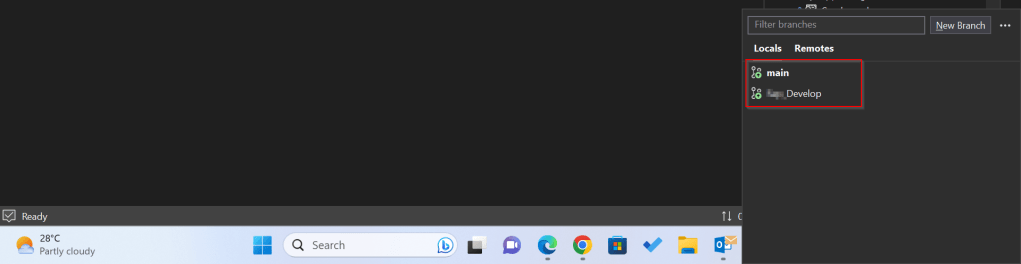
Whenever you were cloning a solution using above approach, ideally you will be checked out to the Main branch and not the feature branch which you were expecting to be checked out to, as Main is set as Default branch.
If you just see below, it wasn’t checked out to Develop, instead it was main. By default, with this approach, you will by default checked out to main branch.
Hence you were seeing the changes of the main branch itself and not the Develop branch.
Instead of this, as I learned I suggest you clone directly to your favorite IDE from Azure DevOps itself in few clicks.
Step 1: While you are in your respective branch in Azure DevOps, click on Clone option as highlighted below.
Step 2: It will then ask you to choose the IDE to which you can download the source code.
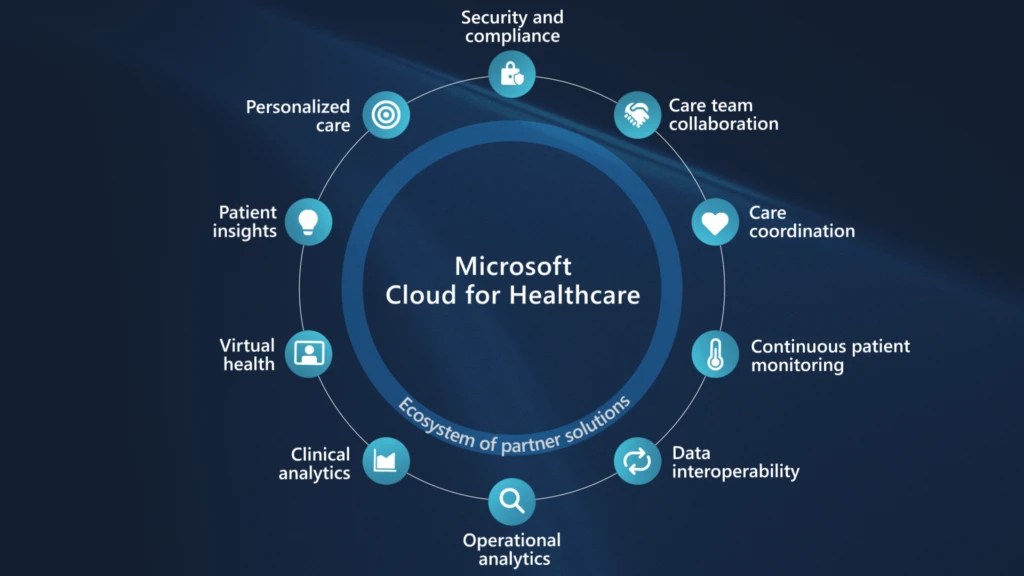
Microsoft Cloud for Healthcare provides capabilities to manage health data at scale and make it easier for healthcare organizations to improve the patient experience, coordinate care, and drive operational efficiency, while helping support security, compliance, and interoperability of health data.
Microsoft Cloud for Healthcare includes solutions that are built on capabilities within Microsoft Dynamics 365, Microsoft 365, Microsoft Azure, and Microsoft Power Platform.
This is an introduction blog post. Firstly, Microsoft Cloud for Healthcare solution should be installed from Microsoft Cloud Solution Center. To say about Microsoft Cloud Solution Center, it actually checks for requirements such as licenses, dependencies, and enables you to easily discover and deploy capabilities and solutions in Microsoft Cloud for Healthcare, there by simplifying the deployment process from a single location.
We will see what are the prerequisites.
Prerequisites
You must be a tenant admin, Dynamics 365 admin, or Power Platform admin to deploy Microsoft Cloud for Healthcare solutions.
You must have licenses for the Microsoft Cloud for Healthcare solutions and apps that you’re deploying. If your organization doesn’t have the necessary licenses, you’ll be notified during the deployment process in Solution Center.
Here are the solutions that are part of Microsoft Cloud for Healthcare, for each solution. We need to keep in mind that:
Some solutions have predeployment setup requirements.
Some solutions require configuration or have additional capabilities that you can set up after deployment.
Solution
Dependencies
Patient access
Power Pages, Dynamics 365 Customer Service
Patient service center
Dynamics 365 Customer Service, Digital Messaging add-on for Dynamics 365 Customer Service
Patient outreach
Dynamics 365 Marketing
Patient insight cards
Dynamics 365 Sales Premium
Care management
Dynamics 365 Customer Service*
Home health
Dynamics 365 Field Service
Data integration toolkit
Power Apps
Unified patient view
Power Apps
Patient trends (preview)
Power Apps, Dynamics 365 Customer Insights
Patient population dashboard (preview)
Power BI
Provider data model
Power Apps
Payor data model (preview)
Power Apps
Life sciences data model (preview)
Power Apps
Virtual Visits
Microsoft Teams
Text analytics for health
Azure subscription
Azure IoT for healthcare
Azure subscription
Azure Health Bot
Azure subscription
Azure Health Data Services
Azure subscription
Healthcare database templates
Azure subscription
Health document intelligence
Azure subscription
There were a ton of Microsoft Azure capabilities to explore which I will do in my upcoming blog posts. So here, I am using a personal Azure subscription and rest everything I will try to keep using Trial accounts as long as possible. So, you don’t need to worry if you will charge just to try it out.
Also, with the advent of AI, health care industry is getting revolutionized.
Interested…? Then keep looking this space as I will explore more with all of you. Stay tuned…
If you are working on Power BI, this is a good to know tip.
In case you were using Import mode which is by default suggested by Microsoft for medium or small-scale datasets as it uses Vertipaq engine for improved performance and compression, this post is definitely for you.
Did your user ever asked why they were not able to see latest data in the report. Possibly you could have said it is because of refresh frequency.
Then you could have thought if there was a nice way to show when the dataset was last refreshed. This definitely help your users to have a clear idea of what’s going on.
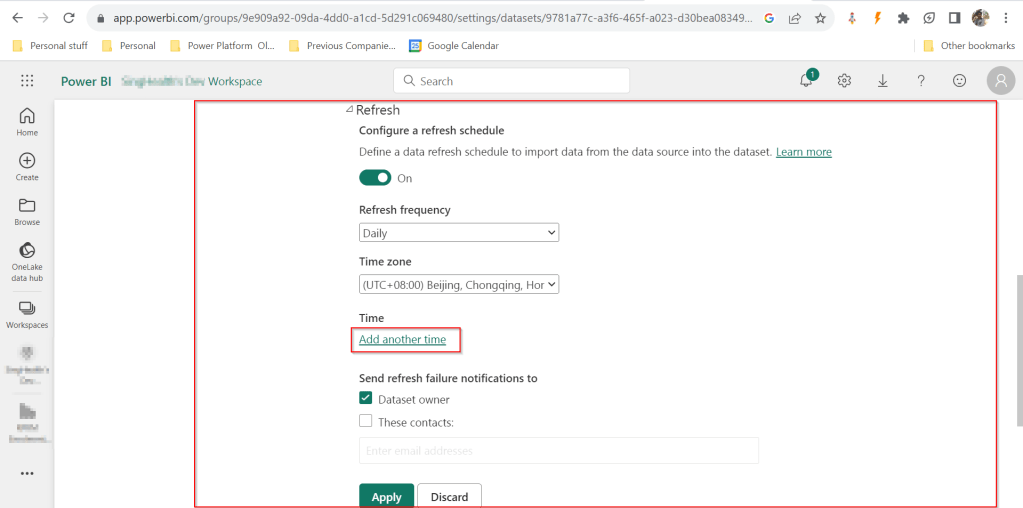
FYI, the refresh frequency could be set in Power BI service as below for import mode.
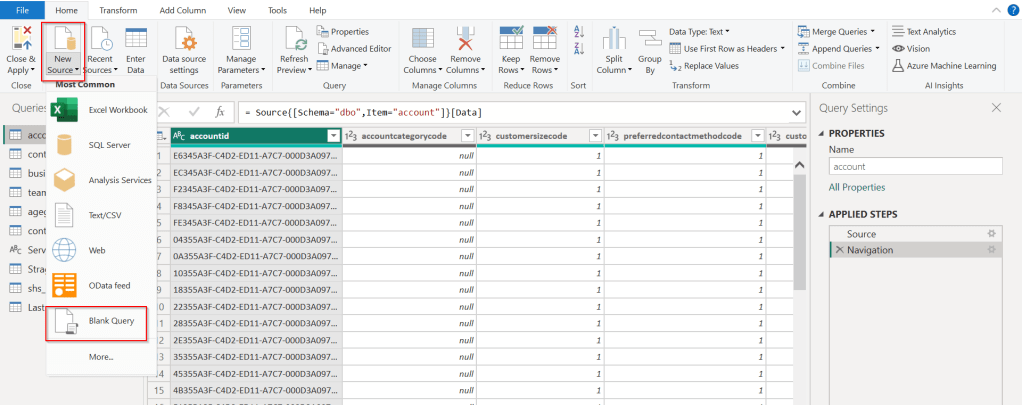
In your Power BI report, click on Transform data.
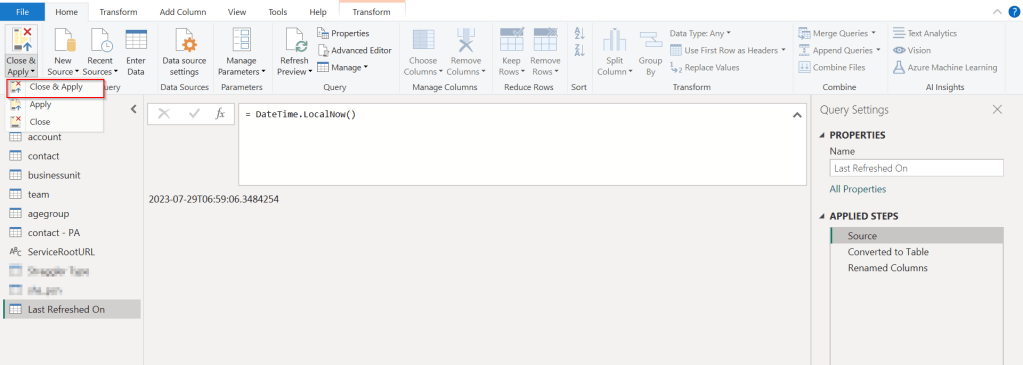
Click on New Source –> Blank Query as below.
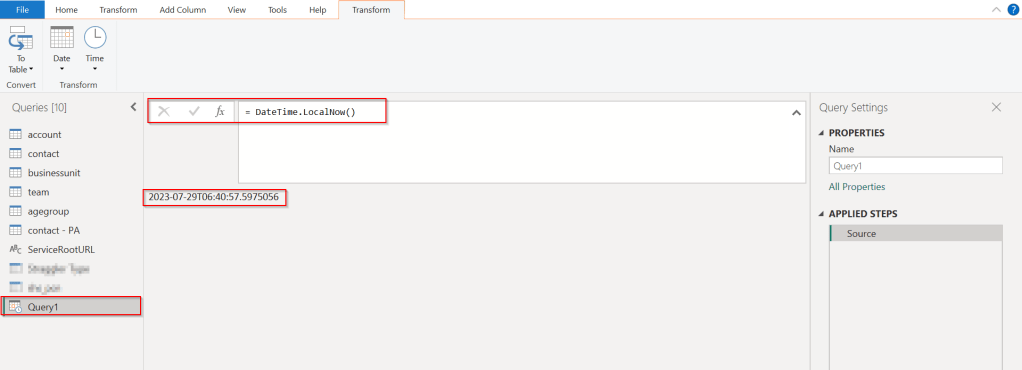
In the Query Fx expression…. enter the below expression to get the last refresh time and click on Tick symbol.
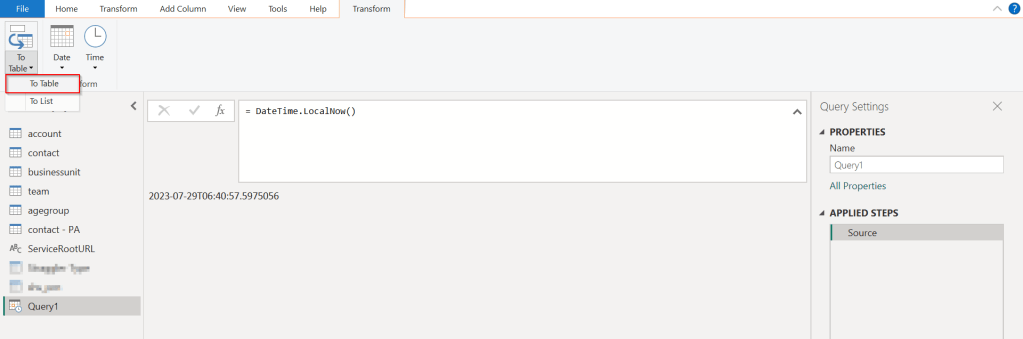
Next, click on To Table to create a table from this data as below.
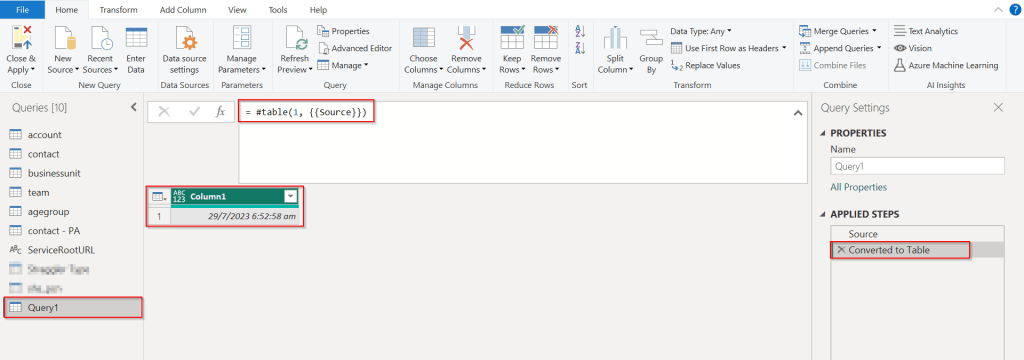
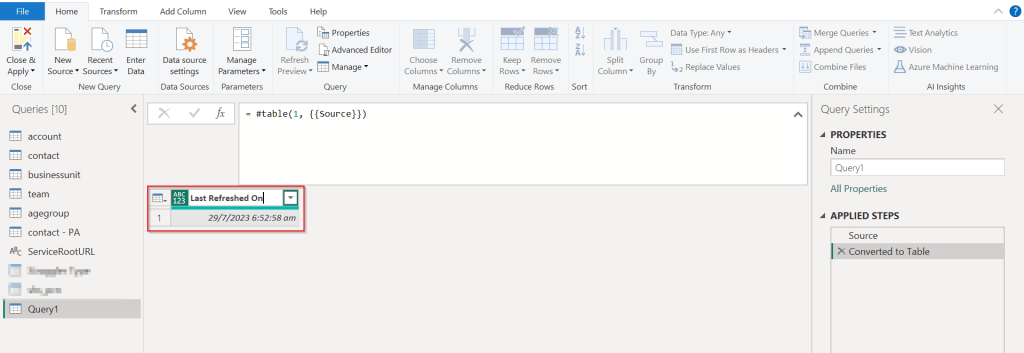
Rename it to something meaningful like below.
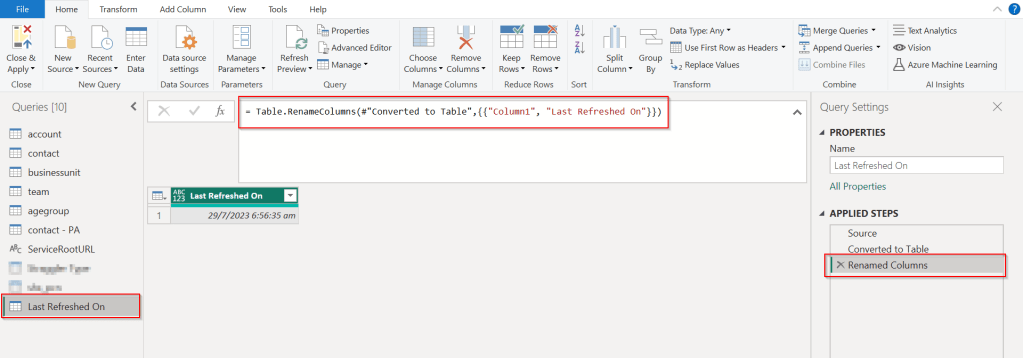
Rename the Query1 variable as below..you should see the applied steps getting added for each operation you performed.
DateTime.LocalNow() gets the last refresh frequency of your dataset in your local time.
Click on Close & Apply…
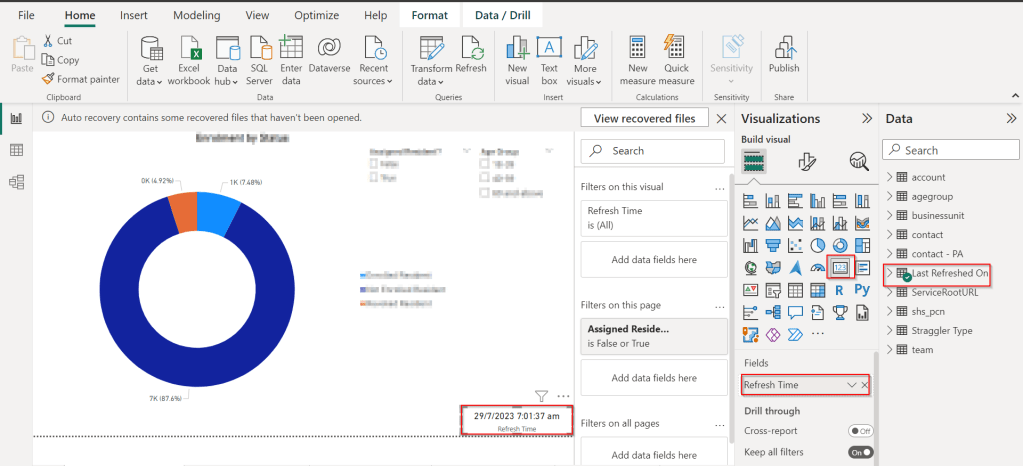
Now in your report, just add a card visual at the bottom right corner and drag the Last Refreshed On query.
That’s it, next time onwards, you should see the date and time when the refresh had occurred.
Did u ever been asked in your project to update the User Personal Settings….possibly you could have resorted to User Settings Utility in XrmToolBox…may be you could have updated the settings manually for each user in list provided to you…
Do you know you could update them in bulk at one shot in a much easier way, so you don’t need to update it manually one by one. I could see many blog posts talking about updating through this tool, but this was missed in those.
Scenario:
You have newly added users to your Azure Active Directory, now you need to set up the user personal settings for them so see proper time zone in Dynamics.
There were two ways:
Use a view
Choose users from FXB(Fetch XML Builder)
The first approach is easiest of course…
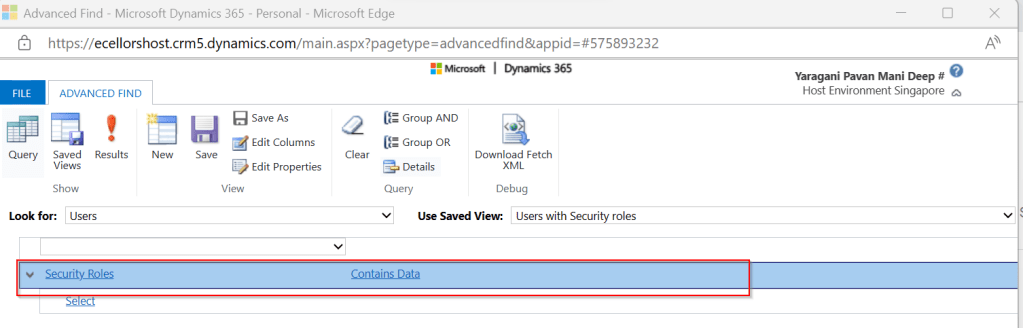
For this, lets create a view Users with Security in user entity as below…you know that you could only update settings for those who were having security role.
Mainly the user need prvReadUserSettings privilege to update the personal settings, the tool doesn’t allow if not.
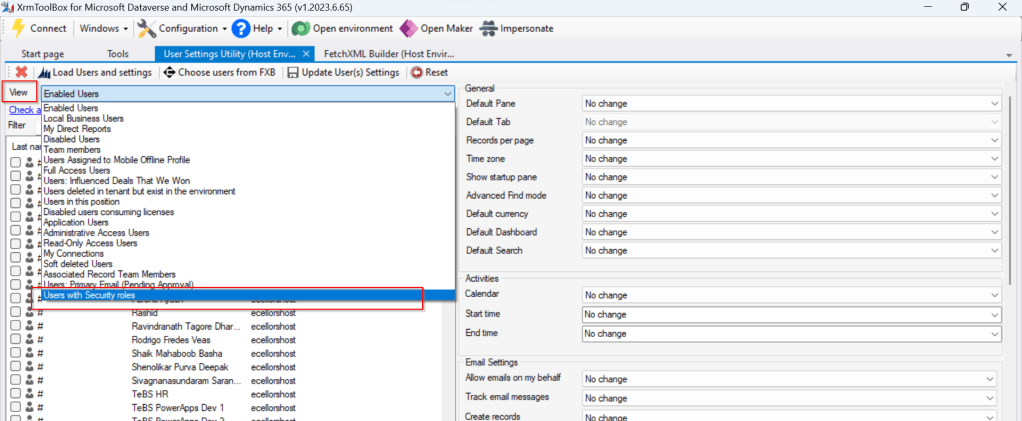
Once you have connected to the environment, click on Load Users and settings. Now just select the view which have created before…upon selecting the tool will list down all the active users satisfying the view criteria.
All you need is to click on Check all and there by selecting all the users satisfying your filter criteria, change the settings as per your needs on the right-hand side of the tool and click on Update User(s) Settings in one go.
Here I have 3 users in the view, all were updated in one shot…
Isn’t it easy, this trick will save you a lot of time if your user list grows…
In my previous blog post, I have already explained how you can utilize Power Pipelines which is the OOB Dynamics 365 Product capability.
Power Platform have many ways where we can deploy our solutions to higher environments…in this blog post, we will see how we can utilize Power Platform CLI to deploy our solutions.
Prerequisites: Power Platform CLI
If you don’t have installed yet in your machine, you can download Power Platform CLI from this link in either of the ways below
Once you got this installed, make sure you set your environment variable in your machine as below
Then you can use your favorite IDE or Command line. I personally recommend using Visual Studio Code because of the flexibility it offers and ease of installation, use.
Export and Import can be done very easily with CLI with a few commands once you were authenticated with your instance.
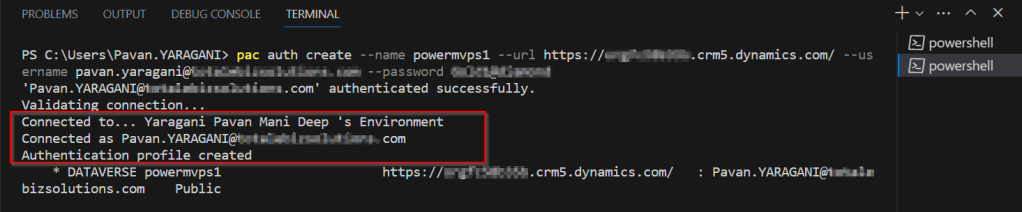
For authentication with your instance. Open a new terminal in visual studio code.
This file contains hidden or bidirectional Unicode text that may be interpreted or compiled differently than what appears below. To review, open the file in an editor that reveals hidden Unicode characters.
Learn more about bidirectional Unicode characters
Once you have set up correctly, it will show that it is connected.
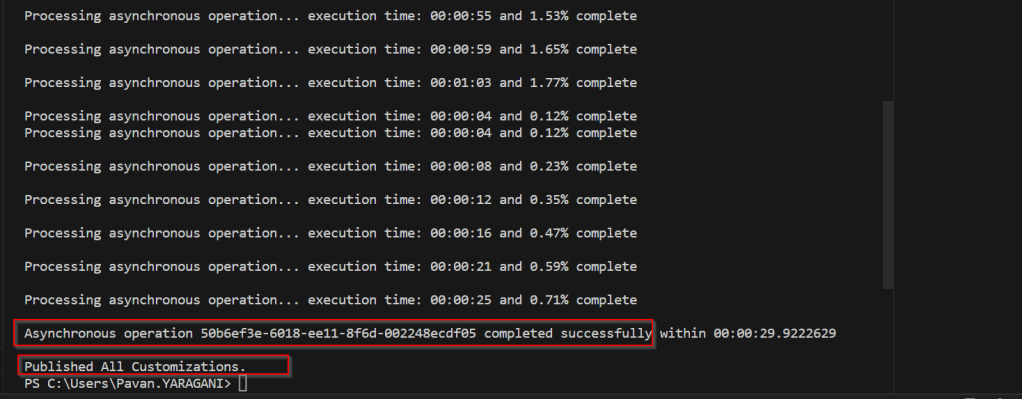
Now in order to export your solution..use the below commands from Vs Code
This file contains hidden or bidirectional Unicode text that may be interpreted or compiled differently than what appears below. To review, open the file in an editor that reveals hidden Unicode characters.
Learn more about bidirectional Unicode characters
You should see a Solution zip file got created with the same name as mentioned above…
Similarly, u can import solutions using CLI..
Here I have a solution named ecellorstest in the same folder in my machine..
Let’s try to import using CLI..inorder to import your solution,use the below commands from Vs Code…
This file contains hidden or bidirectional Unicode text that may be interpreted or compiled differently than what appears below. To review, open the file in an editor that reveals hidden Unicode characters.
Learn more about bidirectional Unicode characters
I will keep this blog post short…the few days back I have installed local SQL Server from this link in my laptop, I was able to connect to it then.
But later in less than a week, I was unable to connect to the same SQL Server from SSMS and gives me the below error.
To check this, firstly you need to see if such SQL Server is uninstalled and then check if it was running.
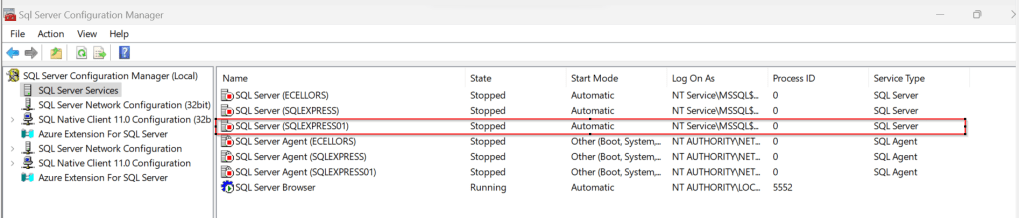
In my case, as I could already see the name of the Server in the SSMS, the next step is to check whether it is in running state. So, for this all you need to do was, just open the SQL Server Configuration Manager in your machine whenever you want to configure the network protocols which gets installed by default whenever you try to install the SQL Server and it actually shows up all the SQL Related Configurations.
Just locate the SQL Server you were trying to connect and restart the same by right clicking on it…
Then try connecting to SQL Server, you should be able to connect to it…
That’s it…in the upcoming blog posts, we will see how we can work with On-premises Data Gateway to work with Dataflows in order to push the data to cloud and how you can show the data in Power BI.



















 ECELLORS CRM Blog