As you folks know that Python currently is the number #1 programming language with a massive, versatile ecosystem of libraries for data science, AI, and backend web development. This post kicks off a hands‑on series about working with Microsoft Dataverse using Python. We’ll explore how to use the Dataverse SDK for Python to connect with Dataverse, automate data operations, and integrate Python solutions across the broader Power Platform ecosystem. Whether you’re building data-driven apps, automating workflows, or extending Power Platform capabilities with custom logic, this series will help you get started with practical, real‑world examples.
With the release of the Dataverse SDK for Python, building Python-based logic for the Power Platform has become dramatically simpler. In this post, we’ll walk through how to download Python and set it up in Visual Studio Code so you can start building applications that interact with Dataverse using Python. Sounds exciting already. Let’s dive in and get everything set up..
1. Download and install Python from official website below and then install it in your computer.
Important: During installation, make sure to check “Add Python to PATH”. This ensures VS Code can detect Python automatically.
3. After installation, open VS Code and install the Python extension (Microsoft’s official one). This extension enables IntelliSense, debugging, and running Python script
4. That’s it, you are now able to run Python logic inside Vs Code
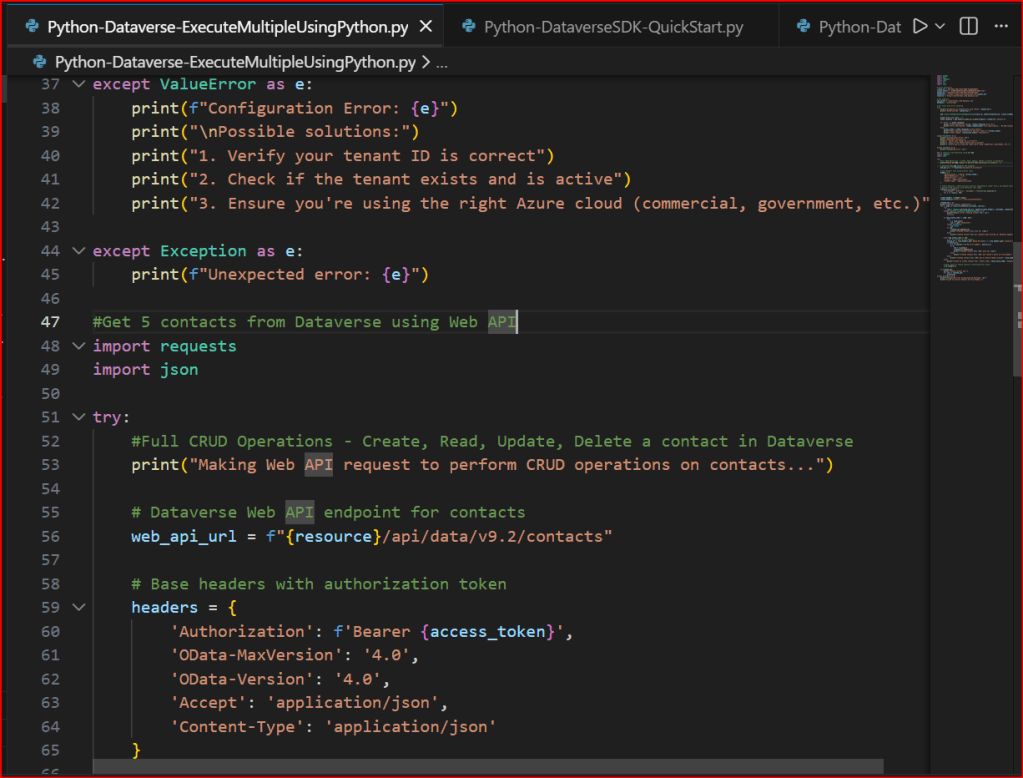
5. Create or Open a Python file in the system, opened a sample file below
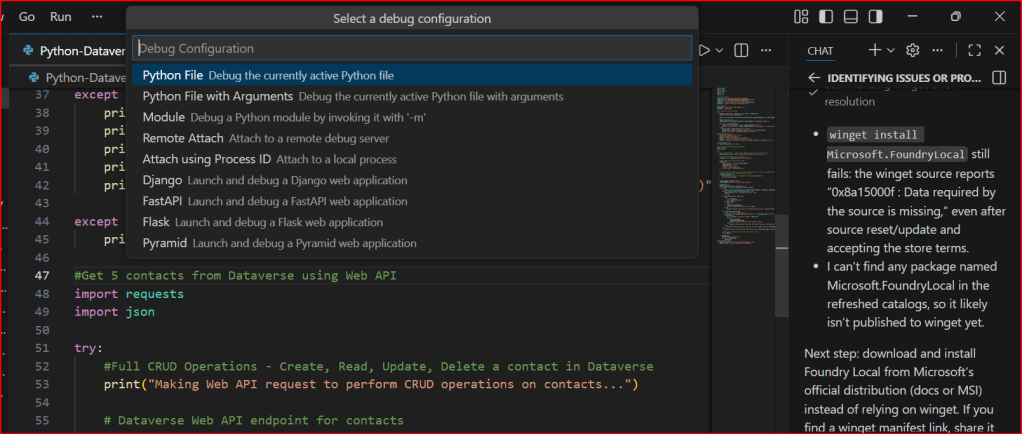
5. If you want to run Python Programmes in your VS Code, follow below options
a. Select Start Debugging
b. You will be prompted a window like below
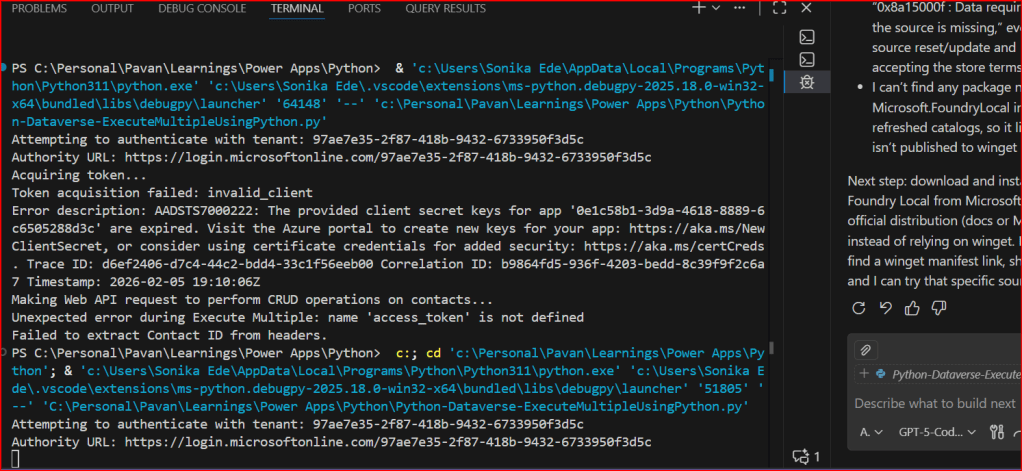
You can select the first option highlighted above, it automatically runs your Python Code
This is very easy to setup…
If you want to continue reading this series, check out the next article.
On 14 November, 2025, I took the AB 100 Exam, this post is to share my experience about this exam.
The exam doesn’t look difficult or tricky to me, it feels like a lot to read in short amount of time. Most of the questions revolved around Copilot Studio, Azure AI Foundry, Azure Services for tracking telemetry, Copilot, Dynamics 365 Customer Engagement, Finance and Operations, Supply Chain Management.
While there is nitty-gritty on using Prebuilt agents and Custom Agents using Azure AI Foundry and Agent Governance, choosing right agent for the need but note that no question came up from AI Builder, Licensing as well.
As per Exam NDA, exact exam questions may not be shared publicly, I am sharing my experience so that someone preparing for this exam can use this while preparing for taking this exam.
If you want to learn further, you can go through the below link which was recently created by Microsoft….go take a look…
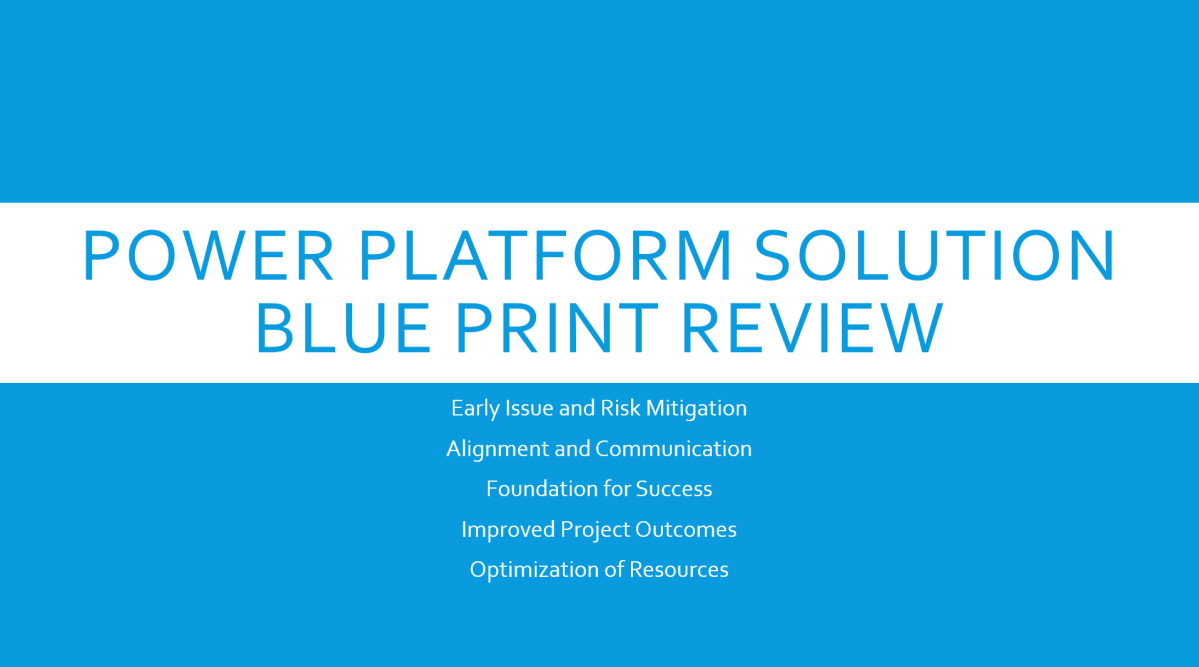
The Solution blueprint review is covers all required topics. The workshop can also be conducted remotely. When the workshop is done remotely, it is typical to divide the review into several sessions over several days.
The following sections cover the top-level topics of the Solution blueprint review and provide a sampling of the types of questions that are covered in each section.
Program strategy
Program strategy covers the process and structures that will guide the implementation. It also reviews the approach that will be used to capture, validate, and manage requirements, and the plan and schedule for creation and adoption of the solution.
This topic focuses on answering questions such as:
What are the goals of the implementation, and are they documented, well understood, and can they be measured?
What is the methodology being used to guide the implementation, and is it well understood by the entire implementation team?
What is the structure that is in place for the team that will conduct the implementation?
Are roles and responsibilities of all project roles documented and understood?
What is the process to manage scope and changes to scope, status, risks, and issues?
What is the plan and timeline for the implementation?
What is the approach to managing work within the plan?
What are the external dependencies and how are they considered in the project plan?
What are the timelines for planned rollout?
What is the approach to change management and adoption?
What is the process for gathering, validating, and approving requirements?
How and where will requirements be tracked and managed?
What is the approach for traceability between requirements and other aspects of the implementation (such as testing, training, and so on)?
What is the process for assessing fits and gaps?
Test strategy
Test strategy covers the various aspects of the implementation that deal with validating that the implemented solution works as defined and will meet the business need.
This topic focuses on answering questions such as:
What are the phases of testing and how do they build on each other to ensure validation of the solution?
Who is responsible for defining, building, implementing, and managing testing?
What is the plan to test performance?
What is the plan to test security?
What is the plan to test the cutover process?
Has a regression testing approach been planned that will allow for efficient uptake of updates?
Business process strategy
Business process strategy considers the underlying business processes (the functionality) that will be implemented on the Microsoft Dynamics 365 platform as part of the solution and how these processes will be used to drive the overall solution design.
This topic focuses on answering questions such as:
What are the top processes that are in scope for the implementation?
What is currently known about the general fit for the processes within the Dynamics 365 application set?
How are processes being managed within the implementation and how do they relate to subsequent areas of the solution such as user stories, requirements, test cases, and training?
Is the business process implementation schedule documented and understood?
Are requirements established for offline implementation of business processes?
Based on the processes that are in scope, the solution architect who is conducting the review might ask a series of feature-related questions to gauge complexity or understand potential risks or opportunities to optimize the solution based on the future product roadmap.
Application strategy
Application strategy considers the various apps, services, and platforms that will make up the overall solution.
This topic focuses on answering questions such as:
Which Dynamics 365 applications or services will be deployed as part of the solution?
Which Microsoft Azure capabilities or services will be deployed as part of the solution?
What if new external application components or services will be deployed as part of the solution?
What if legacy application components or services will be deployed as part of the solution?
What extensions to the Dynamics 365 applications and platform are planned?
Data strategy
Data strategy considers the design of the data within the solution and the design for how legacy data will be migrated to the solution.
This topic focuses on answering questions such as:
What are the plans for key data design issues like legal entity structure and data localization?
What is the scope and planned flow of key master data entities?
What is the scope and planned flow of key transactional data entities?
What is the scope of data migration?
What is the overall data migration strategy and approach?
What are the overall volumes of data to be managed within the solution?
What are the steps that will be taken to optimize data migration performance?
Integration strategy
Integration strategy considers the design of communication and connectivity between the various components of the solution. This strategy includes the application interfaces, middleware, and the processes that are required to manage the operation of the integrations.
This topic focuses on answering questions such as:
What is the scope of the integration design at an interface/interchange level?
What are the known non-functional requirements, like transaction volumes and connection modes, for each interface?
What are the design patterns that have been identified for use in implementing interfaces?
What are the design patterns that have been identified for managing integrations?
What middleware components are planned to be used within the solution?
Business intelligence strategy
Business intelligence strategy considers the design of the business intelligence features of the solution. This strategy includes traditional reporting and analytics. It includes the use of reporting and analytics features within the Dynamics 365 components and external components that will connect to Dynamics 365 data.
This topic focuses on answering questions such as:
What are the processes within the solution that depend on reporting and analytics capabilities?
What are the sources of data in the solution that will drive reporting and analytics?
What are the capabilities and constraints of these data sources?
What are the requirements for data movement across solution components to facilitate analytics and reporting?
What solution components have been identified to support reporting and analytics requirements?
What are the requirements to combine enterprise data from multiple systems/sources, and what does that strategy look like?
Security strategy
Security strategy considers the design of security within the Dynamics 365 components of the solution and the other Microsoft Azure and external solution components.
This topic focuses on answering questions such as:
What is the overall authentication strategy for the solution? Does it comply with the constraints of the Dynamics 365 platform?
What is the design of the tenant and directory structures within Azure?
Do unusual authentication needs exist, and what are the design patterns that will be used to solve them?
Do extraordinary encryption needs exist, and what are the design patterns that will be used to solve them?
Are data privacy or residency requirements established, and what are the design patterns that will be used to solve them?
Are extraordinary requirements established for row-level security, and what are the design patterns that will be used to solve them?
Are requirements in place for security validation or other compliance requirements, and what are the plans to address them?
Application lifecycle management strategy
Application lifecycle management (ALM) strategy considers those aspects of the solution that are related to how the solution is developed and how it will be maintained given that the Dynamics 365 apps are managed through continuous update.
This topic focuses on answering questions such as:
What is the preproduction environment strategy, and how does it support the implementation approach?
Does the environment strategy support the requirements of continuous update?
What plan for Azure DevOps will be used to support the implementation?
Does the implementation team understand the continuous update approach that is followed by Dynamics 365 and any other cloud services in the solution?
Does the planned ALM approach consider continuous update?
Who is responsible for managing the continuous update process?
Does the implementation team understand how continuous update will affect go-live events, and is a plan in place to optimize versions and updates to ensure supportability and stability during all phases?
Does the ALM approach include the management of configurations and extensions?
Environment and capacity strategy
Deployment architecture considers those aspects of the solution that are related to cloud infrastructure, environments, and the processes that are involved in operating the cloud solution.
This topic focuses on answering questions such as:
Has a determination been made about the number of production environments that will be deployed, and what are the factors that went into that decision?
What are the business continuance requirements for the solution, and do all solution components meet those requirements?
What are the master data and transactional processing volume requirements?
What locations will users access the solution from?
What are the network structures that are in place to provide connectivity to the solution?
Are requirements in place for mobile clients or the use of other specific client technologies?
Are the licensing requirements for the instances and supporting interfaces understood?
Solution blueprint is very essential for an effective Solution Architecture, using the above guiding principles will help in this process.
🚀 You’re Invited to the Global AI Bootcamp 2025 – Singapore Edition!
Are you passionate about AI, Power Platform, and Microsoft technologies? Want to learn how AI is transforming businesses and industries? Then this event is for you!
🎯 What to Expect? ✅ Expert-led sessions on AI, Copilot, Power Platform, and more ✅ Hands-on workshops to apply AI in real-world scenarios ✅ Networking opportunities with industry leaders and AI enthusiasts ✅ Absolutely FREE to attend!
This post is about Dataverse and Git Integration which is the most sought after feature in the todays automation Era. This is a preview feature, you would need to create a new environment with Early Access enabled to test this feature or you can use an existing US Preview environment for testing this out.
While every MDA(Model Driven Application) and it’s components can be safely and moved across the environments using Solutions with the help of Azure DevOps Pipelines. However when coming to integrating Power Platform Solutions to Azure DevOps, we had to manually export the solution and download them each and every time when we would like to commit the Solution Artifacts to Azure DevOps Repo.
With this new Preview feature we can directly integrate the Power Platform Solutions to Azure DevOps.
Let’s see this action…wait a moment, there were some prerequisites to be considered…
Environment should be a Managed Environment to start using this and you need to be an Admin for the environment
Azure DevOps subscription and license should be available to set this up, also permission to read source files and commits(should be a member of contributor group in Azure DevOps) from a Repo
Your email address used for Azure DevOps and Power Platform Solutions should be the same
Setup:
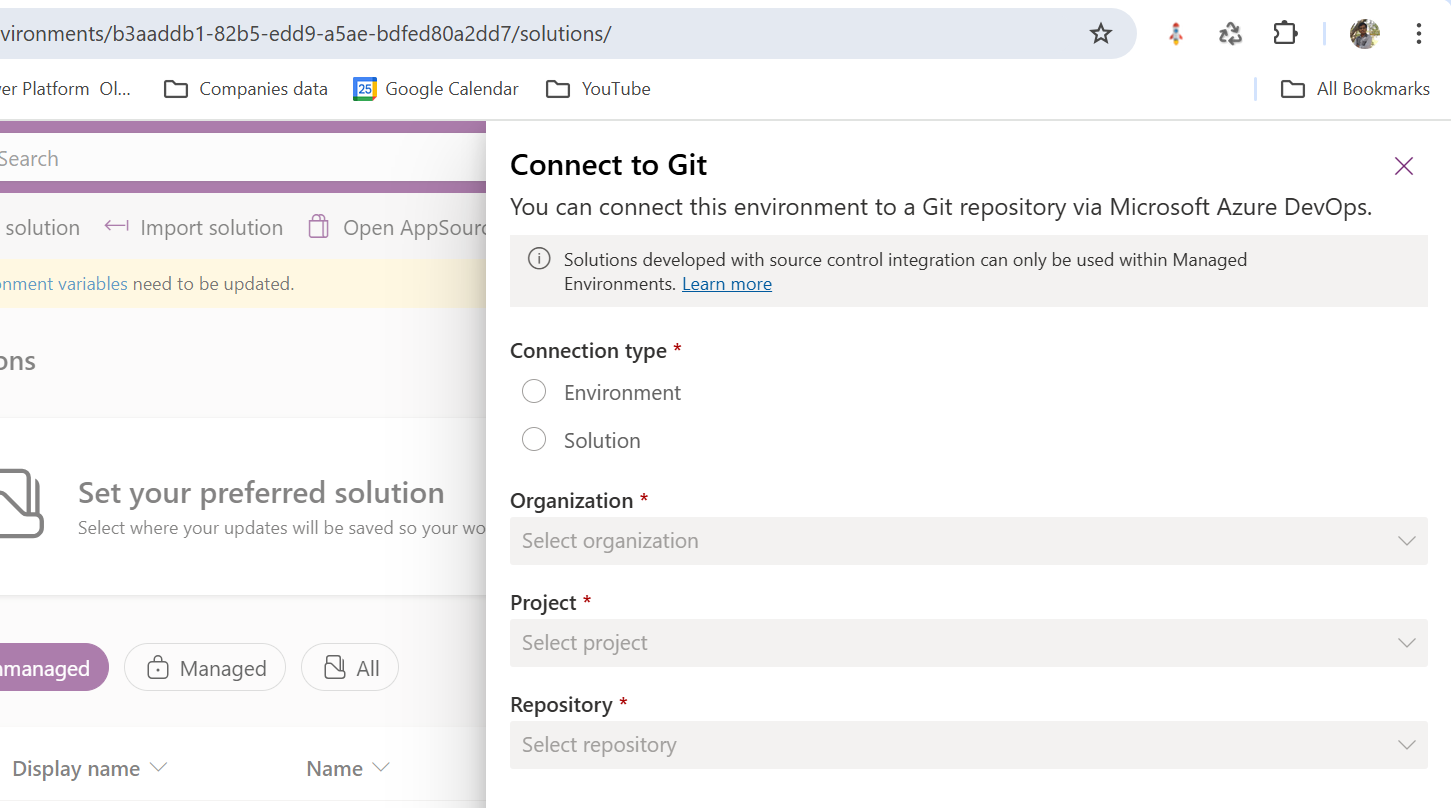
Connecting Dataverse with Azure DevOps is easy but requires a bit of understanding of the Binding options available.
Well, there were two types of Binding options
Environment Binding – Single root folder binds to all the unmanaged solutions in the environment
Solution Binding – Different solutions uses a different root folder in Azure DevOps for binding
Note: Once the binding is setup, there isn’t away to change, so set this up carefully, else you may need to delete the folder and create a new one in Azure DevOps.
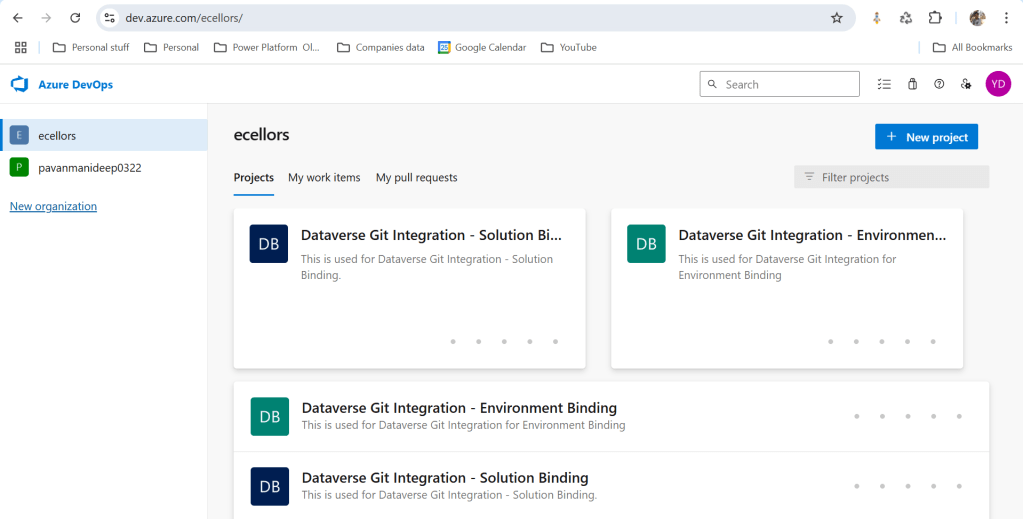
Let’s see one by one…for demoing purpose, I have created two projects in Azure DevOps Instance
Solution Binding: When we use this, all the components will be available as pending changes
Environment Binding: When we use this, all the unmanaged solution components will be mapped to one Azure DevOps root folder. Let’s set this up.
We are currently able to use only Solution binding, as Environment Binding doesn’t show up any changes to be committed, but there is a catch here.
We can set up for Environment binding and verify if the Solution components are getting marked as pending changes or not. Do note that Setting up the Binding is a one time activity for environment, once setup, it can’t be changed from one type to another.
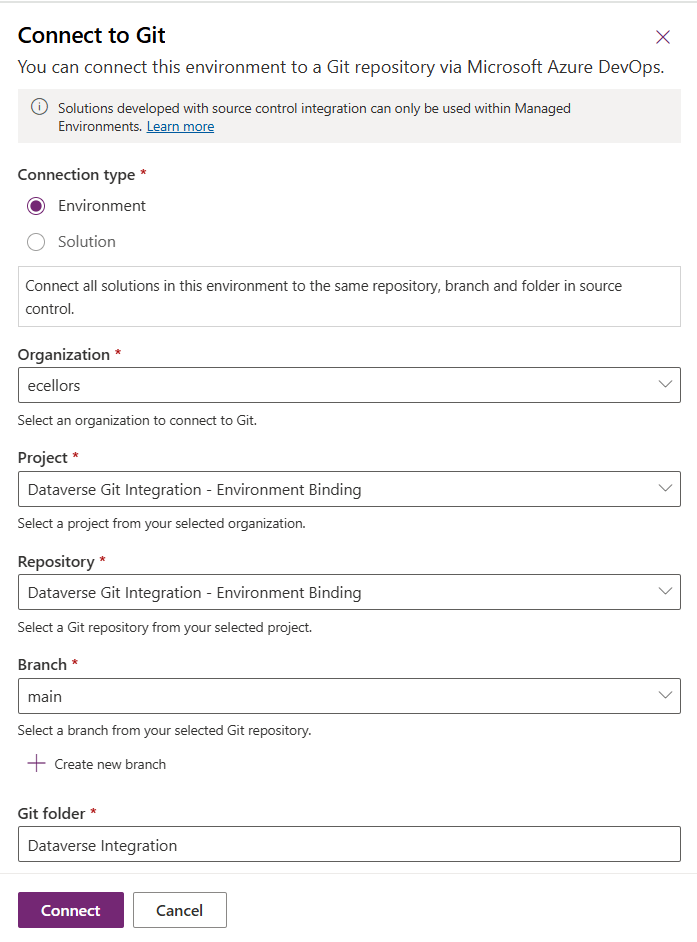
Since we were currently using Environment binding, let’s select the Connection Type as Environment
Then click on Connect, once connected, you should a alert message in power apps maker portal at the top.
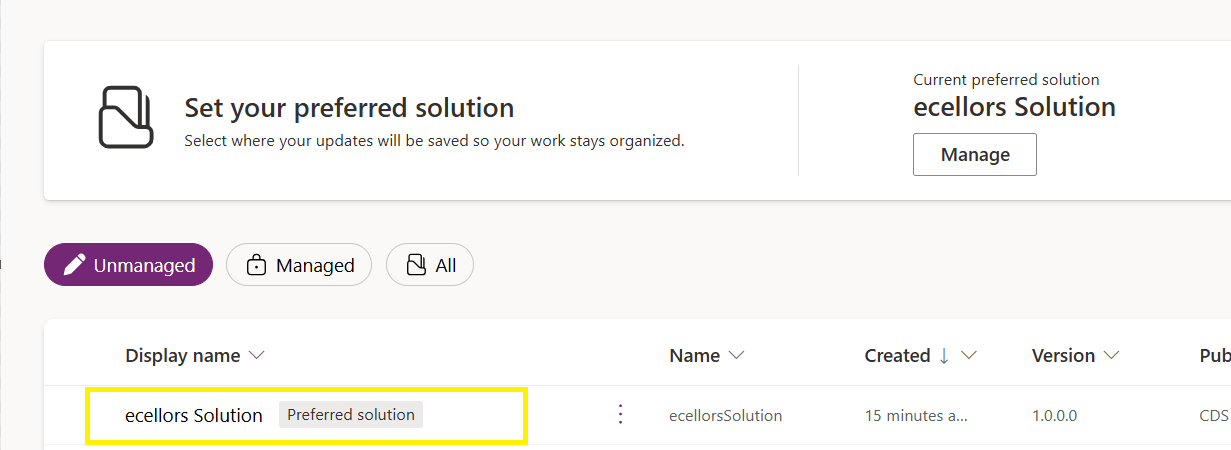
Now create a new solution as below named ecellors Solution
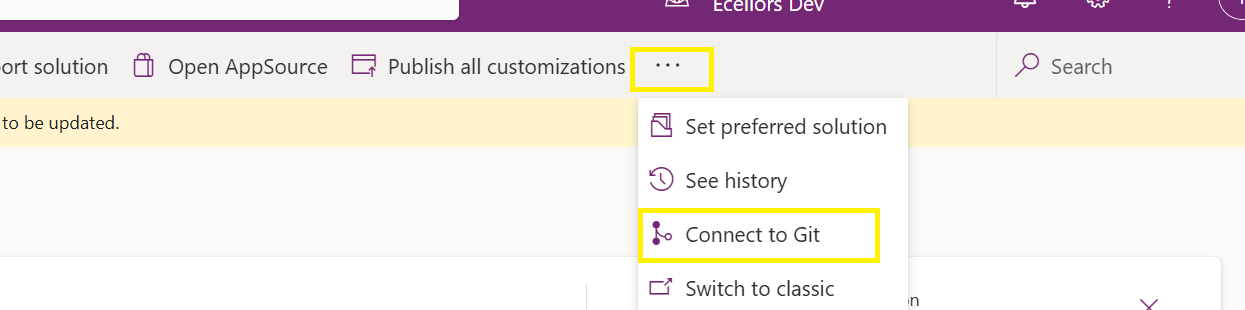
Verify the integration by clicking on Git Integration as below
It should show as below
Now let’s add few components to the solution we created
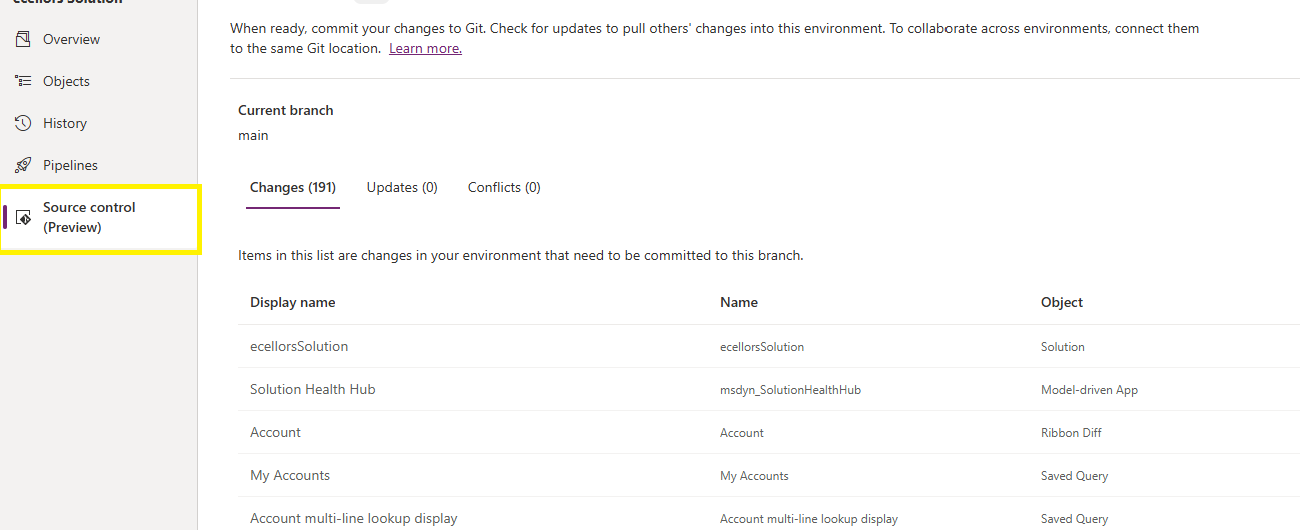
Once added, let’s publish the unmanaged solution and verify it..
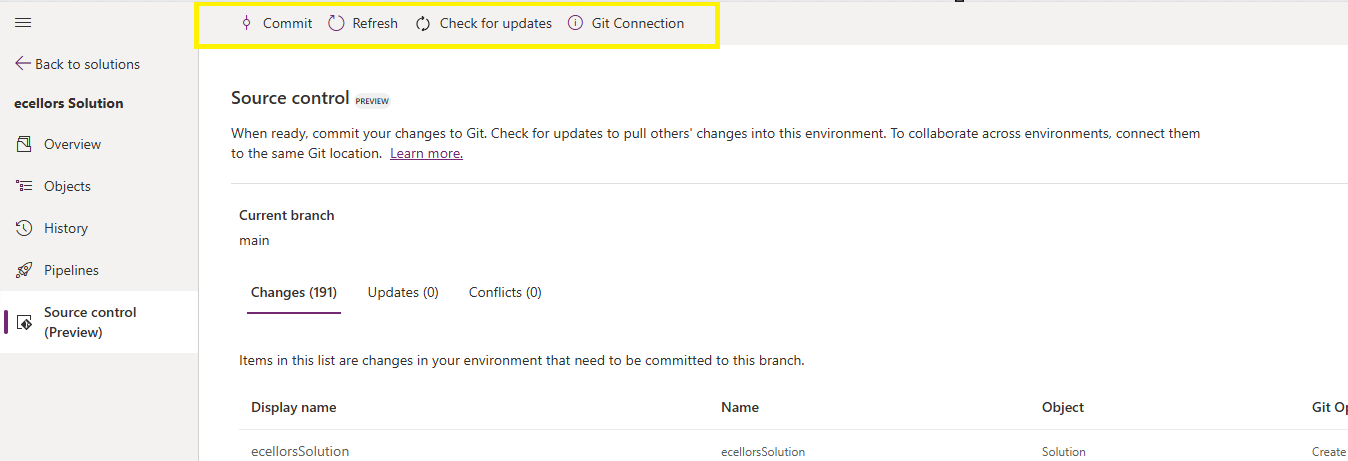
Do look closely, you should see a Source Control icon highlighted in yellow color for illustration.
Also, you should see a commit option available at the top
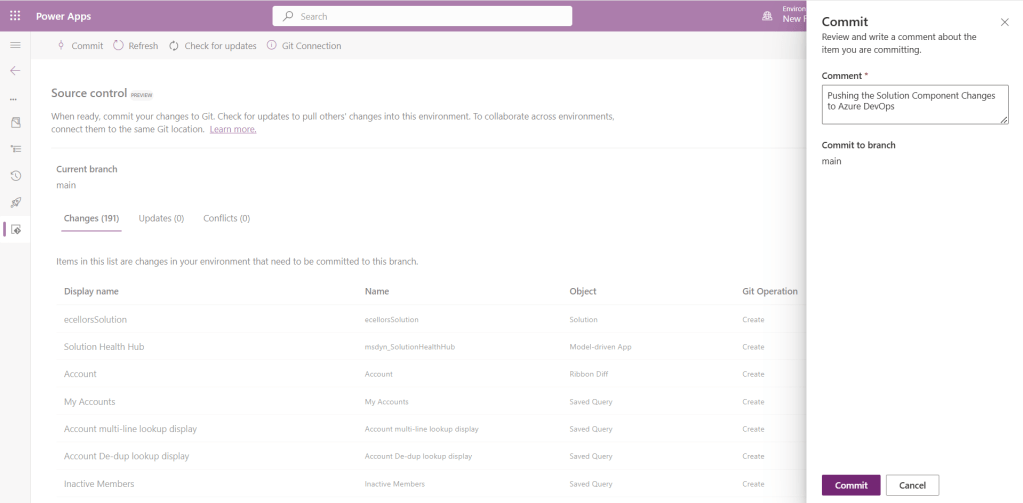
You should now be able to commit the solution components as if you are committing the code changes.
It also specifies the branch to which we were commiting…
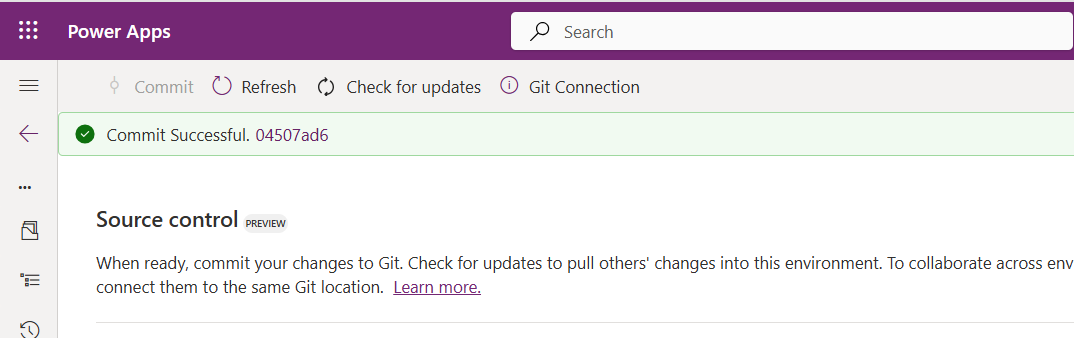
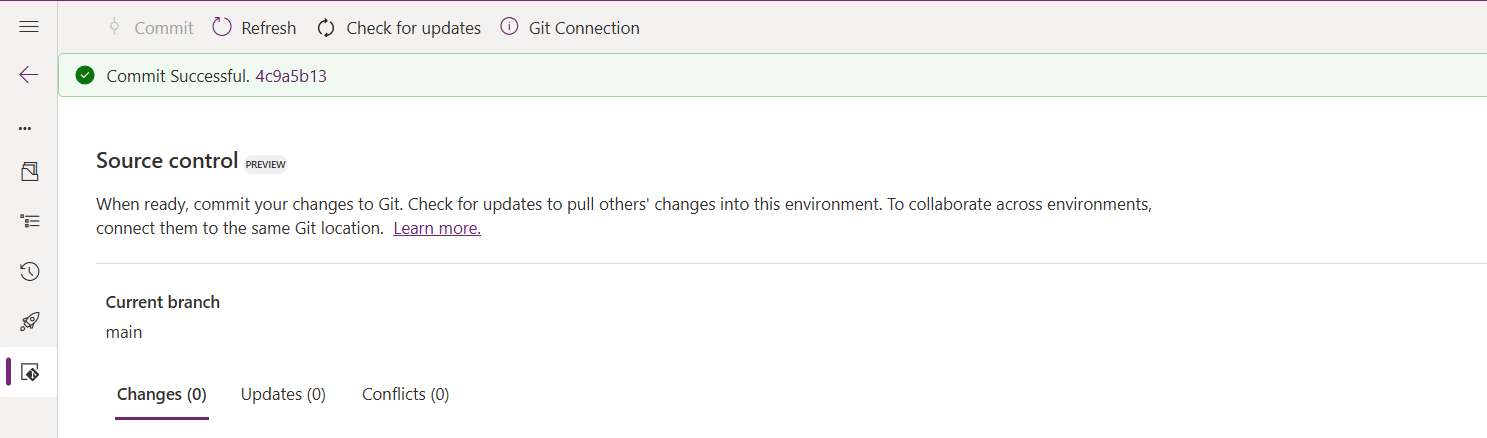
While it takes few minutes unlike pushing the code to Azure DevOps to push the changes, however this would depend based on the number of solution components you were pushing..once it is done, it will show a commit message like below…
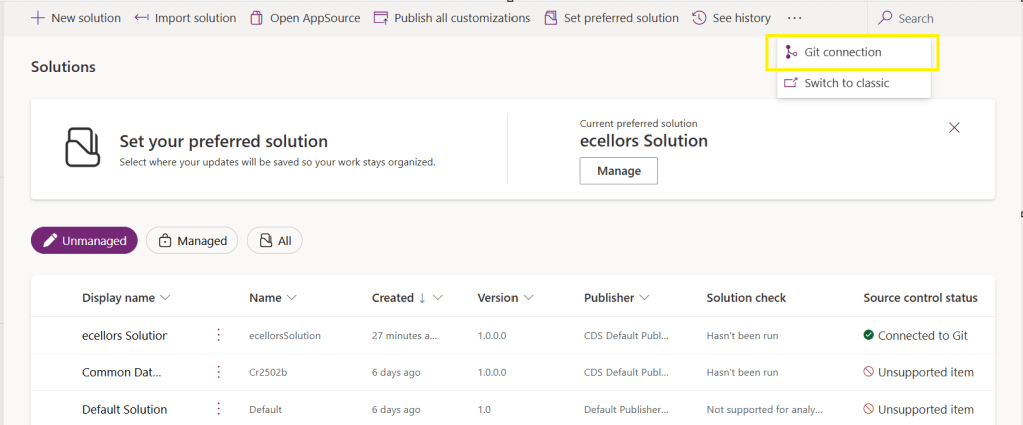
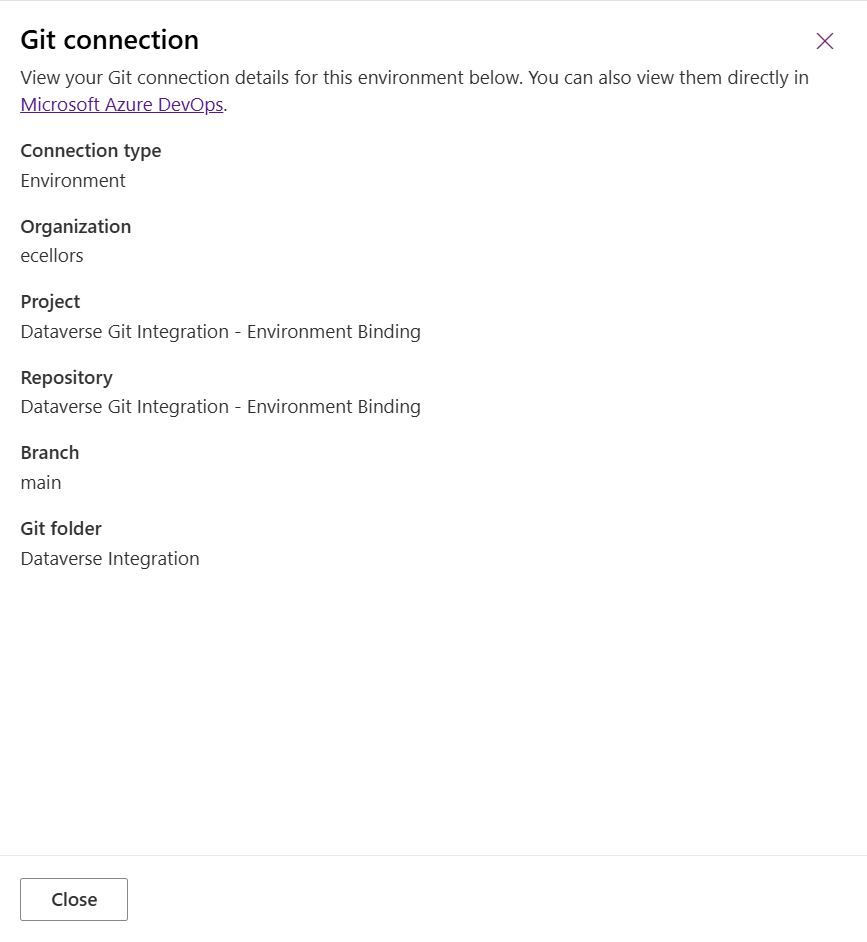
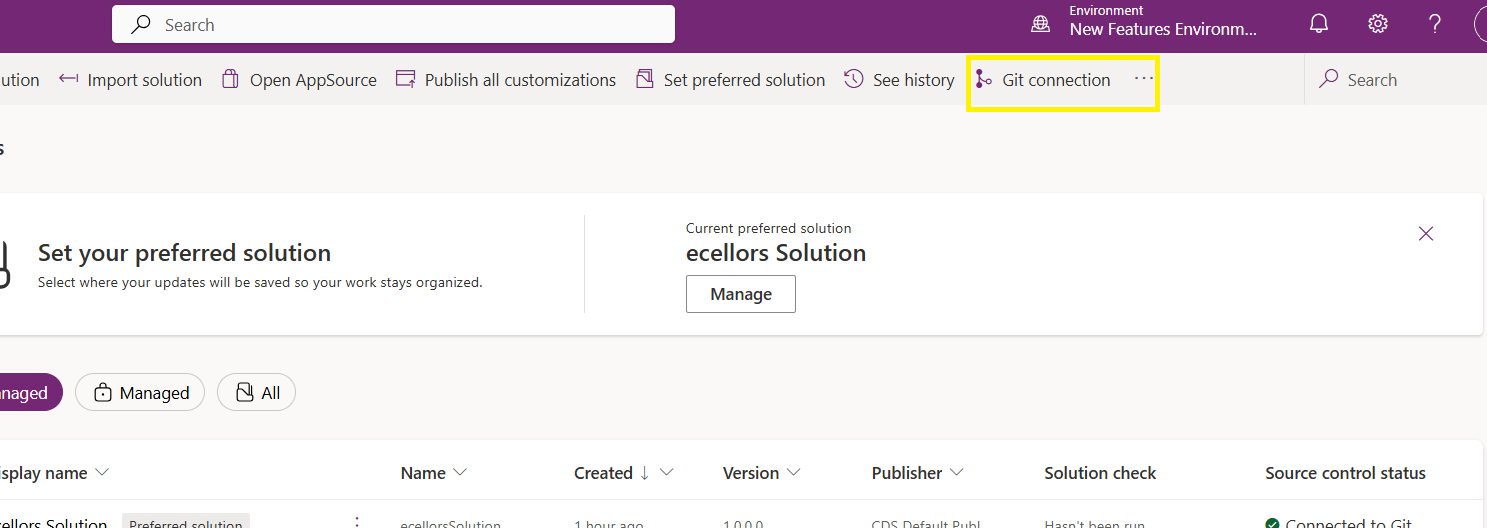
Now let’s verify our Azure DevOps Repo..for this you can go back to the main solutions page, click on Git Connection at the top..
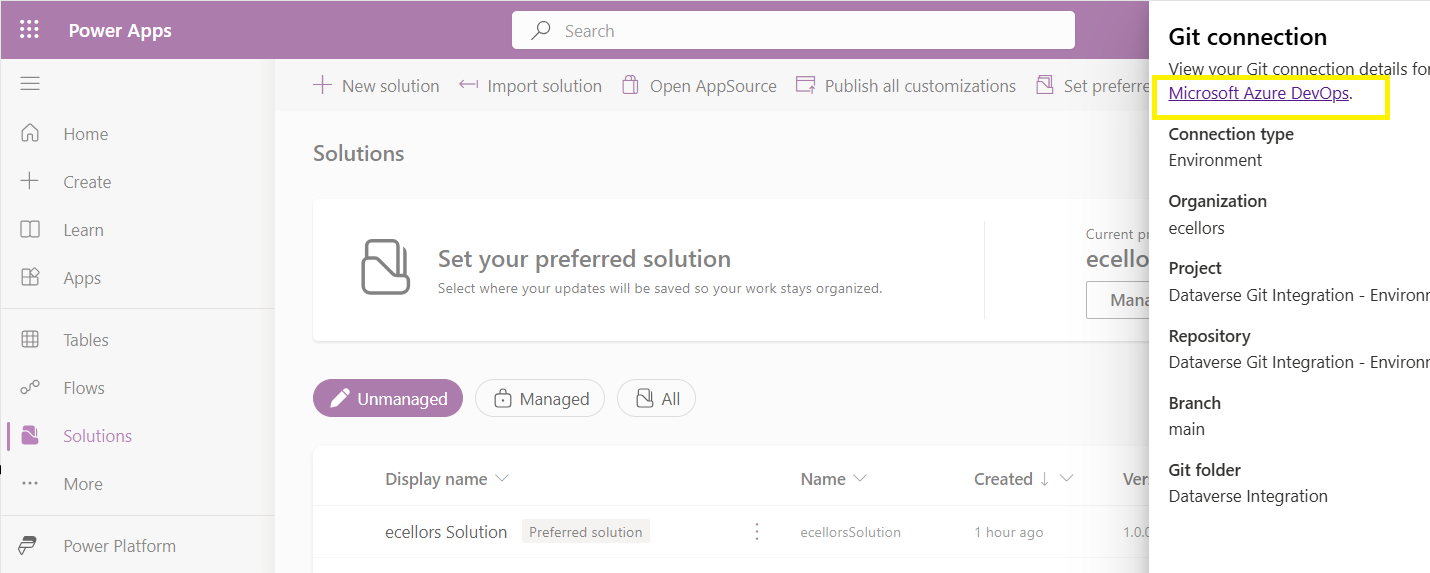
After clicking on Git Connection, click on the link to Microsoft Azure DevOps as below
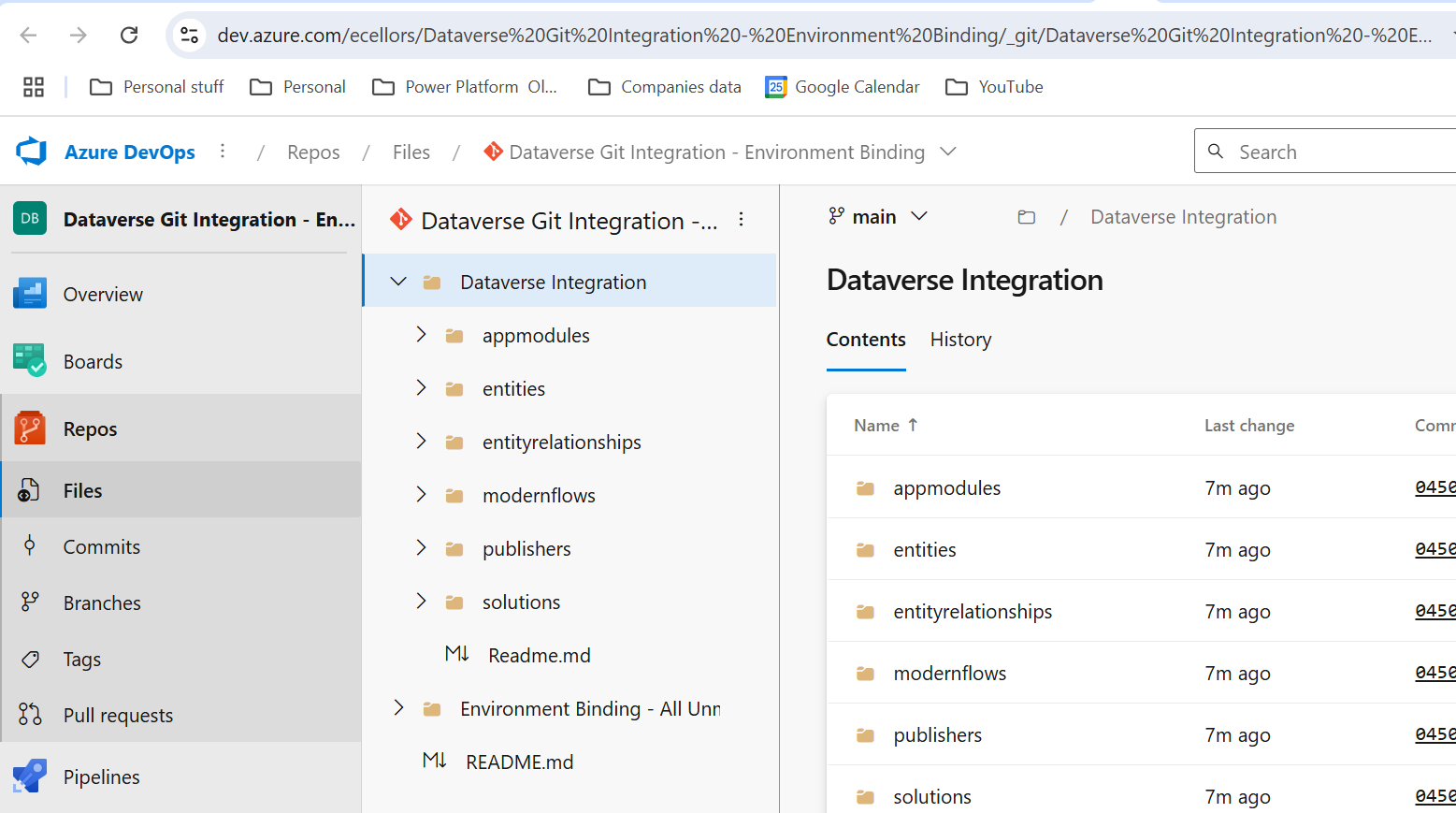
Then you should be navigated to Azure DevOps folder as below where all the solution files will be tracked component wise.
Now we will move back to Power Apps maker portal and make some changes to any of the components inside the solution…
Let’s say, I just edited the flow name and created a new connection reference, saved and published the customizations.
If you did some changes at the Azure DevOps repo level, you can come back and click on Check for updates, if there were any conflicts between changes done in Azure DevOps and component in solution, it will be shown as conflict.
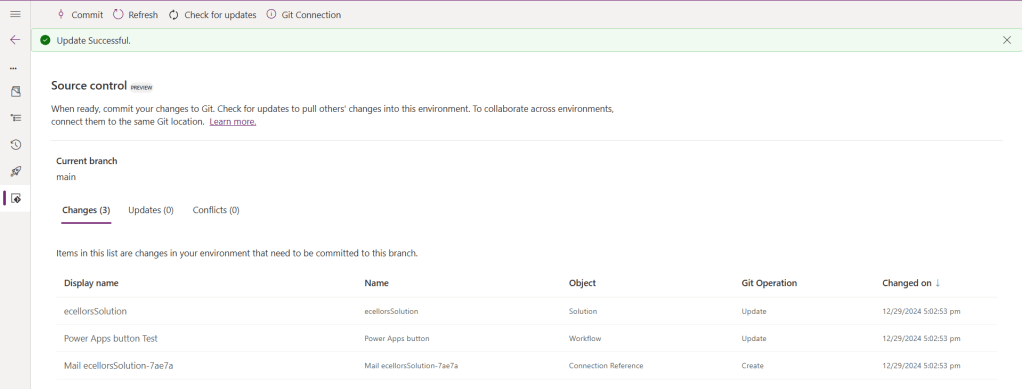
We now have 3 component changes and all were listed here…you can click on Commit.
As soon as the changes are committed, you should see a message saying Commit Successful and 0 Changes, 0 Updates, 0 Conflicts.
Now you successfully integrated Dataverse Solution components with Azure DevOps without any manual intervention required while deploying solutions using Azure DevOps Pipelines.
Hope you learned something new today…while feature is still in Preview and only available for early release, while couple of issues still need to fixed by Microsoft.
I have tested this feature by creating an environment in US Preview region and this feature will be a good value to projects using Automation and this solution repository can be further deployed to other environments using Azure DevOps Pipelines.
This will be rolled out soon next year, hope you learned something new today…
Geo Migration is a great feature/flexibility offered by Microsoft for customers who wish to move to a region which is in closest proximity to their operations even though initially their Power Platform environment region based out of a different one when they signed up. I checked out online but couldn’t find a good reference blog article yet online, hence this post.
I will make this post detailed but a comprehensive one for anyone to understand the migration. Customers can also opt for Multi Geo for those who have a need to store data in multiple geographies to satisfy their data residency requirements. If you don’t know where your Power Platform environment resides, you can check from Power Platform Admin Center.
If you were not aware yet, Microsoft Azure is the only cloud provider which offers services in more regions when compared to AWS (Amazon Web Services) and GCP (Google Cloud Platform). The Geo Migration feature seamlessly allows customers to move their environments in a single tenant from one region to another. e.g. for Singapore, it is as below.
Important:
Geo Migration is not generally available, so please exercise with caution.
You may reach out to your TAM(Microsoft Technical Account Manager) quoting your request
There were several limitations, see below references for more details.
Mandatory Pre-Migration Check list:
Any Power Apps, Power Automate Flows should be manually exported prior to the migration. Custom Connectors aren’t supported as of now, they must manually reconfigure or created in the new environment. You can export them individually or export them in group.
Canvas Apps, Custom Pages, Code Components like PCF and libraries should be deleted from the environment before your migration activity starts. Else they might be in corrupted state after migration activity.
If any of your Apps are not solution aware because of any reason like App calls a Power Automate when a button is called etc., you may need to explicitly export it out and take the backup.
Post Migration Check list:
After the migration, import all the packages which you have taken backup during pre migration. For those which were not solution aware, import them manually.
If you have Power Portals or Power Virtual Agents, those should be exported explicitly.
Make sure you test all functionalities in order not to impact end users.
Notes:
You don’t need to build Apps and Flows from scratch. Dynamics 365 marketing App is not supported yet. There could be some configuration changes post migration.
While I try to put the information to the best available as per sources from Microsoft, this may change over time and variation could be different as each customer will have different workloads and dependencies with other services, so please read the references carefully before proceeding. Contact Microsoft Support or TAM as necessary.
Hope this helps to get a sneak peek into the migration process.
Do you know that you can connect to your Dataverse DB right from your old toolbox SSMS, an express version would be more than enough to try out. Possibly we didn’t think of, but yes, we can…so let’s see that in this blog post.
Open SSMS..
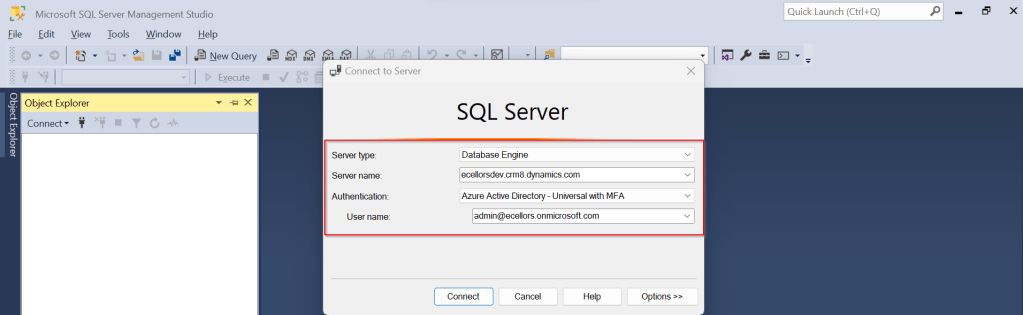
1.Select Server type as Database Engine
2. Server name as the environment URL from your Power Platform Admin Center as below.
3. So key in those details as below, make sure to Select Authentication method as Azure Active Directory – Universal with MFA option.
Once you click on Connect, you will be prompted for authentication via browser.
Once your Sign-In is successful, you will be able to see.
That’s it, how simple it was connecting to your Dataverse instances…
Having said that it’s easy to connect to Dataverse, not all operations performed using normal transact SQL are supported here using Dataverse SQL. You could see it says Read-Only besides the instance name, that means that you don’t have any capabilities to modify from SQL.
Because Dataverse SQL is a subset of Transact-SQL. If you want to see what statements are supported and what not, just go ahead to this link to find out.
This opens a whole lot of opportunities to explore, so don’t forget to check this out.
This blog post is just an observation from my experiences of getting the latest version of code from a remote development feature branch cloned from the main branch. I didn’t observe this my first sight and because of couple of other issues, I had overseen this, spent over a half an hour and I had to giggle after knowing this.
If you were aware, as of my last update in September 2021, Azure DevOps and Visual Studio have been integrated to support seamless code collaboration and version control.
So usually in day-to-day activities of any Developer working Microsoft Technology stack, Pull, Push, Clone, Merge of Azure DevOps repository directly from Visual Studio is quite common.
Usually, to clone a repository from Azure DevOps, you follow the below steps.
Step 1: Open Visual Studio of any version, preferably after VS 2017 Step 2: Click on Clone the repository.
Step 3: Enter the Azure DevOps Repository URL and provide the path in the prompt.
Step 4: Select your respective repository and click on Sign in
Step 5: Once you are done click on Clone, all your source code is now available in your IDE (Visual Studio)
There might be cases when you check and see you were not able to get the latest changes from your feature branch, those were present in the repo but not in your Visual Studio. Closing the Visual Studio and redoing the Cloning process didn’t help. Then I thought it could be because of Cache of Visual Studio in my PC, so I tried clearing cache following my favorite blog post written earlier in this blog. Even this didn’t help either, thanks to my buddy Mallikarjun C who gave me the clue and here it goes.
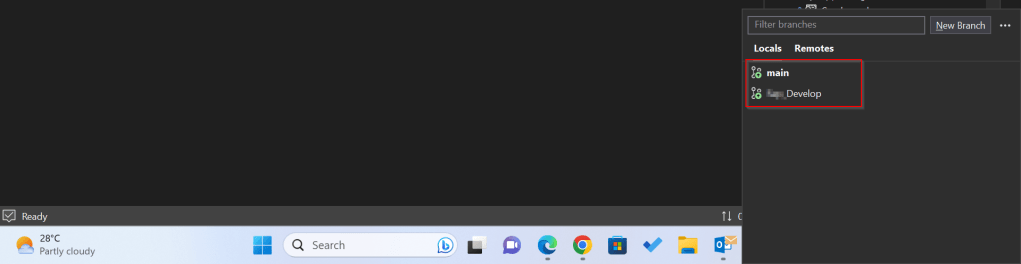
Whenever you were cloning a solution using above approach, ideally you will be checked out to the Main branch and not the feature branch which you were expecting to be checked out to, as Main is set as Default branch.
If you just see below, it wasn’t checked out to Develop, instead it was main. By default, with this approach, you will by default checked out to main branch.
Hence you were seeing the changes of the main branch itself and not the Develop branch.
Instead of this, as I learned I suggest you clone directly to your favorite IDE from Azure DevOps itself in few clicks.
Step 1: While you are in your respective branch in Azure DevOps, click on Clone option as highlighted below.
Step 2: It will then ask you to choose the IDE to which you can download the source code.
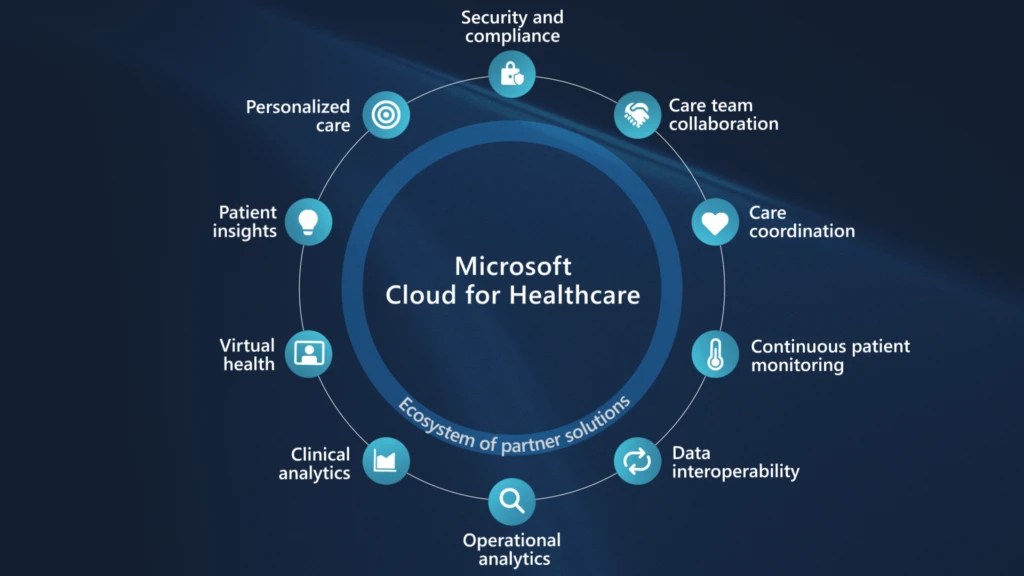
Microsoft Cloud for Healthcare provides capabilities to manage health data at scale and make it easier for healthcare organizations to improve the patient experience, coordinate care, and drive operational efficiency, while helping support security, compliance, and interoperability of health data.
Microsoft Cloud for Healthcare includes solutions that are built on capabilities within Microsoft Dynamics 365, Microsoft 365, Microsoft Azure, and Microsoft Power Platform.
This is an introduction blog post. Firstly, Microsoft Cloud for Healthcare solution should be installed from Microsoft Cloud Solution Center. To say about Microsoft Cloud Solution Center, it actually checks for requirements such as licenses, dependencies, and enables you to easily discover and deploy capabilities and solutions in Microsoft Cloud for Healthcare, there by simplifying the deployment process from a single location.
We will see what are the prerequisites.
Prerequisites
You must be a tenant admin, Dynamics 365 admin, or Power Platform admin to deploy Microsoft Cloud for Healthcare solutions.
You must have licenses for the Microsoft Cloud for Healthcare solutions and apps that you’re deploying. If your organization doesn’t have the necessary licenses, you’ll be notified during the deployment process in Solution Center.
Here are the solutions that are part of Microsoft Cloud for Healthcare, for each solution. We need to keep in mind that:
Some solutions have predeployment setup requirements.
Some solutions require configuration or have additional capabilities that you can set up after deployment.
Solution
Dependencies
Patient access
Power Pages, Dynamics 365 Customer Service
Patient service center
Dynamics 365 Customer Service, Digital Messaging add-on for Dynamics 365 Customer Service
Patient outreach
Dynamics 365 Marketing
Patient insight cards
Dynamics 365 Sales Premium
Care management
Dynamics 365 Customer Service*
Home health
Dynamics 365 Field Service
Data integration toolkit
Power Apps
Unified patient view
Power Apps
Patient trends (preview)
Power Apps, Dynamics 365 Customer Insights
Patient population dashboard (preview)
Power BI
Provider data model
Power Apps
Payor data model (preview)
Power Apps
Life sciences data model (preview)
Power Apps
Virtual Visits
Microsoft Teams
Text analytics for health
Azure subscription
Azure IoT for healthcare
Azure subscription
Azure Health Bot
Azure subscription
Azure Health Data Services
Azure subscription
Healthcare database templates
Azure subscription
Health document intelligence
Azure subscription
There were a ton of Microsoft Azure capabilities to explore which I will do in my upcoming blog posts. So here, I am using a personal Azure subscription and rest everything I will try to keep using Trial accounts as long as possible. So, you don’t need to worry if you will charge just to try it out.
Also, with the advent of AI, health care industry is getting revolutionized.
Interested…? Then keep looking this space as I will explore more with all of you. Stay tuned…













 ECELLORS CRM Blog