What’s Rebase and Merge in Azure Devops…Quick Recap

Hi Folks,

Yesterday I was working with Azure DevOps repository for my project. My local Develop branch is behind the Main branch by few commits, I want to get the latest commits into my local and include those from the Main branch also in to my Develop branch.

It is then I got to know whether to use GIT Merge Command or GIT Rebase Command. And here you go my findings on the same….

I got to know the details, official Git manual states that rebase “reapplies commits on top of another base branch”, whereas merge “joins two or more development histories together”. In other words, the key difference between merge and rebase is that while merge preserves history as it happened, rebase rewrites it. Let’s start with an illustration…for better understanding…followed by the differences…

MergeRebase
Git merge is a command that allows you to merge branches from Git.Git rebase is a command that allows developers to integrate changes from one branch to another.
In Git Merge logs will be showing the complete history of the merging of commits.Logs are linear in Git rebase as the commits are rebased 
All the commits on the feature branch will be combined as a single commit in the master branch.All the commits will be rebased and the same number of commits will be added to the master branch.
Git Merge is used when the target branch is shared branchGit Rebase should be used when the target branch is private branch

Actually talking both do mean the same purpose and have their own uses, but at the end of the day it is completely up to your ALM strategy/methodology. I preferred to use Merge instead of Rebase just that my branch is shared branch and for simplicity.

Hope this helps…

Cheers,

PMDY
What’s the new table type being introduced..?

Hi Folks,

While you may have noticed this or not, but it’s real. Now Dynamics 365 CE existing table types have a new companion called Elastic, it is yet to be announced.

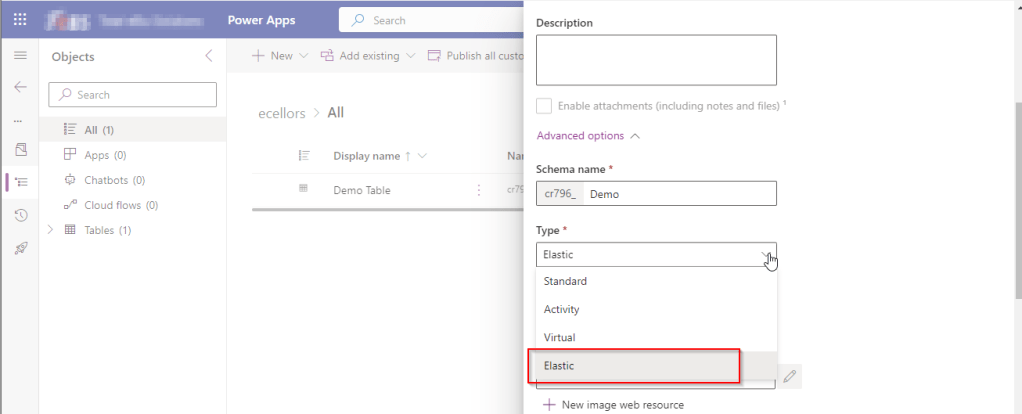
However let’s take a quick look of the table types showing up when you were trying to create a new one in Dataverse.

While everyone is aware about Standard, Activity, Virtual types in Model Driven Apps. Elastic tables are new tables which came in to Dataverse and probably it will be announced in the upcoming Microsoft Build 2023.

From my view, Elastic tables were

1. Built similar to the concept of Elastic Queries in Azure which is usually meant for the purposes of Data archiving needs.

2. You can scale out queries to large data tiers and visualize the results in business intelligence (BI) reports.

3. Elastic Query provides a complete T-SQL Database Querying capability on Azure SQL, possibly Dataverse.

Hope we get all the capabilities released with Elastic Queries of Azure SQL be released in Dataverse as well.

References:

Data Types in Model Driven Apps

Elastic Queries in Azure SQL

Cheers,

PMDY

Azure API Management(APIM) for Power Platform

Hi Folks,

In today’s world, all the modern software applications use API for the front end to communicate with the backend systems, so lets see as it is very important for every developer working on Azure and API’s. Basically this is a PAAS Service from Azure. Follow along if you would like to know more details on this.

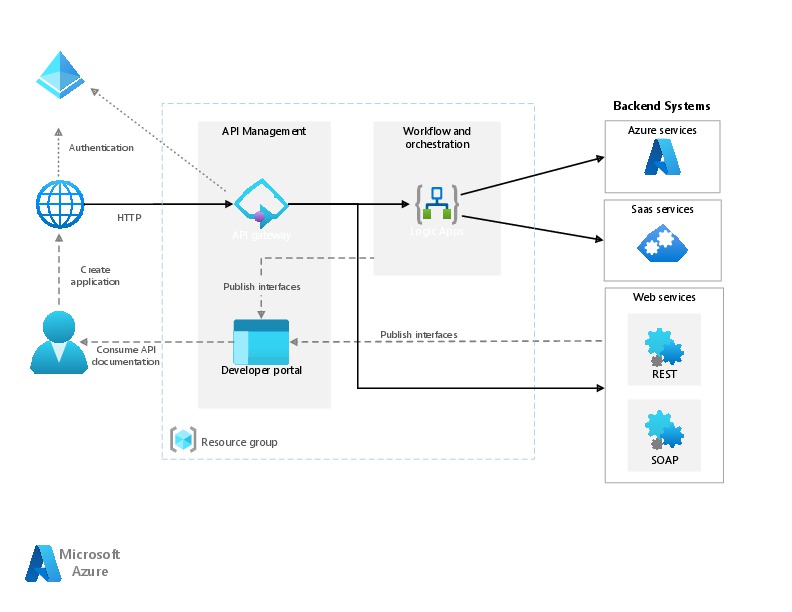
In short APIIM is a hybrid and multi cloud platform used to manage complete API life cycle. Azure API Management is made up of an API gateway, a management plane, and a developer portal.

  • Caching response to improve performance
  • Limit the number of API Calls
  • Security API and providing access
  • Interface to test API calls
  • API Analytics
  • Package related API Services
  • Transforms your API’s without
  • API Gateway is the first point of contact for any requests for your API which will route your requests to the appropriate backends. Imposes additional security restrictions with the help of JWT tokens and other certificates. Responses can be cached so that the API response could be faster.
  • Emits logs, metrics, and traces for monitoring, reporting, and troubleshooting
  • API Management are highly configurable, with control over URL mapping, query and path parameters, request and response content, and operation response caching.
  • Groups helps to provide conditional viewing capabilities.
  • Policy can help to change the behavior of an API without any code changes, this is well suited for your production API’s.

Also its easy to integrate API Management with all the other Azure Service available in the market.

Now lets go into the hands on by creating an APIIM simply from Azure.

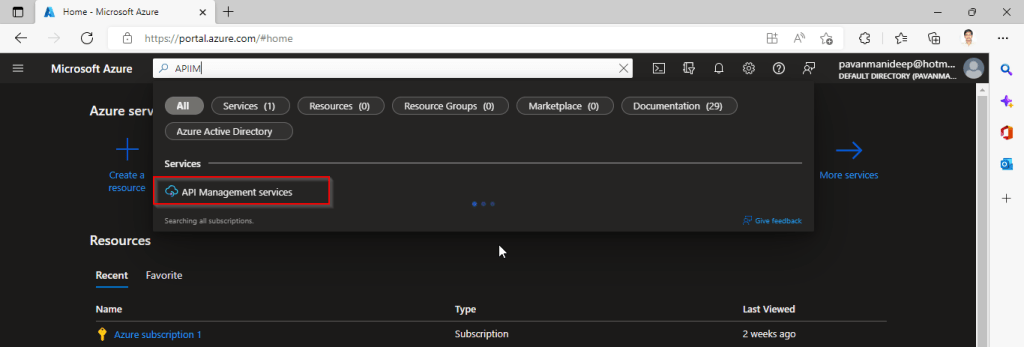
Go to Home – Microsoft Azure and search for APIIM and select API Management services and click on Create.

Input all the details, it was pretty self explanatory, coming to the pricing tier you could select based on your project needs and use case. Click on Review and Create and then Create.

It will take few minutes for the deployment to complete and you can use it.

The below Power point slide presentation is complete resource which can help you with all your queries related to Azure API Management.

Grand Tour of Azure API Management

I hope this gives you a bit of introduction to Azure API Management, now lets see how you can use this in your Power Platform Solutions.

For this, once your API ready, all you have do is to export your API’s from Azure API Management to your Power Platform Environment. With this the citizen developers can unleash the capabilities of Azure where the API’s are developed by professional developers. With this capability, citizen developers can use the Power Platform to create and distribute apps that are based on internal and external APIs managed by API Management.

Steps to follow would be as below:

All you need to do is to create a custom connector for your API which can be used in Power Platform like Power Apps, Power Automate etc.

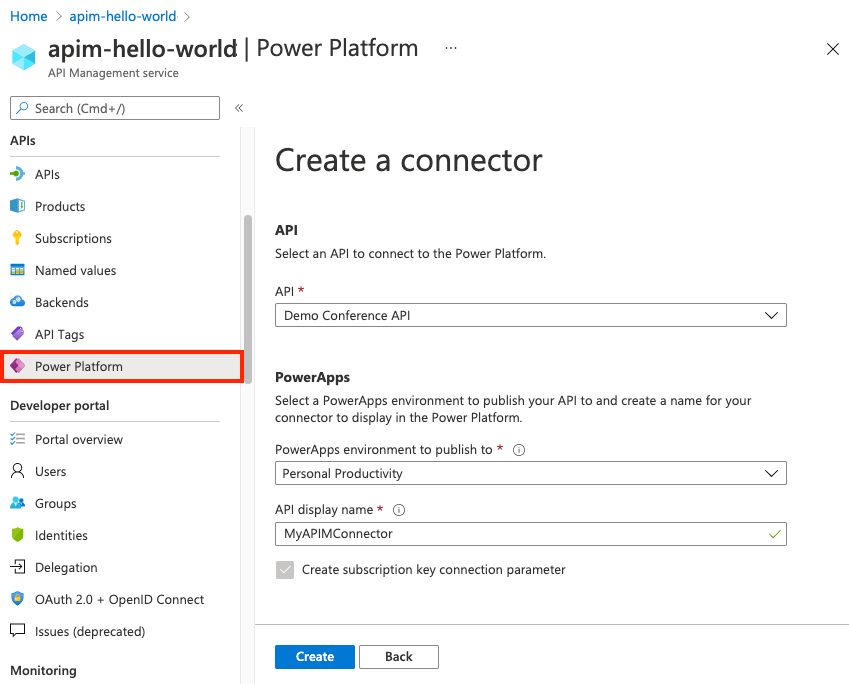
  1. Navigate to your API Management service in the Azure portal.
  2. In the menu, under APIs, select Power Platform.
  3. Select Create a connector.
  4. In the Create a connector window, do the following:
    1. Select an API to publish to the Power Platform.
    2. Select a Power Platform environment to publish the API to.
    3. Enter a display name, which will be used as the name of the custom connector.
    4. Optionally, if the API doesn’t already require a subscription, select Create subscription key connection parameter.
    5. Optionally, if the API is protected by an OAuth 2.0 server, provide details including Client IDClient secretAuthorization URLToken URL, and Refresh URL.
  5. Select Create.

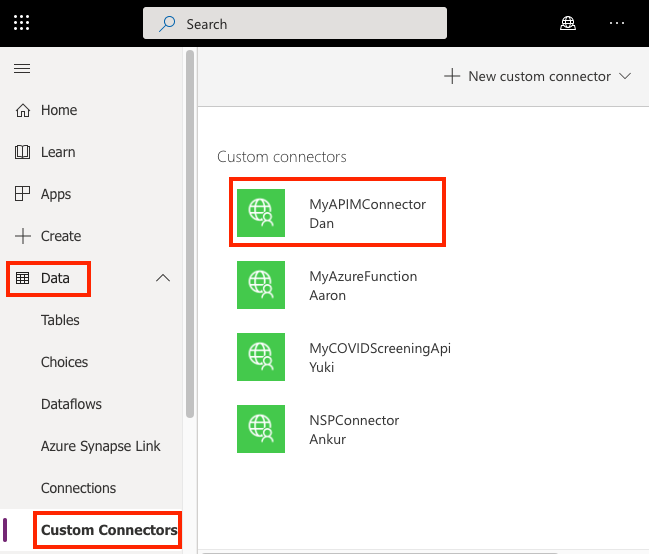
Once the connector is created, navigate to your Power Apps or Power Automate environment. You will see the API listed under Data > Custom Connectors.

Custom connector in Power Platform

I hope this will give you a complete picture about API Management in Azure…if you have any further queries, don’t hesitate to comment here…

Cheers,

PMDY

Dynamics CE integration with Logic Apps – A quick review…

Hi Folks,

This blog post talks all about integration of your Logic apps to your Dynamics CE instance and it’s advantages. Lets get started…

By the way, I can’t redefine the definition provided by Microsoft, so here it goes.

Azure Logic Apps is fully managed integration PaaS service that helps you schedule, automate, orchestrate tasks, business processes, and workflows when you need to integrate apps, data, systems, and services across enterprises or organizations and simplify how you design and build scalable solutions for app integration, data integration, system integration, enterprise application integration (EAI), and business-to-business (B2B) communication, whether in the cloud, on premises, or both. It’s simple to say that you can integrate any system and it is built on a containerized runtime.

Now let’s understand how does the logic apps work:

Every logic app workflow starts with a trigger, which fires when a specific event happens, or when new available data meets specific criteria. Each time that the trigger fires, the Logic Apps engine creates a logic app instance that runs the actions in the workflow. These actions can also include data conversions and flow controls, such as conditional statements, switch statements, loops, and branching. As soon as the Logic App stops running, these resources are discarded.

The interesting part here is that Logic Apps is more developer friendly and can used directly create integrations using logic apps either from Visual studio, Visual Studio Code or browser.

We were given flexibility to choose the type of Logic Apps, Single-tenant and multi-tenant. While creating logic apps, we can use Standard or Consumption based resource type. Logic Apps can create complex orchestrations and it is serverless. This means there is no upfront knowledge required for developer about the infrastructure. You have to bear in mind that it is both a stateful and stateless service unlike Azure Function which is stateless. It allows you to use webhooks as triggers. Coming to the pricing part, the price of Microsoft Azure Logic Apps is inexpensive. Look at it’s architecture below

You can simply edit your Azure logic App in Visual studio code / Visual studio and push your changes to your Devops repository…wow such a easy approach…don’t forget to try it out…

Do let me know if you have any queries or if you can add any more points, do let me know in comments….

That’s it for today…will come back next week with another article in #PowerfulAloneBetterTogether Series.

Cheers,

PMDY

Azure Service Bus Integration with Dynamics CE

Hi Folks,

In this post, we’ll talk about Azure Service bus.

Overview:

To start with Service Bus is fully managed messaging service which is used to connect any applications, devices, and services running in the cloud to any other applications or services. In this we can have queues which helps in the one directional communication and topics which provides two directional communication with the help of publish subscribe model.

Service bus can serve the following purposes

  1. Used for messaging
  2. For Decoupling producer and consumer of the message
  3. Load balancing
  4. For 1:N(publish and subscribe model) using Topics

Queues and Topics follow FIFO mechanism.

That said, lets see in action…

Create an Azure service bus namespace in Azure like below…

Following this, once you have created a namespace which is actually a container for all messaging components (queues and topics).

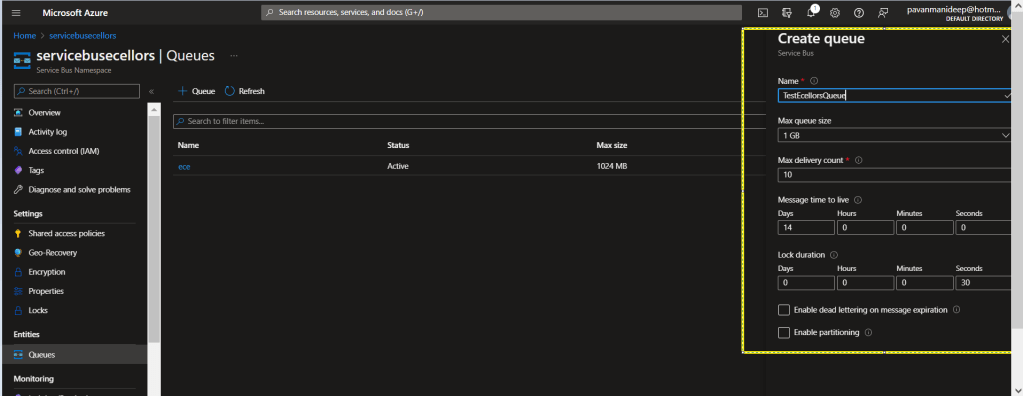
Next step is to create a queue or topic, in this case I am creating a queue….creating topic will be similar.

Fill up the details as required for the queue setup in the highlighted section…

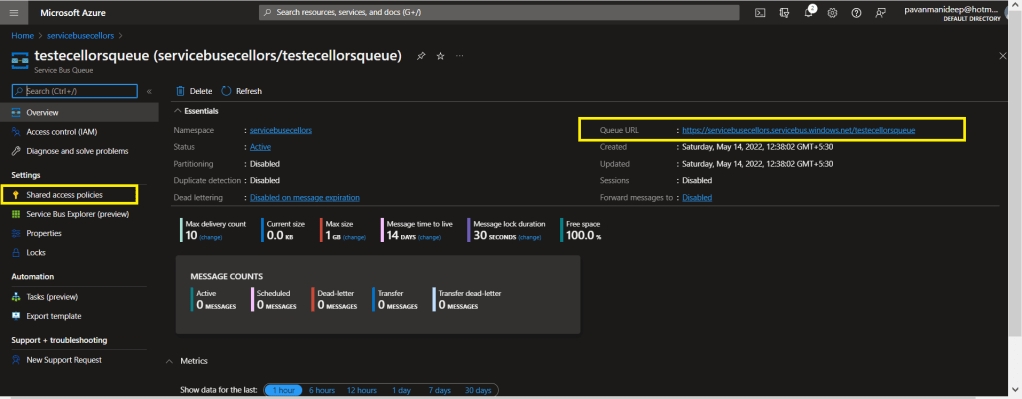
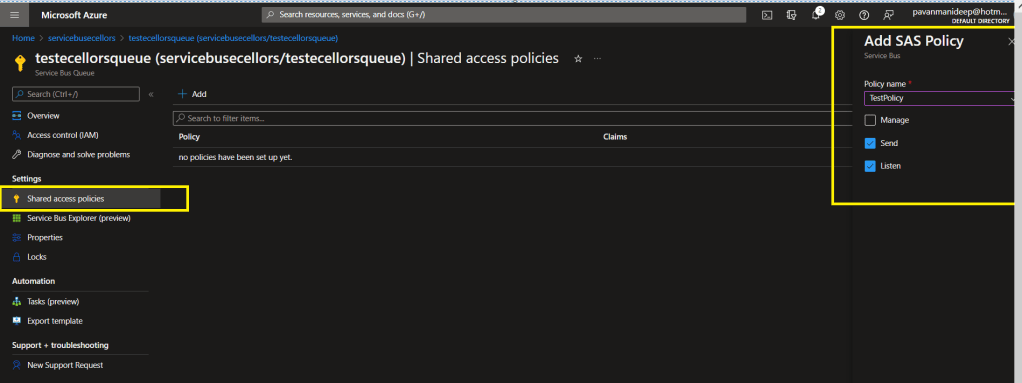
After creating a queue or topic, you need to create an access policy for the same as below

Do note the queue URL as highlighted above….access control in service bus is achieved through Shared Access policies.

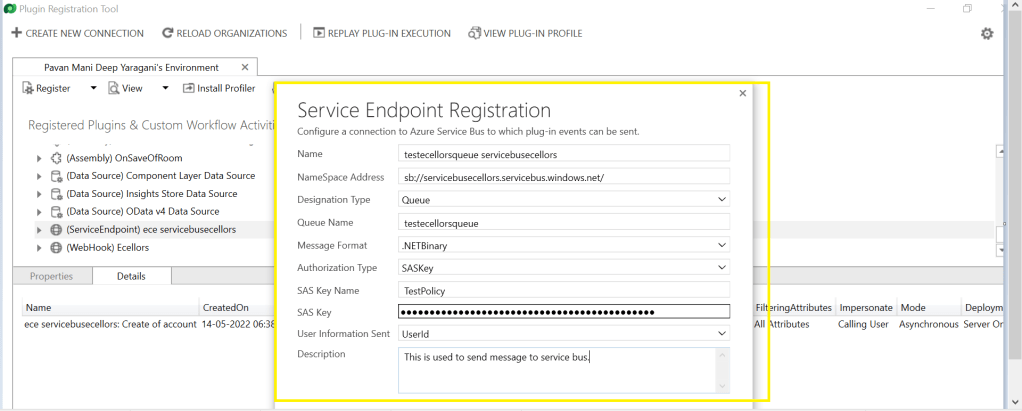
Once you have Primary connection string created, you need to go back to your Plugin registration tool and register a service end point for triggering your service bus message and provide the connection string in the below areas highlighted and click on next.

Next below appears for your review..

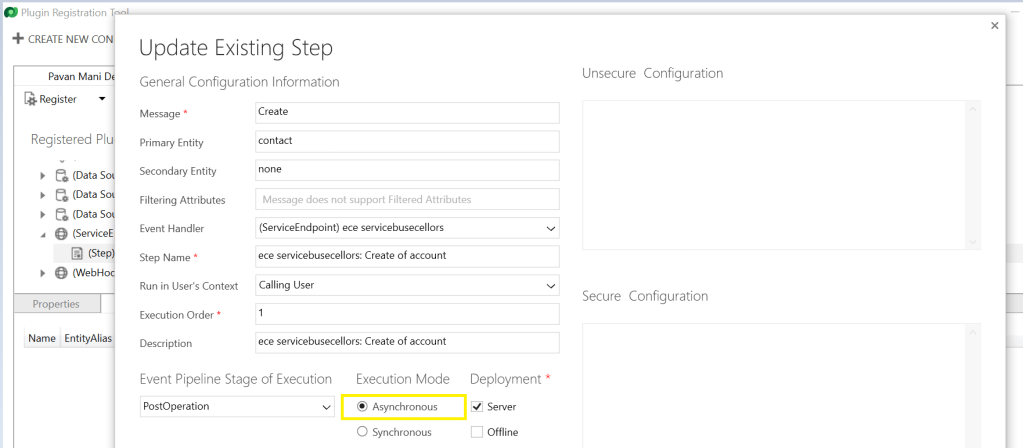
You can provide SAS Key or SAS Token for authentication in order to retrieve the messages from service bus and click on save. Now your end point is configured, now you can go ahead and create a step which will trigger the message to service bus from Dynamics, do note that you can only register an asynchronous operation inorder to communicate with your service bus.

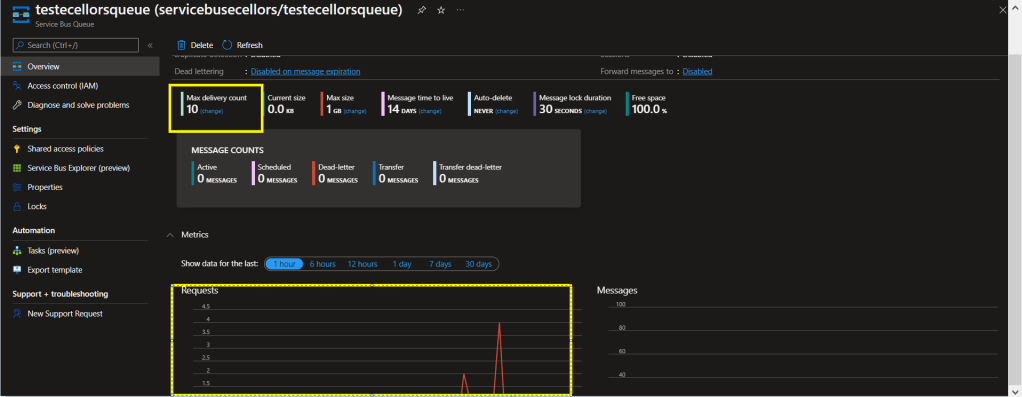
You can perform the necessary operation and you can find the message being created in the service bus. If it didn’t show up immediately, please refresh and try after a few mins.

In order to consume these messages, you can use a console application for the sake of retrieval. Once the message is retrieved, it will be deleted from the queue by default.

Incase you want to use those messages for your troubleshooting purposes, you can peek command, the Peek operation on a queue or a subscription returns at most the requested number of messages. The following table shows the types of messages that are returned by the Peek operation.

Type of messagesIncluded?
Active messagesYes
Dead-lettered messagesNo
Locked messagesYes
Expired messagesMay be (before they are dead-lettered)
Scheduled messagesYes for queues. No for subscriptions

I hope this provides right insights for integrating service bus with Azure and service bus is widely used when both systems were not in sync and available at the same time.

Thank you for reading…

Reference: Service Bus from Microsoft

Happy integrating Dynamics CE with Azure….#PowerfulAloneBetterTogether

Cheers,

PMDY

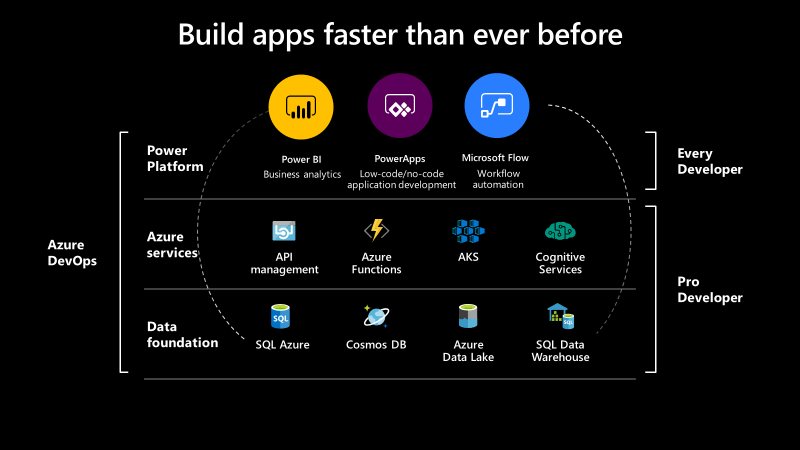
Overcome all your limits with Azure #PowerfulAloneBetterTogether Series

Hi Folks,

Hope every one should be very much interested in learning the base line for Power Platform which is Azure.

So this blog serves as the introduction in this #PowerfulAloneBetterTogether series.

Basically while designing your solution for your CE Apps, in order to improve the performance you need to make sure that you perform a minimal set of operations in CE and if in cases where you exceed the timeout limit in Dynamics CE and this is where the remote execution context should be passed to Azure Integration and move all your heavy operations outside your Dynamics CE preferably a line of business application.

So this is where we can think of the following possibilities for our integration…please click on respective link to navigate respectively…

  1. Azure functions/Function Apps
  2. Azure logic Apps
  3. Azure Service Bus
  4. Azure APIM
  5. Azure Event Hub
  6. Azure Cognitive Services
  7. Azure Cosmos DB
  8. Azure Synapse Analytics

I would be detailing about each of this integration with a separate blog post…how each one provides a bunch of alternatives to overcome our current limitations.

Hope this blog series would be of great help and will serve as a reference and your go to guide for your Power Platform and Azure Integrations.

Till then, happy CRM’ing…and stay safe!!!

Cheers,
PMDY

Connecting Raspberry Pi using Azure IOT Online Simulator

Hi,

This is my first post in the Azure IOT series….and really excited to share this content.

Have you ever tried a lot to get some hands-on experience connecting devices to Azure IOT Hub. Don’t worry…Microsoft IOT Team had made it so easy so that we can connect to a real device like Raspberry Pi without actually having any physical hardware with you.

This is all possible with Open Sourced Raspberry Pi Online Simulator…with the below link..

https://azure-samples.github.io/raspberry-pi-web-simulator/#GetStarted

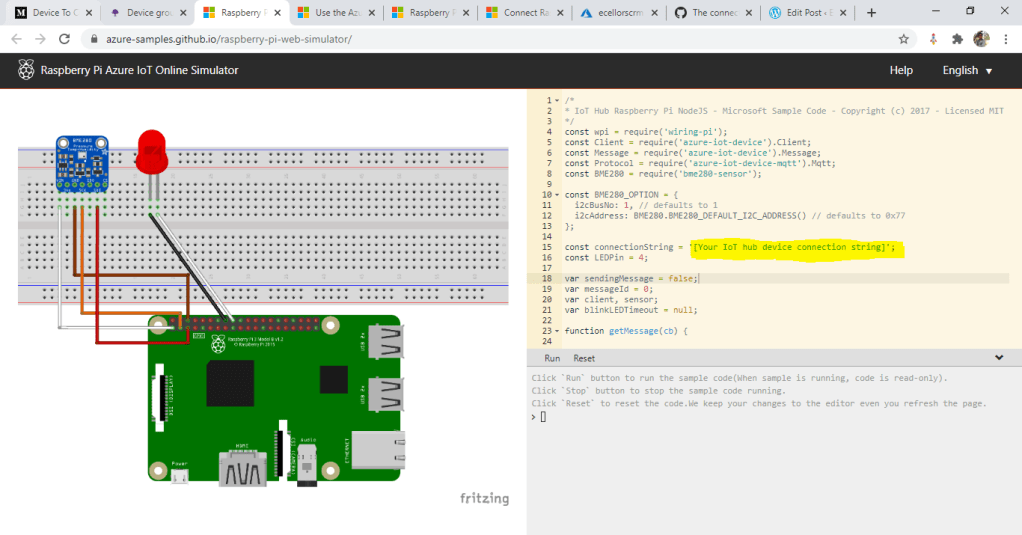
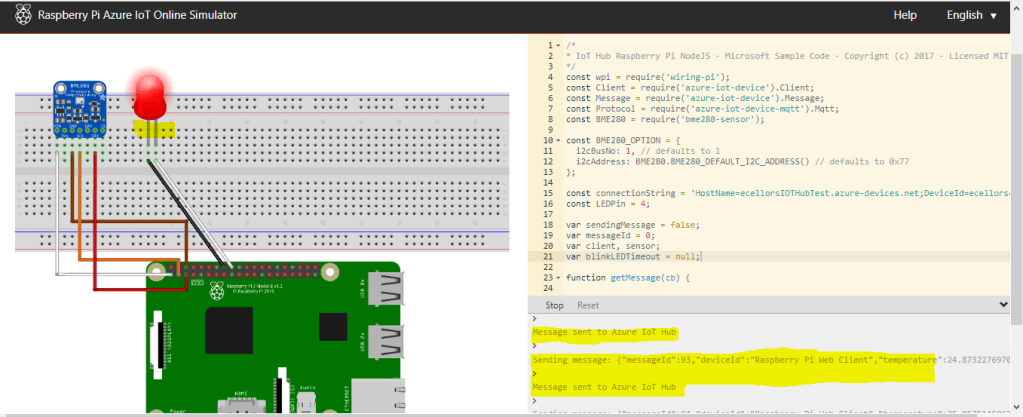
Once you open this…you should see the below screen….all you need to enter your IOT Device connection string…

If you check in the above image, you could see that connectionString is highlighted which you need to get from Azure Portal. So lets see how you can get this from Azure portal…

Step 1: Create a free Azure account or if you already have one proceed to next step

Step 2: Create Azure IOT Hub from Azure portal

From the Azure homepage, select the + Create a resource button, and then enter IoT Hub in the Search the Marketplace field

In the results, click Create.

Step 3: Once the deployment is succeeded and your Azure IOT Hub got created, you need to create a device to which you will be connected by navigating as below. Select IOT Devices under Explorers available in the Side pane as highlighted below

Step 4:

Click on New Device as highlighted below

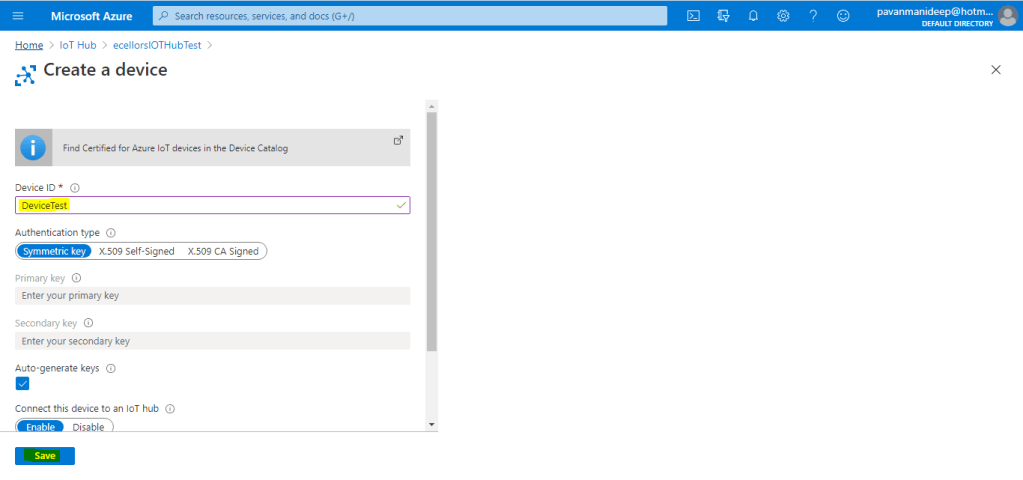
Step 5: Enter Device ID and click on save as higlighted below

Step 6: Now Open your device by click on IOT Devices…and grab the primary connection string..make sure Enable connection to IOT Hub is enabled as below.

Step 7: Now go back to Raspberry PI Simulator and enter this connection string at the place shown in the first image.

Step 8: And finally boom…you will see that the message sent to Azure…and the bulb was switched on.

In the next post, will briefly describe on the Node.js code used and also on the Device SDK’s for Azure IOT so that we can gain more insight.

If you have any further questions on this….please post it here or you can reach out to Community Support on this tool at the below link…

https://gitter.im/Microsoft/raspberry-pi-web-simulator

Hope this helps….

Thank you.

Cheers,

PMDY