
Hi Folks,
This blog post is all about performance considerations for your Power Platform CE Projects and how you can plan to optimize application performance for your Power Apps. So I just want to take you through them…
Are you tired of creating solutions for longer durations and while at the end of the project or during UAT you end up facing performance issues for the solutions you have developed, one of the most important non-functional requirements for a project’s success is Performance. Satisfying performance requirements for your users can be a challenge. Poor performance may cause failures in user adoption of the system and lead to project failure, so you might need to be careful for every decision you take while you design your solutions in the below stages.
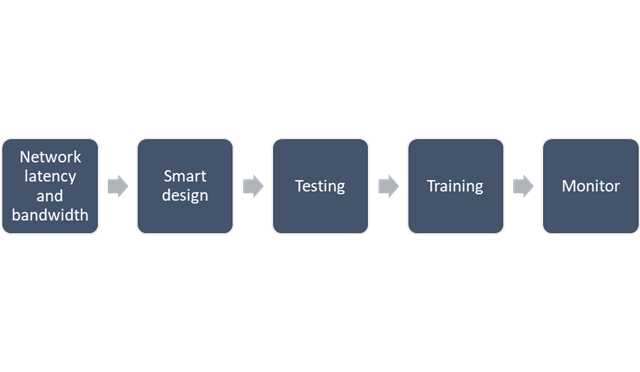
Let’s talk about them one by one..
1. Network Latency and bandwidth
A main cause of poor performance of Dynamics 365 apps is the latency of the network over which the clients connect to the organization.
- Bandwidth is the width or capacity of a specific communications channel.
- Latency is the time required for a signal to travel from one point on a network to another and is a fixed cost between two points. And usually many of these “signals” travel for a single request.
Lower latencies (measured in milliseconds) generally provide better levels of performance. Even if the latency of a network connection is low, bandwidth can become a performance degradation factor if there are many resources sharing the network connection, for example, to download large files or send and receive email.
Dynamics 365 apps are designed to work best over networks that have the following elements:
- Bandwidth greater than 50 KBps (400 kbps)
- Latency under 150 ms
These values are recommendations and don’t guarantee satisfactory performance. The recommended values are based on systems using out-of-the box forms that aren’t customized.
If you significantly customize the out-of-box forms, it is recommend that you test the form response to understand bandwidth needs.
You can use the diagnostics tool to determine the latency and bandwidth:
- On your computer or device, start a web browser, and sign in to an organization.
- Enter the following URL, https://myorg.crm.dynamics.com/tools/diagnostics/diag.aspx, where crm.dynamics.com is the URL of your organization.
- Click Run.
Also, to mitigate higher natural latency for global rollouts, customers should leverage Dynamics 365 Apps successfully by having smart design for their applications.
2.Smart Design for your application
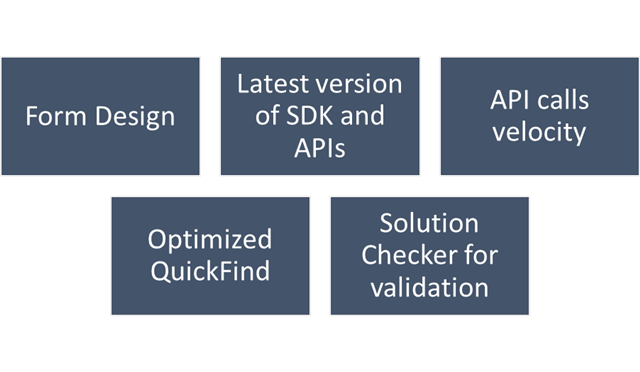
Form design
- Keep the number of fields to a minimum. The more fields you have in a form, the more data that needs to be transferred over the internet or intranet to view each record. Think about the interaction the user will have with the form and the amount of data that must be displayed within it.
- Avoid including unnecessary JavaScript web resource libraries. The more scripts you add to the form, the more time it will take to download them. Usually, scripts are cached in your browser after they are loaded the first time, but the performance the first time a form is viewed often creates a significant impression.
- Avoid loading all scripts in the Onload event. If you have code that only supports OnChange events for fields or the OnSave event, make sure to set the script library with the event handler for those events instead of the OnLoad event. This way loading those libraries can be deferred and increase performance when the form loads.
- Use tab events to defer loading web resources. Any code that is required to support web resources or IFRAMEs within collapsed tabs can use event handlers for the TabStateChange event and reduce code that might otherwise have to occur in the OnLoad event.
- Set default visibility options. Avoid using form scripts in the OnLoad event that hide form elements. Instead set the default visibility options for form elements that might be hidden to not be visible by default when the form loads. Then, use scripts in the OnLoad event to show those form elements you want to display. If the form elements are never made visible, they should be removed from the form rather than hidden.
- Watch out for synchronous web requests as they can cause severe performance issues. Consider moving to asynchronous for some of these web requests. Also, choose WebApi over of creating Xml HTTP Requests (XHR) on your own.
- Avoid opening a new tab or window and do open the window in the main form dialog.
- For Command Bar, keep the number of controls to a minimum. Within the command bar or the ribbon for the form, evaluate what controls are necessary and hide any that you don’t need. Every control that is displayed increases resources that need to be downloaded to the browser. Use asynchronous network requests in Custom Rules When using custom rules that make network requests in Unified Interface, use asynchronous rule evaluation.
Learn more Design forms for performance in model-driven apps – Power Apps | Microsoft Learn
Latest version of SDK and APIs
The latest version of SDK, Form API and WebAPI endpoints should be used to support latest product features, roadmap alignment and security.
APIs calls and custom FetchXML call velocity
Only the columns required for information or action should be included in API calls:
- Retrieving all columns (*) creates significant overhead on the database engine when distributed across significant user load. Optimization of call velocity is key to avoid “chatty” forms that unnecessarily make repeated calls for the same information in a single interaction.
- You should avoid retrieving all columns in a query result because of the impact on a subsequent update of records. In an update, this will set all field values, even if they are unchanged, and often triggers cascaded updates to child records. Leverage the most efficient connection mechanism (WebAPI vs SDK) and reference this doc site for guidance on the appropriate approach.
Consider reviewing periodically the Best practices and guidance when coding for Microsoft Dataverse – Power Apps | Microsoft Learn and ColumnSet.AllColumns Property (Microsoft.Xrm.Sdk.Query) | Microsoft Learn.
Error handling across all code-based events
You should continue to use the ITracingService.Trace to write to the Plug-in Trace Log table when needed. If your plug-in code uses the ILogger interface and the organization does not have Application Insights integration enabled, nothing will be written. So, it is important to continue to use the ITracingService Trace method in your plug-ins. Plug-in trace logs continue to be an important way to capture data while developing and debugging plug-ins, but they were never intended to provide telemetry data.
For organizations using Application Insights, you should use ILogger because it will allow for telemetry about what happens within a plug-in to be integrated with the larger scope of data captured with the Application Insights integration. The Application Insights integration will tell you when a plug-in executes, how long it takes to run and whether it makes any external http requests. Learn more about tracing in plugins Logging and tracing (Microsoft Dataverse) – Power Apps | Microsoft Learn.
Use Solution Checker to analyze solution components
Best practice is to run Solution Checker for all application code and include it as mandatory step while you design solutions or check when you complete developing your custom logic.
Quick Find
For an optimal search experience for your users consider the next:
- All columns you expect to return results in a quick find search need to be included in the view or your results will not load as expected.
- It is recommended to not use option sets in quick find columns. Try using the view filtering for these.
- Minimize the number of fields used and avoid using composite fields as searchable columns. E.g., use first and last name as searchable vs full name.
- Avoid using multiple lines of text fields as search or find columns.
- Evaluate Dataverse search vs using leading wildcard search
3. Training
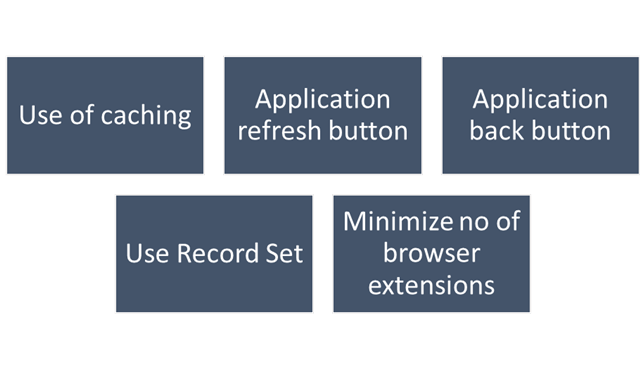
This step should be done during user training or during UAT. To ensure optimal performance of Dynamics 365, ensure that users are properly leveraging browser caching. Without caching, users can experience cold loads which have lower performance than partially (or fully) warm loads.
- Train users to not clear the browser cache manually.
- Check if there is any limit on disk cache size
- In the browser, Clearing cached images and files setting and ClearCachedImagesAndFilesOnExit policy should be disabled
- Check if devices have enough space allocated for browser cache.
Make sure to train users to:
- Use application inline refresh over browser refresh (should not use F5)
- Use application inline back button instead browser’s back button.
- Avoid InPrivate/Incognito modes in browser which causes cold loads.
- Make users aware that running applications which consumes lot of bandwidth (like video streaming) may affect performance.
- Do not install browser extensions unless they are necessary (this might be also blocked via policy)
- Do use ‘Record Set’ to navigate records quickly without switching from form back to the list.
4. Testing
For business processes where performance is critical or processes having complex customizations with very high volumes, it is strongly recommended to plan for performance testing. Consider reviewing the below technical talk series describing important performance considerations, as well as sharing practical examples of how to set up and execute performance testing, and analyze and mitigate performance issues. Reference: Performance Testing in Microsoft Dynamics 365 TechTalk Series – Microsoft Dynamics Blog
5. Monitoring
You should define a monitoring strategy and might consider using any of the below tools based on your convenience.
- Monitor Dynamic 365 connectivity from remote locations continuously using network monitoring tools like Azure Network Performance Monitor or 3rd party tools. These tools help identify any network related problems proactively and drastically reduce troubleshooting time of any potential issue.
- Application Insights, a feature of Azure Monitor, is widely used within the enterprise landscape for monitoring and diagnostics. Data that has already been collected from a specific tenant or environment is pushed to your own Application Insights environment. The data is stored in Azure Monitor logs by Application Insights, and visualized in Performance and Failures panels under Investigate on the left pane. The data is exported to your Application Insights environment in the standard schema defined by Application Insights. The support, developer, and admin personas can use this feature to triage and resolve Telemetry events for Microsoft Dataverse – Power Platform | Microsoft Learn
- Dataverse and PowerApps analytics in the Power Platform Admin Centre. Through the Plug-in dashboard in the Power Platform Admin Center you can view metrics such as average execution time, failures, most active plug-ins, and more.
- Dynamics 365 apps include a basic diagnostic tool that analyzes the client-to-organization connectivity and produces a report.
- Monitor is a tool that offers makers the ability to view a stream of events from a user’s session to diagnose and troubleshoot problems. Works both for model driven apps and canvas apps.
I hope this blog post had helped you learn or know something new…thank you for reading…
Cheers,
PMDY

 ECELLORS CRM Blog