Cannot connect to SQL Server from SSMS – Quick Tip

Hi Folks,

I will keep this blog post short…the few days back I have installed local SQL Server from this link in my laptop, I was able to connect to it then.

But later in less than a week, I was unable to connect to the same SQL Server from SSMS and gives me the below error.

To check this, firstly you need to see if such SQL Server is uninstalled and then check if it was running.

In my case, as I could already see the name of the Server in the SSMS, the next step is to check whether it is in running state. So, for this all you need to do was, just open the SQL Server Configuration Manager in your machine whenever you want to configure the network protocols which gets installed by default whenever you try to install the SQL Server and it actually shows up all the SQL Related Configurations.
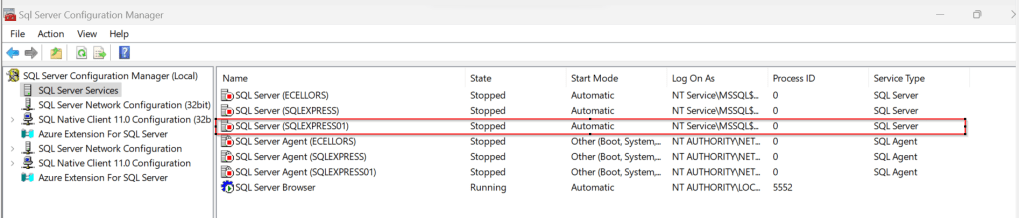
Just locate the SQL Server you were trying to connect and restart the same by right clicking on it…

Then try connecting to SQL Server, you should be able to connect to it…

That’s it…in the upcoming blog posts, we will see how we can work with On-premises Data Gateway to work with Dataflows in order to push the data to cloud and how you can show the data in Power BI.

Cheers,

PMDY

Changing Data Type of Primary Column now allowed in Model Driven Apps

Hi Folks,

Do you know you can change the Data type of an Primary column between Single Line of Text and Autonumber even after creation of your entity specifying a defined Primary Name Column. There is a catch….

So let’s see…

I first created a brand new Table called Demo Table and kept the Primary Column as Single Line of text. Earlier once the table is created, you will not be able to change the Primary name column if you wish to, the only way was to delete the table and re-create it with the correct type. But now you can change the type of the column at least to a unique autonumbering.

I want the Primary Name column to be unique, but when I look at the data in my table captured, I see many duplicates.

So let’s change the data type of the primary column data type to Autonumber.

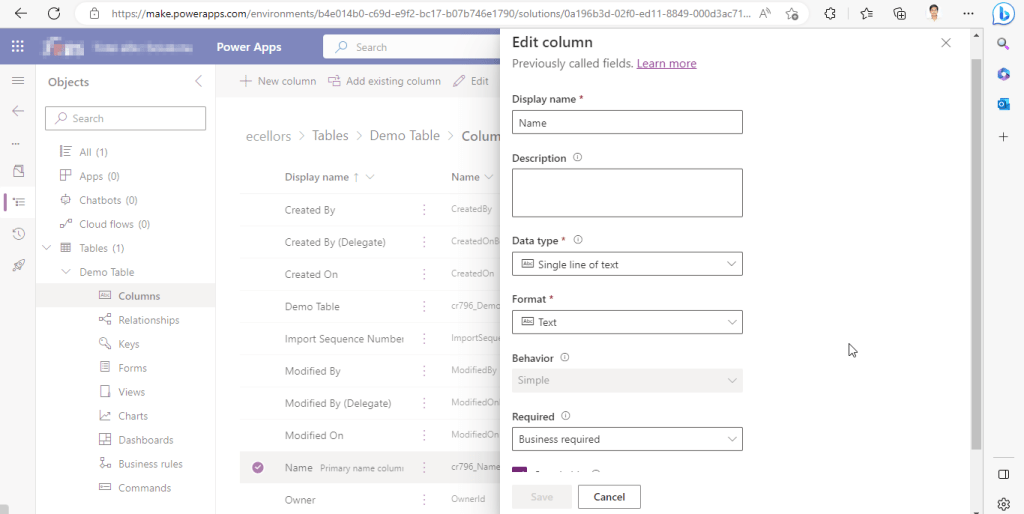
The primary field look as below initially…

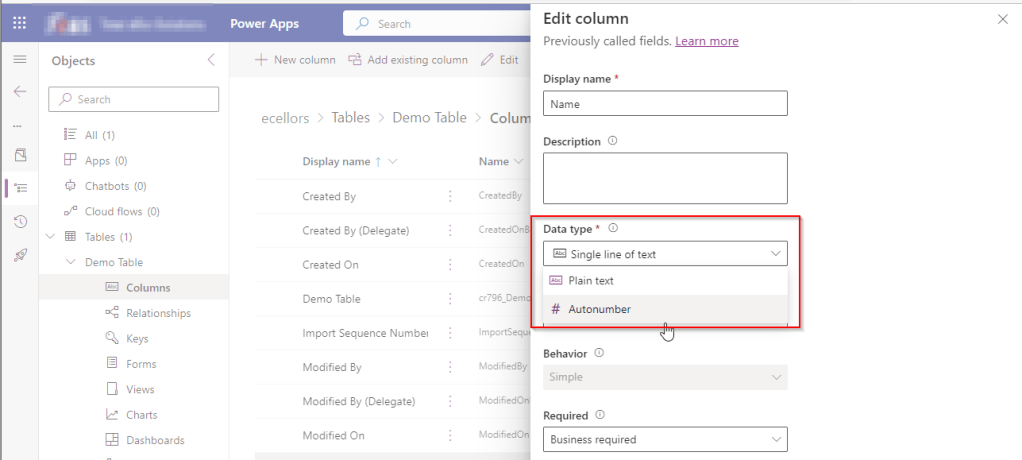
Select the Data Type available…

Now Select the Autonumber from the drop down available…you can optionally specify any custom prefix which you want for your Autonumber…and click Save and publish the customizations.

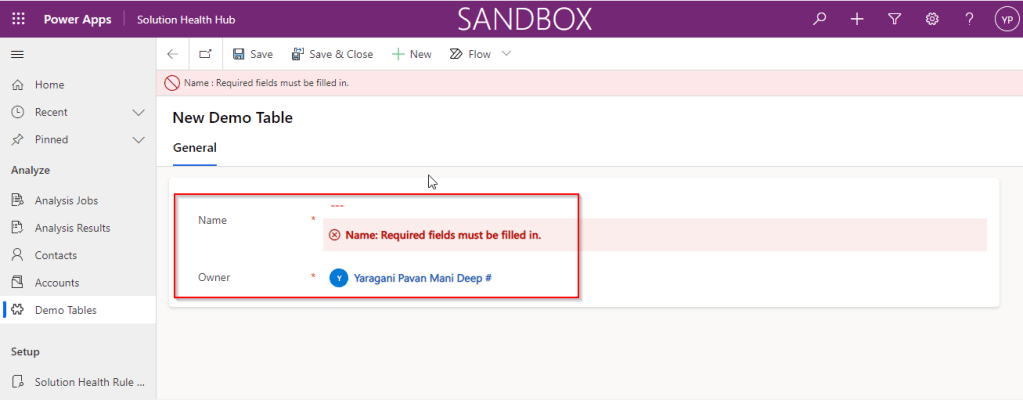
Now go back to your model driven app and then try creating a new record for the respective entity.

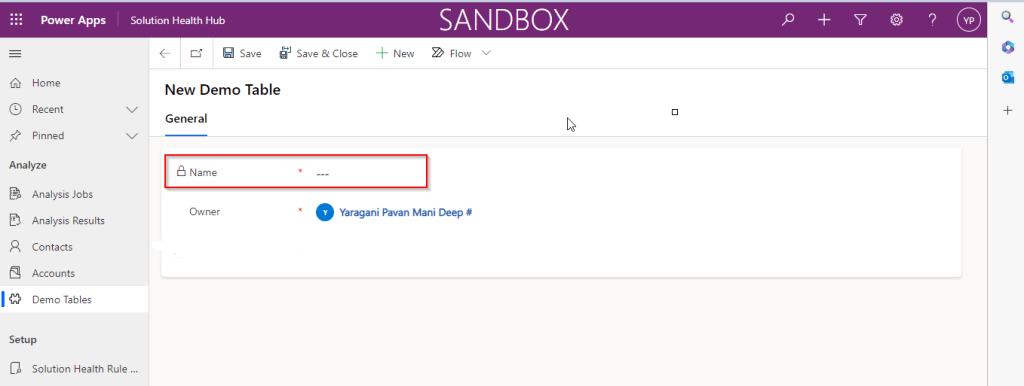
Since it was a primary field column, it is by default made mandatory…what’s up…the Autonumber column data type change is not reflecting….this is the same even if you check and publish the solution multiple times. Neither you can’t specify the field value because you already choose this to be an Autonumber and system should create it by itself.

If you were scratching your head, then this simple tip will help…

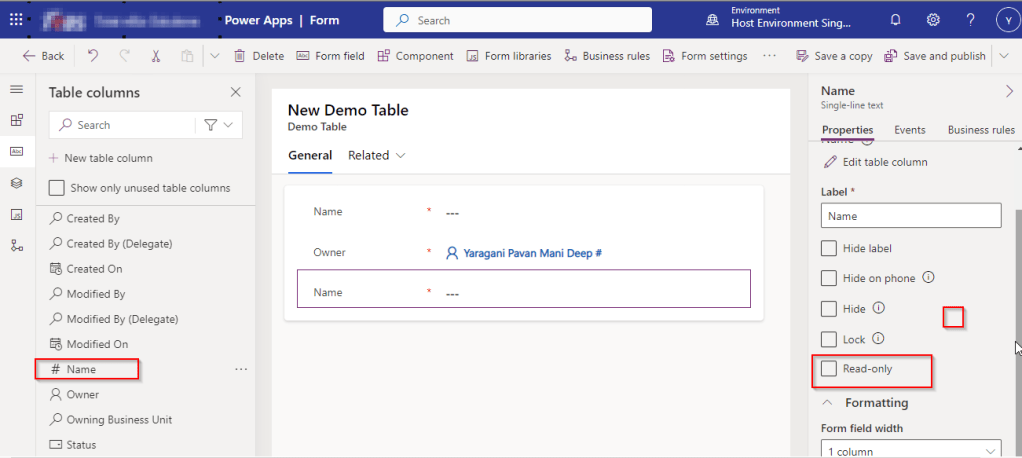
Just make the field read-only from the form where this field is being referred, so you don’t need to really enter value for it…then publish the customizations.

Once you have done…

Now try to save the record..

There you go, you can see an Autonumber being populated in the primary field…

Cheers,

PMDY