Start Transitioning your Dynamics 365 Client Applications to use Dataverse Client

Hi Folks,

This blog post deals about what you need to do for your client applications in specific to use Dataverse Client API instead of existing CrmServiceClient(Core Assemblies) API.

Below were 3 reasons cited by Microsoft and why we need to just be aware of this move.

1.Cross Platform Application Support: With the introduction of Microsoft.PowerPlatform.Dataverse.Client, the new Dataverse Service Client supports Cross Platform Support.

2. MSAL Authentication: New Dataverse ServiceClient API uses MSAL while our older CrmServiceClient API uses ADAL. ADAL.Net is no longer supported.

3. Performance and functional benefits: We can have one authentication handler per web service connection instead of just one per process. The Dataverse Service Client class supports a smaller interface surface, inline authentication by instance, and Microsoft.Extensions.Logging.ILogger.

What’s the impact?

  • Plug-ins or custom workflow activities – no changes
  • New or existing online applications – changes are needed but not immediately…
  • On-premises applications – this article is not for you, yet

So, meaning it impacts Online Client applications only. While you really don’t need to worry much about this the class member signatures of ServiceClient and CrmServiceClient are the same, except for the class names themselves being slightly different. Application code should not need any significant changes.

As of now, no changes to your code are required, but it is better to keep in mind that in the future the CRM 2011 Service End Point would be deprecated, and this change would be made mandatory.

So, what should you do to incorporate this change?

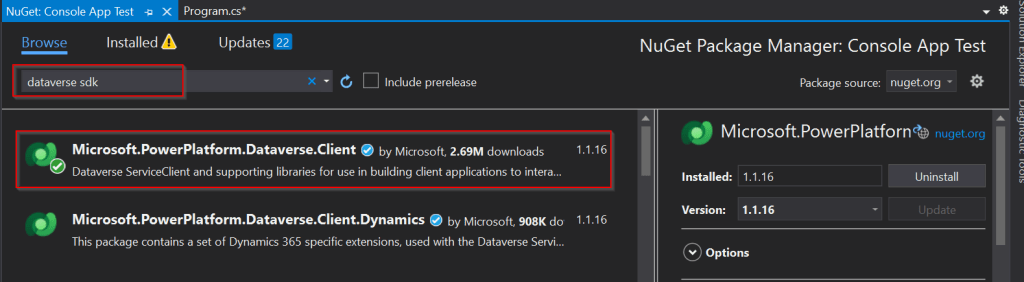
Use the following assemblies from Nuget instead of CrmSdk.CoreAssemblies
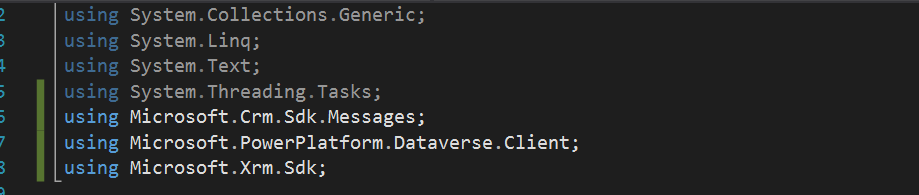
Add the below using statement to use Microsoft.PowerPlatform.Dataverse.Client
Use ServiceClient instead of CrmServiceClient, ServiceClient would return your OrganizationService.

Instead of

Be strategic to minimize the impact to your apps.

Cheers,

PMDY

Create a Custom Connector for your Web API from within Visual Studio

Hi Folks,

In this blog post, let’s see how we can create a custom connector without leaving our own Visual Studio for building a custom connector. Ideally for building any custom connector, we need to create them in https://make.powerapps.com or https://make.powerautomate.com. Last month Microsoft Announced that Power Platform is now a connected service in Visual Studio 2022. In this blog, we will utilize its capability…

Before diving deeper, let’s see what are the prerequisites..

  1. Visual Studio
  2. ASP .NET Web API knowledge
  3. Canvas Apps knowledge

Let’s get started..

Step 1:

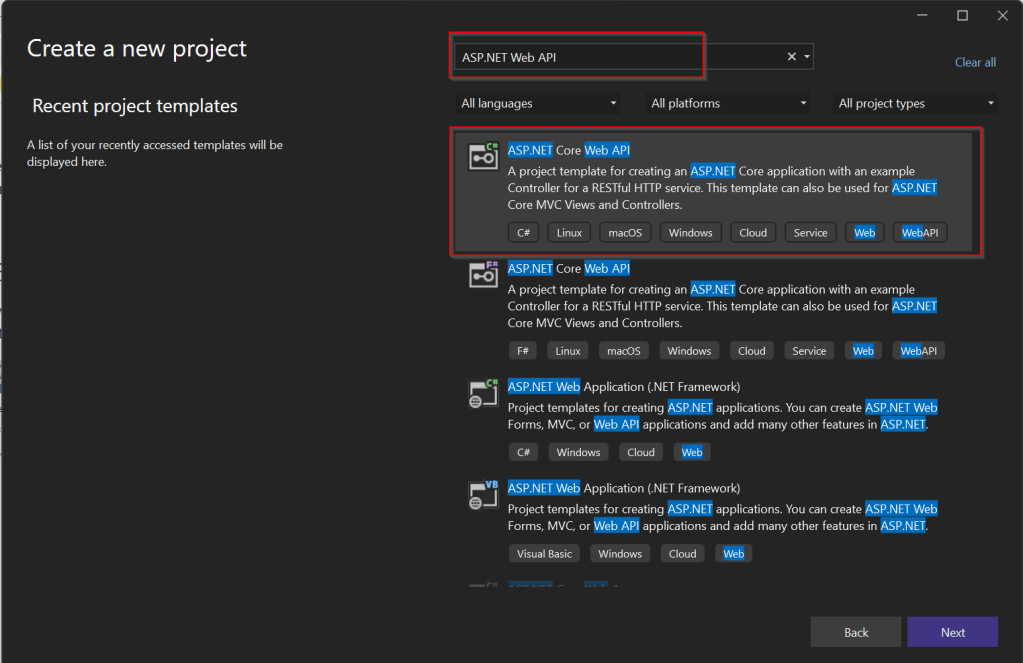
Create ASP.NET Web API Project in Visual Studio

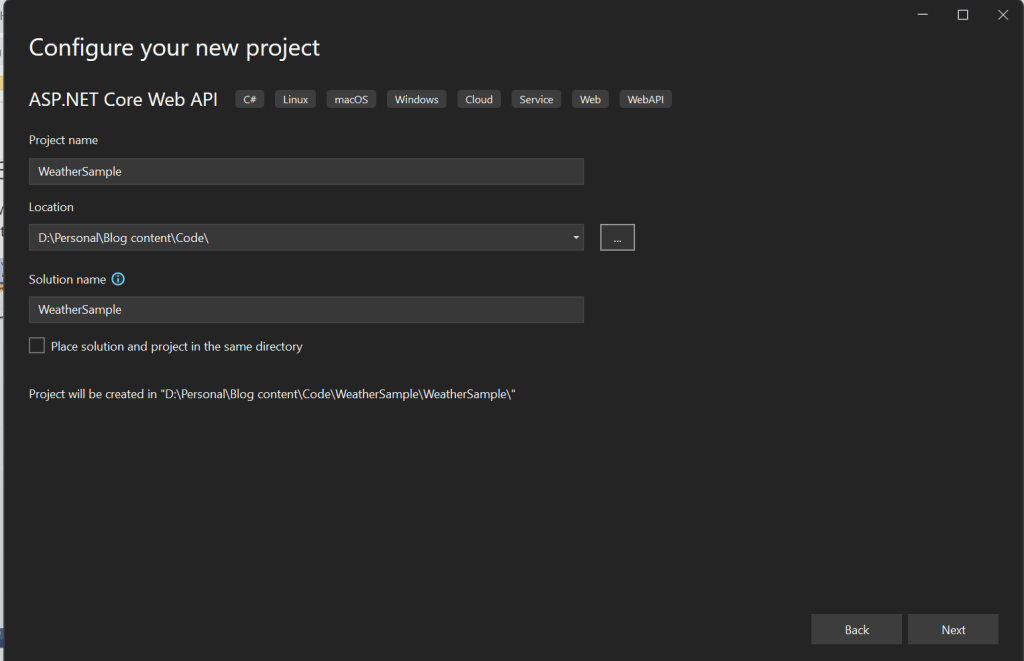
Step 2:Choose your option as below and click on Next..

Step 3:

Choose your next steps as below and click on Next to proceed, make sure to choose authentication type as None

Step 4:

Create a ASP.NET Core Web API Project

Step 5:

By adding Power Platform as a service dependency, you can update an existing custom connector, or create a new one from your API.

If you want to expose your local running API to a public endpoint, I prefer using Dev Tunnels feature of Visual Studio…

That’s it, you have started running your API.

Step 6:

Now let’s create a Mobile App with Power Apps…with the same login you have used for the Visual Studio to create a custom connector..

Step 7:

First check if Custom Connector has been created in your tenant and authenticate the connection….navigate to https://make.powerapps.com and click on Discover at the left of the page….and then click on Custom Connectors, you should see a connector which we created from Visual Studio….nice isn’t it…

Step 8:

All you need to create a connection by clicking on the + sign available..

Once connected, now try creating a mobile Canvas App..

In the Canvas App, try adding data…and search for Weather Sample which you created, you should see something like below…

Step 9:

Once the web API is running in your development environment, you can debug in real time and even Hot Reload your code.

References:

https://learn.microsoft.com/en-us/aspnet/core/test/dev-tunnels?view=aspnetcore-7.0#create-a-tunnel

Thank you for reading…

Cheers,

PMDY