Deploy dependent assemblies easily using PAC CLI

Hi Folks,

This is another post related to Plugins in Dynamics 365 CE.

Considering medium to large scale implementations, there isn’t a single Power Platform Project which don’t require merging of external assemblies.

We relied on ILMerge to merge those assemblies into a single DLL. We used to search for ILMerge assemblies in Nuget and installed them for use.

Then the plugins are signed in for several reasons, primarily related to security, assembly integrity, and versioning of the sandbox worker process.

But either of the above are no longer needed with the help of Dependent Assembly feature…with few simple steps, you can build the Plugin…Interesting, isn’t it, read on…

Pre requisites:

  • Download Visual Studio 2022 Community Edition here
  • Download VS Code from here
  • Download Plugin registration tool from here
  • Download PAC CLI from here
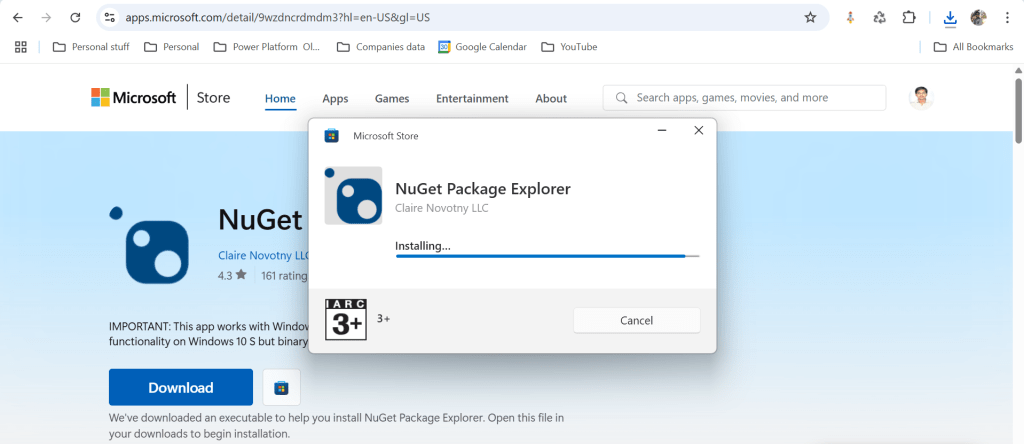
  • Download and install NuGet Package Explorer from this link NuGet Package Explorer open the NuGet Package Explorer

Avoid Direct Plugin Project Creation in Visual Studio

  • Never create a Plugin project directly from Visual Studio or any other IDE here after.
Use Microsoft PowerApps CLI instead
  • Always use Power Apps CLI as it easy and only requires a single command to create the entire Plugin project scaffolding
  • This ensures a standardized and reliable development environment.
  • It automatically creates a Nuget Package file that will be used to avoid ‘Could not load assemblies or its dependencies‘.

Ok, let’s begin.

Once you have downloaded all the prerequisites mentioned, make sure you have installed them in your local machine. Others are straight forward to download, for NuGet Package explorer, you need to search in Windows store to install.
  1. Create a local folder for the Plugins

Navigate to that folder from VS Code
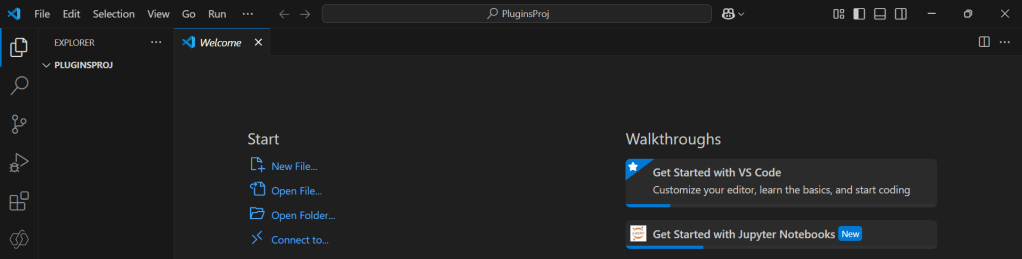
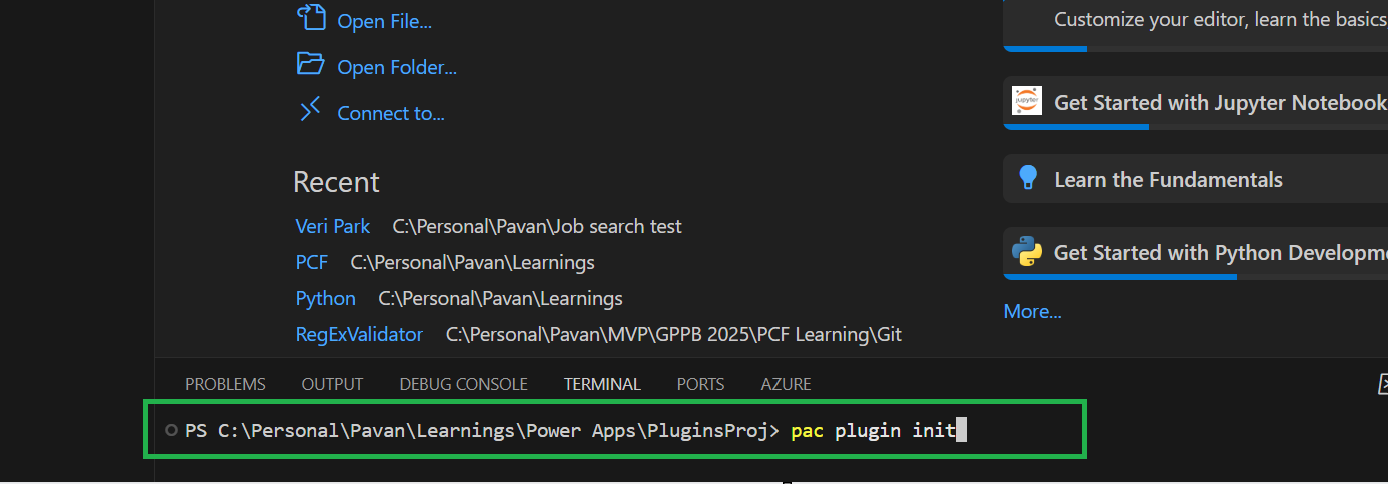
Now open terminal, run the pac command as below
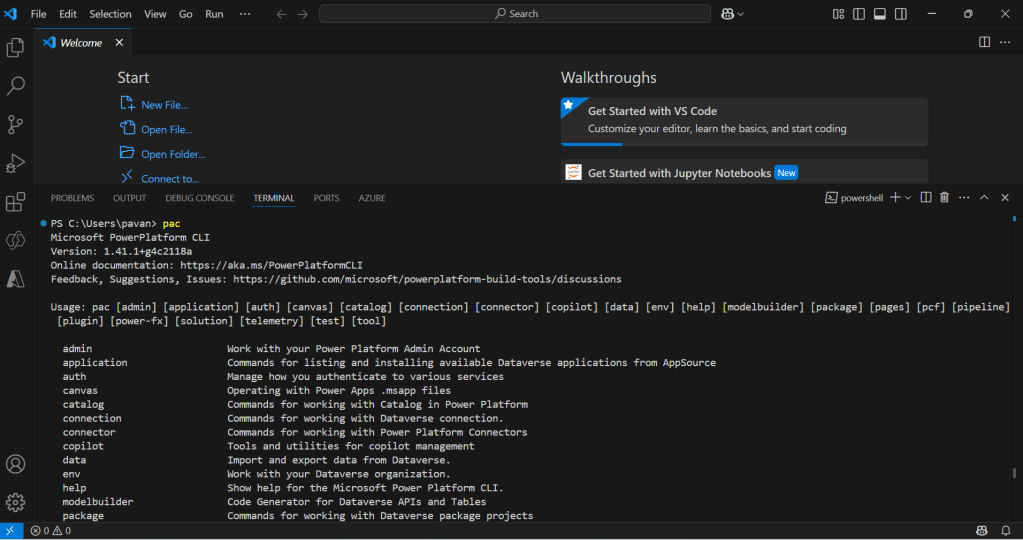
Execute the following command to create plugin project 

  • Browse to the directory where you want to create the plugin project
  • Execute the command on CMD to create plugin project “pac plugin init

A plugin project will be created at your desired location as follows

Plugin project in local folder will be created as below
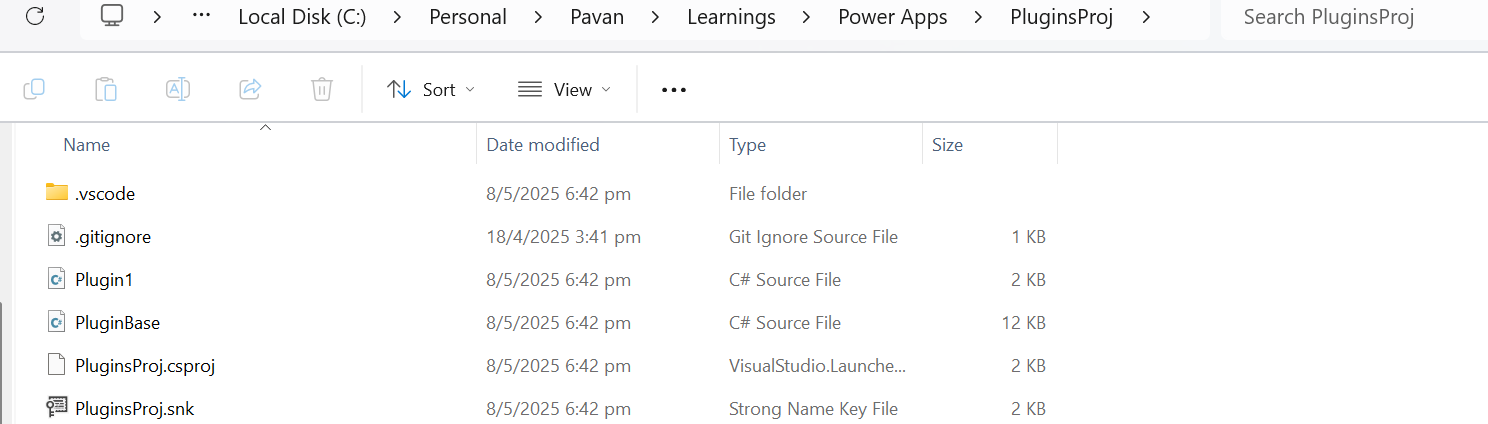
That’s it, you can close the VS Code for now.

Click on the CS Proj file and open it in Visual Studio

By default, 2 files are automatically created when you create a plugin project as shown above.

Now will install Bouncy Castle which is an external library, right click on the Plugin Solution –> Manage Nuge Packages
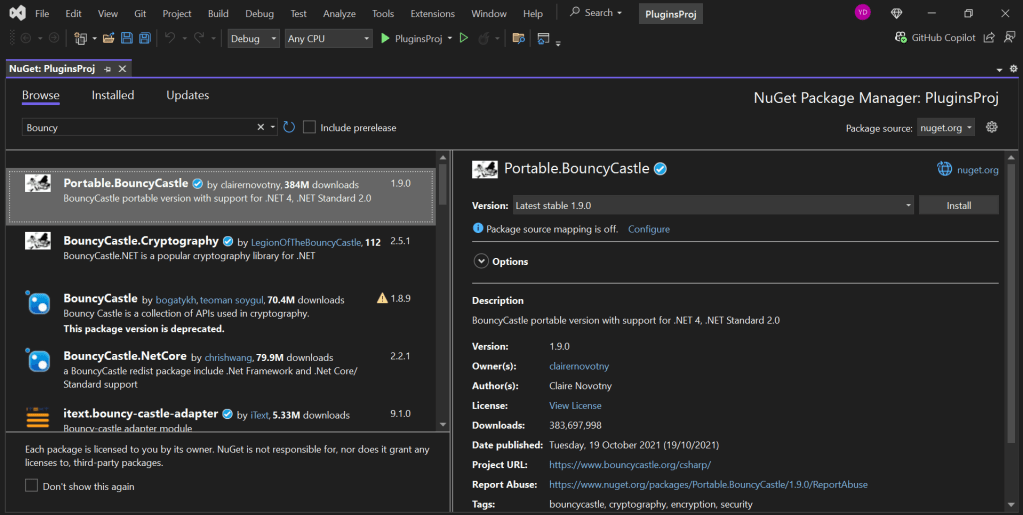
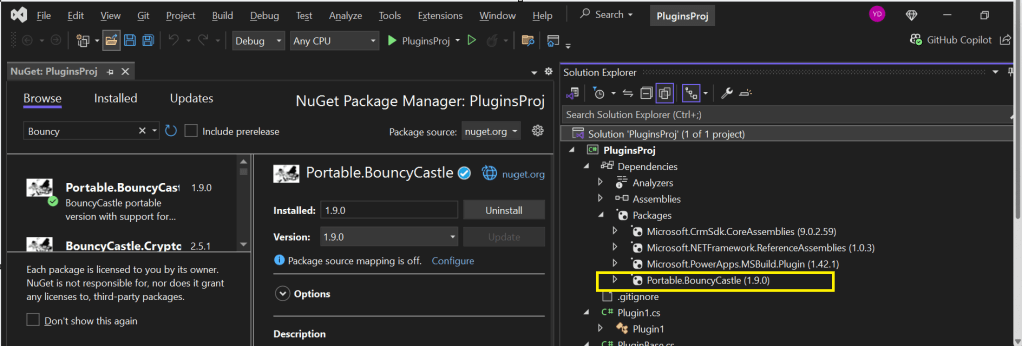
I have added Bouncy Castle NuGet Package to my plugin project for Encryption and Decryption. You can have your own required NuGet Package as per your need.

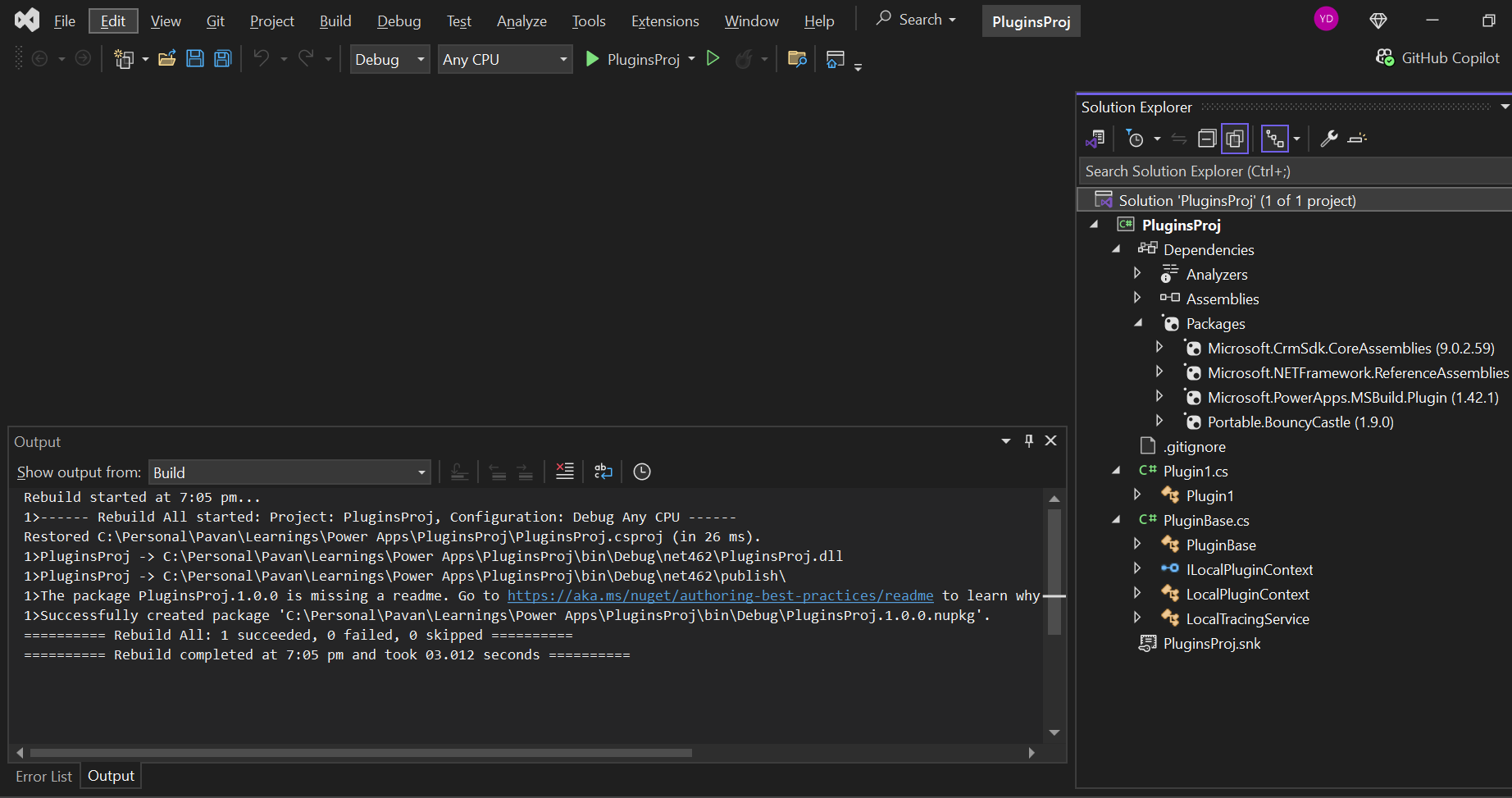
Build your project
After a successful build, you will get the output result as follows
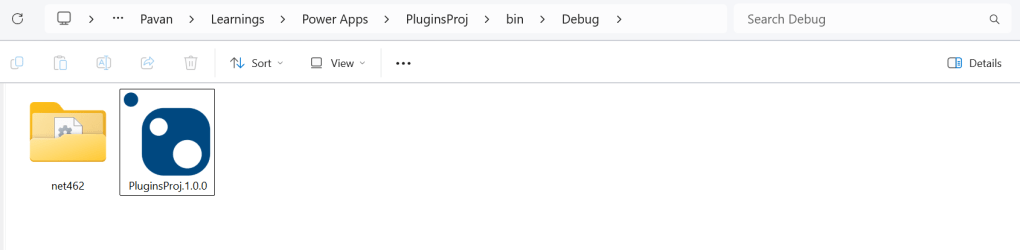
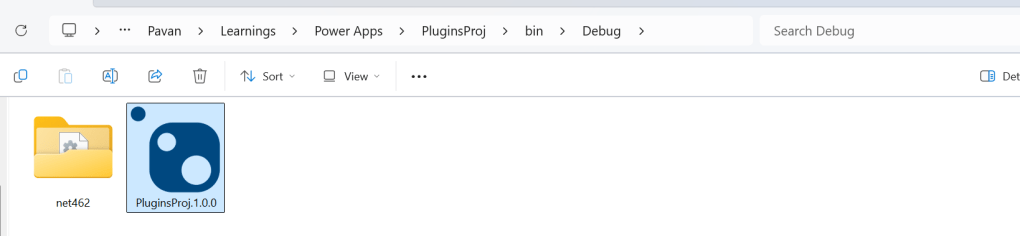
Browse the directory of your project
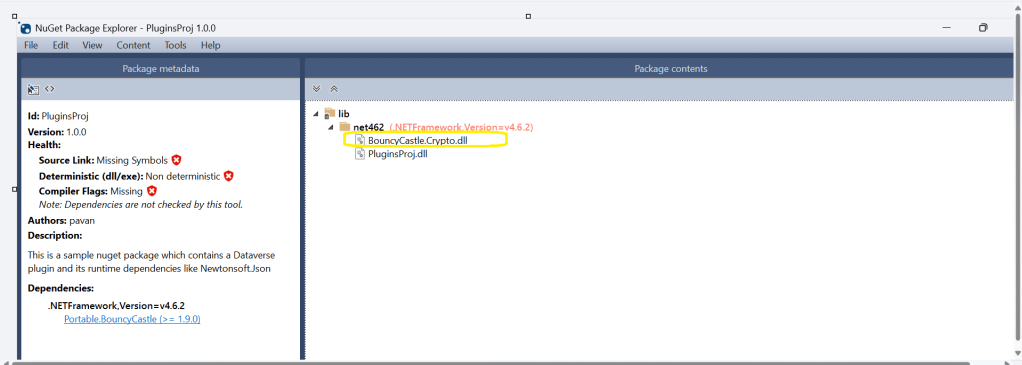
Open the file Plugin_Project.1.0.0.nupkg in Nuget Package Explorer by double clicking it

Now you can see that this nuget package file contains the information related to the added nuget package of Bouncy Castle that we want to include in our plugin project package as follows. In your case, you can have the required nuget package that you want to add 

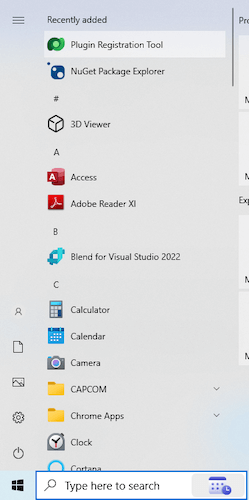
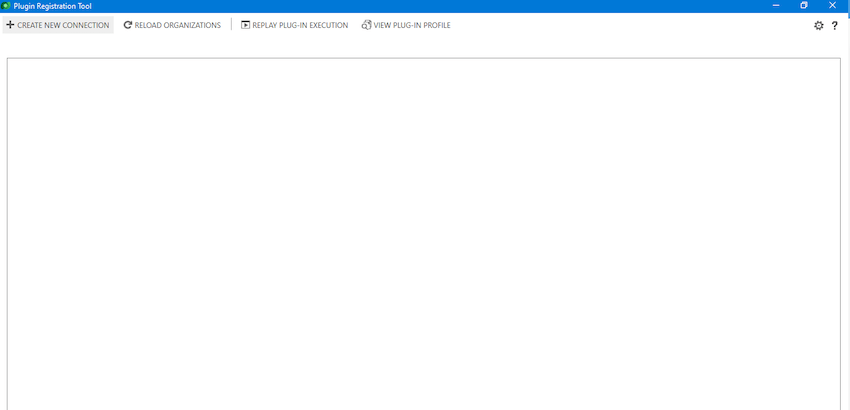
Now open up plugin registration tool
Click to create new connection
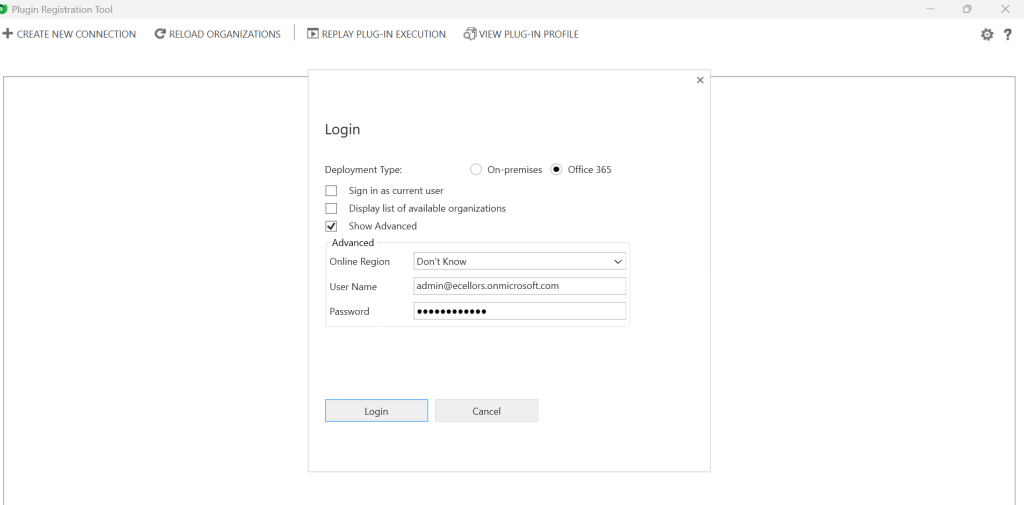
Provide login details and login
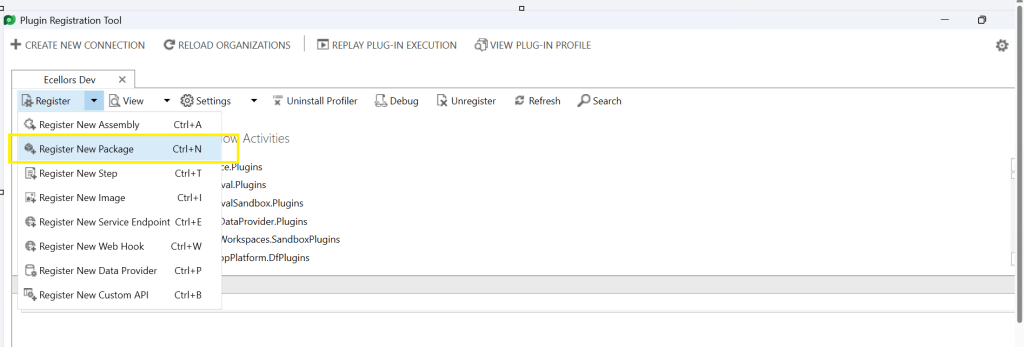
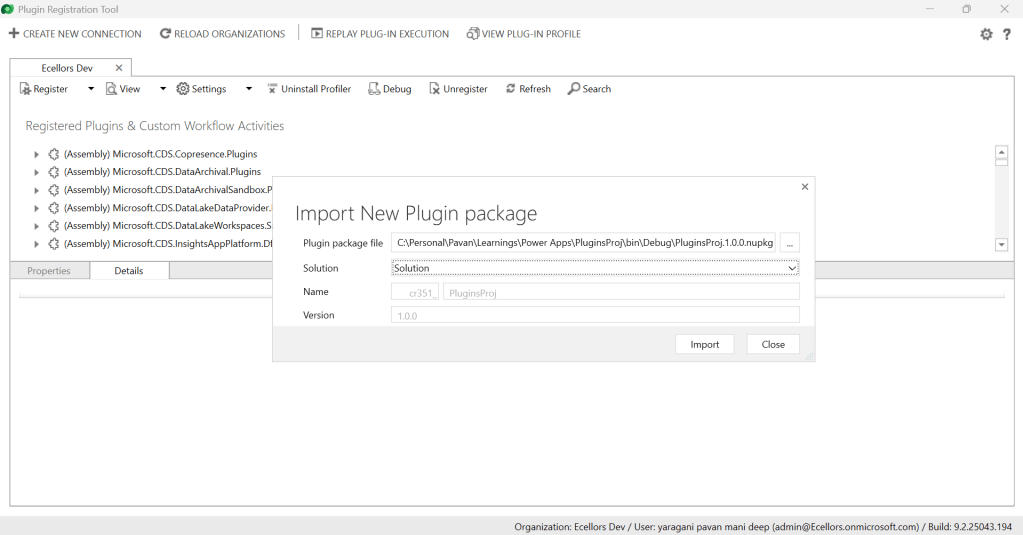
Click to Register New Package
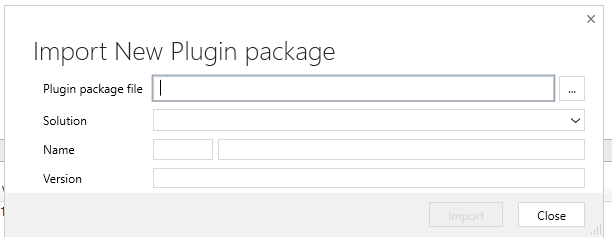
Browse to the directory where your nuget package file was created automatically when you build the project and import this file 
Select the Command Data Service Default Solution and import it
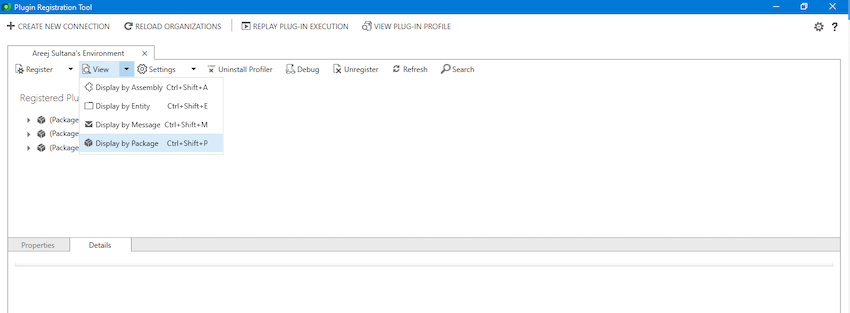
Click on view and Display by package
Now your Plugin Project is successfully registered with all dependent assemblies and ready to use.
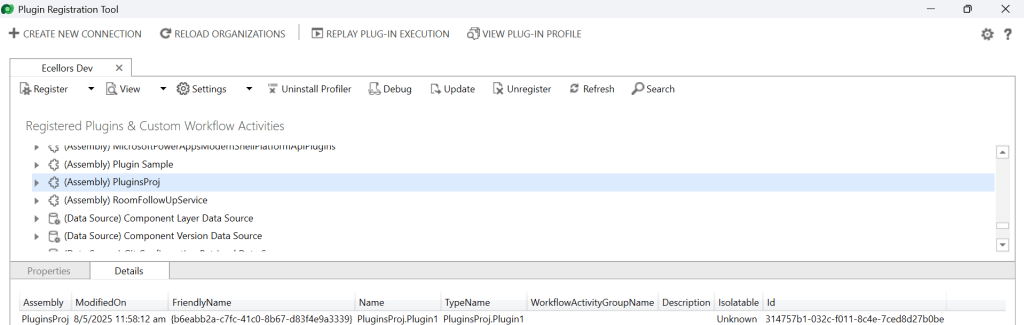
While this post gives you a structure on how you can do build a plugin assembly, you can add the business logic as per your need.

Conclusion:

In conclusion, navigating the intricacies of Microsoft Dynamics 365 CRM plugins demands a nuanced approach, especially when dealing with NuGet Packages and dependent assemblies. This article has delved into the critical process of resolving the persistent ‘Could not load assemblies or its dependencies‘ issue, offering a comprehensive, step-by-step demonstration.

By following the recommended best practices, such as avoiding direct plugin project creation in Visual Studio and harnessing the power of Microsoft PowerApps CLI, developers can establish a standardized and reliable development environment. The CLI’s automatic creation of a NuGet Package file not only streamlines the process but also reduces the errors.

To further facilitate your journey, prerequisites such as downloading and installing essential tools like the Plugin Registration tool, Microsoft PowerApps CLI, and NuGet Package Explorer are highlighted. The guide emphasizes the significance of these tools in ensuring a smooth plugin development experience.

By adopting these practices and incorporating the suggested steps into your workflow, you not only troubleshoot existing issues but also fortify your understanding of the entire process. Take charge of your Dynamics 365 CRM plugin development, elevate your skills, and sidestep common pitfalls by mastering the art of handling NuGet Packages and dependencies seamlessly.

References:

Build and package plug-in code

Cheers,

PMDY 

Is your plugin not running? Have you debugged? Plugin doesn’t run but your operation is successful when debugging…then try this out

Hi Folks,

Last few weeks was very busy for me, I missed interacting with the community.

Here I would like to share one tip which can greatly help your debugging…

Just to give a little background, I was working with the Plugins for Dynamics 365 recently where I was working with API, the Plugin seem to work fine when debugged using Profiler, I tested the piece of the Plugin Code in Console, it worked either, but Plugin is not working when the respective action which triggers the Plugin is being fired. I scratched my head, what is the problem…

Just then, I tried using the below block of code, replaced the catch block of Plugin Code with below code.

catch(WebException ex)
{
string stringResponse = string.Empty;
int statusCode;
using (WebResponse response = ex.Response)
{
HttpWebResponse httpResponse = (HttpWebResponse)response;
statusCode = (int)httpResponse.StatusCode;
using (Stream data = response.GetResponseStream())
using (var reader = new StreamReader(data))
{
stringResponse = reader.ReadToEnd();
}
using (var ms = new MemoryStream(Encoding.Unicode.GetBytes(stringResponse)))
{
}
}
view raw Detailed Error hosted with ❤ by GitHub

Soon, I observed from the detailed error message above function posted, it is failing because of version problem of the referenced DLL and current DLL version was not supported with my assembly.

Soon I was able to reference my Plugin with correct DLL version which fixed the issue. No further debugging was needed.

Hope this helps…

Cheers,

PMDY
Another way to install Plugin Registration Tool for Dynamics 365 CE from Nuget

Hi Folks,

Are you a Power Platform or Dynamics 365 CE Developer, you would definitely need to work on Plugin Registration tool at any given point of time and having a local application for Plugin Registration tool greatly helps…in this post, I will show a little different way to install Plugin registration tool and that too very easily.

Well, this approach is especially useful to me when I got a new laptop and need to work on Plugin Registration Tool where the Plugins already build for the implementation.

First 3 ways might have known to everyone through which you can download Plugin registration tool…do you know there is fourth approach as well…

  1. From XrmToolBox
  2. From https://xrm.tools/SDK
  3. Installation from CLI
  4. See below

Because there were limitations to use these approaches at least in my experience, I found the fourth one very useful.

  1. XrmToolBox – Not quite convenient to profile and debug your plugins
  2. https://xrm.tools/SDK – Dlls in the downloaded folder will be blocked and would need to manually unblock the DLL’s for the Tool to work properly
  3. CLI – People rarely use this.

Just do note that the approach is very easy and works only if you have a Plugin Project already. Please follow the steps below

  1. Just open the Plugin project.
  2. Right click on the solution and choose manage Nuget Packages for the solution
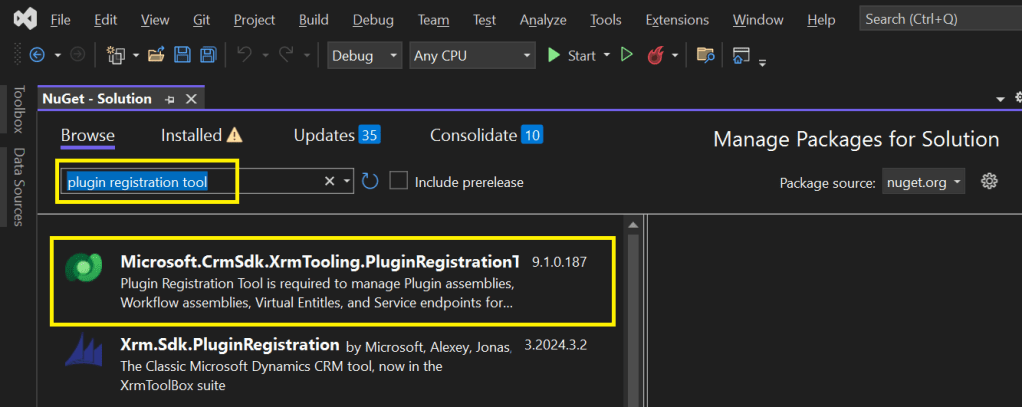
  3. Search for Plugin Registration tool as below

4. Choose the Plugin project and click install, confirm the prompt and agree the license agreement shown

5. Once installed, next go to the Project folder in the local machine.

6. Navigate to Packages folder, you should see a folder for Plugin Registration tool below

7. There you go, you can open the Plugin Registration Application under tools folder. You can undo the changes for the Assembly it is linked to Source control.

That’s it, how easy it was? Hope this would help someone.

Cheers,

PMDY
Using Bulk Operations messages – #01 (Plugins)

Well, this could be a very interesting post as we talk about optimizing the Dataverse performance using bulk operation messages and too using Dataverse plugin customizations but wait, this post is not complete because of an issue which I will talk later in the blog. First let’s dig into this feature by actually trying out. Generally, every business wants improved performance for any logic tagged out to out of box messages and so developers try to optimize their code in various ways when using Dataverse messages.

Firstly, before diving deeper into this article, let’s first understand the differences between Standard and Elastic tables, if you want to know a bit of introduction to elastic tables which were newly introduced last year, you can refer to my previous post on elastic tables here.

The type of table you choose to store your data has the greatest impact on how much throughput you can expect with bulk operations. You can choose out of two types of tables in Dataverse, below are some key differences you can refer to: 

 Standard TablesElastic Tables
Data StructureDefined SchemaFlexible Schema
Stores data in Azure SQLStores data in Azure Cosmos DB
Data IntegrityEnsuredLess Strict
Relationship modelSupportedLimited
PerformancePredictableVariable, preferred for unpredictable and spiky workloads
AgilityLimitedHigh
PersonalizationLimitedExtensive
Standard and Elastic Table Differences

Plugins:

With Bulk Operation messages, the APIs being introduced are Create MultipleUpdateMultiple,DeleteMultiple (only for Elastic tables), Upsert Request(preview). As of now you’re not required to migrate your plug-ins to use CreateMultiple and Update Multiple instead of Create and Update messages. Your logic for Create and Update continues to be applied when applications use CreateMultiple or UpdateMultiple

This is mainly done to prevent two separate business logics for short running and long duration activities. So, it means Microsoft have merged the message processing pipelines for these messages (Create, Create Multiple; Update, Update Multiple) that means Create, Update messages continue to trigger for your existing implemented scenarios, when you update to use Create Multiple, Update Multiple still the Create, Update will behave.

Few points for consideration:

  1. While I have tested and still could see IPluginExecutionContext only provides the information and still I have noted Microsoft Documentation suggests using IPluginExecutionContext4 for Bulk Messages in Plugins where it is being shown as null yet.
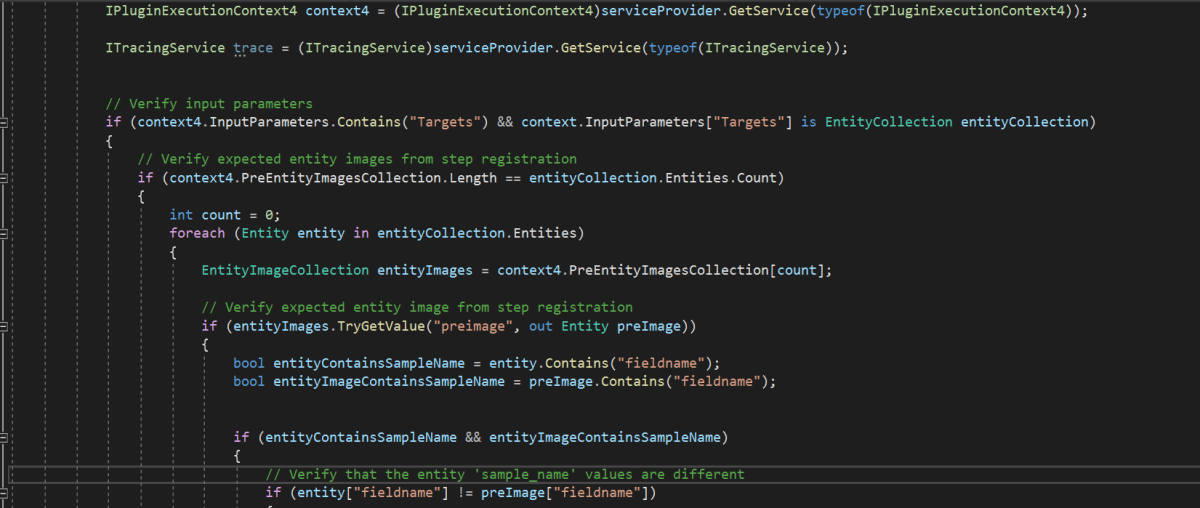
  2. While you were working with Create, Update, Delete, you could have used Target property to get the input parameters collection, while working with Bulk Operation messages, you need to use Targets instead of Target.
  3. Instead of checking whether the target is Entity you need to use Entity Collection, we need to loop through and perform our desired business logic
  4. Coming to Images in plugin, these will be retrieved only when you have used IPluginExecutionContext4.

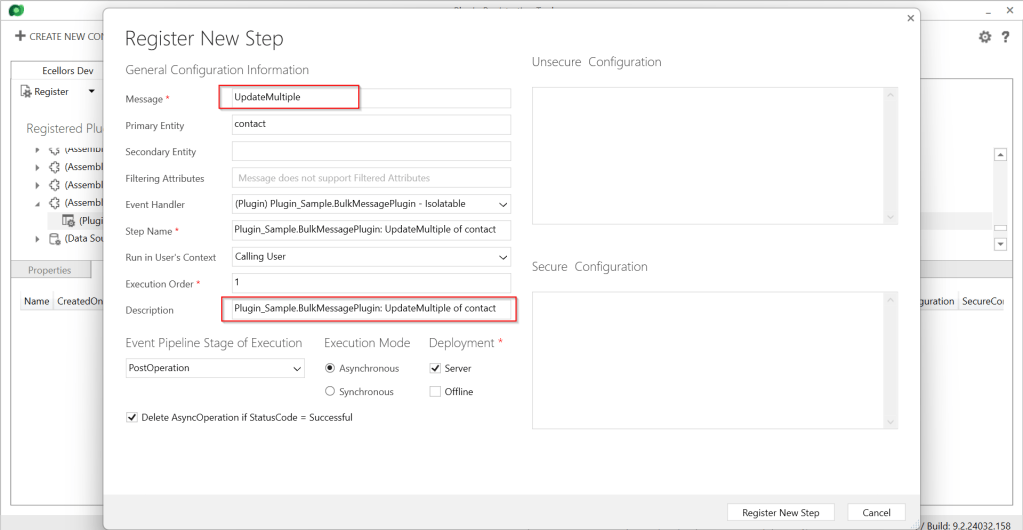
Below is the image from Plugin Registration Tool to refer(e.g. I have taken UpdateMultiple as reference, you can utilize any of the bulk operation messages)

Sample:

Below is the sample, how your Bulk operation message plugin can look like…you don’t need to use all the contexts, I have used to just check that out.

using System;
using System.Collections.Generic;
using System.Linq;
using System.Text;
using System.Threading.Tasks;
using Microsoft.Crm.Sdk;
using Microsoft.Xrm.Sdk;
using Microsoft.Xrm.Sdk.Query;
namespace Plugin_Sample
{
public class BulkMessagePlugin : IPlugin
{
public void Execute(IServiceProvider serviceProvider)
{
IPluginExecutionContext context = (IPluginExecutionContext)serviceProvider.GetService(typeof(IPluginExecutionContext));
IPluginExecutionContext2 context2 = (IPluginExecutionContext2)serviceProvider.GetService(typeof(IPluginExecutionContext2));
IPluginExecutionContext3 context3 = (IPluginExecutionContext4)serviceProvider.GetService(typeof(IPluginExecutionContext3));
IPluginExecutionContext4 context4 = (IPluginExecutionContext4)serviceProvider.GetService(typeof(IPluginExecutionContext4));
ITracingService trace = (ITracingService)serviceProvider.GetService(typeof(ITracingService));
// Verify input parameters
if (context4.InputParameters.Contains("Targets") && context.InputParameters["Targets"] is EntityCollection entityCollection)
{
// Verify expected entity images from step registration
if (context4.PreEntityImagesCollection.Length == entityCollection.Entities.Count)
{
int count = 0;
foreach (Entity entity in entityCollection.Entities)
{
EntityImageCollection entityImages = context4.PreEntityImagesCollection[count];
// Verify expected entity image from step registration
if (entityImages.TryGetValue("preimage", out Entity preImage))
{
bool entityContainsSampleName = entity.Contains("fieldname");
bool entityImageContainsSampleName = preImage.Contains("fieldname");
if (entityContainsSampleName && entityImageContainsSampleName)
{
// Verify that the entity 'sample_name' values are different
if (entity["fieldname"] != preImage["fieldname"])
{
string newName = (string)entity["fieldname"];
string oldName = (string)preImage["fieldname"];
string message = $"\\r\\n – 'sample_name' changed from '{oldName}' to '{newName}'.";
// If the 'sample_description' is included in the update, do not overwrite it, just append to it.
if (entity.Contains("sample_description"))
{
entity["sample_description"] = entity["sample_description"] += message;
}
else // The sample description is not included in the update, overwrite with current value + addition.
{
entity["sample_description"] = preImage["sample_description"] += message;
}
}
}
}
}
}
}
}
}
}

I have posted this question to Microsoft regarding the same to know more details on this why the IPluginExecutionContext4 is null , while still I am not sure if this is not deployed to my region, my environment is in India.

Recommendations for Plugins:

  • Don’t try to introduce CreateMultiple, UpdateMultiple, UpsertMultiple in a separate step as it would trigger the logic to be fired twice one for Create operation and another for CreateMultiple.
  • Don’t use batch request types such as ExecuteMultipleRequest, ExecuteTransactionRequest, CreateMultipleRequest, UpdateMultipleRequest, UpsertMultipleRequest in Plugins as user experiences are degraded and timeout errors can occur.
  • Instead use Bulk operation messages like CreateMultipleRequestUpdateMultipleRequest, UpsertMultipleRequest
    • No need to use ExecuteTransactionRequest in Synchronous Plugins as already they will be executed in the transaction.

    Hope this guidance will help someone trying to customize their Power Platform solutions using Plugins.

    I will write another blog post on using Bulk operation messages for Client Applications…

    Cheers,

    PMDY
    Why the Data structure HashSet can be Saviour at times?

    Hi Folks,

    Thank you for vising my blog today…I believe many of the Consultants or Power Platform professionals out there didn’t know about the HashSet available in .Net since version 3.5.

    By the way, what is HashSet..here is a brief about it?

    HashSet is a data structure which we mightn’t have come across, neither me until implementing one of my requirements. It offers several benefits compared to other data structures for specific use cases. HashSet is preferred and advantageous, here is a use case where HashSet can be useful than other Data Structures available…followed by Advantages and disadvantages.

    Scenario: I have a requirement where I need to send an email to the owners of the record using Custom workflow when record is updated, I see many numbers of records are having same owner and hence same email addresses are being added to the To activity party which I want to prevent, it is then, I searched and found of this HashSet.

    using System.Collections.Generic;
    HashSet<Guid> uniqueGuids = new HashSet<Guid>();
    Guid guidToAdd = Guid.Empty;
    guidToAdd = ecellorsdemo.GetAttributeValue<EntityReference>("ecellors_ownerid").Id;
    if (!uniqueGuids.Contains(guidToAdd))
    {
    uniqueGuids.Add(guidToAdd);
    ToParty["partyid"] = new EntityReference(EntityConstants.SystemUser, guidToAdd); // Set the partyid
    ToPartyCol.Entities.Add(ToParty);
    }
    view raw HashSetDemo.cs hosted with ❤ by GitHub

    In this way, you can get the owner of the record and add to the HashSet as shown above in the diagram. Also Hash Set can help prevent adding duplicate records making it an ideal way to deal in certain scenarios.

    Advantages:

    1. Fast Lookup: It is efficient for tasks that involve frequent lookups, such as membership checks.
    2. Uniqueness: All elements are unique. It automatically handles duplicates and maintains a collection of distinct values. This is useful when you need to eliminate duplicates from a collection.
    3. No Order: It does not maintain any specific order of elements. If the order of elements doesn’t matter for your use case, using a HashSet can be more efficient than other data structures like lists or arrays, which need to maintain a specific order.
    4. Set Operations: It supports set operations like union, intersection, and difference efficiently and beneficial when you need to compare or combine sets of data, as it can help avoid nested loops and improve performance.
    5. Hashing: It relies on hashing to store and retrieve elements. Hashing allows for quick data access and is suitable for applications where fast data retrieval is crucial.
    6. Scalability: It typically scales well with a large number of elements, as long as the hash function is well-distributed, and collisions are minimal.

    Limitations include:

    1. Lack of order: It you need to maintain the order of elements, then this is a good candidate for your implementation.
    2. Space usage: It is memory intensive and is not recommended when memory optimization is being considered.
    3. Limited Metadata: It primarily stores keys (or elements), which means you have limited access to associated metadata or values. If you need to associate additional data with keys, you might consider other data structures like HashMap or custom classes.

    I hope this gives an overview on using HashSet…however you can’t use Hash Set in all scenarios, it actually depends on your use case, please check the disadvantages too before using it… if you have any questions, don’t hesitate to ask…

    Thank you and keep rocking…

    Cheers,

    PMDY

    Update user personal settings Automatically easily when a new user gets added to Dynamics 365 Environments

    Hi Folks,

    In the Dynamics 365 world, it’s all about efficiently handling the user requests. Whenever you add any user to the environment, the system will update the default personal settings for the user. Maybe you could have some processes in your system which is dependent on the user time zone. So, setting the time zone is very important. It is tedious to update the personal settings manually going to the user profile and updating it manually every time.

    In case you want to do it for all users at one time during initial setup, you can follow my blog post Update Model Driven App Personal Settings from XrmToolBox.

    Of course, you have a wonderful tool in XrmToolBox from which we will be able to set the User Personal Settings in bulk so that we can update to all the users in one go. What if we want to automate this process, i.e. whenever you add a new user to the Dynamics 365 environment, you want to set that person time zone automatically without any manual intervention.

    There you go…this post is for you then…you can do it simply using Plugin or Power Automate. In this blog post, we will see how we can utilize the Plugin as it is more effective approach.

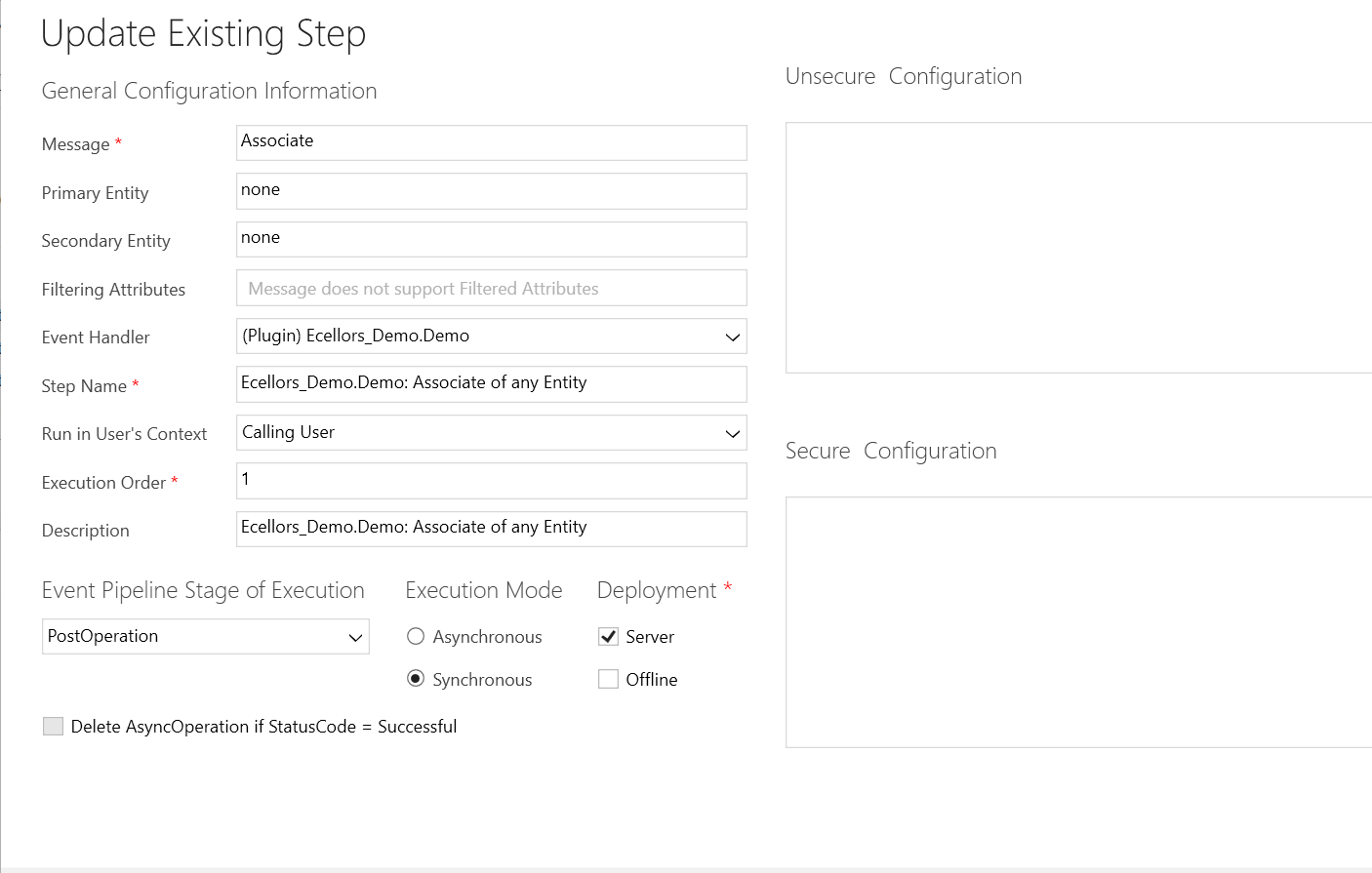
    You need to write a Plugin on Associate Message.

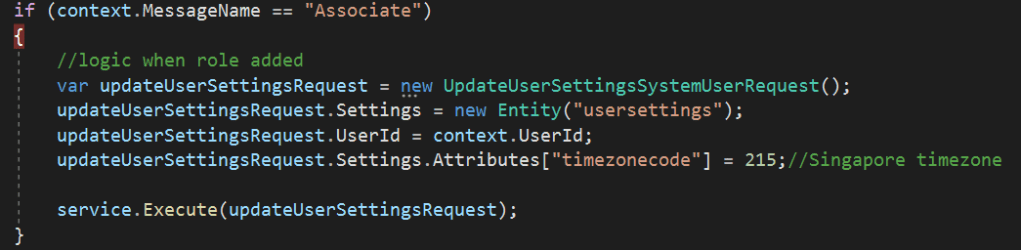
    Just use this piece of code to set Personal settings…

    using System;
    using System.Collections.Generic;
    using System.Linq;
    using System.ServiceModel;
    using System.Text;
    using System.Threading.Tasks;
    using Microsoft.Xrm.Sdk;
    using Microsoft.Crm.Sdk;
    using Microsoft.Crm.Sdk.Messages;
    namespace Ecellors_Demo
    {
    public class Demo : IPlugin
    {
    public void Execute(IServiceProvider serviceProvider)
    {
    // Obtain the tracing service
    ITracingService tracingService =
    (ITracingService)serviceProvider.GetService(typeof(ITracingService));
    // Obtain the execution context from the service provider.
    IPluginExecutionContext context = (IPluginExecutionContext)
    serviceProvider.GetService(typeof(IPluginExecutionContext));
    IOrganizationServiceFactory serviceFactory =
    (IOrganizationServiceFactory)serviceProvider.GetService(typeof(IOrganizationServiceFactory));
    IOrganizationService service = serviceFactory.CreateOrganizationService(context.UserId);
    if (context.InputParameters.Contains("Relationship"))
    {
    var relationshipName = context.InputParameters["Relationship"].ToString();
    try
    {
    if (relationshipName != "systemuserroles_association.")
    {
    return;
    }
    if (context.MessageName == "Associate")
    {
    //logic when role added
    var updateUserSettingsRequest = new UpdateUserSettingsSystemUserRequest();
    updateUserSettingsRequest.Settings = new Entity("usersettings");
    updateUserSettingsRequest.UserId = context.UserId;
    updateUserSettingsRequest.Settings.Attributes["timezonecode"] = 215;//Singapore timezone
    service.Execute(updateUserSettingsRequest);
    }
    if (context.MessageName == "Disassociate")
    {
    //logic when role removed
    var updateUserSettingsRequest = new UpdateUserSettingsSystemUserRequest();
    updateUserSettingsRequest.Settings = new Entity("usersettings");
    updateUserSettingsRequest.UserId = context.UserId;
    updateUserSettingsRequest.Settings.Attributes["timezonecode"] = 0;//UTC timezone
    service.Execute(updateUserSettingsRequest);
    }
    else
    {
    return;
    }
    }
    catch (FaultException<OrganizationServiceFault> ex)
    {
    throw new InvalidPluginExecutionException("An error occurred in UserSettingsPlugin.", ex);
    }
    catch (Exception ex)
    {
    tracingService.Trace("UserSettingsPlugin: {0}", ex.ToString());
    throw;
    }
    }
    }
    }
    }

    Update the personal settings as per your needs in this request. You can find all the attributes of the user settings table by using Fetch Xml Builder easily.

    Hope this helps someone.

    Cheers,

    PMDY

    Debug Plugins with Dataverse Browser – Quick Recap

    Hi Folks,

    This post is for all who are working on D365 Model Driven Apps and mainly Plugins.

    Yes, you saw it right, in this blog post, we will see how can debug plugin without using our favorite plugin profiler which is very widely used from quite some time by everyone working on Plugins for Dynamics 365. All this is done by a tool called Dataverse Browser, which is not yet on XrmToolBox. Please note that there were some limitations as detailed in limitation section below.

    Here are 3 simple steps to follow..

    1. Install Dataverse Browser
    2. Attach the Debugger
    3. Run your actual operation.
    4. Step into your code and debug it.

    The tool embeds a web browser based on Chromium. It works by translating the Web API requests to SDK requests. Then it analyzes if plugin steps are registered on the message and it loads them, make them run locally. All other requests are sent to the Dataverse, so that the plugins are interacting with the real database.

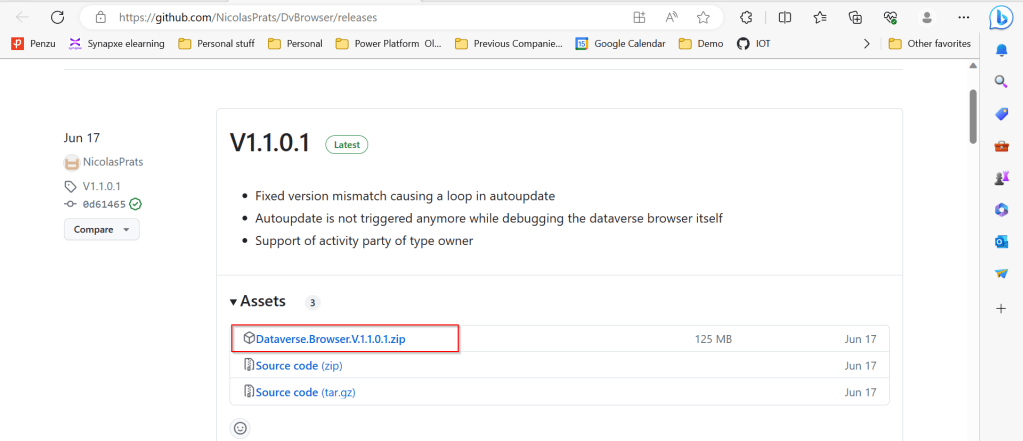
    Download the latest source code of Dataverse browser here.

    Next extract the zip file downloaded as highlighted below

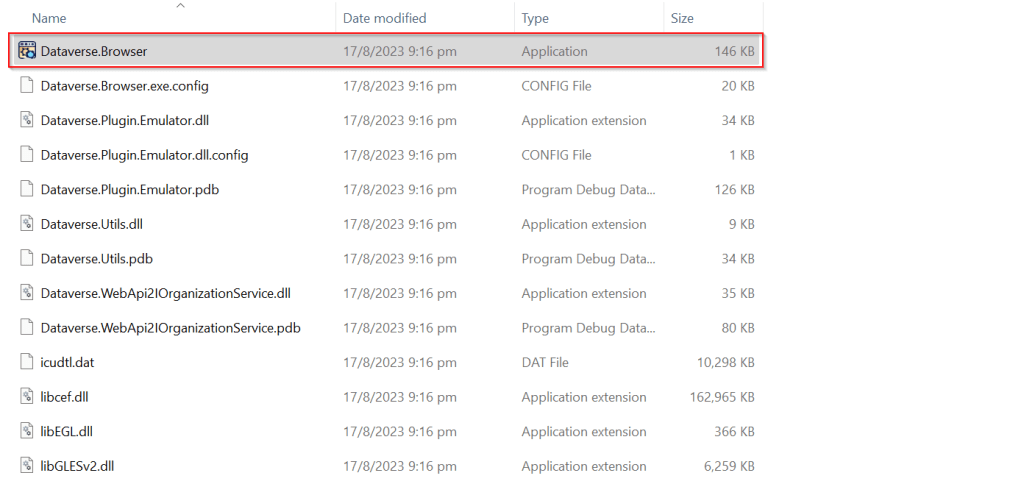
    Extract the zip file downloaded, open Dataverse.Browser Application as highlighted below.

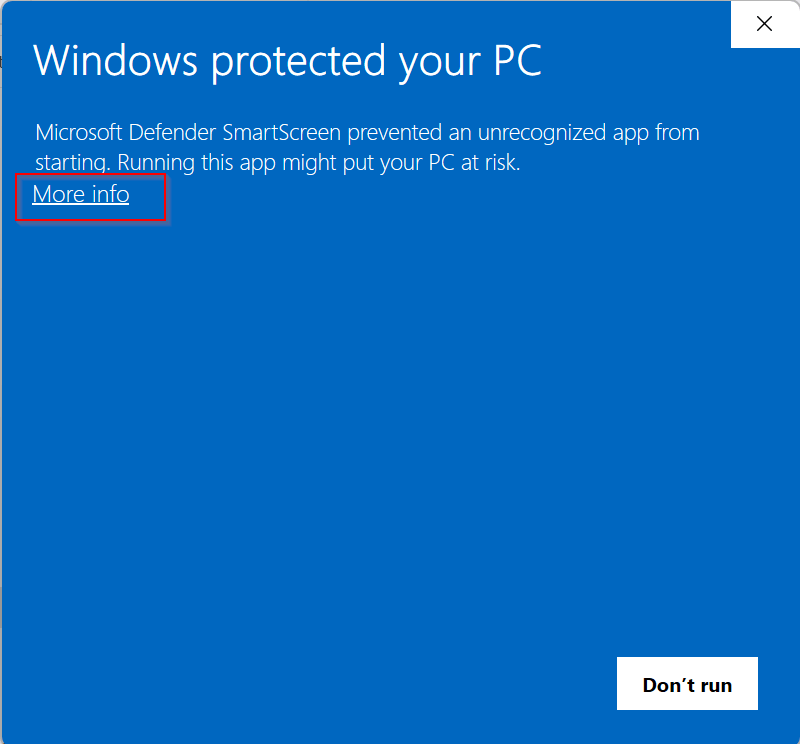
    In the popup window, click on More info as highlighted below…

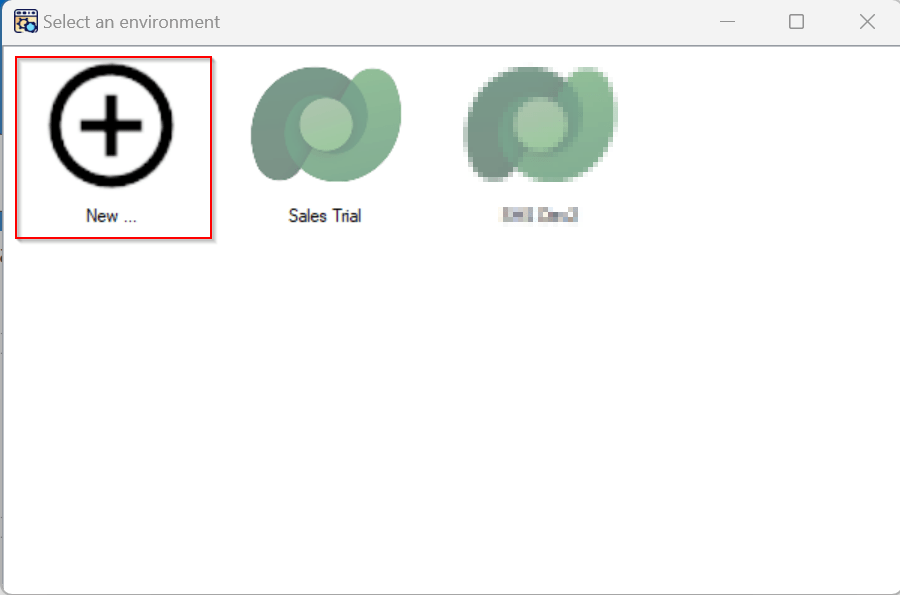
    Then run the application anyway…you will be presented with a window where you can select the environment. Going forward, any time you want to open Dataverse browser, just open the Dataverse.Browser.exe and choose the environment as below.

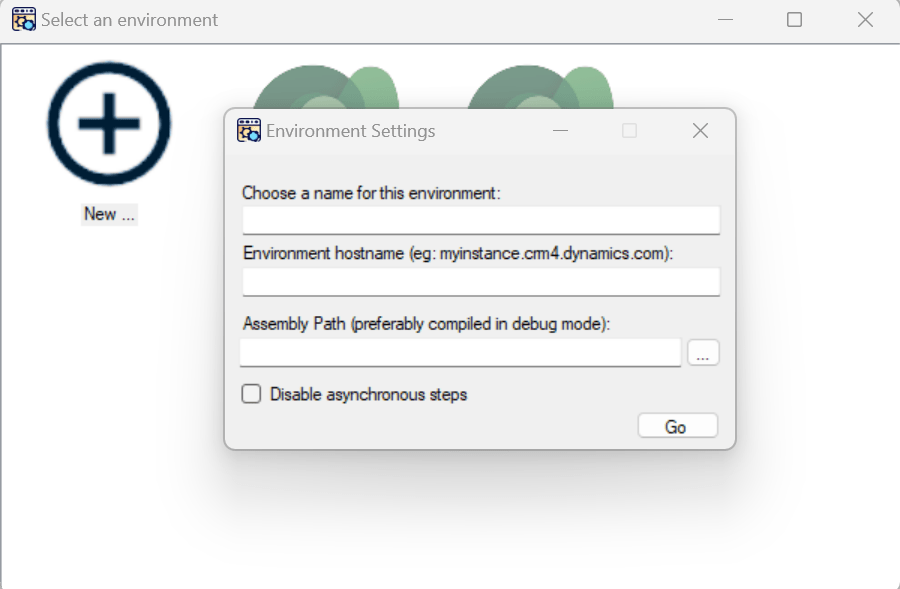
    Click on New, enter the details as above and key in the details.

    • Enter the settings of your environment:
      • A name meaningful for you
      • The host name of your instance (without the https://)
      • The path to the plugins assembly file (the dll). For a better experience, it should be compiled in debug mode with the pdb file generated.

    Then click Go.

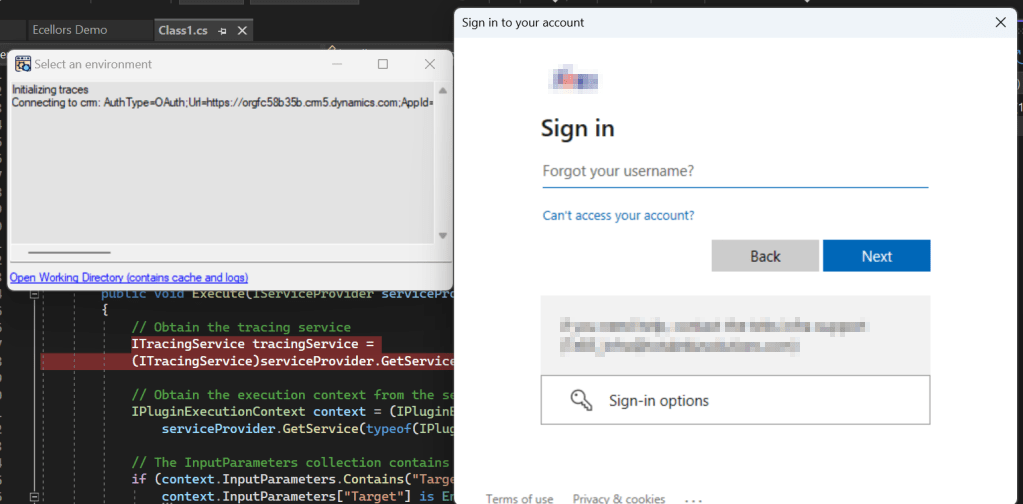
    You just need to Authenticate to your instance.

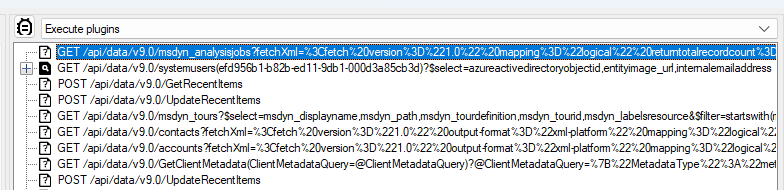
    Once Authenticated to the respective model driven apps, all the Web API requests sent to Dataverse will be shown as below.

    I have following Plugin Libraries registered.

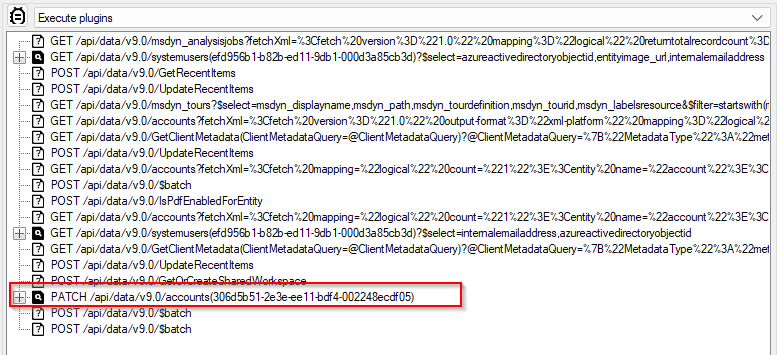
    Next step is to choose the instance and perform the respective operation which triggers the Plugin. So, in here, I will perform an update to the Account entity from the Dataverse Browser which triggers the Plugin.

    Once an update is performed, a Web API request gets recorded in the Dataverse browser as highlighted below.

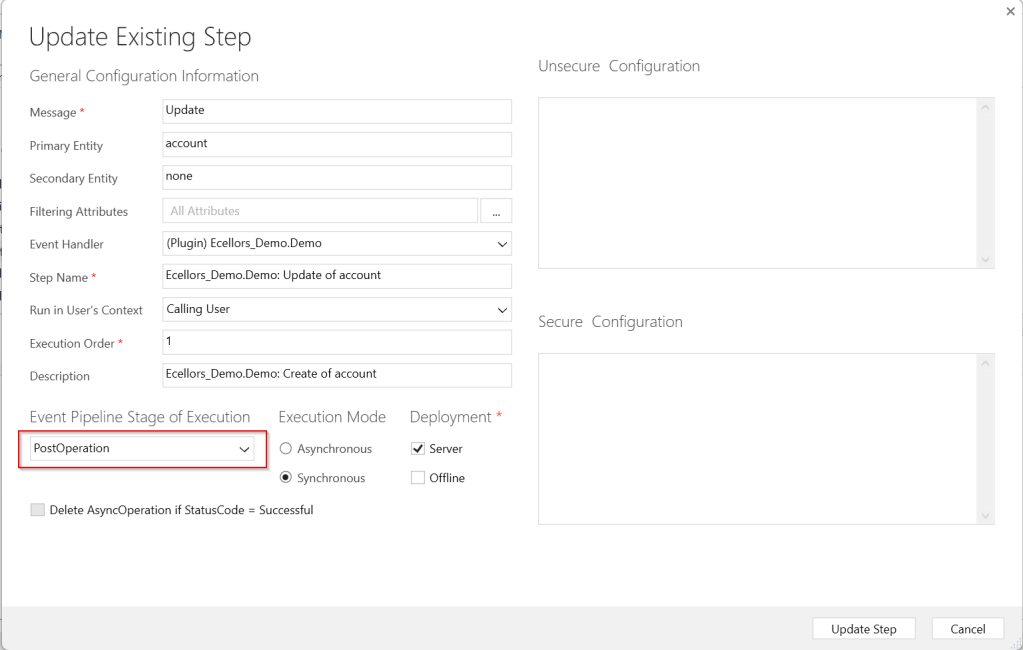
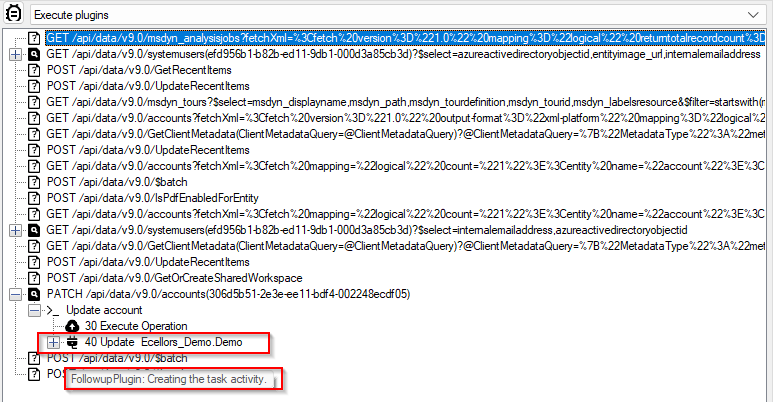
    Since the Plugin is in Post Operation, i.e. Stage number is 40

    Just expand the Patch Request, you should see two operations on 30, 40, but area of interest here is for the Plugin which was registered on stage 40.

    Make sure you open the Visual Studio and perform the below steps from Dataverse Browser.

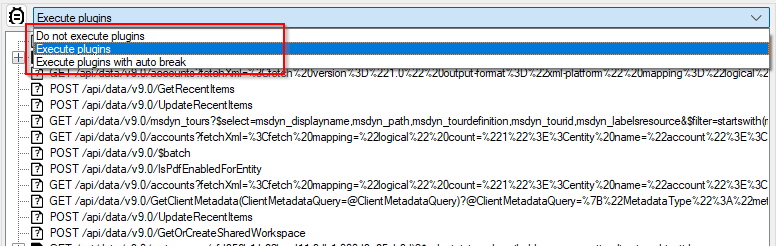
    Attach the debugger from Dataverse Browser by clicking on the Plug Symbol as below which will show the list of debugger options available for you to select from. Here I have selected Execute Plugins, plugin will be invoked. You can either select any of the three options as presented below.

    1.Do not execute plugins – recommended when you want to debug without actually triggering your plugin logic. i.e. With this approach even you can check the code in Production environment.

    2. Execute plugins/Execute plugins with auto break – recommended when you want to debug by triggering your actual plugin, this is recommended in case your plugin code had changed recently and in Development environments.

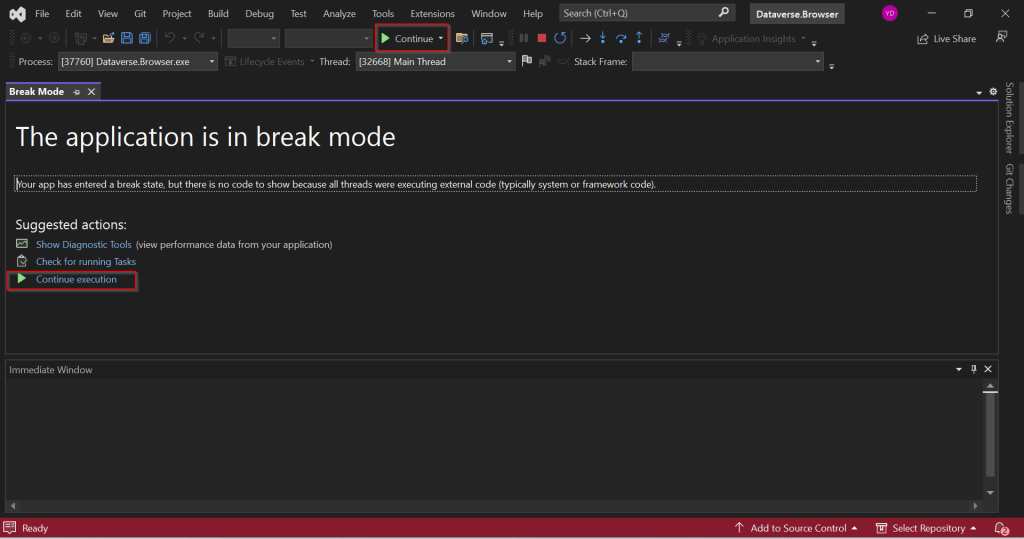
    Just select Ecellors Demo – Microsoft Visual Studio: Visual Studio Professional 2022 version which will launch an existing Visual studio 2022 as below in break mode. Next click on Continue as highlighted below or press Click F5 on your keyboard.

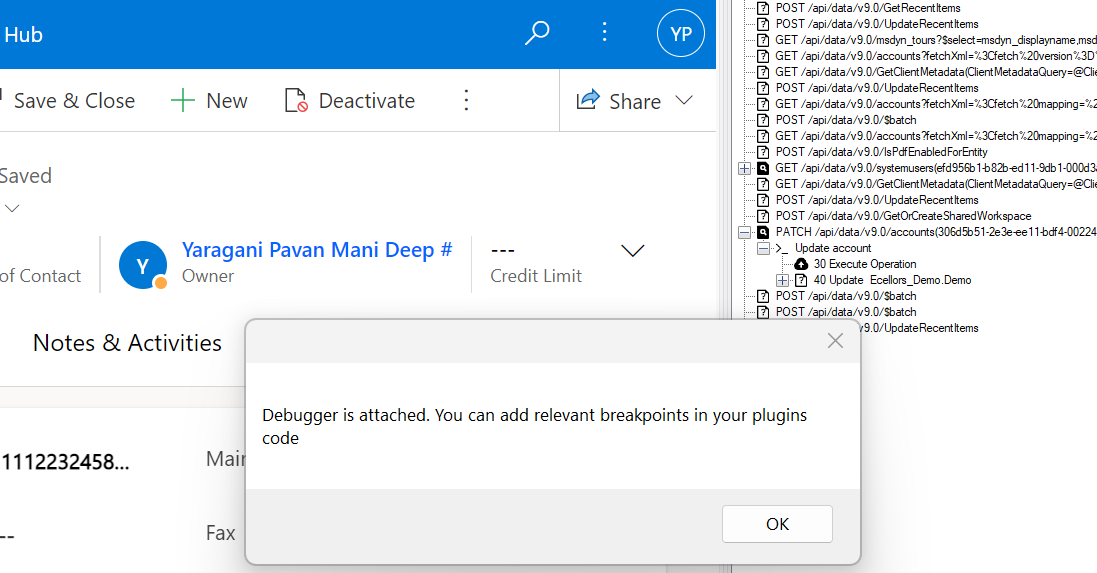
    This shows you that the debugger has been attached when you navigate to Dataverse Browser asking you to place your breakpoints.

    Now just place breakpoints in your code in Visual Studio. Just go back to Dataverse Browser and click on Ok on the Diaglog box.

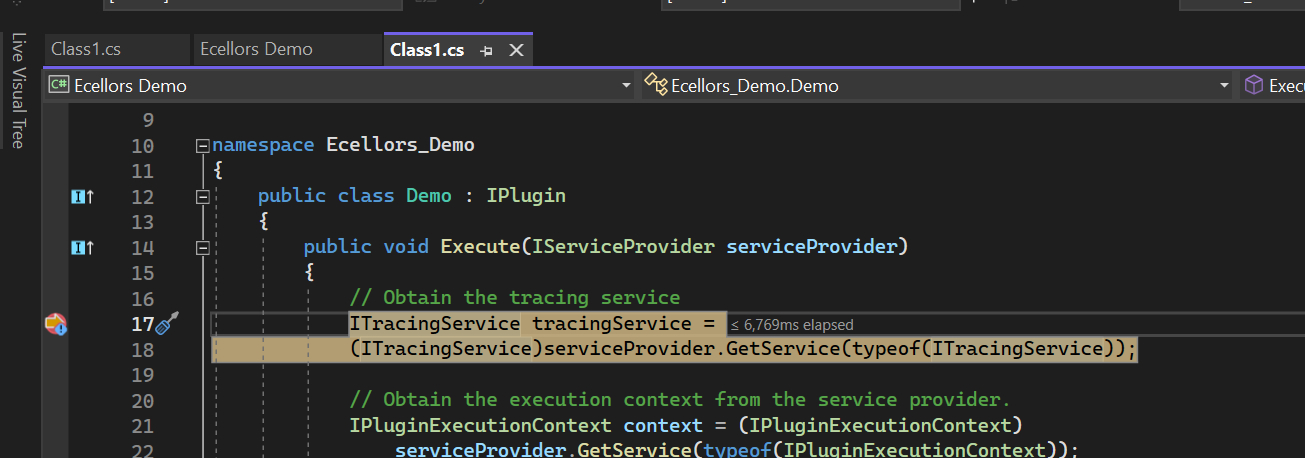
    Perform the operation which triggers the Plugin from Dataverse Browser itself, this will hit the break point in Visual Studio from where you can debug your plugin.

    As you might have observed, your code need not throw exception in order to debug, you could do similarly to the way you would debug using Profiler. But here just that you don’t need to deploy the latest code to the Dataverse just for debugging purpose.

    This gives a lot more flexibility eases the way you debug plugins.

    Limitions:

    • There is no support for transactions.
    • When plugins are triggered because of a server-side operation, they will not be run locally.
    • For many reasons, behavior will never be perfectly similar to the one when plugins are executed on server side.

    Happy debugging, I hope you found this post useful…

    References:

    Dataverse Dev Browser

    Cheers,

    PMDY

    Stop using OData V2.0 endpoint going further for your implementations….!

    Hi Folks,

    This blog is just to let you know why you should stop implementing OData calls using V2.0 version. I am pretty sure almost every Dynamics CE project out there have used this OData calls definitely in their implementations from quite some time. While some of new implementations have replaced the logic using Web API, still some people go with using OData V2.0 calls to build their functionality using JavaScript.

    Microsoft had actually planned to remove this endpoint from April 30, 2023. But they deferred this because many projects are’nt yet prepared for removal of this end point and help the customers prepare for this transition to Web API end point.

    Identify if you still using OData V2.0 end point, actually Organization Data Service is an OData V2.0 endpoint which was introduced with Dynamics CRM 2011..it’s deprecated way back with Dynamics 365 CE version 8.0.

    So now, how to identify where and all you were using OData End Points in your code…you shouldn’t expect that existing code will work with only minor changes and this work can be taken at a later stage. This was a high priority warning message from Microsoft stating the removal, so I urge all of you to be prepared for this removal very soon and you shouldn’t be surprised.

    So where to change…..?

    Below are the places where you should change your way of implementation and align with Microsoft…

    1. The Organization Data Service using this end point /XRMServices/2011/OrganizationData.svc in Javascript, you can find it out with the help of the checker service rule web-avoid-crm2011-service-odata for identification. This can be code which was making OData calls to perform CRUD Operations on the current table or related table.
    2. Check any other code, including PowerShell scripts, that send requests to this endpoint: /xrmservices/2011/organizationdata.svc.
    3. Cross Check your Power BI reports or Excel Data sources that may be using this endpoint.

    Note:

    This announcement does not involve the deprecated Organization Service SOAP endpoint, meaning using Organization service in plugins. At this time, no date has been announced for the removal of that endpoint. At the time of writing this blog post, Microsoft didn’t announce whether this removal is only for Online or On Premise Versions.

    References:

    How to use Application Insights to identify usage of the OrganizationData.svc endpoint?

    OData v2.0 Service removal date announcement

    The Clock is Ticking on Your Endpoint

    Do not use the OData v2.0 endpoint

    Hope this saves time and effort implementing your Dynamics CE Solutions…

    Cheers,

    PMDY

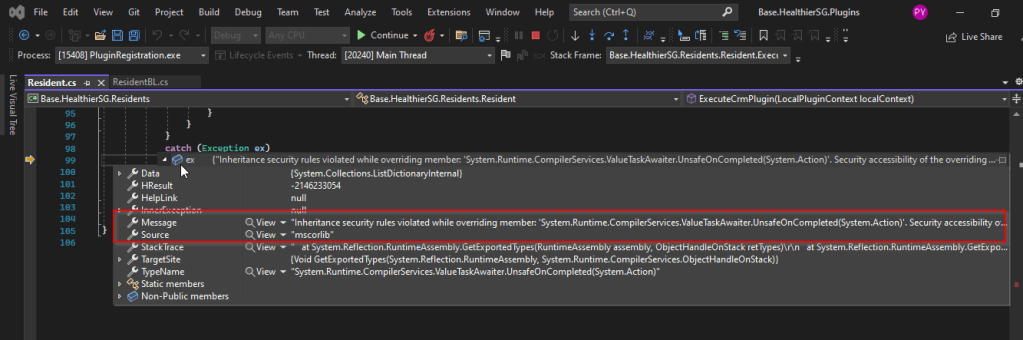
    Plugin Error – Security accessibility of the overriding method must match the security accessibility of the method being overridden – Quick Fix

    Hi Folks,

    I recently came across the above error for one of my Dynamics 365 Plugins…this blog talks about applying a quick fix.

    While debugging our Plugin logic line by line to understand why it’s not working, observed this error for messages like RetrieveMultiple, Retrieve when I use any Organization Service call.

    This was a .Net version downgrade issue caused by ILMerge as I downgraded one of the DLL to 4.6.2 version from 4.7.1. If you see this issue even without downgrading your DLL, you can use this fix.

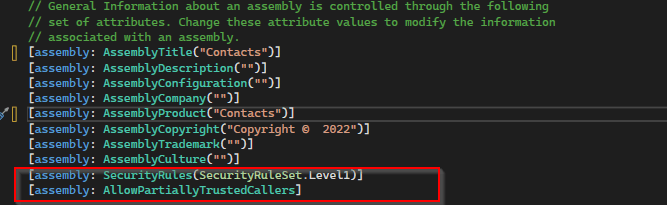
    After some research I came across this article and applied the same to my assembly which fixed the issue. Added these lines to my AssemblyInfo.cs class file..

    [assembly: AllowPartiallyTrustedCallers]
    [assembly: SecurityRules(SecurityRuleSet.Level1)]

    Hope this helps someone who is facing the same issue down the line in their Plugin Development, Debugging…

    Thank you for reading…

    Cheers,

    PMDY

    Add Members to static marketing list from excel file to Dynamics 365 using C#

    Hi,

    Happy new year 2023….

    To start with this scenario, this is one of the most commonly asked functionalities when we talk about of adding members to marketing list using an excel import.

    In this scenario, we will make use of Connections entity and associate the marketing list to the contacts on creation of the connection…ok…let us give it a try….we will make use of plugin here….which runs on Create and on Post operation and calls the below method…

     public void MarketingListImport()
            {
                Entity connectionER = (Entity)executionContext.InputParameters["Target"];
                Entity marketingList = new Entity();
                if (connectionER.Contains("record2id"))
                {
                    EntityReference connectTo = connectionER.GetAttributeValue<EntityReference>("record2id");
                    EntityReference connectFrom = connectionER.GetAttributeValue<EntityReference>("record1id");
    
                    if (connectTo != null)
                    {
                        marketingList = organizationService.Retrieve(connectTo.LogicalName, connectTo.Id, new ColumnSet("type", "createdfromcode"));
                    }
    
                    if (connectTo.LogicalName == "list")//Marketing list 
                    {
                        if (marketingList.Contains("type") && marketingList.GetAttributeValue<bool>("type") == false)
                        {
    
                            if (connectFrom.LogicalName == "contact" && marketingList.Contains("createdfromcode") && marketingList.GetAttributeValue<OptionSetValue>("createdfromcode").Value == 2)//Resident
                            {
                                // Add a list of contacts to the marketing list.
                                var addMemberListReq = new AddListMembersListRequest
                                {
                                    MemberIds = new[] { connectFrom.Id },
                                    ListId = connectTo.Id
                                };
    
                                organizationService.Execute(addMemberListReq);
    
                                tracingService.Trace("Contacts with GUIDs \r\n\t{{{0}}} is added to the list.",
                                    connectFrom.Id);
                            }
    
                            else
                            {
                                throw new InvalidPluginExecutionException("Marketing list should be targeted at contact and contacts can be imported");
                            }
                        }
    
                        else
                        {
                            throw new InvalidPluginExecutionException("Members cannot be imported into a Dynamic Marketing list, please select a static marketing list and try again");
                        }
                    }
                }
            }
        }

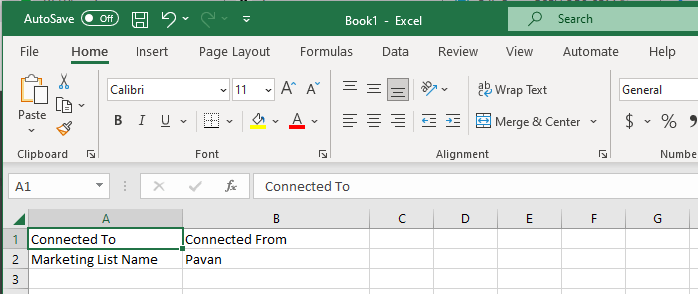
    Once you were done writing the code, next step is to test the functionality…for this we will use the following template.

    Import this template from the imports area under settings in your Dynamics 365…boom….the contacts in the template will be added to your Static Marketing List.

    Cheers,

    PMDY