Assembly must be registered in isolation error while trying to register plugin \ custom workflow activity in Isolation Mode None in Dynamics 365 On Premise CE

Hi Folks,

Recently I was trying to move the Plugins within a solution to another environment where I started to face the above mentioned error.

After checking found that the user who is deploying solution didnt have deployment administrator role. For this we need to provide Deployment administrator to the user who was actually deploying the solution, you will find deployment manager for your Dynamics Onpremise instance.

Once deployment administrator role is added, you should be able to move the solution.

Reference: Link

Cheers,

PMDY

Granting Access to a Business unit Team via C#

Hi Folks,

I hope there isn’t any one who doesn’t know about security roles and access privileges being in Dynamics space. Most of the people should be aware of doing this via application, in this post, sharing one simple way to grant access to the records using C# code. Please use the below code to achieve the same.

private void ShareRecordtoBUTeamofRequestorUser(Guid Targetid, Guid TargetShare, IOrganizationService orgService)
        {
            try
            {
                if (Targetid != null && TargetShare != null)
                {
                    GrantAccessRequest grant = new GrantAccessRequest();
                    grant.Target = new EntityReference(MetadataHelper.VolunteerList.EntityLogicalName, Targetid);

                    PrincipalAccess principal = new PrincipalAccess();
                    principal.Principal = new EntityReference(MetadataHelper.Team.EntityLogicalName, TargetShare);
                    principal.AccessMask = AccessRights.ReadAccess;
                    grant.PrincipalAccess = principal;

                    try
                    {
                        //GrantAccessResponse grant_response = (GrantAccessResponse)orgService.Execute(grant);
                        orgService.Execute(grant);
                    }
                    catch (Exception ex)
                    {
                        throw ex;
                    }
                }
            }
            catch (Exception ex)
            {
                throw ex;
            }
        }

I have commented below lines in try block above and avoid using them because you will get an error for the same…

GrantAccessResponse grant_response = (GrantAccessResponse)orgService.Execute(grant);

An unhandled exception has occurred during execution of the plugin.
An error occured while getting default Team of Requestor BusinessUnit[A]Microsoft.Crm.Sdk.Messages.GrantAccessResponse cannot be cast to
[B]Microsoft.Crm.Sdk.Messages.GrantAccessResponse. Type A originates from ‘Microsoft.Crm.Sdk.Proxy, Version=9.0.0.0, Culture=neutral, PublicKeyToken=31bf3856ad364e35’ in the context ‘Default’ at location ‘C:\Microsoft.Crm.Sdk.Proxy.dll’. Type B originates from ‘Hisol.SCS.CRM.Plugins, Version=1.0.0.0, Culture=neutral, PublicKeyToken=bb2727b96c9cb15e’ in the context ‘LoadNeither’ in a byte array.

Thank you.

Cheers,

PMDY

Pro-grammatically create Document location records in SharePoint Online from Dynamics Customer Engagement Online without using native integration

Hi Folks,

Have you ever got a requirement to specifically create records in SharePoint without using the out of the box CRM-Sharepoint integration, then your were at right place and this post is going  absolutely help you with your requirement.

With the out of box integration, we will be able to create records in SharePoint when we navigate to OPEN LOCATION under Document Associated grid. But this adds record GUID to name of the record being created. But in our case, we only want the document location record to be created  with the name of the record. Please use the below code…all you need is Tenant ID, Resource ID, Client ID, Client Secret and your SharePoint domain and URL.

This approach uses Access token approach using the SharePoint based Add-in.

Steps to create SharePoint based Add-in. Navigate to below URL…

Ex: [Site Collection URL]/_layouts/15/AppRegNew.aspx0

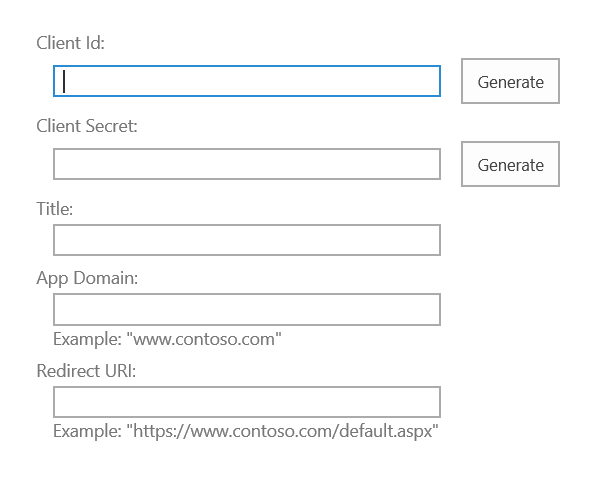
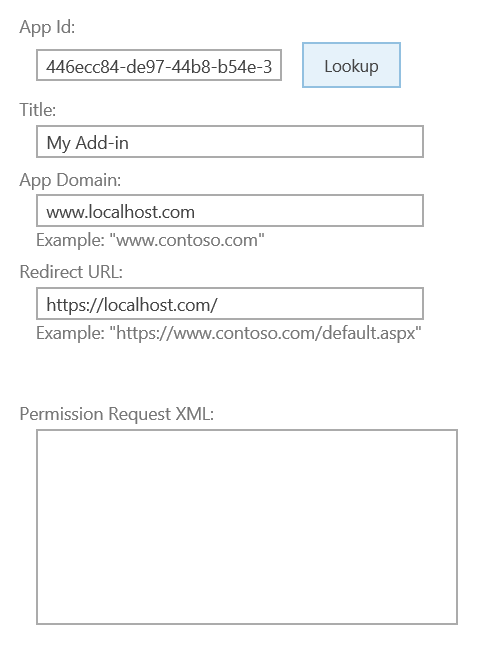
AppRegNew Form

At this point, you’ll need to fill in the following details,

Name Description
Client Id Click Generate unique client id for your add-in. It’s a GUID which will be used to identify your add-in.
Client Secret Acts like a password for your add-in. It will include some special characters as well. So while using it, we have to encode the same first.
Title The name of your add-in that will be displayed to the end user.
App Domain For provider-hosted add-in, this will be the domain where, the add-in is hosted. For token generation add-in, fill in any value. Make sure, not to include protocols(https) or slashes(/).
Redirect URI For provider-hosted add-in, fill in the redirect URL. For token generation add-in, fill in any value.

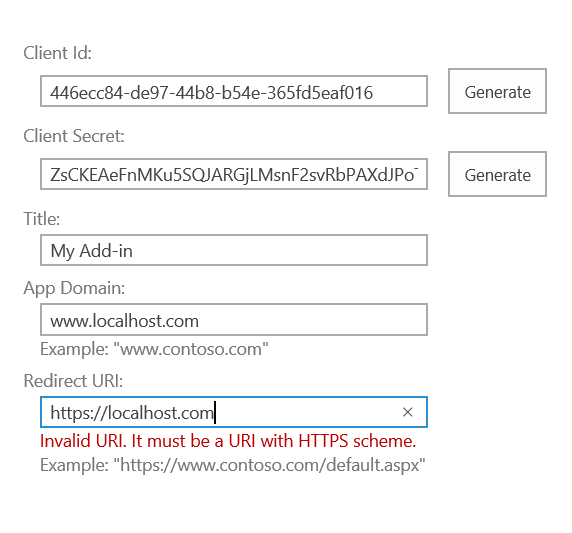
Once you have filled in all the below details, hit Create to register the add-in1

Register SharePoint Add-in

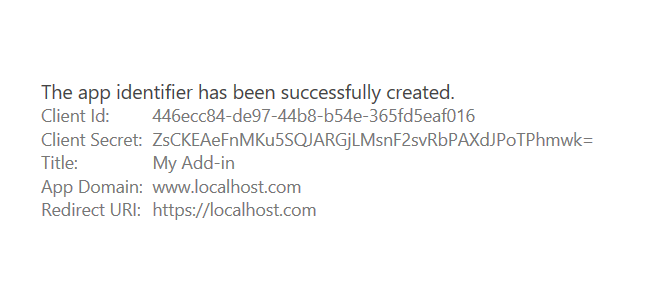
    • You will be navigated to a page displaying the details of your add-in. Save Client Id & Client Secret for future references(Don’t forget this step as you won’t be able to navigate to this page to view details later)2                                  SharePoint Add-in Identifier
    • Grant permission to an add-in

      Now that the identifier is created, we need to grant the necessary permission for it to perform any action. In this example, I’ll demonstrate how to grant full control access on a Site Collection.

      • Navigate to
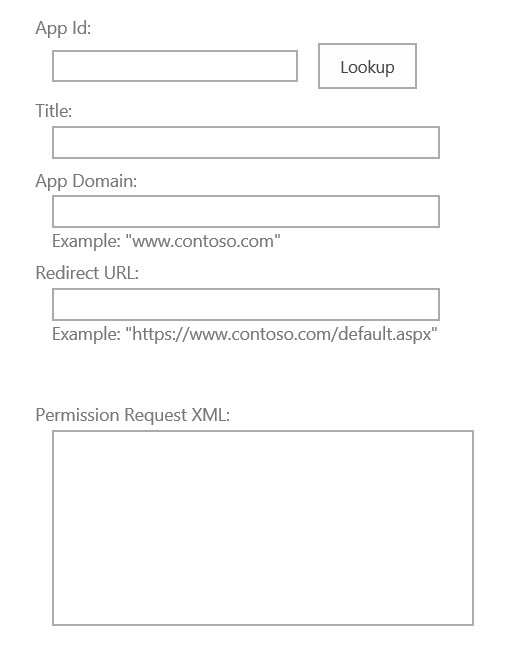
        [Site Collection URL]/_layouts/15/AppInv.aspx

        3

      • Enter your Client Id value in the App Id option and hit the Lookup button. Details of your add-in will be displayed automatically.4
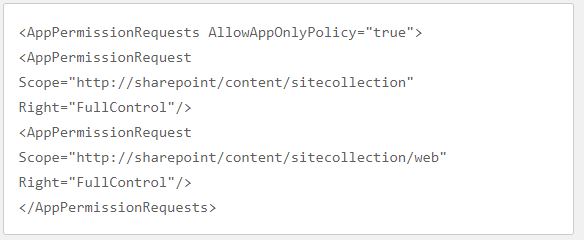
      • Now this is crucial, you need to give permissions to your app. In the option, Permission Request XML, let’s write the below XML code to grant our add-in full control on the given site collection.Capture
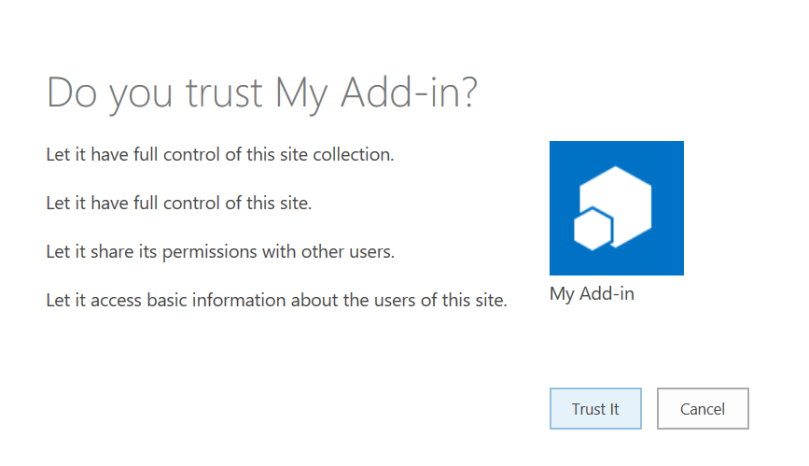
      • Just hit the Create button. You will now be prompted to trust the add-in for all the permissions that it requires.5                                      Trust SharePoint Add-In
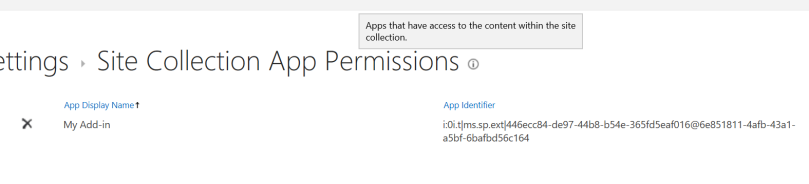
      • Hit the Trust It to grant the requested accesses. You can navigate to the following URL to also confirm that the permission has been assigned to the add-in.
        [Site Collection URL]/_layouts/15/appprincipals.aspx

        6

    • Now once you have created the app in SharePoint, you need to get the access token to perform CRUD Operations in SharePoint using REST API.
    • For testing purpose, you can use either POSTMAN or a console application…I have written the approach in both the ways.
    • For retrieving Tenant ID firstly using postman..
    • Perform a GET Request to the following URL..
    • [Site Collection URL]/_vti_bin/client.svc
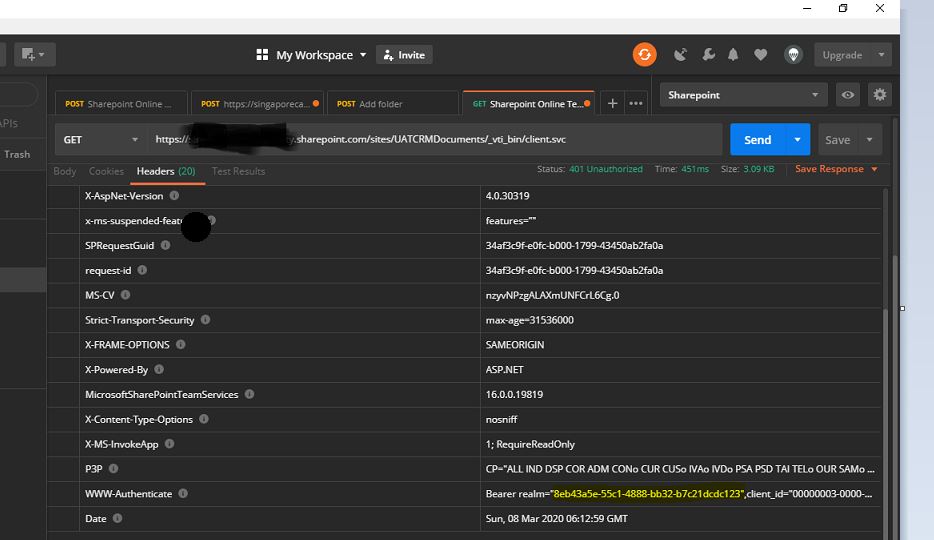
    • After entering the above URL in the text-box in the URL text-box. We will get the Unauthorized exception on accessing the information. Because SharePoint Online is very much secured and that doesn’t allow anonymous users to access the information for their site. The below is the error message response, after sending the request. Highlighted is your Tenant ID..note it down..Capture1
    • Instead you can use the below C# code to get the Tenant ID details:public string GetTenant(string stGetTenantDetailsUrl)
      {
      WebRequest myWebRequest;
      string tenantID = string.Empty;
      string resourceID = string.Empty;
      string accessToken = string.Empty;myWebRequest = WebRequest.Create(stGetTenantDetailsUrl);
      myWebRequest.Method = “GET”;
      myWebRequest.Headers.Add(“Authorization”, “Bearer”);
      WebResponse myWebResponse = null; ;
      try
      {
      myWebResponse = myWebRequest.GetResponse();
      return tenantID;
      }
      catch (System.Net.WebException ex)
      {
      //get the Web exception and read the headersstring[] headerAuthenticateValue = ex.Response.Headers.GetValues(“WWW-Authenticate”);
      if (headerAuthenticateValue != null)
      {foreach (string stHeader in headerAuthenticateValue)
      {
      string[] stArrHeaders = stHeader.Split(‘,’);
      //loop all the key value pair of WWW-Authenticate
      foreach (string stValues in stArrHeaders)
      {if (stValues.StartsWith(“Bearer realm=”))
      {
      tenantID = stValues.Substring(14);
      tenantID = tenantID.Substring(0, tenantID.Length – 1);
      }
      if (stValues.StartsWith(“client_id=”))
      {
      //this value is consider as resourceid which is required for getting the access token
      resourceID = stValues.Substring(11);
      resourceID = resourceID.Substring(0, resourceID.Length – 1);
      }
      }}

      }

      return tenantID;//your tenant ID
      }
      }

    • Next step is to get the Access token..from Postman..

                                         Generate the Access Token

      In response header, we will get WWW-Authenticate as one of the header and that contains the necessary information required for next step. The realm value contains the tenant id for the SharePoint Online site and clientid value contains the resource information (we’ll use it later).

      Key Syntax Value
      Content-Type application/x-www-form-urlencoded application/x-www-form-urlencoded

      Body

      Key Syntax Value
      grant_type client_credentials client_credentials
      client_id ClientID@TenantID 4b4276d0-74cd-4476-b66f-e7e326e2cb93@10267809-adcb-42b6-b103-c7c8190b3fed
      client_secret ClientSecret nuC+ygmhpadH93TqJdte++C37SUchZVK4a5xT9XtVBU=
      resource resource/SiteDomain@TenantID 00000003-0000-0ff1-ce00-000000000000/spsnips.sharepoint.com@10267809-adcb-42b6-b103-c7c8190b3fed
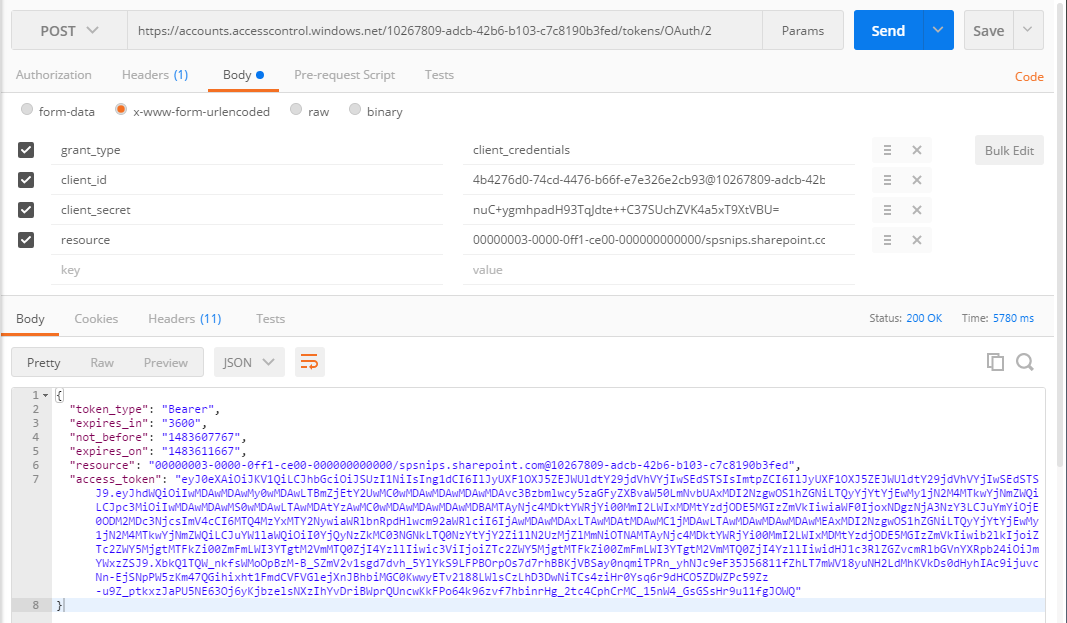
      • After applying the configuration, click Send button. That will returns the response with the Access Token.

      Fig 7: Postman response contains Access Token

      You can use the below C# code to generate access token

      public string GetAuthorisationToken(string stGetAccessTokenUrl, string stSiteDomain, string tenantID, string resourceID, string stClientID, string stClientSecret)
      {

      string accessToken = string.Empty;
      stGetAccessTokenUrl = string.Format(stGetAccessTokenUrl, tenantID);

      WebRequest request = WebRequest.Create(stGetAccessTokenUrl);

      request.ContentType = “application/x-www-form-urlencoded”;
      request.Method = “POST”;

      string postData = “grant_type = client_credentials” +
      “&client_id =” + WebUtility.UrlEncode(stClientID + “@” + tenantID) +
      “&client_secret =” + WebUtility.UrlEncode(stClientSecret) +
      “&resource =” + WebUtility.UrlEncode(resourceID + “/” + stSiteDomain + “@” + tenantID);

      byte[] byteArray = Encoding.UTF8.GetBytes(postData);
      // Set the ContentType property of the WebRequest.
      request.ContentType = “application/x-www-form-urlencoded”;
      // Set the ContentLength property of the WebRequest.
      request.ContentLength = byteArray.Length;
      // Get the request stream.
      Stream dataStream = request.GetRequestStream();
      // Write the data to the request stream.
      dataStream.Write(byteArray, 0, byteArray.Length);
      // Close the Stream object.
      dataStream.Close();

      try
      {
      using (WebResponse response = request.GetResponse())
      {
      dataStream = response.GetResponseStream();
      // Open the stream using a StreamReader for easy access.
      StreamReader reader = new StreamReader(dataStream);
      // Read the content.
      string responseFromServer = reader.ReadToEnd();
      // Clean up the streams.
      reader.Close();
      dataStream.Close();
      //Get accesss token
      accessToken = “access_token\”:\””;
      int clientIndex = responseFromServer.IndexOf(accessToken, StringComparison.Ordinal);
      int accessTokenIndex = clientIndex + accessToken.Length;
      accessToken = responseFromServer.Substring(accessTokenIndex, (responseFromServer.Length – accessTokenIndex – 2));

      return accessToken;

      }
      }
      catch (WebException wex)
      {
      HttpWebResponse httpResponse = wex.Response as HttpWebResponse;
      createlog(_service, “Error occured” + wex.ToString());
      throw new InvalidPluginExecutionException(“Exception occured while retrieving Access Token” + wex.ToString());

      }

      }

      Once we are received the access token, you were all set and we got the authorization to access the SharePoint data based on the permission applied in Grant Permission of Add-In .

      So now we would implement our logic to create folders in plugin…make sure we should be passing the Access token received while accessing share point.

      public void CreateFolder(string sharePointSite, string token, string library, string folder,Guid entityID)
      {
      string result = string.Empty;
      StringBuilder sb = new StringBuilder();
      sb.Append(sharePointSite);
      sb.Append(“_api/web/GetFolderByServerRelativePath(decodedUrl='”);
      sb.Append(library);
      sb.Append(“‘)/Folders”);
      Uri uri = new Uri(sb.ToString().Replace(“{“, “”).Replace(“}”, “”));
      HttpWebRequest wreq = (HttpWebRequest)WebRequest.Create(uri);
      wreq.Headers.Add(“Authorization”, “Bearer ” + token);
      wreq.Method = “POST”;
      wreq.ContentType = “application/json”;
      string postData = “{‘ServerRelativeUrl’:’folder’}”;
      postData = postData.Replace(“folder”, folder);
      byte[] byteArray = Encoding.UTF8.GetBytes(postData);
      wreq.ContentLength = postData.Length;
      Stream dataStream = wreq.GetRequestStream();
      dataStream.Write(byteArray, 0, byteArray.Length);
      dataStream.Close();
      WebResponse wresp = null;
      try
      {
      wresp = wreq.GetResponse();
      using (wresp = wreq.GetResponse())
      {
      dataStream = wresp.GetResponseStream();
      StreamReader reader = new StreamReader(dataStream);
      string responseFromServer = reader.ReadToEnd();
      reader.Close();
      }
      }
      catch (WebException wex)
      {
      HttpWebResponse httpResponse = wex.Response as HttpWebResponse;
      createlog(_service, “Error occured” + wex.ToString());
      throw new InvalidPluginExecutionException(“Exception occured while creating record” + wex.ToString());
      }
      }

  • You can place the Client ID, Client Secret, Sharepoint domain name in Unsecure configuration in Plugin for easier movement of code to other environment.
  • Entire code is available here…you can grab it…
  • Hope this helps some one looking out integrating Dynamics CRM Online with SharePoint online without relying on out of box integration between Dynamics CRM & SharePoint.
  • Hope you enjoyed this post…please post your valuable comments..

Cheers,

PMDY

[Quick Tip] – Error is usually caused by custom plug-ins that ignore errors from service calls and continue processing in Dynamics 365

Hi CRM Folks,

While we were working on Dynamics 365  On Premise 8.2 Version, we found this issue which is occurring on create of custom entity records in one of our environments. However we see the same customizations in both the environments.

After investigation by observing event logs, we found that this issue is caused due to some security issue. Later we identified that the plugins steps registered on create were running security context of user.

We were able to resolve this issue with the help of impersonation to run Plugins with higher privileges. For detailed info, see below reference.

Reference

Cheers,

PMDY


Cannot obtain value of the local variable or argument because it is not available at this instruction pointer, possibly because it has been optimized away in Visual studio 2017

Hi,

Recently we were debugging a D365 plugin in Visual studio 2017, able to hit the debugger but unable to get values to any of the variables. Getting the above error while debugging with the solution being in Release mode.

Capture.JPG

Changed from the release mode to debug mode, deployed the solution and then able to debug and get the values.

Please refer to below posts  for more information.

Cannot obtain value of local variable

Blog from Microsoft

Hope this helps someone…

Cheers,

PMDY


No Plugins selected message in Plugin registration tool

Hi Folks,

When we were working on a plugin for D365 Online, faced the below mentioned error message in Plugin registration tool where it was not showing up the newly added the class to assembly.

However we were using the latest Plugin registration tool.

Capture.JPG

Making the class as Public solved the issue.

Capture.JPG

Hope this helps…

Thank you.

PMDY

Transaction aware batch processing using ‘ExecuteMultipleRequest’

Rajeev Pentyala – Dynamics 365 Blog:

In this article, I am going to discuss about transaction aware batch processing in ExecuteMultipleRequest using ExecuteTransactionRequest.

Is ‘ExecuteMultipleRequest’ not a transaction aware?

  • By design, ‘ExecuteMultipleRequest’ is non-transactional.
  • Which means ‘Request’ objects added to ‘ExecuteMultipleRequest’ are independent of each other and if any exception occurred in any of the ‘Request’ will not roll back previously committed ‘Requests’.
  • However you have an option to stop the batch (i.e., By setting ContinueOnError = false), if any exception occurs.
  • Important to note is that, this behavior is not a transaction aware and ‘Requests’ executed prior to the error, will still be committed.

How can we achieve ‘Transaction’ in Batch execution?

  • Using ExecuteTransactionRequest, we can achieve ‘Transaction’ (i.e., Commit and Rollback) in Batch execution
  • ExecuteTransactionRequest will execute the all the ‘Requests’ in a single transaction.
  • If any exception occurred in any of the ‘Request’ execution, will roll back all the previously…

View Original Post

Hope this helps…

Happy CRM’ng.

Cheers,

PMDY

User Impersonation in Plugins, Workflow and Dialogs

Recently I was searching for knowledge base regarding impersonation in Plugins and here were some of my findings.

Impersonation in Plugins

The following grid shows the various user identities present for Plugins. ‘Triggering User’ refers to the logged in user who saves the record in Dynamics CRM and triggers a Plugin to fire. It’s also worth noting that offline plugins will fire once offline as shown and then *again* on the server.

Impersonation in Dialogs and Workflows

The following grid shows the various user identities present for Workflows and Dialogs. The interesting thing here is the difference between Parent and Child Automatic Workflows.

Hope it helps someone!!!

PMDY

Restricting infinite loops in MS CRM plugins

IExecutionContext.Depth Property:

Today would like to share with all of Dynamics CRM folks about the important Depth property used to prevent plugins going into infinite loop.

This is property name which tracks the Depth property of plugins in ms crm.

Gets the current depth of execution in the call stack and available in the context which is being passed to plugin.

Syntax:

int Depth { get; }

Notes:
This property is basically used by the platform for infinite loop prevention. very time a running plug-in 
or when workflow issues a message request to the web services that triggers 
another plugin or workflow to execute, the Depth property of the execution 
context is increased. If the depth property increments to its maximum value
within the configured time limit, the platform considers this behavior an 
infinite loop and further plug-in or Workflow execution is aborted.The max-
imum depth (8) and permissible time limit (one hour) are configurable by the Microsoft 
Dynamics CRM administrator by default.

If required, this setting can be changed by a powershell command
PowerShell command -- Set-CrmSetting. 

Depth is the number of times a plugin/custom workflow has been called in 
one transaction. Depth is often used to stop infinite loops where a plugin 
updates a value which triggers the plugin to run again. When a plugin/custom 
workflow triggers another plugin/trigger then the depth property is increm-
ented by one.The depth value has a maximum value called 
WorkflowSettings.MaxDepth. 
The CRM SDK (Depth)states this is set to maximum depth of 8 within one hour
and common method to avoid a recurring plugin is to check if  a plugins 
depth > 1.
This would stop the plugins from being run if was triggered from any other
plugin. The plugin would only run if triggered from the CRM form only.


Alternate solution is to use shared variables which can pass data between plugins
registered in different stages in a transaction. Eg.You can use ShareVariables 
to pass information between plugins registered on different stages but in the 
same transaction e.g a pre plugin can pass information to a post plugin.


Details can be observed better @ use shared variables in plugins

Update: 11/26/2018

Scenario:

Think of situation where the Plugin is registered on Update of an Entity with filtering attributes set to a field in the Entity.

Due to some bad coding logic, the Plugin registered is also updating the same field.

This would call the same plugin once more causing infinite loop.

This is where using Depth becomes significant.

Thank you.

Cheers,

PMDY