Why the Data structure HashSet can be Saviour at times?

Hi Folks,

Thank you for vising my blog today…I believe many of the Consultants or Power Platform professionals out there didn’t know about the HashSet available in .Net since version 3.5.

By the way, what is HashSet..here is a brief about it?

HashSet is a data structure which we mightn’t have come across, neither me until implementing one of my requirements. It offers several benefits compared to other data structures for specific use cases. HashSet is preferred and advantageous, here is a use case where HashSet can be useful than other Data Structures available…followed by Advantages and disadvantages.

Scenario: I have a requirement where I need to send an email to the owners of the record using Custom workflow when record is updated, I see many numbers of records are having same owner and hence same email addresses are being added to the To activity party which I want to prevent, it is then, I searched and found of this HashSet.

using System.Collections.Generic;
HashSet<Guid> uniqueGuids = new HashSet<Guid>();
Guid guidToAdd = Guid.Empty;
guidToAdd = ecellorsdemo.GetAttributeValue<EntityReference>("ecellors_ownerid").Id;
if (!uniqueGuids.Contains(guidToAdd))
{
uniqueGuids.Add(guidToAdd);
ToParty["partyid"] = new EntityReference(EntityConstants.SystemUser, guidToAdd); // Set the partyid
ToPartyCol.Entities.Add(ToParty);
}
view raw HashSetDemo.cs hosted with ❤ by GitHub

In this way, you can get the owner of the record and add to the HashSet as shown above in the diagram. Also Hash Set can help prevent adding duplicate records making it an ideal way to deal in certain scenarios.

Advantages:

  1. Fast Lookup: It is efficient for tasks that involve frequent lookups, such as membership checks.
  2. Uniqueness: All elements are unique. It automatically handles duplicates and maintains a collection of distinct values. This is useful when you need to eliminate duplicates from a collection.
  3. No Order: It does not maintain any specific order of elements. If the order of elements doesn’t matter for your use case, using a HashSet can be more efficient than other data structures like lists or arrays, which need to maintain a specific order.
  4. Set Operations: It supports set operations like union, intersection, and difference efficiently and beneficial when you need to compare or combine sets of data, as it can help avoid nested loops and improve performance.
  5. Hashing: It relies on hashing to store and retrieve elements. Hashing allows for quick data access and is suitable for applications where fast data retrieval is crucial.
  6. Scalability: It typically scales well with a large number of elements, as long as the hash function is well-distributed, and collisions are minimal.

Limitations include:

  1. Lack of order: It you need to maintain the order of elements, then this is a good candidate for your implementation.
  2. Space usage: It is memory intensive and is not recommended when memory optimization is being considered.
  3. Limited Metadata: It primarily stores keys (or elements), which means you have limited access to associated metadata or values. If you need to associate additional data with keys, you might consider other data structures like HashMap or custom classes.

I hope this gives an overview on using HashSet…however you can’t use Hash Set in all scenarios, it actually depends on your use case, please check the disadvantages too before using it… if you have any questions, don’t hesitate to ask…

Thank you and keep rocking…

Cheers,

PMDY
Update user personal settings Automatically easily when a new user gets added to Dynamics 365 Environments

Hi Folks,

In the Dynamics 365 world, it’s all about efficiently handling the user requests. Whenever you add any user to the environment, the system will update the default personal settings for the user. Maybe you could have some processes in your system which is dependent on the user time zone. So, setting the time zone is very important. It is tedious to update the personal settings manually going to the user profile and updating it manually every time.

In case you want to do it for all users at one time during initial setup, you can follow my blog post Update Model Driven App Personal Settings from XrmToolBox.

Of course, you have a wonderful tool in XrmToolBox from which we will be able to set the User Personal Settings in bulk so that we can update to all the users in one go. What if we want to automate this process, i.e. whenever you add a new user to the Dynamics 365 environment, you want to set that person time zone automatically without any manual intervention.

There you go…this post is for you then…you can do it simply using Plugin or Power Automate. In this blog post, we will see how we can utilize the Plugin as it is more effective approach.

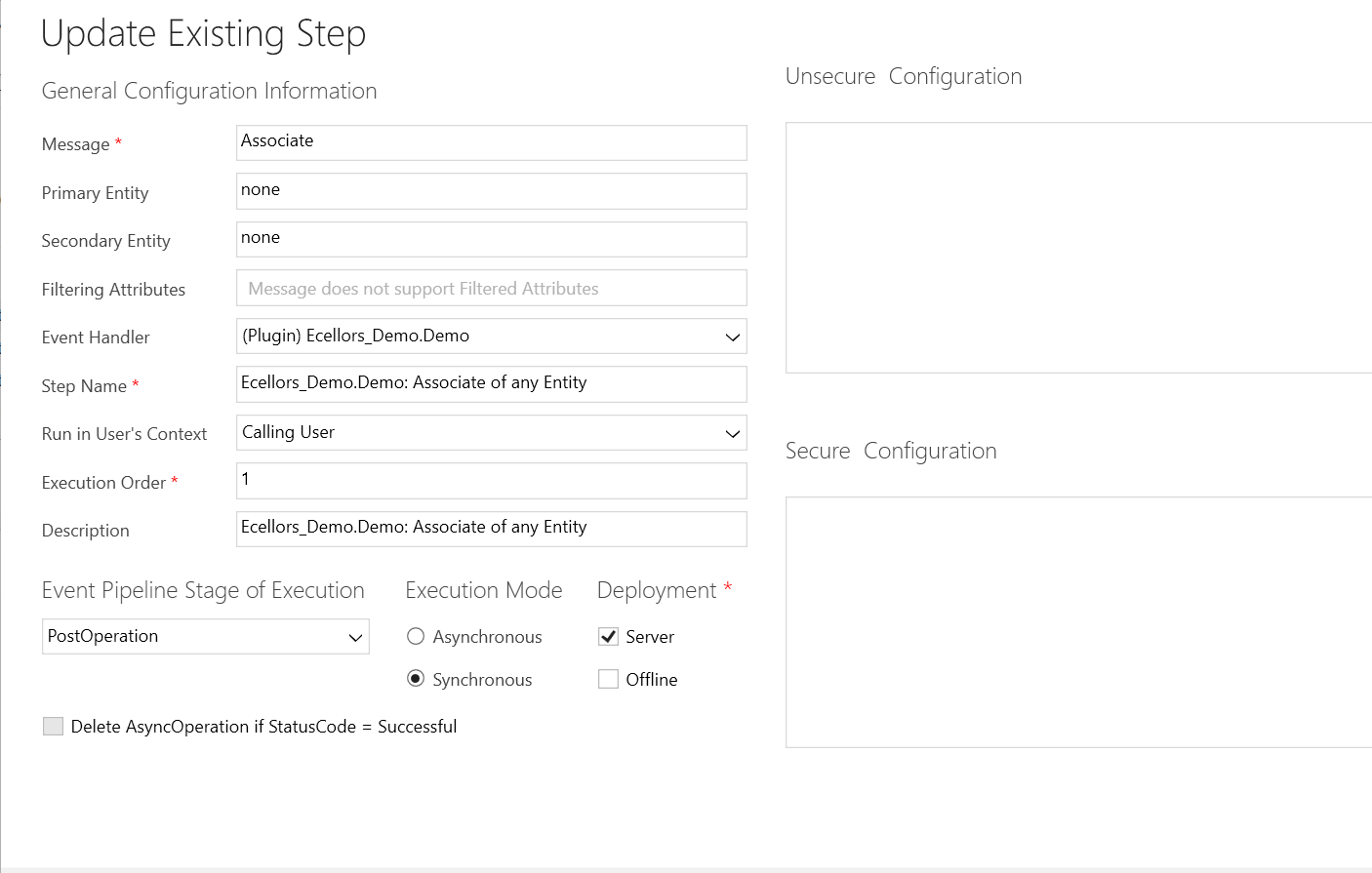
You need to write a Plugin on Associate Message.

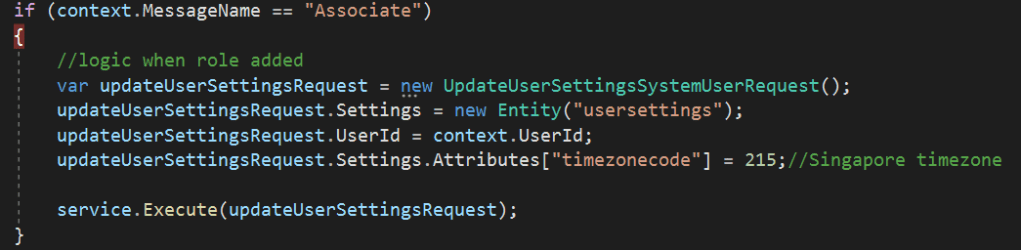
Just use this piece of code to set Personal settings…

using System;
using System.Collections.Generic;
using System.Linq;
using System.ServiceModel;
using System.Text;
using System.Threading.Tasks;
using Microsoft.Xrm.Sdk;
using Microsoft.Crm.Sdk;
using Microsoft.Crm.Sdk.Messages;
namespace Ecellors_Demo
{
public class Demo : IPlugin
{
public void Execute(IServiceProvider serviceProvider)
{
// Obtain the tracing service
ITracingService tracingService =
(ITracingService)serviceProvider.GetService(typeof(ITracingService));
// Obtain the execution context from the service provider.
IPluginExecutionContext context = (IPluginExecutionContext)
serviceProvider.GetService(typeof(IPluginExecutionContext));
IOrganizationServiceFactory serviceFactory =
(IOrganizationServiceFactory)serviceProvider.GetService(typeof(IOrganizationServiceFactory));
IOrganizationService service = serviceFactory.CreateOrganizationService(context.UserId);
if (context.InputParameters.Contains("Relationship"))
{
var relationshipName = context.InputParameters["Relationship"].ToString();
try
{
if (relationshipName != "systemuserroles_association.")
{
return;
}
if (context.MessageName == "Associate")
{
//logic when role added
var updateUserSettingsRequest = new UpdateUserSettingsSystemUserRequest();
updateUserSettingsRequest.Settings = new Entity("usersettings");
updateUserSettingsRequest.UserId = context.UserId;
updateUserSettingsRequest.Settings.Attributes["timezonecode"] = 215;//Singapore timezone
service.Execute(updateUserSettingsRequest);
}
if (context.MessageName == "Disassociate")
{
//logic when role removed
var updateUserSettingsRequest = new UpdateUserSettingsSystemUserRequest();
updateUserSettingsRequest.Settings = new Entity("usersettings");
updateUserSettingsRequest.UserId = context.UserId;
updateUserSettingsRequest.Settings.Attributes["timezonecode"] = 0;//UTC timezone
service.Execute(updateUserSettingsRequest);
}
else
{
return;
}
}
catch (FaultException<OrganizationServiceFault> ex)
{
throw new InvalidPluginExecutionException("An error occurred in UserSettingsPlugin.", ex);
}
catch (Exception ex)
{
tracingService.Trace("UserSettingsPlugin: {0}", ex.ToString());
throw;
}
}
}
}
}

Update the personal settings as per your needs in this request. You can find all the attributes of the user settings table by using Fetch Xml Builder easily.

Hope this helps someone.

Cheers,

PMDY