Connecting to your Dataverse instance to run SQL Queries without using XrmToolBox

Hi Folks,

Do you know that you can connect to your Dataverse DB right from your old toolbox SSMS, an express version would be more than enough to try out. Possibly we didn’t think of, but yes, we can…so let’s see that in this blog post.

Open SSMS..

1.Select Server type as Database Engine

2. Server name as the environment URL from your Power Platform Admin Center as below.

3. So key in those details as below, make sure to Select Authentication method as Azure Active Directory – Universal with MFA option.
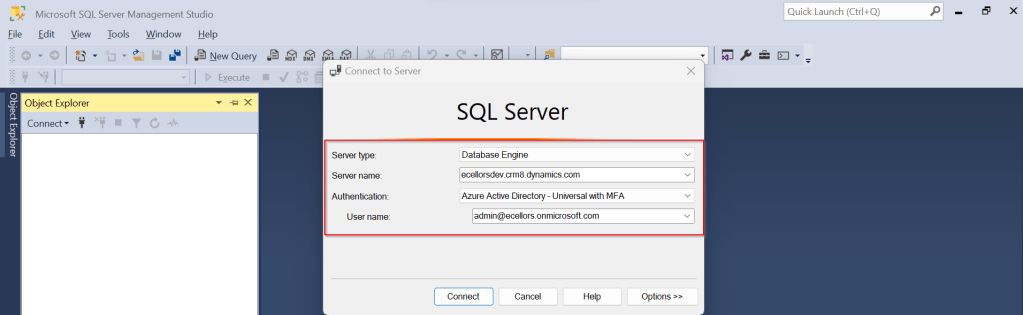
Once you click on Connect, you will be prompted for authentication via browser.

Once your Sign-In is successful, you will be able to see.

That’s it, how simple it was connecting to your Dataverse instances…

Having said that it’s easy to connect to Dataverse, not all operations performed using normal transact SQL are supported here using Dataverse SQL. You could see it says Read-Only besides the instance name, that means that you don’t have any capabilities to modify from SQL.

Because Dataverse SQL is a subset of Transact-SQL. If you want to see what statements are supported and what not, just go ahead to this link to find out.

This opens a whole lot of opportunities to explore, so don’t forget to check this out.

References:

Dataverse SQL and Transact SQL

Cheers,

PMDY
Impersonation – Level Up Hidden Feature that every Power Platform CE Developer ought to know

Hi Folks,

By this time, almost every Dynamics 365 Developer had some day or the other used Level up in their Custom Engagement consultant career.

While every one out in the Dynamics CRM Space know about the widely popular God mode available in Level Up which helps in the day to day administration and maintenance activity of CE applications.

Today in this blog post, lets see how we can achieve impersonation using Level up. We all know about impersonation in Dynamics CRM possibly using Plugins via Plugin Registration tool or directly through code.

But do you know, using Level Up, do you know that you even don’t need to write any piece of code but can impersonate to any user in the system with thin a few clicks right from your browser. If this interests you, just follow along…

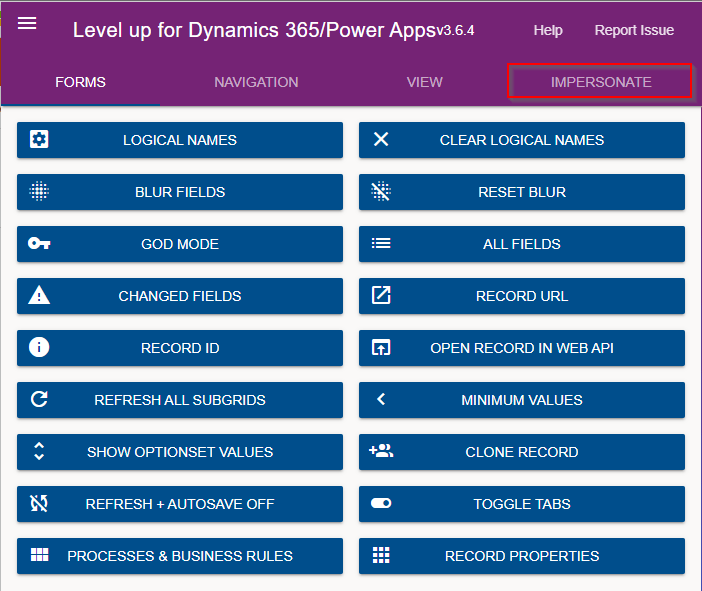
Just open the level up chrome extension. This is how your home screen look like once opened..to use this feature, just click on Impersonate as highlighted in the below image. For all this activity, I am logged in as Admin user to the system.

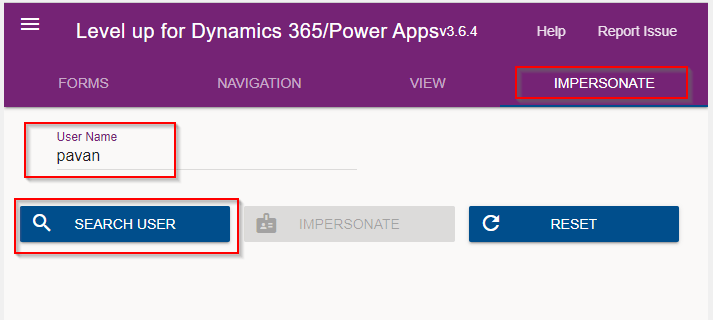
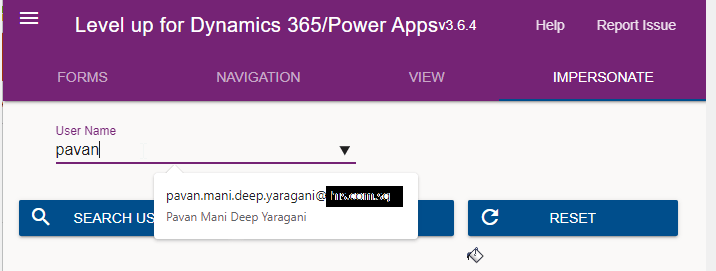
Next you can search with the username with whom you want to impersonate with i.e. here I would like to impersonate with my user account. You can search and impersonate with any user in the system.

Once you click on SEARCH USER

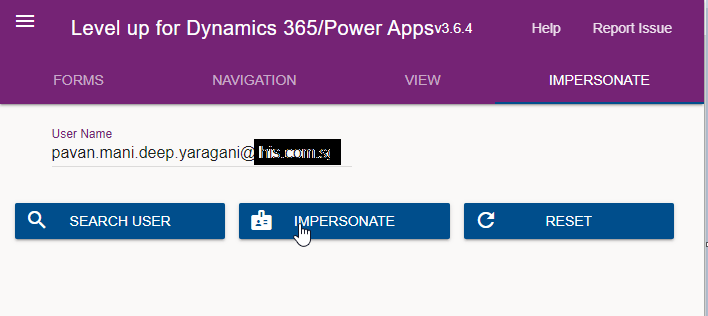
Upnext, click on impersonate button available as below

It opens a new window impersonated with the user account as the user choosen for the impersonation.

The screen shows as the user pavan is the logged in user…

Now you can perform all the operations same as what user pavan has…how cool is it…this feature perfects suits when you want to test out the application security roles where you would like to make a change to a user role and assign to other team member, test it without needing his/her presence. Cool to know, isn’t it….

References:

You can install the extension on Edge, Firefox and Chrome.

BrowserStore Link
Chromehttps://chrome.google.com/webstore/detail/level-up-for-dynamics-crm/bjnkkhimoaclnddigpphpgkfgeggokam
Firefoxhttps://addons.mozilla.org/en-US/firefox/addon/level-up-for-d365-power-apps/
Edgehttps://microsoftedge.microsoft.com/addons/detail/level-up-for-dynamics-365/mdjlgdkgmhlmcikdmeehcecolehipicf

GitHub for source code and project documentation

Cheers to Nataraj Yegnaraman who developed this cool tool…

Thanks for reading…

PMDY