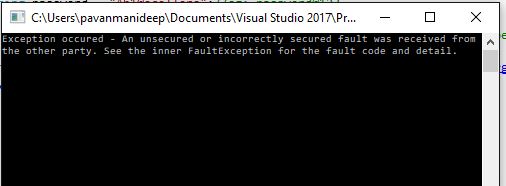
Fix : Could not load file or assembly ‘Microsoft.IdentityModel.Clients.ActiveDirectory..The system cannot find the file specified.”:”Microsoft.IdentityModel.Clients.ActiveDirectory..

Hi Folks,

Recently I came across this problem with one my console applications while working with ADAL library. After debugging for a while, came to know that this DLL referenced had been updated and I strangely note that error popping up.

Then I came to know that there was an assembly binding defined with a different version from the DLL present in the bin folder. So I tried to understand a bit about assembly binding and what assembly binding redirect is all about.

Why are binding redirects needed at all?

Suppose you have application A that references library B, and also library C of version 1.1.2.5. Library B in turn also references library C, but of version 1.1.1.0. Now we have a conflict, because you cannot load different versions of the same assembly at runtime. To resolve this conflict you might use binding redirect, usually to the new version (but can be to the old too). You can do that by adding the following to app.config file of application A, under configuration>runtime>assemblyBinding section (see here for an example of full config file):

<dependentAssembly>
    <assemblyIdentity name="C"  
                      publicKeyToken="32ab4ba45e0a69a1"  
                      culture="en-us" />  
    <bindingRedirect oldVersion="1.1.1.0" newVersion="1.1.2.5" />  
</dependentAssembly>

You can also specify a range of versions to map:

<bindingRedirect oldVersion="0.0.0.0-1.1.1.0" newVersion="1.1.2.5" />  

Now library B, which was compiled with reference to C of version 1.1.1.0 will use C of version 1.1.2.5 at runtime. Of course, you better ensure that library C is backwards compatible or this might lead to unexpected results.

You can redirect any versions of libraries, not just major ones.

If you want to know more about assembly binding, redirects. Please refer to below post.

https://www.codeproject.com/Articles/12215/Assemblies-locating-binding-and-deploying

Finally I was able to resolve this issue by commenting this section in App.config. The fix seem to be easy.

Hope this helps.

Cheers,

PMDY


Pro-grammatically create Document location records in SharePoint Online from Dynamics Customer Engagement Online without using native integration

Hi Folks,

Have you ever got a requirement to specifically create records in SharePoint without using the out of the box CRM-Sharepoint integration, then your were at right place and this post is going  absolutely help you with your requirement.

With the out of box integration, we will be able to create records in SharePoint when we navigate to OPEN LOCATION under Document Associated grid. But this adds record GUID to name of the record being created. But in our case, we only want the document location record to be created  with the name of the record. Please use the below code…all you need is Tenant ID, Resource ID, Client ID, Client Secret and your SharePoint domain and URL.

This approach uses Access token approach using the SharePoint based Add-in.

Steps to create SharePoint based Add-in. Navigate to below URL…

Ex: [Site Collection URL]/_layouts/15/AppRegNew.aspx0

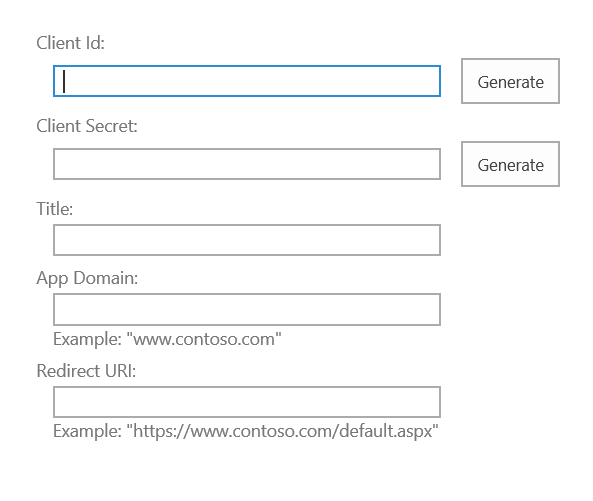
AppRegNew Form

At this point, you’ll need to fill in the following details,

Name Description
Client Id Click Generate unique client id for your add-in. It’s a GUID which will be used to identify your add-in.
Client Secret Acts like a password for your add-in. It will include some special characters as well. So while using it, we have to encode the same first.
Title The name of your add-in that will be displayed to the end user.
App Domain For provider-hosted add-in, this will be the domain where, the add-in is hosted. For token generation add-in, fill in any value. Make sure, not to include protocols(https) or slashes(/).
Redirect URI For provider-hosted add-in, fill in the redirect URL. For token generation add-in, fill in any value.

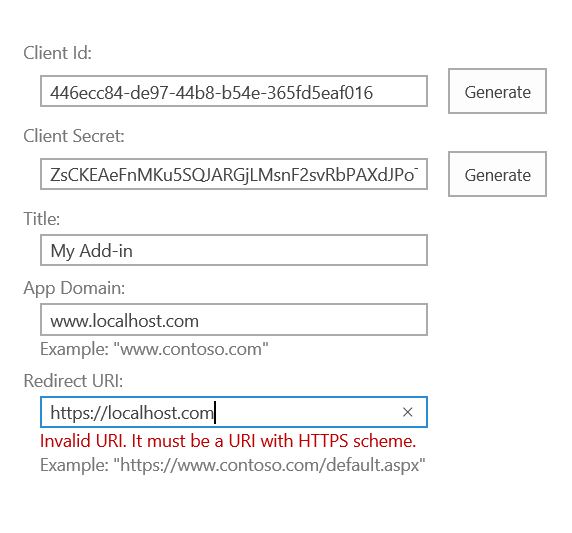
Once you have filled in all the below details, hit Create to register the add-in1

Register SharePoint Add-in

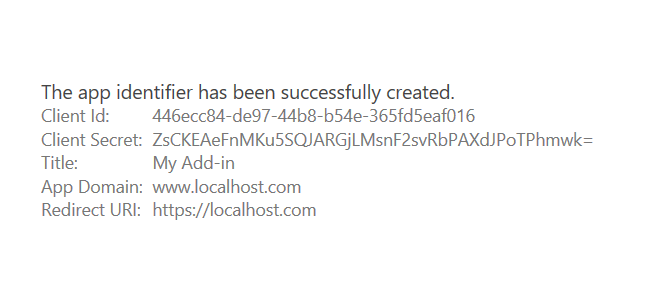
    • You will be navigated to a page displaying the details of your add-in. Save Client Id & Client Secret for future references(Don’t forget this step as you won’t be able to navigate to this page to view details later)2                                  SharePoint Add-in Identifier
    • Grant permission to an add-in

      Now that the identifier is created, we need to grant the necessary permission for it to perform any action. In this example, I’ll demonstrate how to grant full control access on a Site Collection.

      • Navigate to
        [Site Collection URL]/_layouts/15/AppInv.aspx

        3

      • Enter your Client Id value in the App Id option and hit the Lookup button. Details of your add-in will be displayed automatically.4
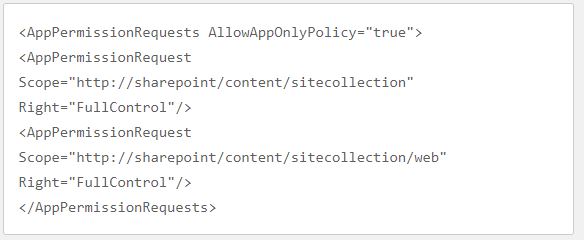
      • Now this is crucial, you need to give permissions to your app. In the option, Permission Request XML, let’s write the below XML code to grant our add-in full control on the given site collection.Capture
      • Just hit the Create button. You will now be prompted to trust the add-in for all the permissions that it requires.5                                      Trust SharePoint Add-In
      • Hit the Trust It to grant the requested accesses. You can navigate to the following URL to also confirm that the permission has been assigned to the add-in.
        [Site Collection URL]/_layouts/15/appprincipals.aspx

        6

    • Now once you have created the app in SharePoint, you need to get the access token to perform CRUD Operations in SharePoint using REST API.
    • For testing purpose, you can use either POSTMAN or a console application…I have written the approach in both the ways.
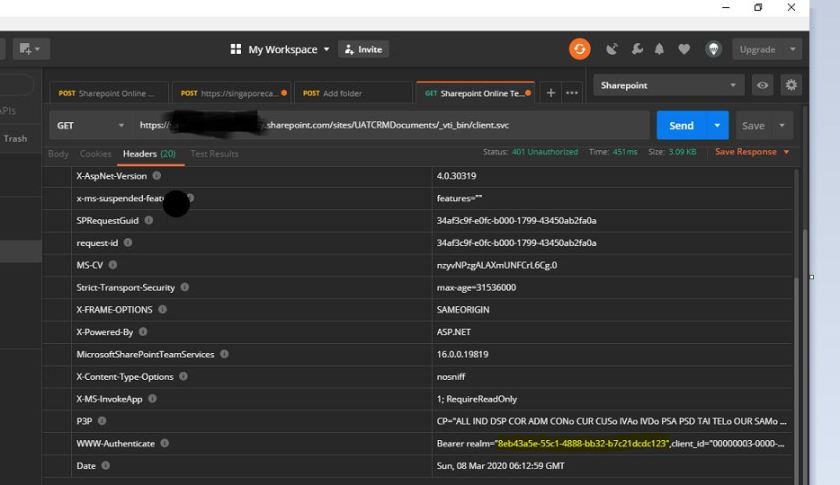
    • For retrieving Tenant ID firstly using postman..
    • Perform a GET Request to the following URL..
    • [Site Collection URL]/_vti_bin/client.svc
    • After entering the above URL in the text-box in the URL text-box. We will get the Unauthorized exception on accessing the information. Because SharePoint Online is very much secured and that doesn’t allow anonymous users to access the information for their site. The below is the error message response, after sending the request. Highlighted is your Tenant ID..note it down..Capture1
    • Instead you can use the below C# code to get the Tenant ID details:public string GetTenant(string stGetTenantDetailsUrl)
      {
      WebRequest myWebRequest;
      string tenantID = string.Empty;
      string resourceID = string.Empty;
      string accessToken = string.Empty;myWebRequest = WebRequest.Create(stGetTenantDetailsUrl);
      myWebRequest.Method = “GET”;
      myWebRequest.Headers.Add(“Authorization”, “Bearer”);
      WebResponse myWebResponse = null; ;
      try
      {
      myWebResponse = myWebRequest.GetResponse();
      return tenantID;
      }
      catch (System.Net.WebException ex)
      {
      //get the Web exception and read the headersstring[] headerAuthenticateValue = ex.Response.Headers.GetValues(“WWW-Authenticate”);
      if (headerAuthenticateValue != null)
      {foreach (string stHeader in headerAuthenticateValue)
      {
      string[] stArrHeaders = stHeader.Split(‘,’);
      //loop all the key value pair of WWW-Authenticate
      foreach (string stValues in stArrHeaders)
      {if (stValues.StartsWith(“Bearer realm=”))
      {
      tenantID = stValues.Substring(14);
      tenantID = tenantID.Substring(0, tenantID.Length – 1);
      }
      if (stValues.StartsWith(“client_id=”))
      {
      //this value is consider as resourceid which is required for getting the access token
      resourceID = stValues.Substring(11);
      resourceID = resourceID.Substring(0, resourceID.Length – 1);
      }
      }}

      }

      return tenantID;//your tenant ID
      }
      }

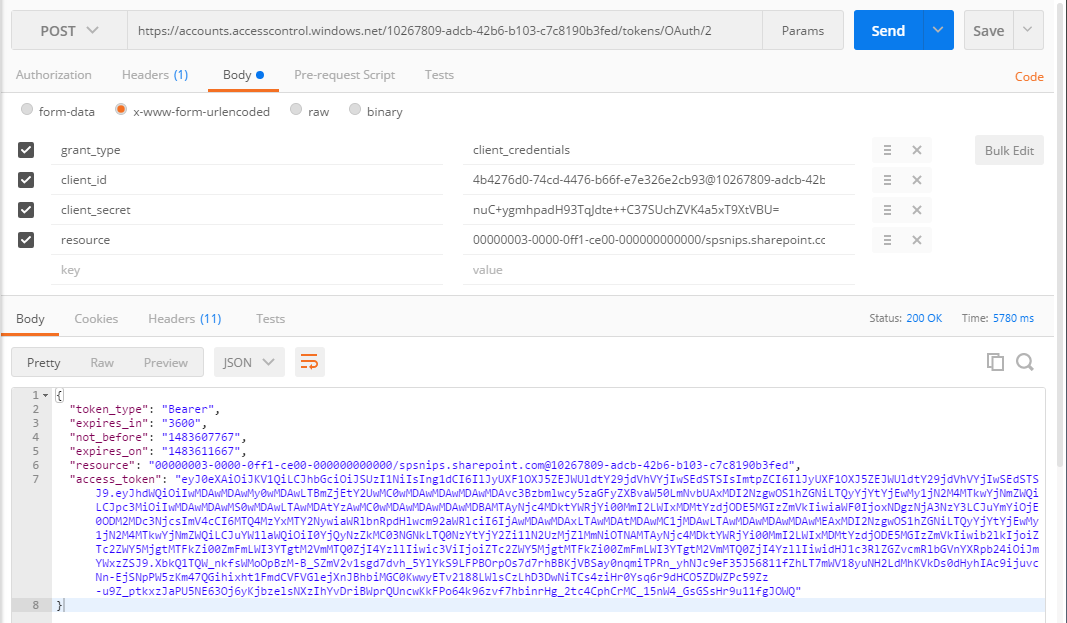
    • Next step is to get the Access token..from Postman..

                                         Generate the Access Token

      In response header, we will get WWW-Authenticate as one of the header and that contains the necessary information required for next step. The realm value contains the tenant id for the SharePoint Online site and clientid value contains the resource information (we’ll use it later).

      Key Syntax Value
      Content-Type application/x-www-form-urlencoded application/x-www-form-urlencoded

      Body

      Key Syntax Value
      grant_type client_credentials client_credentials
      client_id ClientID@TenantID 4b4276d0-74cd-4476-b66f-e7e326e2cb93@10267809-adcb-42b6-b103-c7c8190b3fed
      client_secret ClientSecret nuC+ygmhpadH93TqJdte++C37SUchZVK4a5xT9XtVBU=
      resource resource/SiteDomain@TenantID 00000003-0000-0ff1-ce00-000000000000/spsnips.sharepoint.com@10267809-adcb-42b6-b103-c7c8190b3fed
      • After applying the configuration, click Send button. That will returns the response with the Access Token.

      Fig 7: Postman response contains Access Token

      You can use the below C# code to generate access token

      public string GetAuthorisationToken(string stGetAccessTokenUrl, string stSiteDomain, string tenantID, string resourceID, string stClientID, string stClientSecret)
      {

      string accessToken = string.Empty;
      stGetAccessTokenUrl = string.Format(stGetAccessTokenUrl, tenantID);

      WebRequest request = WebRequest.Create(stGetAccessTokenUrl);

      request.ContentType = “application/x-www-form-urlencoded”;
      request.Method = “POST”;

      string postData = “grant_type = client_credentials” +
      “&client_id =” + WebUtility.UrlEncode(stClientID + “@” + tenantID) +
      “&client_secret =” + WebUtility.UrlEncode(stClientSecret) +
      “&resource =” + WebUtility.UrlEncode(resourceID + “/” + stSiteDomain + “@” + tenantID);

      byte[] byteArray = Encoding.UTF8.GetBytes(postData);
      // Set the ContentType property of the WebRequest.
      request.ContentType = “application/x-www-form-urlencoded”;
      // Set the ContentLength property of the WebRequest.
      request.ContentLength = byteArray.Length;
      // Get the request stream.
      Stream dataStream = request.GetRequestStream();
      // Write the data to the request stream.
      dataStream.Write(byteArray, 0, byteArray.Length);
      // Close the Stream object.
      dataStream.Close();

      try
      {
      using (WebResponse response = request.GetResponse())
      {
      dataStream = response.GetResponseStream();
      // Open the stream using a StreamReader for easy access.
      StreamReader reader = new StreamReader(dataStream);
      // Read the content.
      string responseFromServer = reader.ReadToEnd();
      // Clean up the streams.
      reader.Close();
      dataStream.Close();
      //Get accesss token
      accessToken = “access_token\”:\””;
      int clientIndex = responseFromServer.IndexOf(accessToken, StringComparison.Ordinal);
      int accessTokenIndex = clientIndex + accessToken.Length;
      accessToken = responseFromServer.Substring(accessTokenIndex, (responseFromServer.Length – accessTokenIndex – 2));

      return accessToken;

      }
      }
      catch (WebException wex)
      {
      HttpWebResponse httpResponse = wex.Response as HttpWebResponse;
      createlog(_service, “Error occured” + wex.ToString());
      throw new InvalidPluginExecutionException(“Exception occured while retrieving Access Token” + wex.ToString());

      }

      }

      Once we are received the access token, you were all set and we got the authorization to access the SharePoint data based on the permission applied in Grant Permission of Add-In .

      So now we would implement our logic to create folders in plugin…make sure we should be passing the Access token received while accessing share point.

      public void CreateFolder(string sharePointSite, string token, string library, string folder,Guid entityID)
      {
      string result = string.Empty;
      StringBuilder sb = new StringBuilder();
      sb.Append(sharePointSite);
      sb.Append(“_api/web/GetFolderByServerRelativePath(decodedUrl='”);
      sb.Append(library);
      sb.Append(“‘)/Folders”);
      Uri uri = new Uri(sb.ToString().Replace(“{“, “”).Replace(“}”, “”));
      HttpWebRequest wreq = (HttpWebRequest)WebRequest.Create(uri);
      wreq.Headers.Add(“Authorization”, “Bearer ” + token);
      wreq.Method = “POST”;
      wreq.ContentType = “application/json”;
      string postData = “{‘ServerRelativeUrl’:’folder’}”;
      postData = postData.Replace(“folder”, folder);
      byte[] byteArray = Encoding.UTF8.GetBytes(postData);
      wreq.ContentLength = postData.Length;
      Stream dataStream = wreq.GetRequestStream();
      dataStream.Write(byteArray, 0, byteArray.Length);
      dataStream.Close();
      WebResponse wresp = null;
      try
      {
      wresp = wreq.GetResponse();
      using (wresp = wreq.GetResponse())
      {
      dataStream = wresp.GetResponseStream();
      StreamReader reader = new StreamReader(dataStream);
      string responseFromServer = reader.ReadToEnd();
      reader.Close();
      }
      }
      catch (WebException wex)
      {
      HttpWebResponse httpResponse = wex.Response as HttpWebResponse;
      createlog(_service, “Error occured” + wex.ToString());
      throw new InvalidPluginExecutionException(“Exception occured while creating record” + wex.ToString());
      }
      }

  • You can place the Client ID, Client Secret, Sharepoint domain name in Unsecure configuration in Plugin for easier movement of code to other environment.
  • Entire code is available here…you can grab it…
  • Hope this helps some one looking out integrating Dynamics CRM Online with SharePoint online without relying on out of box integration between Dynamics CRM & SharePoint.
  • Hope you enjoyed this post…please post your valuable comments..

Cheers,

PMDY

Visual Studio Cache Cleanup – Tip to Step into your DLL Code

Hi Folks,

Have you ever had a situation where you had to debug a DLL code referred from your existing .Net Assembly…?

Possibly you might have added a reference…but still not able to step into your respective DLL even after adding project references and placing PDB in bin folder, then this tip of Visual Studio is for you…

First of all, here’s how to clear the Component Cache…

1. Close Visual Studio (ensure devenv.exe is not present in the Task Manager)
2. Delete the %USERPROFILE%\AppData\Local\Microsoft\VisualStudio\14.0\ComponentModelCache directory
3. Restart Visual Studio.

You could also need to cleanup your user’s temp folder. It is usually located under  %USERPROFILE%\AppData\Local\Temp.

Now try to debug and verify…possibly you need to try the user profile temp data clearing also.

If the above fails, you can go with approach…but be careful before proceeding…

%USERPROFILE%\AppData\Local\Microsoft\Team Foundation
%USERPROFILE%\AppData\Local\Microsoft\VisualStudio
%USERPROFILE%\AppData\Local\Microsoft\VSCommon

Then, open the Visual Studio IDE folder in command prompt and Run devenv /resetuserdata from the Visual Studio IDE folder.
Typical location for 64 bit: C:\Program Files (x86)\Microsoft Visual Studio 10.0\Common7\IDE
Typical location for 32 bit: C:\Program Files\Microsoft Visual Studio 10.0\Common7\IDE

Reference:

https://www.matteopozzani.com/visual-studio-cache-cleanup/

Hope this helps in troubleshooting..

Cheers,

PMDY

Enable logging in CE without any third party tools

Hi,

Have you ever had an issue where you need logging mechanism to troubleshoot…

Out there we have some 3rd party software which can help with this…but we can use Notes entity in CE so that we can enable logging to our .Net Assembly code with out any other 3rd party additions.

Add the below part to your code..

Entity _annotation = new Entity(“annotation”);
_annotation.Attributes[“mimetype”] = @”text/plain”;
_annotation.Attributes[“notetext”] = message;
service.Create(_annotation);

And use the method above to create log wherever needed like below..no other DLL additions required..you fill find the logs under Notes entity.

createlog(service, “Your String to be logged”);

Hope this helps while troubleshooting…

Cheers,

PMDY

Know more about enabling MFA…& it’s consequences…

Recently I was exploring about setting Multi Factor authentication for my Dynamics 365 Instance and connecting to it via code using Console applications. This is when I came know about using an App password for my Console application to work.

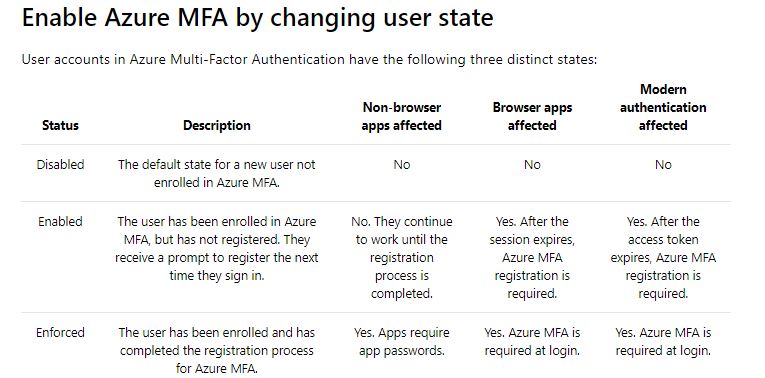
But do you know that based on the user states, MFA setup behaves differently..

Capture1

Ok..now let’s take a simple console application which just does nothing but connects using a OrganizationServiceProxy. Sample code can be found here.

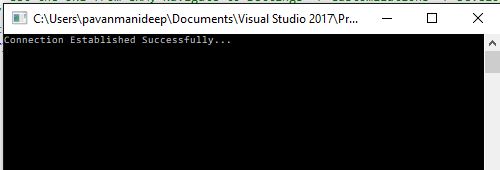
  1. When MFA is disabled, you will be able to connect to the instance without any issues.

Capture1

2. Now Enable the MFA but don’t enforce it. Don’t sign in and complete the registration process of either providing pin or answering the call. Try to run the same console code above, you would be still able to connect without any issues.

Capture1

This is because Console application would also behave as non browser app. and will continue to work until the sign up is done exclusively as stated in the table above.

3. After the multifactor authentication is enforced, users will need to create app passwords for working with non browser applications. So now if you try to run the same Console application, you would get an error..

Capture2

Now sign in to your instance and generate the app password by providing additional security information when signing up. Use the same app password in place of credentials used while connecting to CRM in the console app.

And now you will be able to connect without issues…

Capture1

Hope this helps..

PMDY.

Power Apps…low code solution…

Before diving into the Power Apps..and walkthroughs..lets see the different Power Apps variants…we have two different kinds of Power Apps. available which are developed based on needs, data sources available and their advantages in the design.

1.Canvas Apps:

These Apps. are developed on Canvas without writing any code with the usual language namely C#. These are developed by just dragging the respective components on to the Canvas. However just should be aware of basic excel functions in order to develop apps with ease. We can connect to Microsoft & Non Microsoft Data sources where we do have design control, need to create separate apps for mobile devices and web browsers. These are task focused and used frequently for creating simple apps.

2. Model Driven Apps:

These are built using Dynamics 365 framework and  uses CDS Connectors. Model-driven app design is a component-focused approach to app development and can be used to develop apps covering complex scenarios. The design is automatically by the components we add to the App. To use model driven apps or for creating CDS for apps, we need Power Apps P2 License having access to Data. Moreover the model driven apps can be distributed as a solution. If we speak about model driven app. components, these are divided into dataUIlogic, and visualization categories.

The data talks about on which data the app. was built, UI defines how the users will interact with the App. While the logic determines the business processes, rules, and automation the app will have..

Cheers,

PMDY

Power Platform..A trio..game changer…

Have u ever imagined that Microsoft will bring its all new diverse products covering Dynamics 365, Office 365 and standalone products under one roof making a Trio…to unlock the potential faster than you ever thought possible…if you were not aware…then this post is for you…

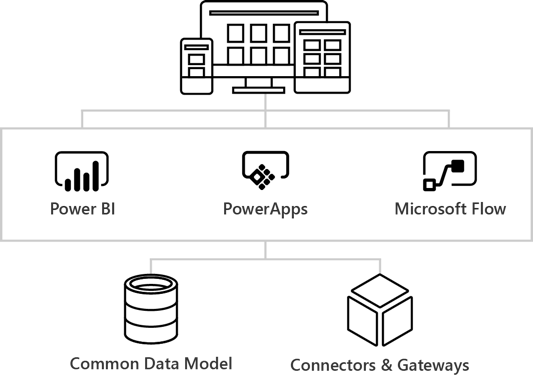
The main intention is to empower everyone with one connected app platform…Power Platform combines the robust power of PowerAppsPowerBI, and Microsoft Flow into one powerful business application platform –  providing quick and easy app building and data insights.

This is part one of 6 series blog posts helps you to understand the basics, in and out of this entire all new ecosystem. Upcoming blog posts will give you a deep insight on covering every individual aspect on this marvellous platform.
Power-platform-2

Common Data Model:

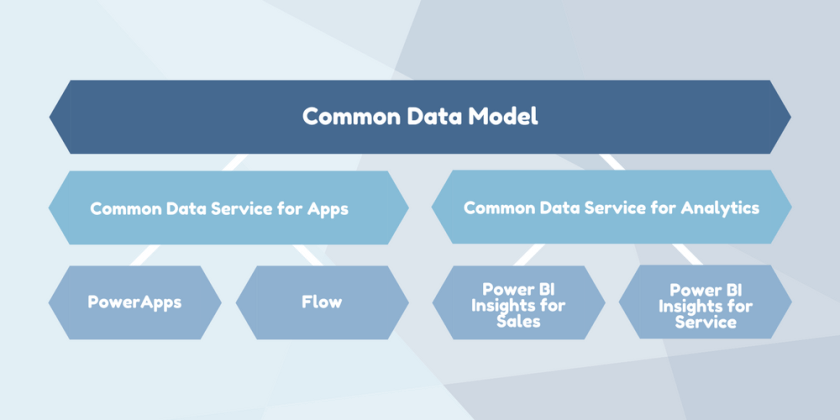
The Common Data Model (CDM) is the shared data language used by business and analytical applications. CDM bridges the gap between disjointed data repositories, granting easier cross-platform business reporting.
Copy-of-Copy-of-Common-data-service

It consists of a set of a standardised, extensible data schemas published by Microsoft and partners that enables consistency of data and its meaning across applications and business processes. This allows apps to integrate and share data with each other without the need for extensive, custom integration by providing a centralized point where systems can come together and connect.

The Common Data Model is a secure method for exposing Microsoft databases that allows developers to build custom connections with other databases.

Common Data service:

The heart of the Microsoft Power Platform is the Common Data Service for Apps(CDS). These applications handle your data through the use of Microsoft’s Common Data Service for Apps (CDS). CDS is a cloud-based tool hosted on Azure which allows you to securely store and manage your business data. Data within the CDS is stored within a set of entities, a standard set of entities are included, however custom entities can be created for specific requirements to your organization and populate them with data using Power Query. The CDS for Apps is built on the Common Data Model.

Dynamics 365 applications, like Dynamics 365 for Sales, Service or Talent also use the Common Data Service to store and secure data used by the applications. This enables you to build apps using PowerApps and the Common Data Service directly against your core business data already used within Dynamics 365 without the need for integration. You can think of Common Data service as a common store allows for an easier app building experience, and a single set of logic to maintain and operate over the data.

Power Apps:

Power Apps enables users fostering via No Code solutions which improves productivity and reduces the time for the delivery.

image15

PC Mag. had rated the power apps as the best low code solutions available in the market..if you haven’t gone through this..read this article..

PowerApps at its core is a Platform as a Service. It allows you to create Mobile Apps that run on Android, iOS, Windows (Modern Apps) – and with almost any Internet browser..Read more about Power Apps in the upcoming blog post here

Microsoft Flow:

Microsoft Flow is an online workflow service that automates actions across the most common apps and services and a trigger based system.microsoft-flow-templates
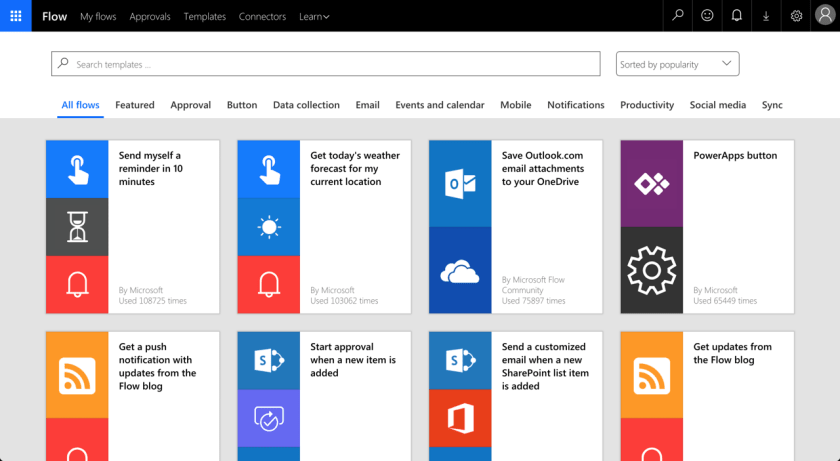
In total there are connectors for 323 applications and protocols at the time of writing, and you can write your own if you need a different one. You can read more about Flow and automating your business processes here…

Power BI:

Microsoft Power BI is a collection of software services, apps, and connectors that work together to turn your unrelated sources of data into coherent, visually immersive, and interactive insights. Power BI can be simple and fast, capable of creating quick insights from an Excel workbook or a local database.
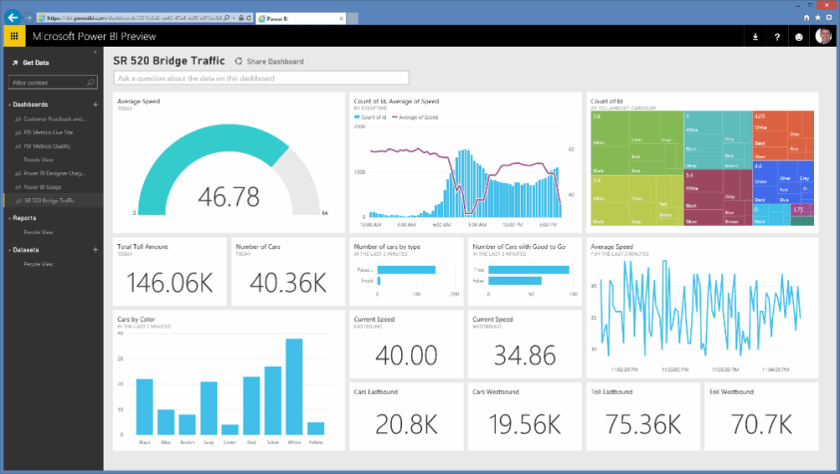
sCM_Power-BI-Preview

At the users flexibility….we can use…Windows desktop application called Power BI Desktop, an online SaaS (Software as a Service) service called the Power BI service, and mobile Power BI apps that are available on Windows phones and tablets, and also on Apple iOS and Google Android devices.

These three elements—Desktop, the service, and Mobile apps—are designed to let people create, share, and consume business insights in the way that serves them, or their role, most effectively.

Read more capabilities of Power BI here…

Connectors & Gateways:

Nevertheless we discussed all the other components as part of this framework, connectors and gateways plays a major role…Connectors are essentially proxy wrappers around the APIs provided by services that allow Microsoft Flow, PowerApps and Logic Apps to easily interact with the service. You can read more about connectors and gateways and much more in upcoming post…

That’s it for today…thank you for reading…

Cheers,

PMDY

Cannot obtain value of the local variable or argument because it is not available at this instruction pointer, possibly because it has been optimized away in Visual studio 2017

Hi,

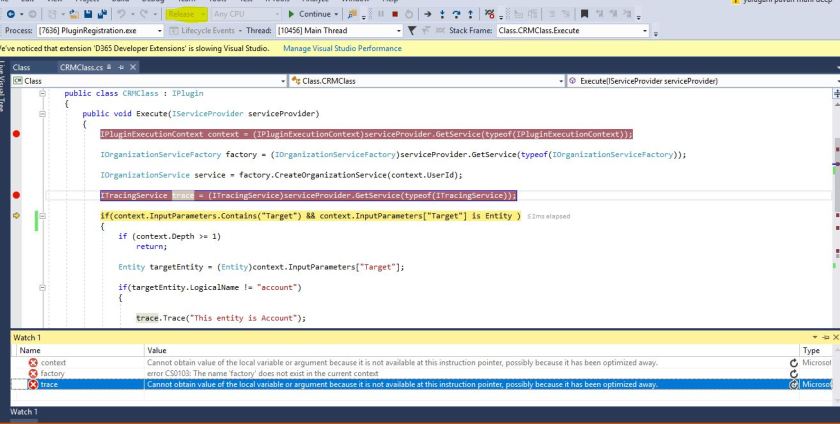
Recently we were debugging a D365 plugin in Visual studio 2017, able to hit the debugger but unable to get values to any of the variables. Getting the above error while debugging with the solution being in Release mode.

Capture.JPG

Changed from the release mode to debug mode, deployed the solution and then able to debug and get the values.

Please refer to below posts  for more information.

Cannot obtain value of local variable

Blog from Microsoft

Hope this helps someone…

Cheers,

PMDY


No Plugins selected message in Plugin registration tool

Hi Folks,

When we were working on a plugin for D365 Online, faced the below mentioned error message in Plugin registration tool where it was not showing up the newly added the class to assembly.

However we were using the latest Plugin registration tool.

Capture.JPG

Making the class as Public solved the issue.

Capture.JPG

Hope this helps…

Thank you.

PMDY

Change tracking solution for Dynamics 365

 Lets take a look at recently released feature for Dynamics 365 – Change tracking solution for Dynamics 365!!!

Large Microsoft Dynamics 365 organizations that synchronizes data with external systems uses change tracking. This feature was used to keep the integration system/data warehouse in Sync with CRM data.

Till now it would be difficult to find which System Administrators/System Customizers had made change to the system. It was difficult to track these details. However with this solution, which was built on Dynamics 365 and as works well on Dynamics CRM 2016 (Online/ On premises). Released to track data changes in a more efficient way.

This feature can track changes like who updated an entity, JavaScript, assemblies and processes along with the time of update. Changes made by System Adminstraors and Customizers will also be recorded.

How does Change tracking solution work?

This uses two plugins and batch job namely captures

  • Publish – User who had published the component, name and time of publish
  • Publish All – Captures when a set of components or solution was published
  • Assemblies & Workflows – This job runs every hour, capturing these changes and update in the change tracking entity.

Downloadable solution available at Change tracking solution for Developers. Please do note that this change tracking solution works for Dynamics 365 On Premise and Online Version both. However there is also an add on that can be installed on your instance using this link.

User guide for Admins

Change tracking user guide

Hope this helps…!!!