
Subscribe to continue reading
Subscribe to get access to the rest of this post and other subscriber-only content.

Exploring Power Platform and Beyond: Features, Experiences, Challenges, Solutions all in one place
Subscribe to get access to the rest of this post and other subscriber-only content.
Hi Folks,
I recently came across the above error for one of my Dynamics 365 Plugins…this blog talks about applying a quick fix.
While debugging our Plugin logic line by line to understand why it’s not working, observed this error for messages like RetrieveMultiple, Retrieve when I use any Organization Service call.
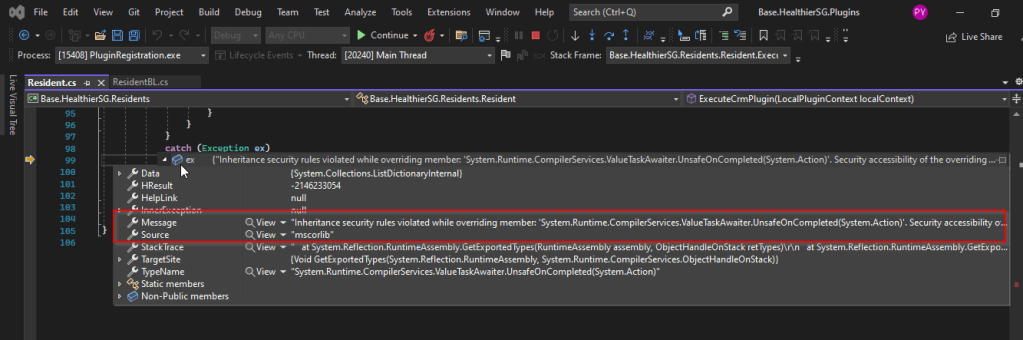
This was a .Net version downgrade issue caused by ILMerge as I downgraded one of the DLL to 4.6.2 version from 4.7.1. If you see this issue even without downgrading your DLL, you can use this fix.
After some research I came across this article and applied the same to my assembly which fixed the issue. Added these lines to my AssemblyInfo.cs class file..
[assembly: AllowPartiallyTrustedCallers]
[assembly: SecurityRules(SecurityRuleSet.Level1)]
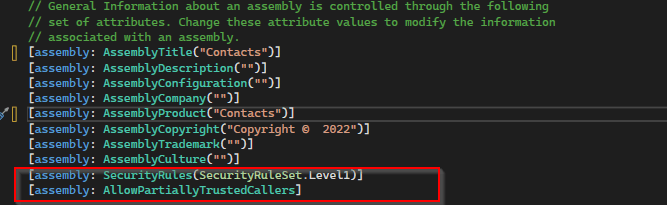
Hope this helps someone who is facing the same issue down the line in their Plugin Development, Debugging…
Thank you for reading…
Cheers,
PMDY
Hi Folks,
This blog post is all about performance considerations for your Power Platform CE Projects and how you can plan to optimize application performance for your Power Apps. So I just want to take you through them…
Are you tired of creating solutions for longer durations and while at the end of the project or during UAT you end up facing performance issues for the solutions you have developed, one of the most important non-functional requirements for a project’s success is Performance. Satisfying performance requirements for your users can be a challenge. Poor performance may cause failures in user adoption of the system and lead to project failure, so you might need to be careful for every decision you take while you design your solutions in the below stages.
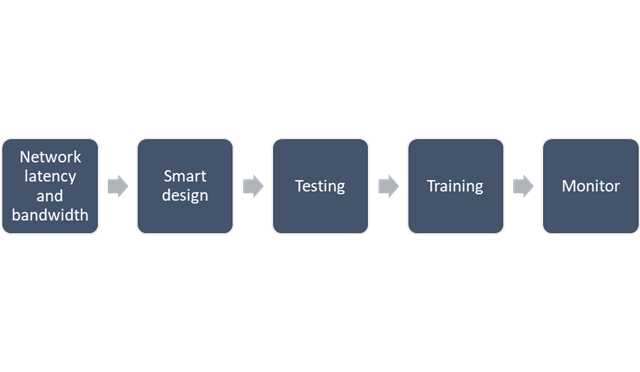
Let’s talk about them one by one..
A main cause of poor performance of Dynamics 365 apps is the latency of the network over which the clients connect to the organization.
Lower latencies (measured in milliseconds) generally provide better levels of performance. Even if the latency of a network connection is low, bandwidth can become a performance degradation factor if there are many resources sharing the network connection, for example, to download large files or send and receive email.
Dynamics 365 apps are designed to work best over networks that have the following elements:
These values are recommendations and don’t guarantee satisfactory performance. The recommended values are based on systems using out-of-the box forms that aren’t customized.
If you significantly customize the out-of-box forms, it is recommend that you test the form response to understand bandwidth needs.
You can use the diagnostics tool to determine the latency and bandwidth:
Also, to mitigate higher natural latency for global rollouts, customers should leverage Dynamics 365 Apps successfully by having smart design for their applications.
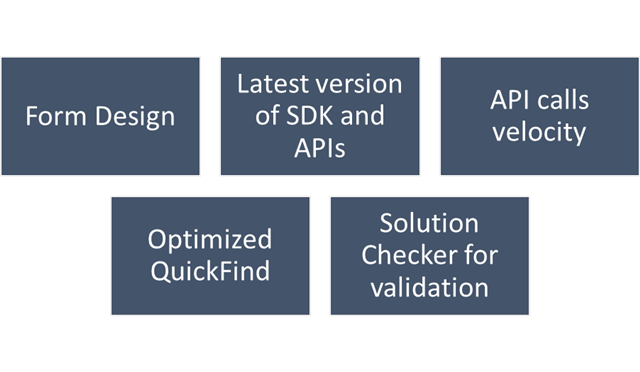
Learn more Design forms for performance in model-driven apps – Power Apps | Microsoft Learn
The latest version of SDK, Form API and WebAPI endpoints should be used to support latest product features, roadmap alignment and security.
Only the columns required for information or action should be included in API calls:
Consider reviewing periodically the Best practices and guidance when coding for Microsoft Dataverse – Power Apps | Microsoft Learn and ColumnSet.AllColumns Property (Microsoft.Xrm.Sdk.Query) | Microsoft Learn.
You should continue to use the ITracingService.Trace to write to the Plug-in Trace Log table when needed. If your plug-in code uses the ILogger interface and the organization does not have Application Insights integration enabled, nothing will be written. So, it is important to continue to use the ITracingService Trace method in your plug-ins. Plug-in trace logs continue to be an important way to capture data while developing and debugging plug-ins, but they were never intended to provide telemetry data.
For organizations using Application Insights, you should use ILogger because it will allow for telemetry about what happens within a plug-in to be integrated with the larger scope of data captured with the Application Insights integration. The Application Insights integration will tell you when a plug-in executes, how long it takes to run and whether it makes any external http requests. Learn more about tracing in plugins Logging and tracing (Microsoft Dataverse) – Power Apps | Microsoft Learn.
Best practice is to run Solution Checker for all application code and include it as mandatory step while you design solutions or check when you complete developing your custom logic.
For an optimal search experience for your users consider the next:
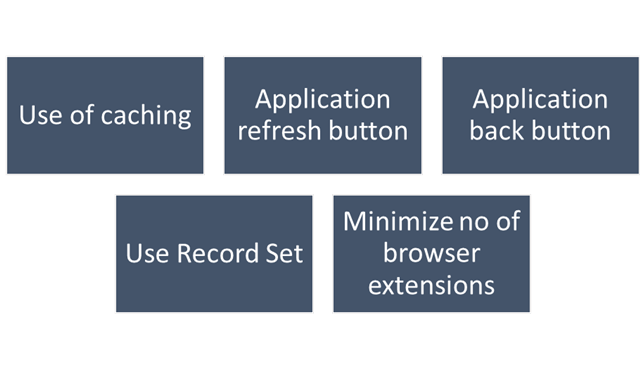
This step should be done during user training or during UAT. To ensure optimal performance of Dynamics 365, ensure that users are properly leveraging browser caching. Without caching, users can experience cold loads which have lower performance than partially (or fully) warm loads.
Make sure to train users to:
For business processes where performance is critical or processes having complex customizations with very high volumes, it is strongly recommended to plan for performance testing. Consider reviewing the below technical talk series describing important performance considerations, as well as sharing practical examples of how to set up and execute performance testing, and analyze and mitigate performance issues. Reference: Performance Testing in Microsoft Dynamics 365 TechTalk Series – Microsoft Dynamics Blog
You should define a monitoring strategy and might consider using any of the below tools based on your convenience.
I hope this blog post had helped you learn or know something new…thank you for reading…
Cheers,
PMDY
Hi Folks,
Every now and then when we were struck up with the issues with our code or with any power platform components like Power Automate, we had to definitely understand whether it is working from normal C# console application.
There were tons of articles over the internet and just it’s ophhhh…
So this post is just for a quick reference to connect to Dynamics 365 CE Instance to check if your actual function is returning valid data or not. I have just removed my functions for brevity.
You can just specify your Client Id, Client Secret, Instance URL below.
using System;
using System.Collections.Generic;
using System.Linq;
using System.Text;
using System.Threading.Tasks;
using Microsoft.Crm.Sdk;
using Microsoft.Crm.Sdk.Messages;
using Microsoft.Xrm.Sdk;
using Microsoft.Xrm.Tooling.Connector;
using System.ServiceModel;

namespace TestConsole
{
internal class Program
{
static void Main(string[] args)
{

        IOrganizationService orgService = GetOrganizationServiceClientSecret(your client id, your client secret, instance url);
        var response = orgService.Execute(new WhoAmIRequest());//To validate the request

        if(response != null)
        {
            Console.WriteLine("Connected to CRM");

            //Your function here
        }
    }

    public static IOrganizationService GetOrganizationServiceClientSecret(string clientId, string clientSecret, string organizationUri)
    {
        try
        {
            var conn = new CrmServiceClient($@"AuthType=ClientSecret;url={organizationUri};ClientId={clientId};ClientSecret={clientSecret}");
            return conn.OrganizationWebProxyClient != null ? conn.OrganizationWebProxyClient : (IOrganizationService)conn.OrganizationServiceProxy;
        }
        catch (Exception ex)
        {
            Console.WriteLine("Error while connecting to CRM " + ex.Message);
            Console.ReadKey();
            return null;
        }
    }
}

}
Whenever you want to check any thing from C# Console, I hope this piece code works for connecting to your Dynamics.
Cheers,
PMDY
Hi Folks,
In today’s world, all the modern software applications use API for the front end to communicate with the backend systems, so lets see as it is very important for every developer working on Azure and API’s. Basically this is a PAAS Service from Azure. Follow along if you would like to know more details on this.
In short APIIM is a hybrid and multi cloud platform used to manage complete API life cycle. Azure API Management is made up of an API gateway, a management plane, and a developer portal.
Also its easy to integrate API Management with all the other Azure Service available in the market.
Now lets go into the hands on by creating an APIIM simply from Azure.
Go to Home – Microsoft Azure and search for APIIM and select API Management services and click on Create.
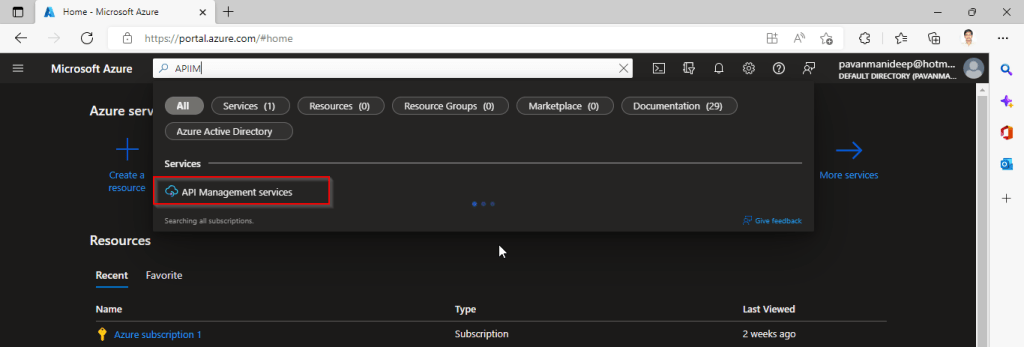
Input all the details, it was pretty self explanatory, coming to the pricing tier you could select based on your project needs and use case. Click on Review and Create and then Create.
It will take few minutes for the deployment to complete and you can use it.
The below Power point slide presentation is complete resource which can help you with all your queries related to Azure API Management.
Grand Tour of Azure API Management
I hope this gives you a bit of introduction to Azure API Management, now lets see how you can use this in your Power Platform Solutions.
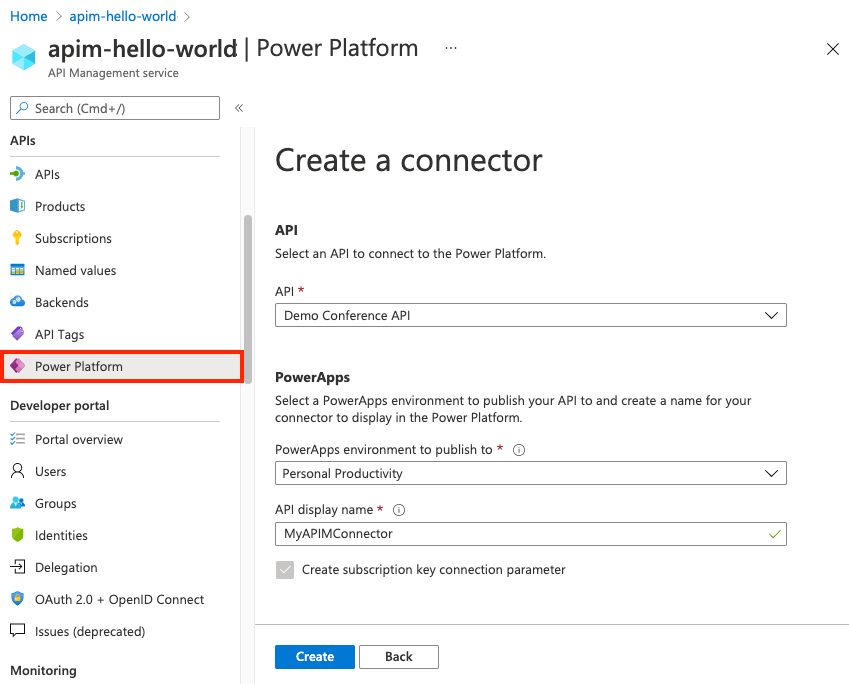
For this, once your API ready, all you have do is to export your API’s from Azure API Management to your Power Platform Environment. With this the citizen developers can unleash the capabilities of Azure where the API’s are developed by professional developers. With this capability, citizen developers can use the Power Platform to create and distribute apps that are based on internal and external APIs managed by API Management.
Steps to follow would be as below:
All you need to do is to create a custom connector for your API which can be used in Power Platform like Power Apps, Power Automate etc.
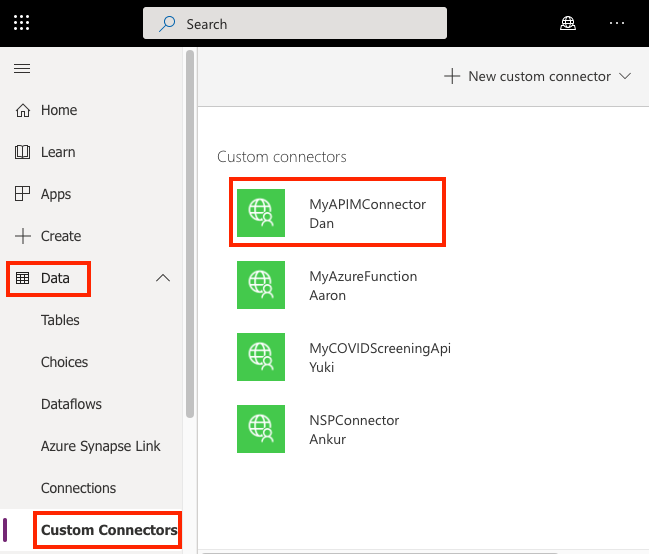
Once the connector is created, navigate to your Power Apps or Power Automate environment. You will see the API listed under Data > Custom Connectors.
I hope this will give you a complete picture about API Management in Azure…if you have any further queries, don’t hesitate to comment here…
Cheers,
PMDY
Hi,
Recently I was asked by one customer on how they can assess or check the performance of Dynamics CE as they were having some network outages and issues. I remembered that I used a tool earlier for checking my Dynamics CRM On premise engagement. So after checking for online version as well, got to know that we can use in the same way to find the performance for the online CE instance as well. You can follow as below…
To run the Diagnostics tool, you have to follow these steps.
The report displays a table with test and benchmark information. Of particular importance is the Latency Test row value. This value is an average of twenty individual test runs. Generally, the lower the number, the better the performance of the client.
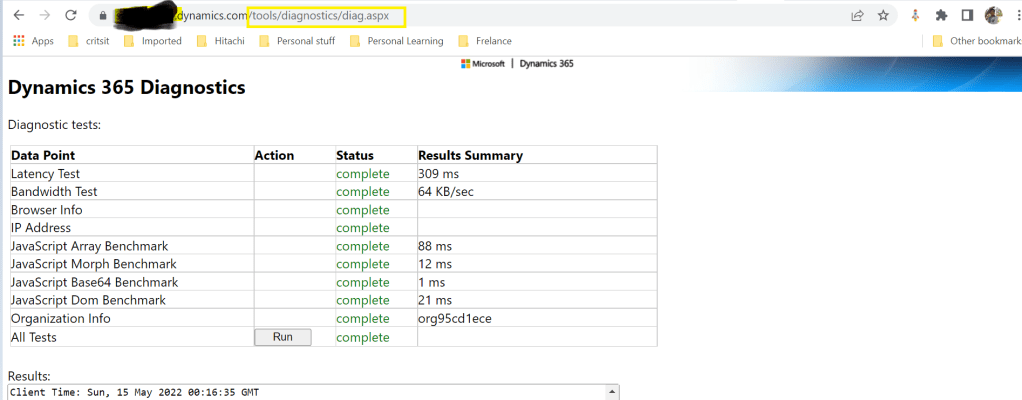
In this way you can track your Dynamics CE performance at a given point of time to assess your network latency and bandwidth behaviors.
Cheers,
PMDY

Power Platform Tools for Visual Studio supports the rapid creation, debugging, and deployment of plug-ins.
You may note that Power Platform Tools for Visual Studio is similar in appearance and function to the Developer Toolkit for Microsoft Dynamics CRM 2013.
While Power Platform Tools for Visual Studio is similar in appearance and function to the Developer Toolkit for Microsoft Dynamics CRM 2013, Power Platform Tools is a new product and completely independent of the Developer Toolkit.
Power Platform Tools is not directly compatible with any templates or projects from the Developer Toolkit and vice versa.
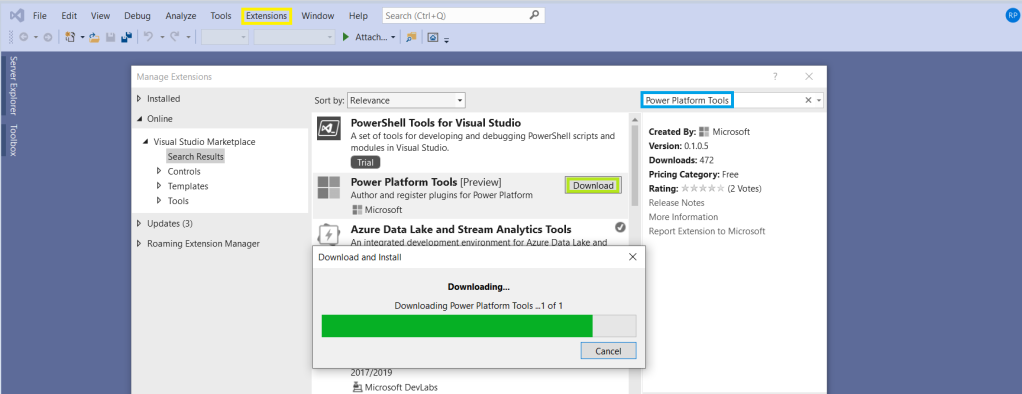
View original post 112 more words
Hi,
Have u ever faced any performance issue with any of your REST API hosted out in the internet. So here’s the background, our client has a Custom Asp.Net Portal(remembering the old day school of using Asp’s, interesting…??) which is built on using the REST API.
So this REST API was having some performance issues, this is where we got to check on the newly created entity for our API Implementation…after couple of hours of research, we found that few indexes are missing.
You should be knowing how it’s difficult to read a book without indexes, so in the same way, the C# code was finding it difficult to retrieve the data without any indexes and after adding them, the peformance had been improved and with a bit of code improvisation, we got a significant improvement in the performance.
For those trying to search for missing indexes, please try out the below code…
SELECT DISTINCT
CONVERT(decimal(18,2), user_seeks * avg_total_user_cost * (avg_user_impact * 0.01)) AS [index_advantage],
migs.last_user_seek,
OBJECT_NAME(mid.[object_id]) AS [table_name],
mid.equality_columns,
mid.inequality_columns,
mid.included_columns,
migs.unique_compiles,
migs.user_seeks,
migs.avg_total_user_cost,
migs.avg_user_impact,
p.rows AS [table_rows],
mid.[statement] AS [DatabaseSchemaTable],
GETDATE() QueryExecustionTime
FROM sys.dm_db_missing_index_group_stats AS migs WITH (NOLOCK)
INNER JOIN sys.dm_db_missing_index_groups AS mig WITH (NOLOCK)
ON migs.group_handle = mig.index_group_handle
INNER JOIN sys.dm_db_missing_index_details AS mid WITH (NOLOCK)
ON mig.index_handle = mid.index_handle
INNER JOIN sys.partitions AS p WITH (NOLOCK)
ON p.[object_id] = mid.[object_id]
WHERE mid.database_id = DB_ID(‘Starbucks_MSCRM’) –CHANGE DB NAME HERE –Starbucks_MSCRM
–AND mid.[object_id] = OBJECT_ID(‘dbo.ign_transactionbase’) –CHNAGE TABLE NAME HERE
ORDER BY index_advantage DESC OPTION (RECOMPILE);
GO
Hope you found some interesting scenario to deal with your performance issues.
Cheers,
PMDY
Hi,
Have you ever had an issue where you need logging mechanism to troubleshoot…
Out there we have some 3rd party software which can help with this…but we can use Notes entity in CE so that we can enable logging to our .Net Assembly code with out any other 3rd party additions.
Add the below part to your code..
Entity _annotation = new Entity(“annotation”);
_annotation.Attributes[“mimetype”] = @”text/plain”;
_annotation.Attributes[“notetext”] = message;
service.Create(_annotation);
And use the method above to create log wherever needed like below..no other DLL additions required..you fill find the logs under Notes entity.
createlog(service, “Your String to be logged”);
Hope this helps while troubleshooting…
Cheers,
PMDY
Hi,
Recently we faced an issue while deploying solution to other environment from Dev..getting below error in Dynamics 365 On premise 8.2 version..
| A record with these values already exists. A duplicate record cannot be created. Select one or more unique values and try again. |
This could be due to below reasons..
1. One entity has two CustomControlDefaultConfigs
Like this

We tried to delete one of the duplicated CustomControlDefaultConfig (randomly). This works in some cases.
2. Entity with unique CustomControlDefaultConfigid, but solution import crashes with error customcontroldefaultconfig With Id = d3226572-022c-e611-80e6-00155dc26410 Does Not Exist. The solution contains only one CustomControlDefaultConfig for this entity
<CustomControlDefaultConfigs>
<CustomControlDefaultConfig>
<PrimaryEntityTypeCode>10084</PrimaryEntityTypeCode>
<CustomControlDefaultConfigId>{bd771d8c-2cd6-e511-80d4-00155d0e4417}</CustomControlDefaultConfigId>
<ControlDescriptionXML>
<controlDescriptions />
</ControlDescriptionXML>
<IntroducedVersion>1.0</IntroducedVersion>
</CustomControlDefaultConfig>
</CustomControlDefaultConfigs>
This could be due to corrupt config setting as in our case.
Fix:
Delete the CustomControlDefaultConfigId present in the entity which is creating the issue, open the Customizations.xml in the solution and delete the highlighted ID. For this use XRM Toolbox Bulk Delete tool to delete this ID as below, as this can’t be done using UI.
To Delete a record we would we would use Bulk Delete Tool


Here is fetch XML to be used and replace the below highlighted ID in green with the ID from the customizations.xml
<fetch version=”1.0″ output-format=”xml-platform” mapping=”logical” distinct=”false”> <entity name=”customcontroldefaultconfig”> <filter type=”and”> <condition attribute=”customcontroldefaultconfigid” operator=”eq” value=”{a88b6a06-3f20-e811-9661-00155d00a048}” /> </filter>
</entity>
</fetch>
You can use Fetch XML Tester to verify if the record exists and after delete again you can run to verify if record got deleted..
Once record is deleted, try import the same solution again and it should work.
This works so that the solution from Dev would be imported to other environment but the Publish Customizations fails on import, you might encounter below issues.. when publishing..
Reason:
If there is any orphan record exists in “CustomControlDefaultConfigBase” table in the target environment it would cause solution import failure or ‘Publish Customizations’ error.
Fix:
CRM On-Premise
Prevention Tip:

Hope this helps..
Cheers,
PMDY


 ECELLORS CRM Blog