
Hi Folks,
This blog post deals about what you need to do for your client applications in specific to use Dataverse Client API instead of existing CrmServiceClient(Core Assemblies) API.
Below were 3 reasons cited by Microsoft and why we need to just be aware of this move.
1.Cross Platform Application Support: With the introduction of Microsoft.PowerPlatform.Dataverse.Client, the new Dataverse Service Client supports Cross Platform Support.
2. MSAL Authentication: New Dataverse ServiceClient API uses MSAL while our older CrmServiceClient API uses ADAL. ADAL.Net is no longer supported.
3. Performance and functional benefits: We can have one authentication handler per web service connection instead of just one per process. The Dataverse Service Client class supports a smaller interface surface, inline authentication by instance, and Microsoft.Extensions.Logging.ILogger.
What’s the impact?
- Plug-ins or custom workflow activities – no changes
- New or existing online applications – changes are needed but not immediately…
- On-premises applications – this article is not for you, yet
So, meaning it impacts Online Client applications only. While you really don’t need to worry much about this the class member signatures of ServiceClient and CrmServiceClient are the same, except for the class names themselves being slightly different. Application code should not need any significant changes.
As of now, no changes to your code are required, but it is better to keep in mind that in the future the CRM 2011 Service End Point would be deprecated, and this change would be made mandatory.
So, what should you do to incorporate this change?
Use the following assemblies from Nuget instead of CrmSdk.CoreAssemblies
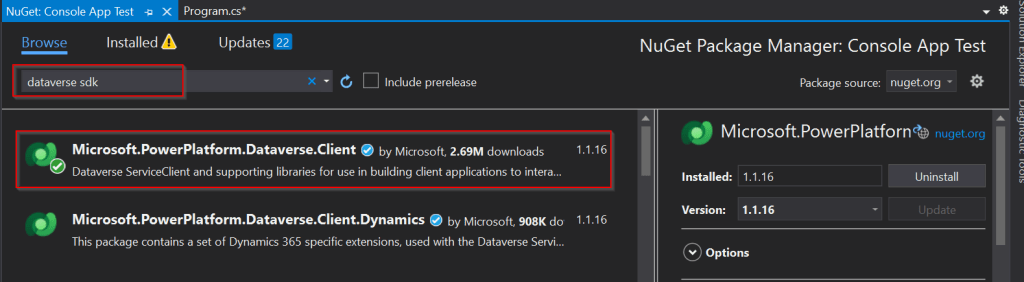
Add the below using statement to use Microsoft.PowerPlatform.Dataverse.Client

Use ServiceClient instead of CrmServiceClient, ServiceClient would return your OrganizationService.

Instead of

Be strategic to minimize the impact to your apps.
Cheers,
PMDY
 ECELLORS CRM Blog