

In my previous blog post, I have already explained how you can utilize Power Pipelines which is the OOB Dynamics 365 Product capability.
Power Platform have many ways where we can deploy our solutions to higher environments…in this blog post, we will see how we can utilize Power Platform CLI to deploy our solutions.
Prerequisites: Power Platform CLI
If you don’t have installed yet in your machine, you can download Power Platform CLI from this link in either of the ways below
1.Install using Power Platform Tools for Visual Studio Code
2. Install Power Platform CLI for Windows using PowerShell
Once you got this installed, make sure you set your environment variable in your machine as below

Then you can use your favorite IDE or Command line. I personally recommend using Visual Studio Code because of the flexibility it offers and ease of installation, use.
Export and Import can be done very easily with CLI with a few commands once you were authenticated with your instance.
For authentication with your instance. Open a new terminal in visual studio code.
As below..
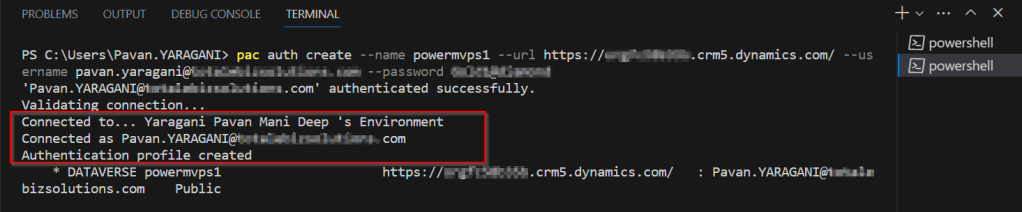
Once you have set up correctly, it will show that it is connected.
Now in order to export your solution..use the below commands from Vs Code
As below..

You should see a Solution zip file got created with the same name as mentioned above…

Similarly, u can import solutions using CLI..
Here I have a solution named ecellorstest in the same folder in my machine..

Let’s try to import using CLI..inorder to import your solution,use the below commands from Vs Code…
As below..

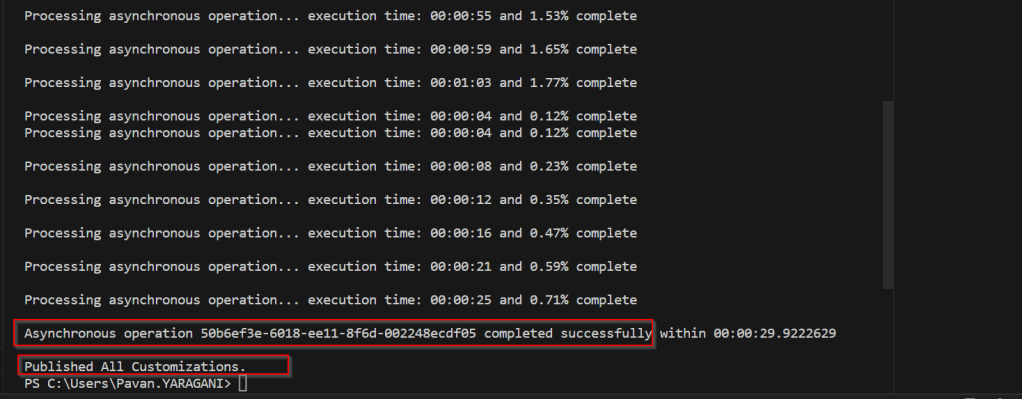
If we check in our instance, we see the solution is imported…

That’s it, how easy it was…however I have detailed about only a part of full capabilities of Power Platform CLI, its uses are unimaginable.
Reference: Power Platform CLI for Solutions
Cheers,
PMDY
 ECELLORS CRM Blog