Adding intelligence to Dataverse using Dataverse AI functions

Hi Folks,

While intelligence with the use of AI is being embedded into each and every part of the Microsoft ecosystem, it is good to know the features coming in the Power Platform space.

In this blog post, let’s see how we can use Dataverse AI Functions, their usage, advantages which can greatly ease summarizing, classifying, extracting, translating, assessing sentiment, or drafting a reply for common business scenarios.

To illustrate it better, I used a different AI Function for Canvas App, Model Driven App and Power Automate, hope you can follow the same for others as well.

What are Dataverse AI Functions?

Think of Dataverse AI Functions as prebuilt AI Functions which will add intelligence in your Apps and Flows without need to collect, build and train the models. They can be used in many places such as AI Builder, Power Automate, Power Apps, Low Code Plugins. Following are the AI Functions available…

  1. AIReply – Drafts a reply to the message you provide.
  2. AISentiment – Detects sentiment for the text you provide
  3. AISummarize – Summarizes the text you provide
  4. AIClassify – Classifies the text into one or more categories, you can use this from custom copilot
  5. AIExtract – Extracts specified entities like Names of people, phone numbers, places etc.
  6. AITranslate – Translate text from another language

Let’s see their usage in our favorite Canvas Apps first as illustration is easy and later in the post, I will mention how you can call the Dataverse AI Functions from Model Driven Apps, Power Automate so that you can get the real essence of it….

Utilizing ‘Dataverse AI Functions’ in a Canvas App

Create a new Canvas App and add ‘Environment’ Datasource as shown below.

All the ‘Dataverse AI functions’ can be accessed by ‘Environment‘ as shown below.

Let’s try the AIReply function in Canvas Apps

Add a textbox for storing the prompt or input string and a button control.

On the ‘OnSelect‘ event of the button, use the following formula to store the response in the AIResponse context variable, make sure you name the variables appropriately in your formula as per your naming defined in canvas apps.

UpdateContext({AIReplyResponse:Environment.AIReply({Text:AIInput.Text})})

Now create one more text variable to store the response and change the Default value to AIReplyResponse.PreparedResponse.

Try testing the app by providing inputs as below…

You should get a response from AIReply in the response field, you can try out other functions providing the necessary parameters required.

Utilizing ‘Dataverse AI Functions’ in a Power Automate

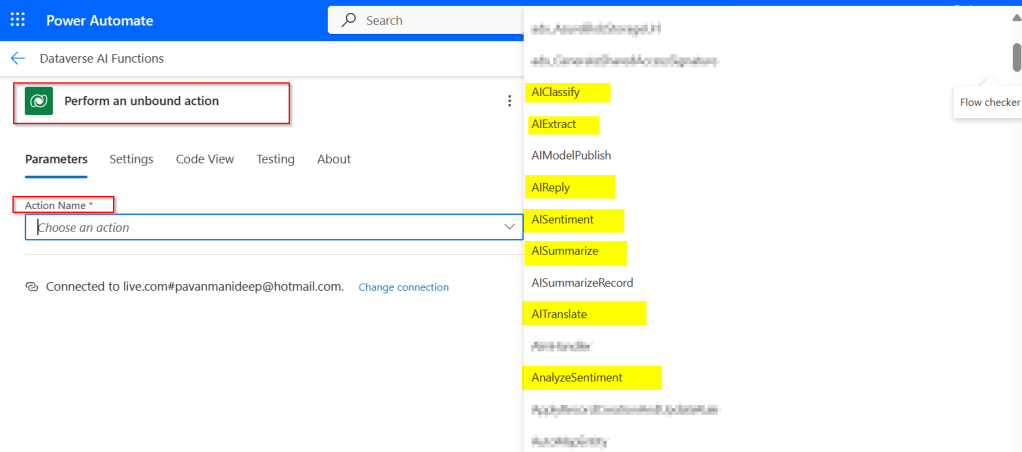
In Power Automate, all you can do to call Dataverse AI Functions is call the Unbound Action as below.

Passing the relevant input parameters is enough to get the output from these functions.

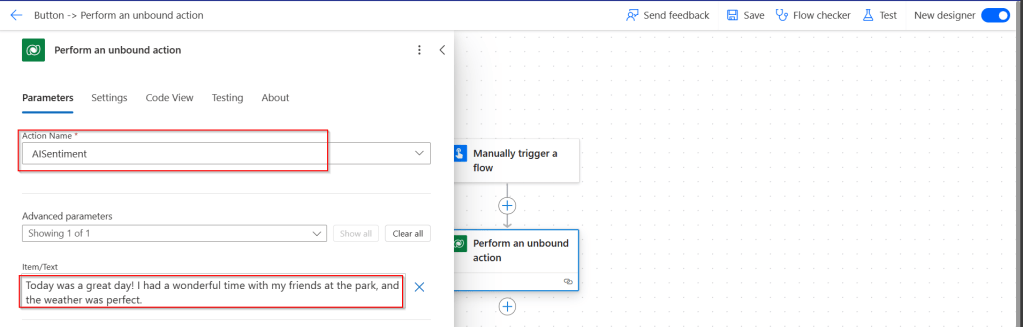
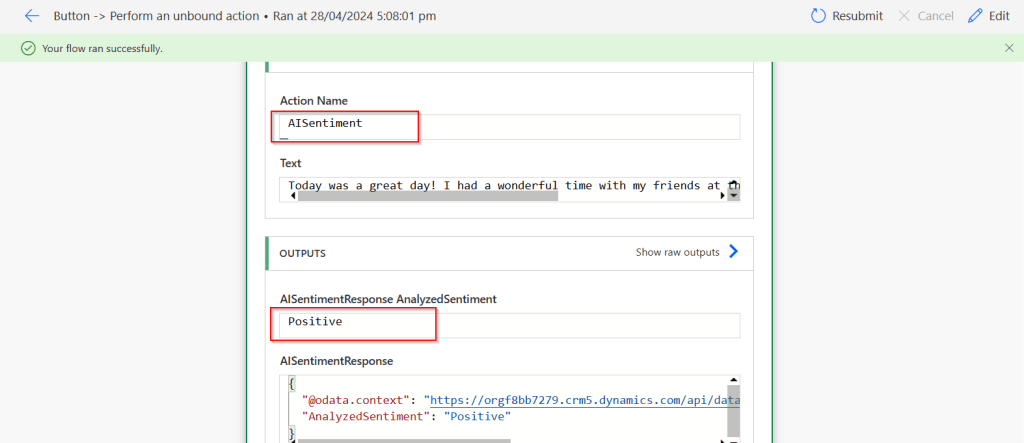
Let’s try AISentiment

Click on test, you should a response from Power Automate with the sentiment

Utilizing ‘Dataverse AI Functions’ in a Model Driven Apps

Do you want to utilize the similar capabilities of Dataverse AI Functions inside your custom code like in Plugins, Actions etc..

Let’s try AIClassify

var request = new OrganizationRequest("AIClassify")
{
["AllowMultipleCategories"] = false,
["Categories"] = titles,
["Text"] = classifyText
};
var result = service.Execute(request);

It was pretty much similar in AIBuilder as well…

Please do note that there are quotas to use these AI Functions at tenant level, else you might get similar error like below, while I didn’t get any information regarding this from Microsoft, so I am unsure about this as of writing this post, I will keep this updated if I get to know.

Using Dataverse AI functions needs a bit of Prompt Engineering knowledge, you were looking to learn more about Prompt engineering, then check it out here.

References:

https://learn.microsoft.com/en-us/power-platform/power-fx/reference/function-ai

Cheers,

PMDY

Simplify Power BI Management with Environment Variables

Introduction

Power Platform solutions often rely on dynamic configuration data, like Power BI workspace IDs, report URLs, or API endpoints. Environment variables make it easier to manage such configurations, especially in managed solutions, without hard coding values. This blog will walk you through the steps to update a Power BI environment variable in managed solutions, focusing on the task of switching the workspace to the correct one directly within Power BI integration when working on different environments.

What are Environment Variables in Power Platform?

Before we dive into the steps, let’s quickly cover what environment variables are and their role in solutions:

  • Environment Variables are settings defined at the environment level and can be used across apps, flows, and other resources in Power Platform.
  • They store values like URLs, credentials, or workspace IDs that can be dynamically referenced.
  • In managed solutions, these variables allow for configuration across multiple environments (e.g., development, testing, production).

Why Update Power BI Environment Variables in Managed Solutions?

Updating environment variables for Power BI in managed solutions ensures:

  • Simplified Management: You don’t need to hardcode workspace or report IDs; you can simply update the values as needed.
  • Better Configuration: The values can be adjusted depending on which environment the solution is deployed in, making it easier to scale and maintain.
  • Dynamic Reporting: Ensures that Power BI reports or dashboards are correctly linked to the right workspace and data sources.
  • Best and Recommended: Changing the environment variables and pointing to right workspace is the correct and is best way to point your Power BI Report to respective workspace and recommended by Microsoft.

Prerequisites

Before proceeding with the update, ensure you meet these prerequisites:

  1. You have the necessary permissions to edit environment variables and manage solutions.
  2. The Power BI integration is already set up within your Power Platform environment.
  3. You have a managed solution where the Power BI environment variable is defined.

Steps to Update a Power BI Environment Variable in Managed Solutions

Step 1: Navigate to the Power Platform Admin Center
Step 2: Open the Solution in Which the Environment Variable is Defined
  • Go to Solutions in the left navigation menu.
  • Select the Managed Solution that contains the Power BI environment variable you need to update.
Step 3: Find the Environment Variable
  • In the solution, locate Environment Variables under the Components section.
  • Identify the Power BI environment variable (such as API URL or workspace ID) that you need to modify.
Step 4: Click on Dashboards to Update the Workspace
  • To update the Power BI environment variable related to the workspace, click on Dashboards.
  • Find the existing environment variable tied to the workspace and click to edit it.
  • Here, you’ll see the current workspace configuration for the Power BI resource.
Step 5: Update the Workspace ID
  • In the environment variable settings, you will now change the workspace to the new one.
  • Select the appropriate workspace from the list or manually enter the new workspace ID, ensuring it aligns with the target environment (development, production, etc.).
  • If necessary, update other properties like report or dataset IDs based on your environment needs.
Step 6: Save and Apply Changes
  • After updating the workspace and any other relevant properties, click Save.
  • The environment variable will now reflect the new workspace or configuration.
Step 7: Publish the Solution
  • If you’re using a managed solution, ensure that the updated environment variable is properly published to apply the changes across environments.
  • You may need to export the solution to other environments (like test or production) if applicable.
Step 8: Test the Changes
  • After saving and publishing, test the Power BI integration to ensure that the updated workspace is correctly applied.
  • Check the relevant Power BI reports, dashboards, or flows to confirm that the new workspace is being used.

Best Practices

  • Document Changes: Always document the updates to environment variables, including what changes were made and why.
  • Use Descriptive Names: When defining environment variables, use clear and descriptive names to make it easy to understand their purpose.
  • Cross-Environment Testing: After updating environment variables, test them in different environments (dev, test, prod) to ensure consistency and reliability.
  • Security Considerations: If the environment variable includes sensitive information (like API keys), make sure it’s properly secured.

Conclusion

Updating Power BI environment variables in managed solutions allows you to maintain flexibility while keeping your configurations centralized and dynamic. By following the steps outlined in this blog post, you can efficiently manage workspace IDs and other key configuration data across multiple environments. This approach reduces the need for hardcoded values and simplifies solution deployment in Power Platform.

Cheers,

PMDY
Dataverse – Git Integration – Preview – Quick Review

Hi Folks,

This post is about Dataverse and Git Integration which is the most sought after feature in the todays automation Era. This is a preview feature, you would need to create a new environment with Early Access enabled to test this feature or you can use an existing US Preview environment for testing this out.

While every MDA(Model Driven Application) and it’s components can be safely and moved across the environments using Solutions with the help of Azure DevOps Pipelines. However when coming to integrating Power Platform Solutions to Azure DevOps, we had to manually export the solution and download them each and every time when we would like to commit the Solution Artifacts to Azure DevOps Repo.

With this new Preview feature we can directly integrate the Power Platform Solutions to Azure DevOps.

Let’s see this action…wait a moment, there were some prerequisites to be considered…

  1. Environment should be a Managed Environment to start using this and you need to be an Admin for the environment
  2. Azure DevOps subscription and license should be available to set this up, also permission to read source files and commits(should be a member of contributor group in Azure DevOps) from a Repo
  3. Your email address used for Azure DevOps and Power Platform Solutions should be the same

Setup:

Connecting Dataverse with Azure DevOps is easy but requires a bit of understanding of the Binding options available.

Well, there were two types of Binding options

  1. Environment Binding – Single root folder binds to all the unmanaged solutions in the environment
  2. Solution Binding – Different solutions uses a different root folder in Azure DevOps for binding

Note: Once the binding is setup, there isn’t away to change, so set this up carefully, else you may need to delete the folder and create a new one in Azure DevOps.

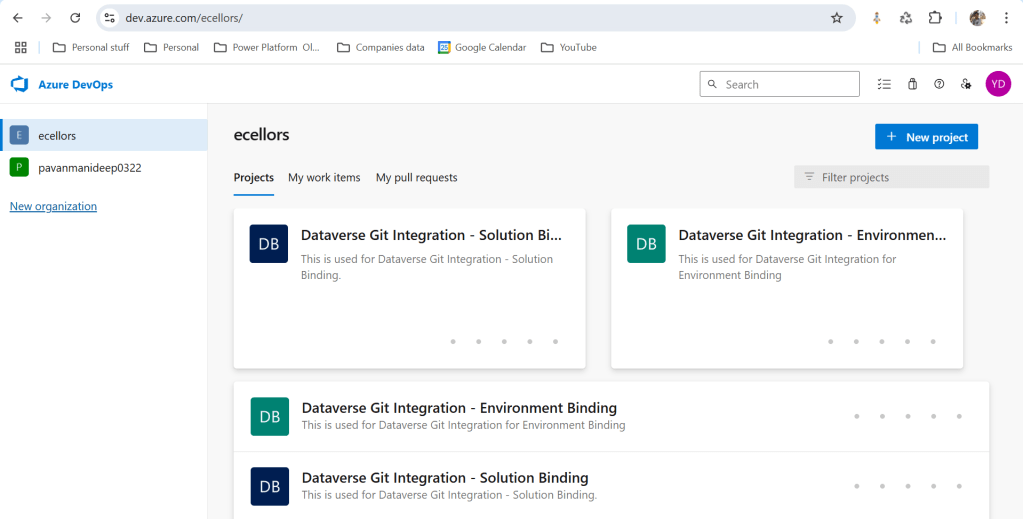
Let’s see one by one…for demoing purpose, I have created two projects in Azure DevOps Instance

  1. Solution Binding: When we use this, all the components will be available as pending changes
  2. Environment Binding: When we use this, all the unmanaged solution components will be mapped to one Azure DevOps root folder. Let’s set this up.

We are currently able to use only Solution binding, as Environment Binding doesn’t show up any changes to be committed, but there is a catch here.

We can set up for Environment binding and verify if the Solution components are getting marked as pending changes or not. Do note that Setting up the Binding is a one time activity for environment, once setup, it can’t be changed from one type to another.

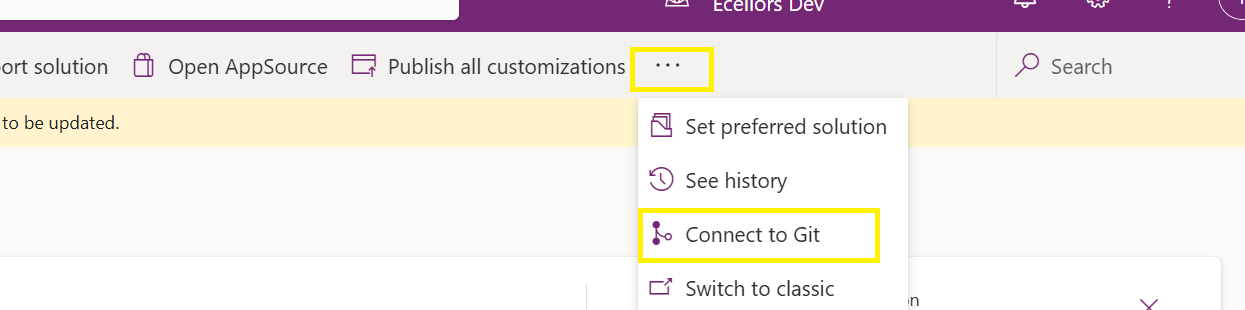
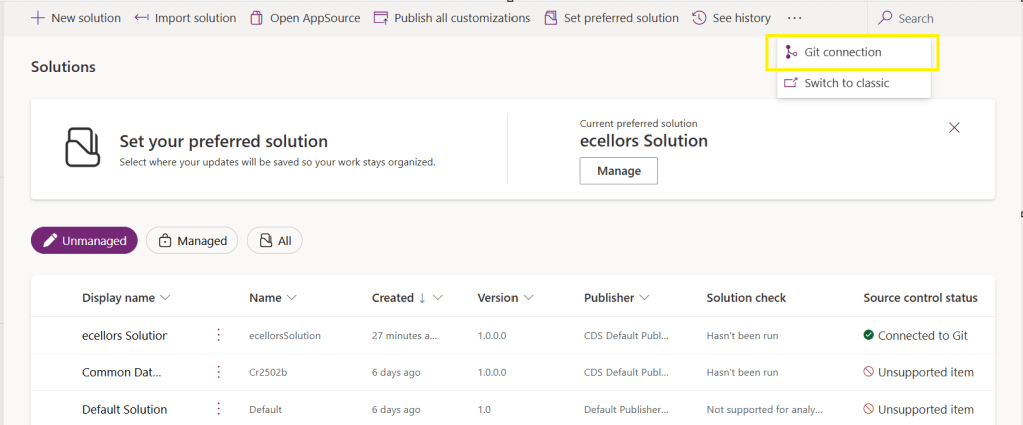
Open https://make.powerapps.com and navigate to solutions and click on ellipses as below

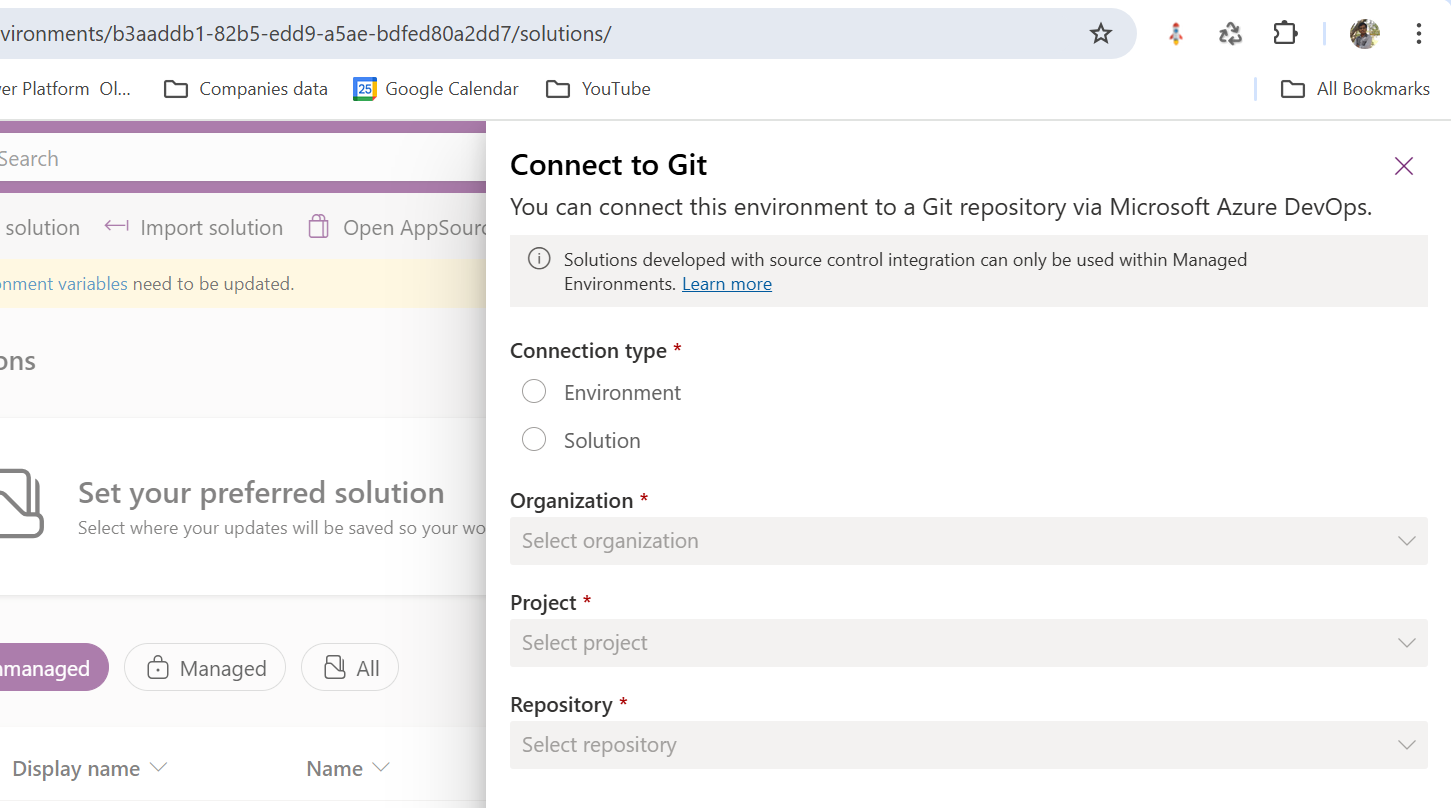
Once clicked on Connect to Git

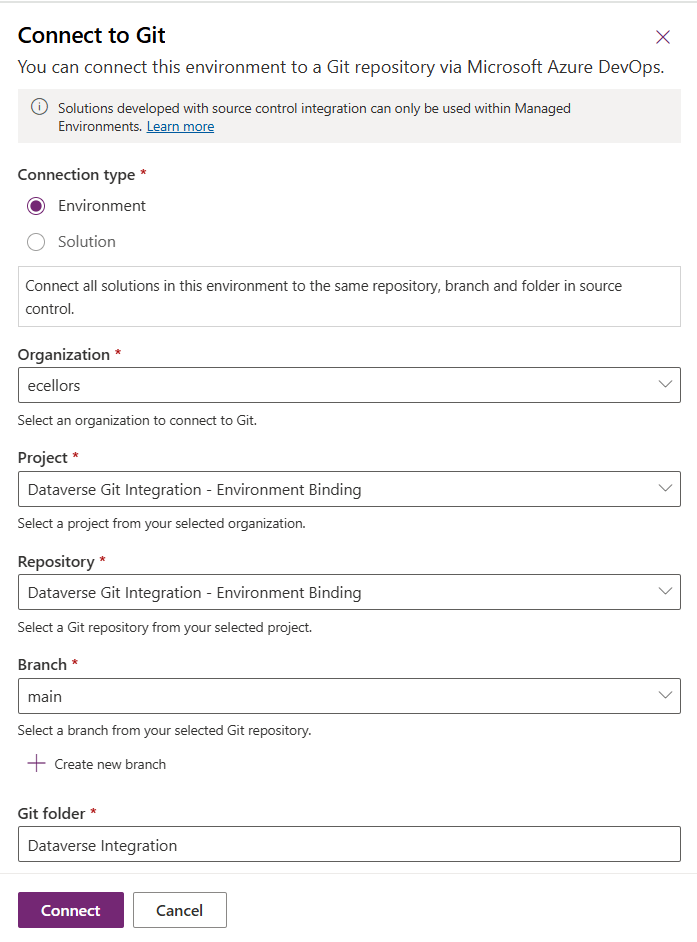
Since we were currently using Environment binding, let’s select the Connection Type as Environment

Then click on Connect, once connected, you should a alert message in power apps maker portal at the top.

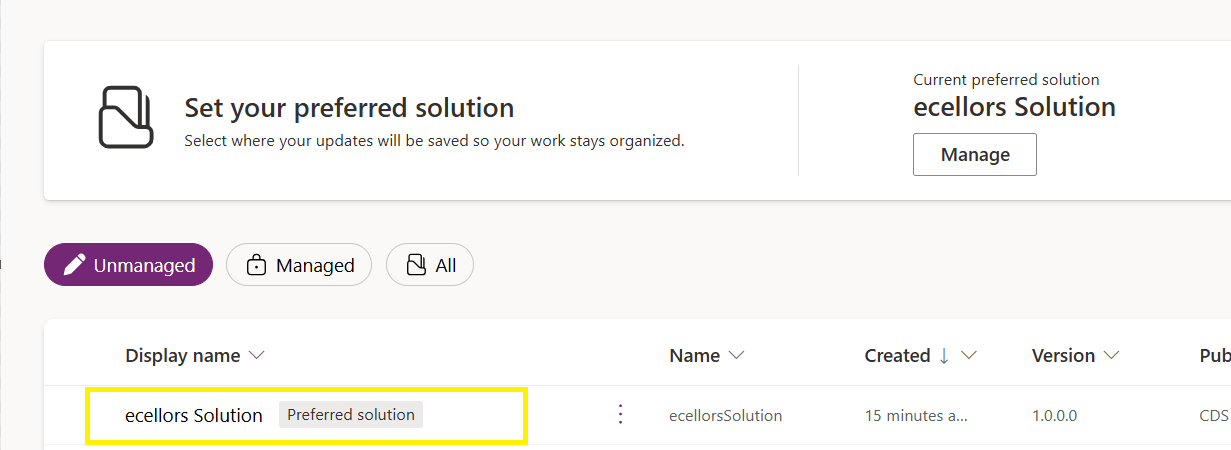
Now create a new solution as below named ecellors Solution

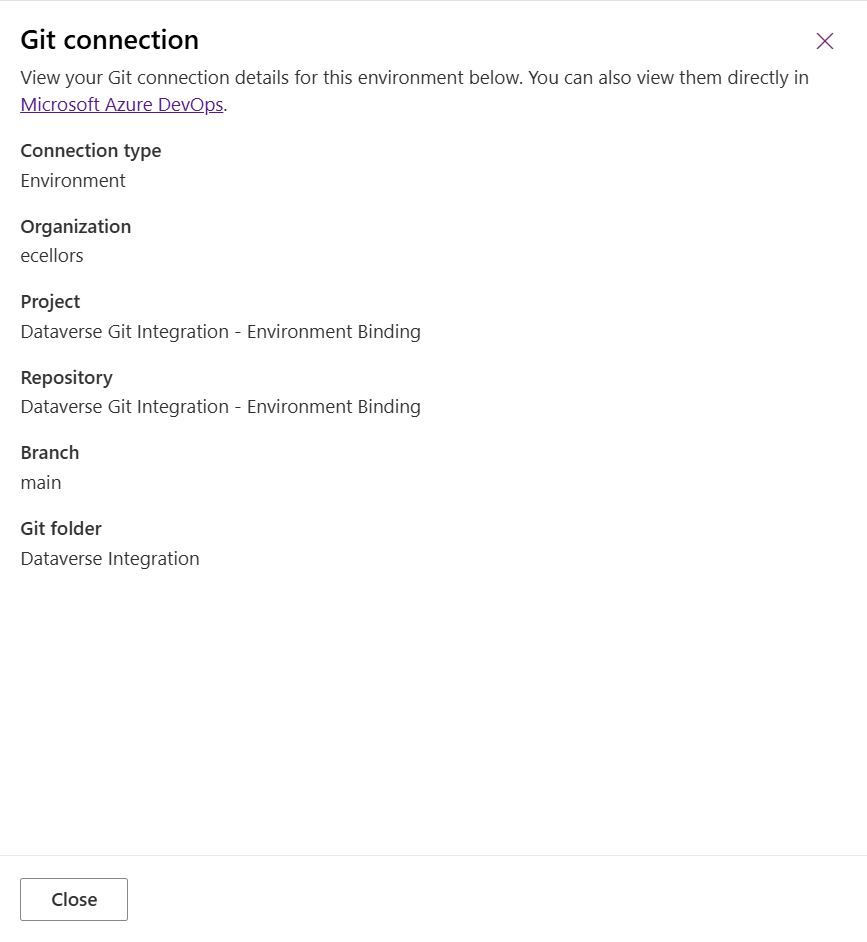
Verify the integration by clicking on Git Integration as below

It should show as below

Now let’s add few components to the solution we created

Once added, let’s publish the unmanaged solution and verify it..

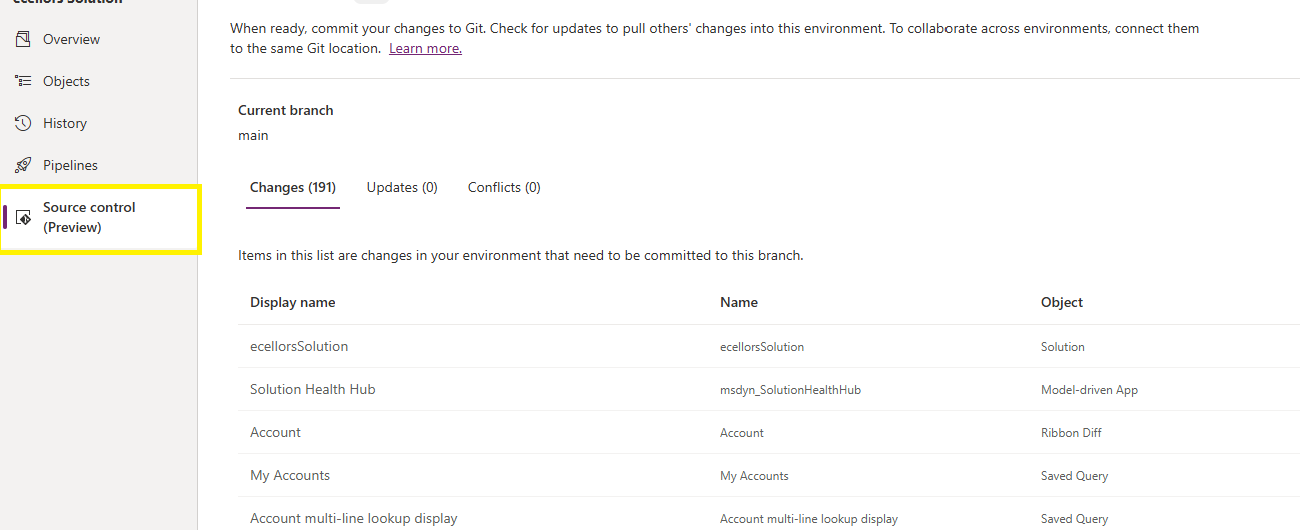
Do look closely, you should see a Source Control icon highlighted in yellow color for illustration.

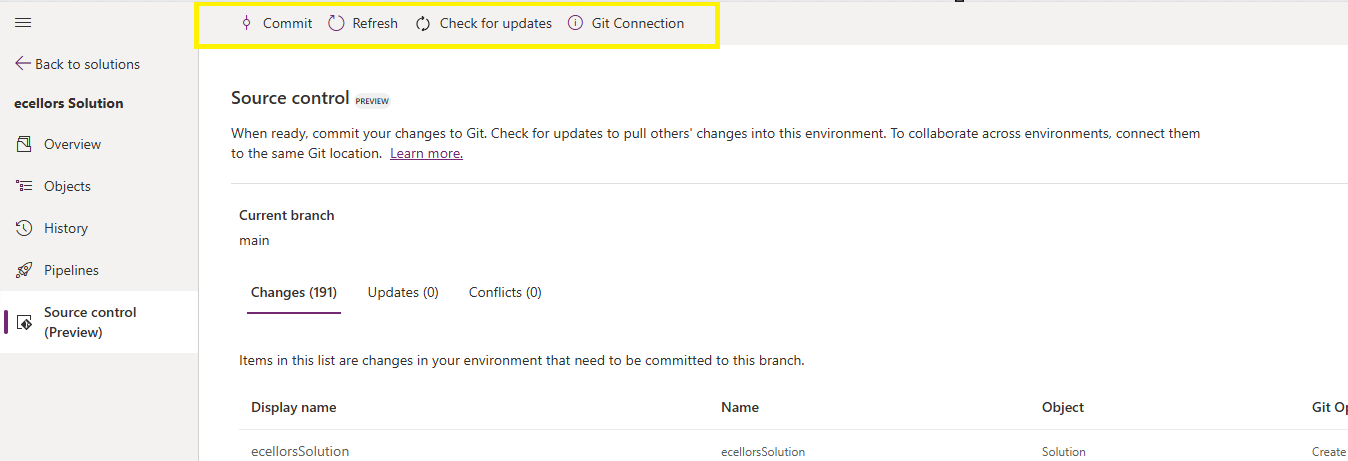
Also, you should see a commit option available at the top

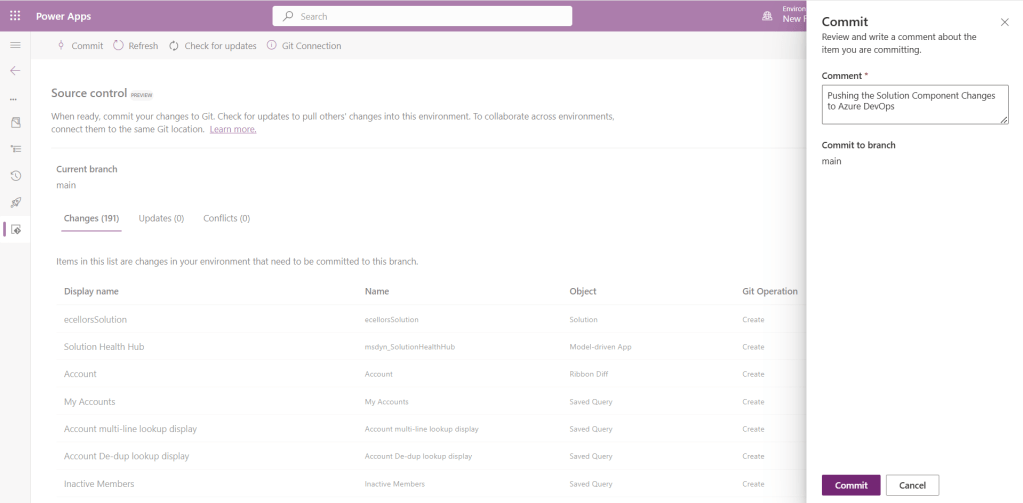
You should now be able to commit the solution components as if you are committing the code changes.

It also specifies the branch to which we were commiting…

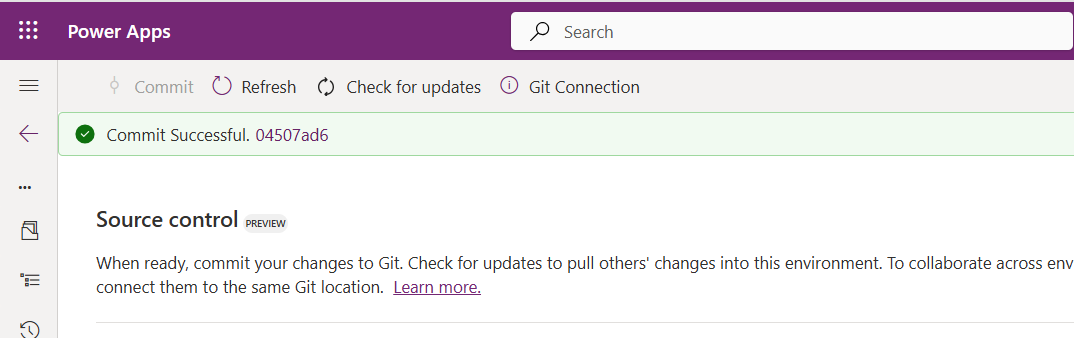
While it takes few minutes unlike pushing the code to Azure DevOps to push the changes, however this would depend based on the number of solution components you were pushing..once it is done, it will show a commit message like below…

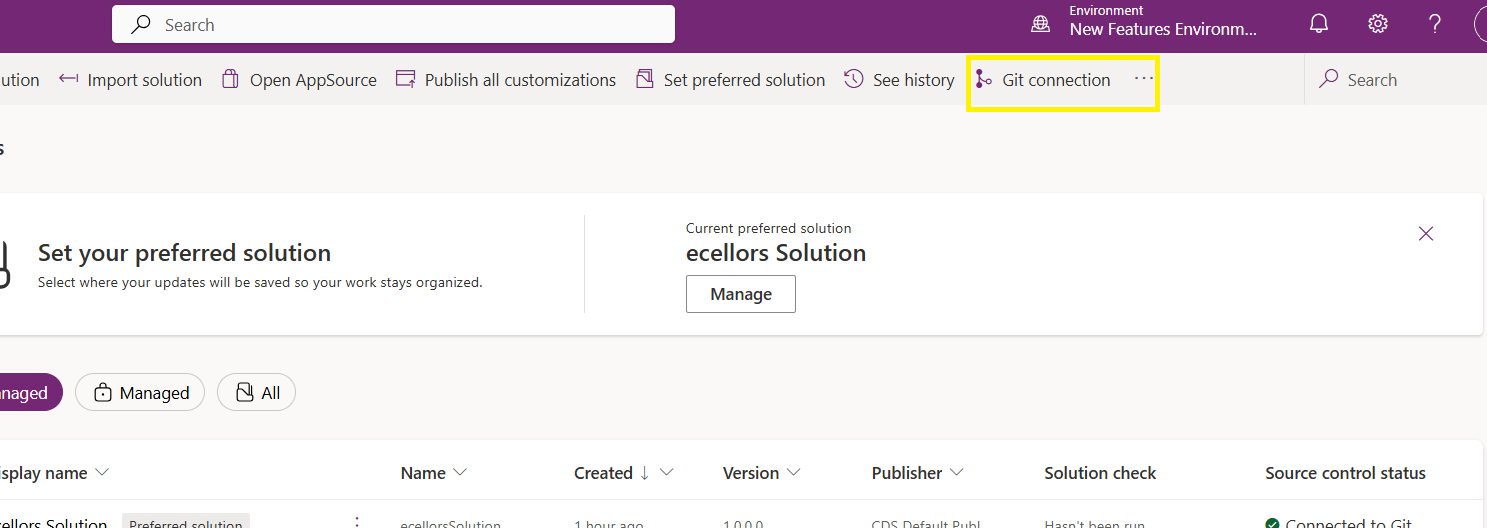
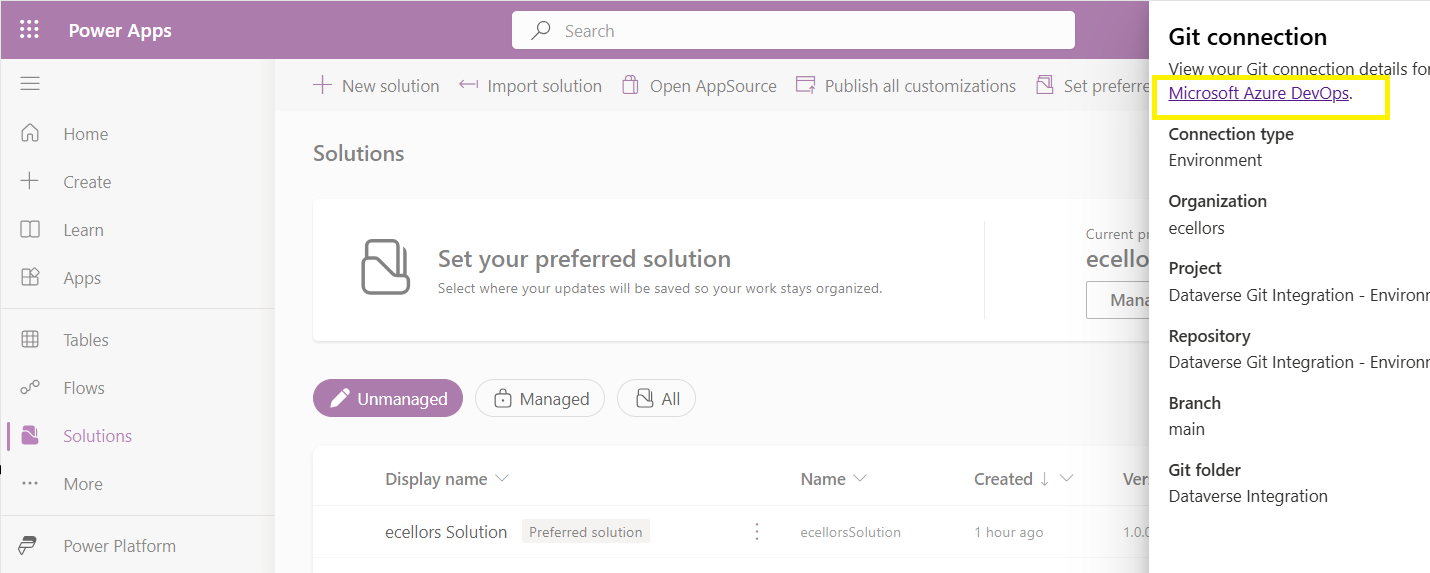
Now let’s verify our Azure DevOps Repo..for this you can go back to the main solutions page, click on Git Connection at the top..

After clicking on Git Connection, click on the link to Microsoft Azure DevOps as below

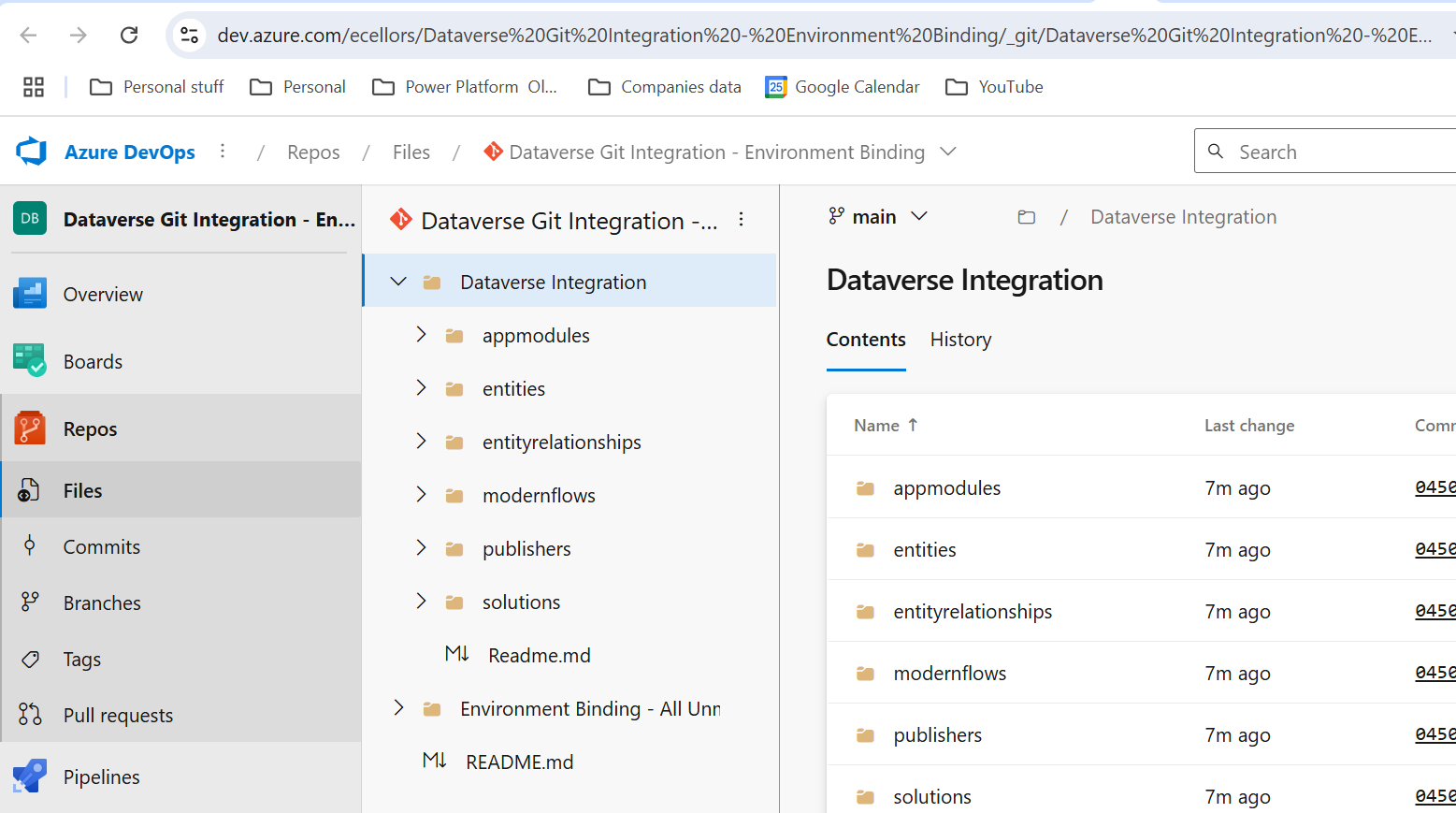
Then you should be navigated to Azure DevOps folder as below where all the solution files will be tracked component wise.

Now we will move back to Power Apps maker portal and make some changes to any of the components inside the solution…

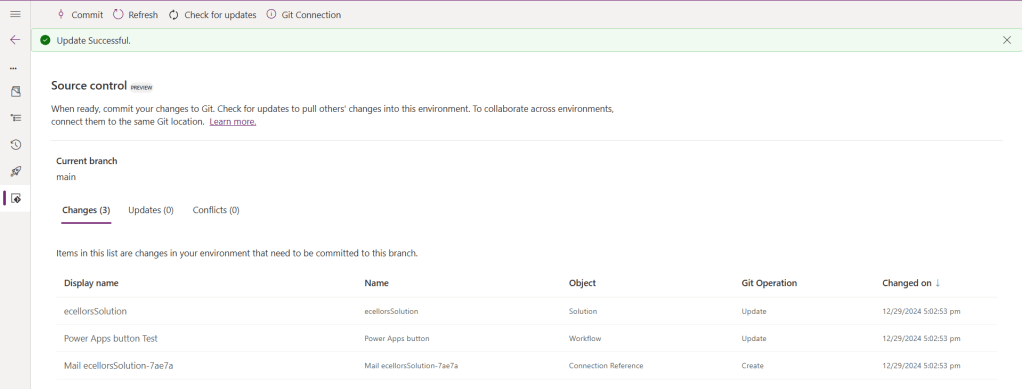
Let’s say, I just edited the flow name and created a new connection reference, saved and published the customizations.

If you did some changes at the Azure DevOps repo level, you can come back and click on Check for updates, if there were any conflicts between changes done in Azure DevOps and component in solution, it will be shown as conflict.

We now have 3 component changes and all were listed here…you can click on Commit.

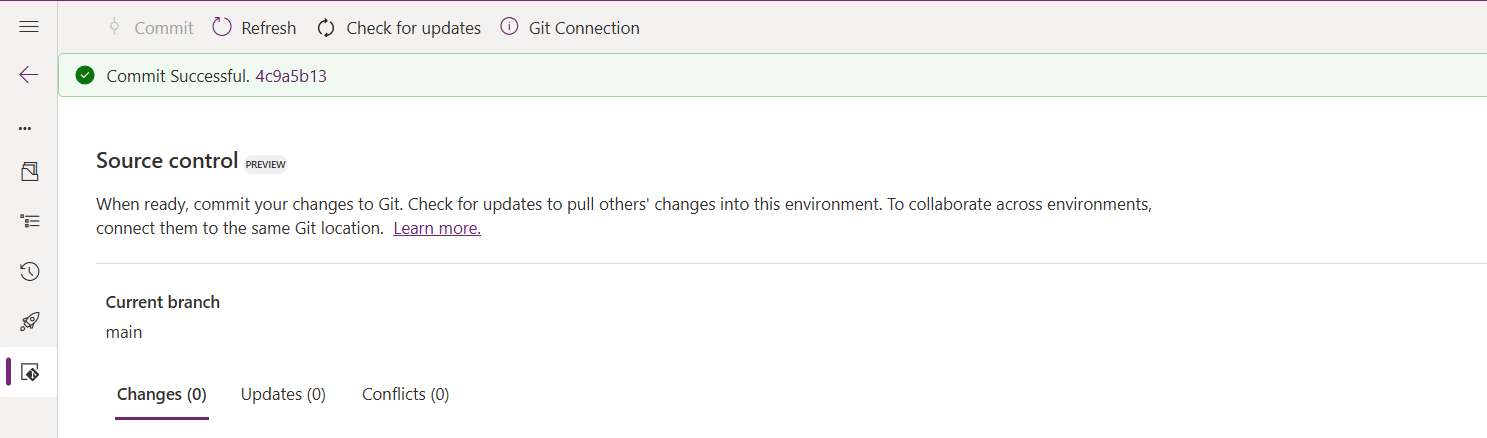
As soon as the changes are committed, you should see a message saying Commit Successful and 0 Changes, 0 Updates, 0 Conflicts.

Now you successfully integrated Dataverse Solution components with Azure DevOps without any manual intervention required while deploying solutions using Azure DevOps Pipelines.

Hope you learned something new today…while feature is still in Preview and only available for early release, while couple of issues still need to fixed by Microsoft.

I have tested this feature by creating an environment in US Preview region and this feature will be a good value to projects using Automation and this solution repository can be further deployed to other environments using Azure DevOps Pipelines.

This will be rolled out soon next year, hope you learned something new today…

Cheers,

PMDY
Microsoft Power Platform Center of Excellence (CoE) Starter Kit – Basics – Learn COE #01

Hi Folks,

This is an introductory post, but it’s worth going through where I will be sharing basics about using Centre of Excellence(COE) in Power Platform. Let’s get started.

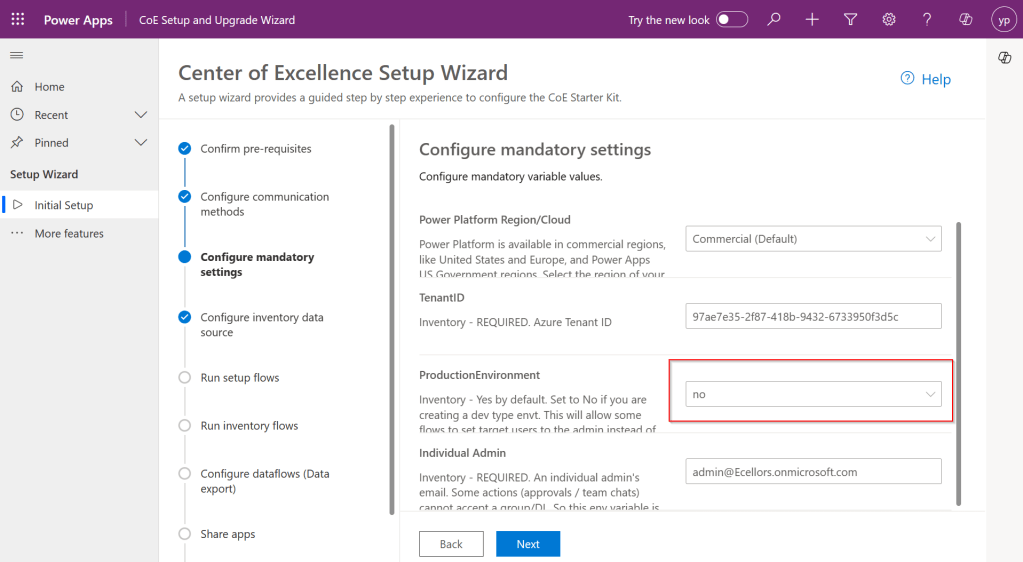
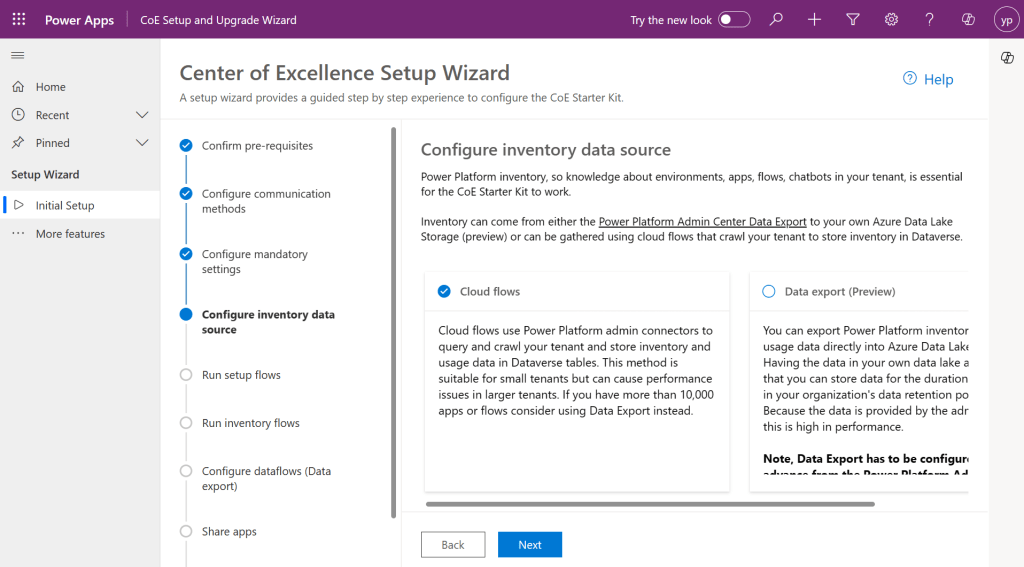
So, what’s Center of Excellence? COE plays a key role in deriving strategy and move forward in this fast-paced world to keep up with the innovation. Firstly, we may need to ask ourselves few questions…Do your organization have lot of flows, apps and copilots aka power virtual agents? Do you want to effective manage them? Then how you want to move forward…using COE Starter kit is a great choice. It is absolutely free to download, the starter kit is a collection of components and tools which will help to oversee and adopt Power Platform Solutions. The assets part of the CoE Starter Kit should be seen as a template from which you inherit your individual solution or can serve as inspiration for implementing your own apps and flows.

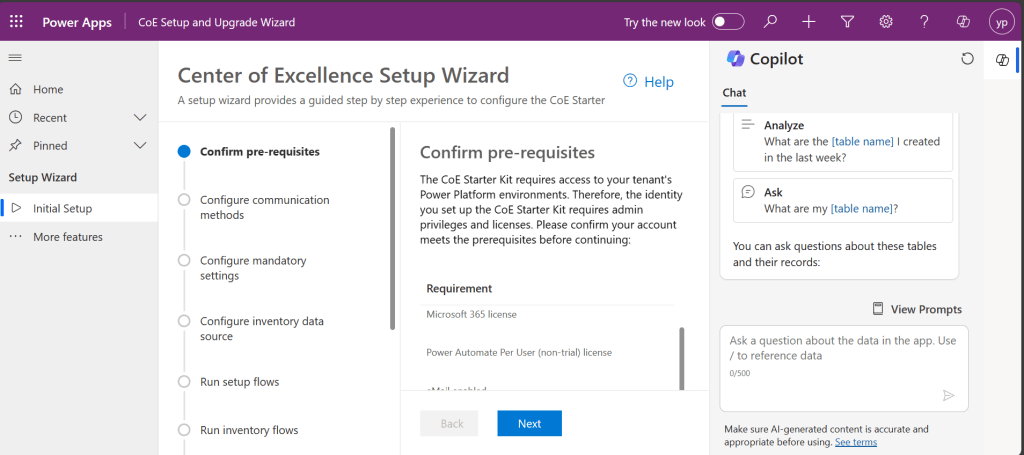
There were some prerequisites before you can install your COE Starter Kit. Many of the medium to large scale enterprise Power Platform implementations should be possessing in their tenant.

  1. Microsoft Power Platform Service Admin, global tenant admin, or Dynamics 365 service admin role.
  2. Dataverse is the foundation for the kit.
  3. Power Apps Per User license (non-trial) and Microsoft 365 license.
  4. Power Automate Per User license, or Per Flow licenses (non-trial).
  5. The identity must have access to an Office 365 mailbox that has the REST API enabled meeting the requirements of Outlook connector.
  6. Make sure you enable the Power Apps Code Components in Power Platform Admin Center
  7. If you want to track unique users and app launches, you need to have Azure App Registration having access to Microsoft 365 audit log.
  8. If you would like to share the reports in Power BI, minimally you require a Power BI pro license.
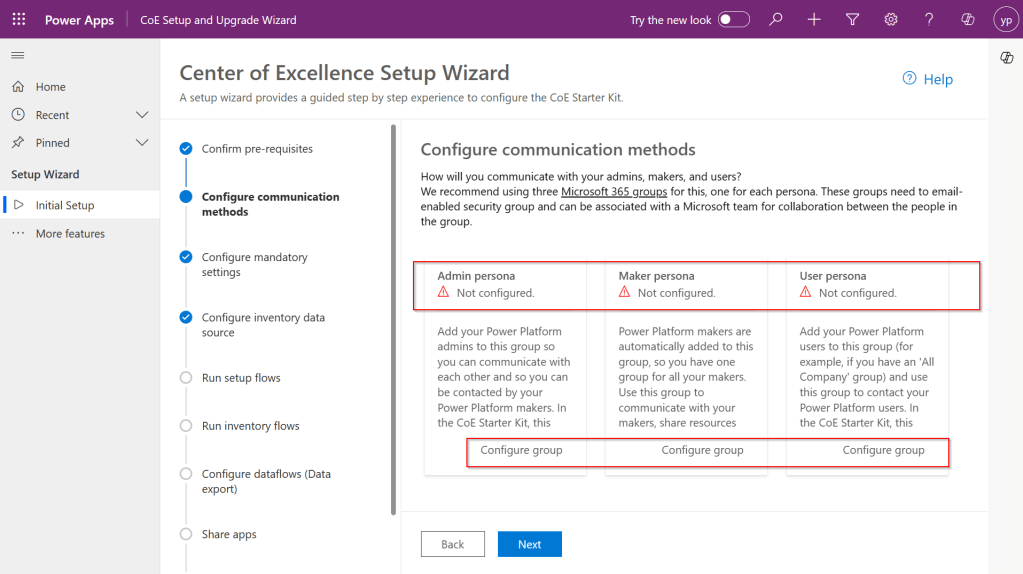
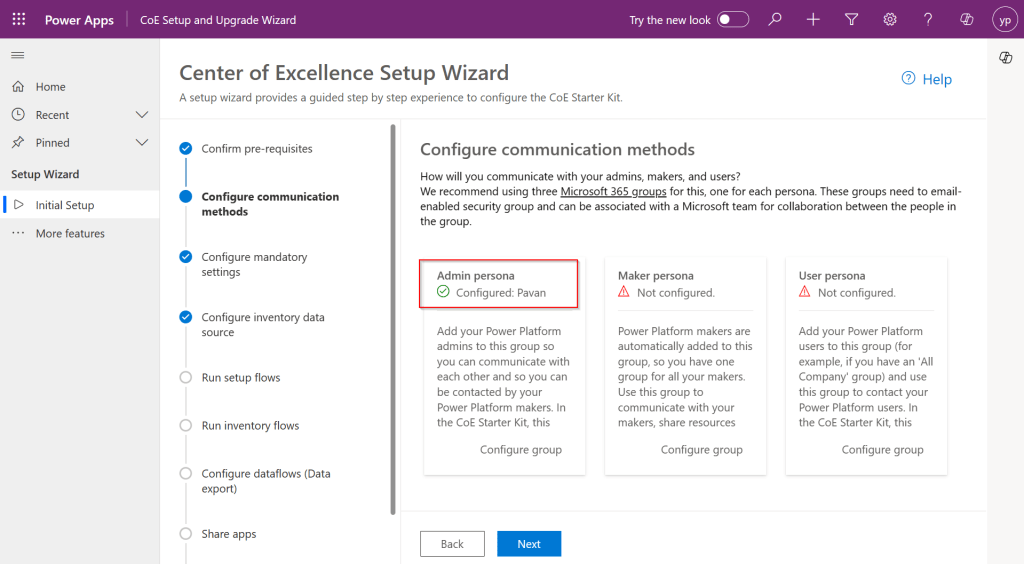
  9. Setting up communication groups to talk between Admins, Makers and Users.
  10. Create 2 environments, 1 for test and 1 for production use of Starter Kit
  11. Install Creator Kit in your environment by downloading the components from here

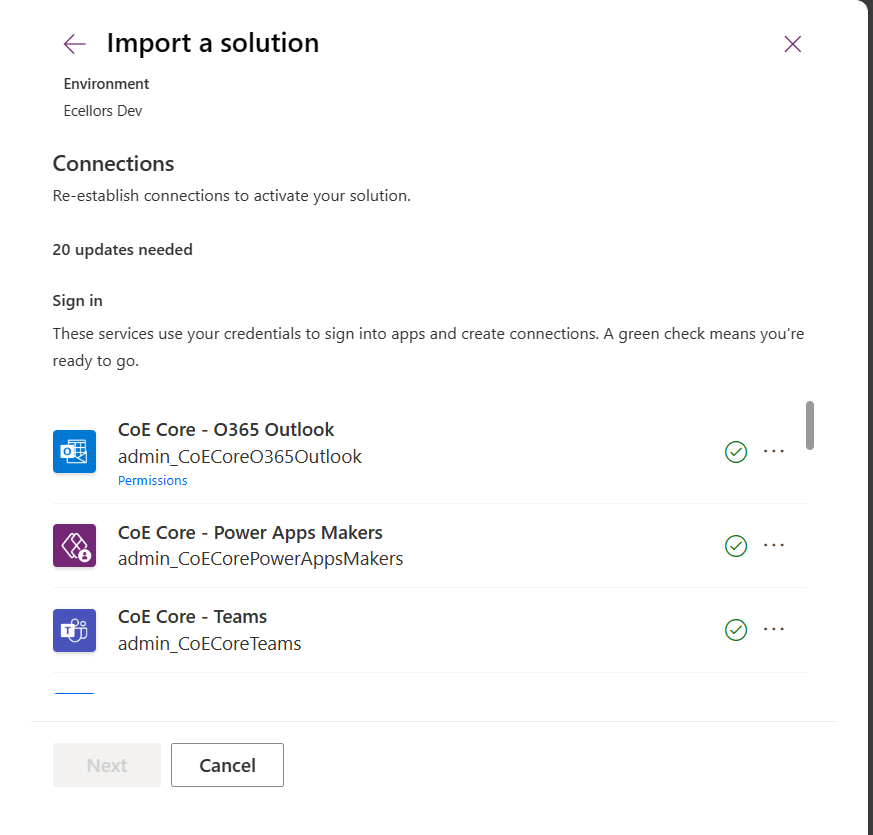
The following connectors should be allowed to effectively use data loss prevention policies(DLP)

Once you were done checking the requirements, you can download from the starter kit here.

You can optionally install from App Source here or using Power Platform CLI here.

The kit provides some automation and tooling to help teams build monitoring and automation necessary to support a CoE.

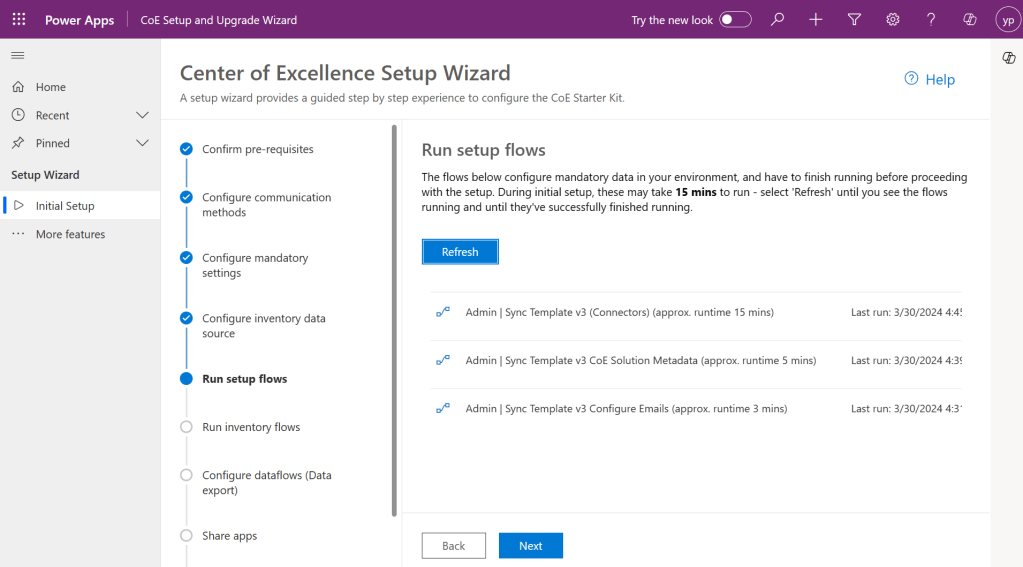
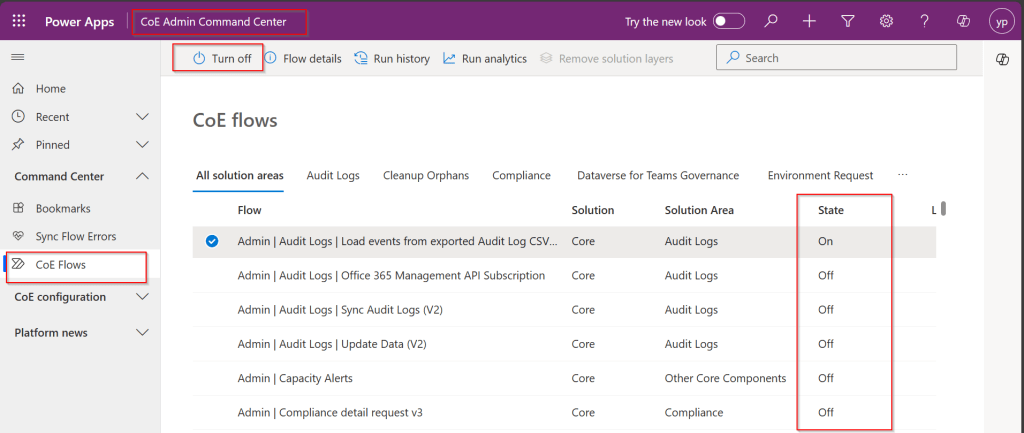
While we saw what advantages are of having COE in your organization and other prerequisites. In the upcoming blog post, we will see how you can install COE starter kit in your Power Platform tenant and set it up to effectively plan your organization resources for highest advantage.

Cheers,

PMDY
Creating In-App Notifications in Model Driven Apps in an easier way – Quick Review

Hi Folks,

In App notifications are trending these days where many customers are showing interest in implementing these for their businesses.

So, in this blog post, I am going to show you the easiest way to generate In App notification using XrmToolBox in few clicks. Use the below tool to generate one.

So, let me walk you through step by step

Step 1: Open In App Notification Builder in XrmToolBox

Step 2: In App notification is a setting that should be enabled at App level, so meaning if you have developed few Model Driven Apps, you will be able to enable the In App notification individually for each one of them.

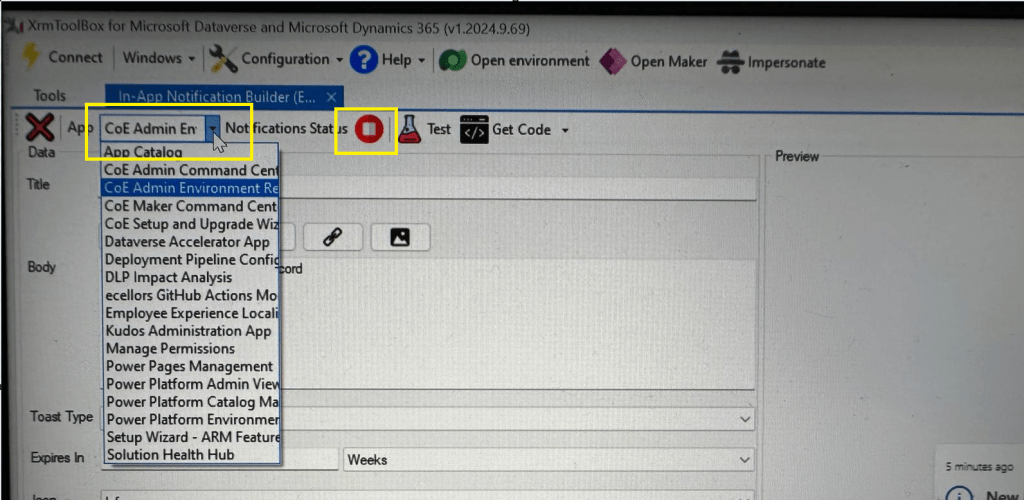
Step 3: In the above snapshot, we should be able to select the respective App for which we want to enable the In App Notification. Red bubble besides indicate that the In App notification is not enabled for this App.

So, we need to enable it by clicking on the red icon itself, you should then be able to get this prompt as below.

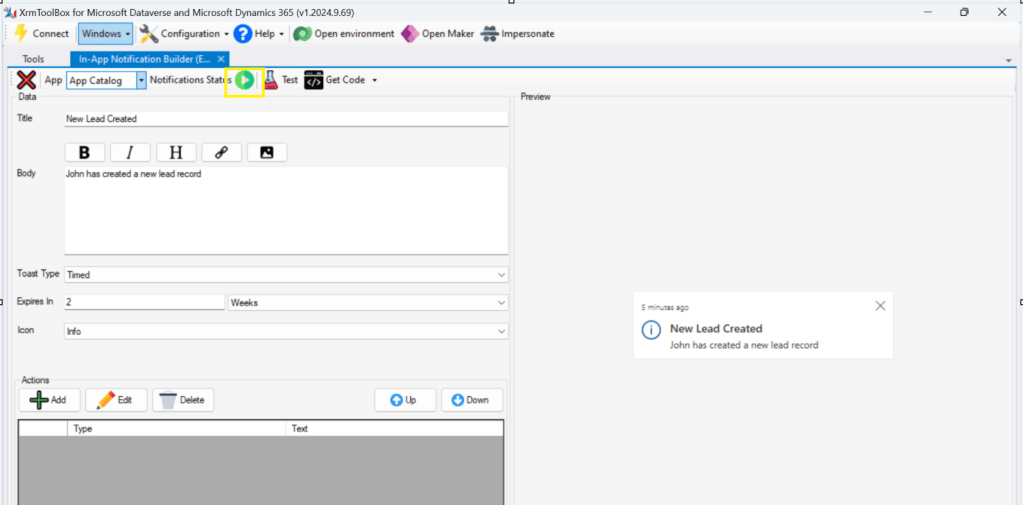
Step 5: Upon confirming the confirmation dialog box, the In App notification will be enabled for that App and you the red button turns to green as below saying that In App Notification is enabled.

Now that the In App notification is enabled in the App, we will proceed with the remaining setup.

Step 6: You can proceed to give a meaningful title, body for you In App Notification. Also mention the required toast type and specify the expiry duration, Icon. Also Click on Add icon and choose the action required to be performed when In App notification is clicked.

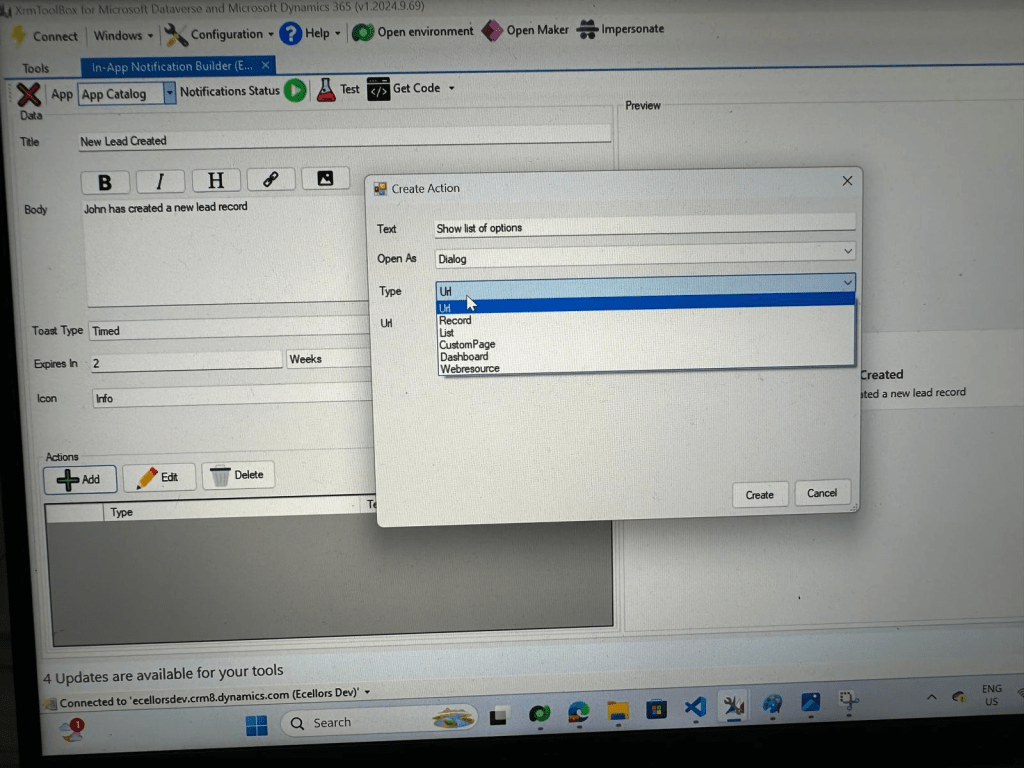
Step 9: You can even choose the type of action to be performed…

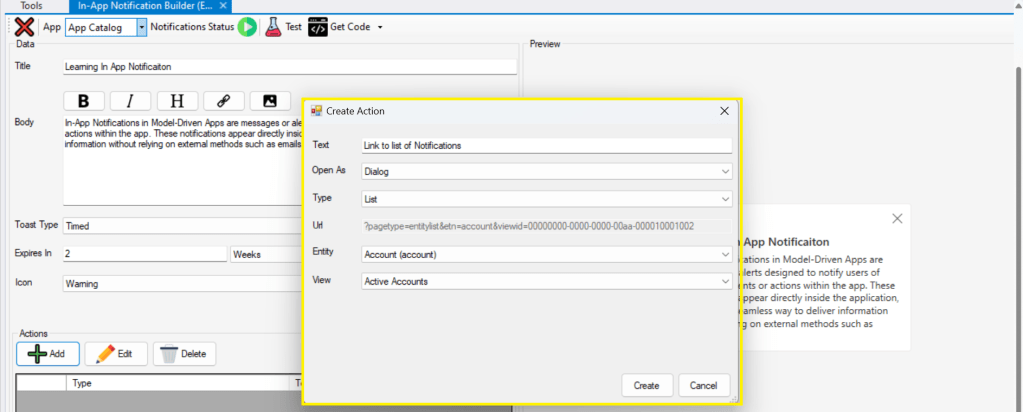
For example, let’s use to open as dialog and show list view

Your screen should look something like below

Step 10: Once done, you can click on create and that’s it you have now created In App Notification. Now let’s test this for the user who have priveleges to access this App.

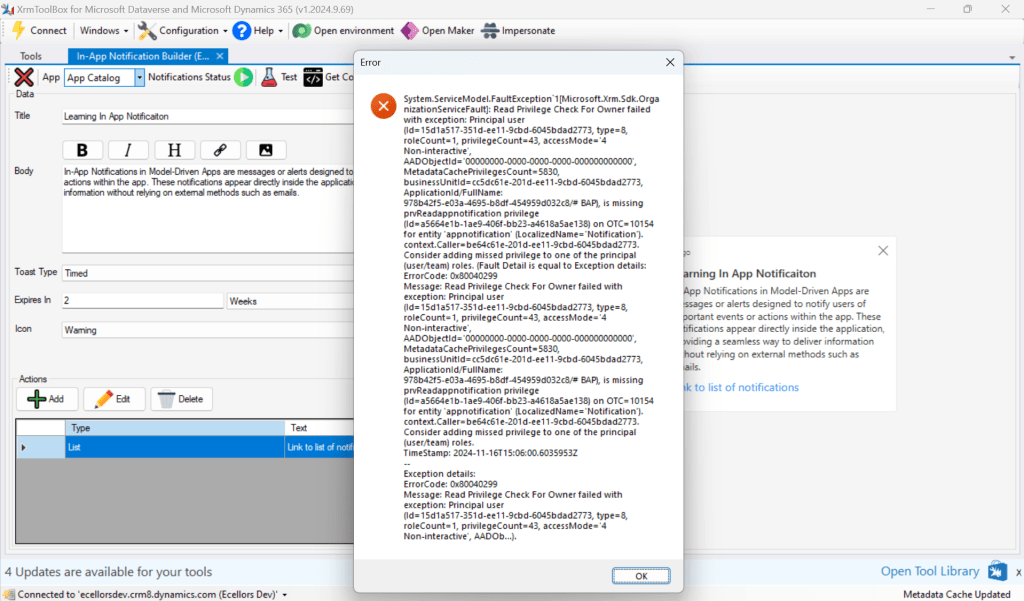
If not, you will face this error..

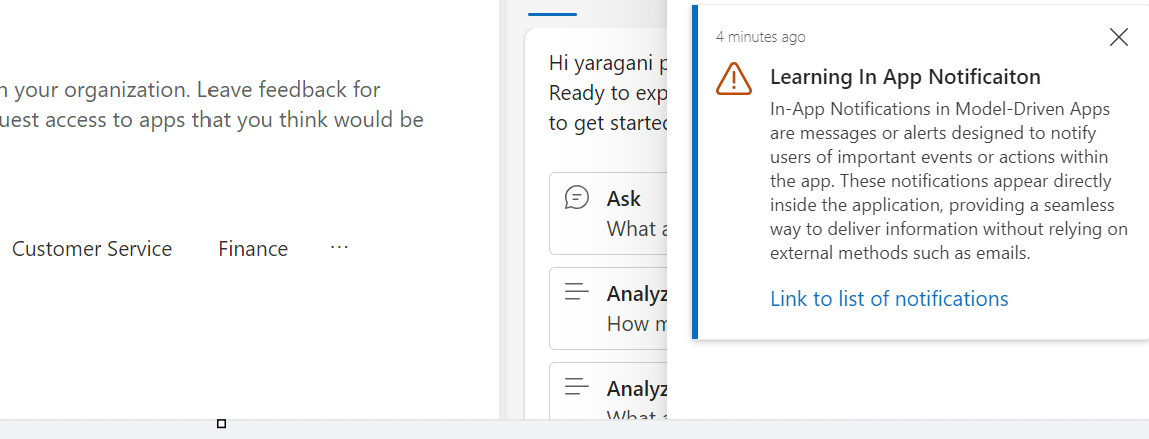
Log in with user account for which the In App Notification is triggered.

Hurray!!!! That’s it, how easy it was to create In App Notification in Low Code manner.

You can even get the code behind this as well…

However, there were other ways to trigger the In App Notification from a Pro Code angle, let’s discuss those as well.

In this case you need to manually turn the In App Notification feature on by going to settings for the Model Driven App as below first.

Notifications can be sent using the SendAppNotification message using SDK.

You can either trigger from and can choose based on your convenience to trigger a similar notification.

Client Scripting

    var systemuserid = '<user-guid>';
    var data = {
    "actions": [
    {
    "data": {
    "url": "?pagetype=entitylist&etn=account&viewid=00000000-0000-0000-00aa-000010001002",
    "navigationTarget": "dialog"
    },
    "title": "Link to list of notifications"
    }
    ]
    };
    var notificationRecord =
    {
    'title': 'Learning In App Notificaiton',
    'body': `In-App Notifications in Model-Driven Apps are messages or alerts designed to notify users of important events or actions within the app. These notifications appear directly inside the application, providing a seamless way to deliver information without relying on external methods such as emails.`,
    'ownerid@odata.bind': '/systemusers(' + systemuserid + ')',
    'icontype': 100000003, // Warning
    'toasttype': 200000000, // Timed
    'ttlinseconds': 1209600,
    'data': JSON.stringify(data)
    }
    Xrm.WebApi.createRecord('appnotification', notificationRecord).
    then(
    function success(result) {
    console.log('notification created with single action: ' + result.id);
    },
    function (error) {
    console.log(error.message);
    // handle error conditions
    }
    );
    view raw JS hosted with ❤ by GitHub

      Plugin/SDK

      var notification = new Entity("appnotification")
      {
      ["title"] = @"Learning In App Notificaiton",
      ["body"] = @"In-App Notifications in Model-Driven Apps are messages or alerts designed to notify users of important events or actions within the app. These notifications appear directly inside the application, providing a seamless way to deliver information without relying on external methods such as emails.",
      ["ownerid"] = new EntityReference("systemuser", new Guid("00000000-0000-0000-0000-000000000000")),
      ["icontype"] = new OptionSetValue(100000003), // Warning
      ["toasttype"] = new OptionSetValue(200000000), // Timed
      ["ttlinseconds"] = 1209600,
      ["data"] = @"{
      ""actions"": [
      {
      ""data"": {
      ""url"": ""?pagetype=entitylist&etn=account&viewid=00000000-0000-0000-00aa-000010001002"",
      ""navigationTarget"": ""dialog""
      },
      ""title"": ""Link to list of notifications""
      }
      ]
      }"
      };
      service.Create(notification);
      view raw gistfile1.txt hosted with ❤ by GitHub

      Power Automate:

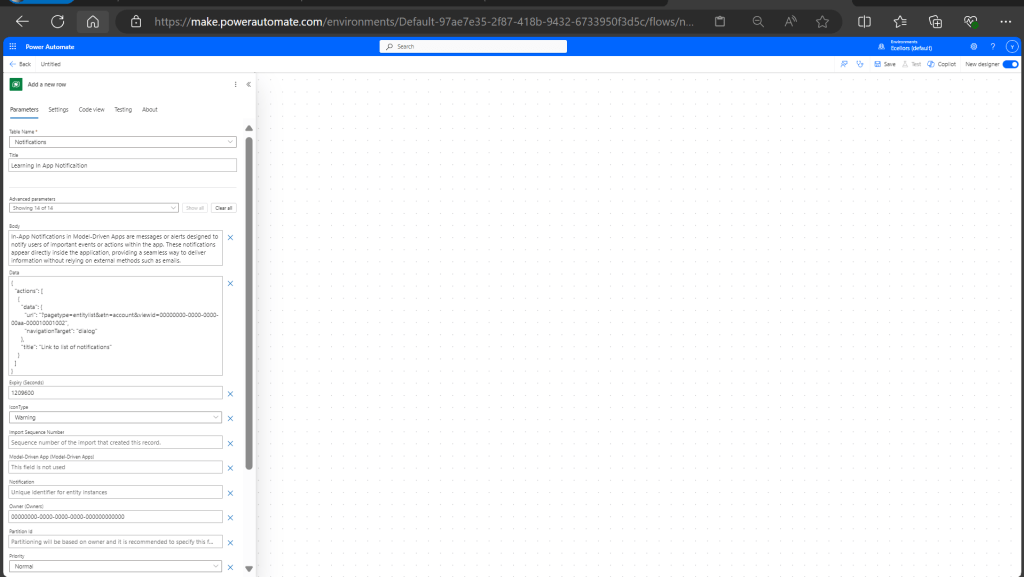
      You should design your Power Automate something like below to trigger a similar notification.

        Note: Currently In App Notification will be triggered for only Model Driven Apps.

        Reference:

        In App Notification Documentation

        Hope this saves some of your time…

        Cheers,

        PMDY
        Understanding Dataverse search in Dynamics 365 – Quick Review

        Hi Folks,

        One of my colleagues asked about Dataverse search, hence I am writing this article on Dataverse Search in Dynamics 365 and in the end, will compare different search options available in Dynamics 365.

        Dataverse Search:

        In layman terms, Dataverse Search is a powerful search tool that helps you find information quickly across your organization’s data in Microsoft Dataverse, which is the underlying data platform for apps like Power Apps, Dynamics 365, and more, shows you all the related information from across different tables or records in one place.

        In short, Dataverse Search is the evolved version of Relevance Search, offering a more robust, faster, and user-friendly search experience including search results for text in documents that are stored in Dataverse such as PDF, Microsoft Office documents, HTML, XML, ZIP, EML, plain text, and JSON file formats. It also searches text in notes and attachments. Before enabling it, just note that once Dataverse search is enabled, it will be affected in all your Model Driven Apps, as of now, just take note.

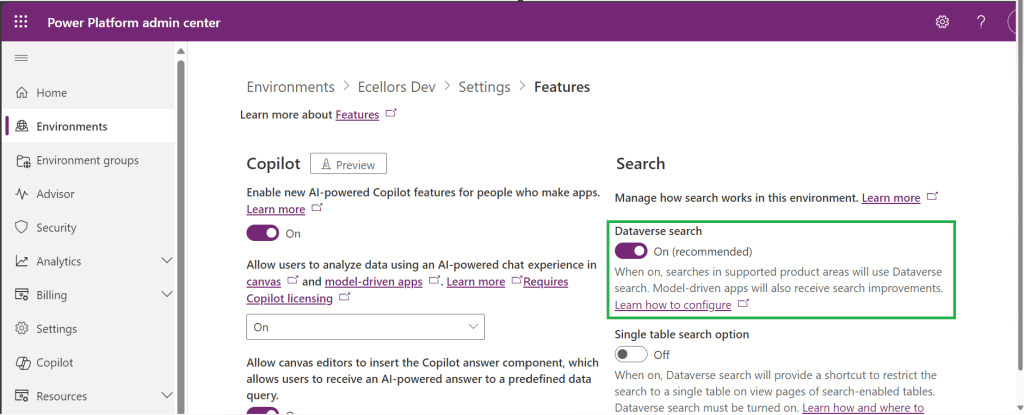
        It is on by default, here is where you can now turn off the Dataverse Search:

        1. Navigate to https://admin.powerplatform.com
        2. Click on Environments –> Choose your required environment –> Settings –>Features

        3. Disable/Enable the Dataverse search feature.

        Once enabled, we need to configure the tables for Dataverse Search so that indexing is performed at the backend, in order to do this…

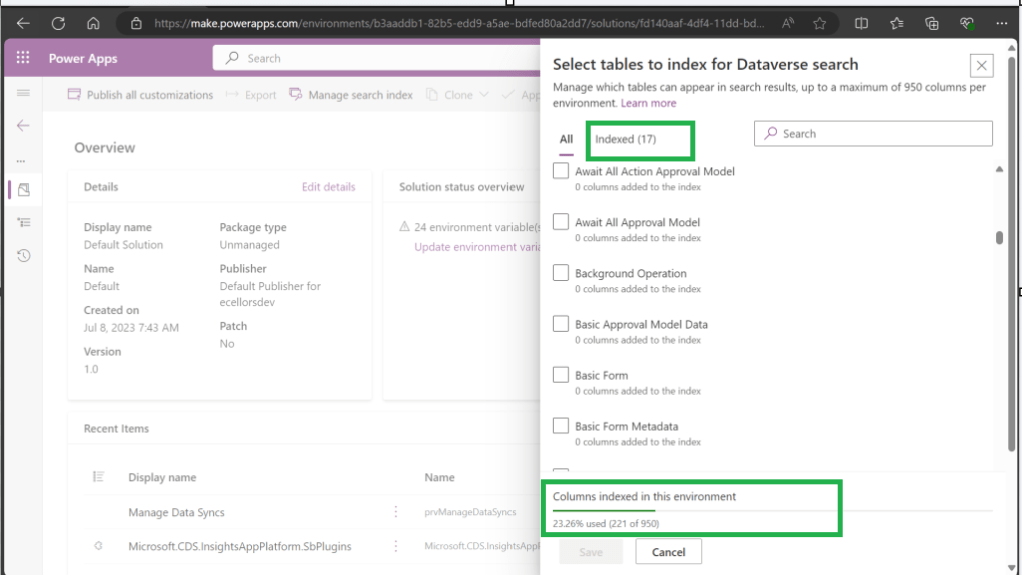
        1. Navigate to https://make.powerapps.com, select your desired solution –> Click on Overview as shown below

        Now you need to choose Manage Search Index and you can choose your desired table and fields, there isn’t a limit on the number of tables you can configure, but there is a limit on the number of fields you can configure for an environment, a maximum of 1000 fields are permitted both including system and custom fields, 50 fields are used by system, so you can configure 950 fields.

        Just note that some field types are treated as multiple fields in the Dataverse search index as indicated in this table.

        Field typeNumber of fields used in
        the Dataverse search index
        Lookup (customer, owner, or Lookup type attribute)3
        Option Set (state, or status type attribute)2
        All other types of fields1

        At the bottom of the snap above, you could see the percentage of columns indexed in this environment.

        When Dataverse search is enabled, the search box is always available at the top of every page in your app. You can start a new search and quickly find the information that you’re looking for.

        When Dataverse search is turned on, it becomes your default and only global search experience for all of your model-driven apps. You won’t be able to switch to quick find search also known as categorized search.

        You can also enable Quick actions as shown in the below table

        TableQuick actions
        AccountAssign, Share, Email a link
        ContactAssign, Share, Email a link
        AppointmentMark complete, Cancel, Set Regarding, Assign, Email a link
        TaskMark complete, Cancel, Set Regarding, Assign, Email a link
        Phone CallMark complete, Cancel, Set Regarding, Assign, Email a link
        EmailCancel, Set Regarding, Email a link

        Here is the short table comparing all types of searches in Dynamics 365…

        FunctionalityDataverse searchQuick FindAdvanced Find
        Enabled by default?Yes.
        Note: For non-production environments an administrator must manually enable it.
        Yes, for the table grid.
        No, for multiple-table quick find (categorized search). An administrator must first disable Dataverse search before multiple-table grid find can be enabled.
        Yes
        Single-table search scopeNot available in a table grid. You can filter the search results by a table on the results page.Available in a table grid.Available in a table grid.
        Multi-table search scopeThere is no maximum limit on the number of tables you can search.Searches up to 10 tables, grouped by a table.Multi-table search not available.
        Search behaviorFinds matches to any word in the search term in any column in the table.Finds matches to all words in the search term in one column in a table; however, the words can be matched in any order in the column.Query builder where you can define search criteria for the selected row type. Can also be used to prepare data for export to Office Excel so that you analyze, summarize,or aggregate data, or create PivotTables to view your data from different perspectives.
        Searchable columnsText columns like Single Line of Text, Multiple Lines of Text, Lookups, and Option Sets. Doesn’t support searching in columns of Numeric or Date data type.All searchable columns.All searchable columns.
        Search resultsReturns the search results in order of their relevance, in a single list.For single-table, returns the search results in a table grid. For multi-table, returns the search results grouped by categories, such as accounts, contacts, or leads.Returns search results of the selected row type with the columns you have specified, in the sort order you have configured.

        Hope you learned something today…if you have any questions, do let me know in the comments…

        Cheers,

        PMDY
        Is your plugin not running? Have you debugged? Plugin doesn’t run but your operation is successful when debugging…then try this out

        Hi Folks,

        Last few weeks was very busy for me, I missed interacting with the community.

        Here I would like to share one tip which can greatly help your debugging…

        Just to give a little background, I was working with the Plugins for Dynamics 365 recently where I was working with API, the Plugin seem to work fine when debugged using Profiler, I tested the piece of the Plugin Code in Console, it worked either, but Plugin is not working when the respective action which triggers the Plugin is being fired. I scratched my head, what is the problem…

        Just then, I tried using the below block of code, replaced the catch block of Plugin Code with below code.

        catch(WebException ex)
        {
        string stringResponse = string.Empty;
        int statusCode;
        using (WebResponse response = ex.Response)
        {
        HttpWebResponse httpResponse = (HttpWebResponse)response;
        statusCode = (int)httpResponse.StatusCode;
        using (Stream data = response.GetResponseStream())
        using (var reader = new StreamReader(data))
        {
        stringResponse = reader.ReadToEnd();
        }
        using (var ms = new MemoryStream(Encoding.Unicode.GetBytes(stringResponse)))
        {
        }
        }
        view raw Detailed Error hosted with ❤ by GitHub

        Soon, I observed from the detailed error message above function posted, it is failing because of version problem of the referenced DLL and current DLL version was not supported with my assembly.

        Soon I was able to reference my Plugin with correct DLL version which fixed the issue. No further debugging was needed.

        Hope this helps…

        Cheers,

        PMDY

        Another way to install Plugin Registration Tool for Dynamics 365 CE from Nuget

        Hi Folks,

        Are you a Power Platform or Dynamics 365 CE Developer, you would definitely need to work on Plugin Registration tool at any given point of time and having a local application for Plugin Registration tool greatly helps…in this post, I will show a little different way to install Plugin registration tool and that too very easily.

        Well, this approach is especially useful to me when I got a new laptop and need to work on Plugin Registration Tool where the Plugins already build for the implementation.

        First 3 ways might have known to everyone through which you can download Plugin registration tool…do you know there is fourth approach as well…

        1. From XrmToolBox
        2. From https://xrm.tools/SDK
        3. Installation from CLI
        4. See below

        Because there were limitations to use these approaches at least in my experience, I found the fourth one very useful.

        1. XrmToolBox – Not quite convenient to profile and debug your plugins
        2. https://xrm.tools/SDK – Dlls in the downloaded folder will be blocked and would need to manually unblock the DLL’s for the Tool to work properly
        3. CLI – People rarely use this.

        Just do note that the approach is very easy and works only if you have a Plugin Project already. Please follow the steps below

        1. Just open the Plugin project.
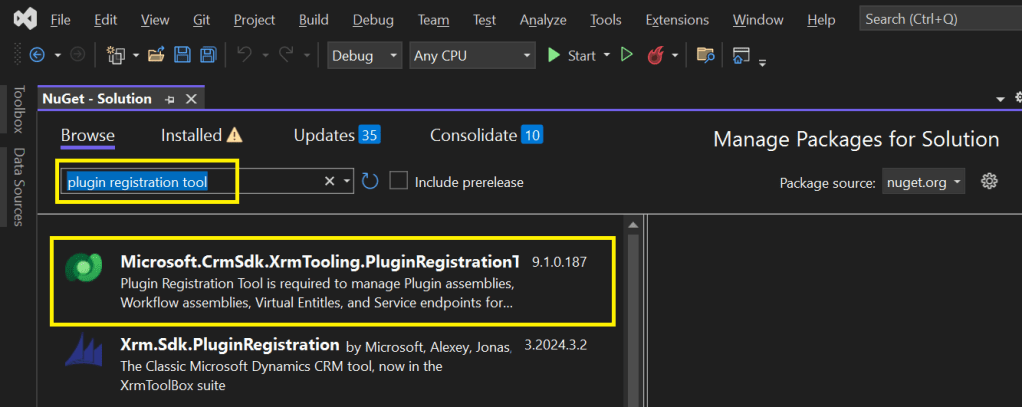
        2. Right click on the solution and choose manage Nuget Packages for the solution
        3. Search for Plugin Registration tool as below

        4. Choose the Plugin project and click install, confirm the prompt and agree the license agreement shown

        5. Once installed, next go to the Project folder in the local machine.

        6. Navigate to Packages folder, you should see a folder for Plugin Registration tool below

        7. There you go, you can open the Plugin Registration Application under tools folder. You can undo the changes for the Assembly it is linked to Source control.

        That’s it, how easy it was? Hope this would help someone.

        Cheers,

        PMDY

        Master Canvas Power Apps – #Canvas Apps Learn Series

        Hi Folks,

        This is a blog post series on Canvas Apps where you can learn and grow from Zero – Hero in Canvas Power Apps…and boost your knowledge on Canvas Apps.

        1. Introduction to Canvas Apps – What they are, why they matter, and real-world use cases.
        2. Setting Up Your First Canvas App – Step-by-step guide for beginners.
        3. Understanding Screens and Navigation – How to structure an app with multiple screens.
        4. Working with Data Sources – Connecting to SharePoint, Dataverse, Excel, and other sources.
        5. Forms and Galleries – Displaying and capturing data effectively.
        6. Mastering Power Fx – Key formulas and best practices.
        7. User Experience and UI Design – Creating a responsive and user-friendly interface.
        8. Using Components for Reusability – Making apps scalable and maintainable.
        9. Working with Media and Attachments – Adding images, videos, and file uploads.
        10. Performance Optimization Tips – Best practices to make apps faster.
        11. Offline Capabilities in Canvas Apps – How to work with apps when offline.
        12. Integrating Power Automate with Canvas Apps – Automating processes.
        13. AI and Copilot Features in Canvas Apps – Adding intelligence to apps.
        14. Advanced Security and Role-Based Access – Controlling user access and permissions.
        15. Publishing and Managing Your Canvas Apps – Deployment, versioning, and governance.

        Firstly, let’s start with some simple introduction for this post…

        What Are Canvas Apps?

        Canvas Apps are a powerful low-code development tool within Microsoft Power Platform that allows users to build custom business applications with a drag-and-drop interface. Unlike model-driven apps, which rely on structured data models, Canvas Apps provide full control over the user interface, enabling developers and business users to design highly customized applications tailored to specific business needs.

        Canvas Apps can be used to create simple applications for internal business processes or sophisticated applications with multiple screens, data interactions, and integrations with other Microsoft and third-party services. Users can design these apps using Power Apps Studio, a web-based development environment that provides a range of components, such as buttons, galleries, forms, and media controls, to create intuitive and responsive applications.

        Why Are Canvas Apps Important?

        Canvas Apps bring significant value to businesses and developers by providing:

        1. Low-Code Development – Build applications with minimal coding, making app development accessible to both developers and non-developers. Power Fx, a formula-based language, enables business logic implementation with ease.
        2. Customization & Flexibility – Unlike model-driven apps that follow a predefined data structure, Canvas Apps allow users to freely design screens, layouts, and controls, ensuring the app meets unique business requirements.
        3. Seamless Data Integration – Connect to over 800+ data sources, including SharePoint, Dataverse, Excel, SQL Server, and third-party APIs, ensuring seamless access to enterprise data.
        4. Cross-Platform Compatibility – Run apps on web browsers, mobile devices (iOS & Android), and embedded within Microsoft Teams, SharePoint, and Dynamics 365.
        5. Integration with Power Platform – Enhance apps with Power Automate for automation workflows, Power BI for data visualization, and AI Builder for AI-driven insights and intelligent automation.
        6. Rapid Prototyping & Deployment – With the drag-and-drop interface and prebuilt templates, businesses can quickly prototype and deploy applications without long development cycles.
        7. Security & Compliance – Apps built using Canvas Apps inherit Microsoft’s security infrastructure, allowing role-based access control (RBAC) and compliance with enterprise security standards.

        Real-World Use Cases

        Canvas Apps can be leveraged across industries to improve efficiency and streamline operations. Some common real-world use cases include:

        • Expense Management App – Employees can submit expenses with receipts, managers can approve them, and finance teams can generate reports.
        • Inventory Management System – Track stock levels, reorder inventory, and generate reports in real-time.
        • Incident Reporting App – Employees can report workplace incidents with photos, location, and real-time status updates.
        • Customer Feedback App – Collect customer feedback through mobile-friendly forms and analyze responses with Power BI.
        • Field Service Management – Field workers can access work orders, update job statuses, and capture customer signatures through mobile devices.
        • HR Onboarding App – Manage the onboarding process for new employees with guided forms, policy documents, and task checklists.

        Getting Started with Canvas Apps

        To start building a Canvas App, follow these steps:

        1. Sign in to Power Apps (https://make.powerapps.com)
        2. Click on ‘Create’ and select ‘Canvas App from Blank’
        3. Choose a layout (Tablet or Mobile) based on your app’s intended use
        4. Design your app using Power Apps Studio:
          • Add Screens: Home screen, forms, galleries, etc.
          • Insert Controls: Buttons, text inputs, dropdowns, and images
          • Connect Data Sources: Link to Dataverse, SharePoint, SQL, etc.
          • Apply Business Logic: Use Power Fx formulas to create dynamic interactions
          • Test the App: Use Preview mode to validate functionality
        5. Publish and Share Your App: Deploy the app and control access using Microsoft Entra ID (Azure AD)

        Best Practices for Building Canvas Apps

        1. Plan Your App Structure – Define screens, navigation, and key functionalities before starting.
        2. Optimize Performance – Reduce unnecessary data calls and use delegation-friendly queries.
        3. Use Components for Reusability – Create custom components for commonly used UI elements.
        4. Ensure Responsive Design – Design layouts that work across multiple device sizes.
        5. Leverage Power Automate for Automation – Automate approvals, notifications, and data processing.

        What’s Next?

        In the next post, we’ll walk through setting up your first Canvas App from scratch, covering app layout, adding controls, and connecting to a data source.

        Stay tuned! Don’t forget to follow along…

        Cheers,

        PMDY

        Dataverse Accelerator | API playground (Preview)

        Hi Folks,

        In this post, I will be talking about the features of Dataverse Accelerator in brief. Actually, the Microsoft Dataverse accelerator is an application that provides access to select preview features and tooling related to Dataverse development, it is based on Microsoft Power Pages. This is totally different from Dataverse Industry Accelerator.

        Dataverse accelerator app is automatically available in all new Microsoft Dataverse environments. If your environment doesn’t already have it, you can install the Dataverse accelerator by going to Power Platform Admin Center –> Environments –> Dynamics 365 Apps –> Install App –> Choose Dataverse Accelerator

        You can also refer to my previous blog post on installing it here if you prefer

        Once installed, you should see something like below under the Apps

        On selection of the Dataverse Accelerator App, you should see something like below, do note that you must have App-level access to the Dataverse accelerator model driven app, such as system customizer or direct access from a security role.

        Now let’s quickly see what are features available with Dataverse Accelerator

        FeatureDescription
        Low-code plug-insReusable, real-time workflows that execute a specific set of commands within Dataverse. Low-code plug-ins run server-side and are triggered by personalized event handlers, defined in Power Fx.
        Plug-in monitorA modern interface to surface the existing plug-in trace log table in Dataverse environments, designed for developing and debugging Dataverse plug-ins and custom APIs.
        Do you remember viewing Plugin Trace logs from customizations, now you don’t need system administrator role to view trace logs, giving access to this app will do, rest everything remains the same.
        API PlaygroundA preauthenticated software testing tool which helps to quickly test and play with Dataverse API’s.

        I wrote a blog post earlier on using Low Code Plugins, you may check it out here, while using Plugin Monitor is pretty straight forward.

        You can find my blog post on using Postman to test Dataverse API’s here.

        Now let’s see how can use the API Playground, basically you will be able to test the below from API Playground similar to Postman. All you need to open the API Playground from Dataverse accelerator. You will be preauthenticated while using API Playground.

        TypeDescription
        Custom APIThis includes any Dataverse Web API actionsfunctions from Microsoft, or any public user-defined custom APIs registered in the working environment.
        Instant plug-inInstant plug-ins are classified as any user-defined workflows registered as a custom API in the environment with a related Power Fx Expressions.
        OData requestAllows more granular control over the request inputs to send OData requests.

        Custom API, Instant Plugin – You select the relevant request in the drop down available in API Playground and provide the necessary input parameters if required for your request

        OData request – Select OData as your request and provide the plural name of the entity and hit send

        After a request is sent, the response is displayed in the lower half of your screen which would be something like below.

        OData response

        I will update this post as these features get released in my region(APAC), because at the time of writing this blog post, this API Playground feature is being rolled out globally and was still in preview.

        The Dataverse accelerator isn’t available in GCC or GCC High environments.

        Hope learned something about Dataverse Accelerator.

        Cheers,

        PMDY