Building a Cloud-Native Power Apps ALM Pipeline with GitLab, Google Cloud Build and PAC CLI: Streamlining Solution Lifecycle Automation

A unique combination to achieve deployment automation of Power Platform Solutions

Hi Folks,

This post is about ALM in Power Platform integrating with a different ecosystem than usual, i.e. using Google Cloud, sounds interesting..? This approach is mainly intended for folks using Google Cloud or GitLab as part of their implementation.

Integrating Google Cloud Build with Power Platform for ALM (Application Lifecycle Management) using GitLab is feasible and beneficial. This integration combines GitLab as a unified DevOps platform with Google Cloud Build for executing CI/CD pipelines, enabling automated build, test, export, and deployment of Power Platform solutions efficiently. This was the core idea for my session on Friday 28 November, at New Zealand Business Applications Summit 2025.
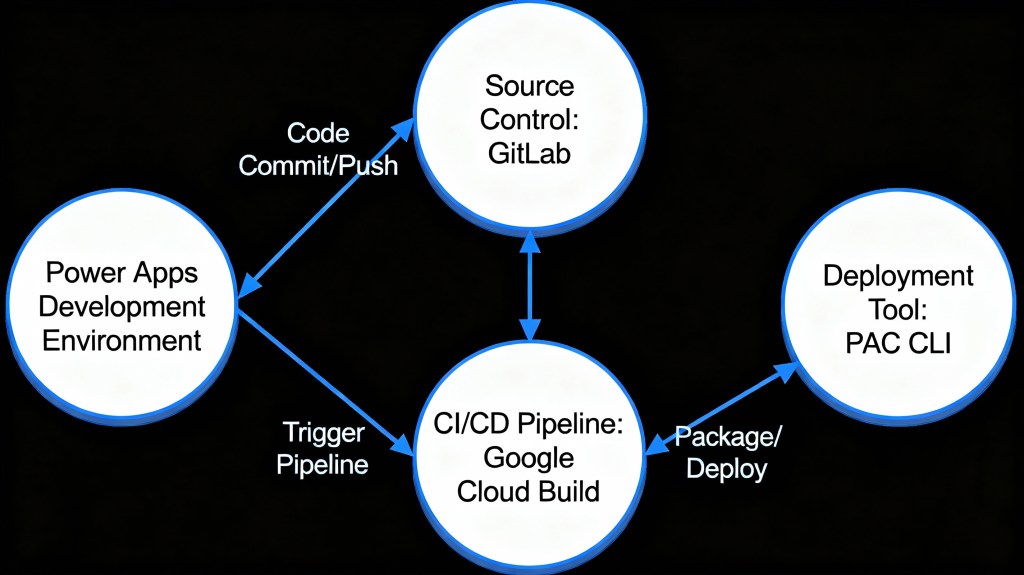
Detailed Steps for this implementation

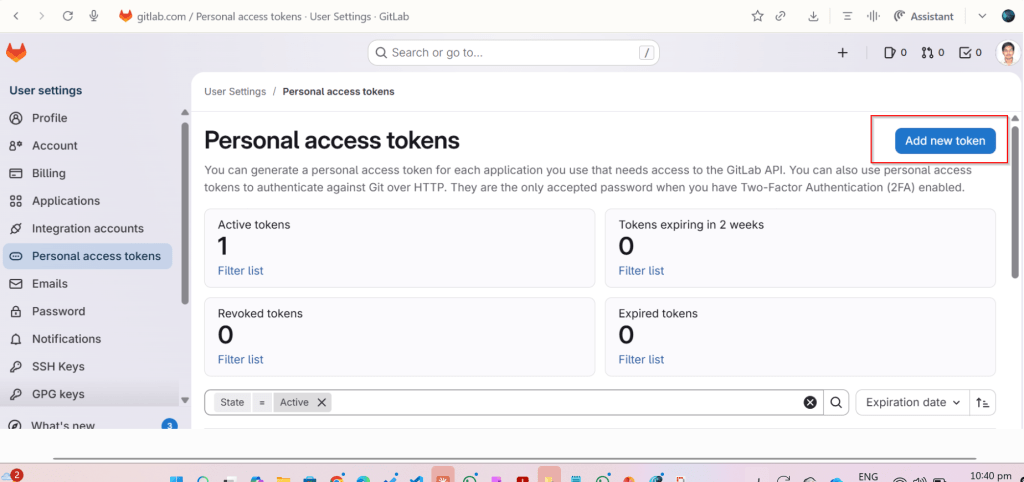
Create an access token in GitLab for API Access and Read Access

Click on Add new token, you can select at the minimum the below scopes while you were working with CI-CD using GitLab

Create a host connection for the repository in GitLab

Specify the personal access token created in the previous step

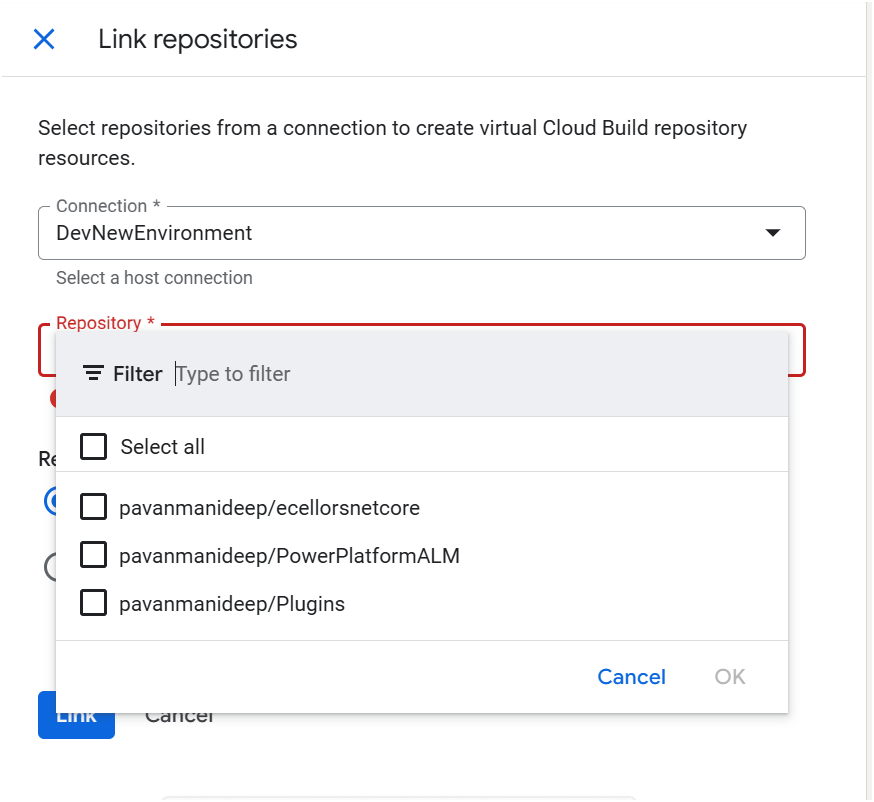
Link your repository

The created host connections in the previous step will be shown under Connec ctions drop down

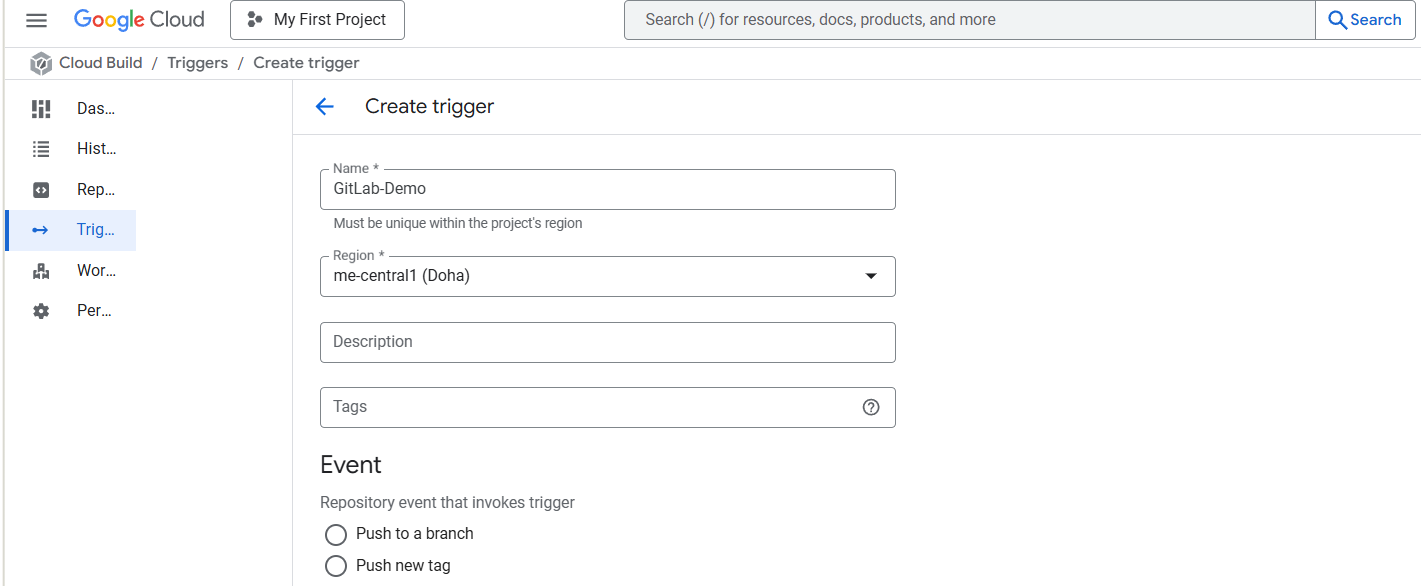
Create Trigger in Google Cloud Build

Click on Create trigger above, provide a name, select a nearest region
Event:

For now, I am choosing Manual invocation for illustration

Specify where the name of the Repository where your YAML in GitLab resides
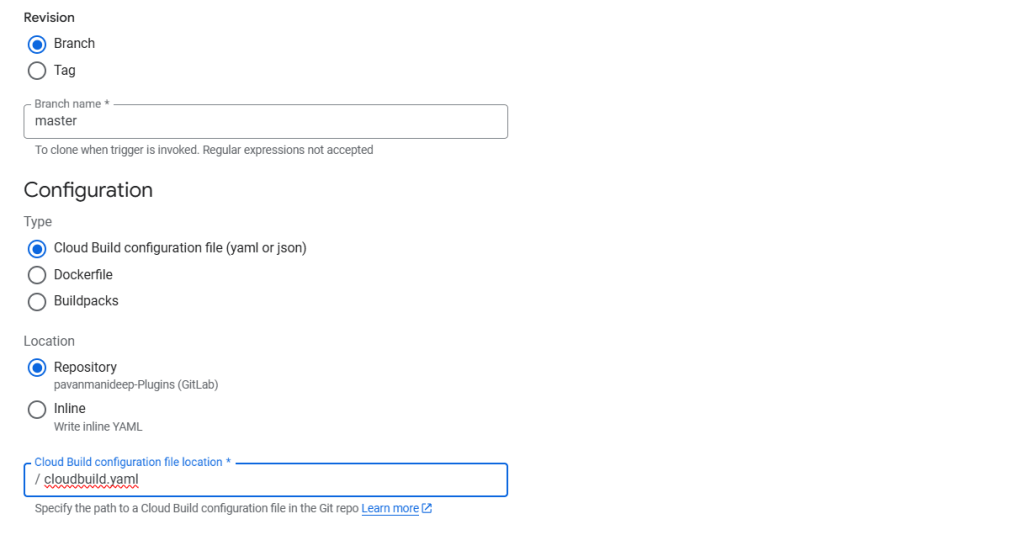
You can optionally specify the substitution variables which are nothing but parameters you can pass to your pipeline from Google Cloud Build Configuration

You can optionally give this for any approval and choose the service account tagged to your google account in the drop down.
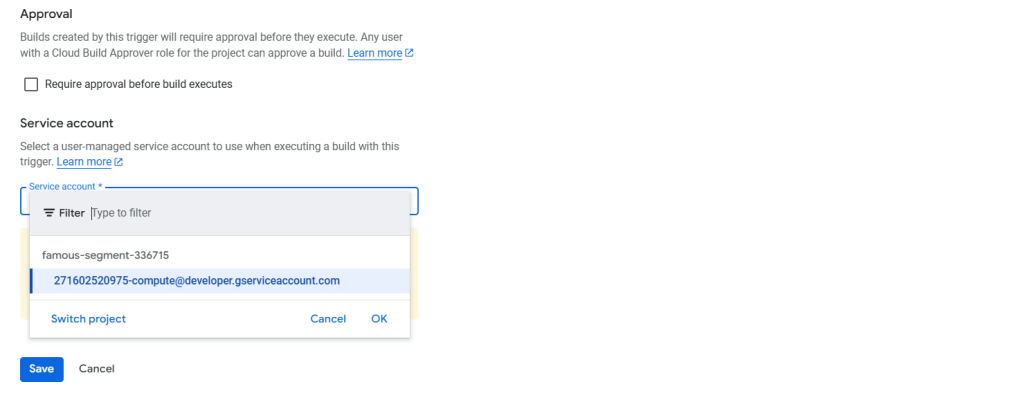
Click on Save.

Next proceed to GitLab YAML
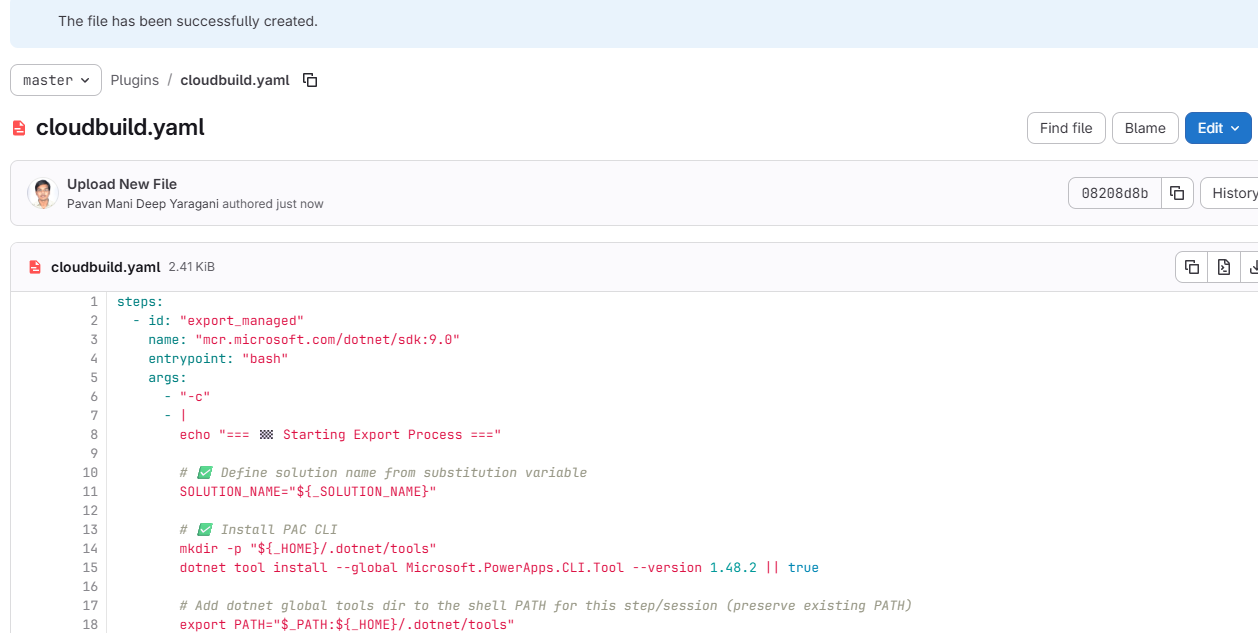
You can find the full code below

steps:
– id: "export_managed"
name: "mcr.microsoft.com/dotnet/sdk:9.0"
entrypoint: "bash"
args:
– "-c"
– |
echo "=== 🏁 Starting Export Process ==="
# ✅ Define solution name from substitution variable
SOLUTION_NAME="${_SOLUTION_NAME}"
# ✅ Install PAC CLI
mkdir -p "${_HOME}/.dotnet/tools"
dotnet tool install –global Microsoft.PowerApps.CLI.Tool –version 1.48.2 || true
# Add dotnet global tools dir to the shell PATH for this step/session (preserve existing PATH)
export PATH="$_PATH:${_HOME}/.dotnet/tools"
echo "=== 🔐 Authenticating to Power Platform Environment ==="
pac auth create –name "manual" –url "https://ecellorsdev.crm8.dynamics.com" –tenant "XXXXX-XXXX-XXXXX-XXXXXX-XXXXX" –applicationId "XXXXXXXXXXXXXX" –clientSecret "XXXXXXXXXXXXXXXX"
pac auth list
echo "=== 📦 Exporting Solution: ${_SOLUTION_NAME} ==="
pac solution export \
–name "${_SOLUTION_NAME}" \
–path "/tmp/${_SOLUTION_NAME}.zip" \
–managed true \
–environment "${_SOURCE_ENV_URL}"
echo "=== ✅ Solution exported to /tmp/${_SOLUTION_NAME}.zip ==="
echo "=== 🔐 Authenticating to Target Environment ==="
pac auth create \
–name "target" \
–url "https://org94bd5a39.crm.dynamics.com" \
–tenant "XXXXXXXXXXXXXXXXXXXXXXXX" \
–applicationId "XXXX-XXXXX-XXXXX-XXXXXX" \
–clientSecret "xxxxxxxxxxxxxxxxxxxx"
echo "=== 📥 Importing Solution to Target Environment ==="
pac solution import \
–path "/tmp/${_SOLUTION_NAME}.zip" \
–environment "${_TARGET_ENV_URL}" \
–activate-plugins \
–publish-changes
echo "=== 🎉 Solution imported successfully! ==="
options:
logging: CLOUD_LOGGING_ONLY
substitutions:
_SOLUTION_NAME: "PluginsForALM_GitLab"
_SOURCE_ENV_URL: "https://org.crm.dynamics.com"
_TARGET_ENV_URL: "https://org.crm.dynamics.com"
_TENANT_ID: "xxxxxxxx-xxxx-xxxx-xxxx-xxxxxxxxxxxx"
_CLIENT_ID: "xxxxxxxx-xxxx-xxxx-xxxx-xxxxxxxxxxxx"
_CLIENT_SECRET: "xxxxxxxxxxxxxxxxxxxxxxxxxxxx"
_SOLUTIONS_DIR: "/workspace/Plugins/08112025"
view raw GitLabDemo.yaml hosted with ❤ by GitHub

Solution from Source Environment

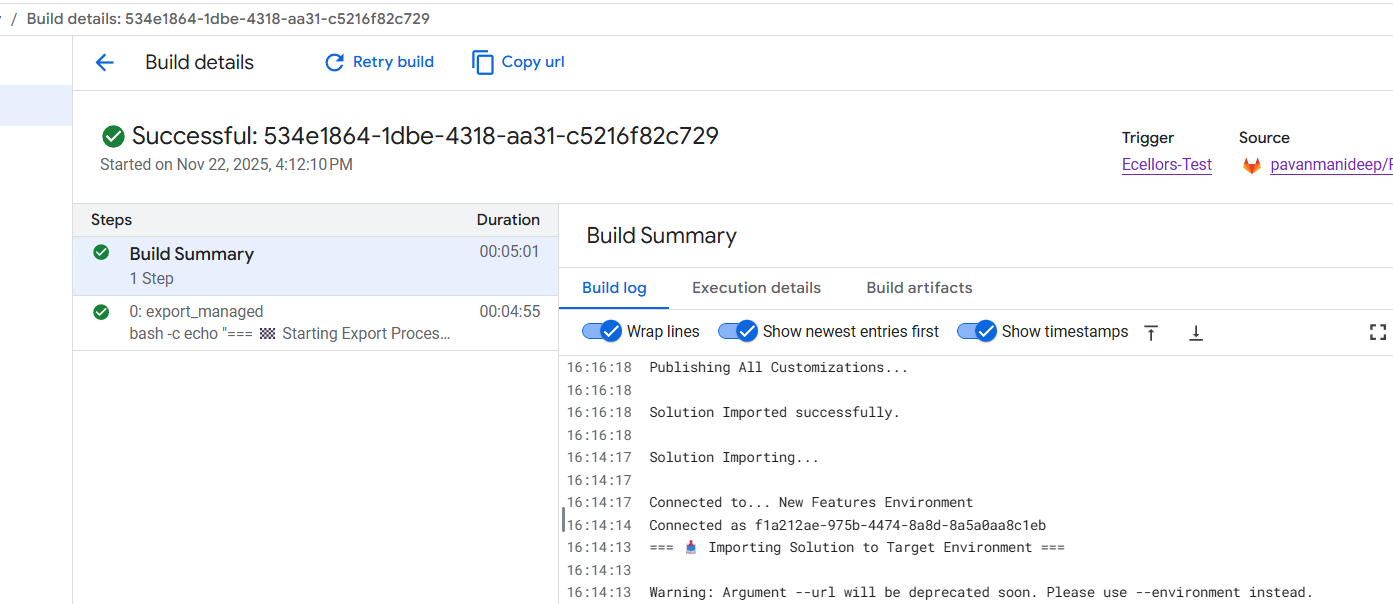
Now lets run the trigger which will export the solution from the source environment and import to the target environment….we have manual trigger, automatic trigger whenever there is an commit to the repo in GitLab etc., you may pick whatever suits your needs best.
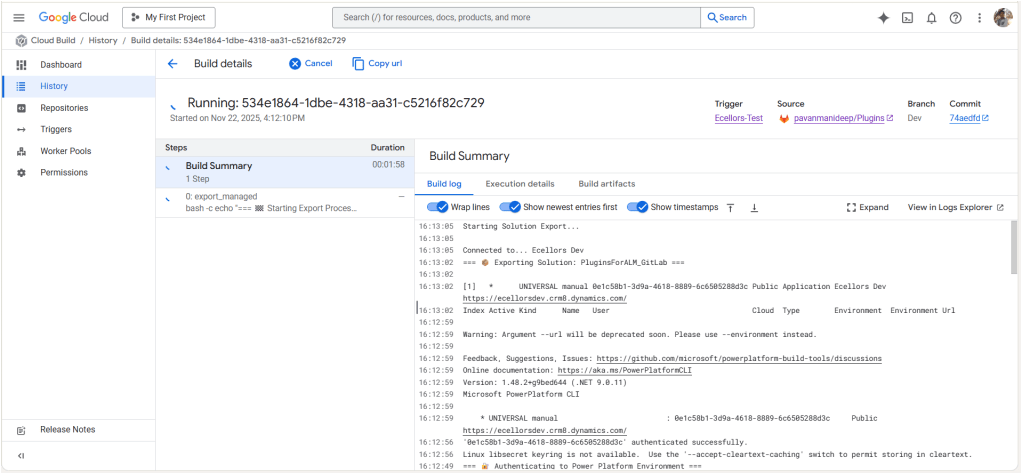
Solution imported to the target environment using Google Cloud Build
The below table illustrates key differences between Google Cloud Build and Azure Devops….

AspectGoogle Cloud BuildAzure DevOps Build Pipelines
Pricing ModelPay-as-you-go with per-second billingPer-minute billing with tiered pricing
Cost OptimizationSustained use discounts, preemptible VMsReserved capacity and enterprise agreements
Build EnvironmentServerless, container-native, managed by Google CloudRequires self-hosted or paid hosted agents
Free TierAvailable with build minutes and creditsAvailable but more limited
Operational OverheadLow, no need to manage build agentsHigher, managing agents or paying for hosted agents
Ideal ForVariable, short, or containerized workloadsLarge Microsoft-centric organizations
Integration Cost ImpactTightly integrated with Google Cloud serverless infrastructureIntegrated with Microsoft ecosystem but may incur additional licensing costs

Conclusion:

PAC CLI is a powerful command-line tool that automates authentication, environment, and solution management within Power Platform ALM, enabling consistent and repeatable deployment workflows. It integrates smoothly with DevOps tools like GitLab and Google Cloud Build, helping teams scale ALM practices efficiently while maintaining control and visibility over Power Platform environments. Just note, my intention was showcase the power of PAC CLI with wider ecosystem, not only with Microsoft.

Cheers,

PMDY
Power Platform Solution Blue Print Review – Quick Recap

The Solution blueprint review is covers all required topics. The workshop can also be conducted remotely. When the workshop is done remotely, it is typical to divide the review into several sessions over several days.

The following sections cover the top-level topics of the Solution blueprint review and provide a sampling of the types of questions that are covered in each section.

Program strategy

Program strategy covers the process and structures that will guide the implementation. It also reviews the approach that will be used to capture, validate, and manage requirements, and the plan and schedule for creation and adoption of the solution.

This topic focuses on answering questions such as:

  • What are the goals of the implementation, and are they documented, well understood, and can they be measured?
  • What is the methodology being used to guide the implementation, and is it well understood by the entire implementation team?
  • What is the structure that is in place for the team that will conduct the implementation?
  • Are roles and responsibilities of all project roles documented and understood?
  • What is the process to manage scope and changes to scope, status, risks, and issues?
  • What is the plan and timeline for the implementation?
  • What is the approach to managing work within the plan?
  • What are the external dependencies and how are they considered in the project plan?
  • What are the timelines for planned rollout?
  • What is the approach to change management and adoption?
  • What is the process for gathering, validating, and approving requirements?
  • How and where will requirements be tracked and managed?
  • What is the approach for traceability between requirements and other aspects of the implementation (such as testing, training, and so on)?
  • What is the process for assessing fits and gaps?

Test strategy

Test strategy covers the various aspects of the implementation that deal with validating that the implemented solution works as defined and will meet the business need.

This topic focuses on answering questions such as:

  • What are the phases of testing and how do they build on each other to ensure validation of the solution?
  • Who is responsible for defining, building, implementing, and managing testing?
  • What is the plan to test performance?
  • What is the plan to test security?
  • What is the plan to test the cutover process?
  • Has a regression testing approach been planned that will allow for efficient uptake of updates?

Business process strategy

Business process strategy considers the underlying business processes (the functionality) that will be implemented on the Microsoft Dynamics 365 platform as part of the solution and how these processes will be used to drive the overall solution design.

This topic focuses on answering questions such as:

  • What are the top processes that are in scope for the implementation?
  • What is currently known about the general fit for the processes within the Dynamics 365 application set?
    • How are processes being managed within the implementation and how do they relate to subsequent areas of the solution such as user stories, requirements, test cases, and training?
    • Is the business process implementation schedule documented and understood?
    • Are requirements established for offline implementation of business processes?

Based on the processes that are in scope, the solution architect who is conducting the review might ask a series of feature-related questions to gauge complexity or understand potential risks or opportunities to optimize the solution based on the future product roadmap.

Application strategy

Application strategy considers the various apps, services, and platforms that will make up the overall solution.

This topic focuses on answering questions such as:

  • Which Dynamics 365 applications or services will be deployed as part of the solution?
  • Which Microsoft Azure capabilities or services will be deployed as part of the solution?
  • What if new external application components or services will be deployed as part of the solution?
  • What if legacy application components or services will be deployed as part of the solution?
  • What extensions to the Dynamics 365 applications and platform are planned?

Data strategy

Data strategy considers the design of the data within the solution and the design for how legacy data will be migrated to the solution.

This topic focuses on answering questions such as:

  • What are the plans for key data design issues like legal entity structure and data localization?
  • What is the scope and planned flow of key master data entities?
  • What is the scope and planned flow of key transactional data entities?
  • What is the scope of data migration?
  • What is the overall data migration strategy and approach?
  • What are the overall volumes of data to be managed within the solution?
  • What are the steps that will be taken to optimize data migration performance?

Integration strategy

Integration strategy considers the design of communication and connectivity between the various components of the solution. This strategy includes the application interfaces, middleware, and the processes that are required to manage the operation of the integrations.

This topic focuses on answering questions such as:

  • What is the scope of the integration design at an interface/interchange level?
  • What are the known non-functional requirements, like transaction volumes and connection modes, for each interface?
  • What are the design patterns that have been identified for use in implementing interfaces?
  • What are the design patterns that have been identified for managing integrations?
  • What middleware components are planned to be used within the solution?

Business intelligence strategy

Business intelligence strategy considers the design of the business intelligence features of the solution. This strategy includes traditional reporting and analytics. It includes the use of reporting and analytics features within the Dynamics 365 components and external components that will connect to Dynamics 365 data.

This topic focuses on answering questions such as:

  • What are the processes within the solution that depend on reporting and analytics capabilities?
  • What are the sources of data in the solution that will drive reporting and analytics?
  • What are the capabilities and constraints of these data sources?
  • What are the requirements for data movement across solution components to facilitate analytics and reporting?
  • What solution components have been identified to support reporting and analytics requirements?
  • What are the requirements to combine enterprise data from multiple systems/sources, and what does that strategy look like?

Security strategy

Security strategy considers the design of security within the Dynamics 365 components of the solution and the other Microsoft Azure and external solution components.

This topic focuses on answering questions such as:

  • What is the overall authentication strategy for the solution? Does it comply with the constraints of the Dynamics 365 platform?
  • What is the design of the tenant and directory structures within Azure?
  • Do unusual authentication needs exist, and what are the design patterns that will be used to solve them?
  • Do extraordinary encryption needs exist, and what are the design patterns that will be used to solve them?
  • Are data privacy or residency requirements established, and what are the design patterns that will be used to solve them?
  • Are extraordinary requirements established for row-level security, and what are the design patterns that will be used to solve them?
  • Are requirements in place for security validation or other compliance requirements, and what are the plans to address them?

Application lifecycle management strategy

Application lifecycle management (ALM) strategy considers those aspects of the solution that are related to how the solution is developed and how it will be maintained given that the Dynamics 365 apps are managed through continuous update.

This topic focuses on answering questions such as:

  • What is the preproduction environment strategy, and how does it support the implementation approach?
  • Does the environment strategy support the requirements of continuous update?
  • What plan for Azure DevOps will be used to support the implementation?
  • Does the implementation team understand the continuous update approach that is followed by Dynamics 365 and any other cloud services in the solution?
  • Does the planned ALM approach consider continuous update?
  • Who is responsible for managing the continuous update process?
  • Does the implementation team understand how continuous update will affect go-live events, and is a plan in place to optimize versions and updates to ensure supportability and stability during all phases?
  • Does the ALM approach include the management of configurations and extensions?

Environment and capacity strategy

Deployment architecture considers those aspects of the solution that are related to cloud infrastructure, environments, and the processes that are involved in operating the cloud solution.

This topic focuses on answering questions such as:

  • Has a determination been made about the number of production environments that will be deployed, and what are the factors that went into that decision?
  • What are the business continuance requirements for the solution, and do all solution components meet those requirements?
  • What are the master data and transactional processing volume requirements?
  • What locations will users access the solution from?
  • What are the network structures that are in place to provide connectivity to the solution?
  • Are requirements in place for mobile clients or the use of other specific client technologies?
  • Are the licensing requirements for the instances and supporting interfaces understood?

Solution blueprint is very essential for an effective Solution Architecture, using the above guiding principles will help in this process.

Thank you for reading…

Hope this helps…

Cheers,

PMDY

Triggers not available in Custom Connectors – Quick Review

Power Platform folks rarely build new custom connectors in a project, while most of them work on existing ones, it is often observed that the triggers are missing from the custom connector, below are the steps you can review if so…

1. Wrong Portal

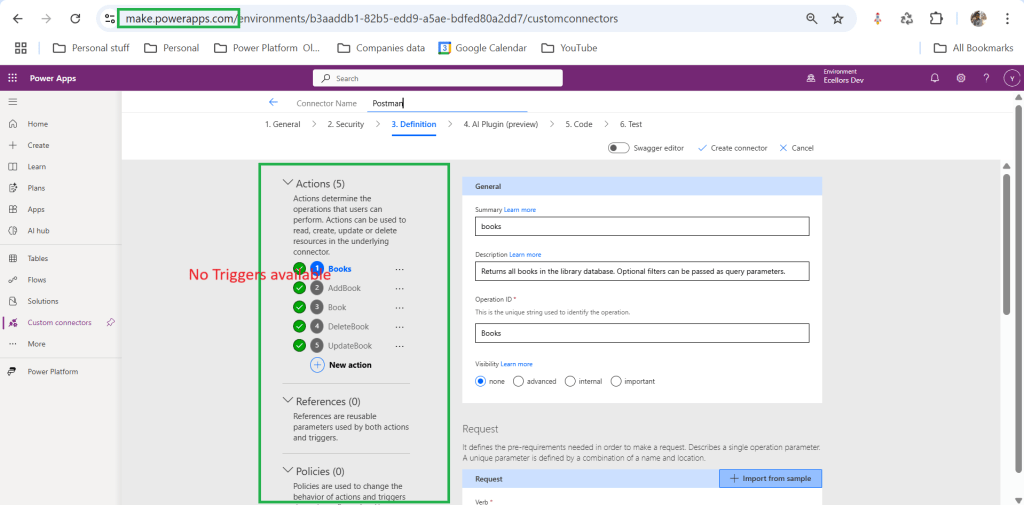
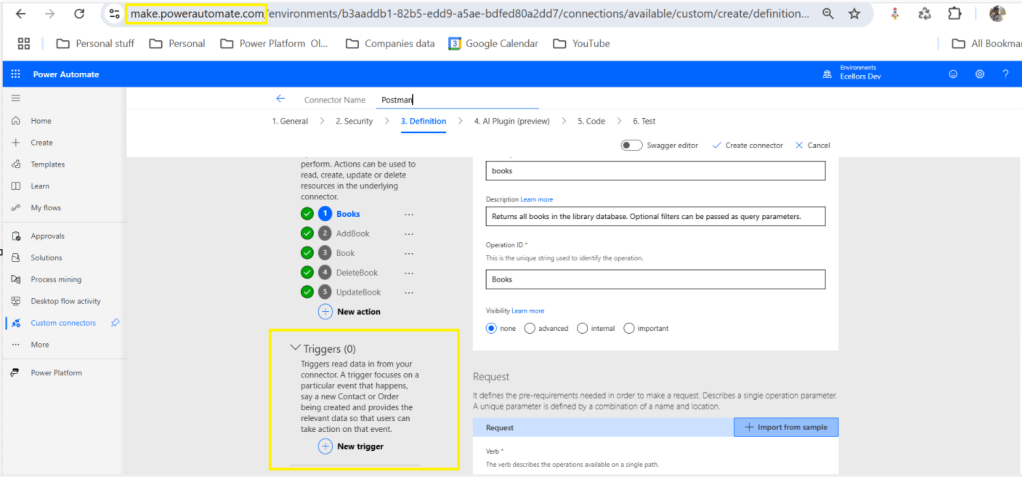
If you’re building the connector in Power Apps, you won’t see trigger options. ✅ Fix: Use the Power Automate portal to define and test triggers. Only Power Automate supports trigger definitions for custom connectors.

2. Trigger Not Properly Defined

If your OpenAPI (Swagger) definition doesn’t include a valid x-ms-trigger, the trigger won’t appear.

Fix:

  • Make sure your OpenAPI includes a webhook or polling trigger.
  • Example:json"x-ms-trigger": { "type": "Webhook", "workflow": true }

3. Connector Not Refreshed

Sometimes, even after updating the connector, the UI doesn’t refresh.

Fix:

  • Delete and re-add the connector in your flow.
  • Or create a new connection in Power Automate to force a refresh.

4. Licensing or Environment Issues

If you’re in a restricted environment or missing permissions, triggers might not be available.

Fix:

  • Check if your environment allows custom connectors with triggers.
  • Ensure your user role has permission to create and use custom connectors.

5. Incorrect Host/Path in Swagger

If the host or path fields in your Swagger are misconfigured, the connector might fail silently.

Fix:

  • Ensure the host and path are correctly defined.
  • Avoid using just / as a path — use something like /trigger/start instead.

5. Incorrect Environment

Make sure you were in the right environment of the Power Platform, sometimes when juggling things around, we often mistakenly try using connectors from a wrong environment. Do take a note.

Finally you will be able to see Triggers while creating custom connectors…

Hope reviewing these will help…

Cheers,

PMDY

Microsoft Power Platform Center of Excellence (CoE) Starter Kit – Core Components – Setup wizard – Learn COE #02

Hi Folks,

This post is continuation to my previous post on COE Starter Kit, if in case you have just landed on this page. I would suggest go here and check out my blog post on introduction to COE Starter Kit.

Important:

Do test out each and every component, rolling out to production without testing as you need to keep in mind that there were many flows which can trigger emails to users which may keep them annoyed.

You need to install the components present in the COE Starter Kit extracted folder in the dedicated environment, preferably Sandbox environment (not in Default environment, so that you can test it out first before moving changes to Production), make sure you have Dataverse installed in the environment. First let’s install the Solutions and later we can proceed to customize them.

Install CenterofExcellenceCoreComponents managed solution from your extracted folder, the exact version may be different and differ as the time goes at the time of installing this, the version was as below CenterofExcellenceCoreComponents_4.24_managed

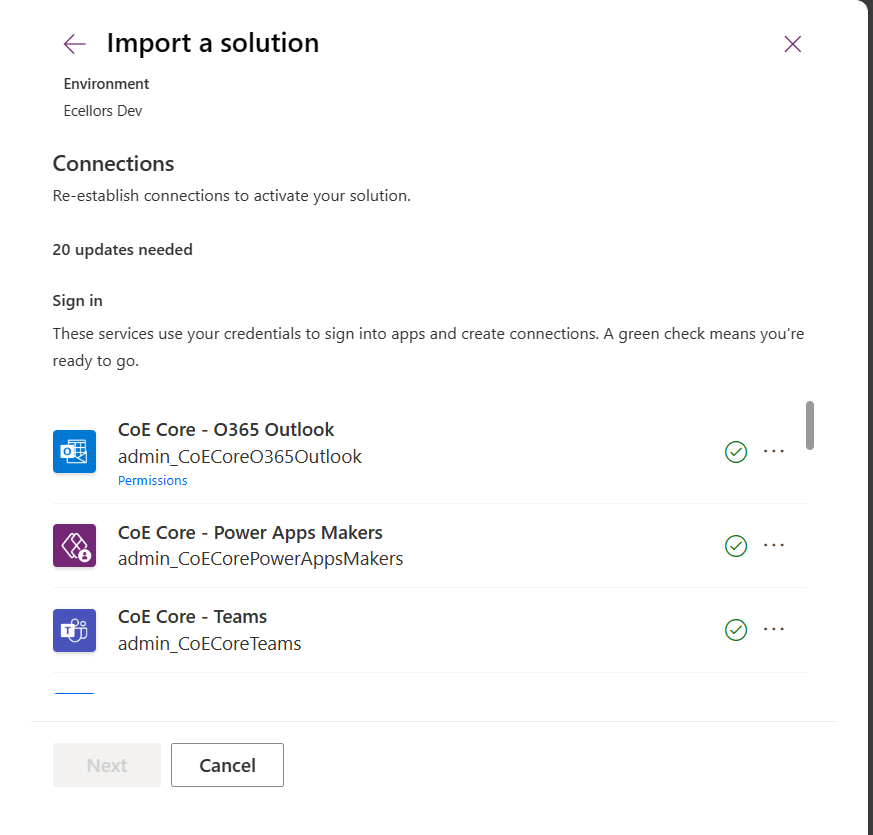
Then proceed to click on Import as we will be configuring these environment variables whenever required later. It takes a couple of seconds to process, it asks to set the connections which I had talked about in previous post, just create new connection if one not available and click next. Make sure you have green checkboxes for each connection, and you are good to click next.

Then you will be presented with the screen to input Environment variables as below, we will configure later so for now, just proceed by clicking on Import button.

The import process may take a while like around 15 minutes, once imported, you should see a notification message on your screen something like below.

Step 1:

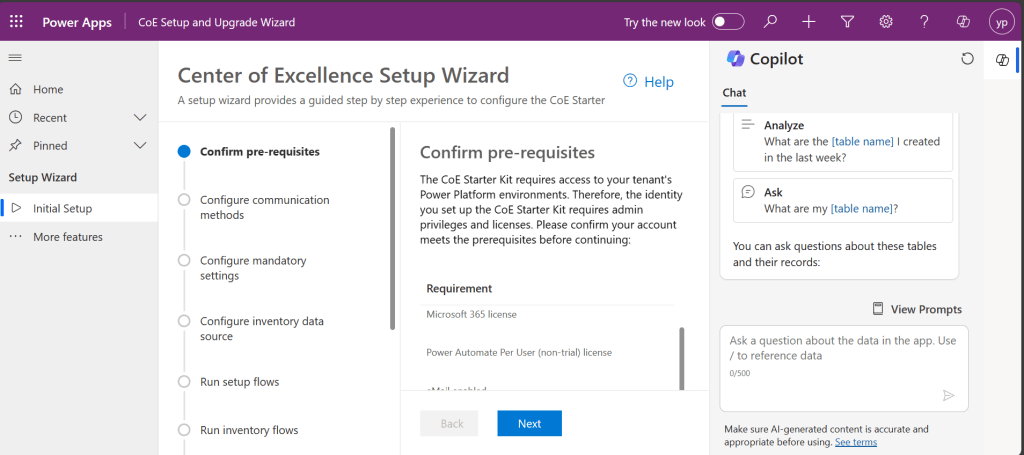
You will have a bunch of Apps, Flows installed in your environment. Configure the COE Settings by opening the Centre of Excellence setup and upgrade wizard from the installed Center of Excellence – Core Components managed solution.

It should look something like below when opened. You will be presented with some prerequisites

Proceed with this step-by-step configuration, you don’t need to change any of the setting, just proceed by clicking on Next.

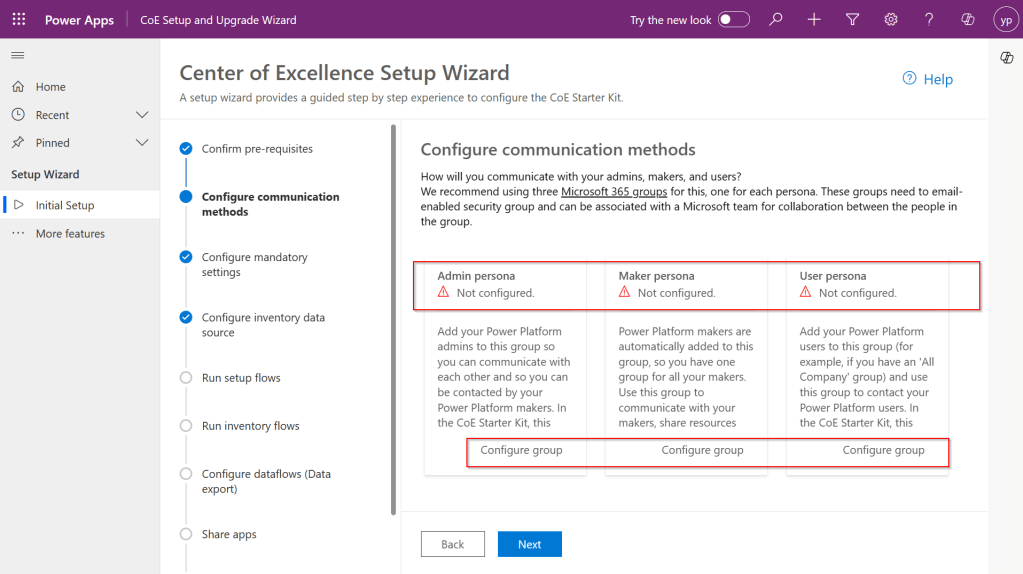
Step 2: In this step, you can configure different communication groups to coordinate by creating different personas

You can click on Configure group, choose the group from the drop down and enter the details and click create a group.

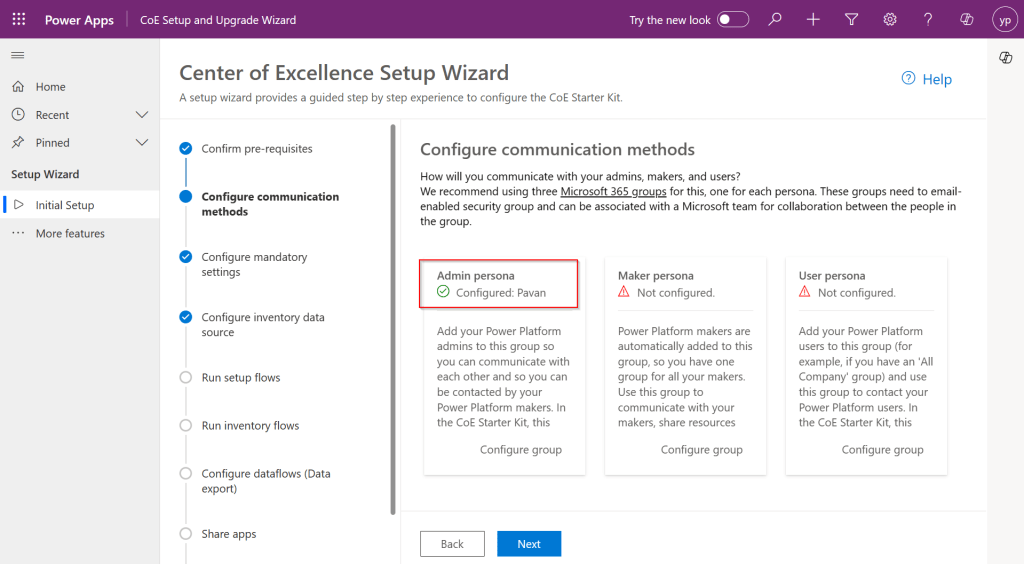
Provide a group name and email address without domain in the next steps and proceed to create a group, these were actually Microsoft 365 groups.

Once you have setup, it should show..

However, this step is optional, but for efficient tracking and maximum benefit of COE, it is recommended to set this up.

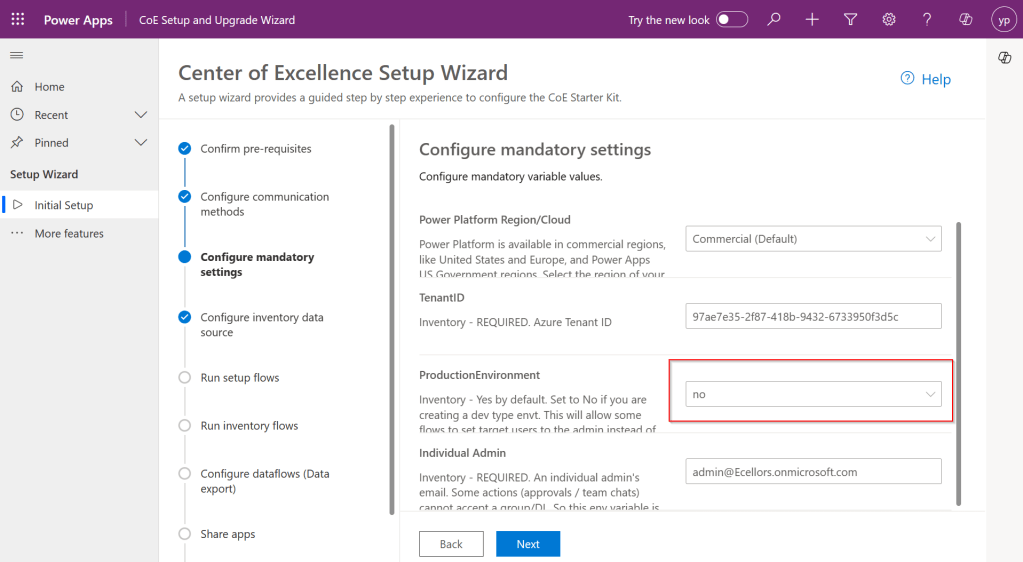
Step 3: While the tenant Id gets populated automatically. Make sure to select no here instead of yes if you were using Sandbox or Production Environment and configure your Admin email and click Next.

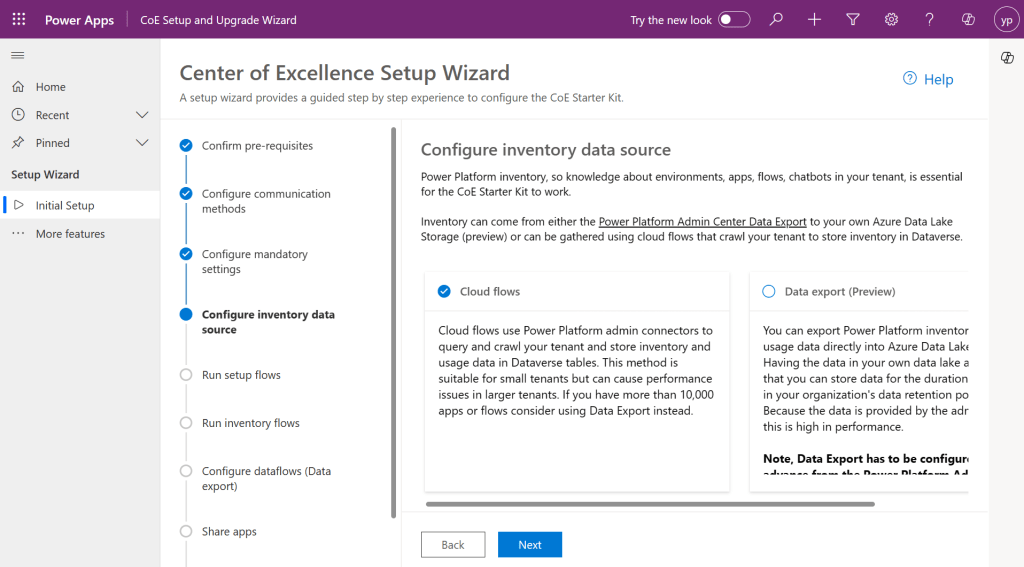
Step 4: Configure the inventory data source.

Tip: In case you were not able to see the entire content in the page, you can minimize the Copilot and press F11 so that entire text in the page would be visible to you.

This is required for the Power Platform Admin Connectors to crawl your tenant data and store them in Dataverse tables. This is similar to how search engines crawl entire internet to show any search results. While Data export is in preview, so we proceed with using Cloud flows.

Click Next.

Step 5:

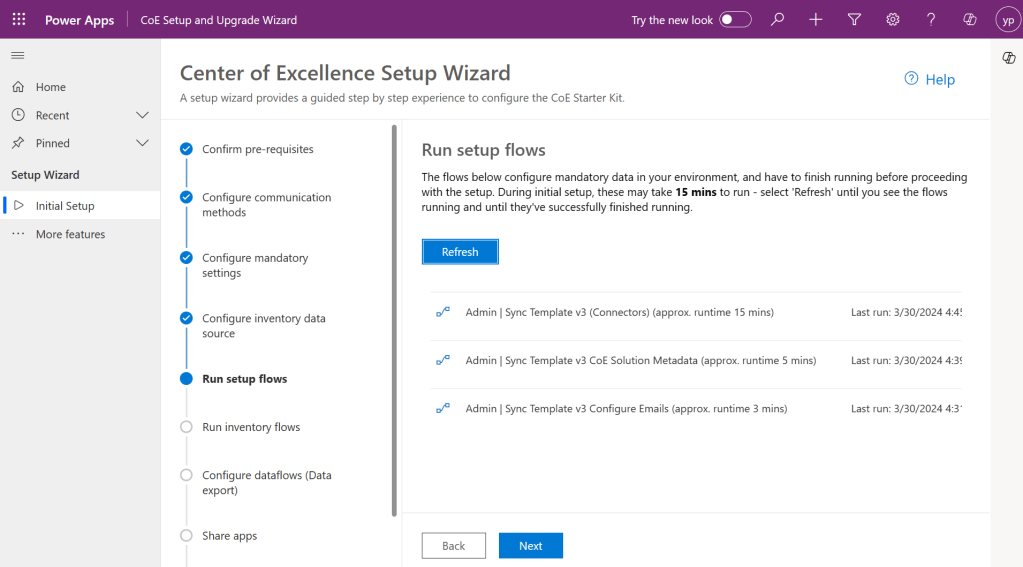
This step is Run the setup flows, click on refresh to start the process. In the background, all the necessary admin flows will be running. Refresh again after 15 minutes to see all the 3 admin flows are running and collecting your tenant data as below and click Next.

Step 6:

In the next step, make sure you set all the inventory flows to On.

By the way inventory flows are a set of flows that are repeatedly gathering a lot of information about your Power Platform tenant. This includes all Canvas Apps, Model Driven Apps, Power Pages, Cloud Flows, Desktop Flows, Power Virtual Agent Bots, Connectors, Solutions and even more.

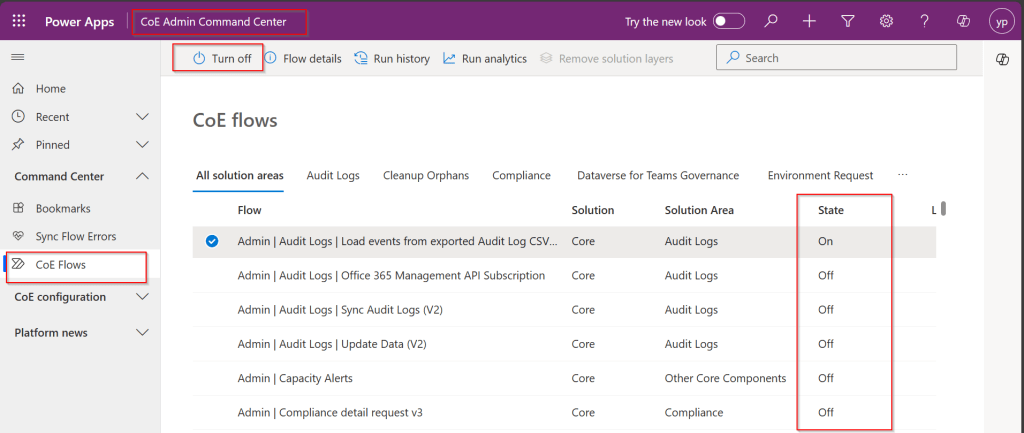
To enable them, open the COE Admin Command Center App from Center of Excellence – Core Components Solution. Make sure you turn on all the flows available.

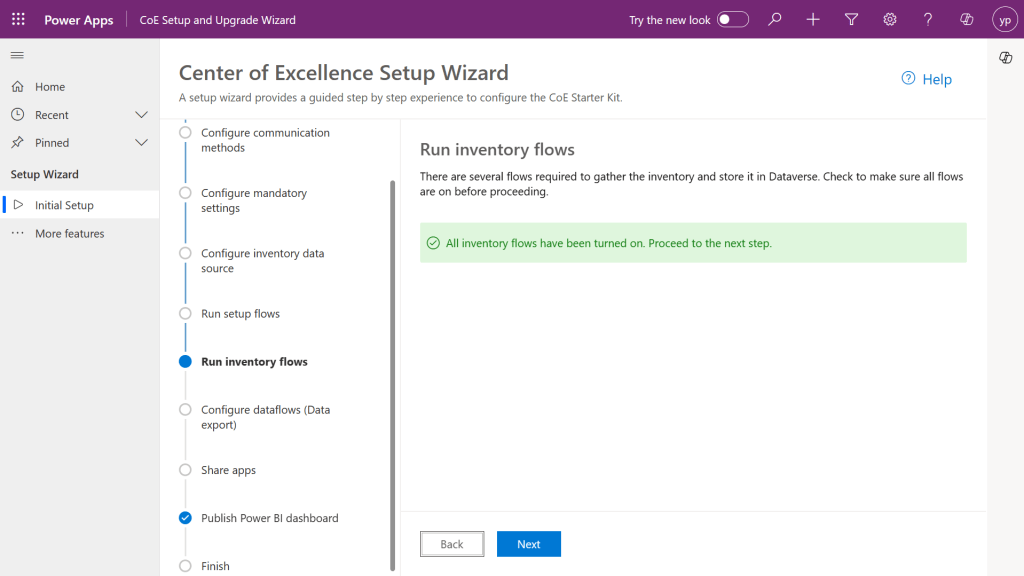
So, after turning on all the flows, come back and check on Center of Excellence Wizard Setup, you should see a message something like below saying all flows have been turned on.

Configure data flows is optional, as we haven’t configured it earlier, this step would be skipped.

Step 7: In the next step, all the Apps came in with Power Platform COE Kit should be shared accordingly based on your actual requirement to different. personas.

Step 8:

This part of the wizard currently consists of a collection of links to resources, helping to configure and use the Power BI Dashboards included in the CoE.

Finish

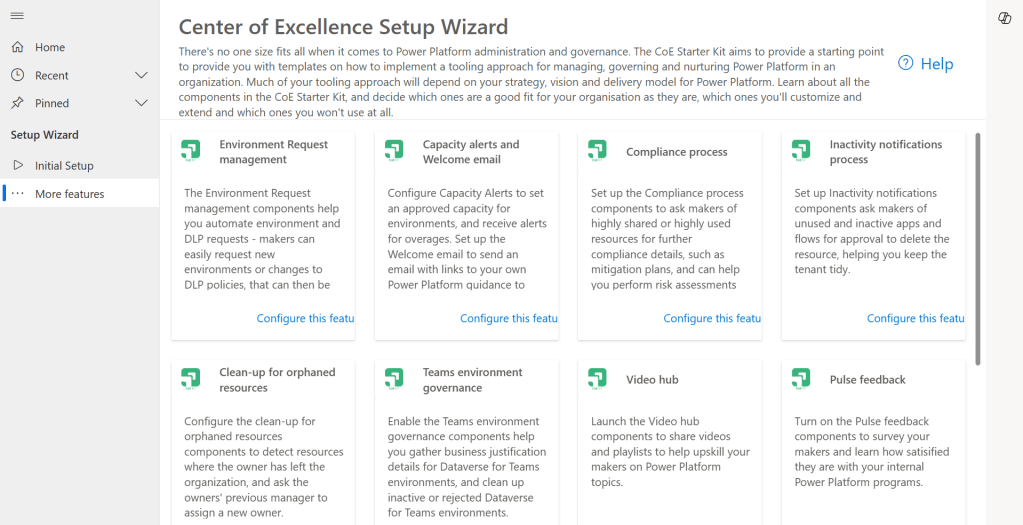
Once you click Done, you will be presented with more features to setup.

These setups have similar structure but varies a bit based on the feature architecture.

As we got started with setting Starter Kit and had set up the Core Components of the Starter Kit which is important one, now you can keep customizing further, in the future posts, we will see how we can set up Center of Excellence – Governance Components, Center of Excellence – Innovation Backlog. These components are required to finally set up the Power BI Dashboard and use effectively to plan your strategy.

Everyone who’s ever installed or updated the CoE knows how time-consuming it can be. Not just the setup procedure, but also the learning process, the evaluation and finally the configuration and adoption of new features. It’s definitely challenging to keep up with all this. Especially since new features are delivered almost every month. This attempt from me is to try my best to keep it concise, yet making you understand the process.

While such setup wizard is clear and handy resource to get an overview of the CoE architecture and a great starting point for finding any documentation. This simplifies administration, operations, maintenance and may be even customizations.

If you face issues using the COE Starter Kit, you can always report them at https://aka.ms/coe-starter-kit-issues

Hope this helps…. someone setting up COE starter kit…. if you have any feedback or questions, do let me know in comments….

Cheers,

PMDY

Microsoft Power Platform Center of Excellence (CoE) Starter Kit – Basics – Learn COE #01

Hi Folks,

This is an introductory post, but it’s worth going through where I will be sharing basics about using Centre of Excellence(COE) in Power Platform. Let’s get started.

So, what’s Center of Excellence? COE plays a key role in deriving strategy and move forward in this fast-paced world to keep up with the innovation. Firstly, we may need to ask ourselves few questions…Do your organization have lot of flows, apps and copilots aka power virtual agents? Do you want to effective manage them? Then how you want to move forward…using COE Starter kit is a great choice. It is absolutely free to download, the starter kit is a collection of components and tools which will help to oversee and adopt Power Platform Solutions. The assets part of the CoE Starter Kit should be seen as a template from which you inherit your individual solution or can serve as inspiration for implementing your own apps and flows.

There were some prerequisites before you can install your COE Starter Kit. Many of the medium to large scale enterprise Power Platform implementations should be possessing in their tenant.

  1. Microsoft Power Platform Service Admin, global tenant admin, or Dynamics 365 service admin role.
  2. Dataverse is the foundation for the kit.
  3. Power Apps Per User license (non-trial) and Microsoft 365 license.
  4. Power Automate Per User license, or Per Flow licenses (non-trial).
  5. The identity must have access to an Office 365 mailbox that has the REST API enabled meeting the requirements of Outlook connector.
  6. Make sure you enable the Power Apps Code Components in Power Platform Admin Center
  7. If you want to track unique users and app launches, you need to have Azure App Registration having access to Microsoft 365 audit log.
  8. If you would like to share the reports in Power BI, minimally you require a Power BI pro license.
  9. Setting up communication groups to talk between Admins, Makers and Users.
  10. Create 2 environments, 1 for test and 1 for production use of Starter Kit
  11. Install Creator Kit in your environment by downloading the components from here

The following connectors should be allowed to effectively use data loss prevention policies(DLP)

Once you were done checking the requirements, you can download from the starter kit here.

You can optionally install from App Source here or using Power Platform CLI here.

The kit provides some automation and tooling to help teams build monitoring and automation necessary to support a CoE.

While we saw what advantages are of having COE in your organization and other prerequisites. In the upcoming blog post, we will see how you can install COE starter kit in your Power Platform tenant and set it up to effectively plan your organization resources for highest advantage.

Cheers,

PMDY
Creating In-App Notifications in Model Driven Apps in an easier way – Quick Review

Hi Folks,

In App notifications are trending these days where many customers are showing interest in implementing these for their businesses.

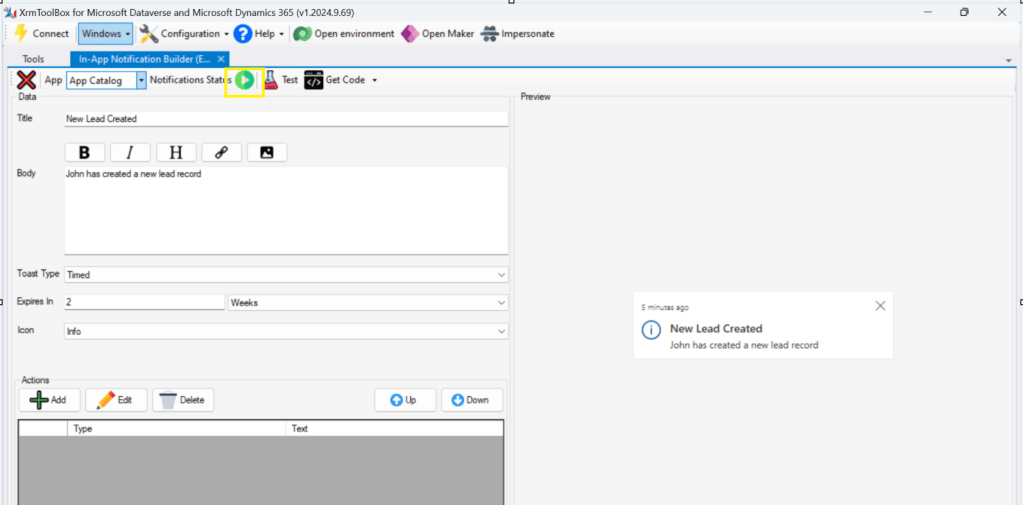
So, in this blog post, I am going to show you the easiest way to generate In App notification using XrmToolBox in few clicks. Use the below tool to generate one.

So, let me walk you through step by step

Step 1: Open In App Notification Builder in XrmToolBox

Step 2: In App notification is a setting that should be enabled at App level, so meaning if you have developed few Model Driven Apps, you will be able to enable the In App notification individually for each one of them.

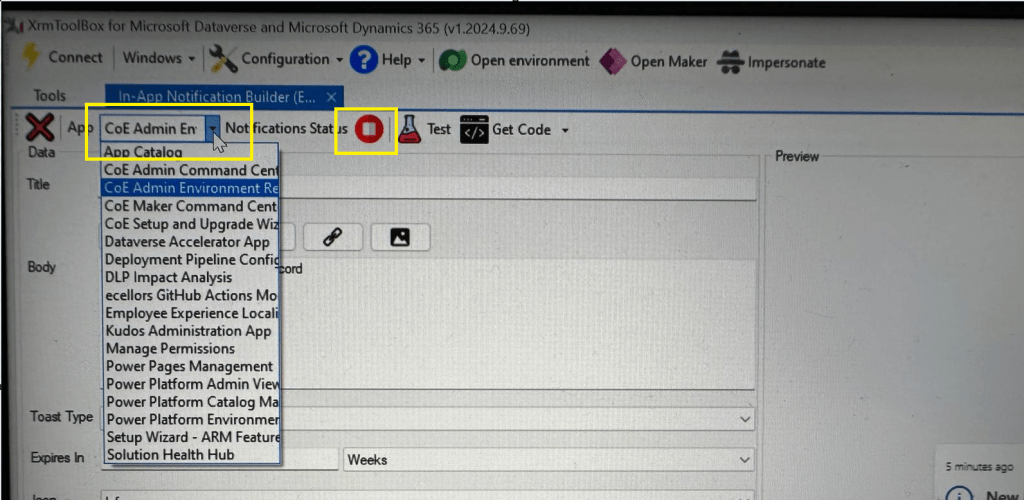
Step 3: In the above snapshot, we should be able to select the respective App for which we want to enable the In App Notification. Red bubble besides indicate that the In App notification is not enabled for this App.

So, we need to enable it by clicking on the red icon itself, you should then be able to get this prompt as below.

Step 5: Upon confirming the confirmation dialog box, the In App notification will be enabled for that App and you the red button turns to green as below saying that In App Notification is enabled.

Now that the In App notification is enabled in the App, we will proceed with the remaining setup.

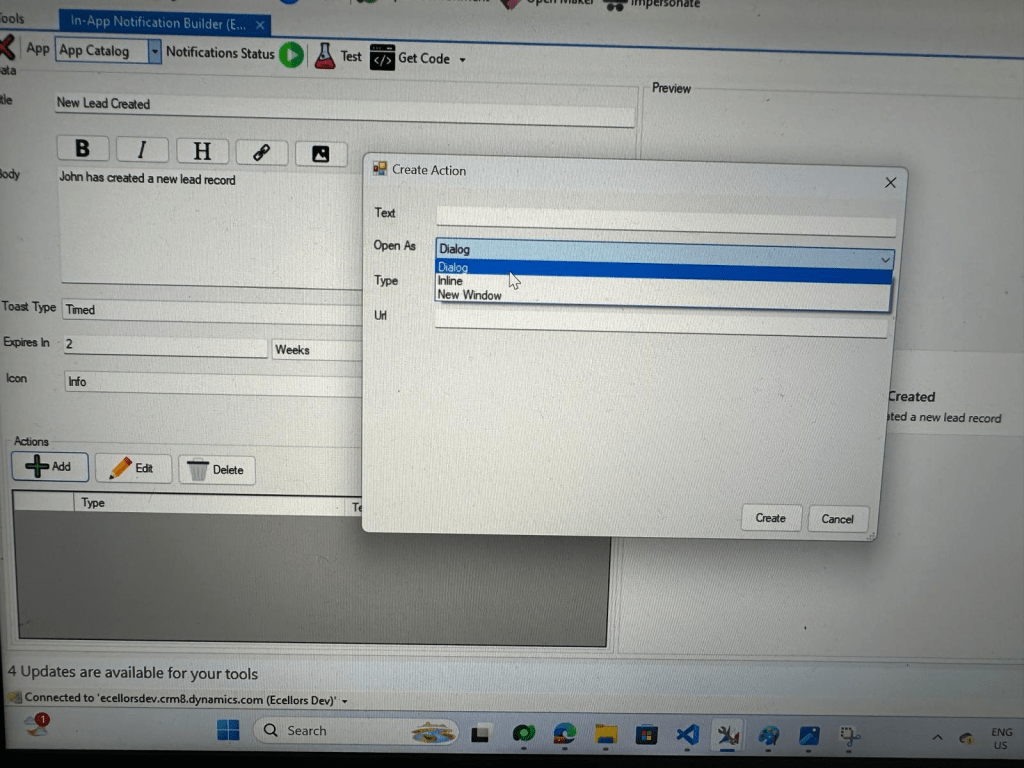
Step 6: You can proceed to give a meaningful title, body for you In App Notification. Also mention the required toast type and specify the expiry duration, Icon. Also Click on Add icon and choose the action required to be performed when In App notification is clicked.

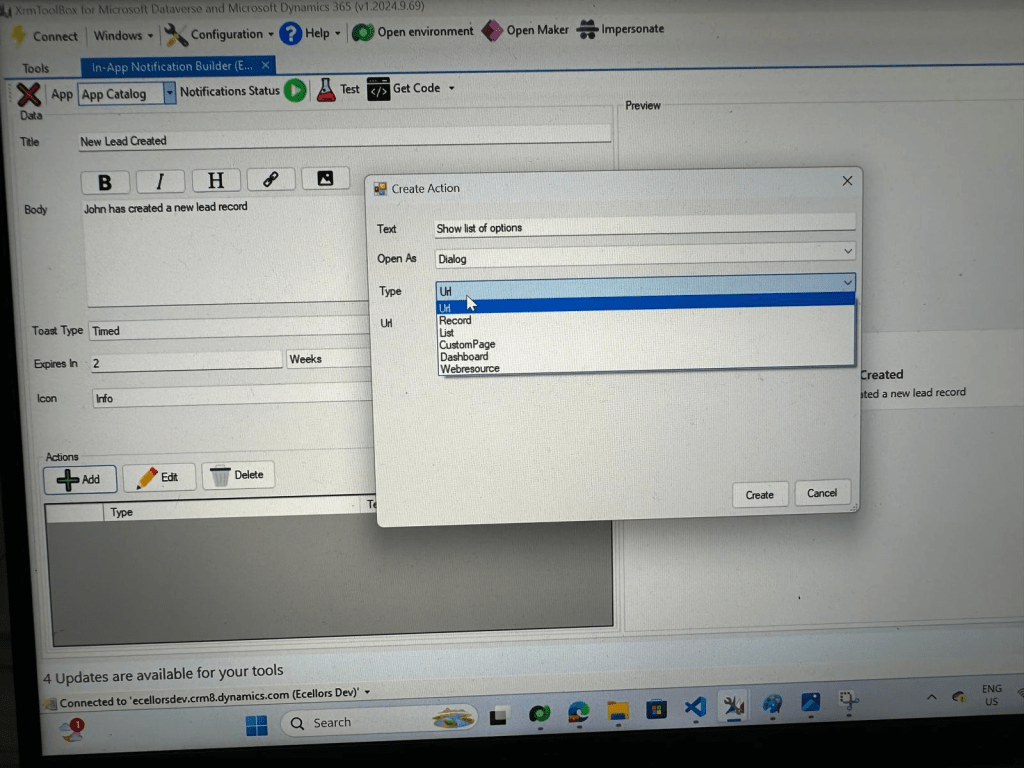
Step 9: You can even choose the type of action to be performed…

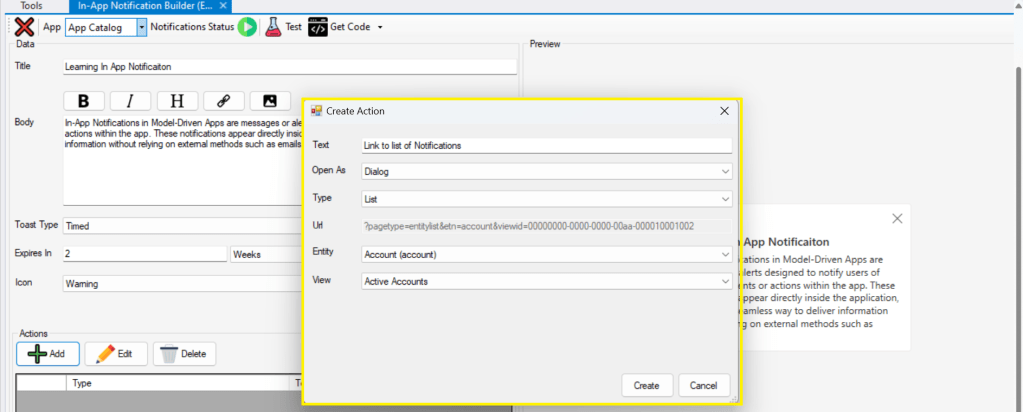
For example, let’s use to open as dialog and show list view

Your screen should look something like below

Step 10: Once done, you can click on create and that’s it you have now created In App Notification. Now let’s test this for the user who have priveleges to access this App.

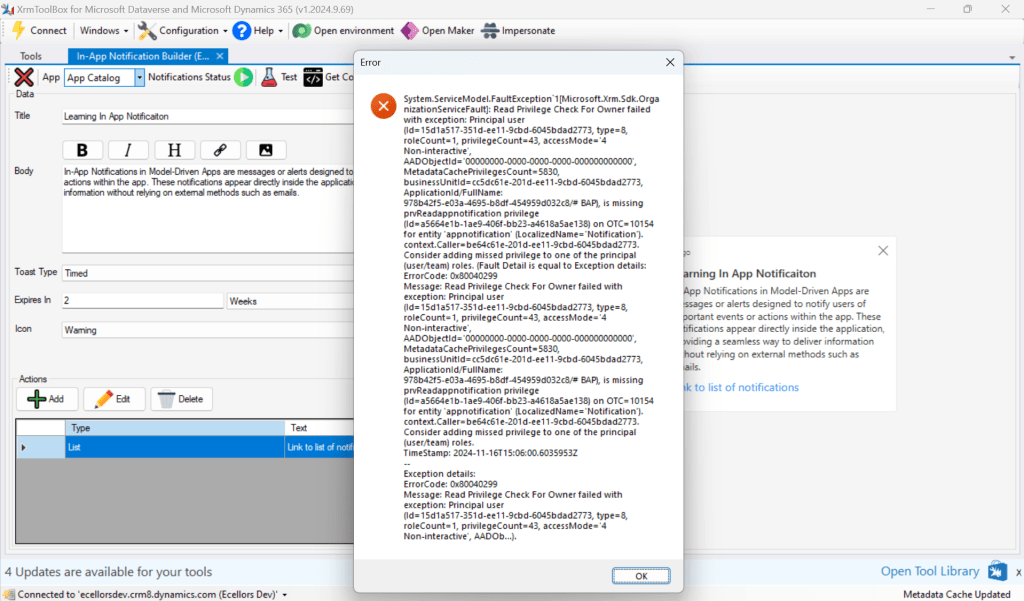
If not, you will face this error..

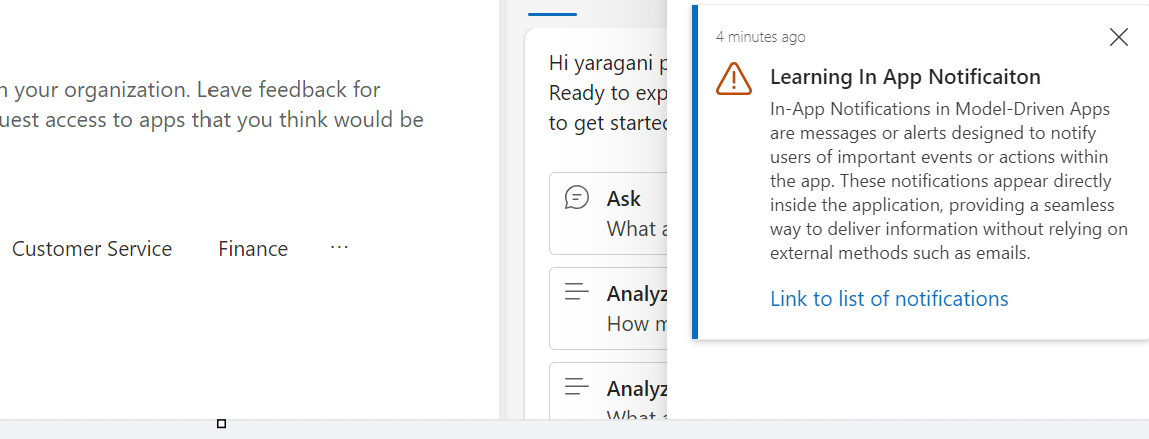
Log in with user account for which the In App Notification is triggered.

Hurray!!!! That’s it, how easy it was to create In App Notification in Low Code manner.

You can even get the code behind this as well…

However, there were other ways to trigger the In App Notification from a Pro Code angle, let’s discuss those as well.

In this case you need to manually turn the In App Notification feature on by going to settings for the Model Driven App as below first.

Notifications can be sent using the SendAppNotification message using SDK.

You can either trigger from and can choose based on your convenience to trigger a similar notification.

Client Scripting

    var systemuserid = '<user-guid>';
    var data = {
    "actions": [
    {
    "data": {
    "url": "?pagetype=entitylist&etn=account&viewid=00000000-0000-0000-00aa-000010001002",
    "navigationTarget": "dialog"
    },
    "title": "Link to list of notifications"
    }
    ]
    };
    var notificationRecord =
    {
    'title': 'Learning In App Notificaiton',
    'body': `In-App Notifications in Model-Driven Apps are messages or alerts designed to notify users of important events or actions within the app. These notifications appear directly inside the application, providing a seamless way to deliver information without relying on external methods such as emails.`,
    'ownerid@odata.bind': '/systemusers(' + systemuserid + ')',
    'icontype': 100000003, // Warning
    'toasttype': 200000000, // Timed
    'ttlinseconds': 1209600,
    'data': JSON.stringify(data)
    }
    Xrm.WebApi.createRecord('appnotification', notificationRecord).
    then(
    function success(result) {
    console.log('notification created with single action: ' + result.id);
    },
    function (error) {
    console.log(error.message);
    // handle error conditions
    }
    );
    view raw JS hosted with ❤ by GitHub

      Plugin/SDK

      var notification = new Entity("appnotification")
      {
      ["title"] = @"Learning In App Notificaiton",
      ["body"] = @"In-App Notifications in Model-Driven Apps are messages or alerts designed to notify users of important events or actions within the app. These notifications appear directly inside the application, providing a seamless way to deliver information without relying on external methods such as emails.",
      ["ownerid"] = new EntityReference("systemuser", new Guid("00000000-0000-0000-0000-000000000000")),
      ["icontype"] = new OptionSetValue(100000003), // Warning
      ["toasttype"] = new OptionSetValue(200000000), // Timed
      ["ttlinseconds"] = 1209600,
      ["data"] = @"{
      ""actions"": [
      {
      ""data"": {
      ""url"": ""?pagetype=entitylist&etn=account&viewid=00000000-0000-0000-00aa-000010001002"",
      ""navigationTarget"": ""dialog""
      },
      ""title"": ""Link to list of notifications""
      }
      ]
      }"
      };
      service.Create(notification);
      view raw gistfile1.txt hosted with ❤ by GitHub

      Power Automate:

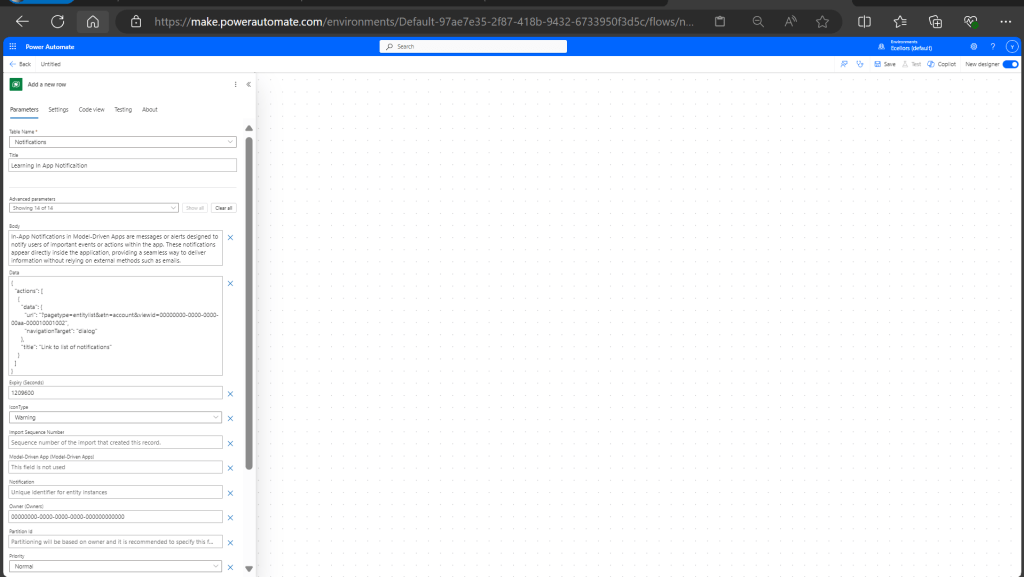
      You should design your Power Automate something like below to trigger a similar notification.

        Note: Currently In App Notification will be triggered for only Model Driven Apps.

        Reference:

        In App Notification Documentation

        Hope this saves some of your time…

        Cheers,

        PMDY
        Whitepaper on Power Automate Best Practices released

        Hi Folks,

        Last week Microsoft Power CAT Team had released a white paper on Power Automate Best Practices which is mainly for Power Automate Developers who want to scale up their Power Automate Flows in enterprise implementations.

        It has been extremely useful and insightful, so I thought of sharing with everyone again.

        Please find it attached here down below

        Hope you find it useful too..

        Cheers,

        PMDY
        Update Power Automate Flow from Code – Quick Review

        Hi Folks,

        This is a post related to Power Automate, I will try to keep it short giving a background of this first.

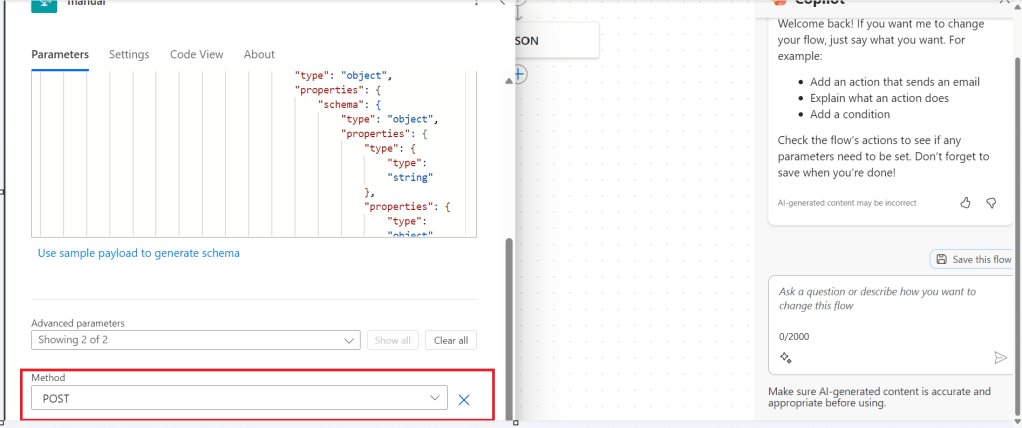
        Recently we faced one issue with Power Automate where we had actually created a Power Automate Flow which uses the trigger ‘When a HTTP Request is received’ where for the request the method name is not specified in the trigger.

        So, we need to update the existing flow without generating a new one as saving your Power Automate without giving Method name gave error which couldn’t be modified later. There was one way from the code but not the Power Automate editor, so here we would try to update the flow from code. I will show you two approaches after showing the existing flow steps.

        Step 1:

        Navigate to https://make.powerautomate.com and create an instant Cloud Flow

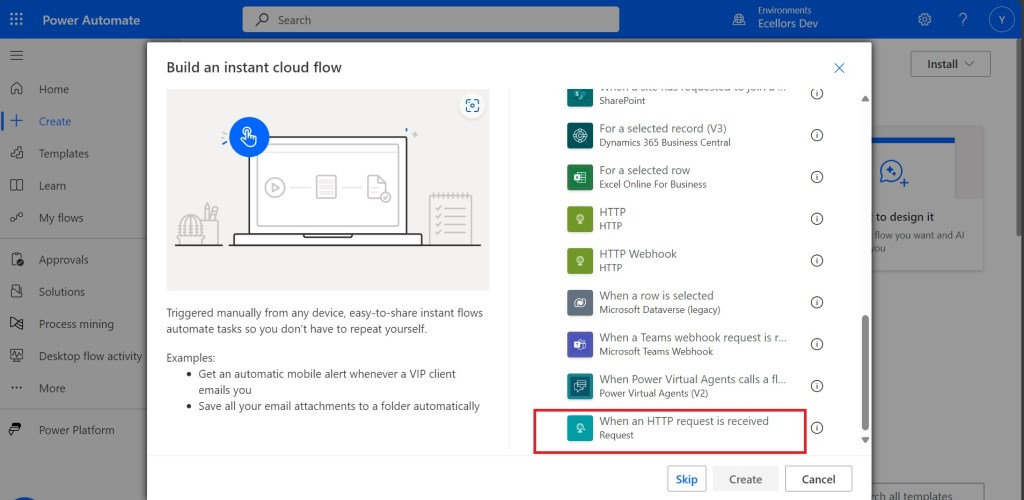
        Next choose the trigger

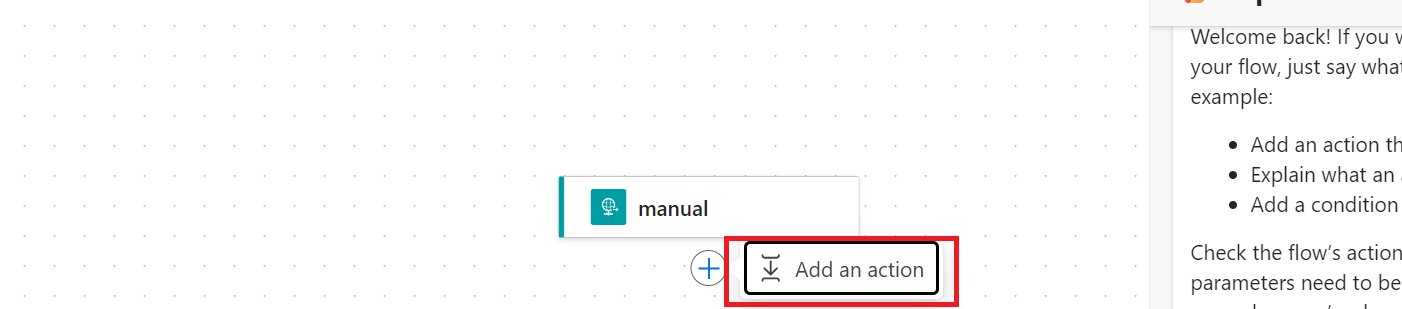
        Click create and up next, choose an action

        Just to inform you that I haven’t selected any method for this request

        I have used a simple JSON as below for the trigger

        {
          "name": "John Doe",
          "age": 30,
          "isStudent": false,
          "courses": ["Mathematics", "Physics", "Computer Science"]
        }
        

        I have added Parse JSON Step next using the same JSON Schema, so now I can save the flow

        Upon saving, I got the flow URL generated as below

        https://prod2-27.centralindia.logic.azure.com:443/workflows/a1e51105b13d40e991c4084a91daffa5/triggers/manual/paths/invoke?api-version=2016-06-01

        You can take a look for the code generated for each step in the Code View as below

        It is readonly and you can’t modify it from the https://make.powerautomate.com

        Only way is to update the flow from the backend, so here are two approaches

        1. Using Chrome extension : Power Automate Tools
        2. Export & Import method

        Using Chrome Extension:

        Install the tool from https://chromewebstore.google.com/detail/power-automate-tools/jccblbmcghkddifenlocnjfmeemjeacc

        Once installed, identify the Power Automate flow which you want to edit, once you were on this page, click on the extension –> Power Automate Tools

        You can just modify the code and add the piece of step needed wherever required,

        here I would add method name to my HTTP Trigger

        I will add Post Method here

         "method": "POST",

        It will look like

        You get a chance to validate and then click on save, even you will the same IntelliSense you would have on https://make.powerautomate.com

        Upon saving, your Power Automate flow, an alert will be shown to you, and the flow will be updated.

        Just refresh your Power Automate flow and check

        That’s it, your flow is now updated.

        Well, if your tenant have policies where you can’t use the Power Automate Tools extension, you can then follow this approach is easier as well.

        For showing this one, I will remove the Method name Post again from the flow, save it and then update using below method.

        Export & Import method

        Here you would need to export the flow, here we would use the export via Package (.zip) method.

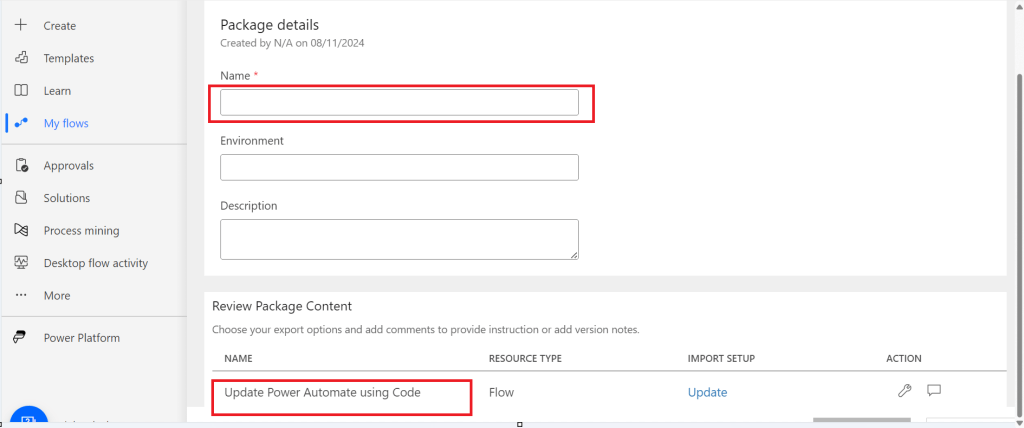
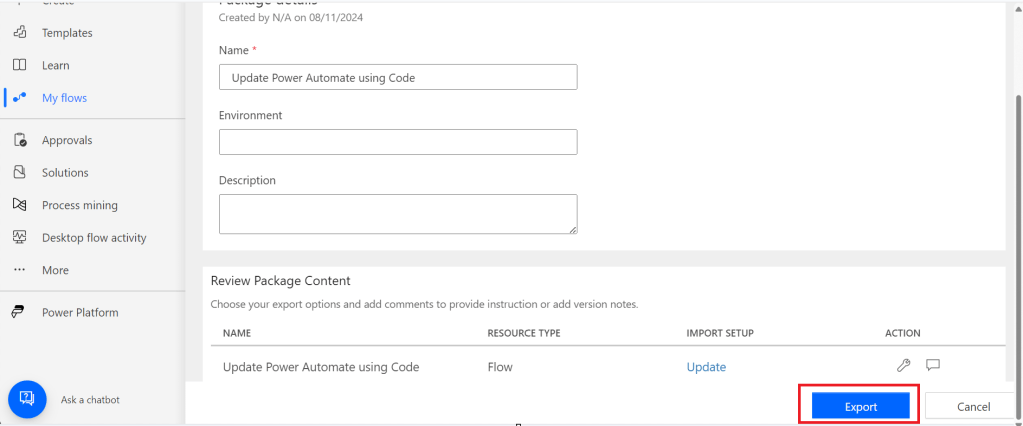
        In the next step of export, you will be prompted to key in details as below, just copy the flow name from Review Package Content and paste it in the Name field. Just enter the flow name, it would be enough.

        Then click on export

        The package will be exported to your local machine

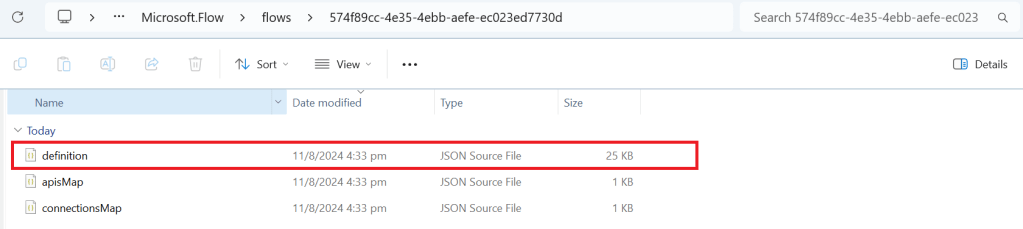
        We need to look for definition file, there would be few JSON files in the exported file

        You can navigate the last subfolder available

        Open the JSON file using your favorite IDE, I prefer using Visual Studio Code, once opened, you will see something like this

        Click on Cntrl + A, once all the text is selected, right click and choose Format document, then your text will be properly aligned.

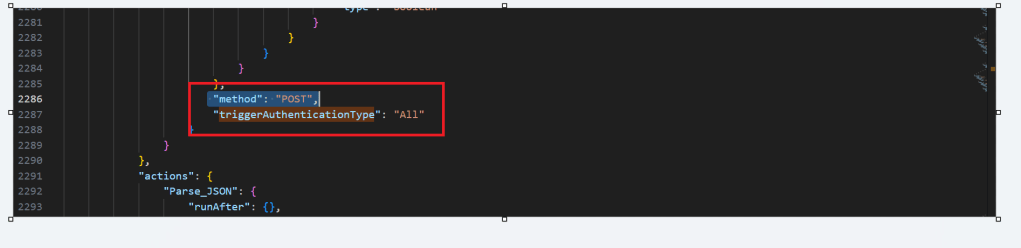
        Look for the

        triggerAuthenticationType

        Now copy paste the code for the method

         "method": "POST",

        Now your code should look like, hit save as and save the file to a different folder, since we cant override the existing zip folder.

        Now once again navigate the last subfolder and delete the definition file present. Once deleted, copy the saved file in your folder to the last subfolder, so your subfolder should look exactly same as below

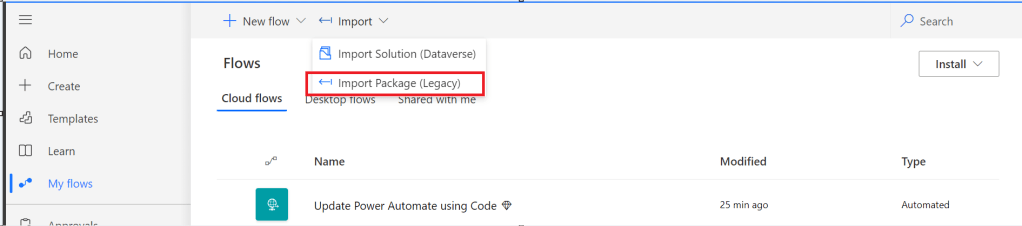
        Now navigate to the https://make.powerautomate.com, click on import option available and choose Import Package (Legacy)

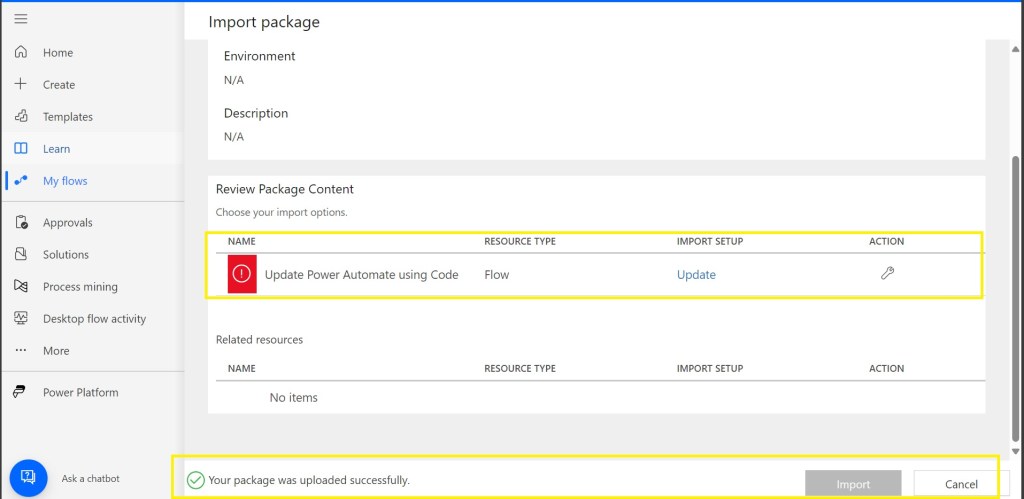
        Choose your import package

        The package import will be successful

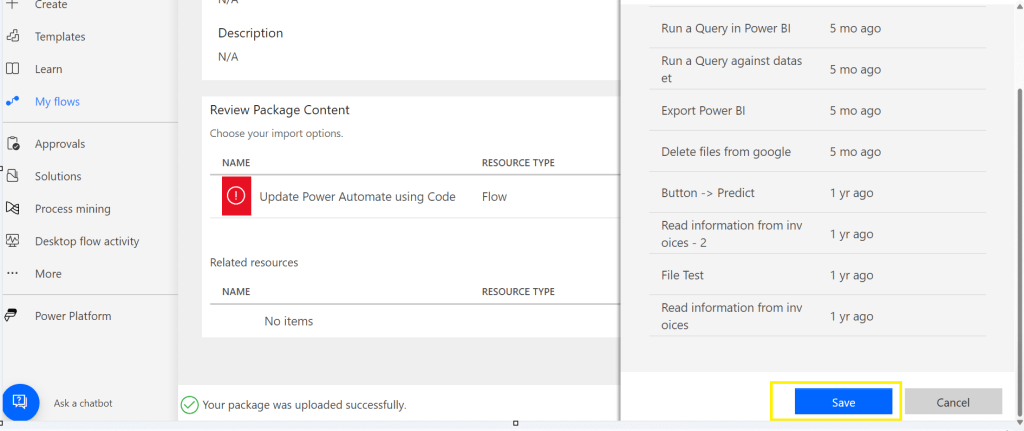
        Now click on the package where Red symbol is shown and choose the resource type shown at the right of the page

        Scroll down to the bottom and click on save option

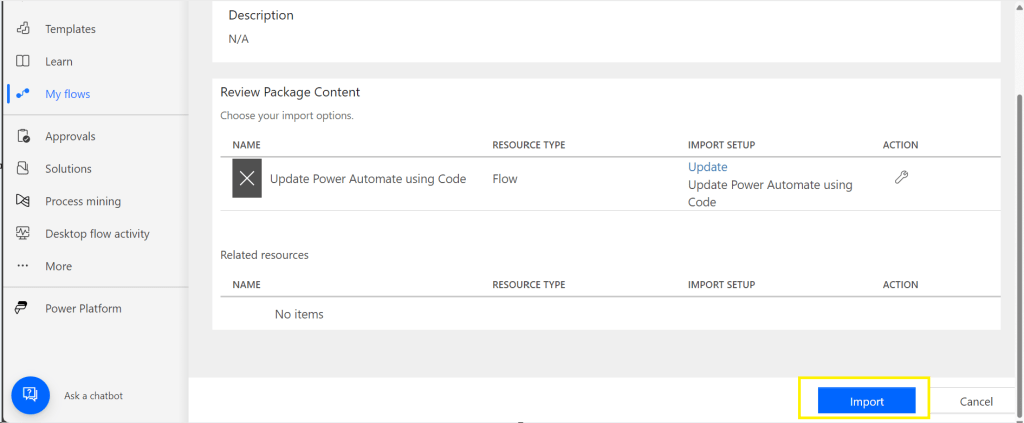
        Then click on import option

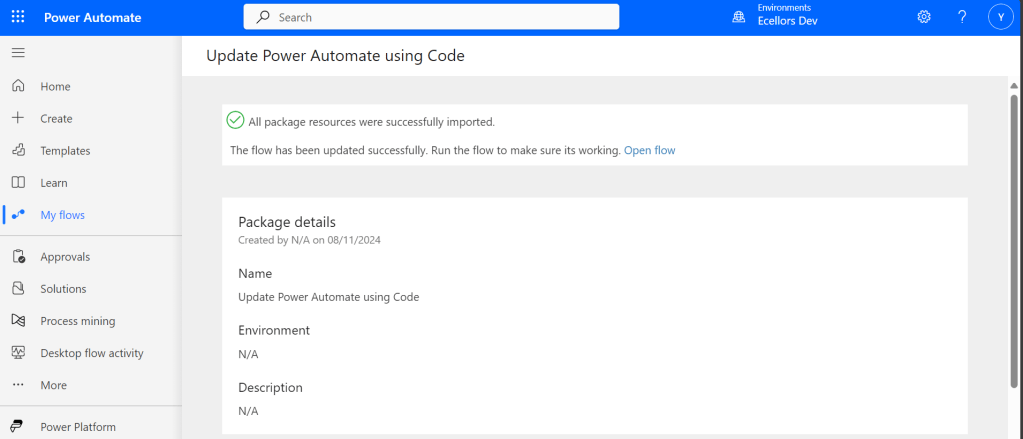
        You will be shown a message that import is successful

        Refresh your Power Automate and check

        That’s it, your flow is now updated from backend.

        Hope that’s it, you were now able to update the flow using code.

        That’s it, it’s easier than you think..can save your time when needed.

        Cheers,

        PMDY
        All you need to know for migrating your Power Platform environments from one region to another

        Geo Migration is a great feature/flexibility offered by Microsoft for customers who wish to move to a region which is in closest proximity to their operations even though initially their Power Platform environment region based out of a different one when they signed up. I checked out online but couldn’t find a good reference blog article yet online, hence this post.

        I will make this post detailed but a comprehensive one for anyone to understand the migration. Customers can also opt for Multi Geo for those who have a need to store data in multiple geographies to satisfy their data residency requirements. If you don’t know where your Power Platform environment resides, you can check from Power Platform Admin Center.

        If you were not aware yet, Microsoft Azure is the only cloud provider which offers services in more regions when compared to AWS (Amazon Web Services) and GCP (Google Cloud Platform). The Geo Migration feature seamlessly allows customers to move their environments in a single tenant from one region to another. e.g. for Singapore, it is as below.

        Important:

        1. Geo Migration is not generally available, so please exercise with caution.
        2. You may reach out to your TAM(Microsoft Technical Account Manager) quoting your request
        3. There were several limitations, see below references for more details.

        Mandatory Pre-Migration Check list:

        1. Any Power Apps, Power Automate Flows should be manually exported prior to the migration. Custom Connectors aren’t supported as of now, they must manually reconfigure or created in the new environment. You can export them individually or export them in group.
        2. Canvas Apps, Custom Pages, Code Components like PCF and libraries should be deleted from the environment before your migration activity starts. Else they might be in corrupted state after migration activity.
        3. If any of your Apps are not solution aware because of any reason like App calls a Power Automate when a button is called etc., you may need to explicitly export it out and take the backup.

        Post Migration Check list:

        1. After the migration, import all the packages which you have taken backup during pre migration. For those which were not solution aware, import them manually.
        2. If you have Power Portals or Power Virtual Agents, those should be exported explicitly.
        3. Make sure you test all functionalities in order not to impact end users.

        Notes:

        You don’t need to build Apps and Flows from scratch. Dynamics 365 marketing App is not supported yet. There could be some configuration changes post migration.

        While I try to put the information to the best available as per sources from Microsoft, this may change over time and variation could be different as each customer will have different workloads and dependencies with other services, so please read the references carefully before proceeding. Contact Microsoft Support or TAM as necessary.

        Hope this helps to get a sneak peek into the migration process.

        References:

        Where is your data stored?

        MultiGeo Architecture

        Dynamics 365 & Power Platform new regions

        Advance Data Residency Move Program

        Geo to Geo Migrations

        Cheers,

        PMDY