Visualize this view – what this mean to developers and end users…?

Hi Folks,

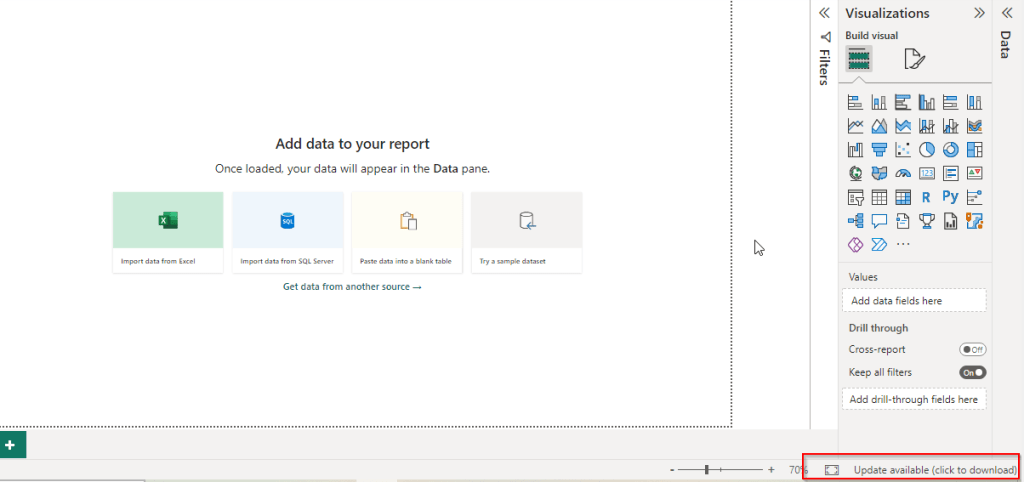
Have you noticed Visualize this view button in in the app bar of any grid view of Dynamics 365?

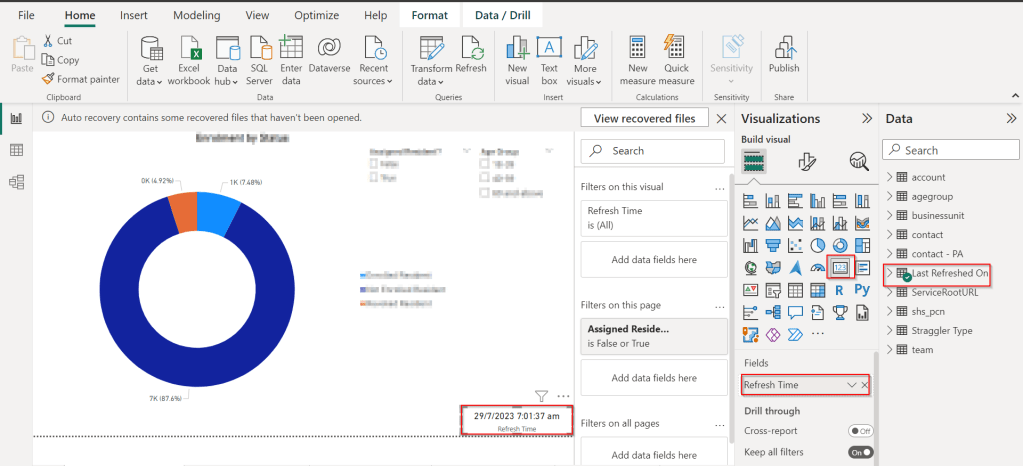
Here is a dashboard built within couple of minutes. While this can greatly help end users visualize the data present in the system. So, in this post, let’s understand bit more details about this capability and what are the some of the features which are left behind.

Let’s understand the how’s this is generated along with its capabilities and disadvantages compared to traditional Power BI dashboard both from Developer and end user perspective, please note that this is my understanding..

For Developers:

a. Visualize this view uses a PCF Control which calls the Power BI REST API and then generates the embed token for the report embedding that into an Iframe.

b. Then uses Power BI JavaScript API to handle user interactions with the embedded report such as filtering or highlighting data points.

c. When Power BI first generates your report, it takes a look through your data to identify patterns and distributions and pick a couple of fields to use as starting points for creating the initial set of visuals when data is not preselected.

d. Any changes to the data fields calls the UpdateView of the PCF Control and there by passing the updated data fields to REST API and then displays the visuals.

e. Visuals will be created with both selected and non-selected fields which are the related to the selected fields in the data pane.

For End Users & Developers:

Advantages:

  1. Visuals are generated when no data is selected
  2. Cross Highlighting is possible
  3. Click on the Report to see Personalize this visual option
  4. People with Contributor, Member, or Admin role assigned can save the Report to workspace
  5. Users with no access to Power BI cant view this feature, they can request for free Power BI License
  6. Free License users can save the Report to thier personal workspace
  7. Users get build permission when any role above Contributor is assigned and reshare permission is given
  8. The report will be saved as direct query with SSO enabled and honours dataverse settings
  9. Show data table presents a list of tables if the model comprises of multiple tables.
  10. Able to specify the aggregation for each of the field in the model.

Disadvantages:

  1. Only able to export summarized data from Visuals, you will be able to export the data in table from data table.
  2. Only Visual Level, no page level or report level filters
  3. During these reports creation, the model is configured to use Direct Query with Single Sign On.
  4. Embed a report on a Dataverse form requires modifying the XML of the solution
  5. Report published into the workspace are available to download but downloaded reports will not be able to customize further in Power BI Desktop as it would be built using Native Queries.
  6. If the page is kept ideal for long time or the user navigates to other browser window, the session and report will be lost.

Considerations & Limitations:

  1. Power BI Pro license is required to create these reports
  2. While this is wonderful for end users to visualize the data but this is not an alteranative to building reports using Power BI Desktop.

Hope this helps.

Cheers,

PMDY
Microsoft Power Platform Center of Excellence (CoE) Starter Kit – Core Components – Setup wizard – Learn COE #02

Hi Folks,

This post is continuation to my previous post on COE Starter Kit, if in case you have just landed on this page. I would suggest go here and check out my blog post on introduction to COE Starter Kit.

Important:

Do test out each and every component, rolling out to production without testing as you need to keep in mind that there were many flows which can trigger emails to users which may keep them annoyed.

You need to install the components present in the COE Starter Kit extracted folder in the dedicated environment, preferably Sandbox environment (not in Default environment, so that you can test it out first before moving changes to Production), make sure you have Dataverse installed in the environment. First let’s install the Solutions and later we can proceed to customize them.

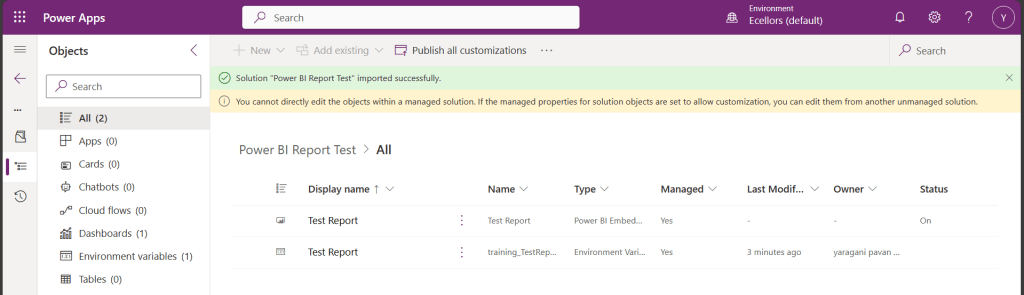
Install CenterofExcellenceCoreComponents managed solution from your extracted folder, the exact version may be different and differ as the time goes at the time of installing this, the version was as below CenterofExcellenceCoreComponents_4.24_managed

Then proceed to click on Import as we will be configuring these environment variables whenever required later. It takes a couple of seconds to process, it asks to set the connections which I had talked about in previous post, just create new connection if one not available and click next. Make sure you have green checkboxes for each connection, and you are good to click next.

Then you will be presented with the screen to input Environment variables as below, we will configure later so for now, just proceed by clicking on Import button.

The import process may take a while like around 15 minutes, once imported, you should see a notification message on your screen something like below.

Step 1:

You will have a bunch of Apps, Flows installed in your environment. Configure the COE Settings by opening the Centre of Excellence setup and upgrade wizard from the installed Center of Excellence – Core Components managed solution.

It should look something like below when opened. You will be presented with some prerequisites

Proceed with this step-by-step configuration, you don’t need to change any of the setting, just proceed by clicking on Next.

Step 2: In this step, you can configure different communication groups to coordinate by creating different personas

You can click on Configure group, choose the group from the drop down and enter the details and click create a group.

Provide a group name and email address without domain in the next steps and proceed to create a group, these were actually Microsoft 365 groups.

Once you have setup, it should show..

However, this step is optional, but for efficient tracking and maximum benefit of COE, it is recommended to set this up.

Step 3: While the tenant Id gets populated automatically. Make sure to select no here instead of yes if you were using Sandbox or Production Environment and configure your Admin email and click Next.

Step 4: Configure the inventory data source.

Tip: In case you were not able to see the entire content in the page, you can minimize the Copilot and press F11 so that entire text in the page would be visible to you.

This is required for the Power Platform Admin Connectors to crawl your tenant data and store them in Dataverse tables. This is similar to how search engines crawl entire internet to show any search results. While Data export is in preview, so we proceed with using Cloud flows.

Click Next.

Step 5:

This step is Run the setup flows, click on refresh to start the process. In the background, all the necessary admin flows will be running. Refresh again after 15 minutes to see all the 3 admin flows are running and collecting your tenant data as below and click Next.

Step 6:

In the next step, make sure you set all the inventory flows to On.

By the way inventory flows are a set of flows that are repeatedly gathering a lot of information about your Power Platform tenant. This includes all Canvas Apps, Model Driven Apps, Power Pages, Cloud Flows, Desktop Flows, Power Virtual Agent Bots, Connectors, Solutions and even more.

To enable them, open the COE Admin Command Center App from Center of Excellence – Core Components Solution. Make sure you turn on all the flows available.

So, after turning on all the flows, come back and check on Center of Excellence Wizard Setup, you should see a message something like below saying all flows have been turned on.

Configure data flows is optional, as we haven’t configured it earlier, this step would be skipped.

Step 7: In the next step, all the Apps came in with Power Platform COE Kit should be shared accordingly based on your actual requirement to different. personas.

Step 8:

This part of the wizard currently consists of a collection of links to resources, helping to configure and use the Power BI Dashboards included in the CoE.

Finish

Once you click Done, you will be presented with more features to setup.

These setups have similar structure but varies a bit based on the feature architecture.

As we got started with setting Starter Kit and had set up the Core Components of the Starter Kit which is important one, now you can keep customizing further, in the future posts, we will see how we can set up Center of Excellence – Governance Components, Center of Excellence – Innovation Backlog. These components are required to finally set up the Power BI Dashboard and use effectively to plan your strategy.

Everyone who’s ever installed or updated the CoE knows how time-consuming it can be. Not just the setup procedure, but also the learning process, the evaluation and finally the configuration and adoption of new features. It’s definitely challenging to keep up with all this. Especially since new features are delivered almost every month. This attempt from me is to try my best to keep it concise, yet making you understand the process.

While such setup wizard is clear and handy resource to get an overview of the CoE architecture and a great starting point for finding any documentation. This simplifies administration, operations, maintenance and may be even customizations.

If you face issues using the COE Starter Kit, you can always report them at https://aka.ms/coe-starter-kit-issues

Hope this helps…. someone setting up COE starter kit…. if you have any feedback or questions, do let me know in comments….

Cheers,

PMDY