
Hi Folks,
Exciting news…
Here is how you can enable TDS End Point in Dataverse…
- Navigate to Power Platform Admin Center…https://admin.powerplatform.microsoft.com/home
- Next navigate to the respective Environment to which you want to enable TDS End Point
- Choose your respective environment, go to Settings
- In the Settings windows, select the Product and then Features.
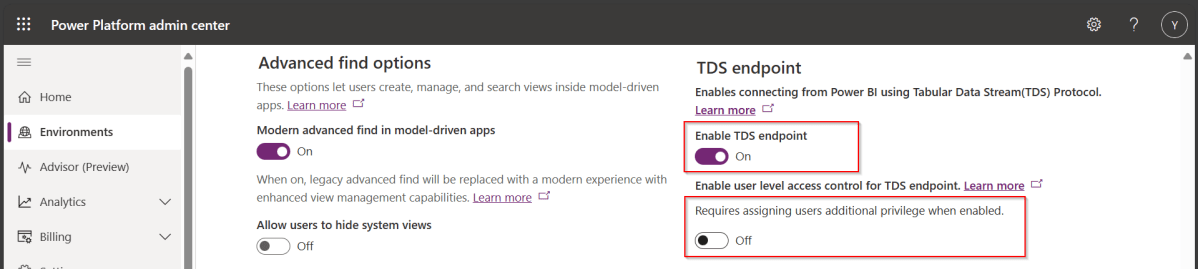
- Scroll down to see TDS end point, just enable the TDS end point toggle button
- Once this is enabled, you can also enable user level access for this TDS end point by configuring the security role as in the below step.
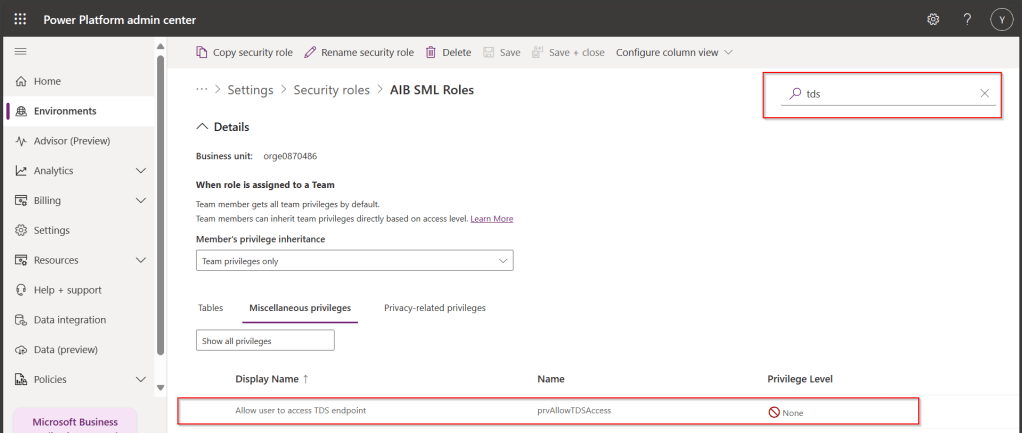
- Open Security from Power Platform Admin Center and navigate to the available security roles, go to Miscellaneous privileges, search for tds, you can find a privilege to Allow user to access TDS endpoint.
Advantages:
- With this TDS end point enabled, you can directly access the data in the Dataverse tables using SSMS(Preview) and in Power BI
- While the interesting part here is that Dataverse security model will be applied to the data being viewed by the user.
- That is whenever you were query the dataverse data using SSMS, the user role will be applied
- In the same way, if the Power BI report is built using the TDS(SQL end point), any user who is going to access the report will be only seeing the data he/she can access based on current security roles in Dataverse
While this is a cool feature for anyone who is trying to build Dataverse security in Power BI without using row level security as this is a mystery till now.
Hope this helps…
Cheers,
PMDY

 ECELLORS CRM Blog