

Hi Folks,
Thank you for visiting my blog…in this post, we will see how we can create and manage a Power BI Environment variable in Model driven apps in Power Platform.
So, let’s say, we have two environments 1. Dev 2. Default, we want to deploy export the solution with Power BI report from Dev environment as managed solution and import that to Default environment. The report in Default environment should point to Production workspace in Power BI.
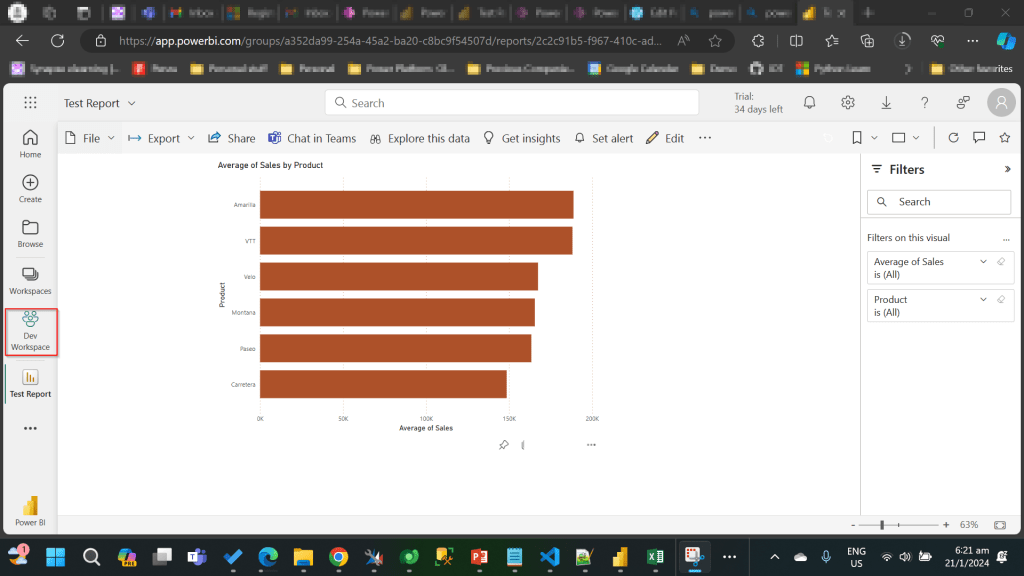
I have the following reports in workspaces.
Development workspace:
Production Workspace:
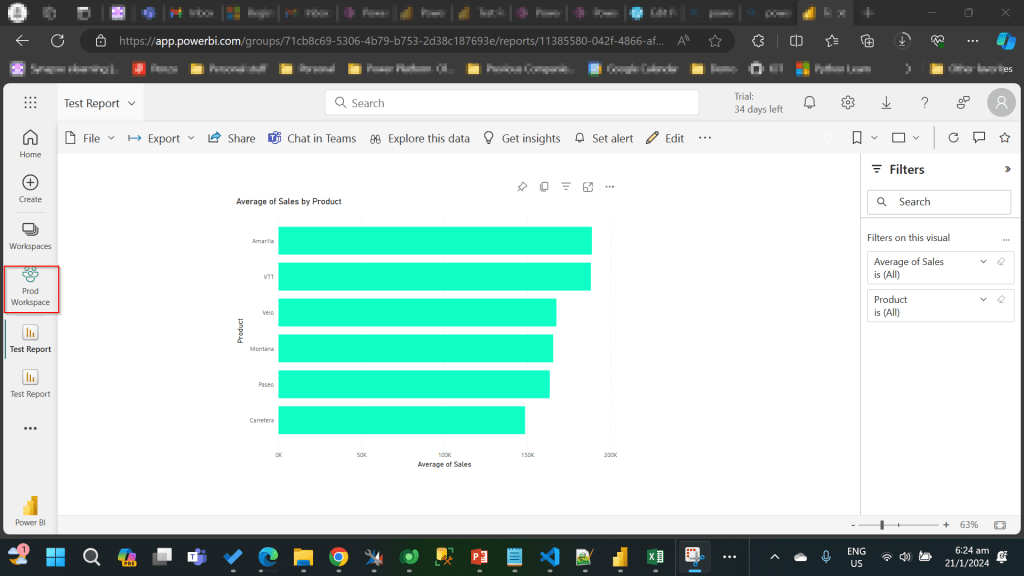
Now in order to deploy the report to Production, we need to use a managed solution and the report should point to Production workspace. So, in order to handle this, we will need to define an environment variable to store the workspace information. So, let’s get started.
First, we will create a Power BI embedded report in Development environment.
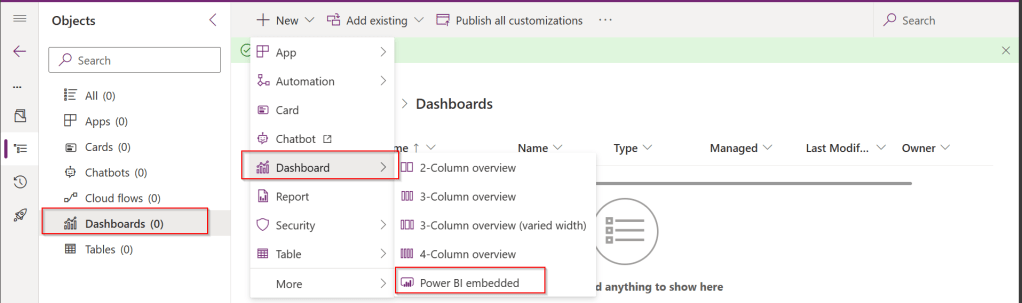
While you were creating a Power BI embedded report, you will be presented an option to choose from the Power BI workspace.
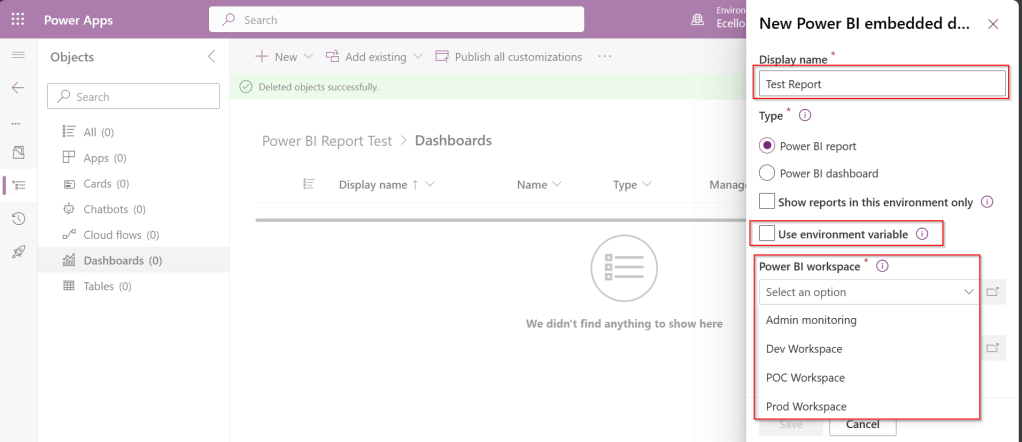
In order to achieve this requirement of deploying different versions of Power BI report in different instances, we need to use environment variable, so check the Use environment variable option.
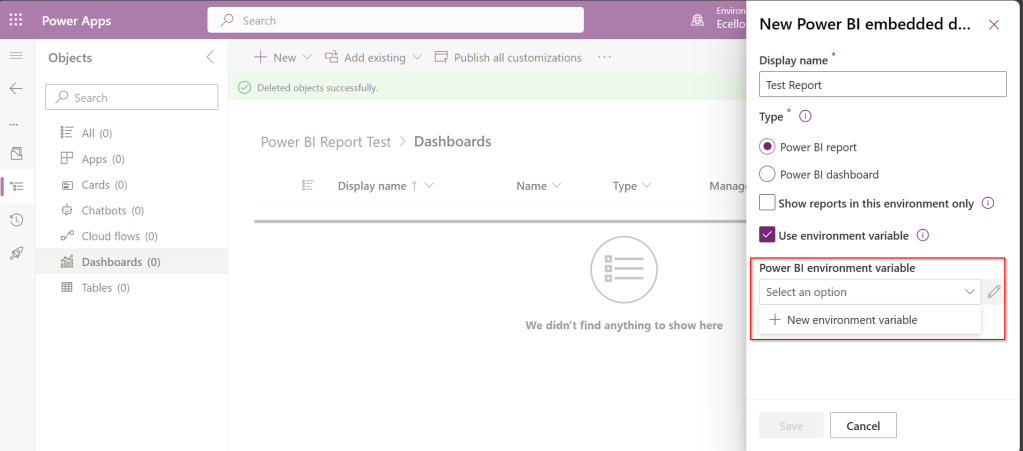
- The environment variable will be specific to this report and should be included in the solution when we want to deploy this report to higher environment.
- The next thing to note is that Default workspace would reflect the default value for this report and current value is required when we want to set to another report in a different environment.
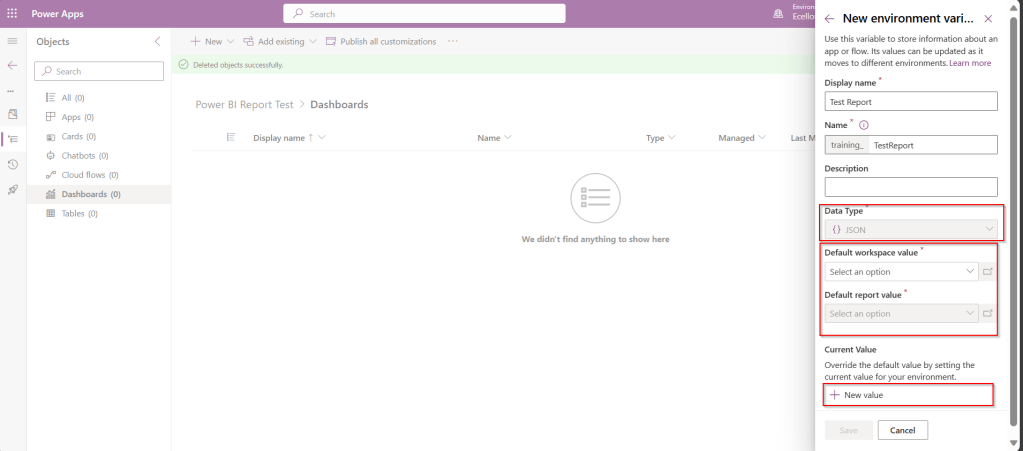
In Development environment, we choose as below..

Once the environment variable is saved, we now have 1 Dashboard and 1 environment variable component in the solution.

This solution is published and then exported as Managed solution, imported to another environment (Default environment which serves as Production environment here).
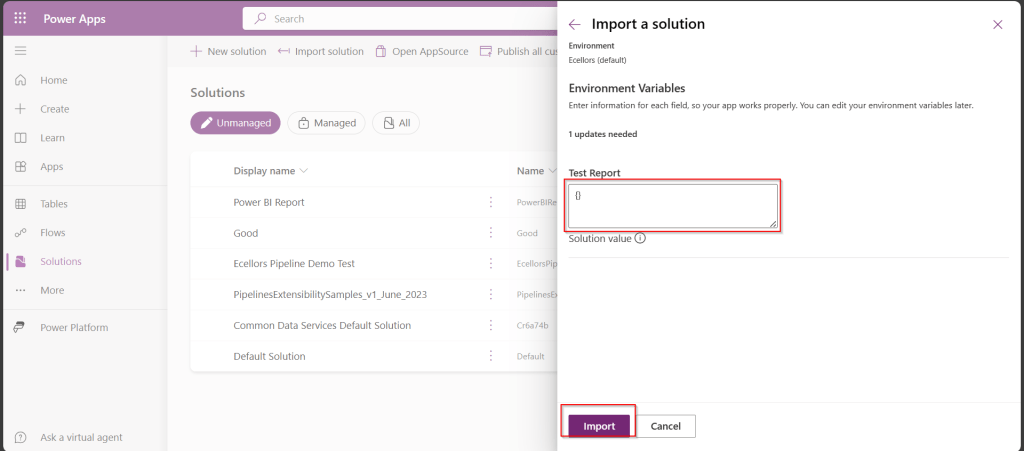
While importing, it asks to update environment variable, you can proceed to click on Import.
Now we have the solution in Default environment.
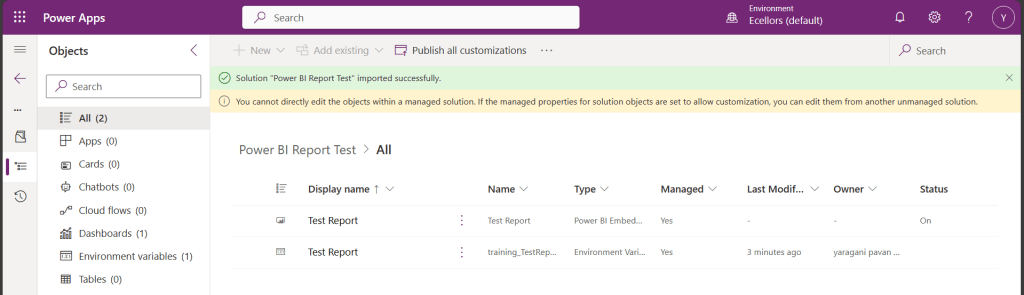
In order to update the value of the report to consider from Production environment, we need to open the report and click on the Pencil icon besides the Power BI Environment variable.
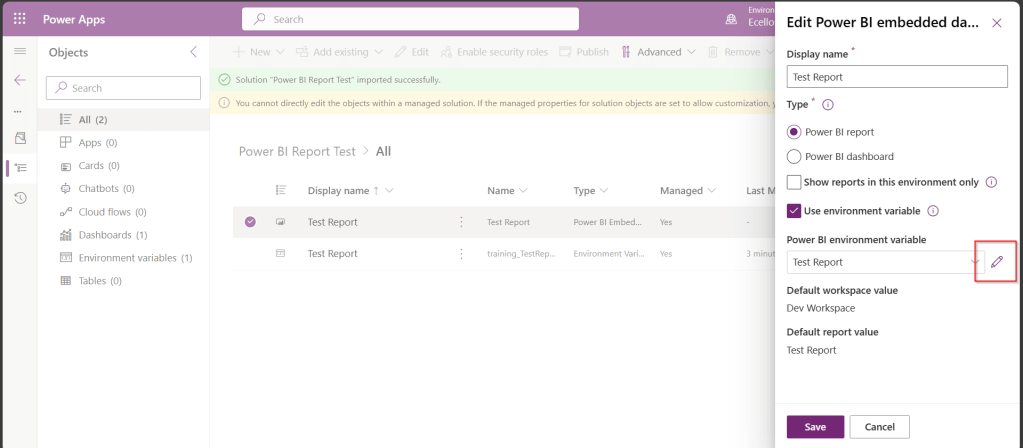
Then choose Prod workspace and its respective report and click save, publish.

That’s it…
You will be able to see two different reports in your Development and Default instances.
In this way, it is very easy to manage and deploy different versions of Power BI Report to different environments like Dev, Test, Prod.
Hope this helps…
Cheers,
PMDY

 ECELLORS CRM Blog