Add Members to static marketing list from excel file to Dynamics 365 using C#

Hi,

Happy new year 2023….

To start with this scenario, this is one of the most commonly asked functionalities when we talk about of adding members to marketing list using an excel import.

In this scenario, we will make use of Connections entity and associate the marketing list to the contacts on creation of the connection…ok…let us give it a try….we will make use of plugin here….which runs on Create and on Post operation and calls the below method…

 public void MarketingListImport()
        {
            Entity connectionER = (Entity)executionContext.InputParameters["Target"];
            Entity marketingList = new Entity();
            if (connectionER.Contains("record2id"))
            {
                EntityReference connectTo = connectionER.GetAttributeValue<EntityReference>("record2id");
                EntityReference connectFrom = connectionER.GetAttributeValue<EntityReference>("record1id");

                if (connectTo != null)
                {
                    marketingList = organizationService.Retrieve(connectTo.LogicalName, connectTo.Id, new ColumnSet("type", "createdfromcode"));
                }

                if (connectTo.LogicalName == "list")//Marketing list 
                {
                    if (marketingList.Contains("type") && marketingList.GetAttributeValue<bool>("type") == false)
                    {

                        if (connectFrom.LogicalName == "contact" && marketingList.Contains("createdfromcode") && marketingList.GetAttributeValue<OptionSetValue>("createdfromcode").Value == 2)//Resident
                        {
                            // Add a list of contacts to the marketing list.
                            var addMemberListReq = new AddListMembersListRequest
                            {
                                MemberIds = new[] { connectFrom.Id },
                                ListId = connectTo.Id
                            };

                            organizationService.Execute(addMemberListReq);

                            tracingService.Trace("Contacts with GUIDs \r\n\t{{{0}}} is added to the list.",
                                connectFrom.Id);
                        }

                        else
                        {
                            throw new InvalidPluginExecutionException("Marketing list should be targeted at contact and contacts can be imported");
                        }
                    }

                    else
                    {
                        throw new InvalidPluginExecutionException("Members cannot be imported into a Dynamic Marketing list, please select a static marketing list and try again");
                    }
                }
            }
        }
    }

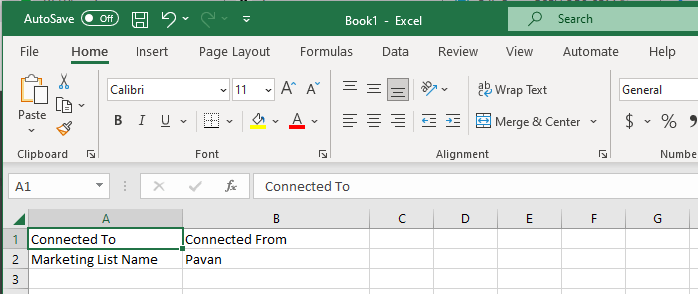
Once you were done writing the code, next step is to test the functionality…for this we will use the following template.

Import this template from the imports area under settings in your Dynamics 365…boom….the contacts in the template will be added to your Static Marketing List.

Cheers,

PMDY

Power Automate Pagination – Simple approach to retrieve 5000+ records from Dataverse

Hi Folks,

When coming to Power Automate, I see lots of articles regarding Pagination for retrieving more than 5000 records from Dataverse with varying complexity. It could be difficult to understand them at once if you were especially don’t much exposure on Power Automate working with functions and variables.

This post will give you a very easy way to retrieve more than 5k + records from Dataverse using PageNumber variable.

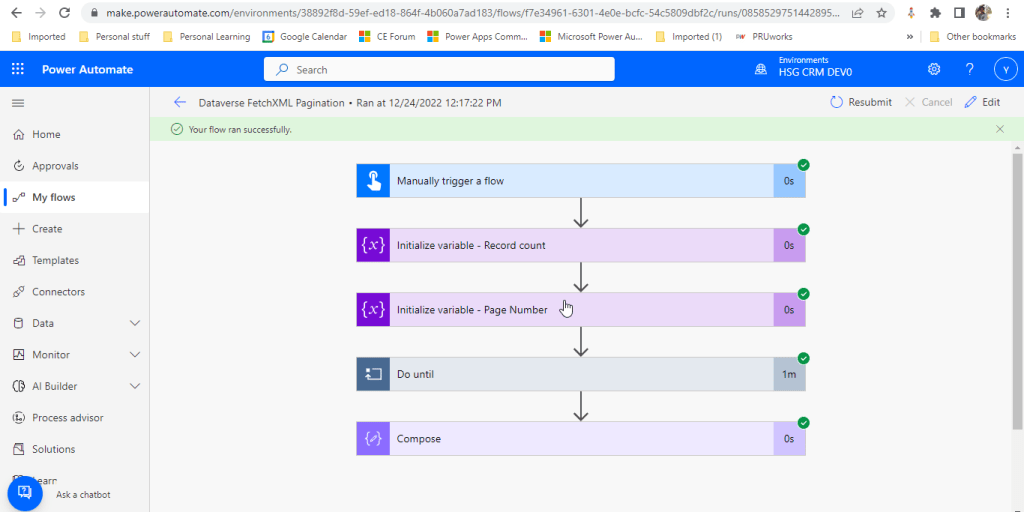
The Flow looks like below..

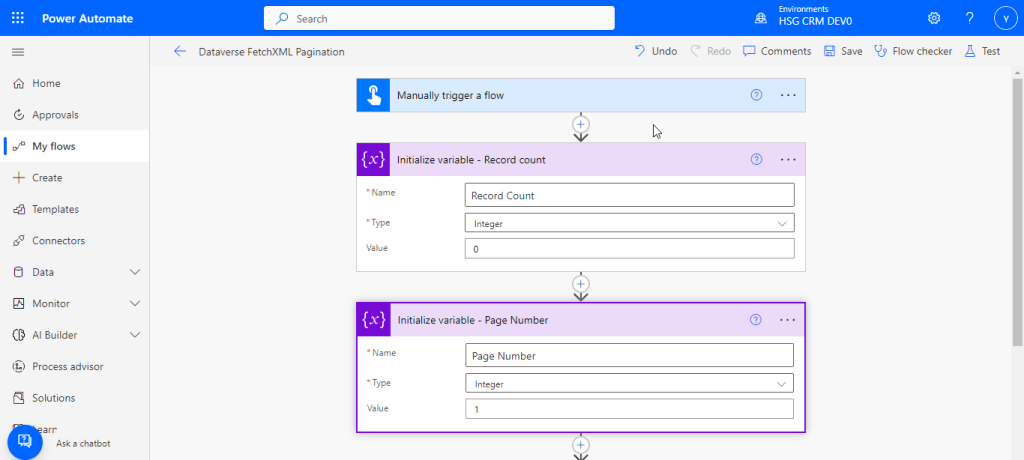
You just need two variables..

  1. Record count
  2. Page number

Lets create it…

For simplicity, create a manual trigger and initialize the two variables which we need.

Now create a do until loop to run until Page Number is 0.

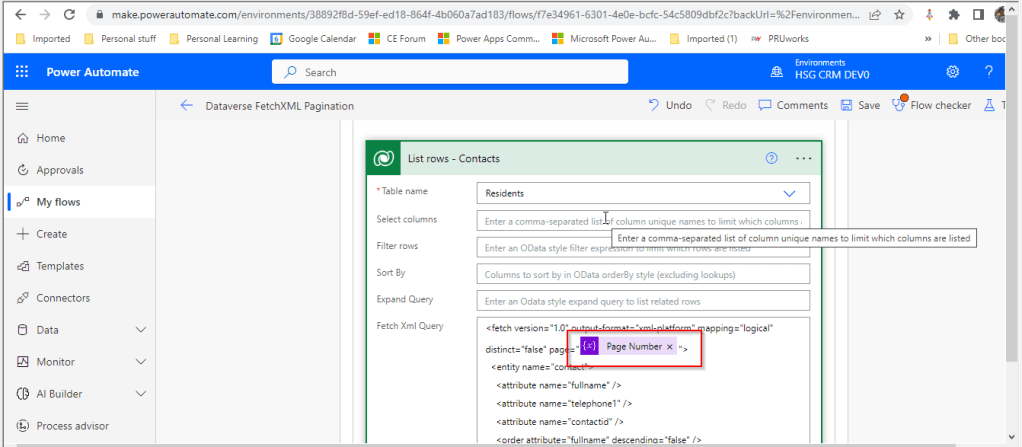
Now define a Scope action as above to define your fetch criteria to retrieve the records from dataverse with Fetch updated as below

Add the Page Number variable created

Add a condition as above to check if List Rows Length is still greater than zero.

If yes, increment the length of Page Number, else set Page Number as 0.

In each iteration, increment the length variable. Here Residents entity is nothing but contacts.

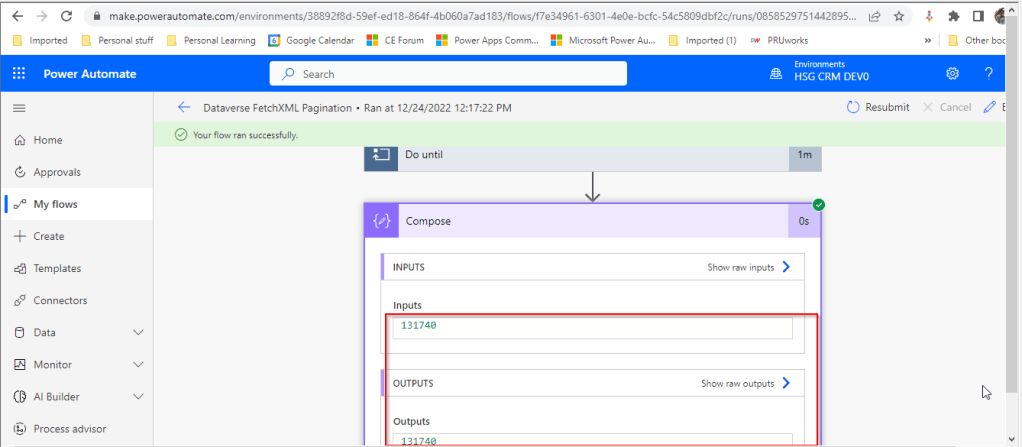
Just save the flow, run it..you will find the number of records in the table(contact/resident) as below

That’s it, so simple right….

Some other related articles or references below:

Retrieve 5k + records using Pagination using Paging cookie

Retrieve 100k+ records using Skip Token

Hope this helps….someone looking for an easy approach for using pagination with dataverse.

Cheers,

PMDY

Resources for Power BI Projects

Hi Folks,

I hope all you guys are preparing for the upcoming holiday season. In this post I would like to point out all the learning resources available for Power BI so that you can keep yourself up to date.

To say actually I have also been new to Power BI and have been learning since 3 weeks…here I would like to list down all the learning resources available in Power Platform.

  1. Microsoft Learn for Power BI
  2. Dashboard in a day from Microsoft
  3. Getting Started with Power BI Desktop
  4. 75 Learning Resources for Power BI
  5. Power BI by Enterprise DNA
  6. Microsoft Power BI Samples
  7. DAX Reference
  8. Introducing Power BI

9. Guy in a cube You tube channel

10. Debug your custom visuals

11. Power BI Developer Learning Catalog from Microsoft

12.Dax Studio

You can always reach out to the Power BI community where experts can help you if you were struck with any of your Power BI Requirements. If you know any other valuable resources, please let me know in comments so that I can update this post. Till then keep rocking…

I hope this helps…

Cheers,

PMDY

Connect to your instance via C# for validation – Works for Dynamics 365 latest versions

Hi Folks,

Every now and then when we were struck up with the issues with our code or with any power platform components like Power Automate, we had to definitely understand whether it is working from normal C# console application.

There were tons of articles over the internet and just it’s ophhhh…

So this post is just for a quick reference to connect to Dynamics 365 CE Instance to check if your actual function is returning valid data or not. I have just removed my functions for brevity.

You can just specify your Client Id, Client Secret, Instance URL below.

using System;
using System.Collections.Generic;
using System.Linq;
using System.Text;
using System.Threading.Tasks;
using Microsoft.Crm.Sdk;
using Microsoft.Crm.Sdk.Messages;
using Microsoft.Xrm.Sdk;
using Microsoft.Xrm.Tooling.Connector;
using System.ServiceModel;

namespace TestConsole
{
internal class Program
{
static void Main(string[] args)
{

        IOrganizationService orgService = GetOrganizationServiceClientSecret(your client id, your client secret, instance url);
        var response = orgService.Execute(new WhoAmIRequest());//To validate the request

        if(response != null)
        {
            Console.WriteLine("Connected to CRM");

            //Your function here
        }
    }

    public static IOrganizationService GetOrganizationServiceClientSecret(string clientId, string clientSecret, string organizationUri)
    {
        try
        {
            var conn = new CrmServiceClient($@"AuthType=ClientSecret;url={organizationUri};ClientId={clientId};ClientSecret={clientSecret}");
            return conn.OrganizationWebProxyClient != null ? conn.OrganizationWebProxyClient : (IOrganizationService)conn.OrganizationServiceProxy;
        }
        catch (Exception ex)
        {
            Console.WriteLine("Error while connecting to CRM " + ex.Message);
            Console.ReadKey();
            return null;
        }
    }
}

}

Whenever you want to check any thing from C# Console, I hope this piece code works for connecting to your Dynamics.

Cheers,

PMDY

Azure API Management(APIM) for Power Platform

Hi Folks,

In today’s world, all the modern software applications use API for the front end to communicate with the backend systems, so lets see as it is very important for every developer working on Azure and API’s. Basically this is a PAAS Service from Azure. Follow along if you would like to know more details on this.

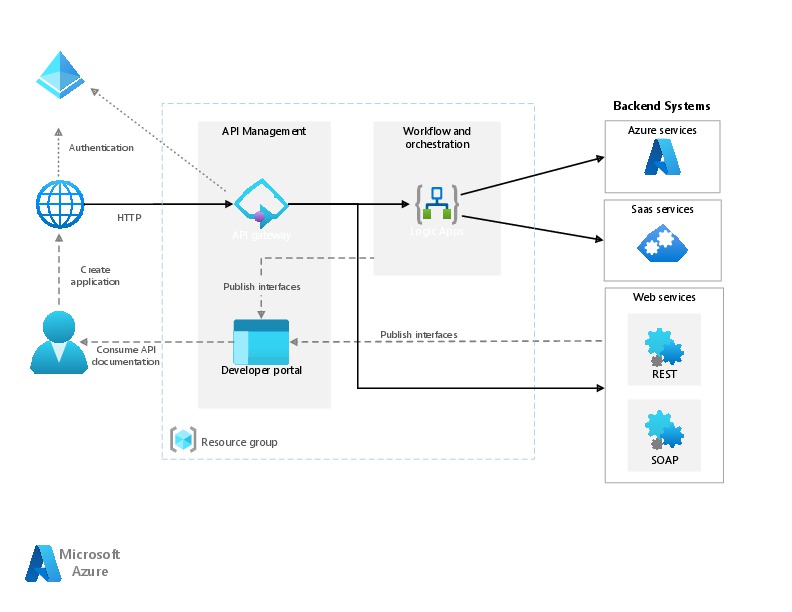
In short APIIM is a hybrid and multi cloud platform used to manage complete API life cycle. Azure API Management is made up of an API gateway, a management plane, and a developer portal.

  • Caching response to improve performance
  • Limit the number of API Calls
  • Security API and providing access
  • Interface to test API calls
  • API Analytics
  • Package related API Services
  • Transforms your API’s without
  • API Gateway is the first point of contact for any requests for your API which will route your requests to the appropriate backends. Imposes additional security restrictions with the help of JWT tokens and other certificates. Responses can be cached so that the API response could be faster.
  • Emits logs, metrics, and traces for monitoring, reporting, and troubleshooting
  • API Management are highly configurable, with control over URL mapping, query and path parameters, request and response content, and operation response caching.
  • Groups helps to provide conditional viewing capabilities.
  • Policy can help to change the behavior of an API without any code changes, this is well suited for your production API’s.

Also its easy to integrate API Management with all the other Azure Service available in the market.

Now lets go into the hands on by creating an APIIM simply from Azure.

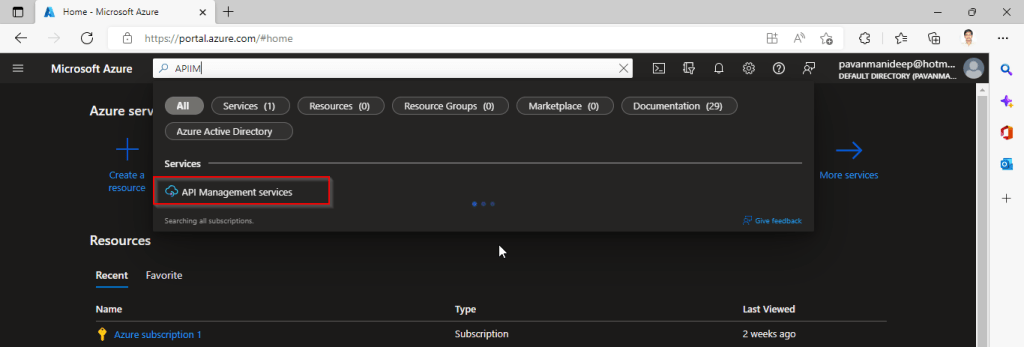
Go to Home – Microsoft Azure and search for APIIM and select API Management services and click on Create.

Input all the details, it was pretty self explanatory, coming to the pricing tier you could select based on your project needs and use case. Click on Review and Create and then Create.

It will take few minutes for the deployment to complete and you can use it.

The below Power point slide presentation is complete resource which can help you with all your queries related to Azure API Management.

Grand Tour of Azure API Management

I hope this gives you a bit of introduction to Azure API Management, now lets see how you can use this in your Power Platform Solutions.

For this, once your API ready, all you have do is to export your API’s from Azure API Management to your Power Platform Environment. With this the citizen developers can unleash the capabilities of Azure where the API’s are developed by professional developers. With this capability, citizen developers can use the Power Platform to create and distribute apps that are based on internal and external APIs managed by API Management.

Steps to follow would be as below:

All you need to do is to create a custom connector for your API which can be used in Power Platform like Power Apps, Power Automate etc.

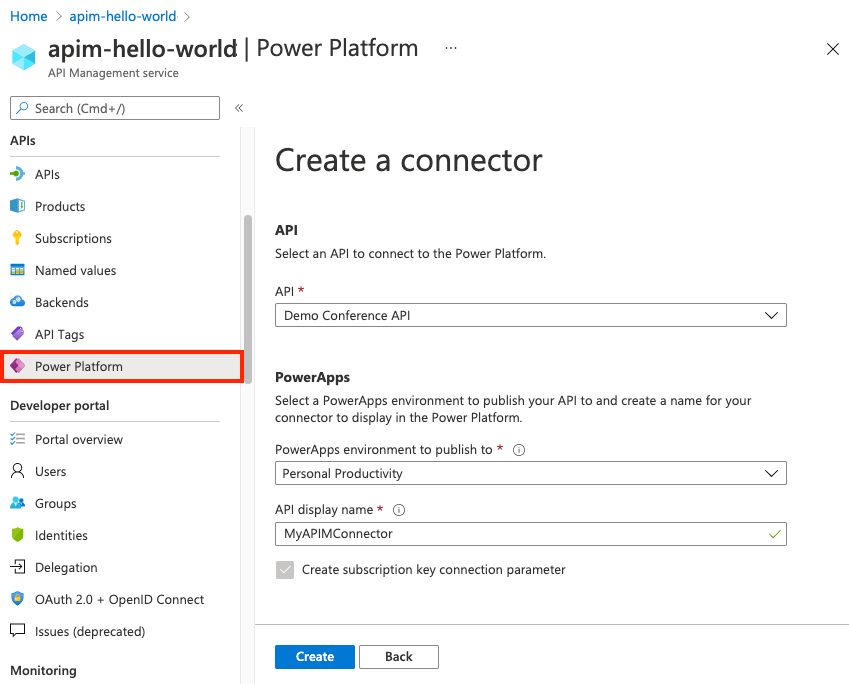
  1. Navigate to your API Management service in the Azure portal.
  2. In the menu, under APIs, select Power Platform.
  3. Select Create a connector.
  4. In the Create a connector window, do the following:
    1. Select an API to publish to the Power Platform.
    2. Select a Power Platform environment to publish the API to.
    3. Enter a display name, which will be used as the name of the custom connector.
    4. Optionally, if the API doesn’t already require a subscription, select Create subscription key connection parameter.
    5. Optionally, if the API is protected by an OAuth 2.0 server, provide details including Client IDClient secretAuthorization URLToken URL, and Refresh URL.
  5. Select Create.

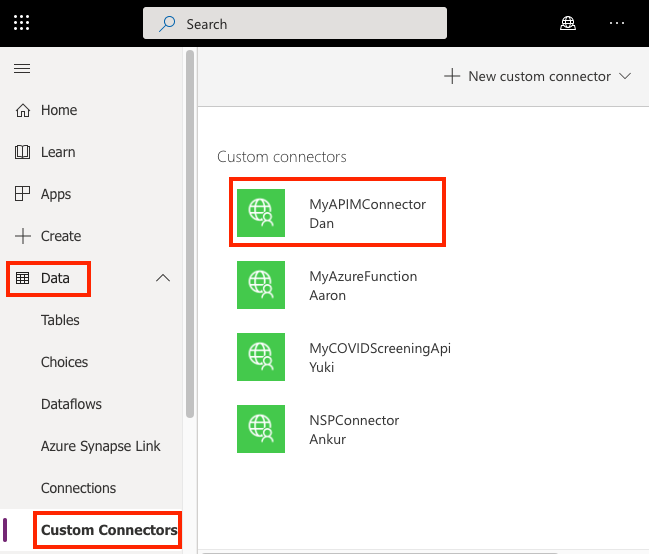
Once the connector is created, navigate to your Power Apps or Power Automate environment. You will see the API listed under Data > Custom Connectors.

Custom connector in Power Platform

I hope this will give you a complete picture about API Management in Azure…if you have any further queries, don’t hesitate to comment here…

Cheers,

PMDY

Dynamics CE integration with Logic Apps – A quick review…

Hi Folks,

This blog post talks all about integration of your Logic apps to your Dynamics CE instance and it’s advantages. Lets get started…

By the way, I can’t redefine the definition provided by Microsoft, so here it goes.

Azure Logic Apps is fully managed integration PaaS service that helps you schedule, automate, orchestrate tasks, business processes, and workflows when you need to integrate apps, data, systems, and services across enterprises or organizations and simplify how you design and build scalable solutions for app integration, data integration, system integration, enterprise application integration (EAI), and business-to-business (B2B) communication, whether in the cloud, on premises, or both. It’s simple to say that you can integrate any system and it is built on a containerized runtime.

Now let’s understand how does the logic apps work:

Every logic app workflow starts with a trigger, which fires when a specific event happens, or when new available data meets specific criteria. Each time that the trigger fires, the Logic Apps engine creates a logic app instance that runs the actions in the workflow. These actions can also include data conversions and flow controls, such as conditional statements, switch statements, loops, and branching. As soon as the Logic App stops running, these resources are discarded.

The interesting part here is that Logic Apps is more developer friendly and can used directly create integrations using logic apps either from Visual studio, Visual Studio Code or browser.

We were given flexibility to choose the type of Logic Apps, Single-tenant and multi-tenant. While creating logic apps, we can use Standard or Consumption based resource type. Logic Apps can create complex orchestrations and it is serverless. This means there is no upfront knowledge required for developer about the infrastructure. You have to bear in mind that it is both a stateful and stateless service unlike Azure Function which is stateless. It allows you to use webhooks as triggers. Coming to the pricing part, the price of Microsoft Azure Logic Apps is inexpensive. Look at it’s architecture below

You can simply edit your Azure logic App in Visual studio code / Visual studio and push your changes to your Devops repository…wow such a easy approach…don’t forget to try it out…

Do let me know if you have any queries or if you can add any more points, do let me know in comments….

That’s it for today…will come back next week with another article in #PowerfulAloneBetterTogether Series.

Cheers,

PMDY

Simple Approval Design For Model-Driven Apps

temmyraharjo's avatarTemmy Wahyu Raharjo

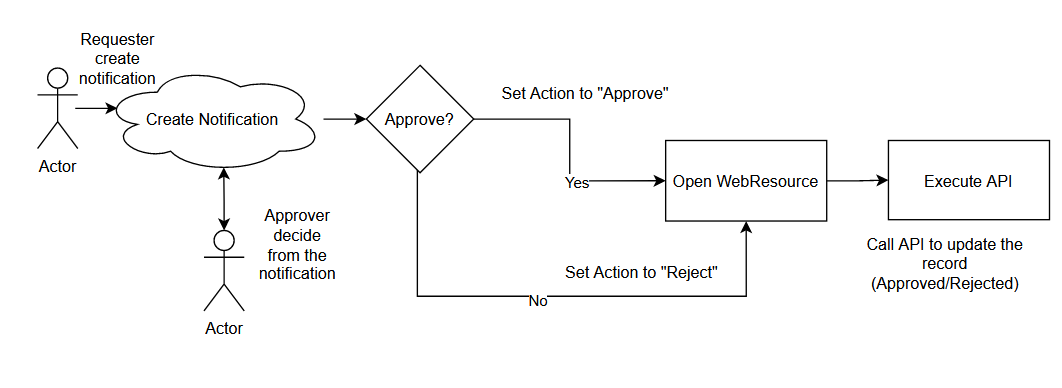
Do you know the In-App Notification feature from Model Driven Apps? This feature can create a notification that targeted a specific User. We also can add action to the notification so the User can also interact with multiple actions (now is limited to just an open URL). In short, this feature is very useful for creating the Approval process. Without further ado, let’s go to my proposed solution! 😎

The Necessary Part

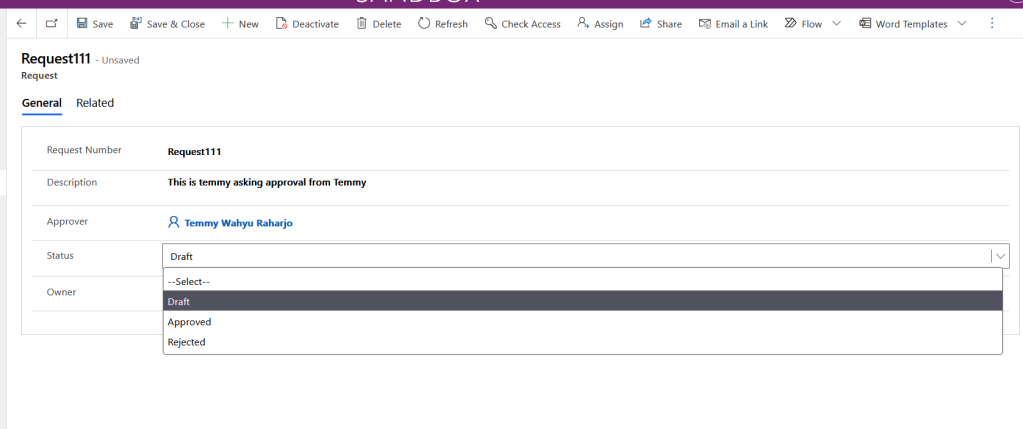
I created the below table for this demonstration purpose:

Request Table

As you can see, the User will fill in the Approver that needs to approve the request. Then in the status field, there are 3 options which are Draft, Approved, or Rejected.

For the next one, you need to create a Model-Driven App. The reason for it is because we need to turn on the feature from the Settings (in top-left from the App > go…

View original post 631 more words

Assembly must be registered in isolation error while trying to register plugin \ custom workflow activity in Isolation Mode None in Dynamics 365 On Premise CE

Hi Folks,

Recently I was trying to move the Plugins within a solution to another environment where I started to face the above mentioned error.

After checking found that the user who is deploying solution didnt have deployment administrator role. For this we need to provide Deployment administrator to the user who was actually deploying the solution, you will find deployment manager for your Dynamics Onpremise instance.

Once deployment administrator role is added, you should be able to move the solution.

Reference: Link

Cheers,

PMDY

Updating SSL Certifcates for your MVC Portals

Hi,

Now-a-days Power Platform pages/portals are being adopted by the clients using Dynamics. But there could be clients who still have their ASP.net MVC Portals running on Azure and just that they don’t want to move because of budget constraints. There will be times when you need to update the SSL certifcate to make the websites more secure out in the internet.

So here in this case, we’ll walk through the steps for updating your portal certificate. Please note that you need to create certificate request and request for the certificate from a certificate authority.

For updating certificate, you need use IIS….go to Server Certificates as highlighted below

Click on Complete Certificate Request at the right…as below

For File name below, click on Elipses and locate the file(.cer) of your SSL certificate provided by certificate issuing authority and click Ok.

Next step is to update the website bindings to take the latest certificate just updated. Click on your website as below..you should see bindings at the right as highlighted.

Locate the bindings as below

Click on the binding and click Edit..and select your latest SSL Certificate..

Click Ok and there you go, your certificate is updated.

Thank you for reading, please let me in comments if you have any queries….

Cheers,

PMDY

TypeScript Handbook….

Hi Folks,

Here is a brief intro to TypeScript….

Typescript is a strongly typed and built on Javascript. So now you could catch your errors little earlier…TypeScript code converts to JavaScript, which runs anywhere JavaScript runs: In a browser, in your apps etc.

TypeScript offers all of JavaScript’s features, and an additional layer on top of these: TypeScript’s type system. For example, JavaScript provides language primitives like string and number, but it doesn’t check that you’ve consistently assigned these. TypeScript does. This means that your existing working JavaScript code is also TypeScript code. TypeScript is an Object oriented programming language and inherits all the features of OO’Programming.

Microsoft recommends using TypeScript instead of JavaScript in all your Dynamics new implementations and slowly as this gives much flexibity to a developer. So why not learn this and boost your productivity…

Hope this helps…

Cheers,

PMDY