Call Azure Function from Dynamics 365 CRM using Webhooks

priyeshwagh777's avatarD365 Demystified

This is a vast topic to cover in a blog. But I wanted to write from a bird-eye’s view of how this will pan out in an implementation where you perform a certain operation in Dynamics 365 CRM and an Azure Function is called to perform further operations.

This post is written keeping in mind fair knowledge of Azure Functions, Storage accounts and subscriptions in mind.

I’ll try to keep the article short, so stay with me! 🙂

Create a Function App in Azure

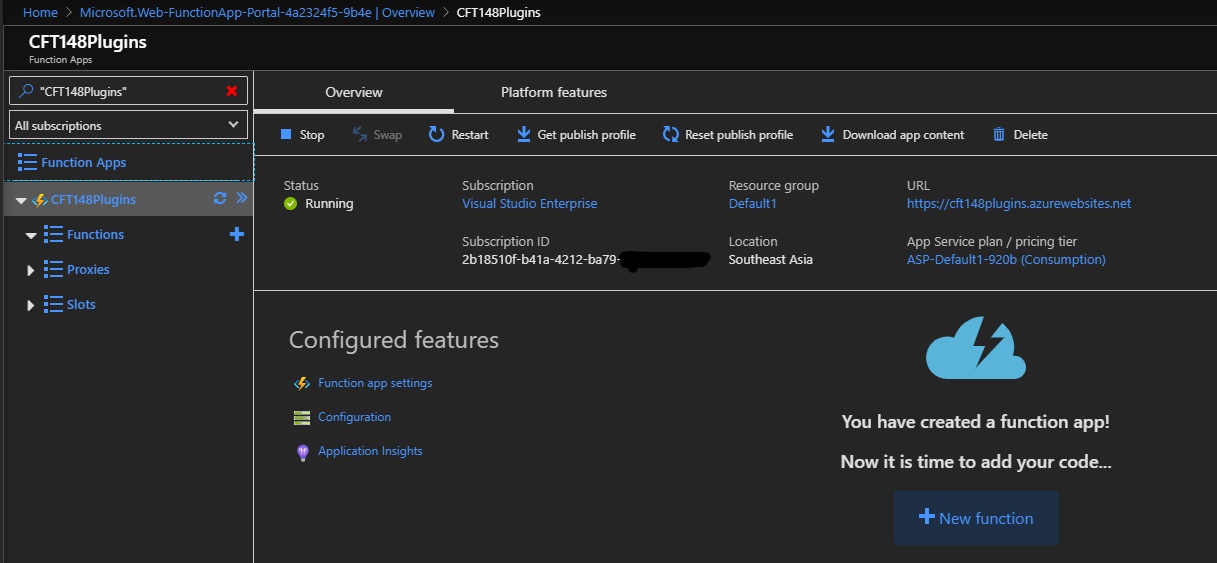
  1. Let’s say you have created a Function App in Azure already and want to connect to Dynamics 365 CRM. Click on the big + New Function button in the screenshot below
    resourceOverview_LI
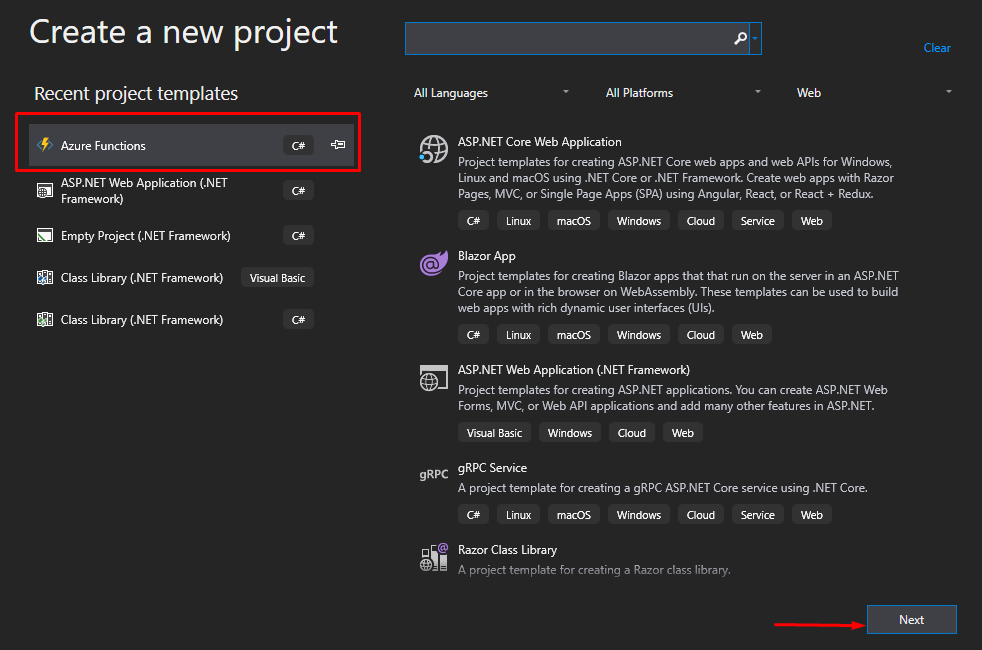
  2. Now, since I want to keep Visual Studio as my driver for coding and deployment, I’ll create a new Project in Visual Studio of type Azure Functions and click Next
    newProj
  3. On the next page, I’ll…

View original post 560 more words

How to pass an object from a model app driven app to a custom page?

Mehdi El Amri's avatarXRM Tricks (Power Platform & Dynamics CRM )

According to the current documentation, we can pass a dataverse record as a parameter. This is still very beneficial for some scenarios. But what if we want to pass a set of parameters without using an existing record.

After several attempts, I managed to pass an object containing some properties from the model driven app to the custom page using the navigateTo method. The next video illustrates this scenario. Indeed, the idea is to pass an object which contains two properties of type text from the MDA to the Custom Page using the navigateTo method.

As you can see, I used the recordId parameter to pass my JSON object. According to the documentation for the navigateTo method, the recordId parameter is optional and expects to be passed a GUID parameter.
Fortunately for us, Microsoft does not check if we pass a GUID or not, the API expects a string. Using…

View original post 210 more words

Power Platform Tools | Developer Toolkit for Visual Studio 2019

Rajeev Pentyala's avatarRajeev Pentyala – Technical Blog on Power Platform, Azure and AI

Power Platform Tools for Visual Studio supports the rapid creation, debugging, and deployment of plug-ins.

You may note that Power Platform Tools for Visual Studio is similar in appearance and function to the Developer Toolkit for Microsoft Dynamics CRM 2013.

While Power Platform Tools for Visual Studio is similar in appearance and function to the Developer Toolkit for Microsoft Dynamics CRM 2013, Power Platform Tools is a new product and completely independent of the Developer Toolkit.

Power Platform Tools is not directly compatible with any templates or projects from the Developer Toolkit and vice versa.

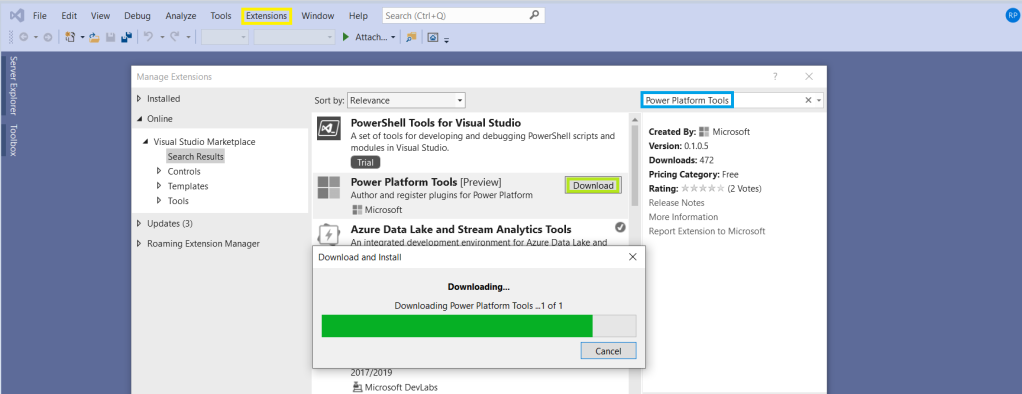
Steps to enable ‘Power Platform Tools’ extension in VS 2019:

  • From the Visual Studio 2019, click on ‘Extensions -> Manage Extensions’.
  • Expand the left navigation panel node Online > Visual Studio Marketplace. Search for “Power Platform Tools”, then click on ‘Download’.

  • Post Download, close all the Visual Studio instances and wait for few seconds…

View original post 112 more words

Exploration: Create Swagger API and Consume It In Canvas-Apps

temmyraharjo's avatarTemmy Wahyu Raharjo

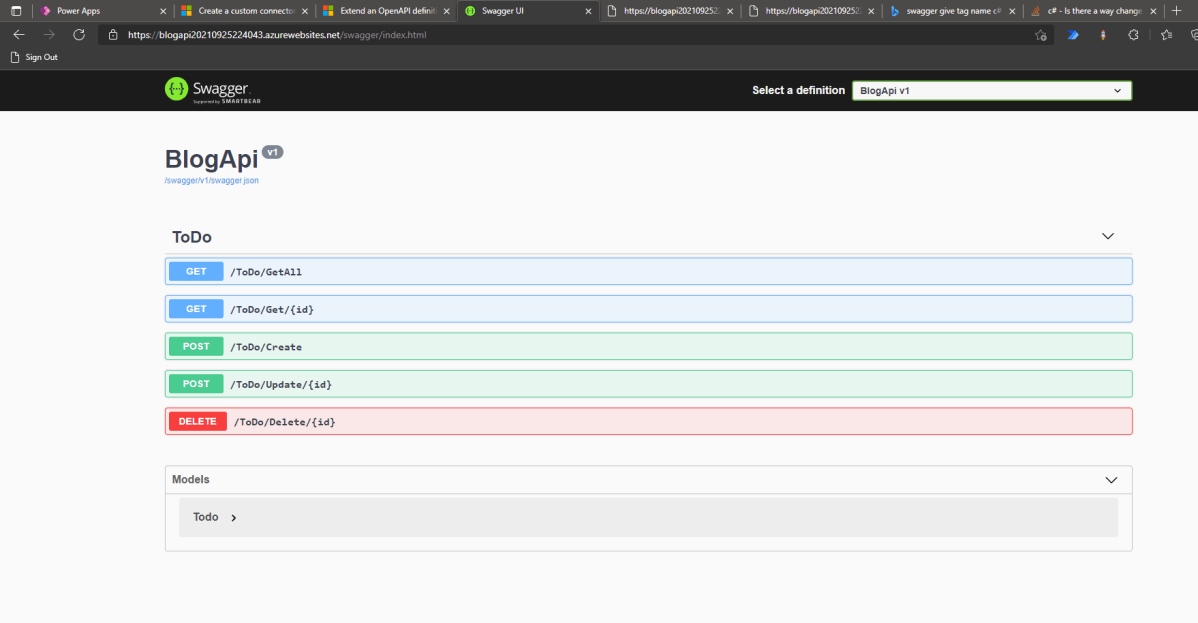
Today we will learn how to create Swagger API > deploy it to Azure (App Service) > make custom connector > use it in Canvas Apps. Without further ado, let’s make it!

Create API

First, we need to open your CMD line, then set the CMD (using CD command) to the directory where you want to create the folder. Once you are already in the folder that you want it, run the below command (you need to have dotnet installed):

dotnet new webapi -o BlogApi

By default, the CLI will help you to generate WeatherController. I will remove all the things that are related to the WeatherController and make the below Controller:

using Microsoft.AspNetCore.Mvc; namespace BlogApi.Controllers; public class Todo { public Guid Id { get; init; } = Guid.NewGuid(); public string? Name { get; set; } public string? Description { get; set; } public bool IsCompleted { get…

View original post 839 more words

Granting Access to a Business unit Team via C#

Hi Folks,

I hope there isn’t any one who doesn’t know about security roles and access privileges being in Dynamics space. Most of the people should be aware of doing this via application, in this post, sharing one simple way to grant access to the records using C# code. Please use the below code to achieve the same.

private void ShareRecordtoBUTeamofRequestorUser(Guid Targetid, Guid TargetShare, IOrganizationService orgService)
        {
            try
            {
                if (Targetid != null && TargetShare != null)
                {
                    GrantAccessRequest grant = new GrantAccessRequest();
                    grant.Target = new EntityReference(MetadataHelper.VolunteerList.EntityLogicalName, Targetid);

                    PrincipalAccess principal = new PrincipalAccess();
                    principal.Principal = new EntityReference(MetadataHelper.Team.EntityLogicalName, TargetShare);
                    principal.AccessMask = AccessRights.ReadAccess;
                    grant.PrincipalAccess = principal;

                    try
                    {
                        //GrantAccessResponse grant_response = (GrantAccessResponse)orgService.Execute(grant);
                        orgService.Execute(grant);
                    }
                    catch (Exception ex)
                    {
                        throw ex;
                    }
                }
            }
            catch (Exception ex)
            {
                throw ex;
            }
        }

I have commented below lines in try block above and avoid using them because you will get an error for the same…

GrantAccessResponse grant_response = (GrantAccessResponse)orgService.Execute(grant);

An unhandled exception has occurred during execution of the plugin.
An error occured while getting default Team of Requestor BusinessUnit[A]Microsoft.Crm.Sdk.Messages.GrantAccessResponse cannot be cast to
[B]Microsoft.Crm.Sdk.Messages.GrantAccessResponse. Type A originates from ‘Microsoft.Crm.Sdk.Proxy, Version=9.0.0.0, Culture=neutral, PublicKeyToken=31bf3856ad364e35’ in the context ‘Default’ at location ‘C:\Microsoft.Crm.Sdk.Proxy.dll’. Type B originates from ‘Hisol.SCS.CRM.Plugins, Version=1.0.0.0, Culture=neutral, PublicKeyToken=bb2727b96c9cb15e’ in the context ‘LoadNeither’ in a byte array.

Thank you.

Cheers,

PMDY

Fetch more than 5000 records in one go…paging cookie way…but there’s a catch….

Hi Folks,

Hope some day or the other, every CRM Consultant will face this issue where they need to retrieve more than 5000 records in one go.

As every one in the internet suggests, paging cookie is the easiest way to achieve the same.

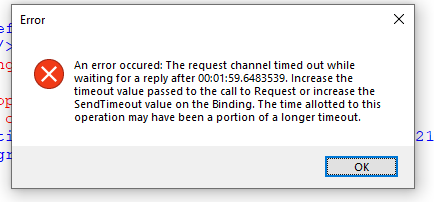
However here there is a catch…if you will use distinct=”false” no-lock=”true” along with your fetch query, you will never achieve the expected result and the timeout error keeps on popping up.

Pretty surely Microsoft have had documented this one, but I couldn’t find any relevant Microsoft article stating this. So thought of sharing this tip over my blog so that some day it will help some one. Here is the complete solution…

//Call the method to use Paging cookie and fetch multiple records in one go....
EntityCollection fetchDonationTransactionRecords = RetrieveAll(service, fetch);

/// <summary>
        /// RetrieveAll
        /// </summary>
        /// <param name="service"></param>
        /// <param name="fetchXml"></param>
        /// <returns></returns>
        public static EntityCollection RetrieveAll(this IOrganizationService service, string fetchXml)
        {
            EntityCollection finalCollection = new EntityCollection();
            int fetchCount = 5000;
            // Initialize the page number.
            int pageNumber = 1;
            // Specify the current paging cookie. For retrieving the first page, 
            // pagingCookie should be null.
            string pagingCookie = null;

            while (true)
            {
                // Build fetchXml string with the placeholders.
                string xml = CreateXml(fetchXml, pagingCookie, pageNumber, fetchCount);
                EntityCollection recordsCollection = new EntityCollection();
                FetchExpression expression = new FetchExpression(xml);
                recordsCollection = service.RetrieveMultiple(expression);

                // * Build up results here *

                // Check for morerecords, if it returns 1.
                if (recordsCollection.MoreRecords)
                {
                    // Increment the page number to retrieve the next page.
                    pageNumber++;
                    pagingCookie = recordsCollection.PagingCookie;

                    foreach (var record in recordsCollection.Entities)
                    {
                        finalCollection.Entities.Add(record);
                    }
                }
                else
                {
                    // If no more records in the result nodes, exit the loop. 
                    if (finalCollection.Entities.Count >= 5000)
                    {
                        foreach (var record in recordsCollection.Entities)
                        {
                            finalCollection.Entities.Add(record);
                        }
                    }
                    else
                    {
                        finalCollection = recordsCollection;
                    }
                    break;
                }
            }
            return finalCollection;
        }

Hope this helps…that’s it for today…be safe & happy CRM’ing….

Cheers,

PMDY

Missing Index – A factor to review before implementing performance changes

Hi,

Have u ever faced any performance issue with any of your REST API hosted out in the internet. So here’s the background, our client has a Custom Asp.Net Portal(remembering the old day school of using Asp’s, interesting…??) which is built on using the REST API.

So this REST API was having some performance issues, this is where we got to check on the newly created entity for our API Implementation…after couple of hours of research, we found that few indexes are missing.

You should be knowing how it’s difficult to read a book without indexes, so in the same way, the C# code was finding it difficult to retrieve the data without any indexes and after adding them, the peformance had been improved and with a bit of code improvisation, we got a significant improvement in the performance.

For those trying to search for missing indexes, please try out the below code…

SELECT DISTINCT

       CONVERT(decimal(18,2), user_seeks * avg_total_user_cost * (avg_user_impact * 0.01)) AS [index_advantage],

       migs.last_user_seek,

       OBJECT_NAME(mid.[object_id]) AS [table_name],

       mid.equality_columns,

       mid.inequality_columns,

       mid.included_columns,

       migs.unique_compiles,

       migs.user_seeks,

       migs.avg_total_user_cost,

       migs.avg_user_impact,

       p.rows AS [table_rows],

       mid.[statement] AS [DatabaseSchemaTable],

         GETDATE() QueryExecustionTime

FROM sys.dm_db_missing_index_group_stats AS migs WITH (NOLOCK)

INNER JOIN sys.dm_db_missing_index_groups AS mig WITH (NOLOCK)

ON migs.group_handle = mig.index_group_handle

INNER JOIN sys.dm_db_missing_index_details AS mid WITH (NOLOCK)

ON mig.index_handle = mid.index_handle

INNER JOIN sys.partitions AS p WITH (NOLOCK)

ON p.[object_id] = mid.[object_id]

WHERE mid.database_id = DB_ID(‘Starbucks_MSCRM’) –CHANGE DB NAME HERE –Starbucks_MSCRM

–AND mid.[object_id] = OBJECT_ID(‘dbo.ign_transactionbase’) –CHNAGE TABLE NAME HERE

ORDER BY index_advantage DESC OPTION (RECOMPILE);

GO

Hope you found some interesting scenario to deal with your performance issues.

Cheers,

PMDY

Using Custom API as a trigger for Flow

Dropping new goodies straight to Microsoft Docs, without any formal announcement, has now been normalised. Couple of Virtual Table features have been “announced” without much fanfare this way. The ability to trigger Flows from Custom API is one such unannounced feature. Custom API is a feature in Dataverse that is very similar to Custom Process […]

Using Custom API as a trigger for Flow

Cancel the save based on the result of an asynchronous operation

In 2017, Natraj Yegnaraman shared a clever method to cancel the save of a form. His approach was to cancel the save before the asynchronous operation and then retrigger the save if needed after the asynchronous operation is resolved. You can find all the details on the following link. This approach is explained by the […]

Cancel the save based on the result of an asynchronous operation

Tips for overcoming your problems working with SSRS Reports

Recently I have worked on some complex Fetch XML based SSRS reports, below were some basic tips to be kept in mind when you were working on a similar reporting project.

Things to take a note:

  1. When working with Prefiltered reports, make sure you add the prefilter at the beginning of the report dataset query.

2. Download report from CRM

Wondered how to edit an existing report, you can download the same from CRM, add it to your visual studio and edit your fetch xml report.

3. Missing reports for other users

Make sure you set the Report viewable by for the report.

4. Report missing records:

Tip: check if all main report and sub report parameters are same…even verify if multiple values are enabled for parameters is enabled for main report, it should be enabled for sub report parameters also.

5. Use Lookup and Lookupset necessarily accordingly to the need, do note its drawbacks before confirming your design and proceeding with development as it wont allow nested lookups…etc.

6. When comes to Testing the reports, test the report is CRM and not in the Visual studio.

7. Reports were run on the browser and they were browser specific, based on the user’s region, it will be rendered.

8. Make sure to add the same queries used in the main report to the sub report for Production uses.

9. Apply row or column grouping accordingly based on the requirement.

10. If data is being missed in some of the columns, make sure you check if there is any issue with the parameters, try to verify the sub report by validating the queries from the query designer and passing appropriate values to the parameters as and when required.

11. As we cant troubleshoot the SSRS Reports, the only way we can check and verify if by printing values obtained from the datasets.

12. Double check the Dataset properties if you still see any discrepancy with the parameters and their order as this is important when you have dependent parameters for executing your dataset.

13. You can add filters to your dataset from the dataset properties itself if required.

14. Make sure to click of refresh fields in the dataset properties window as and when if you update any dataset query.

15. Also note that SSRS reports are cached, one other way to clear your cache and re-run the report.

16. You can use built in fields if you want to display any of the report based data.

17. If you have changes in any of the sub reports, you don’t need to push all the report changed including the Parent report, instead you can add only the changed sub report to the solution and move across.

Hope one of the above tip had helped you in your project, that’s it for today…till then keep CRM’ing and be safe.

Thank you.

Cheers,

PMDY