[Fix]-A record with these values already exists. A duplicate record cannot be created. Select one or more unique values and try again…and it’s consequenes..

Hi,

Recently we faced an issue while deploying solution to other environment from Dev..getting below error in Dynamics 365 On premise 8.2 version..

A record with these values already exists. A duplicate record cannot be created. Select one or more unique values and try again.

This could be due to below reasons..

1. One entity has two CustomControlDefaultConfigs

Like this

We tried to delete one of the duplicated CustomControlDefaultConfig (randomly). This works in some cases.

2. Entity with unique  CustomControlDefaultConfigid, but solution import crashes with error customcontroldefaultconfig With Id = d3226572-022c-e611-80e6-00155dc26410 Does Not Exist. The solution contains only one CustomControlDefaultConfig for this entity

<CustomControlDefaultConfigs>

<CustomControlDefaultConfig>

<PrimaryEntityTypeCode>10084</PrimaryEntityTypeCode>

<CustomControlDefaultConfigId>{bd771d8c-2cd6-e511-80d4-00155d0e4417}</CustomControlDefaultConfigId>

<ControlDescriptionXML>

<controlDescriptions />

</ControlDescriptionXML>

<IntroducedVersion>1.0</IntroducedVersion>

</CustomControlDefaultConfig>

</CustomControlDefaultConfigs>

This could be due to corrupt config setting as in our case.

Fix:

Delete the CustomControlDefaultConfigId present in the entity which is creating the issue, open the Customizations.xml in the solution and delete the highlighted ID.CaptureFor this use XRM Toolbox Bulk Delete tool to delete this ID as below, as this can’t be done using UI.

Capture1

To Delete a record we would we would use Bulk Delete Tool

Capture2

Capture3

Here is fetch XML to be used and replace the below highlighted ID in green with the ID from the customizations.xml

<fetch version=”1.0″ output-format=”xml-platform” mapping=”logical” distinct=”false”> <entity name=”customcontroldefaultconfig”> <filter type=”and”> <condition attribute=”customcontroldefaultconfigid” operator=”eq” value=”{a88b6a06-3f20-e811-9661-00155d00a048}” /> </filter>

</entity>

</fetch>

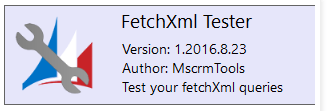
You can use Fetch XML Tester to verify if the record exists and after delete again you can run to verify if record got deleted..

Once record is deleted, try import the same solution again and it should work.

This works so that the solution from Dev would be imported to other environment but the Publish Customizations fails on import, you might encounter below issues.. when publishing..

  • Getting Dependency Calculation There was an error calculating dependencies for this component. Missing component id {0}
  • Failure trying to associate it with CustomControlDefaultConfig

Reason:

If there is any orphan record exists in “CustomControlDefaultConfigBase” table in the target environment it would cause solution import failure or ‘Publish Customizations’ error.

Fix:

CRM On-Premise

  • Check if any orphan records in CustomControlDefaultConfigBase tabel. (Use below queries)
    • SELECT * FROM CustomControlDefaultConfigBase WHERE PrimaryEntityTypeCode NOT IN (SELECT ObjectTypeCode FROM Entity)
  • Note: before continuing, a backup database is recommended.
  • Delete from the Target environment the CustomControlDefaultConfig records with orphaned Object Type Codes:
    • DELETE FROM CustomControlDefaultConfigBase WHERE PrimaryEntityTypeCode NOT IN (SELECT ObjectTypeCode FROM Entity)

Prevention Tip:

  • If you are adding an entity to your solution, always add ‘Primary key’ field
    • In the source environment open the Solution being imported
    • Open each Entity and expand Fields
    • Make sure that every entity has its “Primary Key” added to the solution.

solution-add-primary-key-field-of-entity

Hope this helps..

Cheers,

PMDY
Know more about enabling MFA…& it’s consequences…

Recently I was exploring about setting Multi Factor authentication for my Dynamics 365 Instance and connecting to it via code using Console applications. This is when I came know about using an App password for my Console application to work.

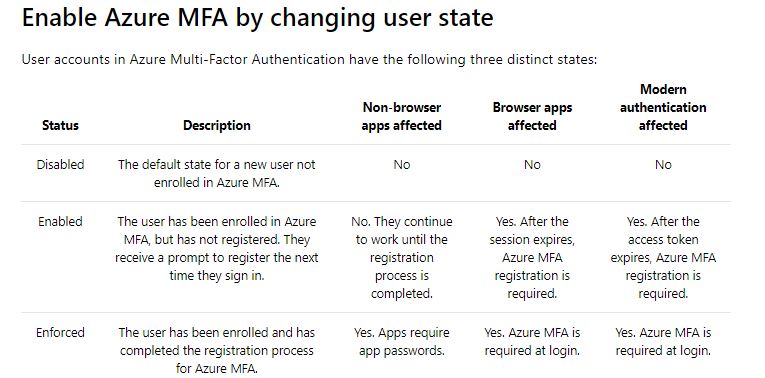
But do you know that based on the user states, MFA setup behaves differently..

Capture1

Ok..now let’s take a simple console application which just does nothing but connects using a OrganizationServiceProxy. Sample code can be found here.

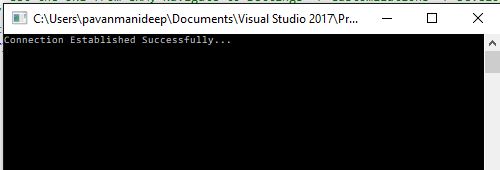
  1. When MFA is disabled, you will be able to connect to the instance without any issues.

Capture1

2. Now Enable the MFA but don’t enforce it. Don’t sign in and complete the registration process of either providing pin or answering the call. Try to run the same console code above, you would be still able to connect without any issues.

Capture1

This is because Console application would also behave as non browser app. and will continue to work until the sign up is done exclusively as stated in the table above.

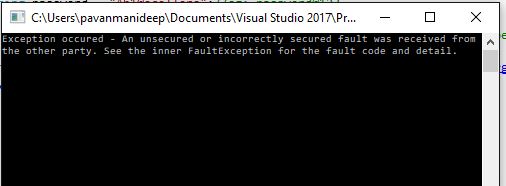
3. After the multifactor authentication is enforced, users will need to create app passwords for working with non browser applications. So now if you try to run the same Console application, you would get an error..

Capture2

Now sign in to your instance and generate the app password by providing additional security information when signing up. Use the same app password in place of credentials used while connecting to CRM in the console app.

And now you will be able to connect without issues…

Capture1

Hope this helps..

PMDY.

Power Apps…low code solution…

Before diving into the Power Apps..and walkthroughs..lets see the different Power Apps variants…we have two different kinds of Power Apps. available which are developed based on needs, data sources available and their advantages in the design.

1.Canvas Apps:

These Apps. are developed on Canvas without writing any code with the usual language namely C#. These are developed by just dragging the respective components on to the Canvas. However just should be aware of basic excel functions in order to develop apps with ease. We can connect to Microsoft & Non Microsoft Data sources where we do have design control, need to create separate apps for mobile devices and web browsers. These are task focused and used frequently for creating simple apps.

2. Model Driven Apps:

These are built using Dynamics 365 framework and  uses CDS Connectors. Model-driven app design is a component-focused approach to app development and can be used to develop apps covering complex scenarios. The design is automatically by the components we add to the App. To use model driven apps or for creating CDS for apps, we need Power Apps P2 License having access to Data. Moreover the model driven apps can be distributed as a solution. If we speak about model driven app. components, these are divided into dataUIlogic, and visualization categories.

The data talks about on which data the app. was built, UI defines how the users will interact with the App. While the logic determines the business processes, rules, and automation the app will have..

Cheers,

PMDY

Power Platform..A trio..game changer…

Have u ever imagined that Microsoft will bring its all new diverse products covering Dynamics 365, Office 365 and standalone products under one roof making a Trio…to unlock the potential faster than you ever thought possible…if you were not aware…then this post is for you…

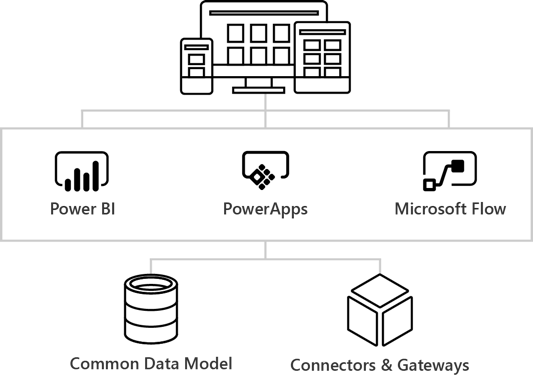
The main intention is to empower everyone with one connected app platform…Power Platform combines the robust power of PowerAppsPowerBI, and Microsoft Flow into one powerful business application platform –  providing quick and easy app building and data insights.

This is part one of 6 series blog posts helps you to understand the basics, in and out of this entire all new ecosystem. Upcoming blog posts will give you a deep insight on covering every individual aspect on this marvellous platform.

Power-platform-2

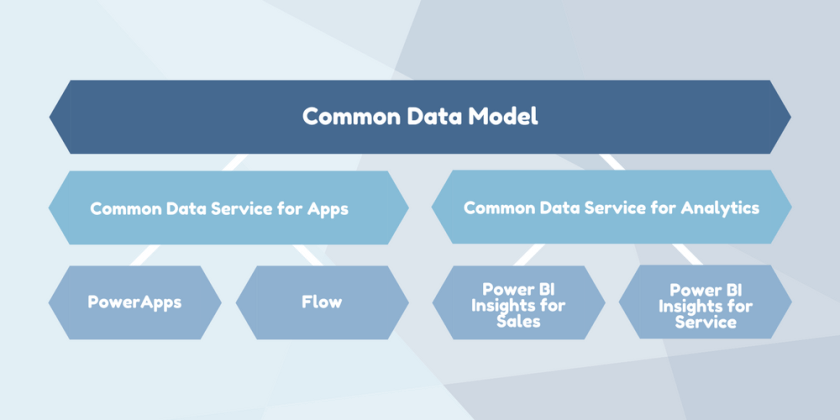
Common Data Model:

The Common Data Model (CDM) is the shared data language used by business and analytical applications. CDM bridges the gap between disjointed data repositories, granting easier cross-platform business reporting.

Copy-of-Copy-of-Common-data-service

It consists of a set of a standardised, extensible data schemas published by Microsoft and partners that enables consistency of data and its meaning across applications and business processes. This allows apps to integrate and share data with each other without the need for extensive, custom integration by providing a centralized point where systems can come together and connect.

The Common Data Model is a secure method for exposing Microsoft databases that allows developers to build custom connections with other databases.

Common Data service:

The heart of the Microsoft Power Platform is the Common Data Service for Apps(CDS). These applications handle your data through the use of Microsoft’s Common Data Service for Apps (CDS). CDS is a cloud-based tool hosted on Azure which allows you to securely store and manage your business data. Data within the CDS is stored within a set of entities, a standard set of entities are included, however custom entities can be created for specific requirements to your organization and populate them with data using Power Query. The CDS for Apps is built on the Common Data Model.

Dynamics 365 applications, like Dynamics 365 for Sales, Service or Talent also use the Common Data Service to store and secure data used by the applications. This enables you to build apps using PowerApps and the Common Data Service directly against your core business data already used within Dynamics 365 without the need for integration. You can think of Common Data service as a common store allows for an easier app building experience, and a single set of logic to maintain and operate over the data.

Power Apps:

Power Apps enables users fostering via No Code solutions which improves productivity and reduces the time for the delivery.

image15

PC Mag. had rated the power apps as the best low code solutions available in the market..if you haven’t gone through this..read this article..

PowerApps at its core is a Platform as a Service. It allows you to create Mobile Apps that run on Android, iOS, Windows (Modern Apps) – and with almost any Internet browser..Read more about Power Apps in the upcoming blog post here

Microsoft Flow:

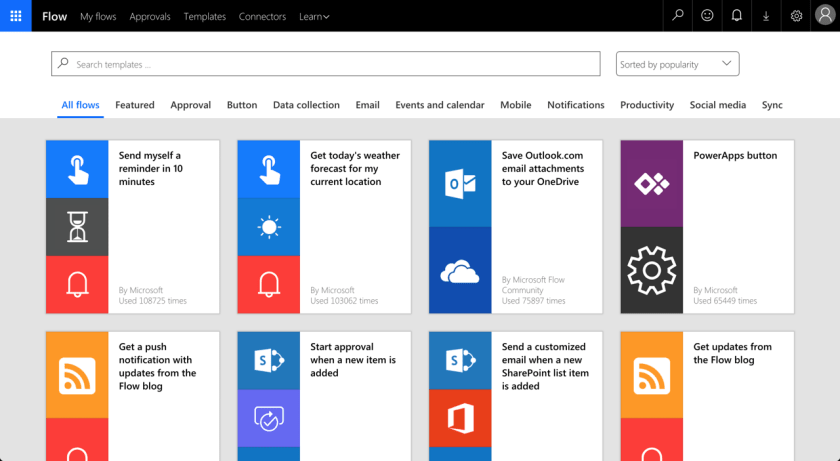
Microsoft Flow is an online workflow service that automates actions across the most common apps and services and a trigger based system.microsoft-flow-templates

In total there are connectors for 323 applications and protocols at the time of writing, and you can write your own if you need a different one. You can read more about Flow and automating your business processes here…

Power BI:

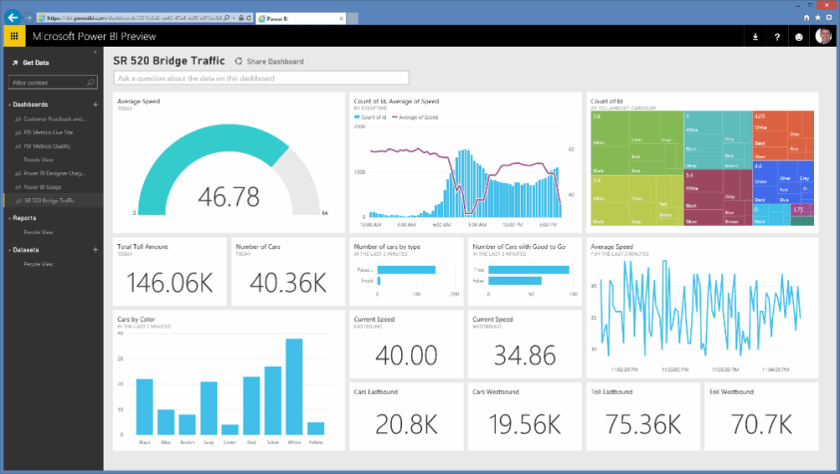
Microsoft Power BI is a collection of software services, apps, and connectors that work together to turn your unrelated sources of data into coherent, visually immersive, and interactive insights. Power BI can be simple and fast, capable of creating quick insights from an Excel workbook or a local database.

sCM_Power-BI-Preview

At the users flexibility….we can use…Windows desktop application called Power BI Desktop, an online SaaS (Software as a Service) service called the Power BI service, and mobile Power BI apps that are available on Windows phones and tablets, and also on Apple iOS and Google Android devices.

These three elements—Desktop, the service, and Mobile apps—are designed to let people create, share, and consume business insights in the way that serves them, or their role, most effectively.

Read more capabilities of Power BI here…

Connectors & Gateways:

Nevertheless we discussed all the other components as part of this framework, connectors and gateways plays a major role…Connectors are essentially proxy wrappers around the APIs provided by services that allow Microsoft Flow, PowerApps and Logic Apps to easily interact with the service. You can read more about connectors and gateways and much more in upcoming post…

That’s it for today…thank you for reading…

Cheers,

PMDY

[Quick Tip] – Error is usually caused by custom plug-ins that ignore errors from service calls and continue processing in Dynamics 365

Hi CRM Folks,

While we were working on Dynamics 365  On Premise 8.2 Version, we found this issue which is occurring on create of custom entity records in one of our environments. However we see the same customizations in both the environments.

After investigation by observing event logs, we found that this issue is caused due to some security issue. Later we identified that the plugins steps registered on create were running security context of user.

We were able to resolve this issue with the help of impersonation to run Plugins with higher privileges. For detailed info, see below reference.

Reference

Cheers,

PMDY


Unlock the lookup fields in a business process flow in D365

Problem statement:

Recently while working on issue in Dynamics 365, found that all the lookup fields included in a stage in the Business process flow are locked out and not able to edit and we were not able to move to next stage since these fields are mandatory. We modified to show the stage owner properly, but even though when that stage owner logged in these lookup fields used in the Business process flow are locked.

Solution:

Give Append and AppendTo privileges to the other entity so that these fields would be unlocked and at the same time you need to give read privileges on the related entity so that user could see this lookup field without any permission issue, you need to give write privileges too in order to edit and write data in to that field.

Hope this helps someone…

Cheers,

PMDY

{Advanced Customization Tip} Disable Advanced find for Non Admin users in Dynamics 365

deepeshsomani2013's avatarMSDYNAMICSBLOG BY DEEPESH

Requirement: In one of the recent queries that came across to me, Advanced find needed to be disabled for all the users in the Dynamics 365 except for System Administrator.

Solution: There are multiple possible solution one may think and apply. The best practice will be to try to convince the customer against such a customization and utilize Read privileges for restricting access to entities as needed on the basis of Security roles. However, if still there is client requirement like this we can achieve it as below:

1. Add Application ribbon under Client extensions in a solution and then open this solution in XRMToolbox, Ribbon Work bench 2016:

clip_image001

2. Add results_16 and results_32 png images as web resources and keep them ready as follows in the solution:

clip_image003

3. Add a new button into the application ribbon and give it label as Result and under command put the command name…

View original post 148 more words

Cannot obtain value of the local variable or argument because it is not available at this instruction pointer, possibly because it has been optimized away in Visual studio 2017

Hi,

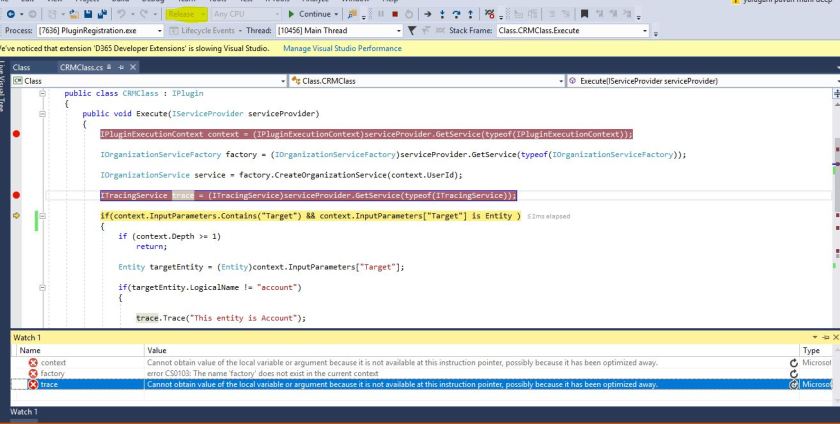
Recently we were debugging a D365 plugin in Visual studio 2017, able to hit the debugger but unable to get values to any of the variables. Getting the above error while debugging with the solution being in Release mode.

Capture.JPG

Changed from the release mode to debug mode, deployed the solution and then able to debug and get the values.

Please refer to below posts  for more information.

Cannot obtain value of local variable

Blog from Microsoft

Hope this helps someone…

Cheers,

PMDY


No Plugins selected message in Plugin registration tool

Hi Folks,

When we were working on a plugin for D365 Online, faced the below mentioned error message in Plugin registration tool where it was not showing up the newly added the class to assembly.

However we were using the latest Plugin registration tool.

Capture.JPG

Making the class as Public solved the issue.

Capture.JPG

Hope this helps…

Thank you.

PMDY

Retrieve Multiple Plugin

Reblogged on ecellorscrm blog

muralikrishnasabbavarapublog's avatarMurali Sabbavarapu CRM Blog

Scenario:

  1. Users have organization level read access on Competitor entity in CRM.
  2. Competitor and system user entity have N:1 relationship and User lookup (Business Require) available in Competitor entity form

Have a requirement that the User should see “Competitor records” for which the respective user is tagged to and this should be applicable in all CRM areas (like  Advanced find, Lockups, Views…)

This can be achieved through Plug in with “RetrieveMultiple” message

Initially when the user logged in the system, he has access to all the Competitor records which are not tagged to him. (advanced find)

ret3

Below is the plugin code to achieve the above mentioned requirement.

public void Execute(IServiceProvider serviceProvider)

{

try

{

IPluginExecutionContext context = (IPluginExecutionContext)serviceProvider.GetService(typeof(Microsoft.Xrm.Sdk.IPluginExecutionContext));

IOrganizationServiceFactory serviceFactory = (IOrganizationServiceFactory)serviceProvider.GetService(typeof(IOrganizationServiceFactory));

IOrganizationService service = serviceFactory.CreateOrganizationService(context.UserId);

if (context.Depth > 1)

return;

WhoAmIRequest whoReq = new WhoAmIRequest();// To know the user who logged in

WhoAmIResponse whoResp = (WhoAmIResponse)service.Execute(whoReq);

Guid userid…

View original post 229 more words