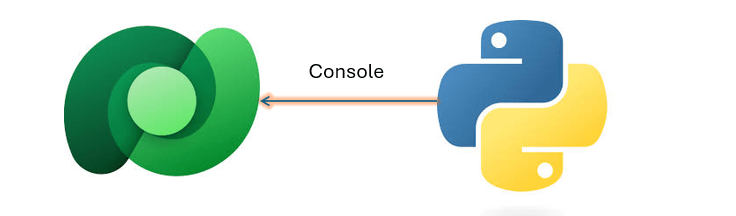
Well, the wait is over, now you can invoke your Agents within Console Application using #Agents SDK.
Thank you Rajeev for writing this. Reblogging it…
Exploring Power Platform and Beyond: Features, Experiences, Challenges, Solutions all in one place
Well, the wait is over, now you can invoke your Agents within Console Application using #Agents SDK.
Thank you Rajeev for writing this. Reblogging it…
Hi Folks,
Restoring environments in Power Platform has evolved significantly.
In the past, Dynamics CRM On-Premise users relied on SQL database backups and manual restores. Today, administrators can perform environment restores in online instances with just a few clicks via the Power Platform Admin Center.
This guide outlines the available restore options and key considerations to ensure a smooth and secure process.
| Option | Description |
|---|---|
| 1. Manual Backup Restore | Restore from a backup you manually created. Ideal before major customizations or version updates. |
| 2. System Backup Restore | Use automated system backups created by Microsoft. Convenient but less flexible than manual backups. |
| 3. Full Copy | Clone the entire environment, including data, customizations, and configurations. Suitable for staging or testing. |
| 4. Partial Copy (Customizations & Schema Only) | Copies only solutions and schema—no data. Best for promoting configurations from Production to SIT/UAT. |
All backup and restore operations in Power Platform are powered by SQL-based technology under the hood, ensuring consistency and reliability across environments.
Reference:
https://learn.microsoft.com/en-us/power-platform/admin/backup-restore-environments?tabs=new
Cheers,
PMDY
Hi Folks,
After a break, I am back with my next blog post, this is a very short one.
Whenever you were working on any implementation, you could have added entity assets to the solution, many people miss adding metadata for the entity, since they don’t have a way to check properly, folks end up removing and readding the entity with metadata toggle on.
But don’t worry, here is a simple way to check this..
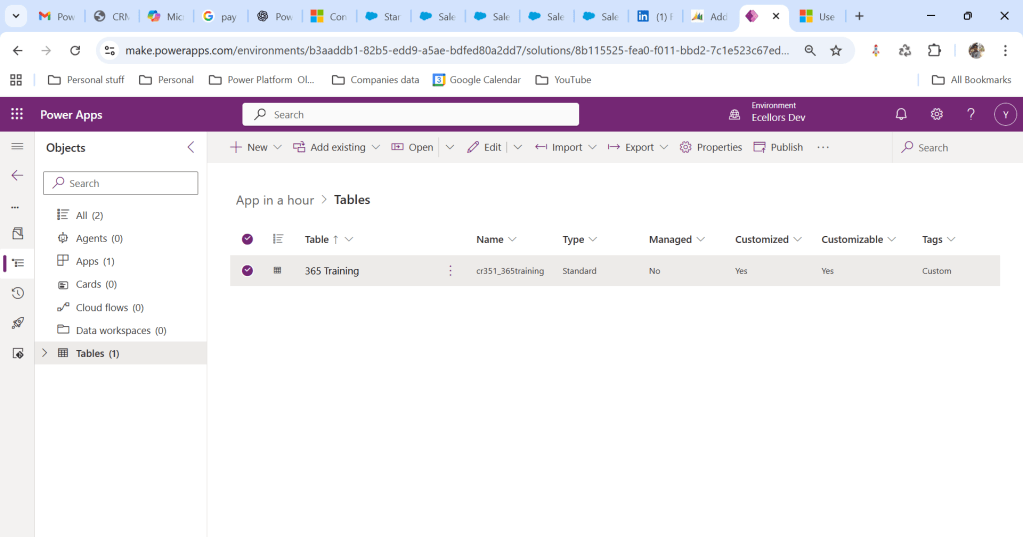
Let’s say you have added a table to the form like below

Now you want to add the metadata for this, click on the table name below

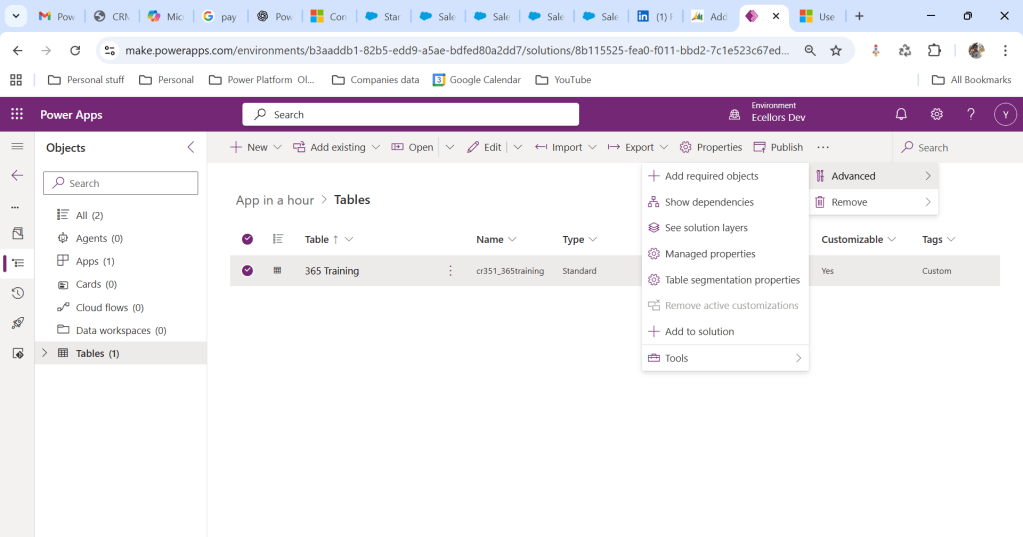
Click on Elipses…

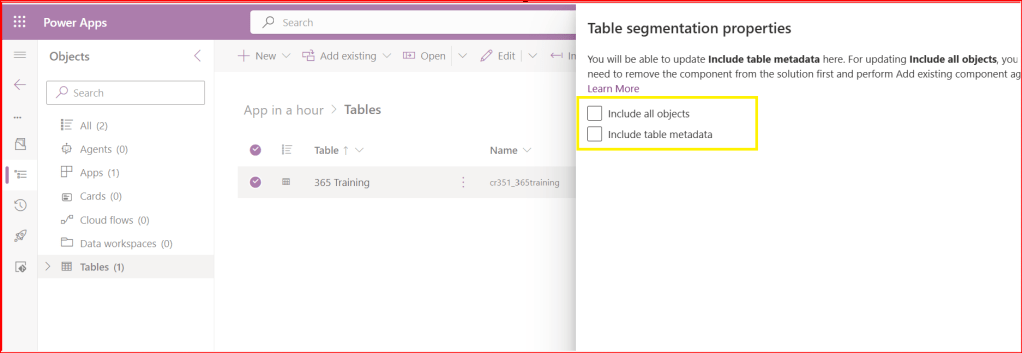
Choose table segmentation as shown above

So as highlighted above, you can include all the objects or include table metadata.
Hope this small tip helps…so even if you miss adding metadata, you can safely add it later at any point of time.
Cheers,
PMDY
A unique combination to achieve deployment automation of Power Platform Solutions
Hi Folks,
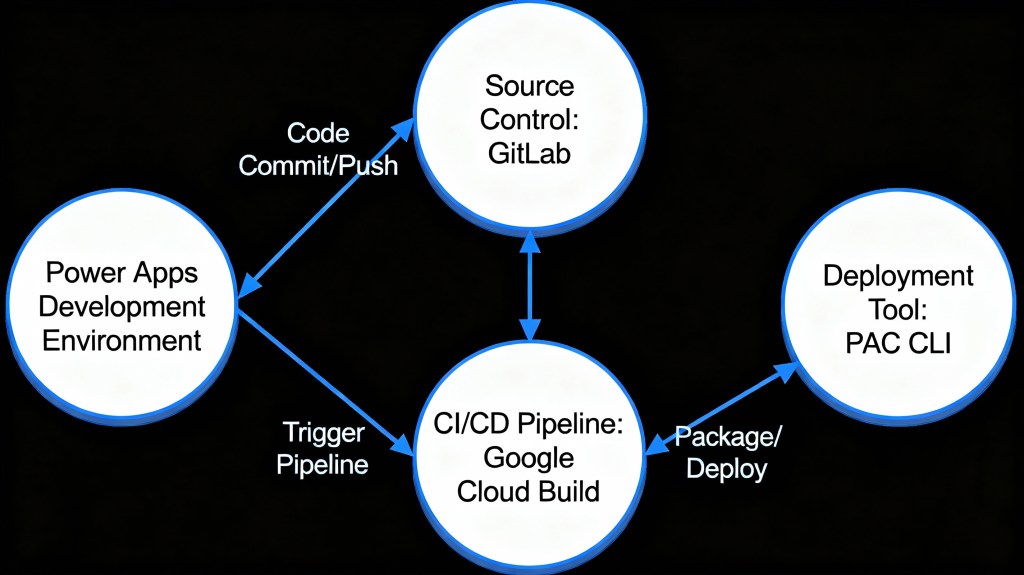
This post is about ALM in Power Platform integrating with a different ecosystem than usual, i.e. using Google Cloud, sounds interesting..? This approach is mainly intended for folks using Google Cloud or GitLab as part of their implementation.
Integrating Google Cloud Build with Power Platform for ALM (Application Lifecycle Management) using GitLab is feasible and beneficial. This integration combines GitLab as a unified DevOps platform with Google Cloud Build for executing CI/CD pipelines, enabling automated build, test, export, and deployment of Power Platform solutions efficiently. This was the core idea for my session on Friday 28 November, at New Zealand Business Applications Summit 2025.

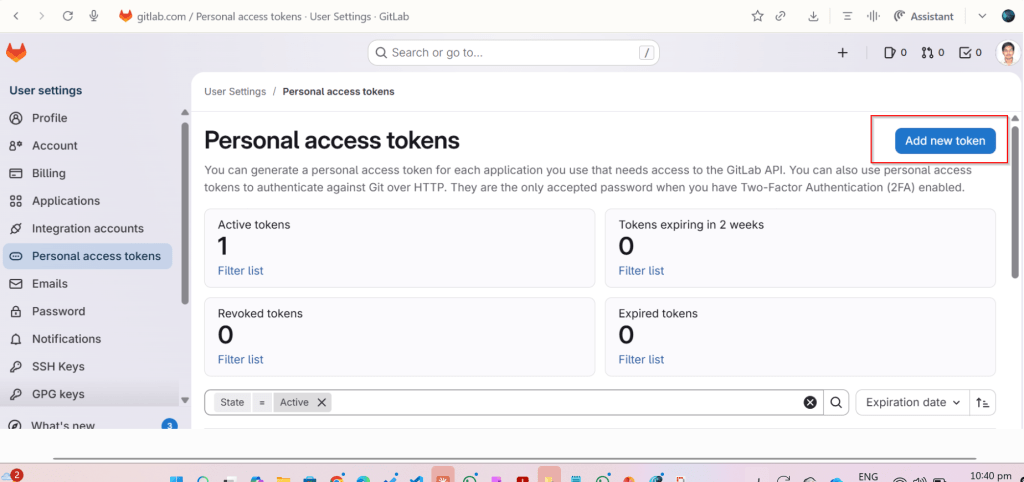
Create an access token in GitLab for API Access and Read Access


Click on Add new token, you can select at the minimum the below scopes while you were working with CI-CD using GitLab


Create a host connection for the repository in GitLab

Specify the personal access token created in the previous step
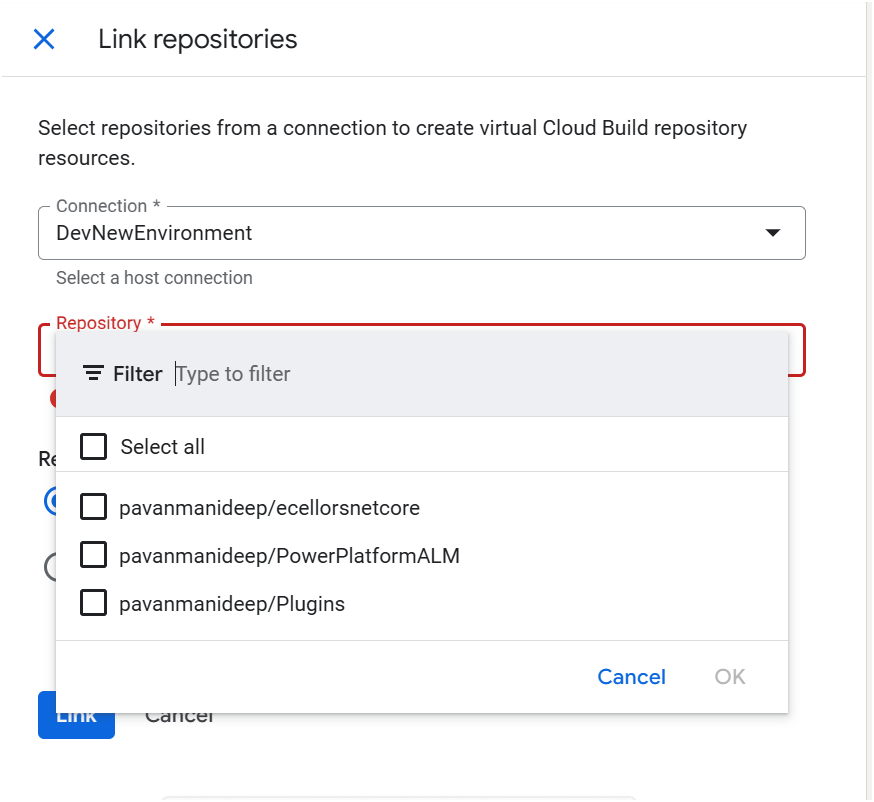
Link your repository

The created host connections in the previous step will be shown under Connec ctions drop down


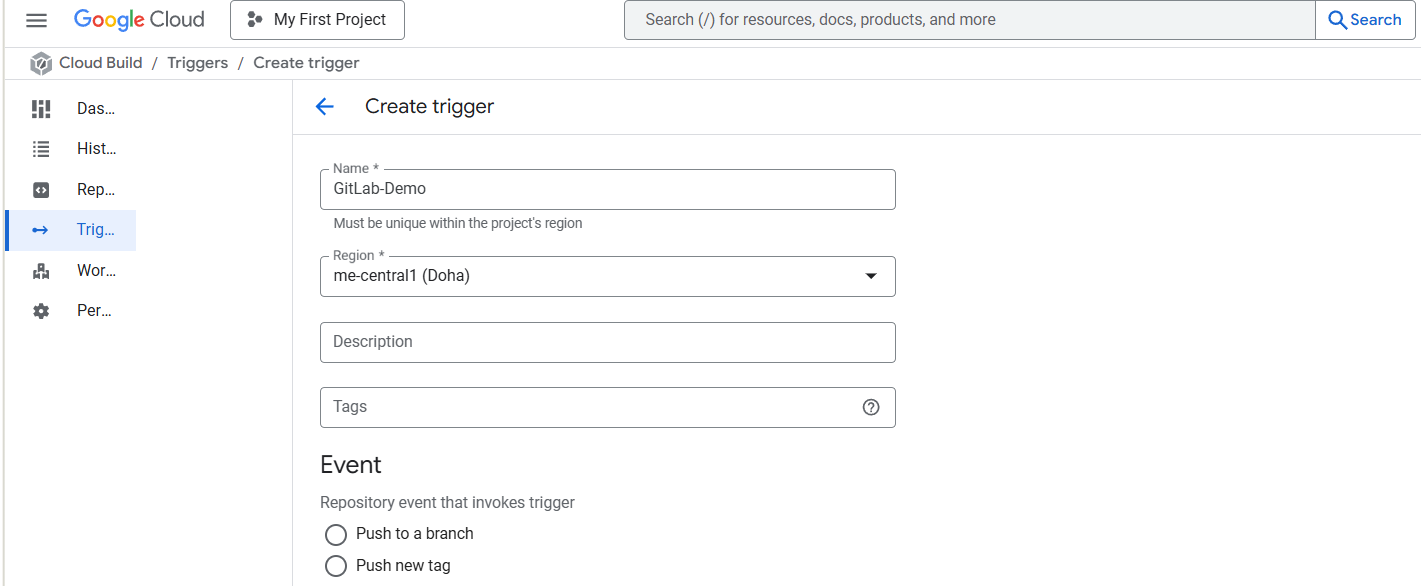
Create Trigger in Google Cloud Build

Click on Create trigger above, provide a name, select a nearest region

Event:
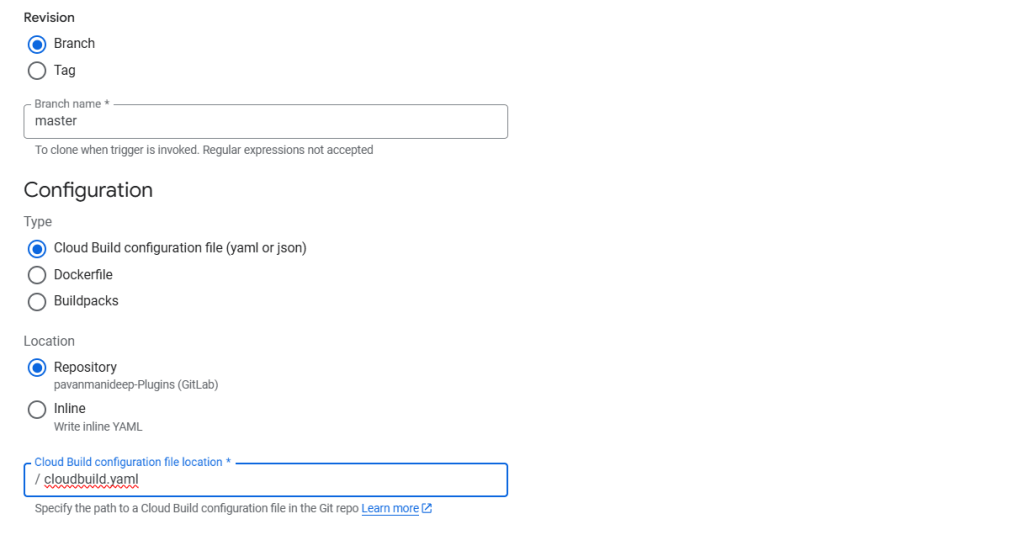
For now, I am choosing Manual invocation for illustration

Specify where the name of the Repository where your YAML in GitLab resides

You can optionally specify the substitution variables which are nothing but parameters you can pass to your pipeline from Google Cloud Build Configuration

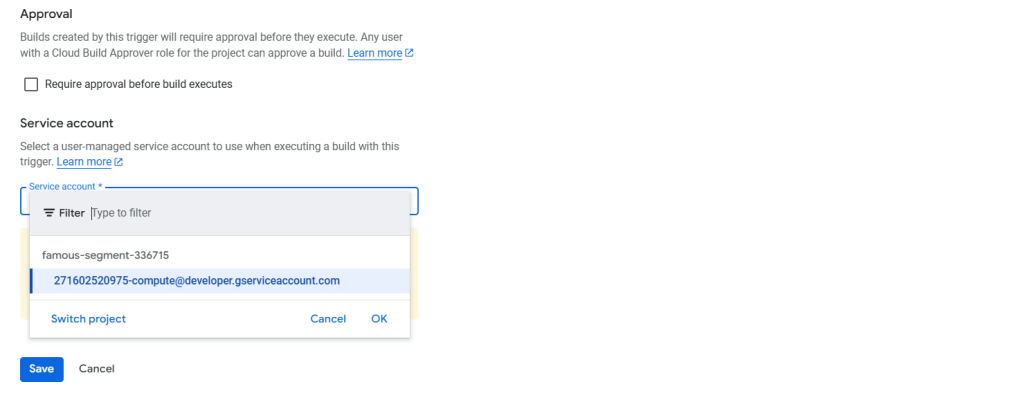
You can optionally give this for any approval and choose the service account tagged to your google account in the drop down.

Click on Save.
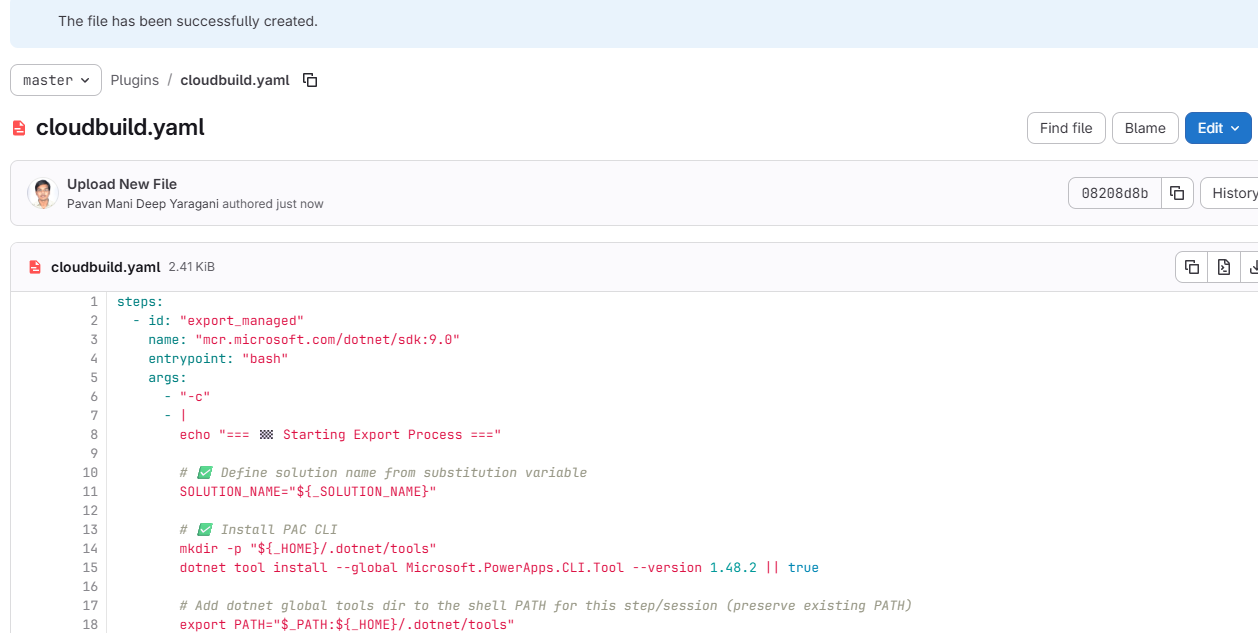
Next proceed to GitLab YAML

You can find the full code below
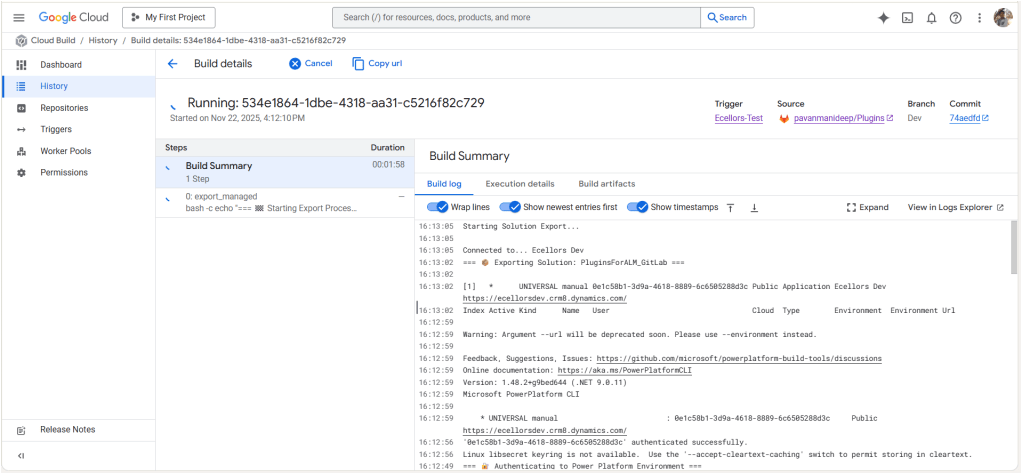
Solution from Source Environment

Now lets run the trigger which will export the solution from the source environment and import to the target environment….we have manual trigger, automatic trigger whenever there is an commit to the repo in GitLab etc., you may pick whatever suits your needs best.

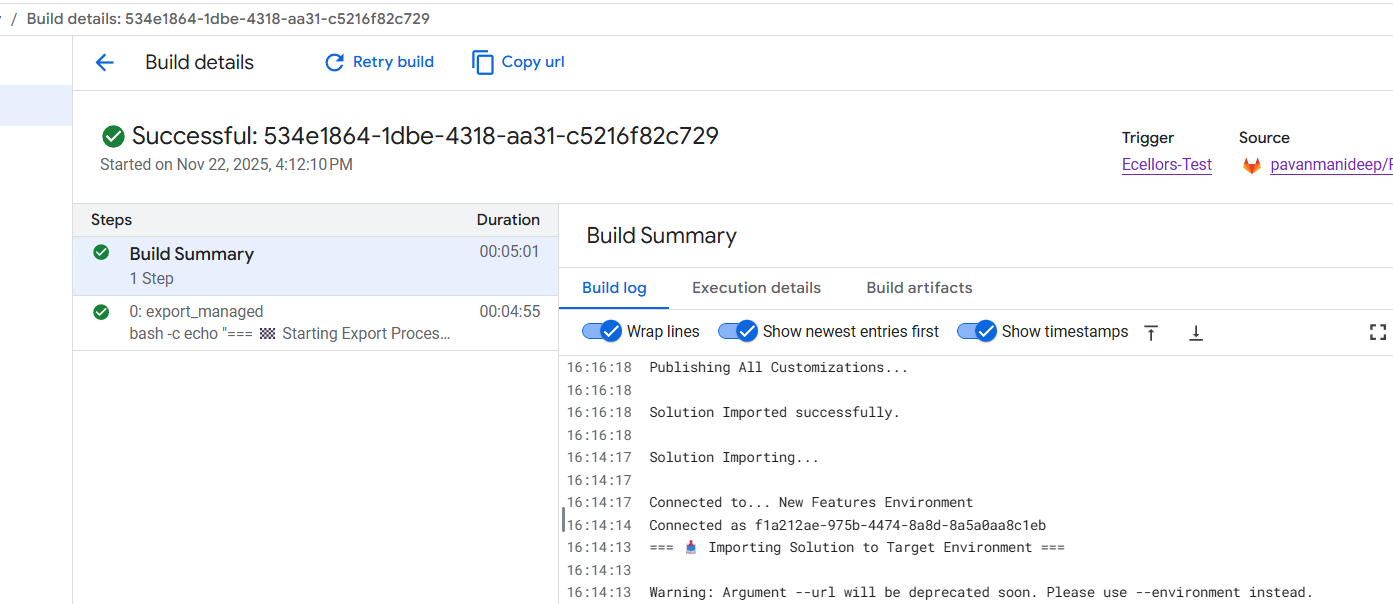
Solution imported to the target environment using Google Cloud Build

The below table illustrates key differences between Google Cloud Build and Azure Devops….
| Aspect | Google Cloud Build | Azure DevOps Build Pipelines |
|---|---|---|
| Pricing Model | Pay-as-you-go with per-second billing | Per-minute billing with tiered pricing |
| Cost Optimization | Sustained use discounts, preemptible VMs | Reserved capacity and enterprise agreements |
| Build Environment | Serverless, container-native, managed by Google Cloud | Requires self-hosted or paid hosted agents |
| Free Tier | Available with build minutes and credits | Available but more limited |
| Operational Overhead | Low, no need to manage build agents | Higher, managing agents or paying for hosted agents |
| Ideal For | Variable, short, or containerized workloads | Large Microsoft-centric organizations |
| Integration Cost Impact | Tightly integrated with Google Cloud serverless infrastructure | Integrated with Microsoft ecosystem but may incur additional licensing costs |
Conclusion:
PAC CLI is a powerful command-line tool that automates authentication, environment, and solution management within Power Platform ALM, enabling consistent and repeatable deployment workflows. It integrates smoothly with DevOps tools like GitLab and Google Cloud Build, helping teams scale ALM practices efficiently while maintaining control and visibility over Power Platform environments. Just note, my intention was showcase the power of PAC CLI with wider ecosystem, not only with Microsoft.
Cheers,
PMDY
The Solution blueprint review is covers all required topics. The workshop can also be conducted remotely. When the workshop is done remotely, it is typical to divide the review into several sessions over several days.
The following sections cover the top-level topics of the Solution blueprint review and provide a sampling of the types of questions that are covered in each section.
Program strategy covers the process and structures that will guide the implementation. It also reviews the approach that will be used to capture, validate, and manage requirements, and the plan and schedule for creation and adoption of the solution.
This topic focuses on answering questions such as:
Test strategy covers the various aspects of the implementation that deal with validating that the implemented solution works as defined and will meet the business need.
This topic focuses on answering questions such as:
Business process strategy considers the underlying business processes (the functionality) that will be implemented on the Microsoft Dynamics 365 platform as part of the solution and how these processes will be used to drive the overall solution design.
This topic focuses on answering questions such as:
Based on the processes that are in scope, the solution architect who is conducting the review might ask a series of feature-related questions to gauge complexity or understand potential risks or opportunities to optimize the solution based on the future product roadmap.
Application strategy considers the various apps, services, and platforms that will make up the overall solution.
This topic focuses on answering questions such as:
Data strategy considers the design of the data within the solution and the design for how legacy data will be migrated to the solution.
This topic focuses on answering questions such as:
Integration strategy considers the design of communication and connectivity between the various components of the solution. This strategy includes the application interfaces, middleware, and the processes that are required to manage the operation of the integrations.
This topic focuses on answering questions such as:
Business intelligence strategy considers the design of the business intelligence features of the solution. This strategy includes traditional reporting and analytics. It includes the use of reporting and analytics features within the Dynamics 365 components and external components that will connect to Dynamics 365 data.
This topic focuses on answering questions such as:
Security strategy considers the design of security within the Dynamics 365 components of the solution and the other Microsoft Azure and external solution components.
This topic focuses on answering questions such as:
Application lifecycle management (ALM) strategy considers those aspects of the solution that are related to how the solution is developed and how it will be maintained given that the Dynamics 365 apps are managed through continuous update.
This topic focuses on answering questions such as:
Deployment architecture considers those aspects of the solution that are related to cloud infrastructure, environments, and the processes that are involved in operating the cloud solution.
This topic focuses on answering questions such as:
Solution blueprint is very essential for an effective Solution Architecture, using the above guiding principles will help in this process.
Thank you for reading…
Hope this helps…
Cheers,
PMDY
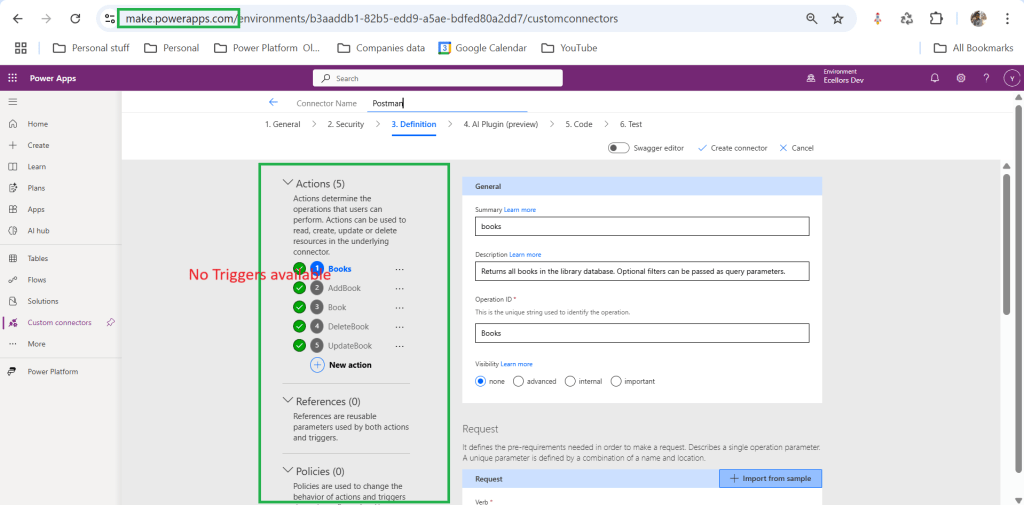
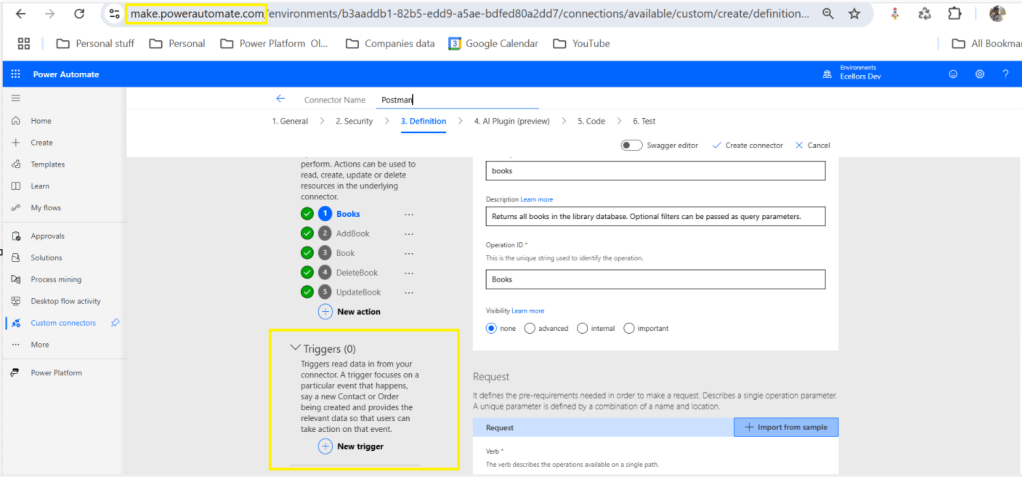
Power Platform folks rarely build new custom connectors in a project, while most of them work on existing ones, it is often observed that the triggers are missing from the custom connector, below are the steps you can review if so…

If you’re building the connector in Power Apps, you won’t see trigger options. ✅ Fix: Use the Power Automate portal to define and test triggers. Only Power Automate supports trigger definitions for custom connectors.
If your OpenAPI (Swagger) definition doesn’t include a valid x-ms-trigger, the trigger won’t appear.
✅ Fix:
webhook or polling trigger."x-ms-trigger": { "type": "Webhook", "workflow": true }Sometimes, even after updating the connector, the UI doesn’t refresh.
✅ Fix:
If you’re in a restricted environment or missing permissions, triggers might not be available.
✅ Fix:
If the host or path fields in your Swagger are misconfigured, the connector might fail silently.
✅ Fix:
host and path are correctly defined./ as a path — use something like /trigger/start instead.Make sure you were in the right environment of the Power Platform, sometimes when juggling things around, we often mistakenly try using connectors from a wrong environment. Do take a note.
Finally you will be able to see Triggers while creating custom connectors…

Hope reviewing these will help…
Cheers,
PMDY
Hi Folks,
This is in continuation to the previous blog post…if you haven’t gone through the earlier post on connecting to Dataverse using Python, please have a look here
Now, we will see how you can retrieve the records in Dataverse using Web API using Python…
You can use the VS Code as IDE, copy the above code in a python file, next click on Run Python File at the top of the VS Code
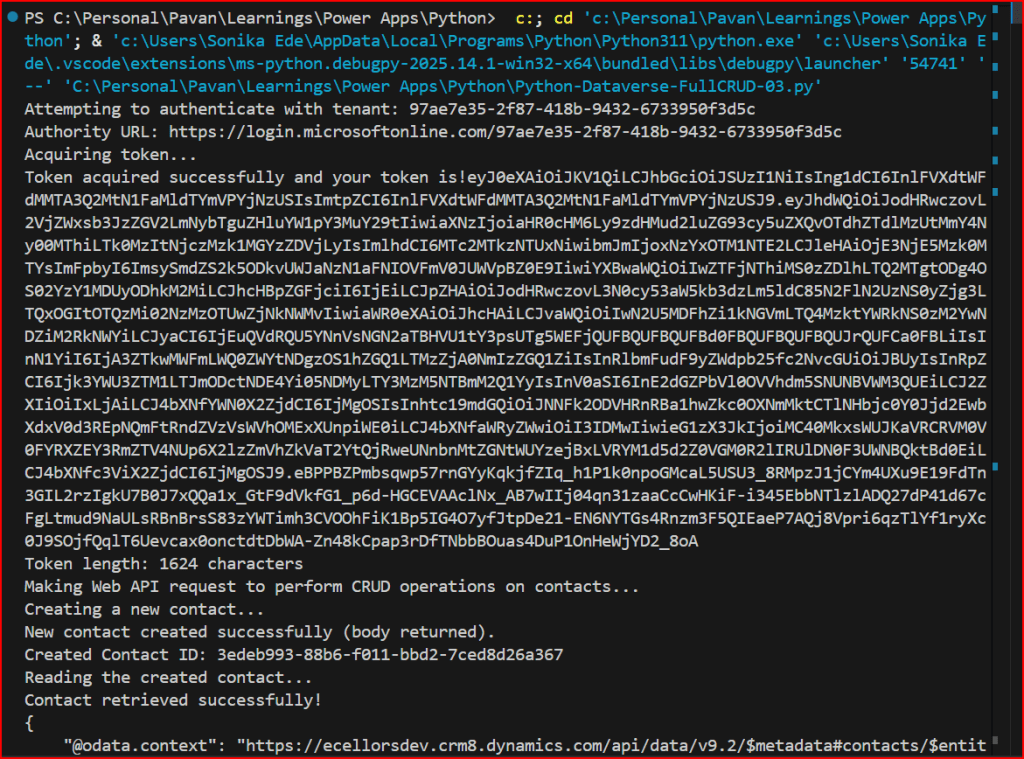
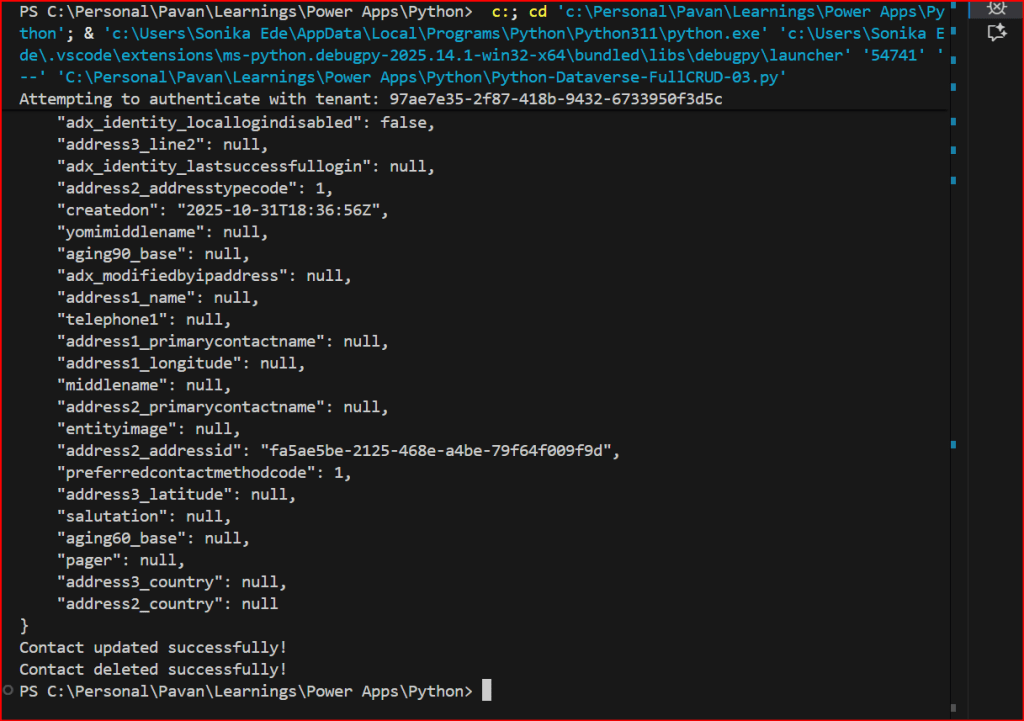
So, once you get the Access token, you can invoke the Web API using Python similar to how we did it using Javascript…

Please download the Python Jupyter Notebook if you want to work on this in VS Code
If you want to follow along in this series, please see below post
Hope this helps…
Cheers,
PMDY
Hi Folks,
This series is for Pro Code Developers especially those working on Dataverse and want to know how to work with Dataverse and Python. I am starting this series as I see little to no content in this area.
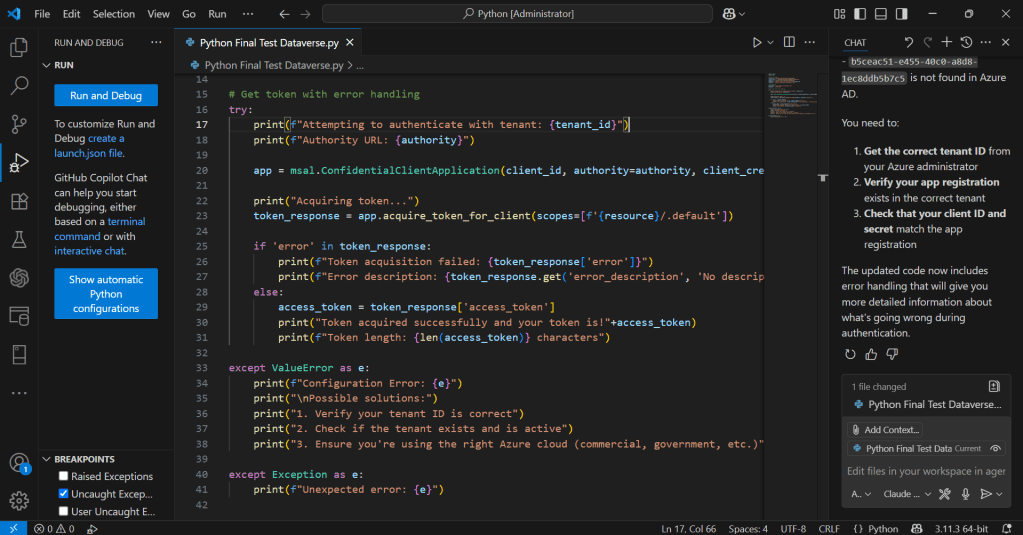
So, in this post, first we will try to understand how to write a console application using Python Code utilizing(Tabular Data Stream) the TDS end point. Well, there were many posts in the internet for connecting to Dataverse using Python but uses more libraries and requires bit more code
Below posts will have hardcoded configurations as they are meant for initial trial purposes, going further, we will align with the best practices.
The logic just uses two libraries in Python
The code efficiently handles all the errors for efficient tracking….
You can easily work with Python using VS Code as below,

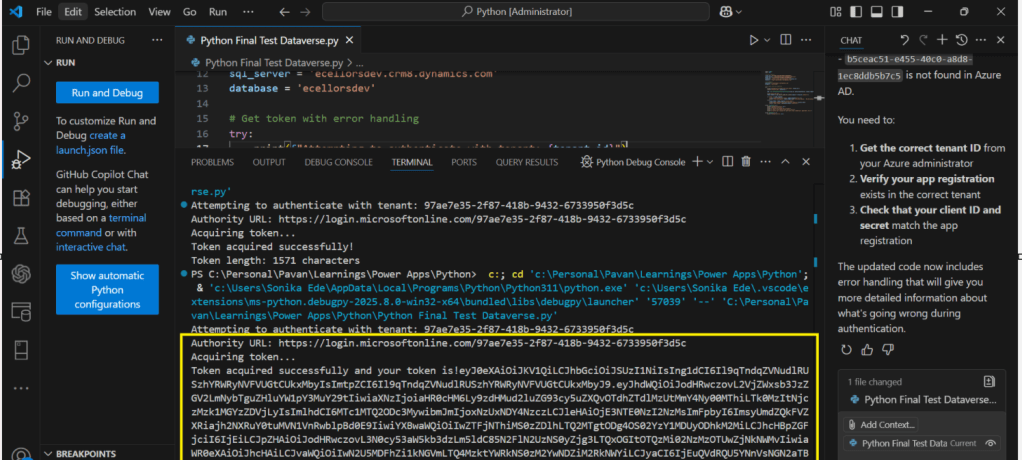
Hover over Run option –> Click Start Debugging

You will able to get the Access Token after invoking the Dataverse.
Download the Python Jupyter Notebook if you want to work on this in VS Code.
Hope this posts helps…
If you want to continue reading this series, please follow along
Cheers,
PMDY
Hi Folks,
In this blog post, I am going to talk about establishing tenant hygiene using COE Stater kit, in today’s world where there increasing Power Platform demand. Organizations have become mature, that every implementation is now looking for having some kind of governance being established.
If you were some one who want to get some knowledge of implementing governance, you were at right place.
In order to efficiently implement governance, we need to understand the environment strategy, your current implementation has used. Of course if you were looking for some guidance, there were examples of tooling available in the CoE Starter Kit and out-of-the-box capabilities to help CoE teams effectively manage and optimize their Power Platform solutions.
Few key steps to be considered for maintaing this in your environment, so let’s get started…

2. Compliance and Adoption:
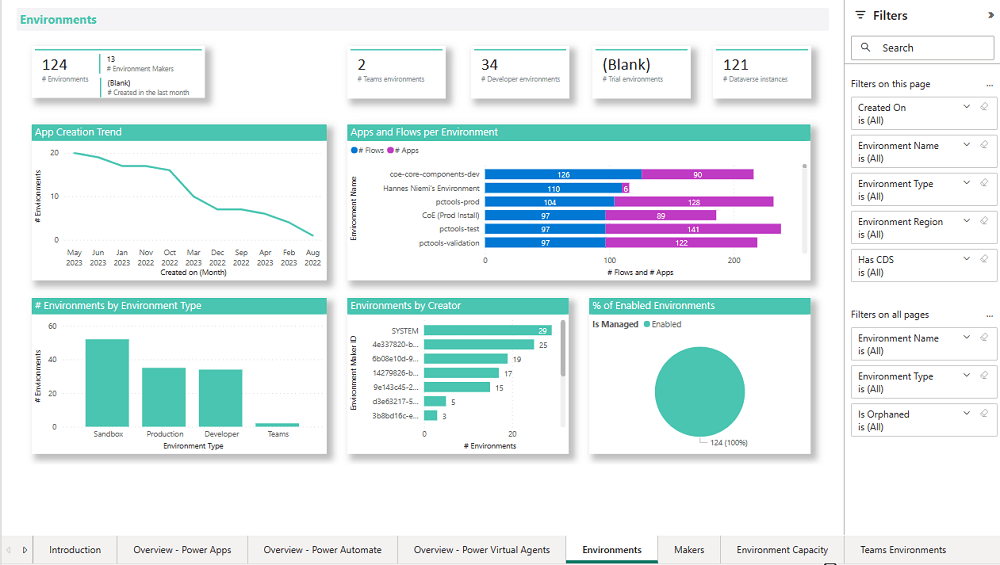
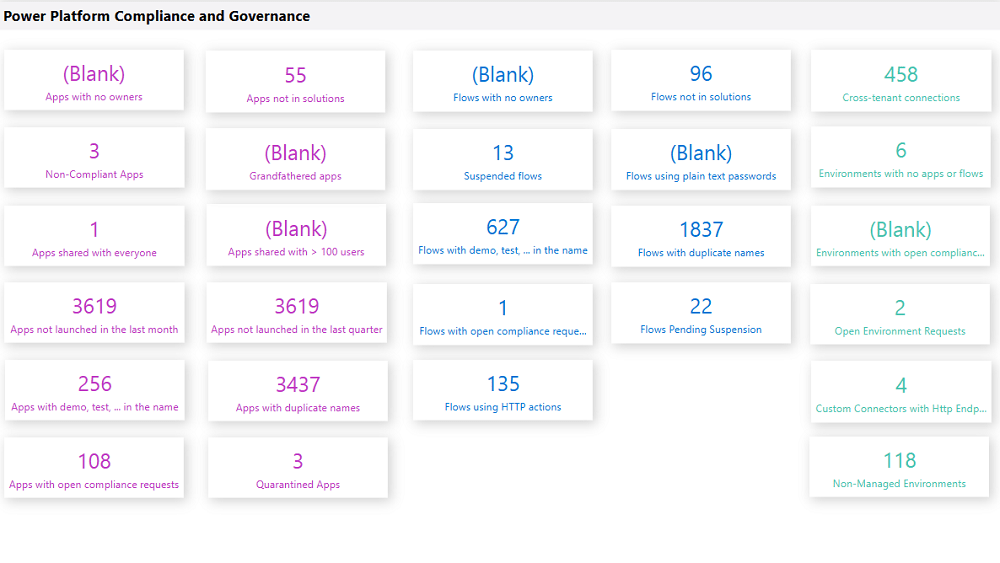
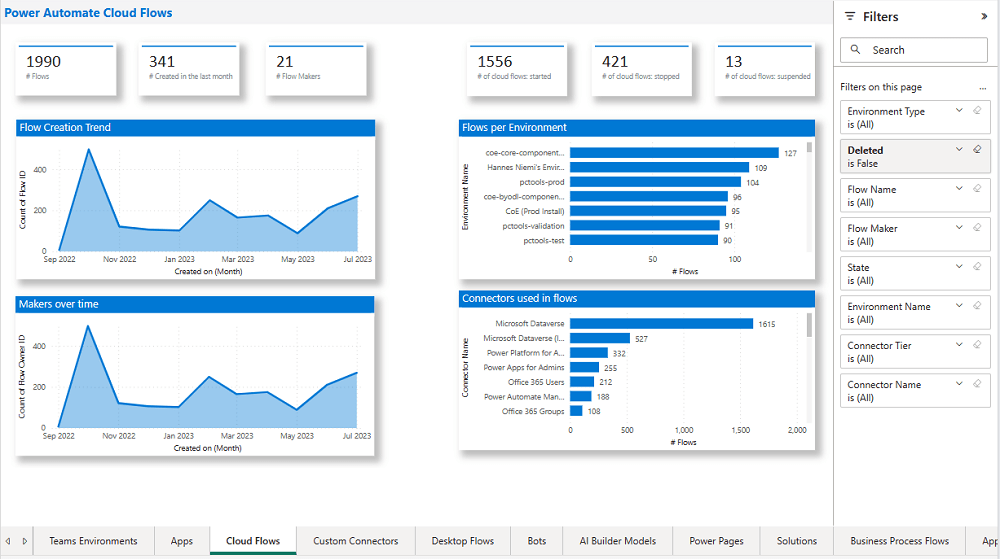
The Compliance page in the CoE Starter Kit’s Compliance and adoption dashboard can help you identify apps and flows with no owners, noncompliant apps, and suspended flows.

3. Managing Dataverse for Teams environments
If you were not using Dataverse for Teams, you can safely skip this step, else please review
The Microsoft Teams environments page in the CoE Starter Kits dashboard provides you with an overview of your existing Teams environments, apps and flows in those environments, and the last launched date of apps.

By checking for new Dataverse for Teams environments daily, organizations can ensure they’re aware of all environments in use.
| State of Dataverse for Teams | Power Platform action |
|---|---|
| 83 days after no user activity | Send a warning that the environment will be disabled. Update the environment state on the Environments list page and the Environment page. |
| 87 days after no user activity | Send a warning that the environment will be disabled. Update the inactive environment state on the Environments list page and the Environment page. |
| 90 days after no user activity | Disable the environment. Send a notice that the environment has been disabled. Update the disabled environment state on the Environments list page and the Environment page. |
| 113 days after no user activity | Send a warning that the environment will be deleted. Update the disabled environment state on the Environments list page and the Environment page. |
| 117 days after no user activity | Send a warning that the environment will be deleted. Update the disabled environment state on the Environments list page and the Environment page. |
| 120 days after no user activity | Delete the environment. Send a notice that the environment has been deleted. |
Please note a warning is displayed only if the Dataverse for Teams environment is <= 7 days until disablement.
4. Highly used apps
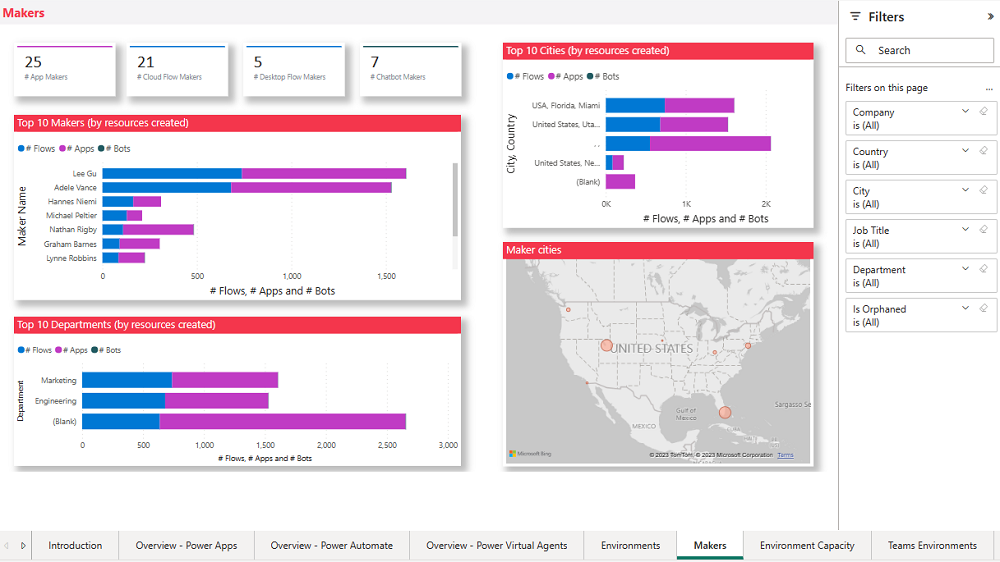
The Power BI Dashboard available out of the box with COE Starter Kit will provide you the necessary guidance over high performing apps and also your most active users.

5. Communicating governance to your makers
This is one of the important step while setting up COE and governance guidelines, follow the below approaches
6. Administration of the platform
Power Platform Administrator Planning Tool which comes with COE Strater Kit provides guidance and best practices for administration. Also the planning tool can optimize environments, security, data loss prevention, monitoring and reporting.

6. Securing the environments
It is critical to establish a Data Loss Prevention (DLP) strategy to control connector availability.

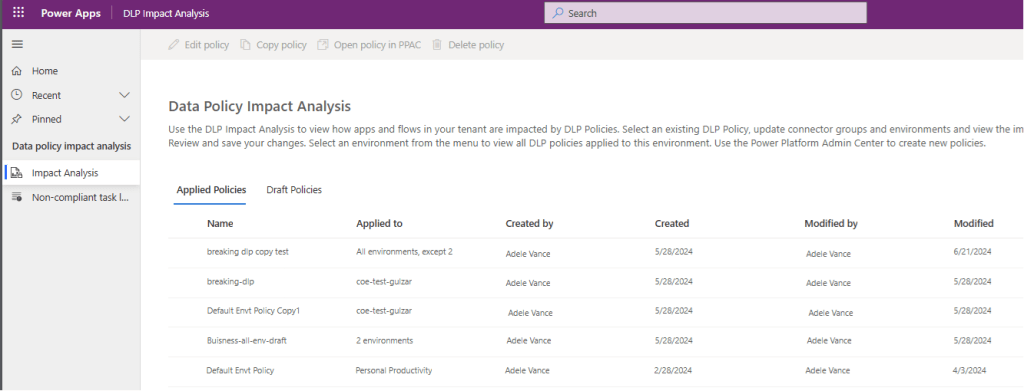
The DLP editor (impact analysis) tool is available for use before making changes to existing policies or creating new DLP policies. It reveals the impact of changes on existing apps and cloud flows and helps you make informed decisions.
Reference: COE Starter Kit Documentation
If you face issues using the COE Starter Kit, you can always report them at https://aka.ms/coe-starter-kit-issues
Hope this helps…. someone maintaining tenant governance with COE starter kit…. if you have any feedback or questions, do let me know in comments….
Cheers,
PMDY
Hi Folks,
This post is about a quick fix for an error occurred with Power Apps CLI.
I was trying to connect to my organization using CLI and that’s when I encountered this error.
Prerequisites:
Power Apps CLI, Visual Studio Code
After installing the prerequisites, I was trying to connect to my Power Pages available in my organization from VS Code terminal using below command.
pac paportalist
It’s then I encountered the below error

It’s then I understood that due to inactivity, it is failing…
Your Power Platform CLI connection is failing due to an expired refresh token and an ExternalTokenManagement Authentication configuration issue. Here’s how you can resolve it:
Reauthenticate with Dataverse
pac auth clear
pac auth create --url https://orgXXX.crm8.dynamics.com --username admin@Ecellors.onmicrosoft.com --password [your password]
Creating new authentication profile resolves this issue…
Now try to run the above command.

This should prompt a new login window to authenticate your request, provide the details and you should be able to login.
Hope this helps..
Cheers,
PMDY