Send Telemetry data to your Azure IOT Hub…using Device Client SDK’s…

In the earlier blog post, we have seen how to connect to your Azure IOT Hub using Raspberry PI Online Simulator and send telemetry data…

In this post, we will be using Azure IOT Device Client SDK’s for sending the Telemetry data to IOT Hub…

This approach uses .NET Core SDK libraries using a Console application….

Creating a C# Console Application

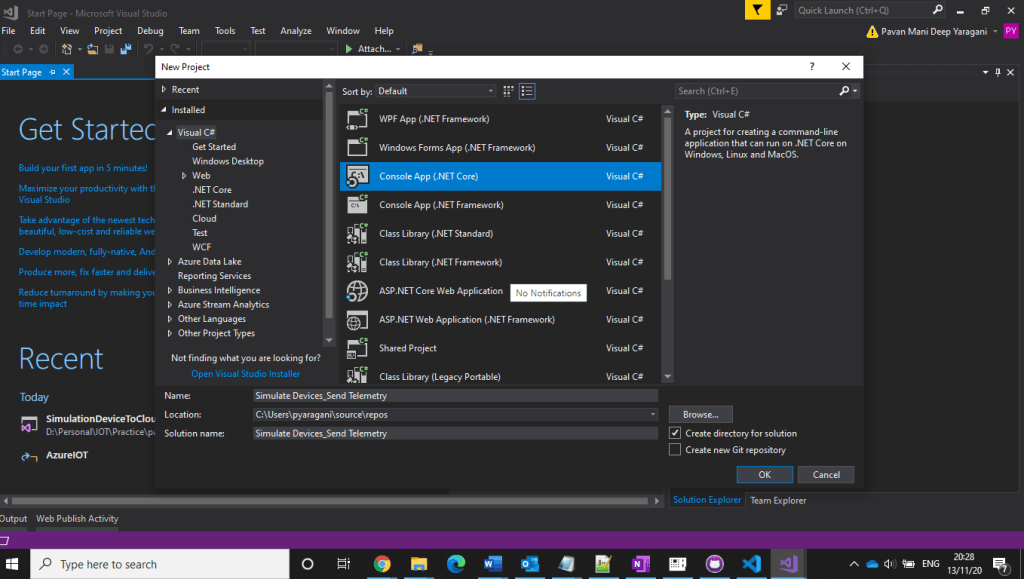
  1. Open Visual Studio, go to File -> New -> and select Project.
  2. In Templates, select Visual C#, select Console App (.NET Framework) and give an appropriate name in the ‘Name’ textbox and then click the OK button.
3. Installing Microsoft Azure IOT Device Client SDK…Go to Project -> Manage NuGet Packages.

4. Click Browse tab and search for Microsoft.Azure.Devices.Client. You will see the Microsoft.Azure.Devices.Client device SDK will have listed in the search result and click Install button

5. Now, click the I Accept button to accept the license agreement.

6. It will take a few minutes to install the SDK in our project

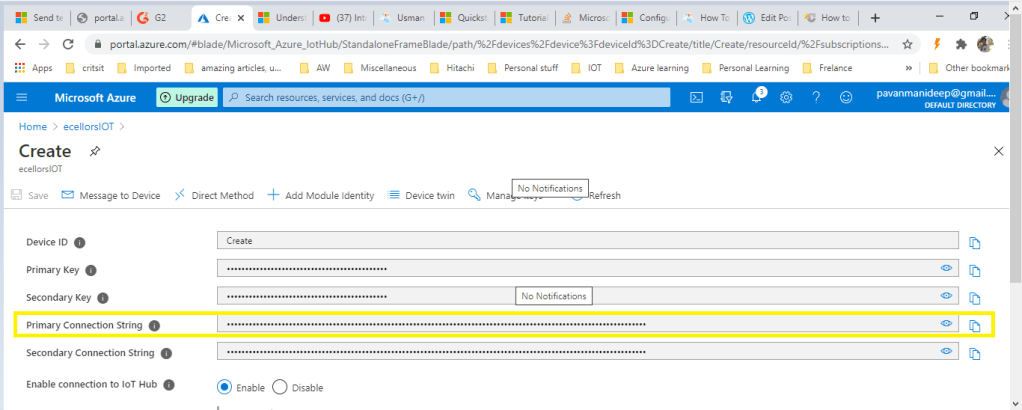
7. Get IoT device connect string from Azure IoT Hub…navigate to Azure Portal –> IOT Hub –> IOT Devices –> Select respective device to be connected.
  1. Using Microsoft.Azure.Devices.Client library we can create device client. The device client has CreateFromConnectionString method which requires device connection string as parameter. Create a read only static string s_connectionString01 and assign the connection string that we copy from Azure Portal.
  2. Here you can create a random temperature and humidity values using Random() method.
  3. Copy the code in the Program.cs from the GitHub repository

That’s it. Now, run the web application, go to Debug menu, and click on “Start without Debugging” or press F5. This will display the below result 

How To Send Telemetry From An IoT Device To The Azure IoT Hub Using C#

Hope you had learned a new approach to send telemetry data to Azure IOT Hub…stay tuned…for more on Azure IOT….

Hope this helps….

Cheers,

PMDY
Connecting Raspberry Pi using Azure IOT Online Simulator

Hi,

This is my first post in the Azure IOT series….and really excited to share this content.

Have you ever tried a lot to get some hands-on experience connecting devices to Azure IOT Hub. Don’t worry…Microsoft IOT Team had made it so easy so that we can connect to a real device like Raspberry Pi without actually having any physical hardware with you.

This is all possible with Open Sourced Raspberry Pi Online Simulator…with the below link..

https://azure-samples.github.io/raspberry-pi-web-simulator/#GetStarted

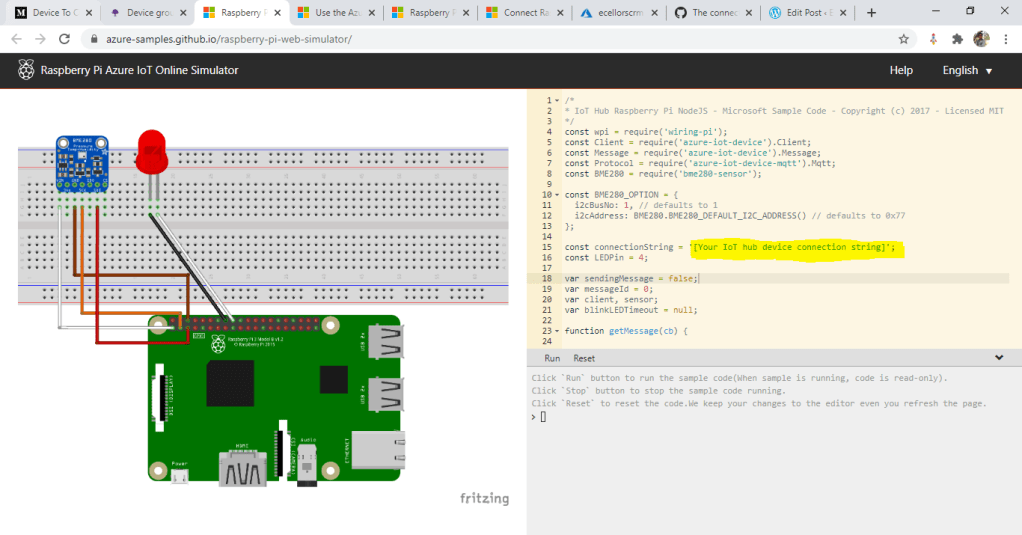
Once you open this…you should see the below screen….all you need to enter your IOT Device connection string…

If you check in the above image, you could see that connectionString is highlighted which you need to get from Azure Portal. So lets see how you can get this from Azure portal…

Step 1: Create a free Azure account or if you already have one proceed to next step

Step 2: Create Azure IOT Hub from Azure portal

From the Azure homepage, select the + Create a resource button, and then enter IoT Hub in the Search the Marketplace field

In the results, click Create.

Step 3: Once the deployment is succeeded and your Azure IOT Hub got created, you need to create a device to which you will be connected by navigating as below. Select IOT Devices under Explorers available in the Side pane as highlighted below

Step 4:

Click on New Device as highlighted below

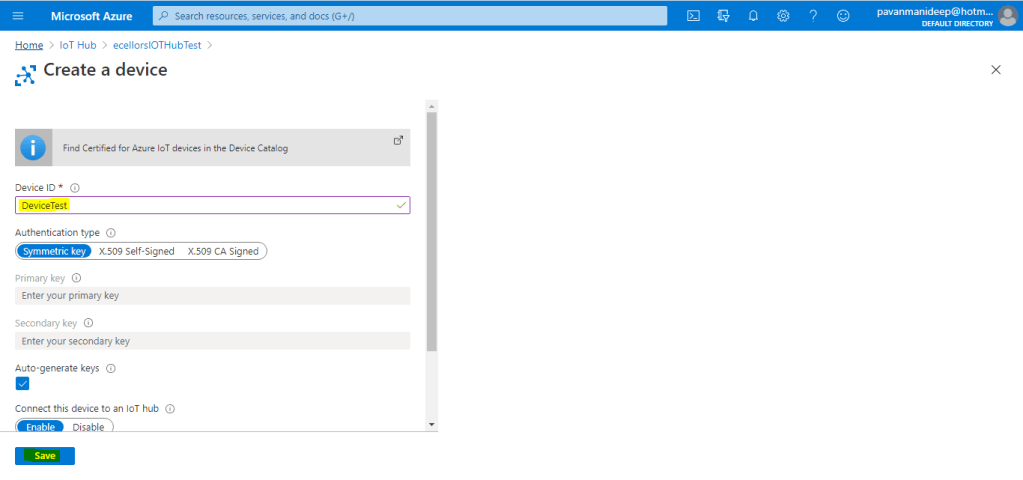
Step 5: Enter Device ID and click on save as higlighted below

Step 6: Now Open your device by click on IOT Devices…and grab the primary connection string..make sure Enable connection to IOT Hub is enabled as below.

Step 7: Now go back to Raspberry PI Simulator and enter this connection string at the place shown in the first image.

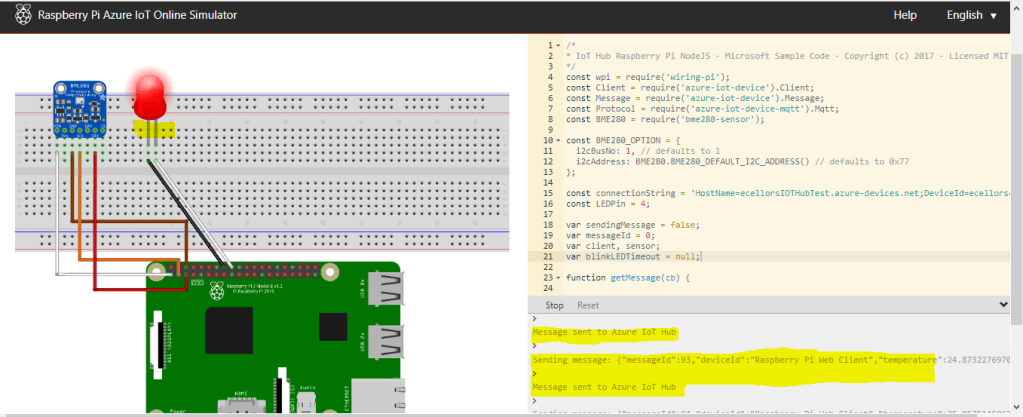
Step 8: And finally boom…you will see that the message sent to Azure…and the bulb was switched on.

In the next post, will briefly describe on the Node.js code used and also on the Device SDK’s for Azure IOT so that we can gain more insight.

If you have any further questions on this….please post it here or you can reach out to Community Support on this tool at the below link…

https://gitter.im/Microsoft/raspberry-pi-web-simulator

Hope this helps….

Thank you.

Cheers,

PMDY