

Hi Folks,
This blog post is all about the latest features released in Power BI Desktop for DAX(Data Analysis Expressions) using DAX Query View.
Do you have the requirement any time to document your DAX functions used in your Power BI Report, then use the DAX query view which introduced new DAX functions to get metadata about your semantic model with the INFO DAX functions.
Firstly, if you were not aware, DAX Query view is the recent addition where we can query the model similar to how the analysts and developers used Power BI Desktop or other 3rd party tools to get the same information earlier. You can access DAX Query view as below in green.

When you navigate to the DAX Query view, key points to note are as below
- DAX Queries will be directly saved to your Model when saved from DAX Query View
- DAX Query View will not be visible when the Power BI Report is published to the Power BI Service
- The results of the DAX will be visible at the bottom of the page as shown below
- IntelliSense is provided by default

- There were 4 DAX INFO.VIEW Functions introduced as below

- List all your Measures using INFO.VIEW.MEASURES()

This lists down all the measures in your Semantic Model, it also provides the Expression used for the Measure along with which table it was created.
I have selected the whole results of the measures and Copy the results you see see in the table below

Just go to Model View and click Enter Data

You will be shown a screen like this
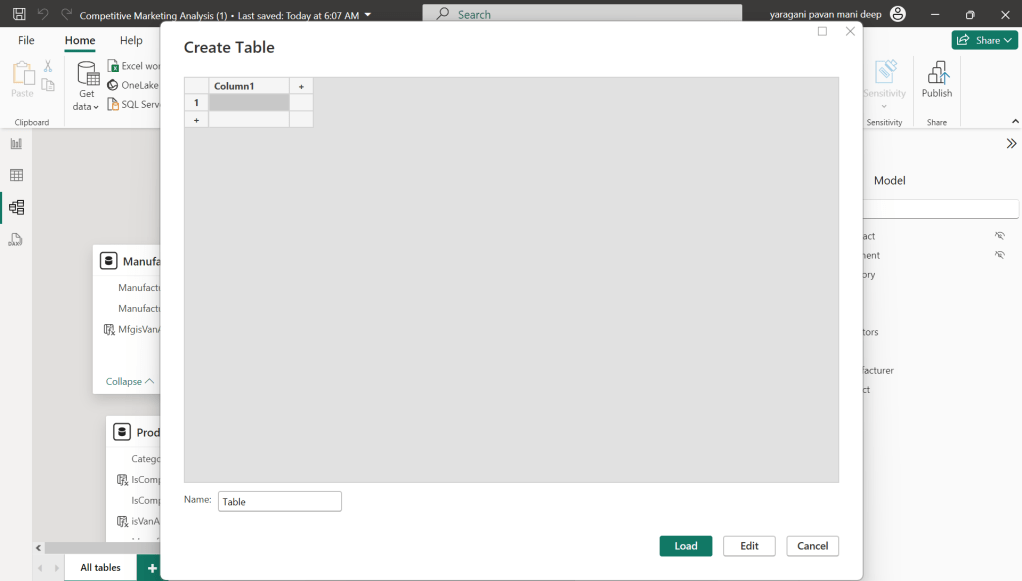
Just do a Cntrl + V as you have previously copied the table information

That’s it, how easy it was to document all the Measures, similarly you can document all the Meta Data available for the Power BI Report.
That’s it for today, hope you learned a new feature in Power BI Desktop…
Cheers,
PMDY
 ECELLORS CRM Blog