
Canvas App Series – #02
This is the second blog post series on Canvas Apps where you can learn and grow from Zero – Hero in Canvas Power Apps. In this blog post, we will talk about different ways you can get started with creating canvas apps.
Introduction
Power Apps Canvas Apps allow users to build powerful applications with a drag-and-drop interface, requiring little to no coding. Whether you’re a beginner or an experienced user, setting up your first Canvas App is a straightforward process. This guide walks you through each step.
Prerequisites
Before getting started, ensure you have:
- A Microsoft Power Apps account (Sign up here).
- Access to Power Apps Studio.
- Basic knowledge of what you want to build (e.g., a simple data entry form).
Step 1: Accessing Power Apps Studio
There were different ways you can create a Canvas Apps
- You can create a canvas app by giving your requirement in Copilot which will in turn build your Canvas Apps.
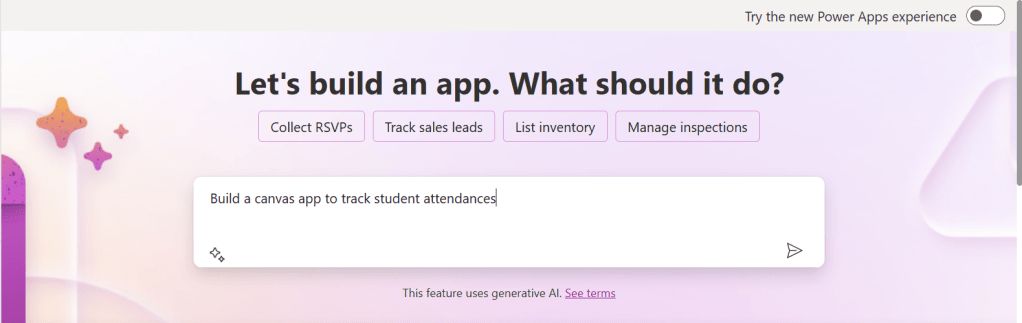
2. You can design them using any of the existing templates available

3. You can also design your App using Plan designer which is the latest feature released and still in preview, for this you need to enable

For this you need to have an plan available
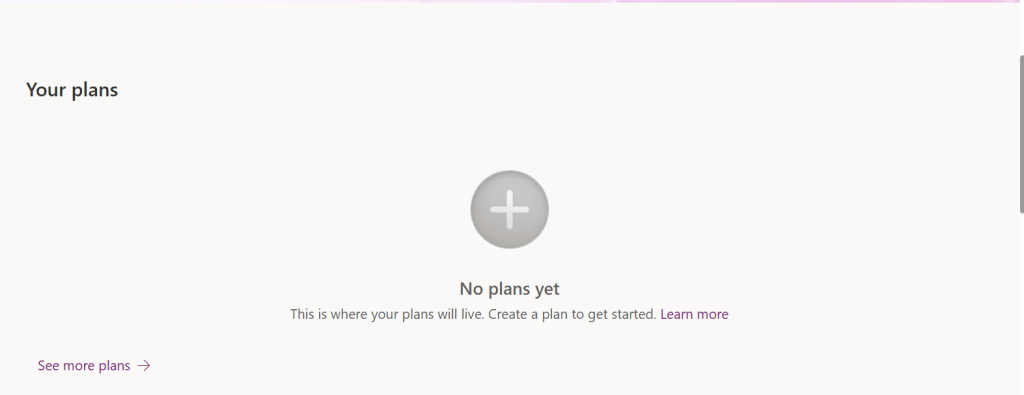
You can click on See more plans option available, create new plans if necessary

You have to state your business problem, this is pretty much same as using the Copilot in the old experience but here you just tell what problem you have been solving by creating the App, that’s it.
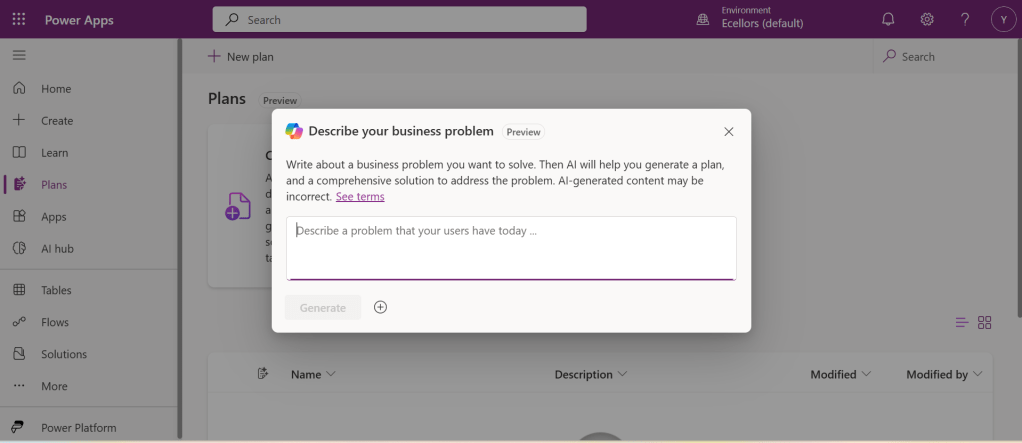
I entered Tracking Student Attendances as my problem and within a matter of 1 min, it designed whole data model where you can accept or propose for a new change.

Once you accept, next it will go ahead and start preparing the data necessary.


After you accept this, it will start designing for the user experiences

Once everything is done, you

It will ask you to save in a solution, this way you will be able to save all your changes to a solution which can be safely moved across environments.

And that’s it, your fully functional app is ready in few mins.
Step 2: Designing Your App
Once inside the Power Apps Studio:
- Drag and drop controls from the left-side panel to the canvas.
- Add labels, text inputs, buttons, and galleries as needed.
- Resize and align elements for a clean layout.
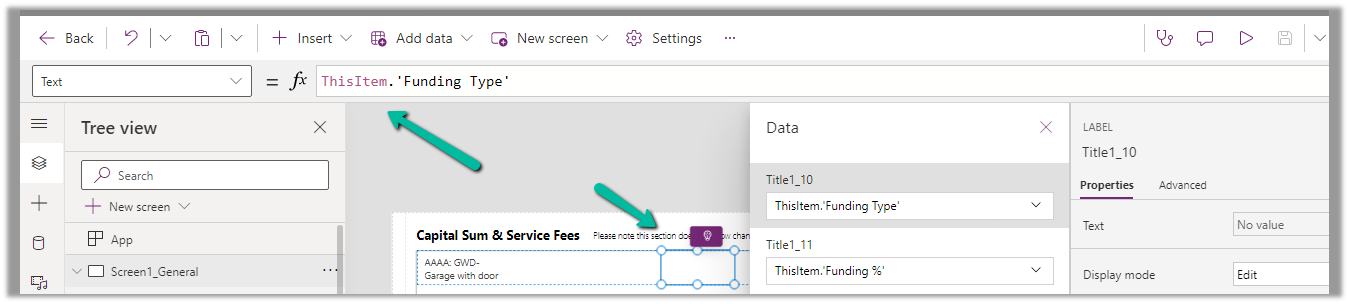
Below is the sample Power App screen in Studio containing the components.

Step 3: Connecting to a Data Source
- Click on Data in the left panel.
- Select Add data and choose a source like SharePoint, Dataverse, or Excel.
- Connect your app to the data source.

Step 4: Adding Functionality with Formulas
Power Apps uses Excel-like formulas to add functionality. Example:
- To navigate to another screen:
Navigate(Screen2, ScreenTransition.Fade) - To filter data:
Filter(Orders, Status="Pending")

Step 5: Previewing and Testing Your App
- Click on the Play button in the top-right corner.
- Test the app’s functionality.
- Fix any layout or data issues as needed.
Image Suggestion: Screenshot showing the app running in preview mode.
Step 6: Saving and Publishing
- Click File > Save As.
- Choose Cloud as the storage option.
- Click Publish to make your app available.
Image Suggestion: Screenshot of the Save & Publish screen.
Conclusion
Congratulations! You’ve built your first Canvas App. You can continue refining it by adding more features, integrating AI, or automating workflows.
Are you ready to explore more? Share your first Canvas App experience in the comments!
Do you want step by step guided walk through, then check this App in a Day Workshop from Microsoft where you can start from scratch and build a fully functional Canvas App.
Cheers,
PMDY















 ECELLORS CRM Blog