
Hi Folks,
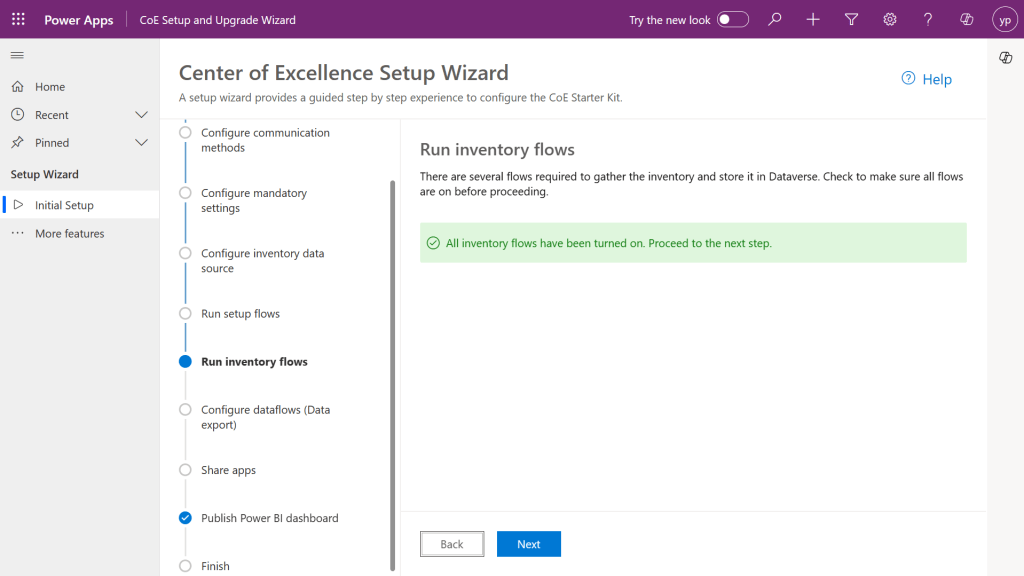
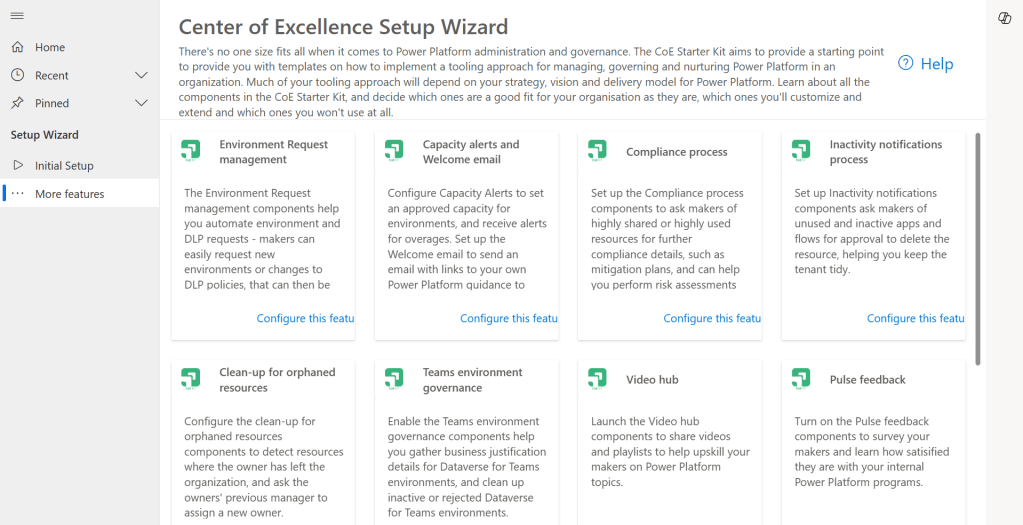
In this blog post, I am going to talk about establishing tenant hygiene using COE Stater kit, in today’s world where there increasing Power Platform demand. Organizations have become mature, that every implementation is now looking for having some kind of governance being established.
If you were some one who want to get some knowledge of implementing governance, you were at right place.
In order to efficiently implement governance, we need to understand the environment strategy, your current implementation has used. Of course if you were looking for some guidance, there were examples of tooling available in the CoE Starter Kit and out-of-the-box capabilities to help CoE teams effectively manage and optimize their Power Platform solutions.
Few key steps to be considered for maintaing this in your environment, so let’s get started…
- Define Environment Strategy
- Assign your admins the Power Platform service admin or Dynamics 365 service admin role.
- Restrict the creation of net-new trial and production environments to admins
- Rename the default environment to ‘Personal Productivity’
- Provision a new Production environment for non-personal apps/flows
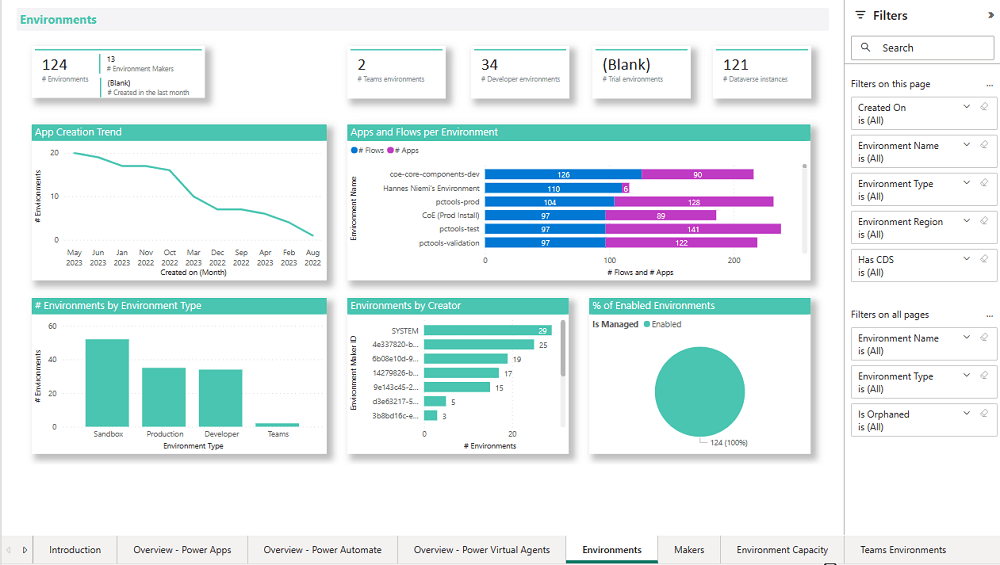
- Define and implement your DLP policies for your environments
- When establishing a DLP strategy, you may need multiple environments for the same department
- When establishing your Power Platform environment strategy, based upon your licensing, you may find that you need to provision environments without a Dataverse (previously called Common Data Service) database and also use DLP policies to restrict the use of premium connectors.
- Establish a process for requesting access or creation of environments
- Dev/Test/Production environments for specific business groups or application
- Individual-use environments for Proof of Concepts and training workshops
- Use a service account to deploy production solutions
- Reduce the number of shared development environments
- Share resources with Microsoft Entra Security Groups.
2. Compliance and Adoption:
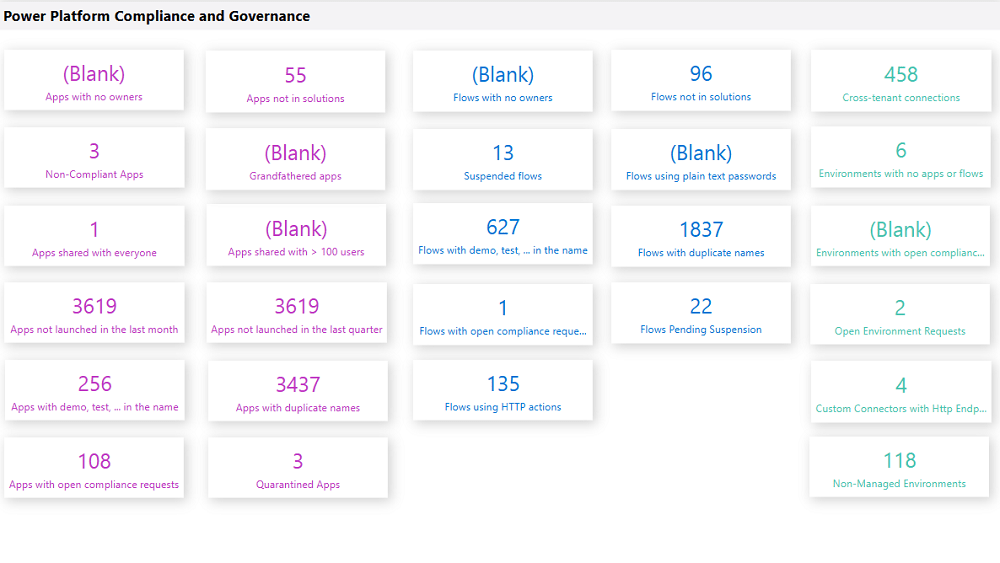
The Compliance page in the CoE Starter Kit’s Compliance and adoption dashboard can help you identify apps and flows with no owners, noncompliant apps, and suspended flows.
- Rename and secure the default environment
- Identify unused apps, pending suspension, suspended cloud flows and not without an owner or not in solutions
- Quarantined noncompliant apps and clean up orphaned resources
- Enable Managed Environments and establish a data loss prevention policy
- Apply cross tenant isolation
- Assign Administrator roles appropriately
- Apps and flows with duplicate names not compliant with DLP policies or billing policies
- Apps shared with everyone and apps shared with more than 100 users and Apps not launched in the last month and in the last quarter
- Flows using plain text passwords and using HTTP actions
- Cross-tenant connections
- Environments with no apps or flows
- Custom connectors using HTTP environments
3. Managing Dataverse for Teams environments
If you were not using Dataverse for Teams, you can safely skip this step, else please review
The Microsoft Teams environments page in the CoE Starter Kits dashboard provides you with an overview of your existing Teams environments, apps and flows in those environments, and the last launched date of apps.
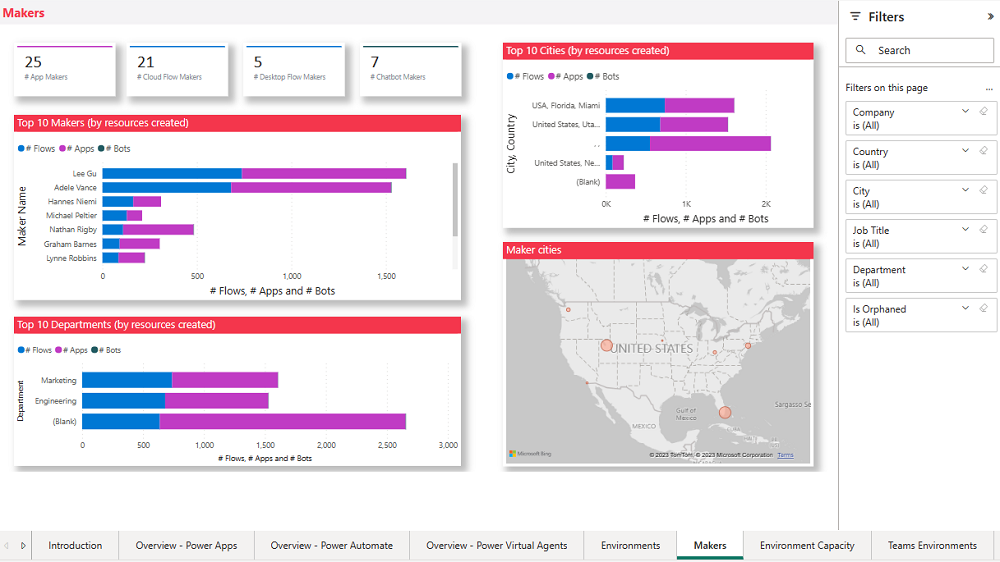
By checking for new Dataverse for Teams environments daily, organizations can ensure they’re aware of all environments in use.
| State of Dataverse for Teams | Power Platform action |
|---|---|
| 83 days after no user activity | Send a warning that the environment will be disabled. Update the environment state on the Environments list page and the Environment page. |
| 87 days after no user activity | Send a warning that the environment will be disabled. Update the inactive environment state on the Environments list page and the Environment page. |
| 90 days after no user activity | Disable the environment. Send a notice that the environment has been disabled. Update the disabled environment state on the Environments list page and the Environment page. |
| 113 days after no user activity | Send a warning that the environment will be deleted. Update the disabled environment state on the Environments list page and the Environment page. |
| 117 days after no user activity | Send a warning that the environment will be deleted. Update the disabled environment state on the Environments list page and the Environment page. |
| 120 days after no user activity | Delete the environment. Send a notice that the environment has been deleted. |
Please note a warning is displayed only if the Dataverse for Teams environment is <= 7 days until disablement.
4. Highly used apps
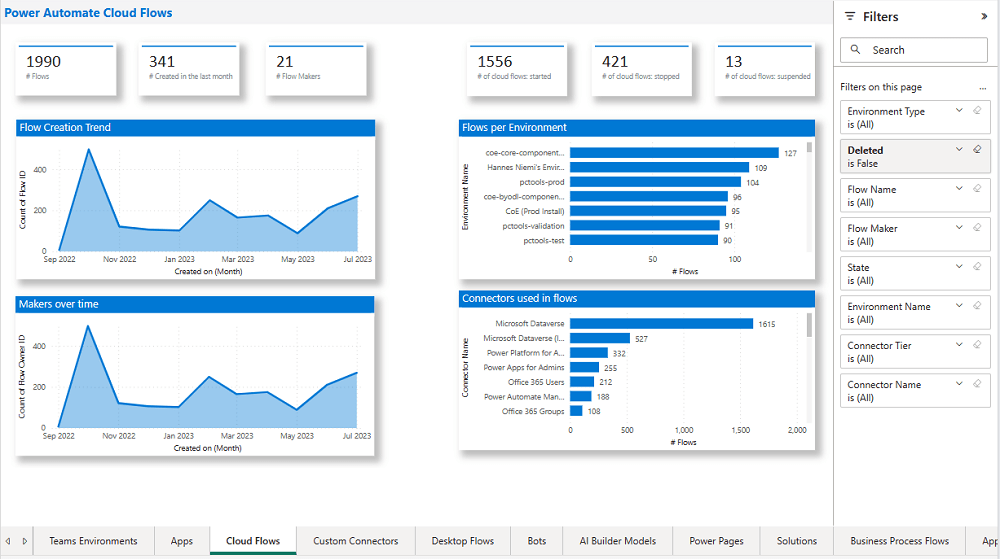
The Power BI Dashboard available out of the box with COE Starter Kit will provide you the necessary guidance over high performing apps and also your most active users.
5. Communicating governance to your makers
This is one of the important step while setting up COE and governance guidelines, follow the below approaches
- Clearly communicate the purpose and benefits of governance policies:Explain how governance policies protect organizational data
- Make governance policies and guidelines easily accessible:Place the policies and guidelines in a central location that is easily accessible to all makers
- Provide training and support:Offer training sessions and resources to help makers understand and comply with governance policies.
- Encourage open communication: Foster culture where makers can ask questions and raise concerns about governance policies.
- Incorporate governance into the development process:For example, you can require a compliance review before deploying a solution.
6. Administration of the platform
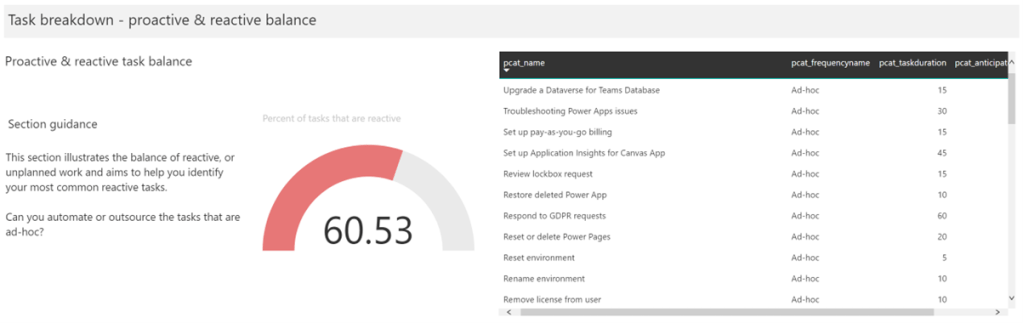
Power Platform Administrator Planning Tool which comes with COE Strater Kit provides guidance and best practices for administration. Also the planning tool can optimize environments, security, data loss prevention, monitoring and reporting.
6. Securing the environments
It is critical to establish a Data Loss Prevention (DLP) strategy to control connector availability.
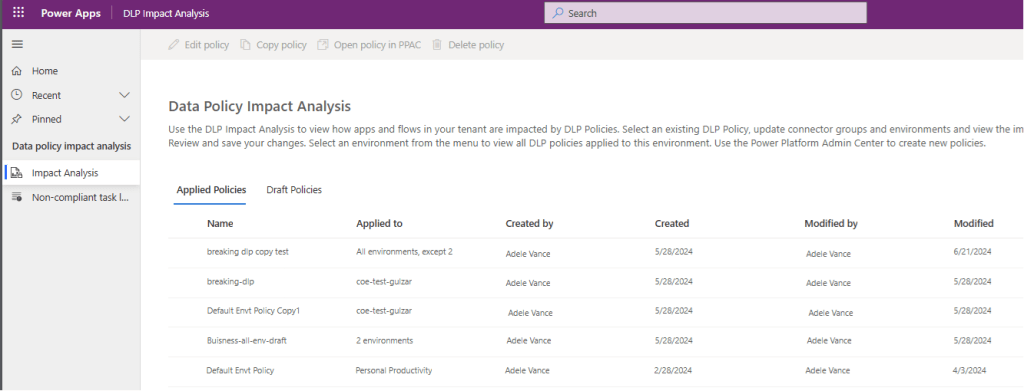
The DLP editor (impact analysis) tool is available for use before making changes to existing policies or creating new DLP policies. It reveals the impact of changes on existing apps and cloud flows and helps you make informed decisions.
Reference: COE Starter Kit Documentation
If you face issues using the COE Starter Kit, you can always report them at https://aka.ms/coe-starter-kit-issues
Hope this helps…. someone maintaining tenant governance with COE starter kit…. if you have any feedback or questions, do let me know in comments….
Cheers,
PMDY

 ECELLORS CRM Blog