
Hi Folks,
I am a big fan of Power Automate…but this post is not about flows but features about Custom Workflow in Dynamics 365 CE.
Did you ever come across this problem where you were not able to debug custom workflow extension. I had come across this and this blog post is all about it…I successfully registered my Custom workflow, but it is not triggering at all.
So, I need to debug it to see what the exact issue was…as I am encounter this error.
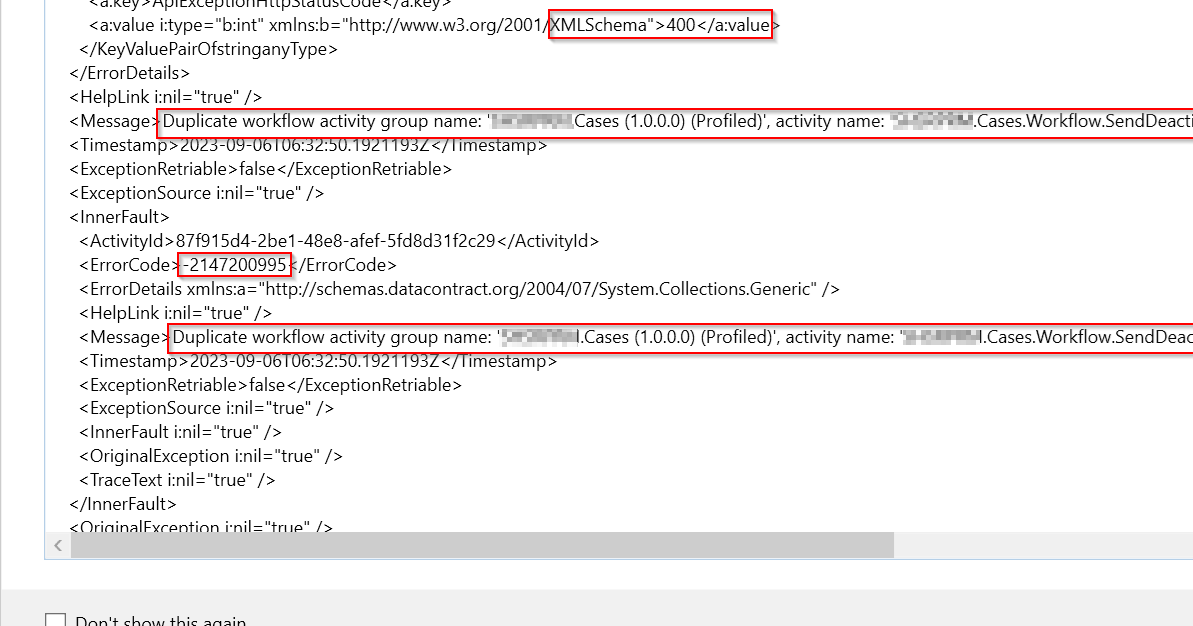
Error message says Duplicate workflow activity group name: ‘EcellorsDemo.Cases(1.0.0.0) (Profiled)‘. So, I tried to check my code, plugin steps and any activated plugins but couldn’t find any duplicates.
Usually while debugging your custom workflow using profiler, your workflow will go into draft mode and another copy of the same workflow gets created with name of (Profiled) attached to the name. However, in my case, I didn’t see the same behavior and at the same time, I was unable to use Profiler after the first profiling session and it gave me error shown above.
In order to resolve, this just delete the Plugin Assemblies which could find in the default solution like highlighted below…
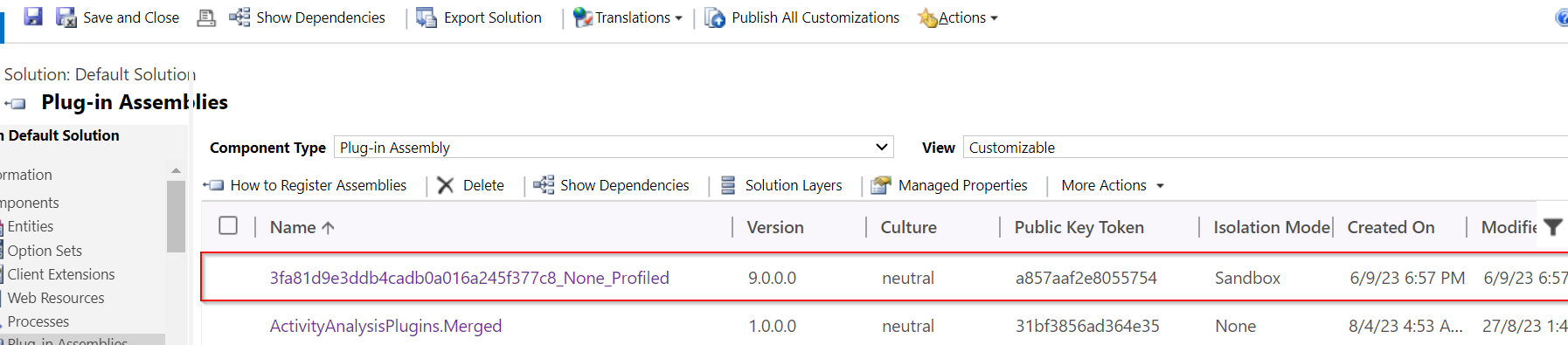
Once you have deleted this, try to debug the custom workflow and voila!!!
Hope this helps someone troubleshooting Custom workflow…!
Cheers,
PMDY

 ECELLORS CRM Blog