

Hi Folks,
In App notifications are trending these days where many customers are showing interest in implementing these for their businesses.
So, in this blog post, I am going to show you the easiest way to generate In App notification using XrmToolBox in few clicks. Use the below tool to generate one.

So, let me walk you through step by step
Step 1: Open In App Notification Builder in XrmToolBox

Step 2: In App notification is a setting that should be enabled at App level, so meaning if you have developed few Model Driven Apps, you will be able to enable the In App notification individually for each one of them.
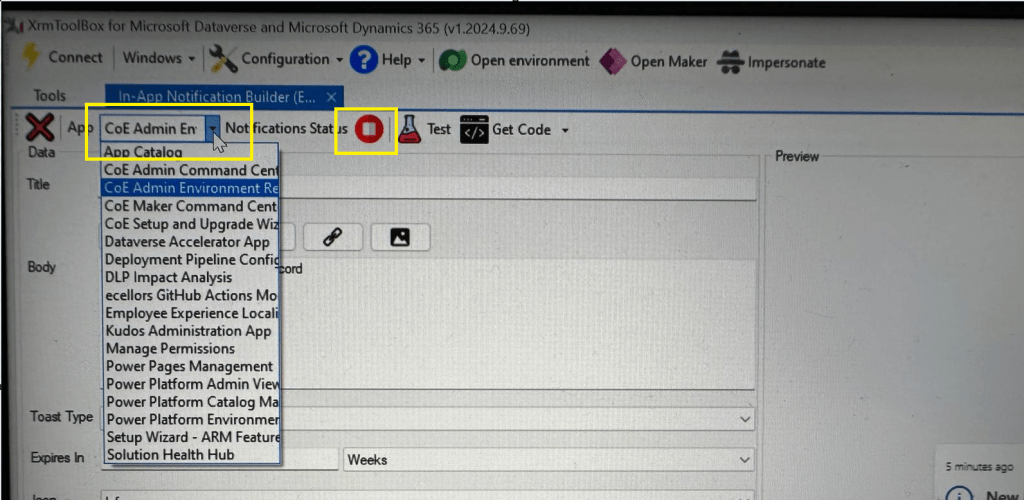
Step 3: In the above snapshot, we should be able to select the respective App for which we want to enable the In App Notification. Red bubble besides indicate that the In App notification is not enabled for this App.
So, we need to enable it by clicking on the red icon itself, you should then be able to get this prompt as below.

Step 5: Upon confirming the confirmation dialog box, the In App notification will be enabled for that App and you the red button turns to green as below saying that In App Notification is enabled.
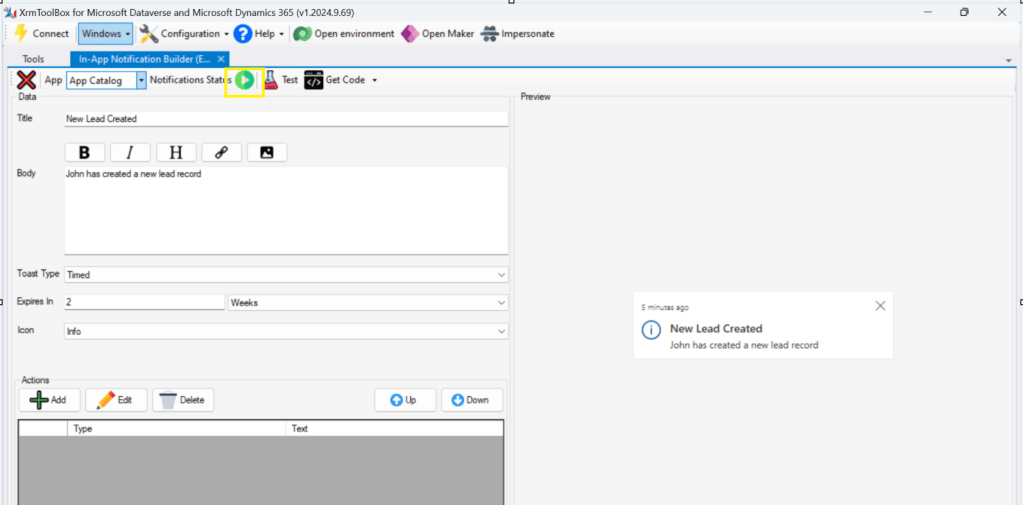
Now that the In App notification is enabled in the App, we will proceed with the remaining setup.
Step 6: You can proceed to give a meaningful title, body for you In App Notification. Also mention the required toast type and specify the expiry duration, Icon. Also Click on Add icon and choose the action required to be performed when In App notification is clicked.
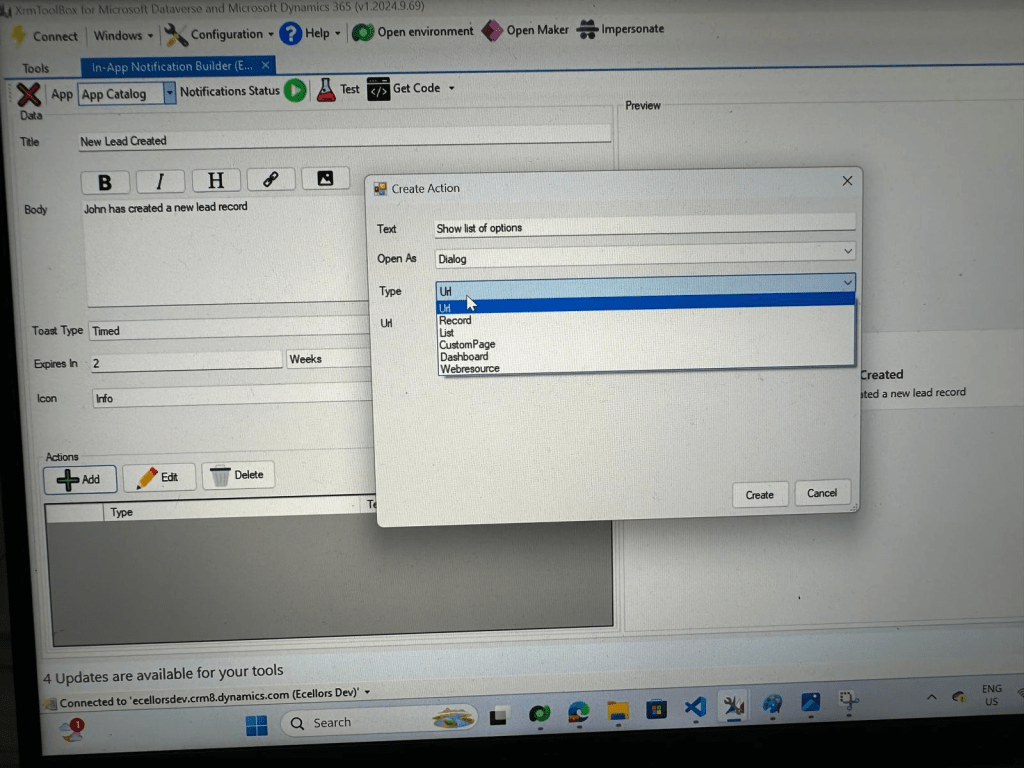
Step 9: You can even choose the type of action to be performed…
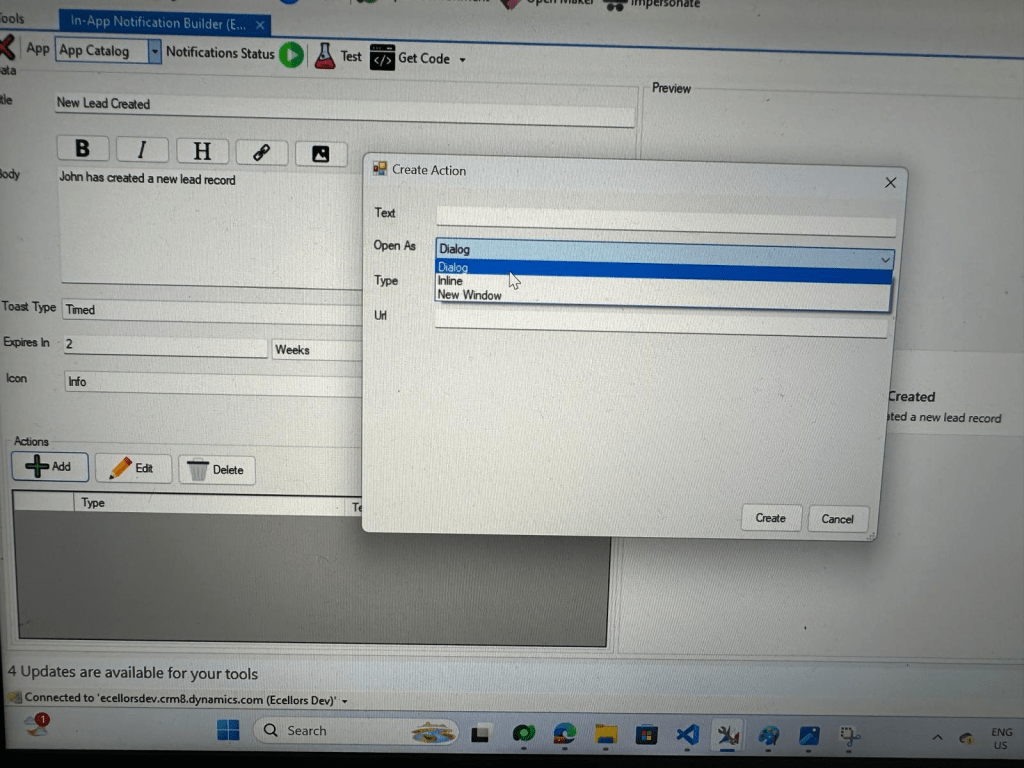
For example, let’s use to open as dialog and show list view
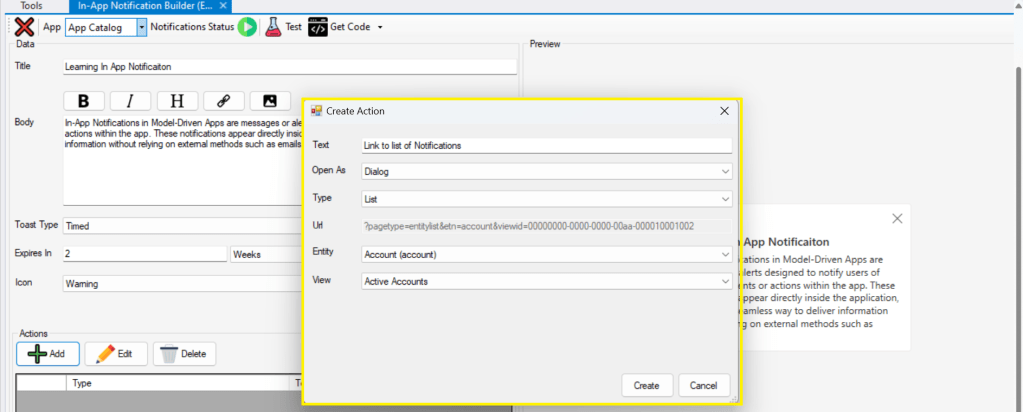
Your screen should look something like below

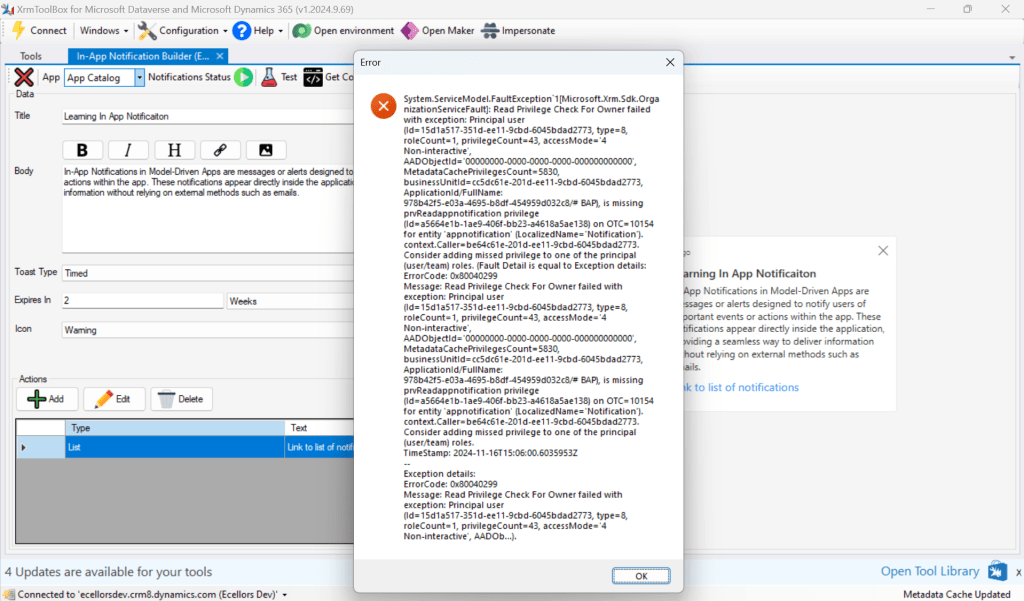
Step 10: Once done, you can click on create and that’s it you have now created In App Notification. Now let’s test this for the user who have priveleges to access this App.

If not, you will face this error..
Log in with user account for which the In App Notification is triggered.
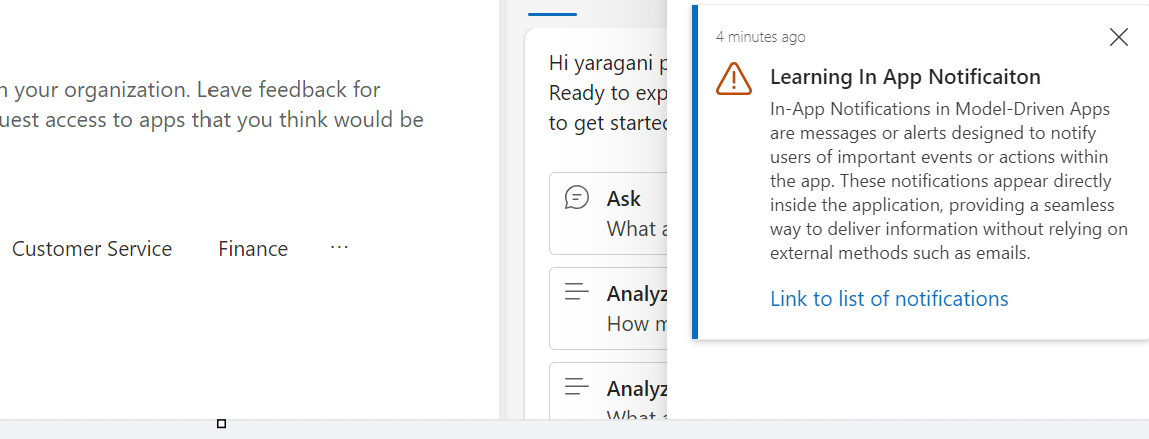
Hurray!!!! That’s it, how easy it was to create In App Notification in Low Code manner.
You can even get the code behind this as well…

However, there were other ways to trigger the In App Notification from a Pro Code angle, let’s discuss those as well.
In this case you need to manually turn the In App Notification feature on by going to settings for the Model Driven App as below first.

Notifications can be sent using the SendAppNotification message using SDK.
You can either trigger from and can choose based on your convenience to trigger a similar notification.
Client Scripting
Plugin/SDK
Power Automate:
You should design your Power Automate something like below to trigger a similar notification.
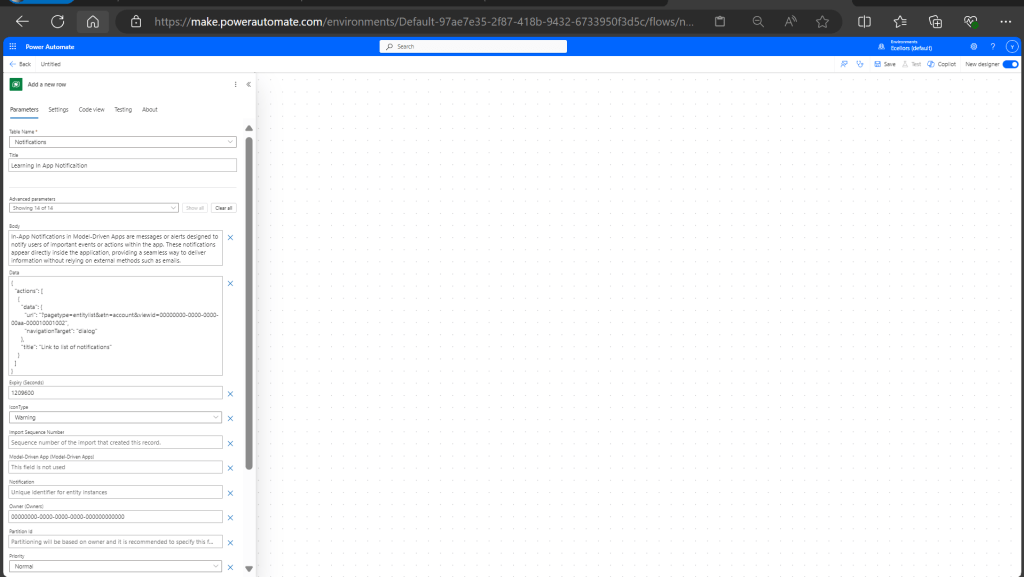
Note: Currently In App Notification will be triggered for only Model Driven Apps.
Reference:
In App Notification Documentation
Hope this saves some of your time…
Cheers,
PMDY

 ECELLORS CRM Blog