Typescript is a strongly typed and built on Javascript. So now you could catch your errors little earlier…TypeScript code converts to JavaScript, which runs anywhere JavaScript runs: In a browser, in your apps etc.
TypeScript offers all of JavaScript’s features, and an additional layer on top of these: TypeScript’s type system. For example, JavaScript provides language primitives like string and number, but it doesn’t check that you’ve consistently assigned these. TypeScript does. This means that your existing working JavaScript code is also TypeScript code. TypeScript is an Object oriented programming language and inherits all the features of OO’Programming.
Microsoft recommends using TypeScript instead of JavaScript in all your Dynamics new implementations and slowly as this gives much flexibity to a developer. So why not learn this and boost your productivity…
To start with Service Bus is fully managed messaging service which is used to connect any applications, devices, and services running in the cloud to any other applications or services. In this we can have queues which helps in the one directional communication and topics which provides two directional communication with the help of publish subscribe model.
Service bus can serve the following purposes
Used for messaging
For Decoupling producer and consumer of the message
Load balancing
For 1:N(publish and subscribe model) using Topics
Queues and Topics follow FIFO mechanism.
That said, lets see in action…
Create an Azure service bus namespace in Azure like below…
Following this, once you have created a namespace which is actually a container for all messaging components (queues and topics).
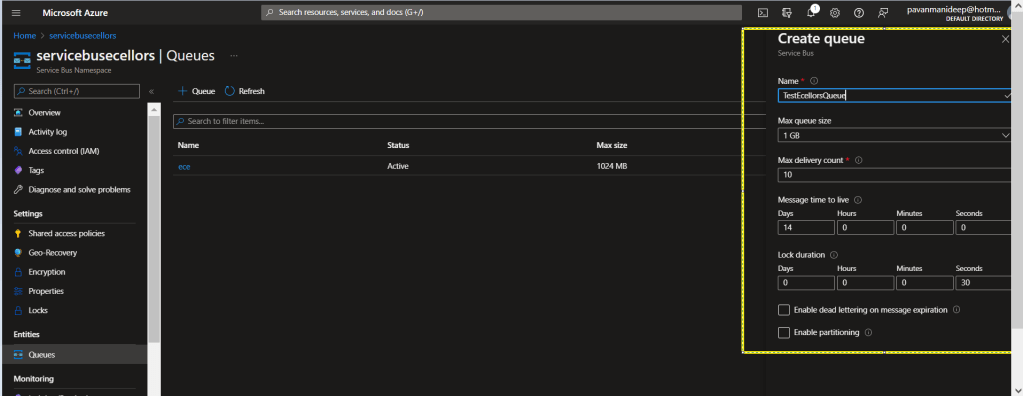
Next step is to create a queue or topic, in this case I am creating a queue….creating topic will be similar.
Fill up the details as required for the queue setup in the highlighted section…
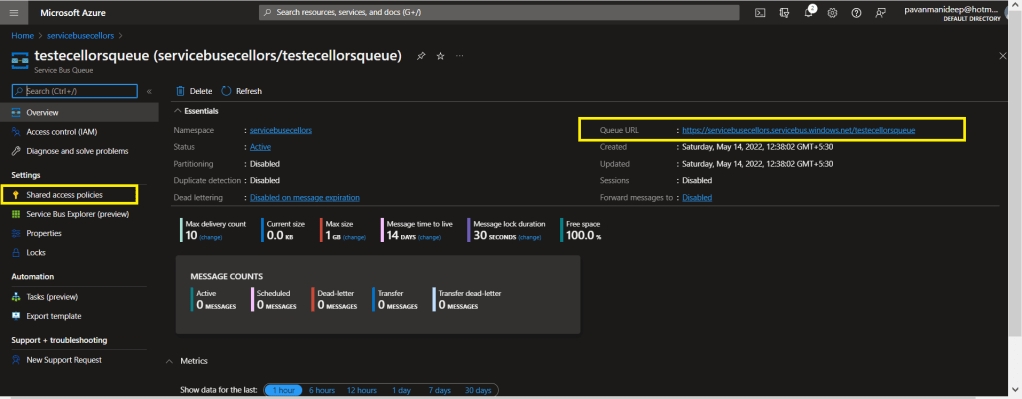
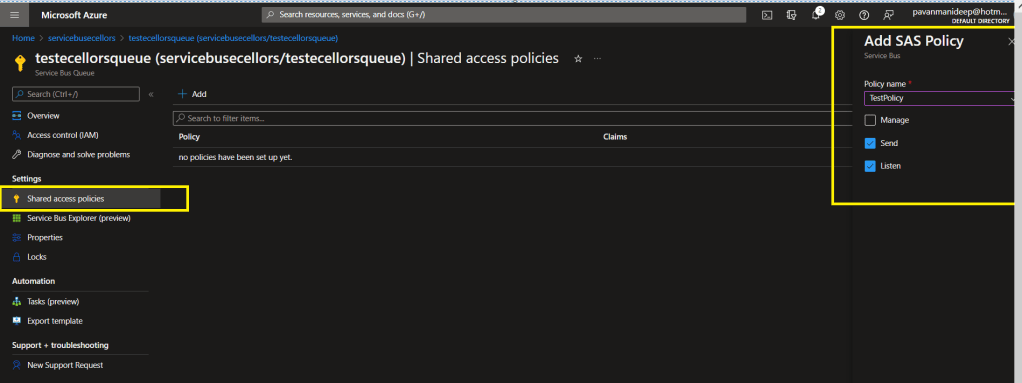
After creating a queue or topic, you need to create an access policy for the same as below
Do note the queue URL as highlighted above….access control in service bus is achieved through Shared Access policies.
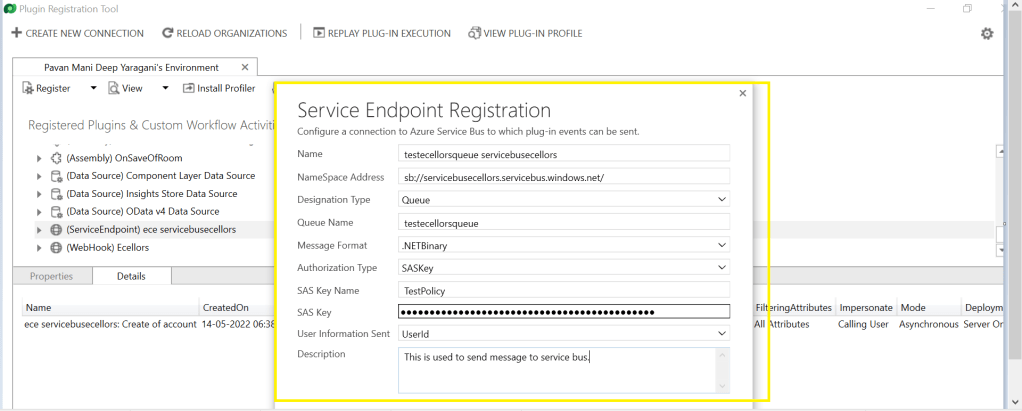
Once you have Primary connection string created, you need to go back to your Plugin registration tool and register a service end point for triggering your service bus message and provide the connection string in the below areas highlighted and click on next.
Next below appears for your review..
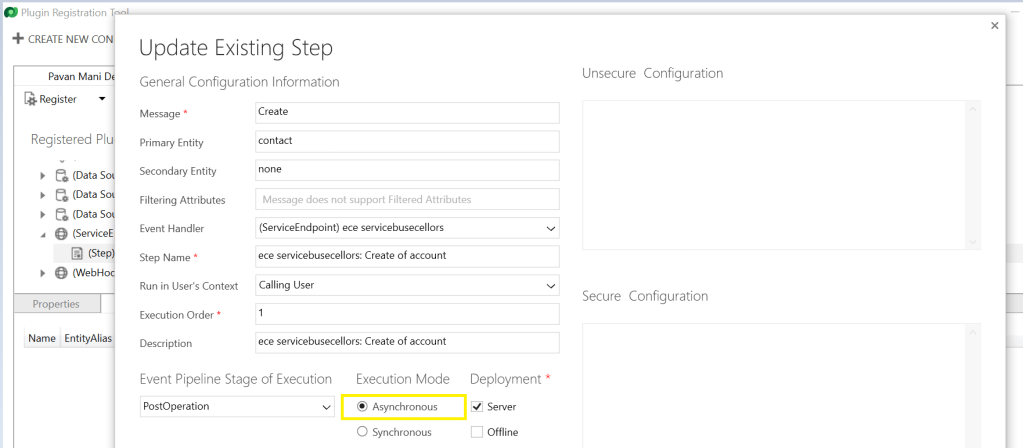
You can provide SAS Key or SAS Token for authentication in order to retrieve the messages from service bus and click on save. Now your end point is configured, now you can go ahead and create a step which will trigger the message to service bus from Dynamics, do note that you can only register an asynchronous operation inorder to communicate with your service bus.
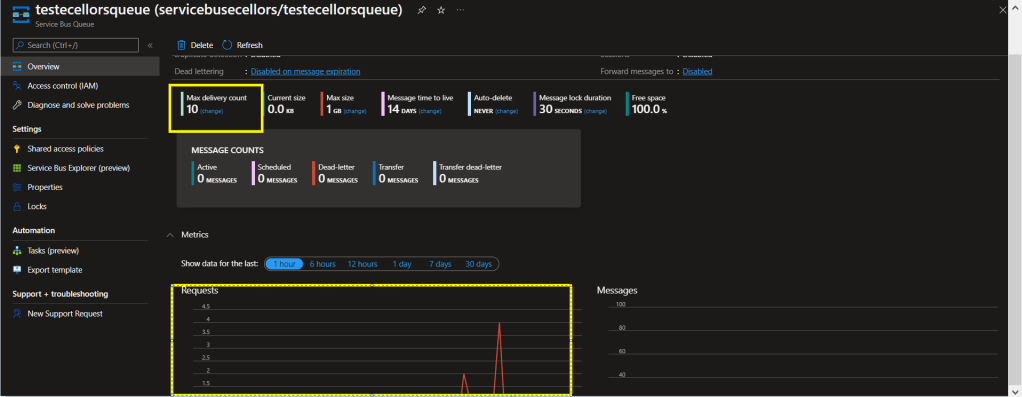
You can perform the necessary operation and you can find the message being created in the service bus. If it didn’t show up immediately, please refresh and try after a few mins.
In order to consume these messages, you can use a console application for the sake of retrieval. Once the message is retrieved, it will be deleted from the queue by default.
Incase you want to use those messages for your troubleshooting purposes, you can peek command, the Peek operation on a queue or a subscription returns at most the requested number of messages. The following table shows the types of messages that are returned by the Peek operation.
Type of messages
Included?
Active messages
Yes
Dead-lettered messages
No
Locked messages
Yes
Expired messages
May be (before they are dead-lettered)
Scheduled messages
Yes for queues. No for subscriptions
I hope this provides right insights for integrating service bus with Azure and service bus is widely used when both systems were not in sync and available at the same time.





 ECELLORS CRM Blog