Change the Time Zone in Azure VM

Hi,

We recently had to spin up a new Azure VM to run some of our Batch jobs where we need to schedule them to run at specific times in Singapore Time Zone.

But surprisingly when when we VM is provisioned and started…we see the default time zone is set to UTC. Usually by default, every time this would be set to UTC.

In our case, we need to change it to SGT(Singapore Time Zone). The usual way of changing the time zone from Settings–> Time & Language was not possible as this is disabled in our case. But even though it is enabled and changed here, it would be reverted back to UTC when we allocate & deallocate the VM.

So you can use Power Shell Scripts to make this thing work for you. Use below to get all time zones.

Get-TimeZone -ListAvailable

If you want to filter the list, you can do so like

Get-TimeZone -ListAvailable | where ({$_.Id -like “Singapore*”})

Finally for setting the timezone, you can use this cmdlet

Set-TimeZone -Id “Singapore Standard Time”

Hope this helps…

Thank you.

Cheers,
PMDY
Know more about enabling MFA…& it’s consequences…

Recently I was exploring about setting Multi Factor authentication for my Dynamics 365 Instance and connecting to it via code using Console applications. This is when I came know about using an App password for my Console application to work.

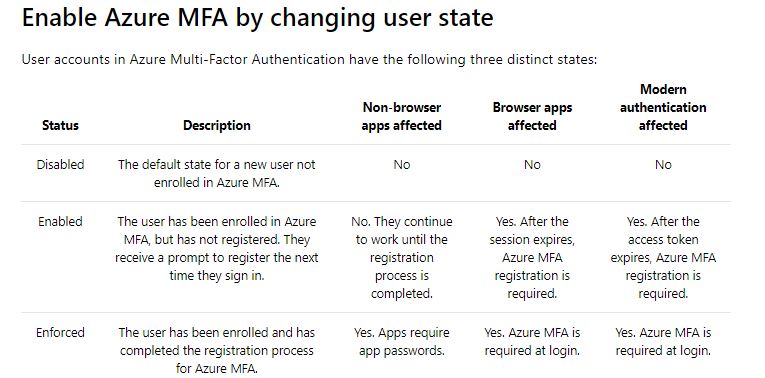
But do you know that based on the user states, MFA setup behaves differently..

Capture1

Ok..now let’s take a simple console application which just does nothing but connects using a OrganizationServiceProxy. Sample code can be found here.

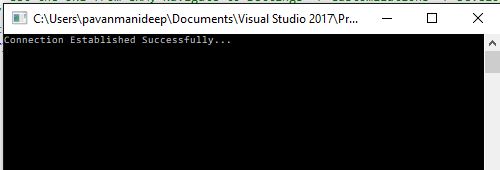
  1. When MFA is disabled, you will be able to connect to the instance without any issues.

Capture1

2. Now Enable the MFA but don’t enforce it. Don’t sign in and complete the registration process of either providing pin or answering the call. Try to run the same console code above, you would be still able to connect without any issues.

Capture1

This is because Console application would also behave as non browser app. and will continue to work until the sign up is done exclusively as stated in the table above.

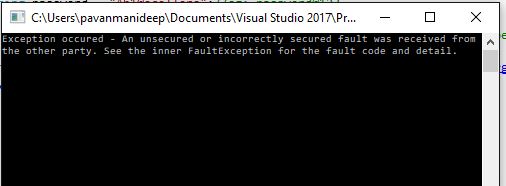
3. After the multifactor authentication is enforced, users will need to create app passwords for working with non browser applications. So now if you try to run the same Console application, you would get an error..

Capture2

Now sign in to your instance and generate the app password by providing additional security information when signing up. Use the same app password in place of credentials used while connecting to CRM in the console app.

And now you will be able to connect without issues…

Capture1

Hope this helps..

PMDY.