Debug Plugins with Dataverse Browser – Quick Recap

Hi Folks,

This post is for all who are working on D365 Model Driven Apps and mainly Plugins.

Yes, you saw it right, in this blog post, we will see how can debug plugin without using our favorite plugin profiler which is very widely used from quite some time by everyone working on Plugins for Dynamics 365. All this is done by a tool called Dataverse Browser, which is not yet on XrmToolBox. Please note that there were some limitations as detailed in limitation section below.

Here are 3 simple steps to follow..

  1. Install Dataverse Browser
  2. Attach the Debugger
  3. Run your actual operation.
  4. Step into your code and debug it.

The tool embeds a web browser based on Chromium. It works by translating the Web API requests to SDK requests. Then it analyzes if plugin steps are registered on the message and it loads them, make them run locally. All other requests are sent to the Dataverse, so that the plugins are interacting with the real database.

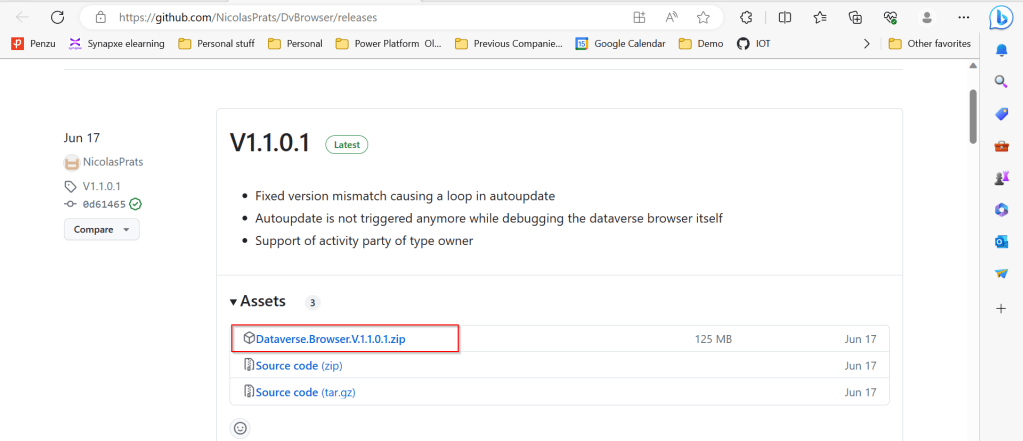
Download the latest source code of Dataverse browser here.

Next extract the zip file downloaded as highlighted below
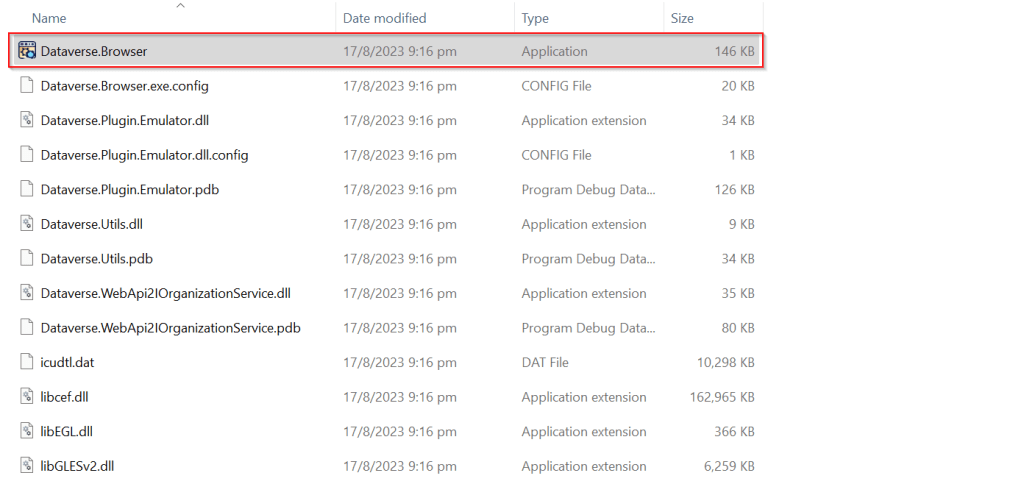
Extract the zip file downloaded, open Dataverse.Browser Application as highlighted below.
In the popup window, click on More info as highlighted below…
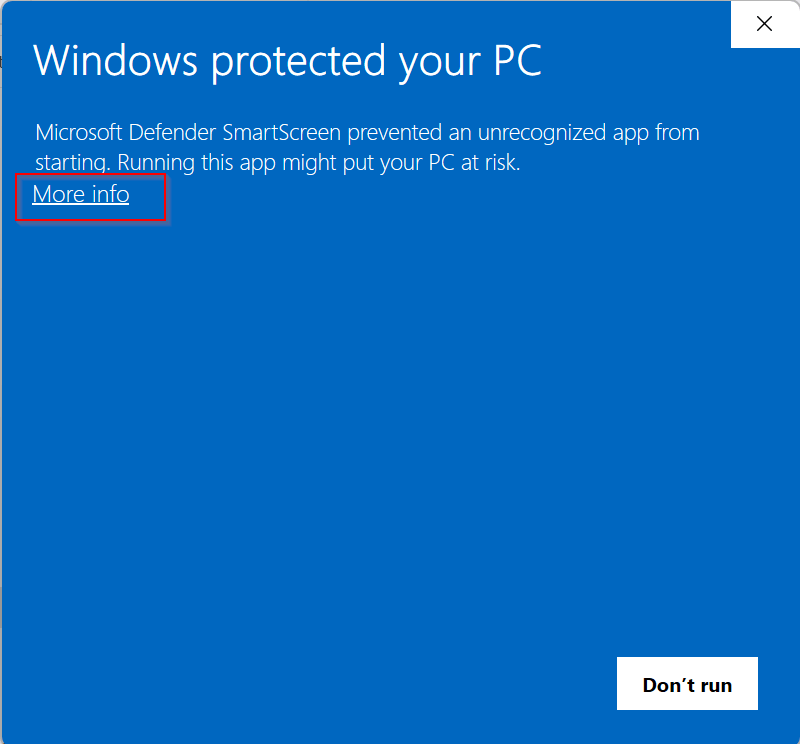
Then run the application anyway…you will be presented with a window where you can select the environment. Going forward, any time you want to open Dataverse browser, just open the Dataverse.Browser.exe and choose the environment as below.
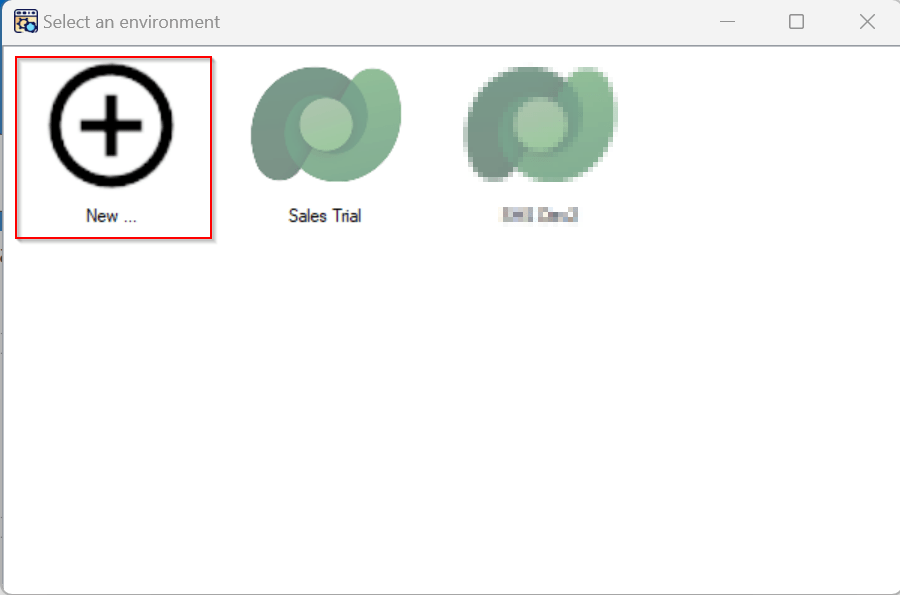
Click on New, enter the details as above and key in the details.

  • Enter the settings of your environment:
    • A name meaningful for you
    • The host name of your instance (without the https://)
    • The path to the plugins assembly file (the dll). For a better experience, it should be compiled in debug mode with the pdb file generated.
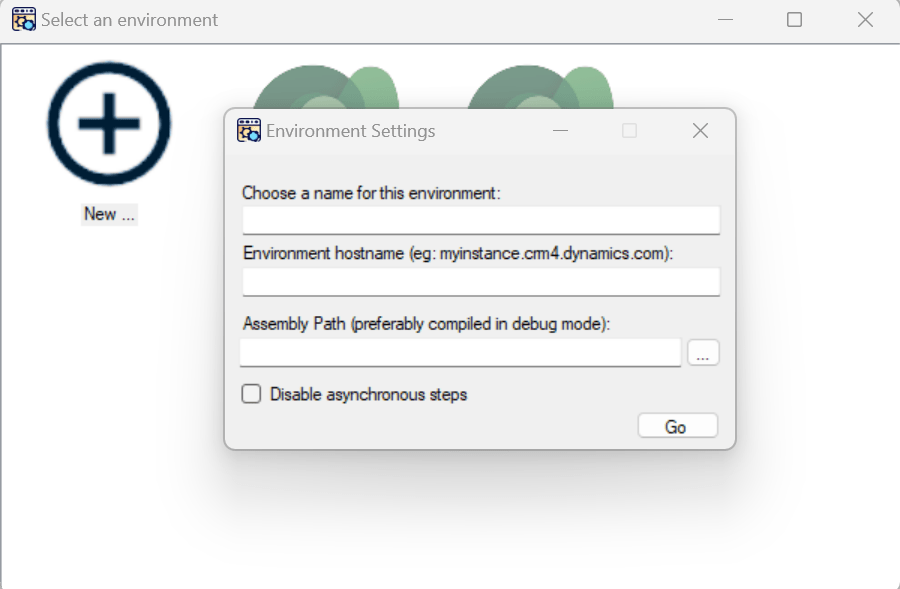
Then click Go.
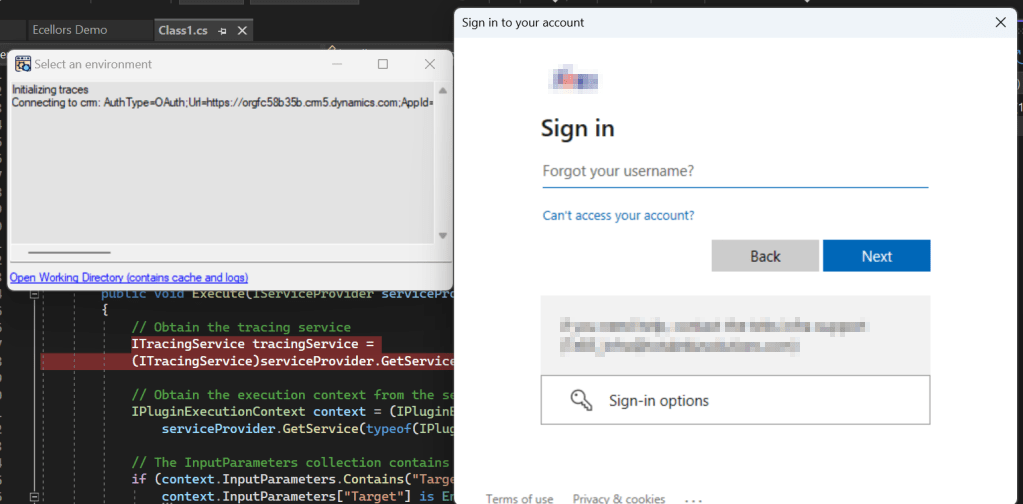
You just need to Authenticate to your instance.

Once Authenticated to the respective model driven apps, all the Web API requests sent to Dataverse will be shown as below.
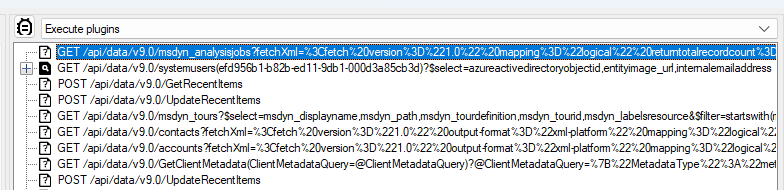
I have following Plugin Libraries registered.

Next step is to choose the instance and perform the respective operation which triggers the Plugin. So, in here, I will perform an update to the Account entity from the Dataverse Browser which triggers the Plugin.

Once an update is performed, a Web API request gets recorded in the Dataverse browser as highlighted below.
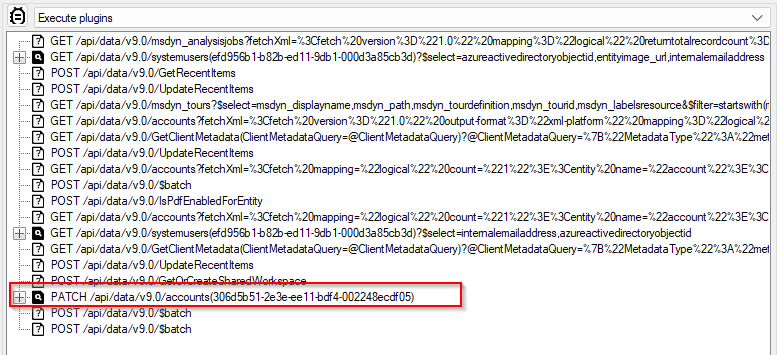
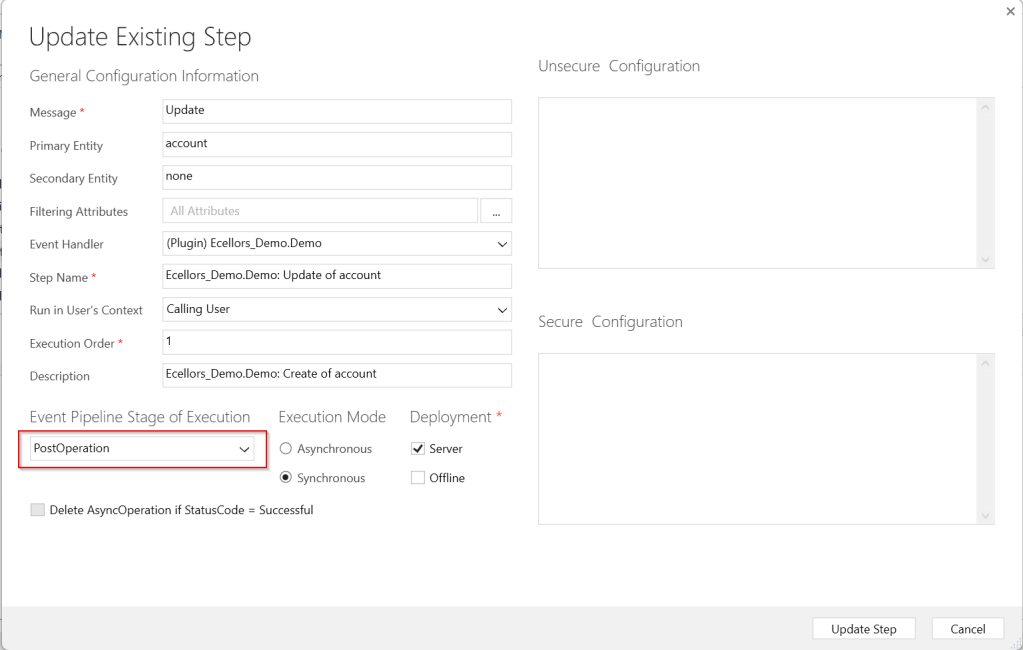
Since the Plugin is in Post Operation, i.e. Stage number is 40
Just expand the Patch Request, you should see two operations on 30, 40, but area of interest here is for the Plugin which was registered on stage 40.

Make sure you open the Visual Studio and perform the below steps from Dataverse Browser.
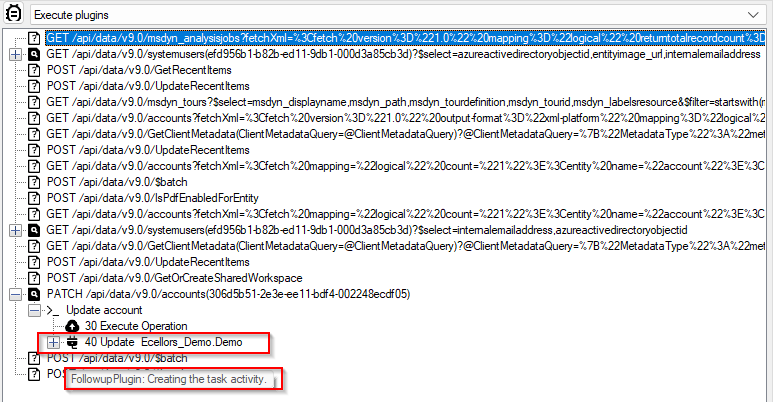
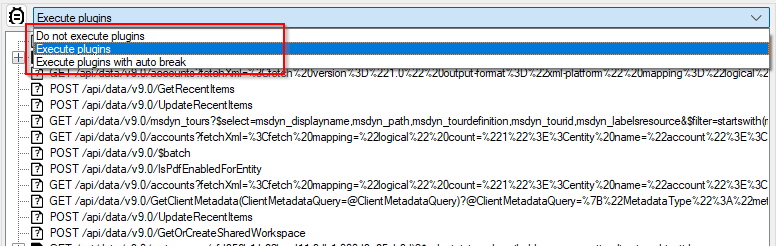
Attach the debugger from Dataverse Browser by clicking on the Plug Symbol as below which will show the list of debugger options available for you to select from. Here I have selected Execute Plugins, plugin will be invoked. You can either select any of the three options as presented below.

1.Do not execute plugins – recommended when you want to debug without actually triggering your plugin logic. i.e. With this approach even you can check the code in Production environment.

2. Execute plugins/Execute plugins with auto break – recommended when you want to debug by triggering your actual plugin, this is recommended in case your plugin code had changed recently and in Development environments.
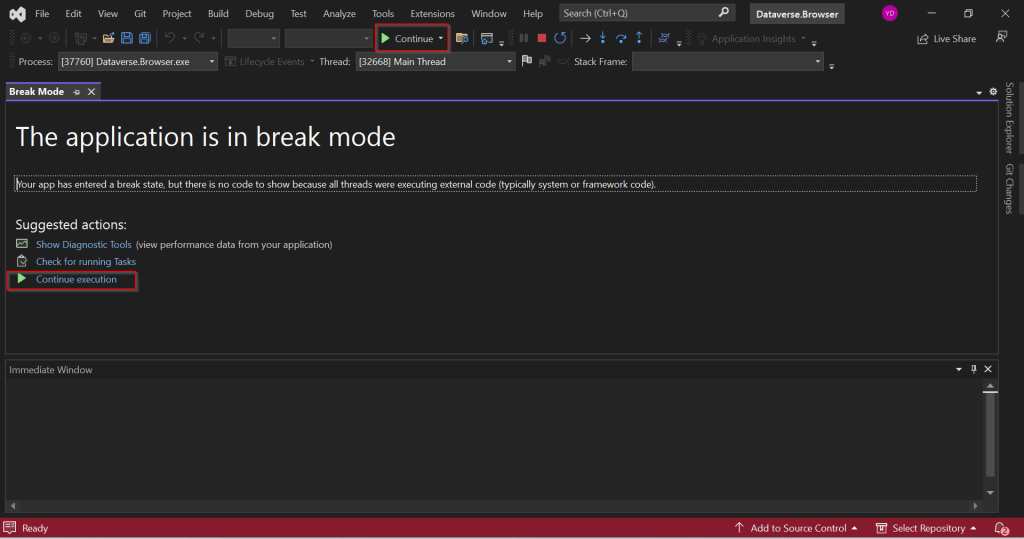
Just select Ecellors Demo – Microsoft Visual Studio: Visual Studio Professional 2022 version which will launch an existing Visual studio 2022 as below in break mode. Next click on Continue as highlighted below or press Click F5 on your keyboard.
This shows you that the debugger has been attached when you navigate to Dataverse Browser asking you to place your breakpoints.
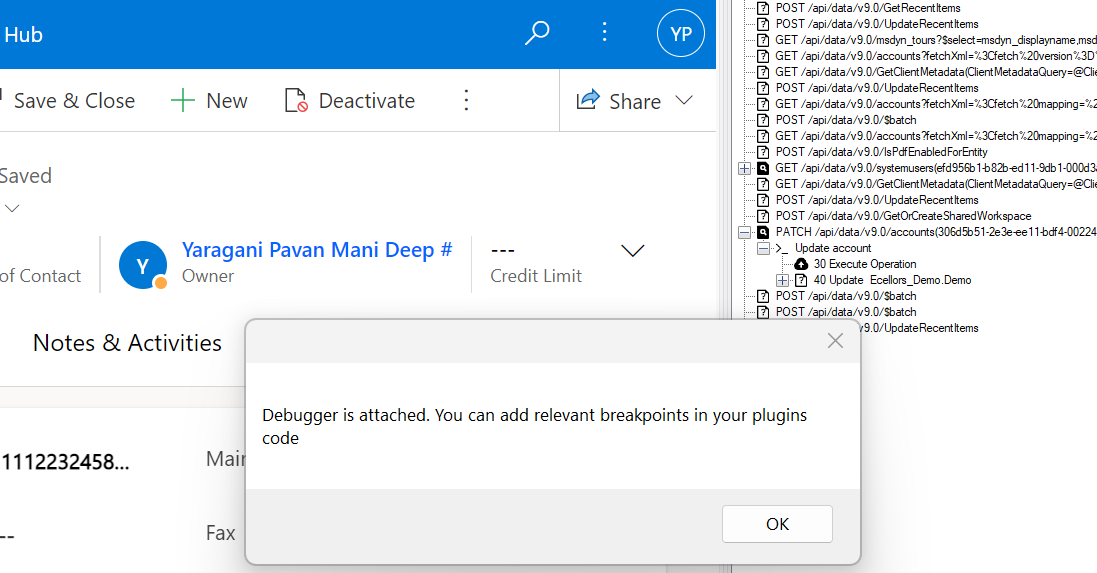
Now just place breakpoints in your code in Visual Studio. Just go back to Dataverse Browser and click on Ok on the Diaglog box.

Perform the operation which triggers the Plugin from Dataverse Browser itself, this will hit the break point in Visual Studio from where you can debug your plugin.
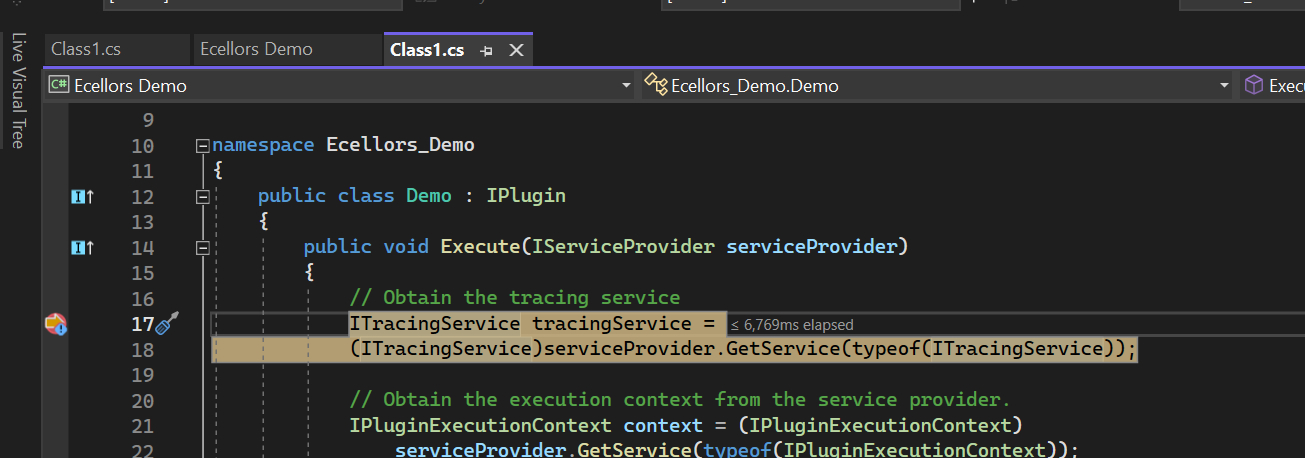
As you might have observed, your code need not throw exception in order to debug, you could do similarly to the way you would debug using Profiler. But here just that you don’t need to deploy the latest code to the Dataverse just for debugging purpose.

This gives a lot more flexibility eases the way you debug plugins.

Limitions:

  • There is no support for transactions.
  • When plugins are triggered because of a server-side operation, they will not be run locally.
  • For many reasons, behavior will never be perfectly similar to the one when plugins are executed on server side.

Happy debugging, I hope you found this post useful…

References:

Dataverse Dev Browser

Cheers,

PMDY

Pro-grammatically create Document location records in SharePoint Online from Dynamics Customer Engagement Online without using native integration

Hi Folks,

Have you ever got a requirement to specifically create records in SharePoint without using the out of the box CRM-Sharepoint integration, then your were at right place and this post is going  absolutely help you with your requirement.

With the out of box integration, we will be able to create records in SharePoint when we navigate to OPEN LOCATION under Document Associated grid. But this adds record GUID to name of the record being created. But in our case, we only want the document location record to be created  with the name of the record. Please use the below code…all you need is Tenant ID, Resource ID, Client ID, Client Secret and your SharePoint domain and URL.

This approach uses Access token approach using the SharePoint based Add-in.

Steps to create SharePoint based Add-in. Navigate to below URL…

Ex: [Site Collection URL]/_layouts/15/AppRegNew.aspx0

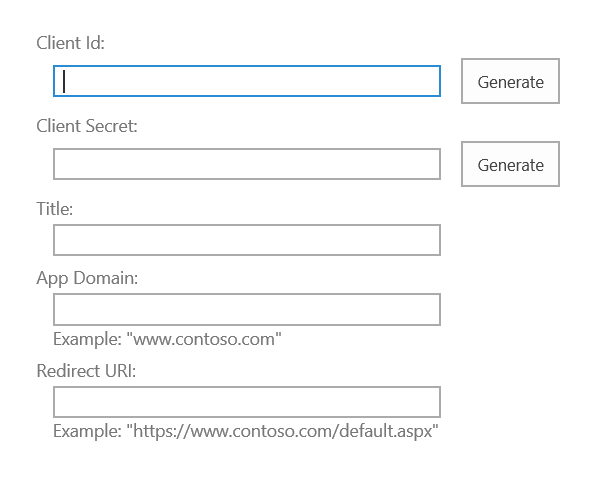
AppRegNew Form

At this point, you’ll need to fill in the following details,

Name Description
Client Id Click Generate unique client id for your add-in. It’s a GUID which will be used to identify your add-in.
Client Secret Acts like a password for your add-in. It will include some special characters as well. So while using it, we have to encode the same first.
Title The name of your add-in that will be displayed to the end user.
App Domain For provider-hosted add-in, this will be the domain where, the add-in is hosted. For token generation add-in, fill in any value. Make sure, not to include protocols(https) or slashes(/).
Redirect URI For provider-hosted add-in, fill in the redirect URL. For token generation add-in, fill in any value.

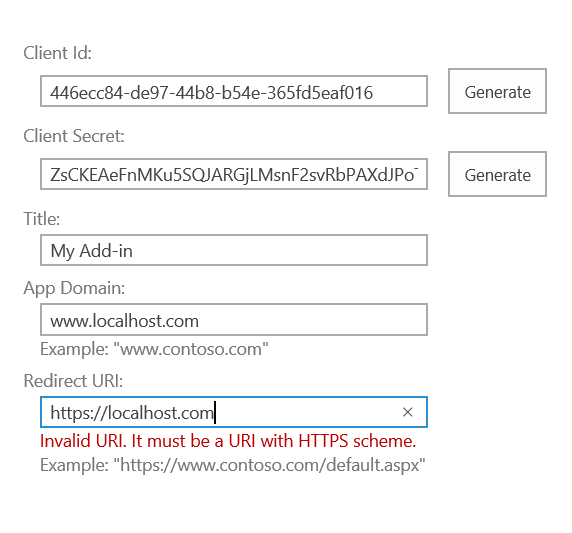
Once you have filled in all the below details, hit Create to register the add-in1

Register SharePoint Add-in

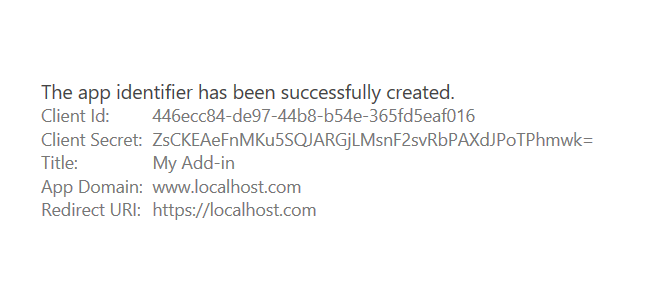
    • You will be navigated to a page displaying the details of your add-in. Save Client Id & Client Secret for future references(Don’t forget this step as you won’t be able to navigate to this page to view details later)2                                  SharePoint Add-in Identifier
    • Grant permission to an add-in

      Now that the identifier is created, we need to grant the necessary permission for it to perform any action. In this example, I’ll demonstrate how to grant full control access on a Site Collection.

      • Navigate to
        [Site Collection URL]/_layouts/15/AppInv.aspx

        3

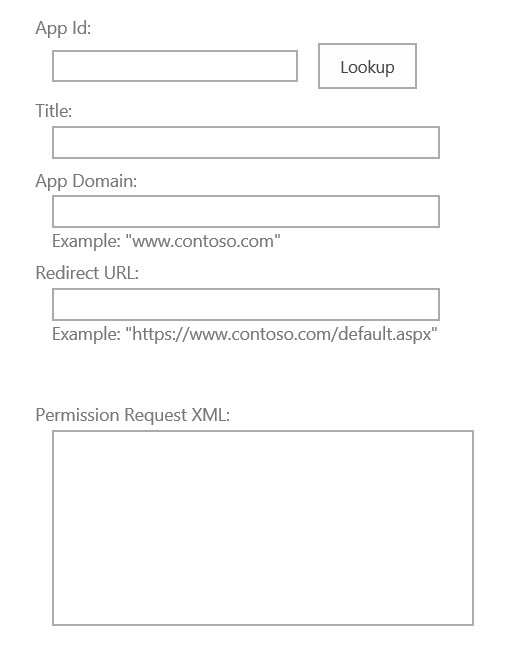
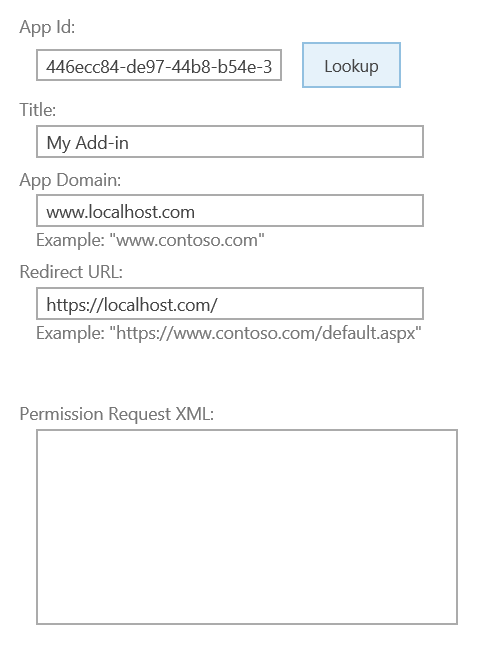
      • Enter your Client Id value in the App Id option and hit the Lookup button. Details of your add-in will be displayed automatically.4
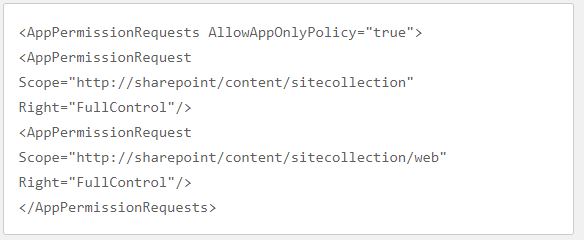
      • Now this is crucial, you need to give permissions to your app. In the option, Permission Request XML, let’s write the below XML code to grant our add-in full control on the given site collection.Capture
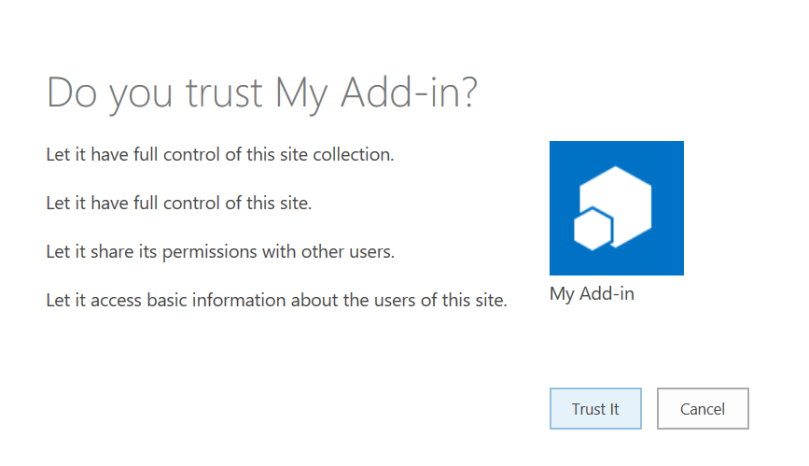
      • Just hit the Create button. You will now be prompted to trust the add-in for all the permissions that it requires.5                                      Trust SharePoint Add-In
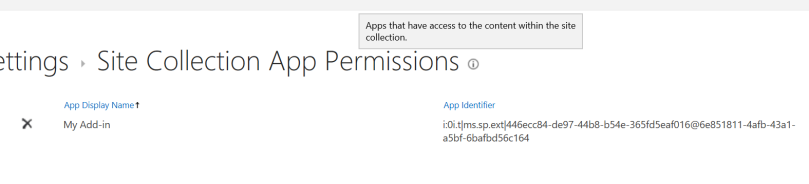
      • Hit the Trust It to grant the requested accesses. You can navigate to the following URL to also confirm that the permission has been assigned to the add-in.
        [Site Collection URL]/_layouts/15/appprincipals.aspx

        6

    • Now once you have created the app in SharePoint, you need to get the access token to perform CRUD Operations in SharePoint using REST API.
    • For testing purpose, you can use either POSTMAN or a console application…I have written the approach in both the ways.
    • For retrieving Tenant ID firstly using postman..
    • Perform a GET Request to the following URL..
    • [Site Collection URL]/_vti_bin/client.svc
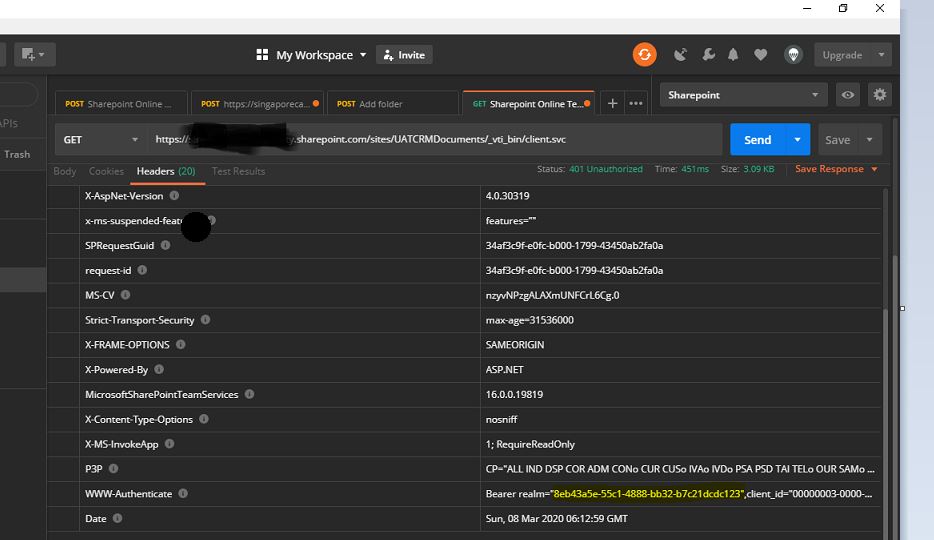
    • After entering the above URL in the text-box in the URL text-box. We will get the Unauthorized exception on accessing the information. Because SharePoint Online is very much secured and that doesn’t allow anonymous users to access the information for their site. The below is the error message response, after sending the request. Highlighted is your Tenant ID..note it down..Capture1
    • Instead you can use the below C# code to get the Tenant ID details:public string GetTenant(string stGetTenantDetailsUrl)
      {
      WebRequest myWebRequest;
      string tenantID = string.Empty;
      string resourceID = string.Empty;
      string accessToken = string.Empty;myWebRequest = WebRequest.Create(stGetTenantDetailsUrl);
      myWebRequest.Method = “GET”;
      myWebRequest.Headers.Add(“Authorization”, “Bearer”);
      WebResponse myWebResponse = null; ;
      try
      {
      myWebResponse = myWebRequest.GetResponse();
      return tenantID;
      }
      catch (System.Net.WebException ex)
      {
      //get the Web exception and read the headersstring[] headerAuthenticateValue = ex.Response.Headers.GetValues(“WWW-Authenticate”);
      if (headerAuthenticateValue != null)
      {foreach (string stHeader in headerAuthenticateValue)
      {
      string[] stArrHeaders = stHeader.Split(‘,’);
      //loop all the key value pair of WWW-Authenticate
      foreach (string stValues in stArrHeaders)
      {if (stValues.StartsWith(“Bearer realm=”))
      {
      tenantID = stValues.Substring(14);
      tenantID = tenantID.Substring(0, tenantID.Length – 1);
      }
      if (stValues.StartsWith(“client_id=”))
      {
      //this value is consider as resourceid which is required for getting the access token
      resourceID = stValues.Substring(11);
      resourceID = resourceID.Substring(0, resourceID.Length – 1);
      }
      }}

      }

      return tenantID;//your tenant ID
      }
      }

    • Next step is to get the Access token..from Postman..

                                         Generate the Access Token

      In response header, we will get WWW-Authenticate as one of the header and that contains the necessary information required for next step. The realm value contains the tenant id for the SharePoint Online site and clientid value contains the resource information (we’ll use it later).

      Key Syntax Value
      Content-Type application/x-www-form-urlencoded application/x-www-form-urlencoded

      Body

      Key Syntax Value
      grant_type client_credentials client_credentials
      client_id ClientID@TenantID 4b4276d0-74cd-4476-b66f-e7e326e2cb93@10267809-adcb-42b6-b103-c7c8190b3fed
      client_secret ClientSecret nuC+ygmhpadH93TqJdte++C37SUchZVK4a5xT9XtVBU=
      resource resource/SiteDomain@TenantID 00000003-0000-0ff1-ce00-000000000000/spsnips.sharepoint.com@10267809-adcb-42b6-b103-c7c8190b3fed
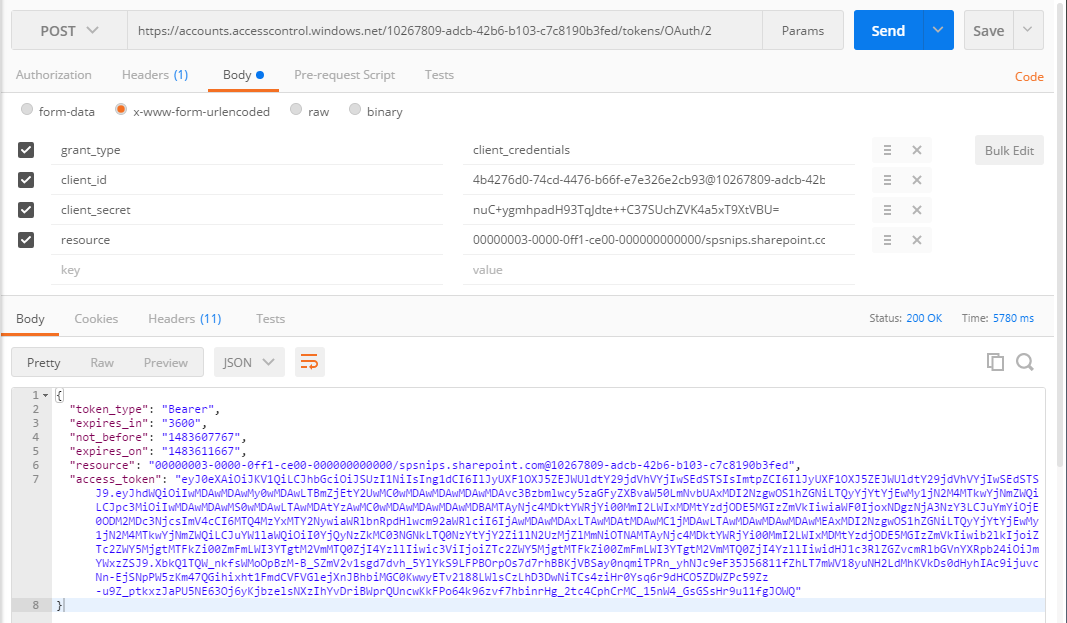
      • After applying the configuration, click Send button. That will returns the response with the Access Token.

      Fig 7: Postman response contains Access Token

      You can use the below C# code to generate access token

      public string GetAuthorisationToken(string stGetAccessTokenUrl, string stSiteDomain, string tenantID, string resourceID, string stClientID, string stClientSecret)
      {

      string accessToken = string.Empty;
      stGetAccessTokenUrl = string.Format(stGetAccessTokenUrl, tenantID);

      WebRequest request = WebRequest.Create(stGetAccessTokenUrl);

      request.ContentType = “application/x-www-form-urlencoded”;
      request.Method = “POST”;

      string postData = “grant_type = client_credentials” +
      “&client_id =” + WebUtility.UrlEncode(stClientID + “@” + tenantID) +
      “&client_secret =” + WebUtility.UrlEncode(stClientSecret) +
      “&resource =” + WebUtility.UrlEncode(resourceID + “/” + stSiteDomain + “@” + tenantID);

      byte[] byteArray = Encoding.UTF8.GetBytes(postData);
      // Set the ContentType property of the WebRequest.
      request.ContentType = “application/x-www-form-urlencoded”;
      // Set the ContentLength property of the WebRequest.
      request.ContentLength = byteArray.Length;
      // Get the request stream.
      Stream dataStream = request.GetRequestStream();
      // Write the data to the request stream.
      dataStream.Write(byteArray, 0, byteArray.Length);
      // Close the Stream object.
      dataStream.Close();

      try
      {
      using (WebResponse response = request.GetResponse())
      {
      dataStream = response.GetResponseStream();
      // Open the stream using a StreamReader for easy access.
      StreamReader reader = new StreamReader(dataStream);
      // Read the content.
      string responseFromServer = reader.ReadToEnd();
      // Clean up the streams.
      reader.Close();
      dataStream.Close();
      //Get accesss token
      accessToken = “access_token\”:\””;
      int clientIndex = responseFromServer.IndexOf(accessToken, StringComparison.Ordinal);
      int accessTokenIndex = clientIndex + accessToken.Length;
      accessToken = responseFromServer.Substring(accessTokenIndex, (responseFromServer.Length – accessTokenIndex – 2));

      return accessToken;

      }
      }
      catch (WebException wex)
      {
      HttpWebResponse httpResponse = wex.Response as HttpWebResponse;
      createlog(_service, “Error occured” + wex.ToString());
      throw new InvalidPluginExecutionException(“Exception occured while retrieving Access Token” + wex.ToString());

      }

      }

      Once we are received the access token, you were all set and we got the authorization to access the SharePoint data based on the permission applied in Grant Permission of Add-In .

      So now we would implement our logic to create folders in plugin…make sure we should be passing the Access token received while accessing share point.

      public void CreateFolder(string sharePointSite, string token, string library, string folder,Guid entityID)
      {
      string result = string.Empty;
      StringBuilder sb = new StringBuilder();
      sb.Append(sharePointSite);
      sb.Append(“_api/web/GetFolderByServerRelativePath(decodedUrl='”);
      sb.Append(library);
      sb.Append(“‘)/Folders”);
      Uri uri = new Uri(sb.ToString().Replace(“{“, “”).Replace(“}”, “”));
      HttpWebRequest wreq = (HttpWebRequest)WebRequest.Create(uri);
      wreq.Headers.Add(“Authorization”, “Bearer ” + token);
      wreq.Method = “POST”;
      wreq.ContentType = “application/json”;
      string postData = “{‘ServerRelativeUrl’:’folder’}”;
      postData = postData.Replace(“folder”, folder);
      byte[] byteArray = Encoding.UTF8.GetBytes(postData);
      wreq.ContentLength = postData.Length;
      Stream dataStream = wreq.GetRequestStream();
      dataStream.Write(byteArray, 0, byteArray.Length);
      dataStream.Close();
      WebResponse wresp = null;
      try
      {
      wresp = wreq.GetResponse();
      using (wresp = wreq.GetResponse())
      {
      dataStream = wresp.GetResponseStream();
      StreamReader reader = new StreamReader(dataStream);
      string responseFromServer = reader.ReadToEnd();
      reader.Close();
      }
      }
      catch (WebException wex)
      {
      HttpWebResponse httpResponse = wex.Response as HttpWebResponse;
      createlog(_service, “Error occured” + wex.ToString());
      throw new InvalidPluginExecutionException(“Exception occured while creating record” + wex.ToString());
      }
      }

  • You can place the Client ID, Client Secret, Sharepoint domain name in Unsecure configuration in Plugin for easier movement of code to other environment.
  • Entire code is available here…you can grab it…
  • Hope this helps some one looking out integrating Dynamics CRM Online with SharePoint online without relying on out of box integration between Dynamics CRM & SharePoint.
  • Hope you enjoyed this post…please post your valuable comments..

Cheers,

PMDY