Embed Python Visuals in Power BI Desktop – Quick Review

Hi Folks,

This post is all about embedding Python visuals in Power BI, you will need to install the respective dependent libraries like Seaborn, Matplotlib when you were creating visuals as we are using the respective libraries.

Thank you @Dr.S.Gomathi for sharing insights at GPPB Tamil Nadu, 2024, while I don’t know that Power BI has this capability. I am writing this down.

The first thing you need to do is to install Python, you can install the latest version from internet. Click here to Download Python for Windows.

Once downloaded and installed in your local machine, you can find a folder created under your Windows Start menu like below.

You need to right click on Python 3.11(64-bit) icon which is the current latest version and then click on open file location.

Then you will be able to see the contents in the folder

You need again right click on Python 3.11 (64 bit) and open its actual contents where the library files reside.

Copy this path, we need this in a while.

Now open Power BI Desktop and navigate to File –> Options and Settings –> Options

Now in the options and settings, you need to select on the Python scripting and specify the path which you just copied above as below.

Now you were ready to use Python visuals in Power BI.

Next step is to click on Python visual as highlighted below

You will be then asked to enable Python scripts as below

You will need to click on Enable as shown above. Once it is done, you are ready to start using Python visuals in Power BI.

Then you need to load data from your DataSource. Here is the link to the excel I have used. Once data is loaded into your Power BI report, you need to select respective data fields which you want to visualize. Here I am using two fields for X and Y axis, then in Power BI Desktop, you should be able to see something like below.

and in order to effectively visualize the sales trends, I will be visualizing the data using Violin Chart, which is using Seaborn library, while the Seaborn is actually based on Matplotlib library. So, I need to make sure I have those two libraries installed in my machine. You can install by using Command Prompt in your PC, you need to enter below commands and press enter to install.

pip install matplot lib

pip install seaborn

Once installed, we can plot using the below command in the python script tab in Power BI Desktop

# The following code to create a dataframe and remove duplicated rows is always executed and acts as a preamble for your script:
# dataset = pandas.DataFrame(Sales, Country)
# dataset = dataset.drop_duplicates()
# Paste or type your script code here:
import pandas as pd
import seaborn as sns
import matplotlib.pyplot as plt
# Set the aesthetic style of the plots
sns.set_style("whitegrid")
# Create a violin plot for Sales Satisfaction across different Product Categories
plt.figure(figsize=(12, 8))
sns.violinplot(x='Year', y='COGS', data=dataset, palette='muted', split=True)
plt.title('Sales by Product Category')
plt.xlabel('Product Category')
plt.ylabel('Customer Satisfaction Rating')
plt.show()

Then you may need to click on run script as highlighted below

This gives your Violin chart showing the sales distribution for different product categories in your Power BI Desktop. If you were facing any problems viewing the report, check the error in the pop-up message displayed by Power BI, you can also follow the Microsoft article on this mentioned in the references.

Hope this helps someone trying to use Python visuals inside Power BI. Same way, you can use different visualizations available with Python which were not available in Power BI by default.

References:

https://learn.microsoft.com/en-us/power-bi/connect-data/desktop-python-scripts

Cheers,

PMDY

Use environment variable to deploy different version of Power BI Reports across environments in Power Platform

Hi Folks,

Thank you for visiting my blog…in this post, we will see how we can create and manage a Power BI Environment variable in Model driven apps in Power Platform.

So, let’s say, we have two environments 1. Dev 2. Default, we want to deploy export the solution with Power BI report from Dev environment as managed solution and import that to Default environment. The report in Default environment should point to Production workspace in Power BI.

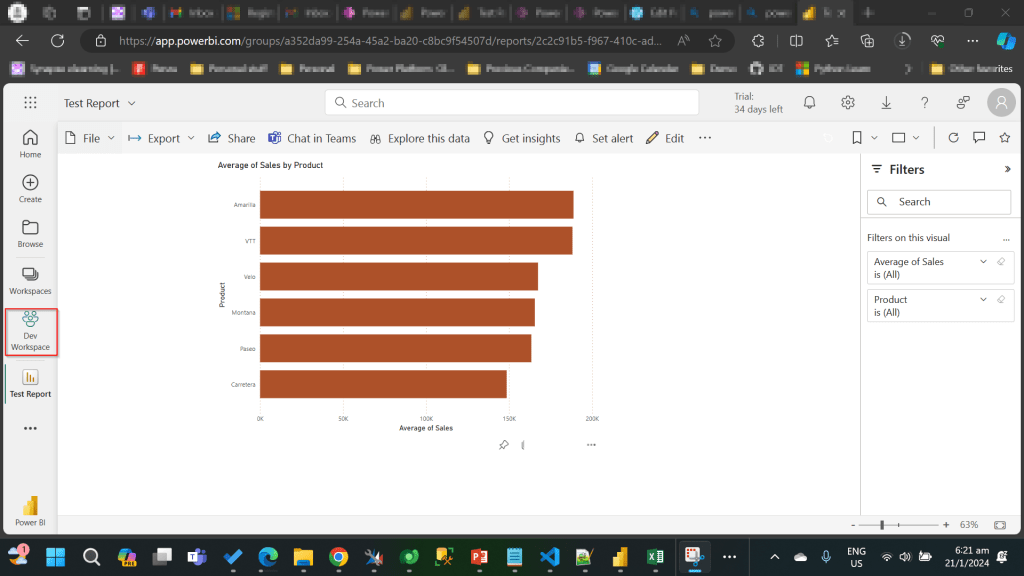
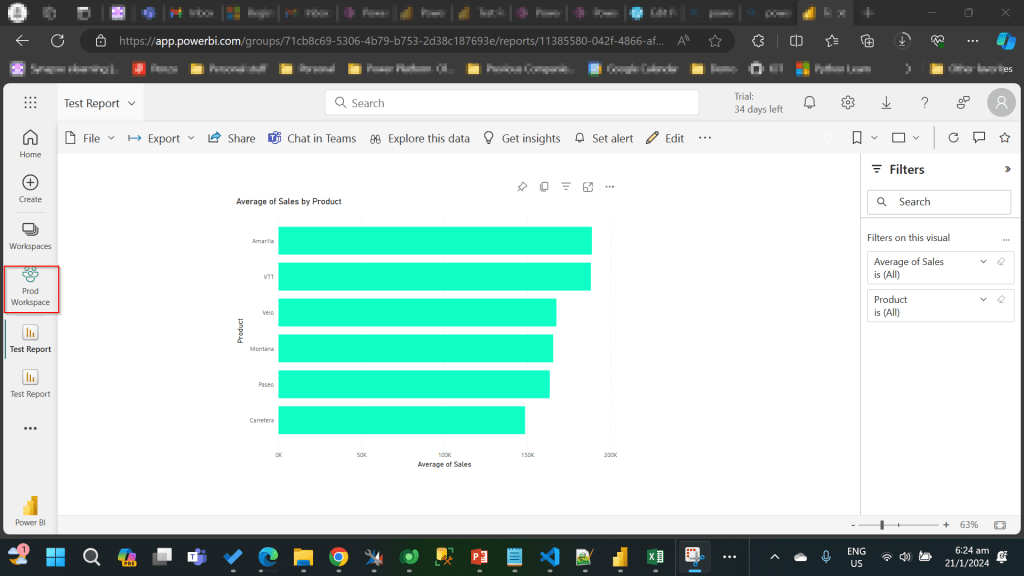
I have the following reports in workspaces.

Development workspace:

Production Workspace:

Now in order to deploy the report to Production, we need to use a managed solution and the report should point to Production workspace. So, in order to handle this, we will need to define an environment variable to store the workspace information. So, let’s get started.

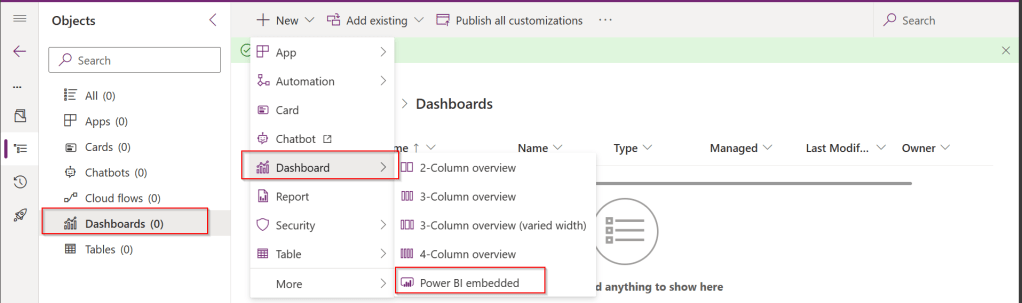
First, we will create a Power BI embedded report in Development environment.

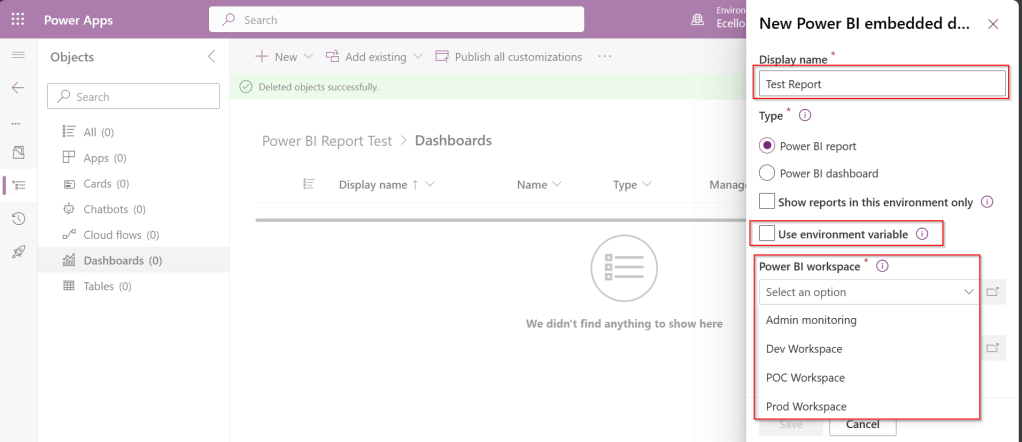
While you were creating a Power BI embedded report, you will be presented an option to choose from the Power BI workspace.

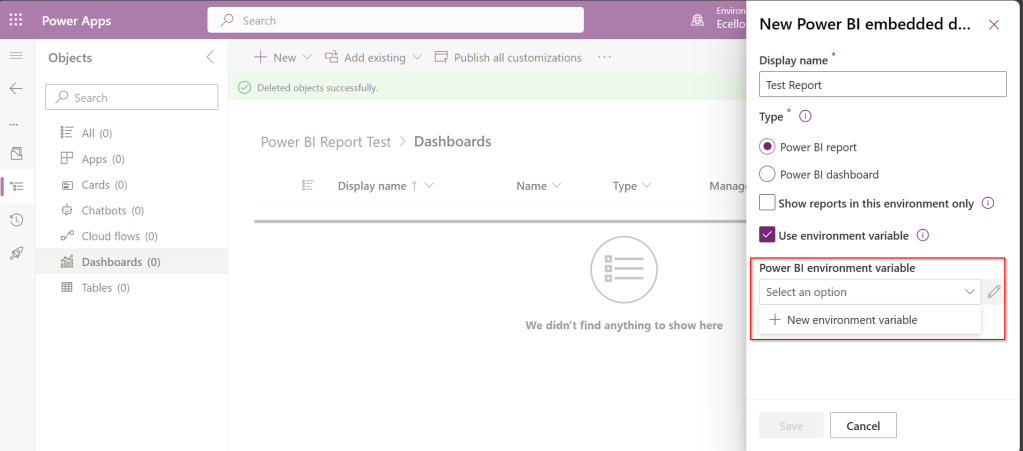
In order to achieve this requirement of deploying different versions of Power BI report in different instances, we need to use environment variable, so check the Use environment variable option.

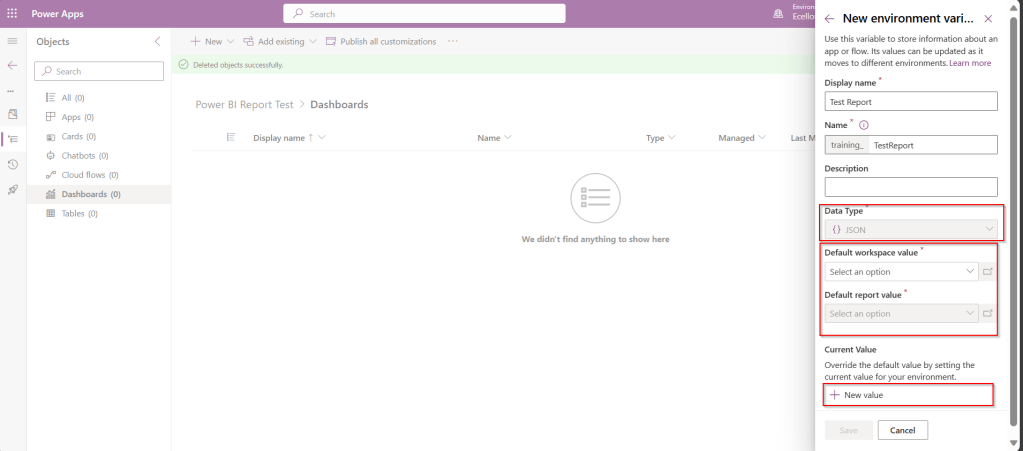
  1. The environment variable will be specific to this report and should be included in the solution when we want to deploy this report to higher environment.
  2. The next thing to note is that Default workspace would reflect the default value for this report and current value is required when we want to set to another report in a different environment.

In Development environment, we choose as below..

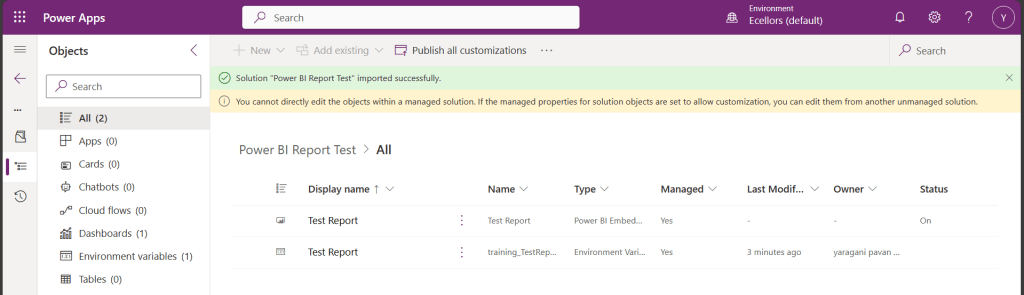
Once the environment variable is saved, we now have 1 Dashboard and 1 environment variable component in the solution.

This solution is published and then exported as Managed solution, imported to another environment (Default environment which serves as Production environment here).

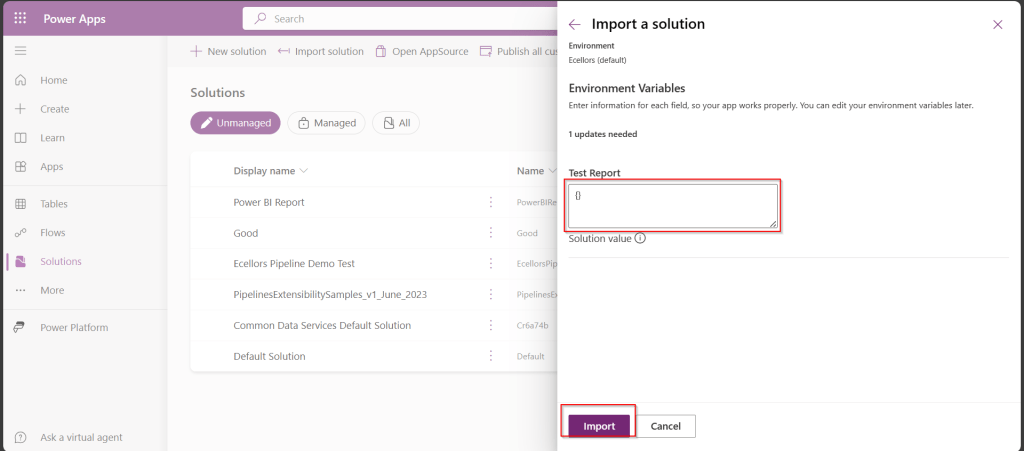
While importing, it asks to update environment variable, you can proceed to click on Import.

Now we have the solution in Default environment.

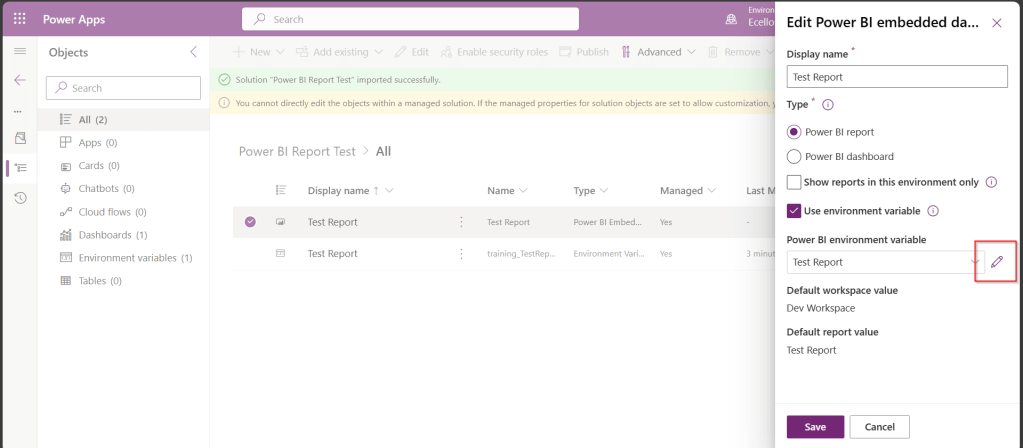
In order to update the value of the report to consider from Production environment, we need to open the report and click on the Pencil icon besides the Power BI Environment variable.

Then choose Prod workspace and its respective report and click save, publish.

That’s it…

You will be able to see two different reports in your Development and Default instances.

In this way, it is very easy to manage and deploy different versions of Power BI Report to different environments like Dev, Test, Prod.

Hope this helps…

Cheers,

PMDY