
![Design your Data Model efficiently with Star Schema for Power BI – [Must Know]](https://ecellorscrm.com/wp-content/uploads/2023/04/power-bi-star-schema-page-image.png?w=922)
Hi Folks,
This blog post isn’t about any use case, rather it just highlights the importance and benefits of designing your data model for your reporting requirements. Every Power BI Developer should consider this at first place.
When designing your Power BI Reports, Data Modelling is the first step whenever you want to work with the Power BI dashboards or reports which plays a very key role. Coming to Schemas, I can say there are two schemas namely Star Schema and Snow Flake Schema. This blog post mainly talks about Star Schema for your Power BI Report/Dashboard design.
With Star Schema, Power BI data models are optimized for performance and usability. While every consultant try to create stunning visuals, they also need to focus on their data model before spending time on their report design.
Star Schema revolves around 2 types of tables in general, they were Fact tables and Dimension tables(talks about the business entities).
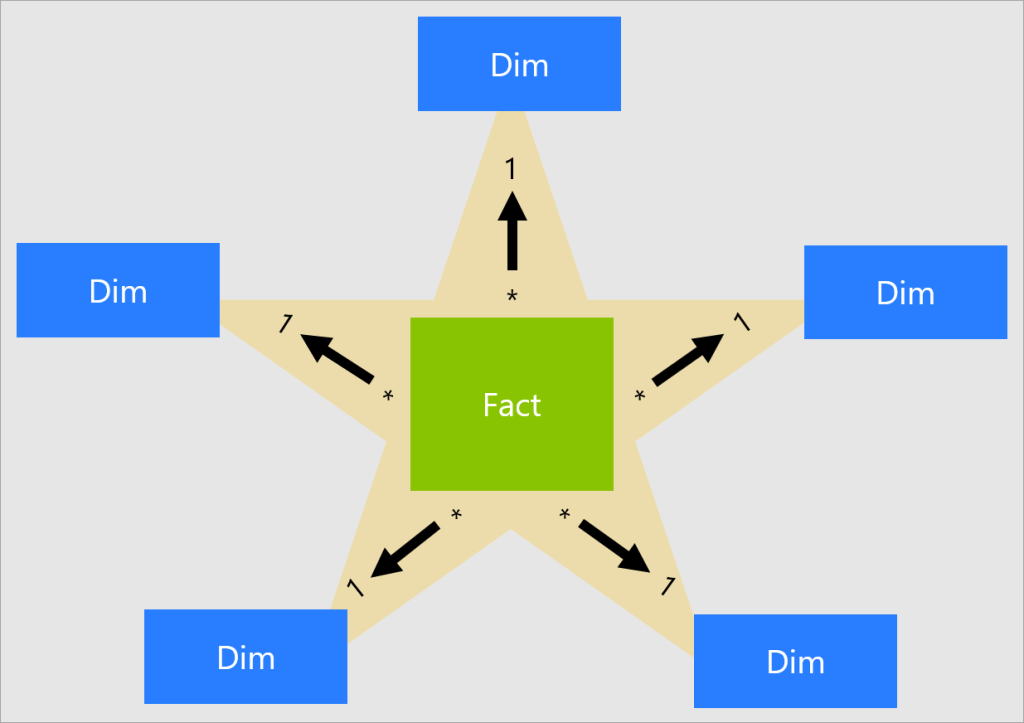
Fact table is central table in star schema. Dimension table are the tables which were connected to Fact table using a one-to-many or many-to-one relationship. Generally, dimension tables contain a relatively small number of rows. Fact tables, on the other hand, can contain a very large number of rows and continue to grow over time. So now let’s see how a star schema looks like and taken from Adventure works sample.
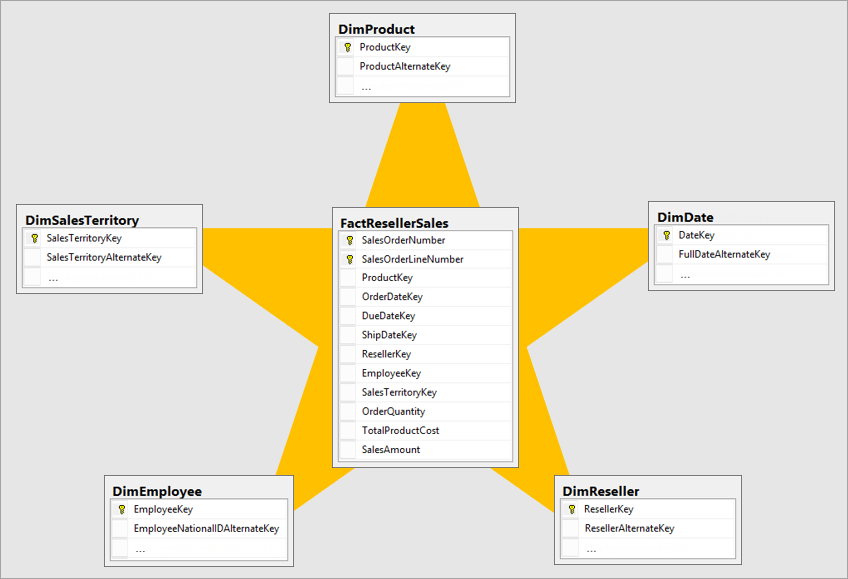
Main point to note here is Normalization and Denormalization capabilities which are two great concepts to understand how star schema can help increase the performance of your dataset.
Star schema requires normalized tables and SnowFlake Schema needs denormalized tables. The design fits well with star schema principles:
- Dimension tables support filtering and grouping
- Fact tables support summarization
You can visualize the relationship as per the below diagram…
These concepts include, I will brief about the below topics which were not widely popular yet must know for designing an efficient Power BI Dataset.
- Measures: These are defined on a fact table that is used to summarize the data in Power BI.
- Surrogate keys: It is nothing but an Unique Identifier for a particular table
- Snowflake dimensions:A set of normalized tables for a single business entity
- Role-playing dimensions: A dimension that filters the fact table differently i.e on a different date columns etc.
- Slowly changing dimensions: Measures changes of the members over time. Can be of Type1 or Type2.
- Junk dimensions
- Degenerate dimensions: It refers to an attribute of fact table that is required for filtering.
- Factless fact tables: Any bridging table acts as Factless table and it only contains surrogate keys.
Last but not the least, I should say that following and designing your data model using Star Schema is a best practice suggested by Microsoft.
You can lookout for references if you want to see video which can be of great help for you to understand the star schema mainly for beginners…
References:
Star Schema Data Model in Power BI
Hope this helps…
Cheers,
PMDY






 ECELLORS CRM Blog